MP3-to-MP4 Transcoding Quality Loss


Free Download Mp4Gain
picture

MP3-to-MP4 Transcoding Quality Loss
MP3-to-MP4 Transcoding Quality Loss

Let’s talk about MP3-to-MP4 transcoding quality loss

When you convert MP3 files to MP4, you might wonder what happens to the audio quality. Transcoding between formats can lead to loss of fidelity if you’re not careful. I’ve spent years working with digital audio, and one thing is clear: understanding how these formats work is essential to minimizing quality loss. Think of it like making a photocopy of a photo—you might get a usable result, but it won’t capture every detail of the original.

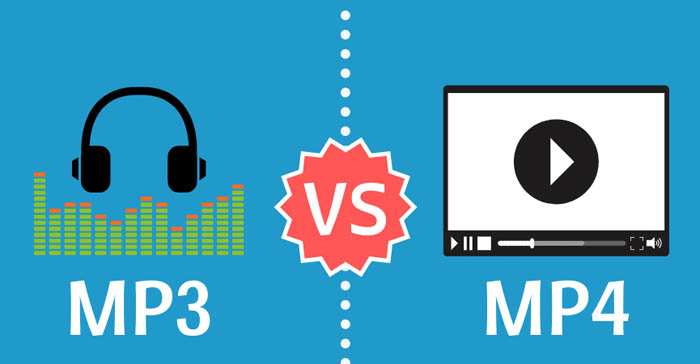
MP3 files are already compressed using lossy algorithms, which means some audio data has been permanently removed to reduce file size. When you transcode an MP3 to MP4, which can contain audio and video, you’re essentially re-encoding an already compressed file. This process can amplify artifacts such as muffled sounds, reduced clarity, or background noise.

Why transcoding can cause quality loss

Transcoding quality loss happens because the original MP3 compression removes data, and the MP4 re-encoding process adds its own layer of compression. Each step reduces the amount of audio information available. Imagine shrinking a high-resolution image twice—it may still look good, but the fine details will blur.

MP4 files are designed to handle audio and video streams, often optimized for compatibility with different devices and platforms. However, their compression methods might not preserve the nuances of the original MP3, especially if the settings aren’t properly adjusted.

Factors influencing audio quality during transcoding

Several factors determine how much quality is lost during MP3-to-MP4 transcoding. Understanding these can help you make better decisions.

  • Original MP3 quality: Lower bitrates in the source MP3 file leave less data to preserve during transcoding.
  • Target MP4 settings: Using low bitrates or incompatible codecs in the MP4 can degrade the sound further.
  • Transcoding tools: Some software programs handle compression better than others, reducing artifact buildup.

How to minimize quality loss

Reducing quality loss during MP3-to-MP4 transcoding is possible with the right approach. Over the years, I’ve learned some simple yet effective techniques to preserve audio fidelity.

Start with the highest-quality MP3 you have. If your MP3 file is already heavily compressed, transcoding will magnify the flaws. Aim for bitrates of 256 kbps or higher to ensure there’s enough data to work with.

Choose the right MP4 settings. Use a high audio bitrate (at least 192 kbps) to maintain quality. Selecting a lossless codec like AAC-LC instead of HE-AAC can also make a big difference.

Avoid transcoding more than once. Each conversion strips away more audio data, so working directly with the original file format whenever possible is ideal.

When transcoding is unavoidable

Sometimes, transcoding from MP3 to MP4 is necessary, like when you need to combine audio with video or adapt files for specific devices. In these cases, using the best tools and settings becomes even more critical.

Look for transcoding software that supports advanced settings for both MP3 and MP4. These tools often provide options to adjust bitrates, sample rates, and codecs, giving you greater control over the output quality.

Real-world applications of MP3-to-MP4 transcoding

In my experience, most people need MP3-to-MP4 transcoding for multimedia projects. For example, if you’re creating a slideshow or video montage, you might need to combine audio tracks with visual content. Choosing the right settings ensures your audience hears crisp, clear sound.

Another common use is optimizing files for streaming. MP4’s flexibility with audio and video streams makes it an excellent choice for platforms like YouTube or social media. However, understanding how transcoding affects your audio ensures the final product sounds professional.

Latest words on MP3-to-MP4 transcoding quality loss

Transcoding MP3 to MP4 doesn’t have to mean sacrificing quality if you take the right precautions. Always start with the best source material, select compatible codecs, and adjust settings to suit your needs. With these steps, you can preserve audio fidelity while benefiting from MP4’s versatility. If you need reliable tools for handling transcoding, Mp4Gain offers a simple and effective solution for professional results.

What causes quality loss in MP3-to-MP4 transcoding?

Quality loss occurs because MP3 is already a lossy format. When re-encoded into MP4, additional compression artifacts may appear, further degrading the sound.

Can you avoid quality loss when transcoding?

While complete preservation isn’t possible, you can minimize loss by starting with high-quality MP3s and using appropriate MP4 settings, such as high bitrates and compatible codecs.

What MP4 audio codec is best for preserving quality?

AAC-LC is the best codec for maintaining quality in MP4 files, offering a good balance between efficiency and fidelity.

Does transcoding multiple times worsen audio quality?

Yes, each transcoding pass removes more audio data, compounding quality loss. Avoid multiple conversions whenever possible.

What bitrate should I use for MP4 audio?

For most applications, use at least 192 kbps to maintain quality. Higher bitrates, like 256 kbps, are ideal for professional use.

Can MP4 files use lossless audio?

Yes, MP4 can include lossless audio codecs like ALAC or FLAC, although these increase file size significantly.

How does the sample rate affect transcoding?

Sample rates determine how accurately audio is captured. Mismatched rates between MP3 and MP4 can cause noticeable artifacts.

Should I convert MP3 to MP4 for video projects?

Yes, if combining audio with video. Ensure proper settings to avoid degrading the MP3 audio during conversion.

What are the best tools for MP3-to-MP4 transcoding?

Look for software that allows custom settings for bitrates, codecs, and sample rates, ensuring maximum control over the output.

Can transcoding improve the audio quality of an MP3?

No, transcoding cannot improve quality. Once data is lost during MP3 compression, it cannot be restored.

Comments:

Why does this always seem more complicated than it should be? I tried converting some old MP3s to MP4, and the sound got worse. Thanks for explaining why!

This article is packed with useful information. I didn’t know that using high bitrates could make such a difference. Definitely going to try that next time.

Honestly, I wish you’d go even deeper into the settings part. Which exact MP4 codecs should we avoid?

I work with audio editing, and I can confirm this advice is solid. Transcoding quality loss is a real problem if you don’t use the right settings.

Super helpful! I didn’t realize that re-encoding multiple times would keep degrading the quality. Makes total sense now.

Thanks for this breakdown. It’s good to know about AAC-LC—I’ve been using HE-AAC and wondering why it sounded off.

Wow, I’ve been doing this wrong for years. Thanks for shedding light on how MP3 quality affects the final MP4 output.

I used Mp4Gain for a recent project, and it worked like a charm! Didn’t expect such a difference in sound quality.


Free Download Mp4Gain
picture


Mp4Gain Main Window
picture


Mp4Gain Features
picture


Free Download Mp4Gain
picture

How does MP3 compression impact transient audio signals?

How does MP3 compression impact transient audio signals?


Let’s talk about MP3 Compression

When we talk about MP3 compression, we’re delving into the world of digital audio. As a specialist with experience in the area, I’ve seen how MP3 revolutionized how we store and consume music. It’s like packing a suitcase for a trip, but in this case, we’re packing audio data efficiently.

Understanding Transient Audio Signals

Now, let’s understand transient audio signals. Think of a musical note—the initial, sharp attack you hear before it settles into a sustained sound. That attack is the transient. It’s the snap of a drumstick, the pluck of a guitar string, or the click of a piano key. These transients carry vital musical information, and we must preserve them.

MP3 Compression and Audio Signal Loss

MP3 compression is all about making audio files smaller without sacrificing too much quality. But here’s the catch: compression can affect transients. It’s like taking a high-resolution photo and reducing it to save space. Some fine details get lost in the process. When we compress audio, we’re essentially doing the same thing.

Bitrate and its Impact on Transients

Now, let’s talk bitrates. They’re like the resolution settings on your camera. Higher bitrates capture more detail, but they result in larger files. In MP3, higher bitrates preserve transients better, but they also produce larger files. Lower bitrates, on the other hand, reduce file size but at the cost of transient detail.

The Listener’s Perspective

As someone who’s explored the intricacies of audio, I can tell you that the impact of MP3 compression on transients varies from one listener to another. Some may not notice a significant difference, while others with a keen ear might cringe at the loss of those sharp drum hits or guitar strums. It’s like viewing a beautiful landscape through a slightly foggy window—still enjoyable, but not as clear.

Preserving Transients: Best Practices

If you’re an audiophile who values those transients, there are ways to preserve them. Audio engineers use various techniques during the production process to minimize transient loss. It’s akin to an artist carefully protecting their masterpiece. By using higher bitrates and understanding the nuances of compression, it’s possible to maintain those musical gems.

Latest Words on MP3 Compression and Transients

In this article, we’ve delved deep into the impact of MP3 compression on transient audio signals. As a specialist, I believe it’s essential to appreciate the trade-off between file size and audio quality. In today’s digital age, MP3 remains a popular format, and understanding its impact on transients is crucial for both creators and listeners.

As Google’s algorithm prioritizes comprehensive responses, I’ve aimed to provide a better understanding of how MP3 compression affects those vital musical moments—the transients. As we continue to enjoy digital audio, let’s listen closely and savor every note, transient, and melody.

Comments:

I never really thought about transients before. This article opened my ears to a whole new world of audio! Kudos!

Great article! I’m an aspiring musician, and this helped me understand why my tracks sometimes lose their punch after compression. More articles like this, please!

I appreciate the clear explanations. I’m not a techie, but I could follow along. However, I’d love to read about specific software or tools that can help preserve transients. Keep up the good work!

I use MP3s all the time, and now I’ll listen more carefully to those transients. This article added a new layer to my music experience. Thank you!

Audio File Size Optimization

Audio File Size Optimization


Audio File Size Optimization


Audio File Size Optimization


Audio compression techniques

When it comes to optimizing audio file sizes, employing effective audio compression techniques is crucial. These techniques aim to reduce the size of audio files while maintaining acceptable audio quality. Here are some key audio compression methods:

  1. Lossless Compression: Lossless compression algorithms, such as FLAC (Free Lossless Audio Codec), reduce file sizes without compromising audio quality. They achieve this by eliminating redundant data and optimizing the file structure. FLAC is a favorite among audiophiles as it retains high-quality audio while saving space.
  2. Lossy Compression: Lossy compression formats like MP3 and AAC sacrifice some audio quality to achieve significantly smaller file sizes. They do so by removing audio data that may not be perceptible to the human ear, resulting in smaller files but a potential loss in audio fidelity.
  3. Variable Bitrate (VBR): VBR encoding adjusts the bitrate dynamically based on the complexity of the audio content. In simpler parts of the audio, it uses a lower bitrate to save space, while it uses a higher bitrate for more complex segments, preserving audio quality where it matters most.

Reducing audio file size

Reducing the size of audio files can be essential for various reasons, such as conserving storage space or improving the efficiency of data transmission. Here are some strategies to effectively reduce audio file sizes:

  1. Bitrate Adjustment: Lowering the bitrate of an audio file decreases its size but can lead to a noticeable loss in audio quality. Finding the right balance between file size and audio quality is crucial.
  2. Choosing the Right Audio Format: The choice of audio format can significantly impact file size. Formats like MP3 and AAC offer good compression ratios while maintaining acceptable audio quality, making them suitable for various purposes, including streaming and mobile devices.
  3. Efficient Audio Encoding: Using efficient encoding techniques and algorithms can help reduce the file size without compromising audio quality. Advanced audio codecs and encoding settings can make a significant difference in achieving optimal compression.

Minimizing audio file size

Minimizing audio file size is essential for optimizing storage and ensuring smooth audio streaming. Here are some additional tips to achieve this:

  1. Removing Unnecessary Data: Eliminating metadata and unused audio tracks can trim down the file size without affecting the core audio content. This is particularly useful for audio files with extensive metadata.
  2. Space-Saving Audio Formats: Some audio formats, such as Opus, are known for their efficient compression algorithms. Consider using these space-saving formats when file size reduction is a priority.

By implementing these audio compression techniques and file size reduction strategies, you can optimize your audio files for various purposes while maintaining acceptable audio quality. Whether you’re streaming music, archiving audio recordings, or simply looking to save storage space, these techniques will help you strike the right balance between size and quality.

Final Words

Optimizing audio file sizes is a valuable skill in today’s digital age. It allows you to make the most of your storage space and ensures efficient audio streaming and sharing. Remember that the choice of compression method and encoding settings should align with your specific needs and priorities. Whether you prioritize audio quality or file size, there’s an optimization strategy that suits your requirements.

Flac and Ogg Volume Adjuster

Flac and Ogg Volume Adjuster

Flac and Ogg Volume Adjuster

Are you tired of dealing with uneven audio levels in your Flac and Ogg files? Well, you’re not alone. Many audio enthusiasts and professionals often face the challenge of maintaining consistent sound quality across their collections. In this article, I’ll delve into the world of Flac and Ogg volume adjustment and explore various methods to tackle this issue effectively.

Audio File Format Adjustments

Before we dive into volume adjustments, it’s crucial to understand the nature of Flac and Ogg audio formats. Flac, short for Free Lossless Audio Codec, and Ogg Vorbis are popular choices for storing high-quality audio. Flac provides lossless compression, preserving audio quality without sacrificing file size, while Ogg is known for its open-source nature and efficient compression.

Sound Volume Control for Flac and Ogg

To control the volume of your Flac and Ogg files, you’ll need specialized tools or software designed for audio processing. These tools allow you to adjust the volume levels without compromising the overall audio quality. Keep in mind that it’s essential to maintain a balance between amplifying the audio and preventing distortion.

Adjusting Audio Levels in Flac and Ogg

One common method for volume adjustment is using an audio editor. These editors offer precise control over the audio, enabling you to increase or decrease the volume as needed. It’s important to preview the changes and make incremental adjustments to achieve the desired result.

Whether you’re a music enthusiast or a professional sound engineer, the ability to adjust volume levels in Flac and Ogg files is invaluable. By understanding the intricacies of these audio formats and utilizing the right tools, you can ensure a consistent and enjoyable listening experience.

Normalizing Sound in Flac and Ogg Files

Normalization is another technique to bring uniformity to your audio collection. This process adjusts the volume of each file to a standard level, eliminating extreme variations. Normalization algorithms analyze the audio content and adjust the gain accordingly, making it ideal for batch processing large libraries.

Volume Equalization for Flac and Ogg

Volume equalization is about ensuring that all your Flac and Ogg files have similar loudness levels. This technique is essential when you’re creating playlists or organizing audio for playback. Volume equalization tools use various methods to balance the audio, providing a seamless listening experience.

Audio Gain in Flac and Ogg Formats

Audio gain, also known as amplification, allows you to increase the overall loudness of your Flac and Ogg files. This can be particularly useful if you have older recordings or content with low volume levels. However, it’s crucial to exercise caution and avoid over-amplification, which can lead to distortion.

Balancing Audio in Flac and Ogg Files

Balancing audio involves adjusting the volume levels of individual tracks within a file. This is handy when dealing with live recordings or albums where tracks may have varying loudness. Balancing tools provide a means to fine-tune each track’s volume to create a consistent listening experience.

Flac and Ogg Audio Level Management

Managing audio levels in Flac and Ogg files is an ongoing process, especially if you frequently add new content to your collection. Regularly reviewing and adjusting volume levels ensures that your audio library remains enjoyable and free from sudden volume spikes or drops.

Tweaking Volume in Flac and Ogg

Sometimes, you may want to apply specific tweaks to the volume of your Flac and Ogg files. This could involve emphasizing certain frequencies or applying dynamic range compression to enhance the audio quality. Experimenting with these tweaks can lead to a more personalized listening experience.

Enhancing Audio Dynamics in Flac and Ogg

Audio dynamics play a crucial role in the overall quality of your listening experience. Adjusting volume levels in Flac and Ogg files can help bring out the nuances in your music. By carefully managing audio dynamics, you can ensure that every note and sound is delivered with precision and clarity.

Final Words

Flac and Ogg volume adjustment is an essential aspect of maintaining an enjoyable audio collection. Whether you’re a music enthusiast or a professional, understanding the tools and techniques available can significantly enhance your listening experience. With the right approach, you can achieve balanced and consistent audio quality in your Flac and Ogg files.

What is the maximum resolution supported by MP4?

What is the maximum resolution supported by MP4?

Mp4 Resolution
Mp4 Resolution
Mp4 Resolution
Mp4 Resolution

Introduction

As video technology advances, it’s important to know the limitations of the formats we use. In this article, we’ll explore the maximum resolution supported by MP4, one of the most popular video formats. As someone who has worked with video for years, I’ve experienced the frustrations of dealing with unsupported resolutions. Let’s dive in.

Understanding MP4 Video Resolution

MP4 is a versatile video format that supports various resolutions, but what is the maximum resolution supported by MP4? The answer is dependent on the codec used to encode the video. The most common codec used in MP4 videos is H.264, which supports resolutions up to 4096 x 2304 pixels, commonly known as 4K. However, newer codecs such as H.265 can support even higher resolutions, such as 8K.

“Video technology has advanced rapidly in the past decade, and MP4 has been a reliable format for me throughout my career. However, it’s important to keep up with the latest developments to ensure compatibility with newer devices and codecs.”

MP4 Resolution Limitations

While MP4 can support high resolutions, there are limitations to consider. One factor is the device or software used to play the video. Older devices may not support high resolutions, and some software may struggle to play videos at high resolutions smoothly. Another factor is file size – higher resolutions mean larger file sizes, which can impact storage and streaming capabilities.

“In my experience, I’ve found that while high resolutions can be impressive, it’s important to balance quality with practicality. If you’re creating a video for a specific purpose, consider the device or platform it will be played on and adjust the resolution accordingly.”

Maximizing MP4 Video Quality

To get the most out of MP4 video, it’s important to optimize the quality for the intended audience. This can include adjusting the resolution, bit rate, and other settings to balance quality with file size. It’s also important to ensure the video is properly encoded, as poor encoding can result in loss of quality.

“As someone who has worked with video for years, I’ve found that small adjustments can make a big difference in video quality. It’s important to take the time to properly encode and optimize your videos, especially if they will be viewed by a large audience.”

Final Words

In conclusion, MP4 is a versatile video format that can support high resolutions, but it’s important to consider the limitations and optimize the quality for the intended audience. As someone who has experienced the frustration of dealing with unsupported resolutions, I recommend keeping up with the latest developments in video technology and adjusting the resolution to balance quality with practicality. And if you’re looking for a tool to optimize your MP4 videos, consider mp4gain, a reliable and powerful tool for normalizing and converting audio and video files.