Normalize video files


Free Download Mp4Gain
picture

Normalize video files
Normalize video files

Standardize video formats

Standardizing video formats is a crucial step in ensuring seamless playback and compatibility across different devices and platforms. When you have a collection of video files in various formats, it can be challenging to manage and share them effectively. To address this, you can use video conversion software to convert all your video files into a single, standardized format.

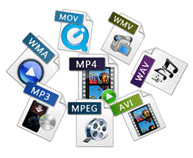
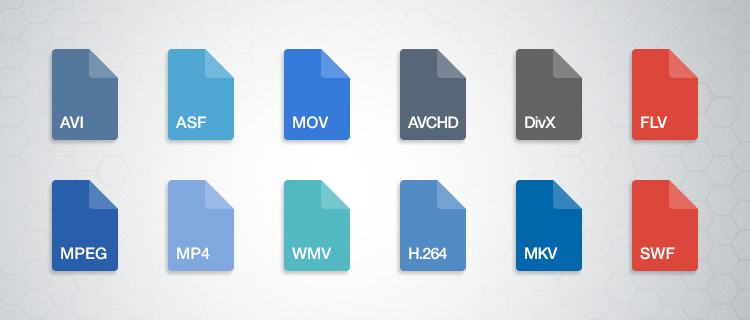
For example, if you have videos in formats like AVI, WMV, and MOV, you can convert them to a widely accepted format like MP4. This not only ensures compatibility but also makes it easier to organize your video library. Plus, most modern devices, including smartphones and smart TVs, support MP4, making it a versatile choice.

By standardizing your video formats, you can save time and avoid potential playback issues, making your video collection more accessible and user-friendly.

Video file consistency

Video file consistency goes beyond just the format; it includes aspects like resolution, frame rate, and audio settings. When you normalize video files for consistency, you’re essentially ensuring that all your videos have the same specifications. This is particularly important when creating a cohesive viewing experience, such as for a video playlist or a series.

Imagine you’re a content creator working on a web series. To maintain viewer engagement, you want all episodes to have identical quality and settings. Normalizing video files in this context involves making sure each episode shares the same resolution, frame rate, and audio settings. Consistency not only looks more professional but also eliminates distractions for your audience.

Using video editing software or dedicated normalization tools, you can easily adjust these parameters to achieve the desired consistency across your video files.

Video quality optimization

Video quality optimization is all about making your videos look their best while keeping file sizes manageable. When dealing with large video files, optimizing them ensures faster streaming and efficient storage. It’s a balance between maintaining high quality and reducing unnecessary bulk.

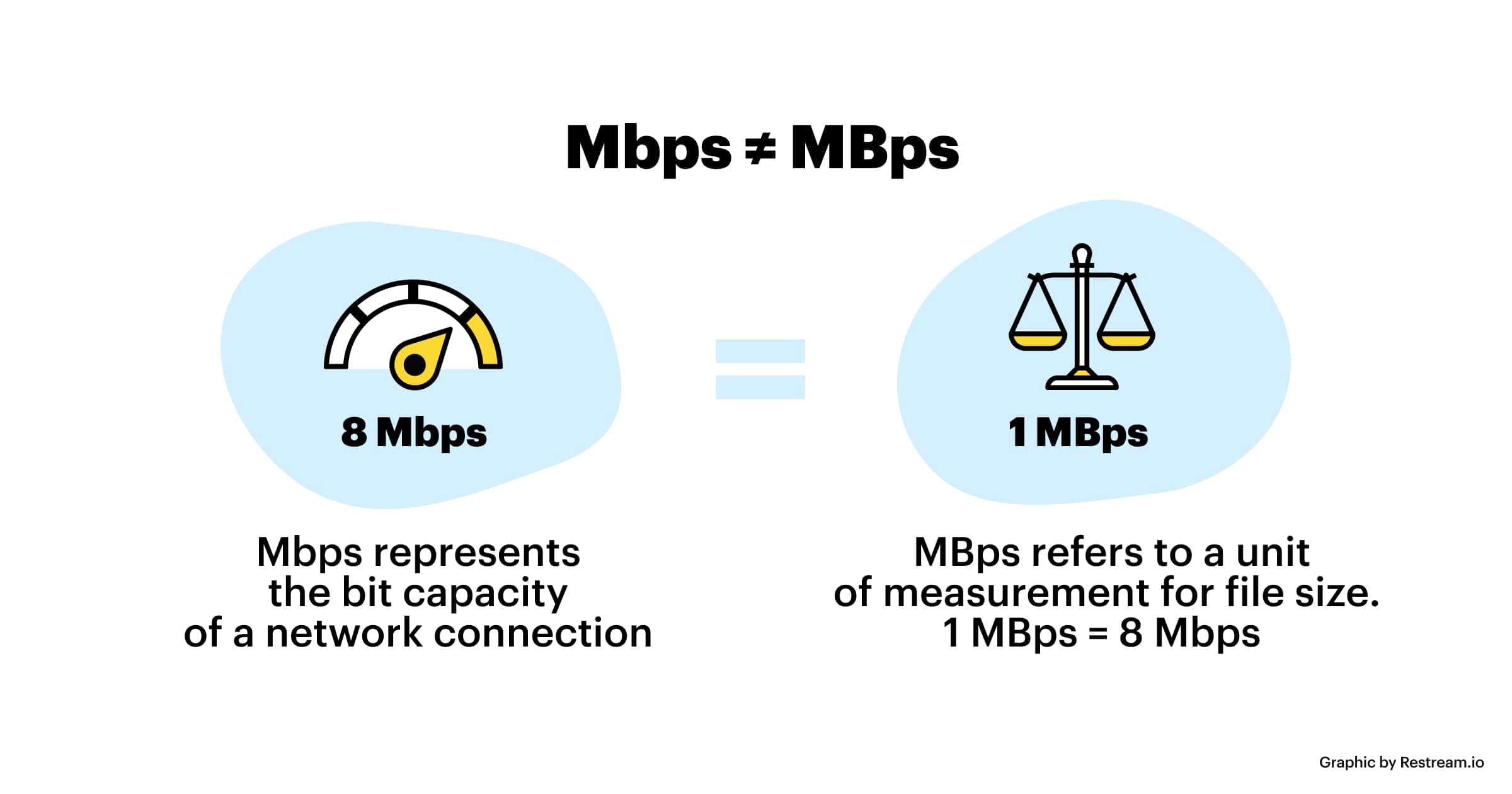
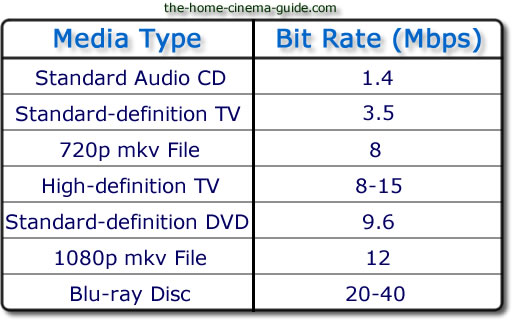
One of the key factors in video quality is bitrate. Higher bitrates result in sharper images and better sound, but they also lead to larger file sizes. To optimize video quality, you’ll want to find the sweet spot where quality remains excellent, but the file size isn’t excessively large. This is especially important when you’re uploading videos to online platforms, as they often have file size limitations.

Experimenting with different bitrates, resolutions, and codecs can help you strike that balance. Video editing software usually provides options for adjusting these settings, allowing you to fine-tune your videos for optimal quality.

Video compression techniques

Video compression is a fundamental aspect of normalizing video files. Compression techniques help reduce the file size of your videos without sacrificing too much quality. This is particularly useful when you need to save storage space or ensure smooth streaming over the internet.

Common video compression codecs include H.264 and H.265, which are widely supported across various devices and platforms. These codecs employ advanced algorithms to remove redundant information from your video files, resulting in smaller sizes while preserving good visual quality.

When applying video compression, it’s essential to strike a balance between compression level and quality. Higher compression can significantly reduce file size but may lead to a noticeable loss in quality, especially in highly detailed scenes. Experiment with different compression settings to find the right compromise.

Uniform video resolutions

Having uniform video resolutions is essential for a polished and professional look in your video collection. When videos have varying resolutions, it can be jarring for viewers to switch between them. Normalizing video resolutions involves adjusting all your videos to a consistent resolution.

Popular resolutions include 720p (HD), 1080p (Full HD), and 4K (Ultra HD). The choice of resolution depends on your specific needs and the capabilities of your target devices. For example, if you’re creating content for YouTube, 1080p is a standard choice that balances quality and file size.

By maintaining uniform resolutions, you ensure that your videos have a cohesive visual identity, making your content more appealing to viewers.

Consistent video bitrate

Consistency in video bitrate is another critical factor when normalizing video files. The bitrate determines the amount of data used to represent each second of video, directly impacting both quality and file size.

When you have videos with varying bitrates, it can lead to inconsistent quality and playback issues. To address this, normalize the bitrate across all your videos. This means ensuring that they all use a similar bitrate setting, which can be adjusted using video editing software or dedicated normalization tools.

Consistency in bitrate helps maintain a uniform viewing experience and prevents abrupt quality changes when switching between videos.

Video file compatibility

Ensuring video file compatibility is a fundamental step in making your videos accessible across different devices and platforms. Incompatibility issues can lead to frustrating experiences for viewers, such as playback errors or distorted visuals.

Before normalizing your video files, it’s crucial to understand the compatibility requirements of your target audience. Different devices and platforms may have specific format and codec preferences. For example, iOS devices tend to work best with H.264-encoded MP4 files, while some older devices may require different formats.

By researching and catering to the compatibility needs of your audience, you can ensure that your videos are easily accessible and enjoyable for everyone.

Normalizing multimedia files

Normalizing multimedia files extends beyond just video; it includes audio as well. Multimedia files often comprise various elements, such as video, audio, subtitles, and more. Normalization ensures that all these elements are balanced and harmonized for a seamless viewing experience.

For instance, when dealing with multimedia presentations or video editing projects, you want the audio levels to be consistent throughout. You wouldn’t want viewers to constantly adjust their volume because some parts are too quiet, while others are too loud. Normalizing audio levels across your multimedia files can solve this issue.

Additionally, subtitles and captions should be synchronized correctly with the video content, enhancing accessibility and comprehension. Multimedia normalization tools can assist in achieving these goals, providing a well-rounded viewing experience.

Video format conversion

Video format conversion is a versatile process that allows you to adapt your video files for different purposes. Whether you’re preparing videos for online streaming, archiving, or compatibility with various devices, conversion plays a significant role.

Conversion tools enable you to change not only the format but also other attributes like resolution, frame rate, and bitrate. This flexibility ensures that your videos are optimized for their intended use. For instance, when preparing videos for social media, you might convert them to formats and resolutions suitable for each platform’s requirements.

Additionally, format conversion can be handy when you want to preserve old video footage recorded in outdated formats. Converting these videos to modern formats ensures they remain accessible and of acceptable quality.

Video quality enhancement

Enhancing video quality goes beyond normalization; it involves improving the visual and auditory aspects of your videos. While normalization focuses on consistency and compatibility, quality enhancement aims to make your videos more visually appealing and engaging.

There are various techniques and tools available for video quality enhancement. These include color correction, sharpening, denoising, and even special effects. When used judiciously, these enhancements can breathe new life into your videos, making them more captivating for your audience.

For example, if you have older footage with faded colors, color correction can restore vibrancy. Similarly, adding subtle sharpening can make your videos look crisper and more professional.

Remember that quality enhancements should be applied thoughtfully, preserving the integrity of your original content while making it more visually appealing.

Final Words

Normalizing video files involves several aspects, from format standardization to quality optimization. Each step contributes to a smoother viewing experience and greater accessibility for your audience. Whether you’re a content creator, video enthusiast, or someone looking to organize their video collection, understanding these principles can help you make the most of your video files.

By ensuring video format compatibility, maintaining consistency in various attributes, and enhancing overall quality, you can present your videos in the best possible light. Remember that the specific approach may vary depending on your goals and target audience, so always tailor your normalization efforts to your unique requirements.


Free Download Mp4Gain
picture


Mp4Gain Main Window
picture


Mp4Gain Features
picture


Free Download Mp4Gain
picture

What is the encryption mechanism? Part 2

What is the encryption mechanism? Part 2

Video Bitrate

However, in the case of moving images, the quality of the image at the time of encoding will vary depending on whether the video material has a lot of movement or the video material has little movement, even if the bit rate is the same. Therefore, it is necessary to thoroughly judge and encode not only the bit rate, but also the frame rate and keyframe settings, which will be explained later, according to the video material. I hope you understand that “there is a relationship between resolution and proper bit rate” as a determining factor for high definition.

videro bit rate

Point 2: Increase the frame rate if movement is important and lower the frame rate if image quality is important.
While the frame rate (number of frames) is set at 29.97 fps for televisions and 24 fps for movies, the frame rate is freely configurable for Internet video encoding. A video is a collection of continuous images (frames) like a flip book. The more frames per second, the smoother the movement.

In video encoding, the bit rate per second is fixed, so if you increase the frame rate, the number of images in the flip book will increase and the movement will be smoother, but the amount of data allocated per frame will decrease, so the image quality will be better to fall.
On the other hand, if you reduce the number of frames, the number of images in the flip book will decrease and the smoothness of the movement will be a little slower, but the image quality will improve because a large amount of data will be allocated to each frame. .

If you want to emphasize the smoothness of motion in a video with a lot of motion, increase the frame rate (video demo 1). On the other hand, if the video has little movement, it is not necessary to increase the number of frames as much (depending on the degree), so it is effective to lower the frame rate and give priority to improving the image quality

Point 3: insert “keyframes” at short intervals for moving images
A keyframe is a frame that exists as a single still image (an image that is not compressed between frames) and is the starting point for difference information. Depending on the encoder settings, the keyframes are inserted when there is a scene change and the difference information is inserted at regular intervals, such as XX frames and once every XX seconds.

■ Keyframes for moving images
In a moving image, things move or change significantly in a short time. Therefore, inserting keyframes at short intervals improves the reproducibility of small movements.
There is also the advantage that the search is smoother for images with many keyframes. The reason is that the search is based on keyframes, so the more keyframes you have, the easier it is to stop at the target scene. If the position where the search stops is not a keyframe but a difference information frame, the information is fetched to a nearby keyframe, but that time is short.
However, if you increase the number of keyframes too much, the keyframe bit rate will be taken over and the overall video quality will deteriorate, so be careful.
For moving images, the keyframe is approximately once every 3 seconds.

■ Keyframes for images with little movement
Since there is little difference information in a video with little motion, you won’t notice much difference in change even if there are few keyframes. However, if you insert keyframes for too long, search may not work properly and playback may take a long time to start. This is the opposite of the case where there are many keyframes, and if the rewind position is far from the keyframes, it will take time to read.
For those with little movement, the guideline for keyframes is approximately once every 6 to 8 seconds.

So far, “What is the encoding mechanism? Five points to consider for encoding HD video [Part 1]”, “Understanding the appropriate bit rate for the resolution you want to distribute”, motion oriented or image quality I explained three points how to change the “frame rate” and “how to insert keyframes” depending on whether it is important. In [Part 2], we will explain “the advantages and disadvantages of bit rate settings

What is the difference between MKV and MP4? Why is there a difference in MKV MP4 even though the content is the same?

What is the difference between MKV and MP4? Why is there a difference in MKV MP4 even though the content is the same?

MKV MP4

“What is the difference between mp4 and mkv? Mkv is bigger even if it has the same quality, isn’t it?”

MKV vs MP4

If you are in doubt whether to convert to MKV or MP4 if it converts the video and makes the file size as small as possible, I would like to know the difference between MKV MP4. But before comparing MKV MP4, let’s understand these two video formats.

Both MP4 and MKV are in video format and store audio and video information. It is the video format that determines which video and audio codec can be stored in which format. MKV MP4 The difference is also in the audio and video codecs or the storage methods. MP4 is one of the file formats for storing compressed video data in MPEG-4 format and is specified in Part 14 of the ISO / IEC 14496 standard. Alternatively, it is a format derived from ISO / IEC 14496 Part 12 formulated based on the Apple’s QuickTime media technology file format, and has a structure that follows many of the conventional QuickTime formats. MKV is an abbreviation for Matroska, a multimedia container format for storing data such as video, audio, and subtitles. It uses a data warehousing technology called EBML for backward compatibility and expandability.

Since there are many technical terms and it is difficult to understand, I will introduce MKV and MP4 in detail and explain the difference between MKV MP4. Decide whether you want to convert to MKV MP4 or not and what output format to use after viewing this MKV MP4 comparison explanation.

Let’s compare MKV MP4 with all

compatibility
MP4 is considered the most compatible video format. Compared to MKV MP4 due to compatibility, MKV has no chance of winning. Therefore, the output format is often set to MP4 when converting a video for playback. MP4 is compatible with Mac and Windows environment, and popular devices like iPhone 6s, iPad Pro 9.7 inch, Xperia X, Galaxy 6s can play MP4 videos. Also, MP4 compatibility is good when posting videos to websites. MKV MP4 due to MP4 compatibility seems to be better with the difference.

File size and quality
Comparing MKV and MP4, MP4 has a smaller file size if the video has the same quality and content. Also, MP4 has better quality for videos with similar content and file size. The cause is the storage method and the amount of information stored which tends not to tell the difference between MKV MP4.

Amount of information stored
It is said that information is always lost when converting from MKV to MP4. MKV MP4 is much larger than MKV MP4 depending on the amount of information stored. MP4 can store only one audio and video, but MKV can store multiple audio codecs. Of course, MKV can have only one audio. It is also possible to have multiple subtitles in MKV. Sometimes there are videos where you can choose the language. Shaving is a video like MKV. Now when converting from MKV to MP4, only one audio codec and one subtitle will be saved, so the information will be lost and of course the file size will be smaller. Also, since MKV has information to distinguish and select different audio codecs and play them separately, MKV MP4 with just one audio and subtitles is saved in a different file size.

Which one to use, MKV or MP4 when downloading or converting videos
Now there is software that allows you to select the output profile for both video download and video conversion. So when choosing an output profile, compare MKV MP4 and which one? Of course, compatibility is the best. The size and quality are meaningless if the format is not supported by the device or the system. So what if both MP4 and MKV are supported? Right now, decide by considering the difference between the conversion destination and MKV MP4.

MP4 is best for saving on devices with limited space, such as smartphones. The quality loss is as small as possible and the file size is also small. Also, there are few players that can select the language of the video on a smartphone, and if the player you are using does not have that function, it can only play an audio and a subtitle even if you convert it to MKV.

After all, MKV is best when played on a personal computer. There are many players who can choose the language without worrying about space on the computer. At this time, MKV, which stores all the information in the original quality, is better.

How to normalize the loudness of a video

How to normalize the loudness of a video

Video Loudness

For decades it was achieved that MP3s could be normalized in their volume gain so that they all had the same loudness.

video loudness

Over time, the format of the files that people download has diversified.

If we talk about audio, we could say that people now download files in flac format, in Ogg format, wma, etc.

And with the great relevance that the world of videos has taken lately, many people download music videos and also find it necessary to normalize the volume level of these videos.

Mp4Gain is the best program AND perhaps the only one that can normalize the audio of the videos to make the loudness correct.

Avi, mpeg, mp4, flv, 3gp, etc. Some of the many video formats that Mp4Gain can normalize your volume level are.

The method of handling the program is really very simple because it is only necessary to load the file (s) and press a button to achieve normalization.
It can be batch or one by one.
The result of very high quality and absolutely corrects the problem and also offers the possibility of other capabilities How to equalize and improve the audio of the files also modify their tempo osu.ppy and a whole series of additional possibilities Which are very well received by users .

Normalizing the volume of a video is something that can be easily done today with this Mp4Gain program.

Which of course also allows the same loudness normalization in audio files.

It even also allows converting from one format to another without any problem, being able to even convert what was originally a video of a song into an audio file type MP3 or flac, etc.

Video file formats / formats Part 2

Video file formats / formats Part 2

VIDEO FORMAT

Files that are handled on a personal computer have an extension so you can see what kind of data they are.

Video Formats


For notepad it is “.txt”, for Excel it is “.xls” or “.xlsx” and for images it is “.jpg” or “.png”.

Video files have the same extensions, such as “.mp4”, “.mov”, “.avi” and “.mpg”.

For example, there are more than 10 types of video keys (= codecs) that correspond to the extension “.mov”. In other words, the extension in the video is just a guide to predict the content and keys.

Although it can be identified that it is a video file by looking at those extensions, the extension and the video file, and the video file and the key (= codec) are not one by one, so the extension is just a guide. . to show your identity Always makes it difficult to handle video files.

The main video files, extensions and codecs are summarized below. If you only know the extension and want to check the codec, you should use a software called codec checker like “MediaInfo” or “Vacuum Wave Lab SuperLite”.

Most of the major video players these days, like Windows Media Player for Windows and QuickTime Player for Mac, have a built-in key (= codec), and most of them can play videos with that software. However, keep in mind that some of them are not supported. You need to get that codec or get a player that includes that codec.

Video file format explanation Main extensions Main codecs
MP4 has a high compression rate and is very convenient, but it is difficult to determine the content because there are many codecs. The recommended format for YouTube is H264 mp4 format. .mp4 .m4v (Video) MPEG1 MPEG2 MPEG4 H.263 H.264 H.265 H.264 / AVC WMP9 (Audio) AAC-LC AC-3 MP3 HE-AAC VQ Apple Lossless
MOV A standard file for working with videos on Mac. It is based on MP4 and can also use the MPEG-4 video codec. .mov .qt (Video) MPEG-4 H.264 Motion JPEG (Audio) AAC MP3
MPEG-2 PS It is used as the recording format for DVD and the like. A standard based on the assumption that bit errors are small, created on the premise of storage media. .mpg .mpeg .mpe .m2p (Video) MPEG-1 MPEG-2 (Audio) MPEG1 Layer-II MPEG2 Layer-II LPCM AC-3
MPEG-2 TS The format used by many digital transmission standards around the world. Used in HDTV and Blu-ray recorders .mpg .mpeg .mp2 .m2p .m2t .mpt .m2ts .mts .ts .vob (Video) MPEG1 MPEG2 MPEG4 H.264 / AVC (Audio) MPEG1 Layer- II MPEG2 Layer-II MPEG4 AAC-LC LPCM AC-3 MP3
AVI Please note that the old format cannot be played if the file is incomplete and there are restrictions such as a maximum capacity limit of 2GB. There are a lot of codecs here too. .avi .divx (Video) MPEG1 MPEG2 MPEG4 Motion JPEG DivX 3-5 XviD (Audio) MPEG1 Layer-III MPEG2 Layer-III PCM AC-3
1-4. Frame rate
The frame rate is a value that indicates how many image frames (frames) are recorded per second, just like character reading, and the frame rate value is ◯ fps or ◯ f / s. I will describe it. In other words, if 30 images (frames) are recorded per second, the value will be 30 fps or 30 f / s.

The higher the frame rate value, the smoother the video will move, and the lower the frame rate value, the more choppy the video will be. In other words, the frame rate can be reformulated as a value that represents the smoothness of the moving image display.

The video on the right reproduces the difference in video depending on the frame rate.

The higher the frame rate, the better. A video with a large frame rate value will have a large number of recorded images, and of course the amount of data will also be large. In addition, there are limits on the human eye, the side of the screen that projects it, and the technical specifications on the middle side, so it is necessary to set it to a suitable value.

Typical frame rates currently used are 24 fps, which is used for filming and animation, 29.97 fps, which is used for television broadcasts in Japan, and recent consumer cameras. There are 59.94 fps conventional, etc. Furthermore, there are also 25fps mainly for Europe.

Is it possible to Normalize or boost the audio of an mp4, avi, mpeg, 3gp video, etc?

Is it possible to Normalize or boost the audio of an mp4, avi, mpeg, 3gp video, etc?

Video Volume Booster

Not only is it possible to do it with Mp4Gain, but it is desirable and necessary.

And what is achieved is a dynamic normalize or dynamic boost, which means that the loudest or loudest parts go down to an optimal point and the quieter or less noisy ones go up to an optimal point as well. That it conserves the dynamics, but within a suitable margin.

Video Volume Boost

Because having videos of any format, be it AVI, MP4, MOV, 3GP, etc. that have unbalanced audio and incompatible with other videos, is something that nobody wants.

Mp4Gain can balance, boost, enhance, the volume of the most popular video formats.

And it does so with a dynamic boost, which improves the lower parts, making them more audible and controls the loudest making them more controlled, without uncomfortable peaks or falls or valleys that are too quiet.

It is exactly what is achieved in a professional cinema film, that everything is audible and that nothing is annoying because it is loud or with unpleasant peaks of loudness.

It is also the same thing that is obtained in a radio station of Radio F.M. or on a television. You never have to turn the volume up or down with the knob, because the sound is bumpy and unbalanced.

Of course, Mp4Gain can not only boost or normalize the volume of videos, but it can also boost or normalize the volume of audio files.

You can even convert them to each other, for example extract the audio from a video and at the same time boost or normalize it. Or you can convert one audio format to another format and boost and normalize the volume.

Video volume booster – Boost the volume of your videos

Video volume booster

Video Volume Booster

For a long time people were looking with great interest to find software that was capable of boosting the loudness of a video. A video volume boosting but that was not only something that amplified the volume but could also optimize and normalize it so that the loudness had a better volume balance that will make everything more audible.

Video Volume Booster

Boost the loudness of a video.

Now that people download a large number of videos, it became a necessity to be able to boost the loudness of a video so that they all had similar and even volumes AND that internally all the sounds of the video were audible And that is what mp4gain achieves.

Mp4gain is a volume boosting video that is capable of boosting the volume of the main video formats, not only mp4 but many other very popular video formats.

Why is it necessary to normalize or boost the volume of videos?

Basically because the sound is digital.
And this implies that there are many variables that can affect the volume level.

For example there is the bitrate, what is the house of information transmission and there are other variables such as the amount of sampling per second and other variables that also affect the loudness level of a video many times.

All this causes the user to feel the need to boost the loudness of a video to ensure that all their videos have a similar loudness.

Video volume booster for most popular video formats

Mp4gain It is really the only software that performs this normalization and optimization of the loudness of the videos And that is also capable of doing it in the most popular formats and even of achieving that at the same time that it is normalizing the loudness of a video it converts it to another video format or even convert it to an audio file like an mp3 for example.

Mp4gain is an audio normalizer for videos and for audio files of the main formats and also a converter from one format to another and also has other very advanced functions How to correct equalization or Modify the PC without affecting the speed and vice versa and other advanced functions that will allow you to retouch the audio of your videos and your audio files so that they sound their best and with the best possible loudness.

Normalize a video – Normalize the audio of a video.

There have been options for a long time to normalize mp3 audio.
We all use programs like mp3gain at some time to achieve that the loudness of our mp3s were even, with each other mp3s.

Normaliza video volume level

This way we avoided the unpleasant situation of having to correct the volume knob with each song.

Video Volume Boost

Why is it necessary to normalize a video or the audio of a video?

When digitized music did not exist, but vinyl or casstettes were used, it was not really necessary to use volume compressors. But when the music began to be digitized, volume compressors had to be used immediately to avoid some situations, for example, that the peaks would saturate the digitization.

The situation of using different bitrates and bit depths also started. All this has contributed to achieving that the volume levels are variable according to all these values.

On the other hand, listening to one video and then another, allows to immediately perceive the difference in the loudness of each one. Not only about musical vieeos, but in general.

Normalize the audio of a video

The video format does not matter, because Mp4Gain is capable of normalizing the audio of the videos of the most popular formats. With which we no longer have to suffer from differences in loudness between songs or videos.

It is now possible to get the volume levels of the different videos to match each other, to make the volume gains and volume levels feel the same across different videos.

Volume booster and normalize the audio or sound level of a video

R5 Actually, from the point of view of the algorithm, it is quite complex and complex, so Mp4Gain is quite advanced software.

But from the user’s point of view it is a very simple operation, simply load the video in Mp4Gain and proceed to normalize it by pressing a button.

And just like that, the differences between loudes or volume levels of the videos are over.

Mp4Gain does a very deep job, comparing the different frequencies and getting the volume level, the volume gain of each frequency and sound, to be optimized to its best possible volume.

Improve the volume level of a video

Therefore, today it is perfectly possible to improve the volume level of a video and correct its loudness to the optimum level.
Furthermore it is possible to modify the pitch without affecting the speed and vice versa, correct the equalization and many other additional functions.

Volume Boost of videos

You can use the popular Replay Gain if you wish. In short, the possibilities to improve the volume, to equalize the volume level and the loudness, is already a reality with Mp4Gain.

What is the most compatible video format?

The first thing to understand is that the file extension itself is not just a “format”, but a container for the video itself and the codec to decrypt the files. This means that very different codec file formats can really understand them, so two AVI files, for example, can use completely different codecs, but the file is still in AVI format.

Video format

What is Codec?

The codecs themselves are another source of confusion, a codec is simply the algorithm used to compress the video file, and some focus on quality, but it does not reduce the size as much as others, some create much smaller files, but with a greater loss of quality. The choice of codecs is somewhat dictated by the file format, but as we said, size can and does have the ability to use multiple codecs.

video formats

MP4

The first format we are looking at is MP4, which is actually a multimedia format because it can be used not only for video, but also for audio-only media. A platform format, they refer to the QuickTime MP4 file format and are in fact almost identical to the format. MP4 is an open source format, so it is available for anyone to use, with no license fees, one of the reasons it has gained popularity with encryption software manufacturers.

MP4 tends to produce smaller files than other similar formats, while maintaining a comparable quality level for production, and is excellent for capturing high-speed action without introducing motion blur, which can be a compressed scene feature of this. nature.

Part of the conditionality format that really impresses is that ten files remain the same regardless of the player or their platform, this reliability means that by using this format you can be sure of the results, no matter which device is finally viewed.

AVI

AVI stands for Audio Video Interleave and is one of the most popular video formats created by Microsoft and has been the primary video format for its included video player in Windows since 1992. As such, it has become familiar to a large user base. and then as a result, it has been adopted in a wide range of devices, although the way the size of the operation does not automatically set the aspect ratio of information and AVI files as they are seen on different players, let alone on different platforms, they may appear in different mode.

This inconsistency is in stark contrast to MP4, AVI, although it is not marked as compatible with a wide range of codecs, as the creator has a selection of quality / file size relationships.

MOV

MOV is another multimedia format, this time developed by Apple, and a proprietary container, and is compatible with various Windows and Apple systems. It offers several similar MP4s, with Quicktime and its ancestral features, but has less general support and lacks compatibility with many popular devices.

FLV

FLV stands for Flash Video and it is a proprietary format for distributing video through Adobe Flash Player, and it has become very popular when it comes to streaming video on the web. YouTube, Hulu, and many others have used FLV for streaming media, although this popularity is starting to decline with the advent of HTML5.

With Adobe’s exit from the mobile phone market in 2012, there are compatibility issues for FLV files on a wide range of devices such as Windows and Mac desktop apps available, issues with mobile devices mean there is a maximum users compatibility should look elsewhere.

WMV

WMV stands for Windows Media Video, which Microsoft created and is a format that was originally designed for streaming media, but has found acceptance in a wide range of applications, including Blu-Ray physics.

Its main characteristics are file size, maintaining good quality, and the ability to accept several different codecs depending on your individual situation.

It offers quite wide compatibility, especially as you can imagine with Windows products, although Apple systems require a plug-in for QuickTime, and many players will not play files natively, causing problems for use on many mobile devices.

About the WebM format

What is webm?

WebM

WebM is a multimedia container format designed to provide a high-quality, royalty-free video compression format for use with HTML5 video. The development of the project is sponsored by Google. A WebM file consists of VP8 video and Vorbis audio, in a container based on a Matroska profile. The project launches related WebM software under a BSD license, and all users receive a royalty-free, non-exclusive, worldwide non-exclusive patent license. The purpose of the repository is to maintain the video and audio streams, so that they can be synchronized for playback. The container is comparable to a QuickTime or MPEG4 file.

WebM

What is the VP8 video codec?

VP8 is a highly efficient video compression technology developed by On2 Technologies. Google acquired On2 in February 2010. For more information, see the “VP8 Video Codec” section below.

What is the Vorbis audio codec?

Vorbis is an open source audio compression technology. It is an independent project of the Xiph Foundation. For more information on Vorbis, visit www.vorbis.org.
A valid WebM file can only contain VP8 video and Vorbis audio in a webm container.

Native support for Mozilla Firefox 4, Opera 10.6, and Google Chrome WebM was announced at the Google I / O 2010 conference. However, not all web browsers natively support WebM.Media players, such as VLC, Miro, and Winamp , have announced their compatibility. MPlayer has native support for playing WebM files.

YouTube now offers WebM videos as part of its HTML5 player experience. All files uploaded at resolutions of 720p and higher are encoded for WebM at 480p and 720p, and other resolutions will follow. YouTube is committed to encoding its entire video portfolio for the online encryption platform WebM.Sorenson Media now supports VP8, and WebM.Skype has implemented the VP8 codec for Skype 5.0 software. Logitech plans to use WebM as part of a video call service. NVIDIA announced support for 3D Video for WebM through HTML5 and its NVIDIA 3D Vision technology.