Frame interpolation in MP4 video encoding


Free Download Mp4Gain
picture

Frame interpolation in MP4 video encoding

Frame interpolation in MP4 video encoding

Let’s talk about frame interpolation in MP4 video encoding

Frame interpolation in MP4 video encoding is a game-changer when it comes to improving video playback quality. As a video encoding specialist, I’ve worked extensively with techniques that make videos smoother and more visually appealing. Frame interpolation is the process of generating additional frames between existing ones to achieve a higher frame rate. This technique is particularly useful for creating seamless transitions, reducing motion blur, and enhancing the viewing experience for sports, gaming, and high-action videos.

Imagine watching a sports event where fast movements look choppy due to low frame rates. By applying frame interpolation, these movements become smoother and more fluid. This technology is often compared to filling in gaps in a flipbook so that animations appear continuous rather than jittery.

How frame interpolation works in MP4 encoding

At its core, frame interpolation uses advanced algorithms to predict the motion between existing frames and generate new frames accordingly. I like to think of it as solving a puzzle where the computer guesses the “missing pieces” based on patterns it detects.

For instance, if a car moves across the screen, frame interpolation analyzes the trajectory of the car and creates intermediate frames to show its movement more smoothly. This is done using motion vectors, which track the object’s movement across frames.

  • Motion estimation: Detects how objects move between frames.
  • Motion compensation: Creates new frames based on estimated motion paths.
  • Smoothing algorithms: Ensures the transitions between frames are natural and visually consistent.

This process requires significant computational power, which is why it’s typically performed during encoding rather than playback.

Benefits of frame interpolation in MP4 video encoding

Frame interpolation provides numerous advantages that elevate the video viewing experience.

  • Smoother playback: It eliminates choppiness and makes movements appear more natural.
  • Enhanced visual quality: Details become clearer, especially in fast-paced scenes.
  • Improved user experience: Whether it’s gaming or streaming, smoother videos are more enjoyable to watch.

From my experience, using frame interpolation in high-action scenes like car chases or sports highlights transforms the viewing experience, making it feel more immersive.

Challenges of implementing frame interpolation

Despite its benefits, frame interpolation has challenges that need to be addressed for optimal performance.

One major issue is “artifacts,” which are visual distortions that occur when the algorithm predicts motion incorrectly. For example, if two people cross paths in a frame, the system might blend their movements, resulting in a blurry or distorted image.

Additionally, the process demands a lot of computational resources. Devices with limited processing power may struggle to handle frame interpolation efficiently, leading to lag or overheating.

Applications of frame interpolation in MP4 video encoding

Frame interpolation is used in various industries to enhance video quality and performance.

  • Streaming services: Platforms like Netflix and YouTube use frame interpolation to improve playback on devices with varying frame rate capabilities.
  • Gaming: High-frame-rate gaming relies on interpolation to ensure smooth visuals, especially in competitive eSports.
  • Film restoration: Old movies can be upscaled to modern frame rates, preserving their quality for new audiences.

I’ve seen how even vintage footage can come to life with interpolation, making it accessible to younger generations who expect modern video standards.

How to optimize frame interpolation in MP4 encoding

To achieve the best results with frame interpolation, it’s important to fine-tune the settings during the encoding process.

  • Adjust frame rates: Match the target frame rate to the content type, such as 60 FPS for sports or 24 FPS for films.
  • Use high-quality algorithms: Advanced interpolation methods reduce artifacts and maintain visual fidelity.
  • Test on multiple devices: Ensure compatibility across a range of playback platforms.

In my work, I’ve learned that balancing quality and performance is key. Over-processing can lead to diminishing returns, so it’s crucial to find the sweet spot.

Latest words on frame interpolation in MP4 video encoding

Frame interpolation is a powerful tool for enhancing video quality, but it’s not without its challenges. By understanding how it works and applying best practices, you can transform ordinary videos into exceptional viewing experiences. Whether you’re working on a blockbuster film or a personal project, interpolation can make your content stand out.

For those looking to optimize their videos further, consider tools like Mp4Gain to normalize audio and video settings, ensuring a consistent and professional finish.

FAQ about frame interpolation in MP4 video encoding

What is frame interpolation?

Frame interpolation is the process of creating additional frames between existing ones to achieve smoother video playback.

Why is frame interpolation important in MP4 encoding?

It enhances video quality by eliminating choppiness, reducing motion blur, and providing a seamless viewing experience.

How does frame interpolation work?

It uses motion estimation and compensation algorithms to predict and generate new frames based on the movement in existing ones.

What are the challenges of frame interpolation?

Common challenges include visual artifacts, high computational demands, and potential device compatibility issues.

Can frame interpolation improve old videos?

Yes, it can upscale older footage to modern frame rates, making it look smoother and more appealing.

Is frame interpolation suitable for all video types?

It works best for high-motion content like sports and action scenes but may not be ideal for all genres.

What devices support frame interpolation?

Many modern TVs, smartphones, and media players support interpolation, but results may vary depending on the hardware.

What are the alternatives to frame interpolation?

Other techniques include motion blur reduction and frame rate matching, though they may not be as effective.

How can I minimize artifacts in frame interpolation?

Using high-quality algorithms and fine-tuning settings during encoding can significantly reduce artifacts.

Does frame interpolation increase file size?

Yes, additional frames can increase file size, but modern compression techniques can help manage this.

Comments:

Wow, this was super detailed! I didn’t know frame interpolation was so complex. Great job explaining it step by step. It’s so helpful for my gaming videos.

– VideoLover22

Hey, could you dive deeper into how frame interpolation handles overlapping objects? That part felt a little rushed.

– CuriousCoder

I tried using frame interpolation, and my old videos look amazing now. Thanks for the breakdown!

– OldSchoolFilms

This makes me think about upgrading my TV. Smooth playback is really something I’ve taken for granted. Thanks for sharing.

– HomeTheaterGuy

Honestly, I wish there was more info about real-time applications for frame interpolation. Still a great read, though!

– TechBuff87

The example with the car really made this easy to understand. Never thought I’d enjoy a technical article so much!

– SimpleReader


Free Download Mp4Gain
picture


Mp4Gain Main Window
picture


Mp4Gain Features
picture


Free Download Mp4Gain
picture

Compression artifacts in MP3 and MP4

Compression artifacts in MP3 and MP4

Compression artifacts in MP3 and MP4

Let’s talk about compression artifacts in MP3 and MP4

When we think about digital audio and video, MP3 and MP4 are the first formats that come to mind. But one challenge that often gets overlooked is compression artifacts. These artifacts degrade audio or video quality, making it less enjoyable or even irritating. As an expert who has worked with audio and video files extensively, I’ve seen firsthand how these artifacts appear and affect the final product. Let me explain this in simple terms and show you how to minimize them for better quality.

Compression artifacts are like smudges on a window—when you reduce file sizes, details get lost, and what remains is distorted. Imagine saving space in your home by squashing boxes; the boxes may fit, but their contents could get damaged. MP3 and MP4 use lossy compression, meaning they throw away data deemed unnecessary, leading to these imperfections.

What are compression artifacts?

Compression artifacts are the unwanted distortions introduced when reducing file sizes. For MP3 audio, this might mean muffled sounds, harsh treble, or missing details. For MP4 video, you might see blocky visuals, color banding, or ghosting effects. These artifacts appear because the algorithms prioritize smaller file sizes over perfect quality.

Take MP3, for instance. To save space, certain sound frequencies are removed, but this often strips richness from the music. It’s like listening to your favorite band through a thin wall—you hear it, but it’s just not the same. MP4 works similarly with video, where fine details, like subtle textures or gradients, are sacrificed.

How do MP3 compression artifacts affect audio quality?

The impact of compression on audio is noticeable, especially if you’re using good headphones or speakers. I’ve often been frustrated by the tinny sound of an MP3 track with a low bitrate. Compression artifacts in audio usually show up as:

  • Metallic, robotic sounds in vocals.
  • Swishing noises during silent or low-volume parts.
  • Lack of bass or muffled instruments.
  • A sudden drop in clarity during complex music sections.

Imagine listening to a symphony orchestra where some instruments disappear or blend unnaturally. That’s the result of lossy compression trying to simplify the sound spectrum.

How do MP4 compression artifacts impact video quality?

With video, compression artifacts are visual glitches that distract from the viewing experience. I’ve seen this happen often in action-packed scenes or dark sequences in movies. Here are common MP4 artifacts:

  • Blocky pixels appearing in fast-moving scenes.
  • Color banding, where gradients appear as harsh lines instead of smooth transitions.
  • Ghosting, where previous frames leave a faint trace.
  • Smudged or blurry details in textures and backgrounds.

Imagine watching a wildlife documentary and noticing the sky isn’t a smooth gradient but has distinct color bands. That’s an artifact caused by over-compression.

Why do compression artifacts occur in MP3 and MP4?

Compression artifacts result from reducing file sizes by discarding redundant or less noticeable data. This process relies on psychoacoustics for MP3 (understanding what sounds humans don’t notice) and visual perception for MP4. However, these algorithms aren’t perfect.

Let’s compare this to summarizing a book. If you cut out too much, you lose important context, leaving the summary fragmented. Similarly, when compression goes too far, artifacts are inevitable.

How to reduce MP3 and MP4 compression artifacts

If you care about quality, there are ways to minimize these issues. Over the years, I’ve experimented with several approaches, and here’s what I recommend:

  • Choose higher bitrates: For MP3s, 320 kbps offers much better sound. For MP4, use higher bitrates to preserve video details.
  • Use lossless formats: When quality matters most, FLAC for audio and ProRes for video are ideal.
  • Opt for advanced codecs: AAC for audio and HEVC (H.265) for video offer better compression efficiency with fewer artifacts.
  • Test playback on high-quality devices: Use good headphones or displays to spot issues before finalizing your files.
  • Avoid multiple compressions: Repeatedly compressing the same file worsens artifacts. Work with original files whenever possible.

How to identify compression artifacts in your files

One skill I’ve developed is spotting compression artifacts quickly. It’s not hard once you know what to look for:

  • For MP3s, listen to cymbals or vocals—they’re often the first to reveal distortions.
  • In MP4s, check fast-moving scenes or areas with gradients like skies or shadows.
  • Compare with uncompressed originals: A/B testing makes artifacts obvious.

It’s like spotting a fake painting—you notice inconsistencies when you compare it to the real thing.

Latest words on compression artifacts in MP3 and MP4

Compression artifacts are a trade-off between convenience and quality. Understanding why they occur and how to reduce them is essential for anyone serious about audio or video. Over the years, I’ve learned that while artifacts can’t always be avoided, careful choices in settings and formats make a big difference.

If you’re struggling with audio and video quality, Mp4Gain offers a reliable way to enhance files and reduce noticeable artifacts. But remember, no software can fully recover what’s lost in extreme compression, so start with the highest quality possible.

FAQs about compression artifacts in MP3 and MP4

What are compression artifacts?

Compression artifacts are distortions or glitches caused by reducing file sizes in audio and video formats like MP3 and MP4. These include sound loss, blocky visuals, and color banding.

How do compression artifacts affect audio?

In audio, artifacts result in metallic sounds, muffled details, or distorted vocals. This happens when certain frequencies are removed during compression.

What causes compression artifacts in MP4 videos?

MP4 artifacts appear due to aggressive compression, leading to blocky visuals, color banding, and ghosting effects. Fast-moving scenes are most affected.

Can I avoid compression artifacts?

You can reduce artifacts by using higher bitrates, lossless formats, and advanced codecs. Avoid compressing files multiple times for best results.

What is the best bitrate to avoid MP3 artifacts?

A bitrate of 320 kbps is ideal for MP3 files. It minimizes artifacts while maintaining reasonable file sizes.

Why do gradients look bad in compressed videos?

Compression reduces data for smooth transitions, resulting in color banding where gradients appear as harsh lines instead of seamless blends.

Is lossy compression always bad?

Lossy compression is not inherently bad. It balances file size and quality but should be used carefully to avoid noticeable artifacts.

Can compression artifacts be fixed?

Artifacts can be reduced but not entirely fixed. Tools like Mp4Gain help enhance quality, but prevention is better than repair.

What is psychoacoustics in MP3 compression?

Psychoacoustics is the science behind MP3 compression, removing sounds the human ear is less likely to notice to save space.

Why are MP4 artifacts worse in fast-moving scenes?

Fast-moving scenes contain more data, making compression harder. Algorithms struggle to maintain detail, causing blocky artifacts.

Comments:

Wow, this explains so much! I’ve always wondered why my music sounds weird on cheap earphones. Now I know it’s compression artifacts. Great article!

Super helpful! But can you talk more about lossless formats like FLAC? I’m curious about how they compare to MP3 and MP4. Thanks!

This is exactly what I needed to read. I’ve been having trouble with blurry textures in my videos, and now I know what’s causing it.

The info is great, but I wish there were more examples of software to fix artifacts. Still, a great read overall!

Honestly, I didn’t know artifacts were a thing until I started editing videos. This article makes it so clear and easy to understand!

Motion vector estimation in MP4 encoding

Motion vector estimation in MP4 encoding

Motion vector estimation in MP4 encoding

Let’s talk about motion vector estimation in MP4 encoding

Motion vector estimation in MP4 encoding is a cornerstone of video compression technology. Without it, storing or streaming high-quality video would be impractical. I’ve worked with encoding systems for years, and understanding motion vectors is like finding a shortcut in a maze. Imagine tracking a ball as it moves across a field — rather than storing every position frame by frame, motion vector estimation calculates the path and only updates the changes. This approach dramatically reduces the file size, and that’s what makes MP4 encoding so efficient.

When you dive into the details, the concept becomes even more fascinating. Motion vector estimation is the process of predicting movement between frames, which helps encode video data more effectively. Instead of recording redundant data for every frame, the encoder predicts how blocks of pixels move, reducing data storage requirements. This is why videos today maintain high quality while remaining compact.

How motion vectors reduce redundancy in video encoding

The beauty of motion vectors lies in their ability to eliminate redundancy. Think about a static background in a video scene — encoding every single frame of that background would be wasteful. Instead, motion vectors allow the encoder to “reuse” parts of the image. For example, if only a car moves in a scene, motion vector estimation focuses on the car, not the stationary background.

By reducing redundancy, motion vectors lower the amount of data needed for encoding. This is critical for streaming platforms where bandwidth is limited. It’s like packing a suitcase efficiently by folding clothes rather than stuffing them in randomly.

The role of macroblocks in motion vector estimation

Motion vector estimation depends heavily on macroblocks, which are small, rectangular sections of a video frame. Imagine dividing a jigsaw puzzle into smaller pieces to study their movement. Each macroblock is analyzed to determine how it moves between frames. For instance, in a scene with a moving train, the macroblocks around the train will show displacement, while stationary macroblocks remain unchanged.

Macroblocks provide the foundation for encoding because they allow precise calculations. Encoders use algorithms to determine how these blocks move and store only the necessary data to describe the motion. This efficiency is what enables smooth playback even on limited internet connections.

Techniques for motion estimation in MP4 encoding

Several techniques are used for motion estimation, each with unique advantages. Here are some methods:

  • Full search: This method evaluates all possible movements for maximum accuracy but is computationally intensive.
  • Hierarchical search: It starts with a broad search and narrows down, balancing accuracy and speed.
  • Diamond search: This technique uses a diamond-shaped pattern to find motion vectors quickly.

Personally, I’ve seen hierarchical search perform best in scenarios where speed is critical, like live streaming. However, full search is invaluable when high precision is necessary, such as in professional video editing. The choice of method depends on the trade-offs between processing power and quality.

Challenges in motion vector estimation

Motion estimation isn’t without its challenges. Complex scenes with rapid movement or changing lighting conditions can confuse the encoder. I’ve encountered situations where motion vectors produced artifacts, like blurry or pixelated regions. These issues arise because the encoder struggles to predict motion accurately.

To address these challenges, advanced algorithms incorporate adaptive techniques. For example, they adjust for camera shake or zoom by analyzing patterns over time. This adaptability ensures better encoding quality, even in challenging scenarios.

The impact of motion vectors on file size

Motion vector estimation has a direct impact on file size. By predicting motion, the encoder avoids storing redundant data, which significantly reduces file sizes. I’ve encoded videos where motion estimation cut the size by over 50%, making them ideal for sharing or streaming.

This efficiency also benefits mobile users. Streaming services rely on motion vectors to deliver high-quality video without consuming excessive data. It’s like compressing a sponge to save space while retaining its essential features.

Applications of motion vector estimation in video streaming

Motion vector estimation is crucial for modern video streaming platforms. When watching a live sports event, for instance, motion estimation ensures smooth transitions and minimal buffering. Without it, the video would stutter or consume enormous amounts of bandwidth.

Streaming platforms like YouTube and Netflix optimize motion estimation to deliver high-definition content efficiently. By reducing the data required for each frame, they make seamless playback possible even on slower internet connections.

Optimizing motion vector estimation for better results

Optimizing motion vector estimation involves balancing accuracy, speed, and computational power. Advanced encoders use machine learning to improve predictions. I’ve seen systems that learn from previous frames to refine motion vector accuracy, reducing errors and enhancing quality.

Using higher bitrates can also improve results, but it comes at the cost of larger file sizes. Finding the right balance is key to achieving both quality and efficiency.

Why motion vector estimation improves playback quality

Motion vector estimation enhances playback quality by maintaining smooth transitions between frames. Without it, videos might appear jerky or out of sync. I’ve often compared this to a flipbook animation — the smoother the transitions, the better the illusion of motion.

By accurately predicting movement, motion vectors ensure that encoded videos look natural and fluid, even on high-resolution screens. This technology is what makes MP4 encoding ideal for both professional and casual use.

Latest words on motion vector estimation in MP4 encoding

Motion vector estimation is a cornerstone of video compression, enabling efficient and high-quality encoding. By focusing on how pixels move between frames, it minimizes redundancy and optimizes file sizes. From streaming to professional video editing, this technology plays a vital role in today’s digital world.

For anyone working with video files, understanding motion vector estimation is essential. And for practical encoding needs, tools like Mp4Gain provide solutions that align with these advanced concepts, ensuring optimal quality and efficiency.

FAQ about motion vector estimation in MP4 encoding

What is motion vector estimation in MP4 encoding?

Motion vector estimation predicts the movement of pixels between frames to reduce redundancy and optimize video compression.

How do motion vectors reduce file size?

Motion vectors reduce file size by eliminating the need to store redundant data for unchanged parts of video frames.

What are macroblocks in motion estimation?

Macroblocks are small sections of video frames used to analyze and calculate motion vectors for encoding.

Why is motion vector estimation important for streaming?

It ensures smooth transitions and reduces data usage, enabling high-quality streaming on limited bandwidth.

What challenges exist in motion vector estimation?

Challenges include handling complex scenes, rapid motion, and changing lighting conditions without introducing artifacts.

What is the role of machine learning in motion estimation?

Machine learning enhances motion estimation by improving predictions based on patterns from previous frames.

How does motion estimation affect video quality?

It improves quality by ensuring smooth motion transitions and reducing artifacts in encoded videos.

What are common techniques for motion estimation?

Common techniques include full search, hierarchical search, and diamond search, each offering unique trade-offs between speed and accuracy.

Can motion vector estimation adapt to camera movement?

Yes, advanced

algorithms adjust for camera shake or zoom, ensuring accurate motion vector predictions.

What is the benefit of hierarchical search in motion estimation?

Hierarchical search balances speed and accuracy, making it ideal for real-time encoding applications.

Comments:

I really enjoyed this article. Finally, someone explains motion vectors in a way that’s easy to understand. The example with the moving car was spot on!

Can you dive deeper into how machine learning impacts motion estimation? I’m curious about specific algorithms used in modern encoders.

I’ve always wondered how streaming platforms keep their videos so smooth. This article gave me a lot of clarity. Thanks!

The section on macroblocks was really helpful. Could you elaborate more on how they interact with different video resolutions?

As someone who works in video editing, I appreciate the technical depth here. It’s rare to find such comprehensive explanations.

Honestly, I wish this article included more diagrams. Understanding motion vectors is tough without visual aids!

Great write-up! I’m still struggling to understand how motion estimation handles overlapping objects in a scene. Any insights?

Scalability layers in MP4 video encoding

Scalability layers in MP4 video encoding

Scalability layers in MP4 video encoding

Let’s talk about scalability layers in MP4 video encoding

Scalability layers in MP4 video encoding are like building blocks that adapt video quality to different devices and networks. Imagine you’re building a LEGO tower, where each level adds more detail. Similarly, scalability layers allow video streams to deliver better resolution or quality when possible while maintaining a functional basic layer for slower connections. As someone who’s worked extensively with video formats, I find these layers essential for optimizing playback across diverse environments.

What are scalability layers in MP4 encoding?

Scalability layers in MP4 encoding split video streams into hierarchical components. These components ensure compatibility and adaptability. Think of a cake with several layers where the bottom layer is the base (the essential video) and upper layers are added details (better resolution or higher quality). If your internet connection falters, the video player might serve you just the base layer instead of buffering endlessly.

Types of scalability in MP4 encoding

Understanding the types of scalability helps to appreciate how this technology works.

Temporal scalability

Temporal scalability adjusts the frame rate to suit network conditions or processing power. For instance, during a video call, if your network slows down, fewer frames per second might be transmitted to maintain continuity. It’s like flipping through a photo album quickly—reducing the speed but still telling a coherent story.

SNR scalability

Signal-to-Noise Ratio (SNR) scalability improves video quality without altering resolution or frame rate. It’s akin to cleaning a foggy window; the scene remains the same, but you see it with greater clarity.

Spatial scalability

Spatial scalability provides videos at different resolutions. A high-resolution stream can adapt down to a lower resolution for devices like smartphones. Imagine resizing an image without distorting its content—this layer achieves precisely that.

Combined scalability

Combined scalability merges the above methods for maximum flexibility. It enables seamless video delivery, whether you’re on a high-speed fiber connection or a patchy mobile network. This approach is like a Swiss Army knife, handling multiple tasks efficiently.

How do scalability layers work in MP4 encoding?

Scalability layers are structured as base and enhancement layers. The base layer contains the core video, which plays even on limited connections. Enhancement layers improve the video’s resolution, frame rate, or clarity. It’s like a puzzle where you start with a simple image and add pieces for more detail.

MP4 uses codecs like H.264 and H.265 to encode these layers. These codecs support efficient compression, ensuring the video quality adapts dynamically without significant storage or bandwidth increases.

Benefits of scalability layers in MP4

Scalability layers have revolutionized how we consume video content.

  • Adaptable playback: Videos can scale to meet the capabilities of different devices and networks.
  • Efficient bandwidth use: Only necessary layers are transmitted, reducing data usage.
  • Enhanced user experience: Playback is smoother, with fewer interruptions, even on slower connections.
  • Future-proof technology: Scalability ensures compatibility with evolving devices and standards.

Challenges with implementing scalability layers

Despite their advantages, scalability layers pose some challenges. Encoding video with multiple layers increases computational demands during production. It’s like cooking a complex meal—each dish (layer) adds preparation time. Also, not all playback devices support scalability layers equally, creating inconsistencies in user experience.

Why scalability layers matter for streaming platforms

Streaming platforms rely on scalability layers to deliver consistent quality. If you’ve watched a YouTube video that adjusted quality on its own, you’ve experienced scalability in action. This adaptability ensures viewers remain engaged rather than frustrated by buffering.

Applications of scalability layers

The use of scalability layers extends far beyond everyday video streaming. In telemedicine, scalability ensures seamless consultations even in low-bandwidth regions. In virtual reality, layered encoding allows immersive experiences without overwhelming network infrastructure.

Advancements in scalability for MP4

Recent innovations in scalability layers include AI-driven encoding. By predicting network conditions, AI can optimize layer delivery, ensuring uninterrupted playback. Another development is cross-layer optimization, which minimizes redundancy between layers, saving bandwidth and storage.

How scalability layers enhance user experience

Imagine watching a live sports event. Scalability layers allow the video to continue seamlessly, even if network conditions fluctuate. You might not see 4K resolution, but the match will still play without interruptions. This reliability enhances user satisfaction.

Latest words on scalability layers in MP4 video encoding

Scalability layers in MP4 encoding are a cornerstone of modern video technology, ensuring adaptable, high-quality experiences for all users. By dynamically adjusting to conditions, they represent the future of video streaming. For those seeking to enhance their video encoding capabilities, Mp4Gain offers reliable solutions to optimize video quality effectively.

What are scalability layers in MP4 video encoding?

Scalability layers in MP4 encoding allow videos to adapt to varying devices and network conditions by splitting streams into hierarchical layers of quality and resolution.

How does temporal scalability work?

Temporal scalability adjusts the frame rate of a video stream to ensure smooth playback on lower-bandwidth networks or less powerful devices.

What is the difference between spatial and SNR scalability?

Spatial scalability alters video resolution, while SNR scalability improves video clarity by enhancing signal-to-noise ratio without changing resolution.

Why are scalability layers important for streaming platforms?

Scalability layers ensure smooth playback across different network speeds, enhancing user experience and reducing buffering issues.

What is combined scalability?

Combined scalability integrates temporal, spatial, and SNR methods to provide adaptable and high-quality video streams in all conditions.

How do scalability layers enhance video encoding efficiency?

Scalability layers reduce data redundancy and prioritize necessary video components, making encoding more bandwidth-efficient.

What challenges do scalability layers face?

Challenges include higher computational demands during encoding and inconsistent device support for scalable playback.

What codecs support scalability layers in MP4?

Codecs like H.264 and H.265 support scalability layers, enabling efficient compression and adaptive streaming.

Comments:

This article really cleared up some questions I had about video encoding. It’s great to finally understand what scalability layers do!

Wow, I had no idea how complex MP4 encoding was. Would love more details on combined scalability, though!

Thanks for explaining this. The examples make it way easier to understand. It’s like scaling images for my old laptop vs my phone.

I’m curious if scalability layers work the same for live streaming as they do

for pre-recorded videos? Seems tricky!

Man, this is awesome stuff. I never thought about why my videos adjust quality on YouTube until now!

H.264/AVC Video Encoding for MP4

H.264/AVC Video Encoding for MP4

H.264/AVC Video Encoding for MP4

Let’s talk about H.264/AVC video encoding for MP4

H.264/AVC is the backbone of modern video streaming and storage. It’s like the Swiss Army knife of video compression, striking a balance between file size and quality. If you’ve ever wondered how platforms like YouTube or Netflix stream high-quality videos so seamlessly, the answer lies in H.264 encoding. My experience in video editing taught me early on that this codec is indispensable for MP4 files, offering efficiency unmatched by older formats.

What is H.264/AVC and why is it essential?

H.264, also known as Advanced Video Coding (AVC), is a standard for video compression. It uses predictive algorithms to reduce file sizes without sacrificing quality. Imagine folding a large blanket into a compact shape—it’s all about making it smaller while keeping the essential details intact. Compared to older codecs, H.264 offers:

  • Smaller file sizes with higher quality
  • Wide compatibility across devices and platforms
  • Support for resolutions up to 4K and beyond

How does H.264 achieve high-quality compression?

H.264 relies on techniques like motion compensation and spatial prediction. Think of it like assembling a puzzle. The codec predicts parts of the image based on what’s already encoded, filling in the gaps efficiently. This minimizes redundant data, ensuring optimal storage and playback. From my perspective, it’s fascinating to see how this prediction works even in complex scenes like moving water or fireworks.

Key benefits of using H.264 for MP4

H.264 isn’t just another codec; it’s a game-changer for MP4 videos. Whether you’re a professional editor or a casual user, its advantages are clear:

  • Reduced bandwidth requirements for streaming
  • Consistent playback on older and newer devices
  • Enhanced video quality at lower bitrates
  • Support for multiple profiles and levels to suit various needs

Understanding the profiles and levels of H.264

H.264 profiles are like different modes of operation, designed for various use cases. For example, the Baseline profile works well for video calls, while the High profile is ideal for Blu-ray discs and streaming. Levels, on the other hand, define the codec’s limitations, such as resolution and bitrate. In my work, understanding these settings has been crucial for optimizing videos for different platforms.

Challenges and limitations of H.264

While H.264 is powerful, it’s not without challenges. One common issue is the computational demand during encoding. It’s like running a marathon—your system needs to be prepared for the workload. Additionally, licensing fees can be a concern for developers and companies. However, for most users, these drawbacks are minor compared to its benefits.

H.264 vs. newer codecs like H.265/HEVC

H.264 has a successor: H.265/HEVC. The newer codec offers even better compression, reducing file sizes by nearly 50%. However, it comes at a cost—higher computational requirements and limited compatibility. From my experience, H.264 remains the best choice for MP4 videos when compatibility and ease of use are priorities.

Best practices for encoding MP4 with H.264

Encoding with H.264 can feel like fine-tuning a musical instrument. To achieve the best results, consider these practices:

  • Choose the right bitrate for your content
  • Use two-pass encoding for higher efficiency
  • Select an appropriate resolution and frame rate

Real-life applications of H.264 in MP4

H.264 is everywhere, from smartphones to cinema. It powers online courses, video games, and surveillance systems. Recently, I worked on a project involving drone footage. The videos were stunning but massive in size. By using H.264, we reduced file sizes significantly without losing quality, making it easier to share and edit.

Latest words on H.264/AVC video encoding for MP4

H.264 continues to be the gold standard for MP4 videos. Its balance of quality, efficiency, and compatibility makes it indispensable for content creators and viewers alike. While newer codecs may offer better compression, H.264’s reliability ensures its place in the industry for years to come. For anyone looking to optimize their video files, tools like Mp4Gain can simplify the process while maintaining top-notch quality.

Frequently Asked Questions about H.264/AVC Video Encoding for MP4

What is H.264/AVC video encoding?

H.264, also known as AVC (Advanced Video Coding), is a widely used video compression standard that provides high-quality video at relatively low bitrates. It is commonly used for video streaming, video conferencing, and in formats like MP4. The algorithm reduces the size of video files while maintaining good visual quality, making it ideal for use in modern digital video applications.

Why is H.264/AVC popular for MP4 video encoding?

H.264 is popular for MP4 encoding because it strikes an excellent balance between compression efficiency and video quality. It allows high-definition video content to be stored and transmitted in smaller file sizes, which is ideal for online streaming and storage on devices with limited space. Its widespread support across devices and platforms makes it the default encoding choice for MP4 files.

What are the benefits of using H.264/AVC for MP4 encoding?

Using H.264 for MP4 encoding provides several benefits:

  • Efficient compression, reducing file size while maintaining good quality.
  • Compatibility with a wide range of devices, players, and platforms.
  • Support for various video resolutions, including HD and 4K.
  • Low processing power requirements for decoding, making it ideal for streaming and mobile devices.

What are the limitations of H.264/AVC video encoding?

While H.264 is efficient, it does have some limitations:

  • It is not as efficient as newer codecs like HEVC (H.265), which offer better compression at similar or improved quality.
  • Encoding in H.264 can be slower, especially at higher bitrates or resolutions, requiring more processing power.
  • Although widely supported, some older devices may struggle with H.264 playback, especially at high resolutions.

How does H.264/AVC differ from other video codecs?

H.264/AVC is one of the most popular video compression formats, but it differs from other codecs like VP9 and HEVC in several ways:

  • H.264 is widely compatible with older devices and systems, while HEVC and VP9 are better suited for newer platforms and offer improved compression efficiency.
  • HEVC is more efficient than H.264 at higher resolutions, such as 4K, providing similar or better quality at lower bitrates.
  • VP9, developed by Google, is an open-source alternative to HEVC but may have less widespread support.

What is the best bitrate for H.264 video encoding in MP4?

The best bitrate for H.264 video encoding depends on the video resolution, frame rate, and desired quality. For example:

  • For 1080p videos at 30fps, a bitrate between 4,000-8,000 kbps provides a good balance of quality and file size.
  • For 4K videos at 30fps, a bitrate of 15,000-25,000 kbps is ideal.
  • For lower resolutions like 720p, 2,500-4,000 kbps is typically sufficient.

Comments:

Thanks for the detailed info! I always wondered why my videos looked so good after encoding with H.264. This article explained it perfectly.

Wow, didn’t know H.264 was so versatile. Can you write more about profiles and levels? That part was a bit confusing for me.

This helped me understand why my drone videos were taking so long to upload. Time to optimize with H.264!

Honestly, I think newer codecs like HEVC are better, but this article makes a strong case for H.264. Great read!

Had no idea H.264 was used in video calls too! That’s pretty cool. Great job breaking it down.

Love how this article explains technical stuff with simple examples. The puzzle analogy really helped me understand compression.

I’ve been using H.264 for years, but I never thought about its profiles and levels. Learned something new today!

This is so helpful! I’m starting a YouTube channel and needed to know how to make my videos load faster. H.264 seems perfect for that.

It’s amazing how much smaller my files got after using H.264. Wish I knew this trick earlier for my work presentations.

Good stuff, but I think you could have gone a bit deeper on the drawbacks. Encoding times can be really annoying!

Does this codec work well for 4K videos? I’ve been having trouble with playback stuttering on older devices.

Great article, but what about HDR videos? Does H.264 handle them well or should I look for alternatives?

Finally, an article that explains H.264 in simple terms! Most guides are too technical for regular folks like me. Thanks!

This article convinced me to stick with H.264 for my MP4 files. Compatibility is too important to overlook.

Any tips on reducing encoding times without sacrificing quality? I feel like my system struggles with H.264 sometimes.

MP4 Encoding for High Frame Rate

How to Optimize MP4 Encoding for High Frame Rate

High Frame Rate MP4 Encoding

When it comes to video encoding, achieving a high frame rate in your MP4 files can greatly enhance the viewing experience. In this article, I will share my expertise and insights on optimizing MP4 encoding for high frame rates, ensuring you have a deep understanding of the process. Let’s dive in!

Key Parameters for High Frame Rate Video Encoding

To optimize MP4 encoding for high frame rates, it’s crucial to understand key parameters. The frame rate, bitrate, and codec are the primary factors to consider. A higher frame rate, such as 60 or 120 frames per second, ensures smooth video playback, but it also requires a higher bitrate to maintain quality. H.265 is an efficient codec choice for high frame rates, offering smaller file sizes without compromising quality. Experiment with these parameters to find the perfect balance for your specific needs.

How High Frame Rate Affects Video Quality

High frame rates, like 60fps or 120fps, deliver exceptional video quality by capturing more frames per second. This creates smoother motion and reduces motion blur, making it ideal for action-packed content like gaming or sports videos. However, it’s worth noting that not all displays can take full advantage of high frame rates. To appreciate the difference, you need a monitor or TV with a high refresh rate, typically 120Hz or above. For an immersive experience, combining high frame rates with compatible hardware is key.

Ideal Frame Rate for Smooth Video Playback

The ideal frame rate for smooth video playback depends on the content and the audience’s preferences. While 30fps is considered standard for most videos, high frame rates like 60fps or 120fps are perfect for fast-paced content. Gamers and sports enthusiasts often prefer 120fps for the unparalleled smoothness it provides. However, it’s essential to ensure your audience’s devices can handle the chosen frame rate to avoid playback issues.

Last Words about How to Optimize MP4 Encoding for High Frame Rate

In conclusion, optimizing MP4 encoding for high frame rates is a powerful way to enhance video quality and viewer experience. By selecting the right software, adjusting key parameters, and understanding the impact of high frame rates on video quality, you can create outstanding content. Remember to consider your audience’s preferences and device capabilities when choosing the ideal frame rate. With the knowledge shared in this article, you’ll be well on your way to producing top-notch high frame rate MP4 videos.

Bitrate and the 4K Video Experience

Bitrate and the 4K Video Experience

4K Video
4K Video

Understanding 4K Video Bitrate

4K video, with its stunning resolution, has become a favorite for those seeking the ultimate visual experience. But what about the less-talked-about factor: bitrate? 4K video bitrate is a crucial element that influences the quality of your 4K content. In this article, I’ll explain what 4K video bitrate is, how it affects the 4K video experience, and why optimizing it is vital.

4K video bitrate is essentially the amount of data processed per second to create that beautiful, high-resolution image. It determines the level of detail and clarity you see on your screen. Think of it as the paint a talented artist uses to create a masterpiece—bitrate is the quality of that paint, and it directly affects the visual quality of your 4K video.

How Bitrate Impacts 4K Video Quality

The relationship between bitrate and 4K video quality is straightforward: the higher the bitrate, the better the quality. Higher bitrate means more data is allocated to each frame, resulting in a richer, more detailed image. If the bitrate is too low, you may notice compression artifacts, pixelation, and a loss of detail, which can be jarring in the context of 4K.

Imagine you have a high-definition painting of a scenic landscape. If you view it up close, every brushstroke and detail is clear and vivid—this is akin to high bitrate. On the other hand, if you were to stretch the same painting to cover an entire wall, you might notice pixelation and loss of detail, much like what happens with low bitrate 4K video.

Optimizing Bitrate for a Seamless 4K Experience

To enjoy a seamless 4K video experience, optimizing bitrate is key. Streaming services and platforms aim to find the right balance between image quality and efficient data transmission. As a viewer, you can help by ensuring a stable and high-speed internet connection. Additionally, when creating or encoding 4K content, it’s essential to select an appropriate bitrate setting that aligns with your content’s intended quality.

Think of bitrate optimization as finding the right balance in a recipe. Too much spice can overwhelm the dish, while too little can make it bland. In the world of 4K video, the right bitrate ensures a visually pleasing experience without unnecessary data bloat or loss of quality.

Enhancing the 4K Video Experience

In conclusion, bitrate plays a pivotal role in your 4K video experience. Understanding its importance and finding that sweet spot between quality and efficiency is the key to unlocking the full potential of 4K content. So, whether you’re a content creator or a 4K enthusiast, keep in mind that bitrate is the paintbrush that adds the final strokes to your visual masterpiece.

Last Words

Bitrate and 4K video quality go hand in hand, and with the right knowledge and adjustments, you can enjoy a truly immersive 4K experience.

Enhancing Video Format

Enhancing Video Format

Video Format
Video Format
Video Format
Video Format

Exploring Video Format Enhancement

Video format enhancement is a multifaceted process that involves improving the quality, clarity, and overall visual appeal of video content. This enhancement can significantly impact the viewing experience and is crucial for various applications, from filmmaking to online streaming. In this comprehensive guide, we’ll delve deep into the intricacies of video format enhancement, covering everything from the fundamental principles to advanced techniques.

The Importance of Video Quality

Video quality is a paramount consideration in today’s digital age, where video content is ubiquitous across platforms and industries. Whether you’re a content creator, filmmaker, or business owner, the quality of your videos plays a pivotal role in capturing and retaining your audience’s attention.

Enhancing video formats begins with an understanding of the key factors that influence quality. This includes resolution, bit rate, frame rate, and compression techniques. Each of these elements contributes to the overall clarity and visual appeal of your videos.

Resolution: A Deep Dive

Resolution, often expressed in pixels (e.g., 1080p, 4K), is a critical aspect of video format enhancement. It determines the level of detail and sharpness in your videos. Higher resolutions offer more clarity and are especially beneficial for larger screens and cinematic experiences. However, it’s essential to strike a balance between high resolution and file size, as larger files can lead to longer loading times and may not be suitable for all viewing platforms.

Bit Rate and Compression

Bit rate and compression techniques are closely tied to video quality. Bit rate refers to the amount of data transmitted per unit of time, usually measured in megabits per second (Mbps). Higher bit rates result in less compression and better image quality but can lead to larger file sizes. Compression, on the other hand, reduces file size but may sacrifice some image detail.

Finding the right balance between bit rate and compression is a delicate art in video format enhancement. Advanced video codecs like H.265 offer improved compression efficiency, allowing for high-quality videos with reduced file sizes.

Advanced Techniques in Video Enhancement

While understanding the basics of video quality is crucial, true video format enhancement goes beyond resolution and bit rate adjustments. Advanced techniques involve post-production processes that fine-tune video elements for optimal results.

Color Grading and Correction

Color grading is a sophisticated process that involves adjusting the colors and tones in a video to achieve a specific look or mood. It can make a significant difference in the visual appeal of your content. Correcting color imbalances, enhancing contrast, and applying creative color grading techniques can elevate your videos to a professional level.

High Dynamic Range (HDR)

HDR technology enhances the contrast and brightness of videos, resulting in more vivid and lifelike images. It expands the range between the darkest and brightest parts of a video, capturing a broader spectrum of colors and details. HDR is particularly beneficial for creating stunning visuals in films and high-end productions.

Delivering Enhanced Videos to Your Audience

Enhancing video formats is not just about creating stunning visuals; it’s also about ensuring that your audience can enjoy your content seamlessly. As you optimize your video formats, consider compatibility with various devices and platforms, as well as efficient streaming solutions.

Adaptive Streaming

Adaptive streaming is a technique that adjusts video quality in real-time based on the viewer’s internet connection and device capabilities. This ensures smooth playback and a consistent viewing experience, even under varying network conditions. Implementing adaptive streaming protocols like DASH or HLS can enhance the accessibility of your content.

Choosing the Right Format

Lastly, selecting the appropriate video format for your content is essential. Different formats offer various advantages and disadvantages, so it’s crucial to align your choice with your audience’s preferences and the platforms you’ll be using for distribution.

In conclusion, video format enhancement is a multifaceted journey that encompasses resolution, bit rate, compression, color grading, HDR, and delivery methods. By mastering these elements, you can create visually stunning videos that captivate your audience and deliver an exceptional viewing experience. Whether you’re a filmmaker, content creator, or business owner, the art of enhancing video formats can set you apart in today’s digital landscape.

Future Trends in Video Format Enhancement

As technology continues to evolve, the field of video format enhancement is poised for exciting advancements. Understanding these emerging trends can help you stay ahead in the world of video production and distribution.

8K Ultra High Definition (UHD)

While 4K resolution is becoming the new standard, 8K UHD is emerging as the next frontier in video quality. With four times the pixels of 4K, 8K offers unparalleled clarity and detail. Although it’s currently in its early stages of adoption, we can expect to see more 8K content in the future, especially for high-end cinematic experiences.

Immersive Technologies: VR and AR

Virtual Reality (VR) and Augmented Reality (AR) are transforming how we consume video content. These immersive technologies require specialized formats and techniques to create truly captivating experiences. Video format enhancement in VR and AR involves considerations like spatial audio, 360-degree video, and interactive elements, opening up new creative possibilities.

The Importance of Audio Enhancement

While much attention is given to video quality, audio plays an equally crucial role in the overall viewer experience. Audio enhancement techniques, such as spatial audio, surround sound, and noise reduction, complement video format enhancement efforts. These audio enhancements immerse viewers in a more engaging auditory environment.

Spatial Audio for Immersion

Spatial audio technology simulates the three-dimensional soundscapes, creating a more immersive audio experience. Viewers can perceive sounds coming from specific directions, heightening their sense of presence within the content. Incorporating spatial audio into video format enhancement can make a significant difference, especially in VR and AR applications.

Surround Sound for Cinematic Impact

Surround sound systems are a staple in cinemas and high-end home theaters. They create a multi-dimensional audio experience by placing speakers strategically around the viewer. Enhancing video formats to support surround sound can add a cinematic touch to your content, making it more engaging and impactful.

Conclusion

In the ever-evolving landscape of video production and distribution, video format enhancement remains at the forefront. Understanding the intricacies of resolution, bit rate, compression, color grading, HDR, and audio enhancement techniques is essential for creating captivating videos that leave a lasting impression on your audience.

As technology continues to advance, embracing emerging trends like 8K UHD and immersive technologies such as VR and AR will set you apart in the competitive world of multimedia. Remember that video format enhancement is not just about achieving technical excellence; it’s about creating experiences that resonate with viewers and leave a lasting impact.

In this article, we’ve delved deep into the world of video format enhancement, exploring its core principles, advanced techniques, and future trends. Whether you’re a filmmaker, content creator, or simply someone passionate about the world of multimedia, mastering the art of video format enhancement can elevate your creations to new heights.

Normalize video files

Normalize video files

Normalize video files

Standardize video formats

Standardizing video formats is a crucial step in ensuring seamless playback and compatibility across different devices and platforms. When you have a collection of video files in various formats, it can be challenging to manage and share them effectively. To address this, you can use video conversion software to convert all your video files into a single, standardized format.

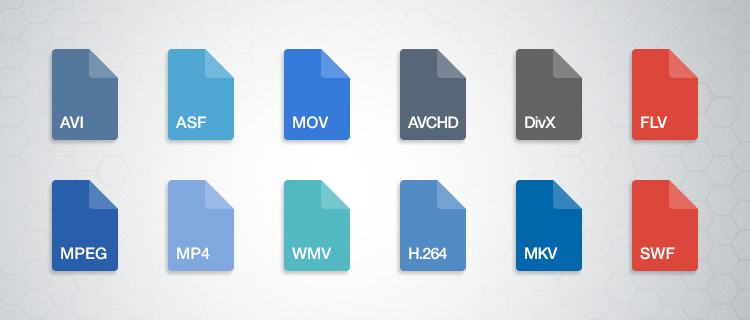
For example, if you have videos in formats like AVI, WMV, and MOV, you can convert them to a widely accepted format like MP4. This not only ensures compatibility but also makes it easier to organize your video library. Plus, most modern devices, including smartphones and smart TVs, support MP4, making it a versatile choice.

By standardizing your video formats, you can save time and avoid potential playback issues, making your video collection more accessible and user-friendly.

Video file consistency

Video file consistency goes beyond just the format; it includes aspects like resolution, frame rate, and audio settings. When you normalize video files for consistency, you’re essentially ensuring that all your videos have the same specifications. This is particularly important when creating a cohesive viewing experience, such as for a video playlist or a series.

Imagine you’re a content creator working on a web series. To maintain viewer engagement, you want all episodes to have identical quality and settings. Normalizing video files in this context involves making sure each episode shares the same resolution, frame rate, and audio settings. Consistency not only looks more professional but also eliminates distractions for your audience.

Using video editing software or dedicated normalization tools, you can easily adjust these parameters to achieve the desired consistency across your video files.

Video quality optimization

Video quality optimization is all about making your videos look their best while keeping file sizes manageable. When dealing with large video files, optimizing them ensures faster streaming and efficient storage. It’s a balance between maintaining high quality and reducing unnecessary bulk.

One of the key factors in video quality is bitrate. Higher bitrates result in sharper images and better sound, but they also lead to larger file sizes. To optimize video quality, you’ll want to find the sweet spot where quality remains excellent, but the file size isn’t excessively large. This is especially important when you’re uploading videos to online platforms, as they often have file size limitations.

Experimenting with different bitrates, resolutions, and codecs can help you strike that balance. Video editing software usually provides options for adjusting these settings, allowing you to fine-tune your videos for optimal quality.

Video compression techniques

Video compression is a fundamental aspect of normalizing video files. Compression techniques help reduce the file size of your videos without sacrificing too much quality. This is particularly useful when you need to save storage space or ensure smooth streaming over the internet.

Common video compression codecs include H.264 and H.265, which are widely supported across various devices and platforms. These codecs employ advanced algorithms to remove redundant information from your video files, resulting in smaller sizes while preserving good visual quality.

When applying video compression, it’s essential to strike a balance between compression level and quality. Higher compression can significantly reduce file size but may lead to a noticeable loss in quality, especially in highly detailed scenes. Experiment with different compression settings to find the right compromise.

Uniform video resolutions

Having uniform video resolutions is essential for a polished and professional look in your video collection. When videos have varying resolutions, it can be jarring for viewers to switch between them. Normalizing video resolutions involves adjusting all your videos to a consistent resolution.

Popular resolutions include 720p (HD), 1080p (Full HD), and 4K (Ultra HD). The choice of resolution depends on your specific needs and the capabilities of your target devices. For example, if you’re creating content for YouTube, 1080p is a standard choice that balances quality and file size.

By maintaining uniform resolutions, you ensure that your videos have a cohesive visual identity, making your content more appealing to viewers.

Consistent video bitrate

Consistency in video bitrate is another critical factor when normalizing video files. The bitrate determines the amount of data used to represent each second of video, directly impacting both quality and file size.

When you have videos with varying bitrates, it can lead to inconsistent quality and playback issues. To address this, normalize the bitrate across all your videos. This means ensuring that they all use a similar bitrate setting, which can be adjusted using video editing software or dedicated normalization tools.

Consistency in bitrate helps maintain a uniform viewing experience and prevents abrupt quality changes when switching between videos.

Video file compatibility

Ensuring video file compatibility is a fundamental step in making your videos accessible across different devices and platforms. Incompatibility issues can lead to frustrating experiences for viewers, such as playback errors or distorted visuals.

Before normalizing your video files, it’s crucial to understand the compatibility requirements of your target audience. Different devices and platforms may have specific format and codec preferences. For example, iOS devices tend to work best with H.264-encoded MP4 files, while some older devices may require different formats.

By researching and catering to the compatibility needs of your audience, you can ensure that your videos are easily accessible and enjoyable for everyone.

Normalizing multimedia files

Normalizing multimedia files extends beyond just video; it includes audio as well. Multimedia files often comprise various elements, such as video, audio, subtitles, and more. Normalization ensures that all these elements are balanced and harmonized for a seamless viewing experience.

For instance, when dealing with multimedia presentations or video editing projects, you want the audio levels to be consistent throughout. You wouldn’t want viewers to constantly adjust their volume because some parts are too quiet, while others are too loud. Normalizing audio levels across your multimedia files can solve this issue.

Additionally, subtitles and captions should be synchronized correctly with the video content, enhancing accessibility and comprehension. Multimedia normalization tools can assist in achieving these goals, providing a well-rounded viewing experience.

Video format conversion

Video format conversion is a versatile process that allows you to adapt your video files for different purposes. Whether you’re preparing videos for online streaming, archiving, or compatibility with various devices, conversion plays a significant role.

Conversion tools enable you to change not only the format but also other attributes like resolution, frame rate, and bitrate. This flexibility ensures that your videos are optimized for their intended use. For instance, when preparing videos for social media, you might convert them to formats and resolutions suitable for each platform’s requirements.

Additionally, format conversion can be handy when you want to preserve old video footage recorded in outdated formats. Converting these videos to modern formats ensures they remain accessible and of acceptable quality.

Video quality enhancement

Enhancing video quality goes beyond normalization; it involves improving the visual and auditory aspects of your videos. While normalization focuses on consistency and compatibility, quality enhancement aims to make your videos more visually appealing and engaging.

There are various techniques and tools available for video quality enhancement. These include color correction, sharpening, denoising, and even special effects. When used judiciously, these enhancements can breathe new life into your videos, making them more captivating for your audience.

For example, if you have older footage with faded colors, color correction can restore vibrancy. Similarly, adding subtle sharpening can make your videos look crisper and more professional.

Remember that quality enhancements should be applied thoughtfully, preserving the integrity of your original content while making it more visually appealing.

Final Words

Normalizing video files involves several aspects, from format standardization to quality optimization. Each step contributes to a smoother viewing experience and greater accessibility for your audience. Whether you’re a content creator, video enthusiast, or someone looking to organize their video collection, understanding these principles can help you make the most of your video files.

By ensuring video format compatibility, maintaining consistency in various attributes, and enhancing overall quality, you can present your videos in the best possible light. Remember that the specific approach may vary depending on your goals and target audience, so always tailor your normalization efforts to your unique requirements.


Video Deinterlacing

Video Deinterlacing: Techniques for Progressive Playback

Video Deinterlacing
Video Deinterlacing
Video Deinterlacing
Video Deinterlacing

Introduction

As a video enthusiast, I have always been fascinated by the intricacies of video processing and enhancement. One of the most common issues that I have encountered is interlaced video, which can result in poor video quality and a lack of clarity. In this article, I will explore the various deinterlacing techniques that can be used to convert interlaced video to progressive playback, resulting in a smoother and more visually appealing viewing experience.

Understanding Interlaced Video

Interlaced video is a legacy format that was developed in the early days of television broadcasting. It was designed to reduce the bandwidth required for transmitting video signals, by splitting each frame into two fields that are displayed alternately. While this approach was effective at the time, it can result in a number of issues when viewed on modern displays, including flickering, jagged edges, and a lack of detail.

“Interlaced video is like a flipbook, where each page is split into two halves that are displayed in rapid succession. While this approach was effective in the past, it can result in a number of issues when viewed on modern displays.”

To address these issues, deinterlacing techniques can be used to convert interlaced video to progressive playback. This involves combining the two fields of each frame into a single frame, resulting in a smoother and more visually appealing viewing experience.

Deinterlacing Techniques

There are a number of deinterlacing techniques that can be used to convert interlaced video to progressive playback. These include:
Bob deinterlacing: This technique involves simply duplicating each field to create a full frame. While this approach is simple, it can result in a loss of detail and a lack of sharpness.
Weave deinterlacing: This technique involves combining the two fields of each frame into a single frame, by interleaving the lines from each field. While this approach can result in a smoother image, it can also introduce artifacts and a loss of detail.
Motion-adaptive deinterlacing: This technique involves analyzing the motion in each frame, and using this information to create a new frame that is a blend of the two fields. This approach can result in a much smoother and more detailed image, but it can also be more computationally intensive.

“While there are a number of deinterlacing techniques available, it is important to choose the right approach for your specific needs. Factors such as the source material, the intended viewing environment, and the available processing power can all play a role in determining the best approach.”

Conclusion

Deinterlacing is an important technique for improving the quality of interlaced video, and ensuring a smooth and visually appealing viewing experience. By understanding the various deinterlacing techniques available, and choosing the right approach for your specific needs, you can ensure that your video content looks its best.

Final Words

As a video enthusiast, I have always been passionate about exploring the various techniques and technologies that can be used to enhance the quality of video content. Deinterlacing is just one of the many tools available for improving the visual appeal of video, and I hope that this article has provided you with a better understanding of this important technique.
Video Deinterlacing, Deinterlacing Techniques, Progressive Playback, Interlaced Video, Video Quality, Video Conversion, Video Processing, Video Enhancement, Bob Deinterlacing, Weave Deinterlacing, Motion-Adaptive Deinterlacing, Flickering, Jagged Edges, Loss of Detail, Smooth Image, Artifacts, Processing Power, Source Material, Viewing Environment, Video Content, Visual Appeal, Video Enthusiast, Video Technologies, Video Enhancement Techniques, Video Quality Improvement.