MP4 Video Quality


Free Download Mp4Gain
picture

MP4 Video Quality

MP4 Video Quality

Let’s talk about MP4 video quality

As a video production professional, ensuring optimal MP4 video quality is paramount. Understanding the factors that influence MP4 video quality is crucial for creating videos that look their best, whether for streaming, archiving, or sharing. From resolution and bit rate to codecs and encoding settings, many elements contribute to the final result.

Understanding the Key Factors Affecting MP4 Video Quality

MP4 video quality is determined by several interconnected factors. I’ve learned that it’s not just about one setting, but a combination of elements working together. Resolution, bit rate, codec, frame rate, and encoding settings all play a significant role in the final visual output of your MP4 video.

Consider it like baking a cake. You can’t just focus on the sugar; you need the right balance of flour, eggs, and baking time to get a delicious result. Similarly, optimizing MP4 video quality requires careful attention to each of these factors.

Resolution’s Impact on MP4 Video Quality

Resolution refers to the number of pixels in a video frame, determining the level of detail. I always advise choosing the appropriate resolution for your intended viewing platform. Higher resolutions, like 4K (3840 x 2160) or 1080p (1920 x 1080), provide sharper and more detailed images compared to lower resolutions like 720p (1280 x 720) or 480p (854 x 480). Think of it like looking at a picture through a window: a higher resolution is like having a cleaner, clearer window.

* Higher resolution for more detail.
* Choose resolution based on viewing platform.
* Balance resolution with file size considerations.

Bit Rate: The Data Flow Behind MP4 Video Quality

Bit rate measures the amount of data used to encode a video per unit of time, typically expressed in megabits per second (Mbps). A higher bit rate generally results in better MP4 video quality, as more data is available to represent the image. I often use higher bit rates for videos with complex scenes or fast motion. A low bit rate can lead to compression artifacts, such as blockiness or blurring, especially in scenes with a lot of detail. Think of it like painting a picture: a higher bit rate is like having more colors available to create a more vibrant and detailed image.

Codecs and Their Role in MP4 Video Quality

Codecs (coder-decoders) are algorithms used to compress and decompress video data. The choice of codec significantly impacts MP4 video quality and file size. H.264 (AVC) is a widely supported codec that provides a good balance of quality and compression. H.265 (HEVC) offers even better compression efficiency, resulting in smaller file sizes with comparable quality, but requires more processing power. AV1 is a newer, open-source codec that aims to provide even better performance than H.265. I usually recommend H.264 for broad compatibility and H.265 for scenarios where file size is a primary concern.

Frame Rate and Its Influence on MP4 Video Quality

Frame rate refers to the number of frames displayed per second (fps), affecting the smoothness of motion in a video. Common frame rates include 24fps (cinematic look), 30fps (standard for television), and 60fps (smoother motion). I often use higher frame rates for action-packed videos or gaming footage. Using too low frame rate can result in choppy or jerky motion, while too high a frame rate can increase file size without a noticeable improvement in perceived quality.

Encoding Settings for Optimal MP4 Video Quality

Encoding settings play a crucial role in determining MP4 video quality. I always pay close attention to settings like the encoding profile (baseline, main, high), level, and rate control mode (constant bit rate, variable bit rate). The encoding profile and level determine the complexity of the encoding process, while the rate control mode manages the bit rate allocation. Variable bit rate (VBR) encoding often provides better quality than constant bit rate (CBR) encoding, as it dynamically adjusts the bit rate based on the complexity of the scene.

Optimizing MP4 Video Quality for Different Platforms

Different platforms have different requirements and recommendations for MP4 video quality. I always tailor my encoding settings to match the specific platform where the video will be viewed. For example, YouTube recommends different bit rates and resolutions than Vimeo or Facebook. Failing to optimize for the target platform can result in suboptimal video quality or playback issues.

* YouTube: Higher bit rates and resolutions are recommended.
* Vimeo: Similar to YouTube, prioritize quality over file size.
* Facebook: Balanced approach for quality and file size.

The Relationship Between MP4 Video Quality and File Size

There’s an inverse relationship between MP4 video quality and file size. Increasing the resolution, bit rate, or frame rate will generally improve video quality but also increase the file size. I often have to strike a balance between these two factors, especially when dealing with storage limitations or bandwidth constraints. The goal is to achieve the best possible video quality within the given file size limitations.

Common MP4 Video Quality Issues and How to Fix Them

You might encounter some common MP4 video quality issues, like blockiness, blurring, or artifacts. I’ve seen these issues arise from several sources. These problems often result from using too low a bit rate, inappropriate codec, or incorrect encoding settings. To fix these issues, try increasing the bit rate, using a more efficient codec (like H.265), or adjusting the encoding settings.

MP4 Video Quality and the Viewing Experience

Ultimately, the goal is to deliver a viewing experience that is visually appealing and engaging. I always consider the target audience and the intended viewing environment when making decisions about MP4 video quality. Whether it’s a cinematic experience on a large screen or a quick viewing on a mobile device, optimizing MP4 video quality can significantly enhance the overall impact of your video.

Latest words on MP4 video quality

In conclusion, achieving excellent MP4 video quality requires a comprehensive understanding of the various factors involved. By carefully considering resolution, bit rate, codecs, frame rate, and encoding settings, you can optimize your videos for the best possible viewing experience. Remember that striking a balance between video quality and file size is essential, and tools like Mp4Gain can help you achieve this balance.

FAQ about MP4 video quality

What is the most important factor affecting MP4 video quality?

While multiple factors contribute, bit rate is often considered the most important factor affecting MP4 video quality. It determines the amount of data used to encode the video, directly impacting the level of detail and clarity.

Does higher resolution always mean better MP4 video quality?

Not necessarily. While higher resolution can provide more detail, it also requires a higher bit rate to maintain good MP4 video quality. If the bit rate is too low for the resolution, the video may appear blocky or blurry.

Which codec provides the best MP4 video quality?

H.265 (HEVC) generally provides better compression efficiency than H.264 (AVC), meaning it can deliver comparable MP4 video quality at a smaller file size. AV1 is a newer codec that aims to offer even better performance.

What bit rate should I use for 1080p MP4 video?

A good starting point for 1080p MP4 video is a bit rate of 5-8 Mbps for H.264 and 3-5 Mbps for H.265. However, the optimal bit rate depends on the complexity of the video content.

How does frame rate affect MP4 video quality?

Frame rate affects the smoothness of motion in a video. Higher frame rates (e.g., 60fps) can make motion appear smoother, but they also increase file size. Common frame rates include 24fps (cinematic), 30fps (standard), and 60fps (smooth motion).

What are common issues that reduce MP4 video quality?

Common issues that reduce MP4 video quality include using too low a bit rate, selecting an inappropriate codec, incorrect encoding settings, and upscaling low-resolution video to a higher resolution.

What encoding settings are best for MP4 video quality?

Variable bit rate (VBR) encoding generally provides better MP4 video quality than constant bit rate (CBR) encoding. Also, using an appropriate encoding profile (e.g., High) and level can improve quality.

How can I optimize MP4 video quality for YouTube?

To optimize MP4 video quality for YouTube, use a high resolution (1080p or 4K), a bit rate of 8-12 Mbps (for 1080p) or 35-45 Mbps (for 4K), the H.264 codec, and a frame rate that matches your source footage.

What is the relationship between MP4 video quality and file size?

There’s a direct relationship. Increasing the resolution, bit rate, or frame rate will generally improve MP4 video quality but also increase the file size. Finding the right balance depends on your storage and bandwidth limitations.

Can I improve the MP4 video quality of an already existing low-quality video?

While you can’t magically restore detail that wasn’t there originally, you can improve perceived MP4 video quality by using techniques like sharpening filters, noise reduction, and color correction. However, these methods have limitations.

Comments:

This article was super informative! I always wondered why some of my MP4 videos looked so bad. Now I know it’s not just about the resolution, but also the bit rate and codecs. Thanks for breaking it down!

Great explanation of MP4 video quality! I’ve been struggling with getting my videos to look good on YouTube. I’ll definitely try adjusting my encoding settings based on your recommendations.

As a beginner video editor, this article was a lifesaver. I learned so much about MP4 video quality and how to optimize my videos. Thanks for the helpful tips!

Thanks man, this stuff is greek to me but you explained it in a way i could understand with those analogies! The cake and window ones were perfect!

Okay, so you say that h.265 is better but what are the downsides vs h.264?

I’m shooting a short film and need to make sure it looks good on a big screen. This article helped me understand what settings I need to prioritize. Appreciate the info!


Free Download Mp4Gain
picture


Mp4Gain Main Window
picture


Mp4Gain Features
picture


Free Download Mp4Gain
picture

Comparing WMV to MPEG-2 for Legacy Video Storage

Comparing WMV to MPEG-2 for Legacy Video Storage

Comparing WMV to MPEG-2 for Legacy Video Storage

As a video specialist for years, comparing WMV to MPEG-2 for legacy video storage has been something I’ve navigated countless times. Choosing the right format has always been crucial for preserving valuable memories and content. Different video formats serve distinct purposes. In legacy video storage, the choice between WMV and MPEG-2 really depends on the specific needs of the project, because no single format is always superior.

Let’s talk about Comparing WMV to MPEG-2 for Legacy Video Storage

When it comes to preserving your precious videos for the long haul, the decision between WMV and MPEG-2 video formats is paramount. It impacts how well those memories survive. This comparison is vital. Think of it as picking the right container to keep your favorite cookies fresh. You wouldn’t want them to go stale quickly, right? The same goes for your old family videos, training tapes, or that groundbreaking documentary you made back in the day. So, the purpose of this entire article is to provide a comprehensive comparison of WMV and MPEG-2 for legacy video storage. We’ll explore their strengths, weaknesses, real-world applications and provide you with the insight to make the best choice for your specific needs. I have seen both formats succeed and fail in different scenarios, and I want to share what I’ve learned.

Understanding Legacy Video Storage

Proper understanding of legacy video storage is critical for long-term preservation. It means recognizing the importance of keeping older video formats accessible and usable for future generations. Preserving legacy video is like archiving old family photos. You want to ensure future generations can view them without losing quality. For me, understanding the nuances of different codecs has made a big difference in how I approach these projects.

Why is Legacy Video Storage Important?

  • Ensuring that valuable historical content remains accessible is the key.
  • Preserving family memories for future generations is also important.
  • Maintaining access to important training materials is essential.
  • Protecting valuable cultural artifacts and content is also a goal.

As a video specialist, I’ve seen many organizations and families struggle with this challenge. I vividly remember helping a local historical society digitize their collection of old VHS tapes. Without proper encoding, those tapes would eventually degrade and their valuable content would be lost forever. Choosing the right video formats became the foundation for ensuring that those historical materials remain available for many years to come.

What is WMV (Windows Media Video)?

Windows Media Video, known as WMV, stands out as a proprietary video compression format from Microsoft. It was originally designed for streaming and online distribution. WMV is like a versatile tool in a digital artist’s toolbox. It can be used for many different tasks, but it has its own strengths and weaknesses.

Key Features of WMV

  • Good compression ratios provide smaller file sizes.
  • Compatibility with Windows-based systems is a plus.
  • Digital Rights Management (DRM) support is also included.
  • Streaming capabilities are important for online content.

WMV is like a digital chameleon, able to adapt to various settings, but it’s crucial to be aware of its compatibility limitations. I recall one time I had a client who wanted to distribute training videos internally, and WMV was the perfect choice because everyone in their company used Windows computers. However, when they tried to share those videos with external partners who used Macs, they ran into compatibility issues. This highlighted the importance of understanding the ecosystem you’re operating in when choosing a video format.

What is MPEG-2?

As a dominant standard, MPEG-2 is used for digital television, DVDs, and other broadcasting applications. It’s designed for high-quality video and audio encoding. Thinking of MPEG-2, I see it as the workhorse of the digital video world. It gets the job done reliably, even if it’s not the flashiest format out there.

Key Features of MPEG-2

  • High video quality is one of its greatest strenghts.
  • Broad compatibility with playback devices is also very important.
  • Support for interlaced video is also a factor to consider.
  • Standard for DVDs and digital television is a key asset.

I’ve encountered many situations where MPEG-2 was the clear winner. When I worked on a project for a local TV station to archive their broadcast tapes, MPEG-2 was the only viable option. The station needed a format that could handle the interlaced video and deliver the quality required for future broadcasts. It just goes to show, sometimes the older, established formats are still the best for certain applications.

WMV Advantages for Legacy Video Storage

WMV provides several advantages that make it a contender for legacy video storage. Key among these is its efficient compression. It is perfect for reducing file sizes. The key, however, is balancing compression with quality. It’s like squeezing oranges to make juice; you want to get as much juice as possible, but you don’t want to crush the peel and make it bitter.

Smaller File Sizes

  • Efficient compression reduces storage space needed.
  • Easier to share files online due to smaller size.
  • Lower bandwidth requirements for streaming are also good.

I have seen many benefits from WMV’s smaller file sizes in real-world scenarios. I remember helping a small non-profit organization archive their collection of lectures and presentations. They were on a tight budget and had limited storage space. WMV allowed them to store more videos without sacrificing too much quality. This meant that they could preserve their content without breaking the bank.

Compatibility with Windows Systems

  • Seamless playback on Windows operating systems is a plus.
  • No need for additional codecs on Windows machines.
  • Easier integration with Windows-based workflows is also good.

As a video specialist, I’ve often recommended WMV for organizations that primarily use Windows-based systems. WMV is a perfect fit in these environments. I recall a project where a large corporation needed to archive training videos for their employees. Since the entire company used Windows computers, WMV was an easy choice. The videos played flawlessly on every machine, and there were no compatibility headaches. This shows that knowing your audience and their technology setup is key.

MPEG-2 Advantages for Legacy Video Storage

MPEG-2 also provides unique advantages, especially when prioritizing high quality. This format excels in maintaining video fidelity. This is akin to preserving a fine painting; you want to ensure that every brushstroke and color nuance remains intact. The key to MPEG-2 is that while the files can be larger, the visual information is retained with greater accuracy.

Superior Video Quality

  • MPEG-2 preserves video quality better than WMV.
  • Suitable for high-resolution video storage is also a good factor.
  • Ideal for archiving master copies is important too.

I’ve been a staunch advocate for MPEG-2 in projects where quality is paramount. When I assisted a film school with archiving their student films, MPEG-2 was the obvious choice. These were aspiring filmmakers creating their masterpieces, and it was critical to preserve every detail of their work. MPEG-2 allowed us to capture the full resolution and color depth, ensuring that the films would look as good in the future as they did on the day they were created. Preserving the artistic vision was our top priority.

Broad Playback Compatibility

  • Compatible with many devices, like DVD players.
  • Widely supported by video editing software.
  • Standard for digital television broadcasting is also important.

MPEG-2’s compatibility across different devices is a major win in many scenarios. One notable project involved helping a local community center digitize their collection of home videos. They wanted to create a DVD archive that could be easily viewed on standard DVD players. MPEG-2 was the perfect solution because it was universally compatible with DVD technology. This allowed the community center to share these precious memories with everyone, regardless of their technical capabilities.

WMV Disadvantages for Legacy Video Storage

WMV does have its drawbacks, despite its advantages. One significant limitation is its lossy compression. Lossy compression is like making a copy of a copy. Each time, you lose a little bit of detail, but the file gets smaller. While this can be beneficial for storage, it can also result in reduced video quality over time, particularly with multiple compressions.

Lossy Compression Issues

  • Lossy compression sacrifices video quality for smaller file sizes.
  • Repeated encoding can degrade video quality further.
  • Not ideal for long-term archiving of high-quality video.

I vividly remember a situation where WMV’s lossy compression became a major problem. I was working on a project to restore old family videos that had been converted to WMV. After a few encoding and decoding cycles, the quality had deteriorated so much that the videos became almost unwatchable. This experience taught me a valuable lesson about the importance of choosing the right format for long-term preservation.

Compatibility Limitations

  • Best compatibility is for Windows, not macOS or Linux.
  • Requires specific codecs on non-Windows systems.
  • May have playback issues on older devices.

I’ve seen many times where compatibility problems became a major hurdle with WMV. I worked with a diverse team that used different operating systems, and sharing WMV files often caused headaches. Some team members struggled to play the files, while others experienced choppy playback or distorted video. These kinds of compatibility issues can disrupt workflows and create unnecessary frustration.

MPEG-2 Disadvantages for Legacy Video Storage

MPEG-2 comes with its own set of limitations. One of the most significant is its larger file sizes compared to more modern codecs. It’s like choosing between a large, sturdy toolbox and a smaller, more compact one. The larger toolbox can hold more tools, but it’s also heavier and takes up more space. The same applies to MPEG-2 files; they offer excellent quality, but require more storage.

Larger File Sizes

  • MPEG-2 requires more storage space than WMV.
  • Transferring large files can be slow and cumbersome.
  • May be less suitable for online streaming due to bandwidth requirements.

I learned the hard way about MPEG-2’s larger file sizes when I worked on a project for a small museum. They wanted to digitize their collection of historical films, but they quickly ran out of storage space. The high-quality MPEG-2 files ate up their storage capacity faster than they had anticipated. As a result, they had to invest in additional storage solutions, which strained their limited budget.

Complexity and Encoding Time

  • MPEG-2 encoding can be complex and time-consuming.
  • Requires specialized software and hardware for optimal encoding.
  • Encoding time can be longer compared to WMV.

In my experience, MPEG-2 encoding is something that requires patience and expertise. I remember spending countless hours tweaking settings and experimenting with different encoders to get the best results. It’s like trying to bake the perfect cake; you need to follow the recipe carefully and adjust the oven temperature to achieve the desired outcome. This complexity can be a barrier for those who are new to video encoding.

Comparing WMV to MPEG-2 for Legacy Video Storage

Comparing WMV to MPEG-2 for legacy video storage reveals distinct advantages and disadvantages. To make the right decision, consider your priorities. Its like deciding whether to buy a practical sedan or a high-performance sports car. The sedan is more affordable and fuel-efficient, while the sports car offers thrilling performance at a higher cost.

Video Quality

  • MPEG-2 generally offers higher video quality than WMV.
  • WMV sacrifices quality for smaller file sizes.
  • Choose MPEG-2 if quality is a top priority.

I’ve seen the difference in video quality firsthand on countless occasions. When archiving irreplaceable content, I always lean towards MPEG-2 to capture every detail. I still remember the time when I was helping a local TV station archive their broadcast tapes. The quality difference between MPEG-2 and WMV was night and day. MPEG-2 retained the crispness and clarity of the original recordings, while WMV looked noticeably softer and less detailed. It was like comparing a high-resolution photograph to a low-resolution snapshot.

File Size

  • WMV files are smaller than MPEG-2 files.
  • MPEG-2 files require more storage space.
  • Choose WMV if storage space is limited.

There have been times when limited storage made WMV the more practical choice. I recall assisting a small non-profit organization archive their collection of lectures and presentations. They were on a shoestring budget and had very little storage space. WMV allowed them to compress their videos without sacrificing too much quality. This meant they could preserve more videos without breaking the bank.

Compatibility

  • WMV has the best compatibility with Windows.
  • MPEG-2 has broad compatibility across devices.
  • Consider playback devices when choosing a format.

I can’t stress enough the importance of considering compatibility when archiving videos. If you know that your audience primarily uses Windows computers, WMV might be a convenient option. However, if you need your videos to play on a variety of devices, MPEG-2’s broad compatibility makes it a safer choice. I worked on a project where the videos needed to be compatible with older DVD players, so MPEG-2 was the obvious option. It ensured that everyone could watch the videos, regardless of their technology setup.

Real-World Applications for WMV and MPEG-2

Knowing how these formats perform in real-world situations is important. It is like learning how to use a hammer and a screwdriver. Both are tools, but they’re designed for different jobs. Recognizing when to use WMV and when to use MPEG-2 can make a big difference in the success of your project.

WMV Applications

  • Online video streaming is one area where WMV excels.
  • Internal training videos for Windows-based organizations are good.
  • Archiving personal video collections for Windows users is nice.

I’ve seen WMV work well for streaming applications where bandwidth is limited. I helped a company with a webinar to archive their past events for on-demand viewing. WMV’s compression made it possible to stream the videos smoothly, even for viewers with slower internet connections.

MPEG-2 Applications

  • DVD video archiving is one place where MPEG-2 has shone.
  • Digital television broadcasting uses MPEG-2.
  • Professional video archiving needs MPEG-2 quality.

I’ve consistently relied on MPEG-2 for archiving critical broadcast-quality footage. When working with local television stations, MPEG-2 was the standard for archiving master copies of their broadcasts. The superior quality of MPEG-2 ensured that these recordings would remain pristine for years to come.

Latest words on Comparing WMV to MPEG-2 for Legacy Video Storage

Making an informed decision on what you now know about comparing WMV to MPEG-2 for legacy video storage truly depends on specific needs. It’s like choosing the right tool for a job. For high-quality archiving where storage isn’t a major concern, MPEG-2 is the better choice. However, WMV may be more appropriate if storage space is limited and the primary audience uses Windows systems. I personally lean towards MPEG-2 for long-term preservation, but I always assess each project’s unique requirements before making a final decision. Also, many new solutions like Mp4Gain can solve the volume problem, allowing you to reduce the size of an MPEG-2 file without any loss of quality, which may be something to explore!


Why is comparing WMV to MPEG-2 for legacy video storage crucial?

Choosing the right format will ensure your precious videos remain accessible for future generations, because the incorrect format may degrade the quality or render the videos unplayable over time.

Is WMV a good option for legacy video archives?

WMV is a good choice if you primarily use Windows systems and need to minimize file size for storage or streaming. It is not recommended for high-quality archival due to its lossy compression.

What are the main advantages of using MPEG-2 for long-term video preservation?

MPEG-2 offers superior video quality and broad compatibility with playback devices, making it ideal for high-resolution video storage and professional video archiving.

Are there compatibility issues when choosing WMV for legacy video?

Yes, WMV has better compatibility with Windows but requires specific codecs on non-Windows systems, possibly causing playback issues on older devices.

How do file sizes compare between MPEG-2 and WMV?

MPEG-2 files are typically larger than WMV files, requiring more storage space, but WMV file compression comes at the cost of quality.

In which real-world scenarios is WMV better than MPEG-2?

WMV is better for online video streaming, internal training videos for Windows-based organizations, and for Windows users archiving personal video collections.

When should I choose MPEG-2 over WMV for video preservation?

You should choose MPEG-2 over WMV for DVD video archiving, digital television broadcasting, and whenever professional video archiving is needed because these require better video quality.

What compression methods do WMV and MPEG-2 use?

WMV uses lossy compression, which reduces file size by sacrificing video quality, while MPEG-2 can use both lossy and lossless compression, prioritizing high quality.

Is it possible to convert videos from WMV to MPEG-2 or vice versa?

Yes, you can convert videos between WMV and MPEG-2 using video editing software or online tools. However, converting a highly compressed WMV file to MPEG-2 will not restore the lost quality.

Considering comparing WMV to MPEG-2 for legacy video storage , should consider file reduction technics?

Indeed, solutions like Mp4Gain can solve the volume problem, allowing you to reduce the size of an MPEG-2 file without any loss of quality, which may be something to explore!

Comments:

Hey, this article was great! I’ve been struggling with deciding how to archive my old home videos, and the MPEG-2 vs. WMV thing was confusing me. This really broke it down in a way I could understand. Now I know MPEG-2 is the way to go for quality. Thanks!

I’m still a bit confused about the technical stuff. What exactly is “lossy compression” anyway? Can you explain it like I’m five? Lol. But overall, good article. helped alot.

I completely agree! The part about real-world applications was super helpful. I’m using WMV for my online training videos because, hey, everyone at work has Windows. But now I realize I need something better for my family videos. MPEG-2 here I come!

You touched on storage space being a problem with MPEG-2. True, been there, done that. But the quality difference is worth it IMO. I just had to invest in a bigger external hard drive. Worth every penny!

Wow, I didn’t even think about the encoding time for MPEG-2 being longer. That’s a good point. I’m not the most patient person lol, but it’s great to know what to expect. Thanks for the heads up.

Great article! I am a digital archivist and had been looking for specific information in this field comparing WMV and MPEG-2. Now I am more in the know about the advantages and disadvantages, this helps a lot in my day to day job. THanks

This article help me a lot to decife about the right video formats for my company, we needed to store a big amount of videos and i was in doubts about which option its the best for us.

Lossless Compression in AVI Files

Lossless Compression in AVI Files

Lossless Compression in AVI Files

Let’s talk about Lossless Compression in AVI Files

When it comes to AVI files, finding the perfect balance between high quality and efficient storage can feel challenging. That’s where lossless compression shines—it’s a way to reduce file sizes without sacrificing the quality of the video content. As a specialist in video compression and formats, I’ve spent years working with various file types and experimenting with ways to keep quality intact. In this article, I’ll explain how lossless compression works with AVI files, why it’s a preferred choice for many, and the real-world scenarios where it excels.

What is Lossless Compression?

Lossless compression is a method that reduces file size without any loss of data. Imagine you have a suitcase packed with all your belongings in a precise order. Lossless compression is like folding each item just right to save space without leaving anything behind. When you decompress it, everything returns to its original form, unchanged. Unlike lossy compression, which sacrifices some details to make the file smaller, lossless compression preserves every bit of information. This makes it ideal for applications where maintaining the full quality of the content is essential.

How Lossless Compression Works in AVI Files

In AVI files, lossless compression uses algorithms that identify redundant data and then compress it without throwing away any of the original information. It’s similar to creating a shorthand version of the file that can be expanded back to its exact original form. AVI, which stands for Audio Video Interleave, is a multimedia container format that can store both audio and video data in a synchronized manner. AVI files are often used in professional video editing because they support high-quality video formats and can handle the demands of lossless compression.

Advantages of Using Lossless Compression in AVI

The benefits of using lossless compression in AVI files extend beyond just file size reduction. Here’s why it’s worth considering:

  • Preservation of Quality

    Lossless compression retains every detail, which is crucial for professional and archival purposes.

  • Reversible Process

    Unlike lossy compression, you can restore the file to its original form without any data loss.

  • Ideal for Editing

    Lossless AVI files allow for editing without degrading quality, making them suitable for video editors and content creators.

Comparing Lossless and Lossy Compression in AVI Files

When it comes to compression, lossless and lossy methods serve different needs. Lossy compression is like making a photocopy of a high-resolution image at a lower quality—it’s smaller, but some details are lost. Lossless compression, however, is like taking the original and folding it neatly to save space without sacrificing any quality. With AVI files, lossy compression can lead to artifacts or a decrease in clarity, which isn’t ideal for those seeking top-notch quality.

Real-World Applications of Lossless Compression in AVI Files

Lossless compression in AVI files is often used in industries where quality cannot be compromised, like film production, medical imaging, and archiving. For instance, filmmakers use lossless compression when they need to store high-quality footage before editing. In medical imaging, lossless compression ensures critical details are preserved in scans and x-rays. And for archivists, it’s the go-to method for storing old films and videos in a format that keeps every original detail intact.

File Size and Storage Considerations

While lossless compression reduces file size, AVI files with lossless compression can still be quite large. Think of it as folding clothes neatly in a suitcase—sure, it saves space, but there’s still only so much you can fit. Lossless AVI files are typically larger than lossy-compressed files, so storage can be a concern if you’re dealing with extensive video libraries. However, if quality is the priority, the extra storage is often worth the trade-off.

Choosing the Right Compression for AVI Files

Selecting the right compression type depends on your priorities. For instance, if you’re archiving important footage or editing professional video, lossless compression is usually the best choice. However, if you’re working with videos that don’t require perfect quality, like online content, lossy compression can save a lot of space without a noticeable difference in quality. It’s all about finding the balance that meets your specific needs.

Understanding Different Lossless Compression Codecs for AVI

There are several codecs available for lossless compression in AVI files, each with its own strengths and ideal use cases. Some popular ones include:

  • FFV1

    An open-source codec known for its efficiency and high-quality compression, often used in archiving.

  • HuffYUV

    A fast codec suitable for intermediate video storage, but it requires more storage space.

  • Ut Video

    Known for its compatibility with different platforms, making it versatile for professional use.

These codecs offer different compression speeds, file sizes, and compatibility, so choosing the right one can depend on your specific project needs.

When to Use Lossless Compression for AVI Files

Lossless compression is ideal in situations where maintaining original quality is essential. Here are some examples:

  • Professional Video Editing

    When editing, it’s crucial to work with the highest quality files to avoid degradation from multiple saves and edits.

  • Archival Storage

    For archiving purposes, preserving every detail of a video file is often a priority.

  • Medical Imaging

    In fields like medical imaging, lossless compression ensures that critical details are not lost in scans or x-rays.

Challenges and Limitations of Lossless Compression in AVI

Despite its benefits, lossless compression has limitations. The biggest challenge is the large file size, which can be a problem for users with limited storage. Additionally, lossless compression requires more processing power during playback and editing, which might be an issue for lower-end devices. However, the trade-offs are worth it for those who need the quality that only lossless compression can provide.

Latest words on Lossless Compression in AVI Files

Lossless compression in AVI files provides a way to maintain video quality without sacrificing data, making it essential for applications where every detail matters. Whether you’re a filmmaker, an archivist, or simply someone who values quality, lossless compression in AVI files can offer the balance you need. Although it demands more storage, the benefits in quality make it a valuable choice. For those looking to optimize and manage their video files, tools like Mp4Gain offer solutions to ensure the best quality-to-size ratio, making it easier to work with lossless AVI files effectively.

Comments:

Well, this really clears things up! I’ve always struggled to understand the difference between lossy and lossless. Great explanation here.

Didn’t know lossless compression in AVI was so important. I’ve been editing videos for a while, and now I understand why quality has been an issue!

For medical imaging, I never knew we needed lossless compression, but now it makes total sense! Really useful info for my work.

Good breakdown of the pros and cons here. I might have to rethink my storage setup because I didn’t realize AVI files could be so big.

Question—how can I tell if an AVI file has been compressed losslessly? I’ve been dealing with big files lately, and this article made me curious.

Can’t believe how much I’ve been missing out on quality by not using lossless for my archives. This is a wake-up call!

Really thorough explanation! It answered all my questions and even raised a few new ones. AVI files seem complicated but worth the hassle.

Never considered the effect on storage—might explain why my hard drive fills up so quickly. Thanks for the insight!

This helped me understand why my videos lose quality after editing. Time to switch to lossless for my master files!

Great info here, but now I’m wondering if lossless is compatible with all video players. Guess I have more research to do.

Finally, an article that explains AVI lossless compression in plain language! I feel like I can actually make use of this info.

I’ve been looking for something like this. I wish I’d known about lossless AVI compression sooner, would’ve saved a lot of quality loss!

Anyone here try using lossless for home videos? I’m curious if it’s worth the storage space for family stuff.

OpenDML Enhancements in AVI

OpenDML Enhancements in AVI

OpenDML Enhancements in AVI

Let’s Talk About OpenDML Enhancements in AVI

OpenDML enhancements in the AVI format changed how we view and manage large video files. AVI, or Audio Video Interleave, has been around since 1992, and while it was revolutionary then, it had significant limitations, especially in file size and overall flexibility. That’s where OpenDML came in. I have spent years diving into the technical aspects of video file formats, and OpenDML’s modifications to AVI are fascinating. Let’s break it down into simpler terms so you can understand why these enhancements are so valuable.

What Is OpenDML and Why Does It Matter for AVI?

OpenDML stands for “Open Digital Media Layer” and is a set of specifications created to expand the capabilities of the AVI format. When we think about video files, most of us want high quality, large resolutions, and compatibility across various devices. OpenDML addresses these desires by tackling AVI’s original 2GB file size limit. This enhancement allows video creators, editors, and even casual users to handle much larger files, opening up possibilities for high-definition content without the fear of exceeding the 2GB restriction.

Addressing the 2GB Limit: Why Was It an Issue?

The 2GB limit on AVI files was a significant hurdle for anyone working with video, especially as resolutions and quality improved. Imagine working on a film and realizing that halfway through, your file size maxes out! Before OpenDML, users had to break videos into smaller chunks or sacrifice quality to keep the file size down. OpenDML solved this by enabling an “Extended AVI” format, which broke free of that 2GB barrier, allowing for hours of HD footage in a single file. It’s like switching from a tiny flash drive to a massive hard drive—so much more space to work with!

Key Features Introduced by OpenDML in AVI

Understanding OpenDML enhancements means breaking down a few core features that make a difference. From extended file sizes to improved indexing, OpenDML introduced several powerful tools:

Extended File Sizes

One of the standout features of OpenDML’s impact on AVI was the allowance for extended file sizes. By enabling larger chunks of data, OpenDML helped AVI keep pace with the needs of modern media without users having to worry about file fragmentation.

Enhanced Indexing

Indexing was a challenge in older AVI files because, without a good index, files can become unmanageable. OpenDML introduced “super indexes” that make it easier to navigate and access specific frames within a video file quickly. This feature alone revolutionized editing and playback of larger video files.

High Compatibility with Existing Systems

Compatibility is critical in video formats, and OpenDML didn’t forget about that. By working with the original AVI structure rather than replacing it, OpenDML enhancements remained backward-compatible with systems and applications that only supported the original AVI format. It’s like upgrading your car with new features but still keeping it compatible with any standard gas pump.

How OpenDML Enhanced AVI’s Video Quality

The goal of OpenDML enhancements wasn’t just about file size; it was also about improving video quality. By supporting new codecs and higher bitrates, OpenDML gave AVI files a significant boost in terms of video clarity and detail. This was particularly useful for high-definition and 4K videos, which demand higher data rates. With OpenDML, we could pack more data into each second of video, making visuals sharper and more vibrant.

Common Applications and Benefits of OpenDML in the Real World

In practical terms, OpenDML’s enhancements make AVI files better suited for today’s high-demand video production and storage needs. Professionals in media production benefit from OpenDML’s expanded capabilities, from filmmakers handling massive HD projects to game developers who rely on clear, quality cutscenes. Even casual users benefit from smoother playback and compatibility with various media players.

Latest Words on OpenDML Enhancements in AVI

OpenDML brought a new era to the AVI format, pushing boundaries and making high-quality video files more accessible and manageable. This enhancement keeps AVI relevant today, offering a practical and powerful solution for larger files without sacrificing quality or compatibility. If you’re working with videos and need a reliable, high-quality format, AVI with OpenDML enhancements is a solid choice that stands the test of time.

Comments:

Wow, I finally understand why OpenDML is important! I always wondered why AVI files got so big.

This article cleared up so much for me. I didn’t know the 2GB limit was a thing for old AVIs. Really interesting read!

I’ve been using AVI for years, and this was super informative. It’s amazing to see how OpenDML keeps AVI relevant today.

Could you add more details on the indexing part? I’m curious about how “super indexes” work in real applications.

Thanks for the breakdown! I’m a video editor, and knowing about these AVI enhancements will help me a ton.

Great read, but I’d like more examples of where OpenDML shines in a professional setting. Anyone else think so?

This explained everything I needed to know! I’m planning to work on a big video project and will keep OpenDML AVI in mind.

Honestly, I didn’t think AVI had a place in modern video files, but this article showed otherwise!

What about playback compatibility? Sometimes my AVI files don’t work right on certain players.

Super helpful article. I learned a lot about why OpenDML changes make AVI so versatile!

Differences between MP4 and MKV containers

Differences between MP4 and MKV containers

Differences between MP4 and MKV containers

Let’s talk about MP4 vs MKV: What Really Sets Them Apart?

When it comes to digital media, choosing the right format can be tricky. Both MP4 and MKV are popular for video files, but their differences can make or break your viewing experience. MP4 is widely compatible and efficient, while MKV is powerful and versatile. Let me dive into the details and explain what makes each format unique, using practical examples to help you pick the right one.

What is MP4?

MP4, or MPEG-4 Part 14, is one of the most widely used video containers. Designed to offer compatibility across a wide range of devices and platforms, MP4 is the go-to format for streaming, video sharing, and playback on virtually any device. If you’ve ever downloaded a video that works seamlessly on your phone, laptop, or smart TV, you likely have MP4 to thank. I’ve found it especially useful when transferring videos between devices since it’s widely supported.

What is MKV?

MKV, or Matroska Video, is an open-source container format that can handle more complex data. While it’s not as universally compatible as MP4, MKV is favored by videophiles for its ability to store multiple audio tracks, subtitles, and video components in one file. It’s like a digital Swiss Army knife, ideal for high-quality video enthusiasts and those who want customizable playback options. For example, if you’re a fan of anime or foreign films with multiple language options, MKV makes it easy to switch between tracks.

Compatibility: Which Container Plays Everywhere?

Compatibility is crucial when choosing a video format. MP4 shines in this area, as it’s natively supported on almost every device. Whether you’re using an iPhone, Android, PlayStation, or streaming to a smart TV, MP4 files usually play without a hitch. MKV, on the other hand, might not work on every device or app without additional codecs or specialized software. If you’re planning to watch videos across different gadgets, MP4 is the safer bet for hassle-free compatibility.

File Size and Compression

MP4 typically produces smaller file sizes due to its efficient compression, making it perfect for storage on devices with limited space or for streaming. For instance, when I need to upload a video to social media or email, I often go with MP4 because it’s quick to upload and doesn’t take much space. MKV files can be larger, especially when they contain high-definition video and multiple audio tracks. While MKV is excellent for preserving quality, you might need more storage capacity if you’re dealing with HD content or a lot of data.

Audio and Subtitle Support

MKV has a clear edge in supporting multiple audio and subtitle tracks within a single file. If you’ve ever watched a foreign movie and wanted the option to switch between the original and dubbed audio, MKV is ideal for that. MP4 can handle subtitles too, but it’s limited compared to MKV. For example, MKV allows for soft subtitles, which means you can enable or disable them during playback, while MP4 usually embeds subtitles directly into the video, giving less flexibility.

Quality Retention and Codec Flexibility

Quality is king when it comes to video files. MKV generally supports a broader range of codecs, which means it can handle high-definition content without sacrificing quality. MP4 is no slouch either, but it’s more restrictive with codecs, which can slightly impact video and audio quality in certain high-resolution scenarios. If you’re creating a digital archive of your favorite movies or shows, MKV would better retain quality over time, especially with high-resolution or lossless audio.

Streaming Capabilities

MP4 is optimized for streaming and widely adopted by platforms like YouTube, Netflix, and Vimeo. If you’re interested in sharing videos online or streaming, MP4 is almost always the best choice. It loads quickly, is easy to buffer, and maintains quality on streaming platforms. MKV isn’t optimized for streaming in the same way, which is why you don’t see it as frequently on major video-sharing platforms.

Editing Flexibility

MKV is often easier to edit because it supports a variety of codecs and doesn’t require re-encoding every time it’s modified. For example, if you’re working on a video project with multiple audio layers or subtitles, MKV offers more flexibility without reducing quality. MP4 files are more compact but may need additional steps to edit, especially if you’re working with different types of media tracks within the video.

Best Use Cases for MP4

  • Compatible with almost every device, ideal for sharing videos on social media.
  • Efficient for storage, small file size.
  • Streamlined for uploading and quick access on video streaming platforms.
  • Simple video projects or personal recordings without needing multiple audio tracks.

Best Use Cases for MKV

  • Ideal for high-quality movie archives with multiple audio tracks and subtitles.
  • Useful for video projects with extensive editing and customization.
  • Great for fans of foreign films or anime who want multiple language tracks.
  • Preserves quality for larger, high-definition video files.

Should You Convert MKV to MP4?

Converting between formats can be useful, depending on your needs. For instance, if you have an MKV file that you want to play on a device that only supports MP4, conversion is the way to go. However, remember that converting from MKV to MP4 can sometimes result in loss of quality or loss of features, like multiple audio tracks or subtitles. I recommend using tools like Mp4Gain, which can convert while keeping quality as high as possible, making it a suitable choice for this task.

Latest Words on MP4 vs MKV

In the end, the choice between MP4 and MKV depends on your priorities. If you need a simple, compatible format that works across various devices, MP4 is hard to beat. But if you’re someone who values flexibility, quality, and extra features like multiple audio tracks, MKV might be worth the extra steps to ensure compatibility. Personally, I use both depending on the situation: MP4 for everyday sharing and MKV for high-quality archival. Both formats have their strengths, and understanding them can help you make the right choice.

Comments:

JohnDoe92: I’ve always been confused about the difference! This breakdown really helps me understand why some of my videos don’t play on my old TV. Guess I’ll be sticking to MP4 from now on for compatibility’s sake.

SarahB: Amazing detail! I knew MKV had better options for subtitles, but never understood why. Thanks for the practical examples!

VideoFanatic23: I prefer MKV because I can have multiple audio tracks and choose the language I want. It’s like having all options in one place!

TechSavvy: So helpful! I usually edit videos for family, and MKV definitely gives me more flexibility with quality. Will use MP4 for quick stuff though!

GregO: Great article, but wish there was more on tools for converting without losing quality. Some conversions I’ve tried end up grainy.

Alice_G: MP4 is my go-to for everyday videos, but I can see why MKV is better for archiving. Thanks for clearing that up!

FilmBuff86: Love MKV for my anime collection! Switching between audio tracks and subtitles is such a lifesaver.

PaulT: This article is gold. I’m new to video editing, so now I understand when to choose one over the other. Can we get more on codec differences?

BrendaS: Thanks for the tip about streaming. Never thought about how much easier MP4 is to upload!

MovieLover: Always thought MKV was for pros only. Now I realize it’s just about what you need from your files. This was really well explained!

Gr8Scott: MKV files have been so confusing for me. Thanks for breaking it down! I’ll save my MKVs for movies and use MP4s for everything else.

RickK: Amazing, so many great points here. I’ve converted MKVs to MP4

in the past, but now I know what I’m giving up in the process.

Handling Anamorphic Video in MP4 Containers

Handling Anamorphic Video in MP4 Containers

Handling Anamorphic Video in MP4 Containers

Let’s Talk About Handling Anamorphic Video in MP4 Containers

Handling anamorphic video correctly within MP4 containers is essential to maintain playback quality across devices. Anamorphic video, which transforms a wide-screen image to fit standard-sized media, brings unique challenges when stored in MP4 format. MP4, a highly compatible video container, doesn’t automatically account for anamorphic adjustments, potentially leading to squished or stretched visuals. In this article, I’ll share my extensive experience with anamorphic video, explaining how it works, the nuances of MP4 handling, and giving practical examples so you can confidently manage anamorphic files in MP4.

Understanding Anamorphic Video: Key Concepts and Real-World Examples

Aspect Ratio vs. Resolution

Aspect ratio and resolution are fundamental to understanding anamorphic video. The aspect ratio describes the video’s width to height ratio, like 16:9 for widescreen TVs. Resolution, however, refers to the pixel count, like 1920×1080. When dealing with anamorphic video, the image stretches, often altering the aspect ratio without changing the resolution. Imagine stretching a balloon: its shape changes without gaining any new material.

The Origins of Anamorphic Video

Originally developed for widescreen cinema, anamorphic video helped theaters showcase large-scale movies without needing super-wide film. Early cinemas relied on anamorphic lenses to capture a wide field onto standard film, which then expanded on screen. In digital video, anamorphic formatting compresses data to save space without losing the cinematic look.

The MP4 Container: How It Works with Anamorphic Video

What is an MP4 Container?

MP4 containers bundle video, audio, and subtitles in a format compatible with nearly every device. This flexibility makes MP4 ideal for video storage and playback, though its compatibility can become complicated with anamorphic video. An MP4 file doesn’t automatically recognize an anamorphic setting, so configuring the correct playback settings is crucial.

Why Anamorphic Video Poses a Challenge for MP4

Anamorphic videos in MP4 containers require special configurations. Without them, you’ll often see “squished” or stretched visuals. Imagine trying to view a widescreen movie on an older, square TV – without adjustments, the image won’t look right. These challenges make it necessary to understand aspect ratios and pixel configurations thoroughly.

Preparing Anamorphic Video for MP4 Containers: Step-by-Step Guide

Choosing the Right Aspect Ratio for MP4 Playback

Selecting the right aspect ratio is key to ensuring videos display correctly. Before encoding, it’s helpful to “flag” anamorphic video files so players recognize the correct dimensions. Flags tell media players to adjust aspect ratios, avoiding issues with distortion during playback.

Encoding Anamorphic Video for MP4 Containers

To encode anamorphic video correctly, I usually start by configuring the pixel aspect ratio (PAR) and display aspect ratio (DAR) settings. This ensures that the video appears in its intended shape. It’s wise to test on a short video segment before committing to the entire file, ensuring your settings deliver the best results.

Using Correct Pixel Aspect Ratio (PAR) Settings

Using the correct PAR helps preserve the original video proportions. If you don’t, the video may appear distorted or compressed. Testing with various settings can help you find the most compatible solution for your display.

Playback Optimization and Device Compatibility

Ensuring Cross-Device Compatibility

To guarantee that anamorphic MP4 files play correctly on various devices, test playback across phones, computers, and TVs. The difference between devices is comparable to viewing the same image on different-sized screens – each will display the video differently.

Resolving Common Playback Issues

If your anamorphic video appears stretched or letterboxed, you can often fix this by adjusting the aspect ratio or scaling settings on your playback device. Many devices offer controls to help with these adjustments, allowing you to avoid letterboxing or pillarboxing effects.

Advanced Techniques for Professional Quality Anamorphic Video

Fine-Tuning Video Bitrate and Quality

Bitrate adjustments can prevent distortions, especially if you’re compressing video for smaller file sizes. Choosing the right balance between bitrate and quality settings can result in professional-looking video, even at lower resolutions.

Maintaining High Resolution and Quality

When scaling anamorphic video, be sure to preserve as much quality as possible. Reducing resolution too much can introduce visible artifacts, while optimal scaling settings maintain clarity, even in widescreen formats.

Latest Words on Handling Anamorphic Video in MP4 Containers

Configuring anamorphic video correctly in MP4 containers enables optimal viewing across devices without distortion or loss of quality. Remember to fine-tune settings like aspect ratio, pixel configuration, and bitrate for the best results. For anyone needing an easy solution to adjust or convert anamorphic videos, Mp4Gain offers comprehensive support for various formats, making it simple to achieve professional-quality playback.

Comments:

Man, I’ve been struggling with this issue forever! It finally makes sense now. Thanks for breaking it down. – VideoGuy123

Good article, but it would help to see more examples. Can you go into what’s best for mobile vs. TV screens? – TechLady007

This really helped me fix my video stretch problem. Following these steps was a lifesaver. – HappyEditor

Any advice for handling these files on older devices? My video still doesn’t look right on an older TV. – RetroFanatic

Thank you for the tips! Never knew aspect ratio was so complex. – MovieBuff93

It would be great to have a visual guide along with these steps. Anyone else agree? – FilmMakerPro

Thanks for this! I had no idea MP4 was so picky with aspect ratios. – CuriousCoder

Man, this article saved my day. Anamorphic videos were driving me crazy! – VideoFan90

Awesome write-up. Super helpful for beginners in video editing. – NewbieNerd

Great info! Mp4Gain sounds like what I need for my projects. – DigitalCreator

I was lost on this topic until I found this article. Thanks! – StudioGuy

Had no idea I could fix my stretched videos with just a few changes. Thanks! – MovieLover2020

This article was super helpful! Finally, my video looks normal. – EditMaster

Great article, though I wish it was a bit longer with more examples. – Sarah_Tech

I used to avoid anamorphic videos because of this issue. Glad to know there’s a fix. – FilmBuff101

https://x.com/ricardo_mx_news/status/1850186947144122729https://x.com/ricardo_mx_news/status/1850186947144122729

https://x.com/ricardo_mx_news/status/1850181030184898600https://x.com/ricardo_mx_news/status/18501810301848986004

https://www.tumblr.com/mp3-mp4/765410514408996864/keyframe-interval-selection-in-mp4-encoding

Bitrate and the 4K Video Experience

Bitrate and the 4K Video Experience

4K Video
4K Video

Understanding 4K Video Bitrate

4K video, with its stunning resolution, has become a favorite for those seeking the ultimate visual experience. But what about the less-talked-about factor: bitrate? 4K video bitrate is a crucial element that influences the quality of your 4K content. In this article, I’ll explain what 4K video bitrate is, how it affects the 4K video experience, and why optimizing it is vital.

4K video bitrate is essentially the amount of data processed per second to create that beautiful, high-resolution image. It determines the level of detail and clarity you see on your screen. Think of it as the paint a talented artist uses to create a masterpiece—bitrate is the quality of that paint, and it directly affects the visual quality of your 4K video.

How Bitrate Impacts 4K Video Quality

The relationship between bitrate and 4K video quality is straightforward: the higher the bitrate, the better the quality. Higher bitrate means more data is allocated to each frame, resulting in a richer, more detailed image. If the bitrate is too low, you may notice compression artifacts, pixelation, and a loss of detail, which can be jarring in the context of 4K.

Imagine you have a high-definition painting of a scenic landscape. If you view it up close, every brushstroke and detail is clear and vivid—this is akin to high bitrate. On the other hand, if you were to stretch the same painting to cover an entire wall, you might notice pixelation and loss of detail, much like what happens with low bitrate 4K video.

Optimizing Bitrate for a Seamless 4K Experience

To enjoy a seamless 4K video experience, optimizing bitrate is key. Streaming services and platforms aim to find the right balance between image quality and efficient data transmission. As a viewer, you can help by ensuring a stable and high-speed internet connection. Additionally, when creating or encoding 4K content, it’s essential to select an appropriate bitrate setting that aligns with your content’s intended quality.

Think of bitrate optimization as finding the right balance in a recipe. Too much spice can overwhelm the dish, while too little can make it bland. In the world of 4K video, the right bitrate ensures a visually pleasing experience without unnecessary data bloat or loss of quality.

Enhancing the 4K Video Experience

In conclusion, bitrate plays a pivotal role in your 4K video experience. Understanding its importance and finding that sweet spot between quality and efficiency is the key to unlocking the full potential of 4K content. So, whether you’re a content creator or a 4K enthusiast, keep in mind that bitrate is the paintbrush that adds the final strokes to your visual masterpiece.

Last Words

Bitrate and 4K video quality go hand in hand, and with the right knowledge and adjustments, you can enjoy a truly immersive 4K experience.

What is Video Resolution?

What is Video Resolution?

Video Resolution
Video Resolution
Video Resolution
Video Resolution


If you have ever used a video camera, watched a movie or streamed a video online, you may have come across the term “video resolution.” In simple terms, video resolution refers to the number of pixels in a video image. It determines the clarity, sharpness, and overall quality of the video. In this article, we will explore video resolution in detail and answer the most common questions about it.

What is Video Resolution?

Video resolution refers to the number of pixels that make up an image in a video. Pixels are tiny dots that make up an image on a screen. The more pixels an image has, the sharper and clearer it appears. Video resolution is usually measured in width and height, and the total number of pixels is calculated by multiplying the two dimensions.

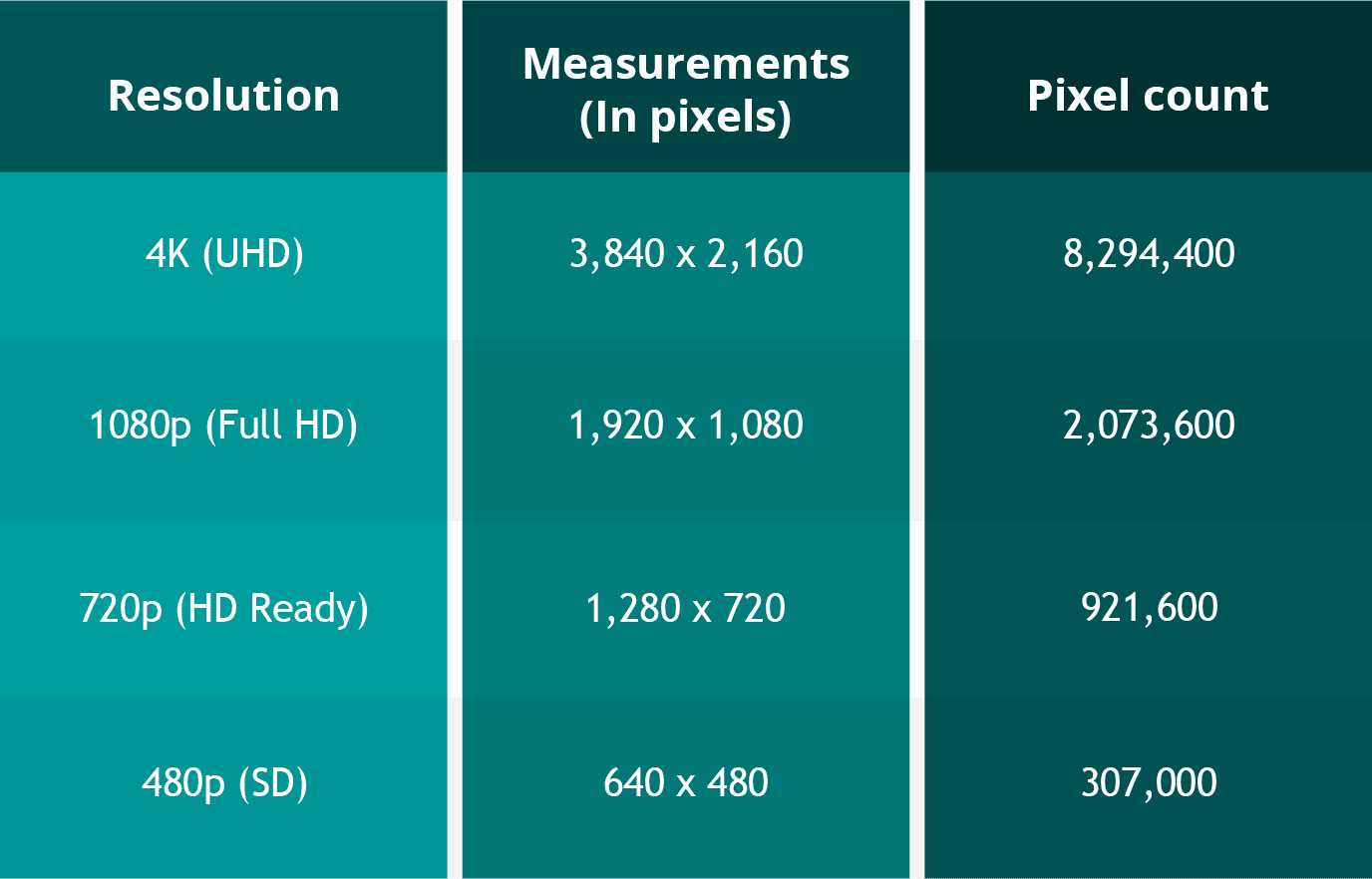
For example, a video with a resolution of 1920 x 1080 has 1920 pixels in width and 1080 pixels in height. The total number of pixels in this video is 2,073,600 (1920 x 1080 = 2,073,600). This is also referred to as 1080p or Full HD resolution.

What are the different types of Video Resolutions?

There are several different types of video resolutions available today. Here are some of the most common video resolutions:

  • 480p – This is standard definition (SD) video and has a resolution of 640 x 480 pixels. It is commonly used for older TV shows and movies.
  • 720p – This is high definition (HD) video and has a resolution of 1280 x 720 pixels. It is commonly used for streaming videos online and for newer TV shows and movies.
  • 1080p – This is Full HD video and has a resolution of 1920 x 1080 pixels. It is commonly used for Blu-ray discs, streaming videos, and newer TV shows and movies.
  • 4K – This is Ultra HD (UHD) video and has a resolution of 3840 x 2160 pixels. It is commonly used for high-end TVs and streaming videos.
  • 8K – This is the latest and highest resolution available for video and has a resolution of 7680 x 4320 pixels. It is used for high-end TVs and is not yet commonly available for streaming or other video content.

What factors affect Video Resolution?

Several factors can affect video resolution, including the quality of the camera or device used to capture the video, the lighting conditions, and the amount of compression used to store or transmit the video. Higher-quality cameras and devices can capture more pixels and produce sharper and clearer images. Good lighting conditions can also help produce better quality videos, while poor lighting can result in grainy or blurry images. Additionally, compression can reduce the file size of a video but can also reduce the quality of the video.

People Also Ask

What is aspect ratio in video resolution?

Aspect ratio refers to the ratio of the width of a video image to its height. It determines the shape of the video image and is usually expressed as a ratio of the width to the height. The most common aspect ratios for video are 4:3, which is standard definition, and 16:9, which is high definition.

What is the difference between 1080p and 4K resolution?

The difference between 1080p and 4K resolution lies in the number of pixels. 1080p has a resolution of 1920 x 1080 pixels, while 4K has a resolution of 3840 x 2160 pixels, which is four times the number of pixels as 1080p. This means that 4K displays have a much higher pixel density, resulting in sharper, more detailed images.

Another difference between the two is that 4K content requires more bandwidth and storage space than 1080p content. This is because 4K files are much larger, due to the increased number of pixels. Therefore, streaming 4K content or storing it on a device requires a faster internet connection and more storage space.

It’s worth noting that the human eye can only perceive so much detail, and the benefits of 4K resolution are most noticeable on larger screens or when sitting closer to the display. On smaller screens or at typical viewing distances, the difference between 1080p and 4K may not be as noticeable.

What is HDR?

HDR stands for High Dynamic Range, and it is a technology that expands the range of colors and brightness levels that can be displayed on a screen. HDR content is encoded with information about the brightness and color of each pixel, allowing displays that support HDR to reproduce a wider range of colors and brightness levels, resulting in more vibrant and lifelike images.
HDR content is available in a variety of formats, including HDR10, Dolby Vision, and HLG (Hybrid Log-Gamma). HDR10 is an open standard that is widely used, while Dolby Vision is a proprietary format developed by Dolby Laboratories that offers additional features, such as dynamic metadata that adjusts the brightness and color levels of each scene. HLG is a format designed for broadcasting and is compatible with both standard dynamic range and high dynamic range displays.

What is the difference between refresh rate and frame rate?

Refresh rate and frame rate are two different measurements that are often confused. Refresh rate refers to how many times per second a display updates the image on the screen, while frame rate refers to how many still images or frames are displayed per second in a video.
Refresh rate is measured in Hertz (Hz), with common refresh rates being 60Hz, 120Hz, or 144Hz. A higher refresh rate can reduce motion blur and make fast-paced action in video games or sports appear smoother.

Frame rate, on the other hand, is typically 24, 30, or 60 frames per second (fps) in video content. A higher frame rate can result in smoother motion and less stuttering, especially in fast-paced or action-packed scenes.

It’s important to note that a higher refresh rate does not necessarily mean a higher frame rate, as the two are independent of each other. A display can have a high refresh rate but still display content at a lower frame rate, resulting in a less smooth image. Conversely, a display with a low refresh rate can display high frame rate content, but the image may appear choppy due to motion blur.

Conclusion

Video resolution is an important aspect of the viewing experience, as it determines the level of detail and clarity of the image. Higher resolutions, such as 4K, can provide more detailed images with greater clarity, but they also require more bandwidth and storage space. HDR is a technology that expands the range of colors and brightness levels that can be displayed on a screen, resulting in more vibrant and lifelike images. Refresh rate refers to the number of times per second that an image is redrawn on the screen. It is measured in Hertz (Hz), with common refresh rates being 60Hz, 120Hz, and 144Hz. A higher refresh rate can result in a smoother image, especially during fast-paced action scenes or sports events. However, not all content can take advantage of a high refresh rate, so it may not be necessary for all users.

Frame rate, on the other hand, refers to the number of individual frames that make up one second of video. It is typically measured in frames per second (fps), with common frame rates being 24fps, 30fps, and 60fps. A higher frame rate can result in a smoother video, especially for fast-moving content, but it can also require more processing power and storage space.

What is aspect ratio?

Aspect ratio is another important measurement to consider when it comes to video resolution. It refers to the proportional relationship between the width and height of a video image. Common aspect ratios include 16:9 (widescreen), 4:3 (standard), and 21:9 (ultra-wide).
The aspect ratio can affect how the video is displayed on the screen, as well as the overall viewing experience. For example, a wider aspect ratio can be better for watching movies, while a narrower aspect ratio may be more suitable for certain types of content, such as computer applications or documents.

Conclusion

Video resolution is a key factor in determining the quality and clarity of video content. Understanding the different measurements and terms used to describe resolution can help you make informed decisions when purchasing a new TV or monitor, or when creating and sharing your own video content.
Remember to consider factors such as aspect ratio, refresh rate, and frame rate, as well as the resolution itself, when evaluating the quality of video content. With a better understanding of these concepts, you can enjoy your favorite movies, TV shows, and other video content in the best possible quality.

People also ask

What is the difference between resolution and pixel density?

Resolution refers to the number of pixels in an image, while pixel density refers to the concentration of those pixels within a given area. A higher pixel density can result in a sharper, more detailed image, even at lower resolutions.

What is 8K resolution?

8K resolution, also known as 7680 x 4320 or 4320p, is the highest resolution currently available for consumer video content. It offers four times the resolution of 4K and sixteen times the resolution of 1080p.

Can I upscale lower-resolution content to a higher resolution?

While it is possible to upscale lower-resolution content to a higher resolution, the quality of the resulting image may not be as good as native high-resolution content. Upscaling can also result in issues such as artifacts, blurriness, and distortion. It is generally recommended to view content at its native resolution whenever possible.