MP4 Video Quality


Free Download Mp4Gain
picture

MP4 Video Quality

MP4 Video Quality

Let’s talk about MP4 video quality

As a video production professional, ensuring optimal MP4 video quality is paramount. Understanding the factors that influence MP4 video quality is crucial for creating videos that look their best, whether for streaming, archiving, or sharing. From resolution and bit rate to codecs and encoding settings, many elements contribute to the final result.

Understanding the Key Factors Affecting MP4 Video Quality

MP4 video quality is determined by several interconnected factors. I’ve learned that it’s not just about one setting, but a combination of elements working together. Resolution, bit rate, codec, frame rate, and encoding settings all play a significant role in the final visual output of your MP4 video.

Consider it like baking a cake. You can’t just focus on the sugar; you need the right balance of flour, eggs, and baking time to get a delicious result. Similarly, optimizing MP4 video quality requires careful attention to each of these factors.

Resolution’s Impact on MP4 Video Quality

Resolution refers to the number of pixels in a video frame, determining the level of detail. I always advise choosing the appropriate resolution for your intended viewing platform. Higher resolutions, like 4K (3840 x 2160) or 1080p (1920 x 1080), provide sharper and more detailed images compared to lower resolutions like 720p (1280 x 720) or 480p (854 x 480). Think of it like looking at a picture through a window: a higher resolution is like having a cleaner, clearer window.

* Higher resolution for more detail.
* Choose resolution based on viewing platform.
* Balance resolution with file size considerations.

Bit Rate: The Data Flow Behind MP4 Video Quality

Bit rate measures the amount of data used to encode a video per unit of time, typically expressed in megabits per second (Mbps). A higher bit rate generally results in better MP4 video quality, as more data is available to represent the image. I often use higher bit rates for videos with complex scenes or fast motion. A low bit rate can lead to compression artifacts, such as blockiness or blurring, especially in scenes with a lot of detail. Think of it like painting a picture: a higher bit rate is like having more colors available to create a more vibrant and detailed image.

Codecs and Their Role in MP4 Video Quality

Codecs (coder-decoders) are algorithms used to compress and decompress video data. The choice of codec significantly impacts MP4 video quality and file size. H.264 (AVC) is a widely supported codec that provides a good balance of quality and compression. H.265 (HEVC) offers even better compression efficiency, resulting in smaller file sizes with comparable quality, but requires more processing power. AV1 is a newer, open-source codec that aims to provide even better performance than H.265. I usually recommend H.264 for broad compatibility and H.265 for scenarios where file size is a primary concern.

Frame Rate and Its Influence on MP4 Video Quality

Frame rate refers to the number of frames displayed per second (fps), affecting the smoothness of motion in a video. Common frame rates include 24fps (cinematic look), 30fps (standard for television), and 60fps (smoother motion). I often use higher frame rates for action-packed videos or gaming footage. Using too low frame rate can result in choppy or jerky motion, while too high a frame rate can increase file size without a noticeable improvement in perceived quality.

Encoding Settings for Optimal MP4 Video Quality

Encoding settings play a crucial role in determining MP4 video quality. I always pay close attention to settings like the encoding profile (baseline, main, high), level, and rate control mode (constant bit rate, variable bit rate). The encoding profile and level determine the complexity of the encoding process, while the rate control mode manages the bit rate allocation. Variable bit rate (VBR) encoding often provides better quality than constant bit rate (CBR) encoding, as it dynamically adjusts the bit rate based on the complexity of the scene.

Optimizing MP4 Video Quality for Different Platforms

Different platforms have different requirements and recommendations for MP4 video quality. I always tailor my encoding settings to match the specific platform where the video will be viewed. For example, YouTube recommends different bit rates and resolutions than Vimeo or Facebook. Failing to optimize for the target platform can result in suboptimal video quality or playback issues.

* YouTube: Higher bit rates and resolutions are recommended.
* Vimeo: Similar to YouTube, prioritize quality over file size.
* Facebook: Balanced approach for quality and file size.

The Relationship Between MP4 Video Quality and File Size

There’s an inverse relationship between MP4 video quality and file size. Increasing the resolution, bit rate, or frame rate will generally improve video quality but also increase the file size. I often have to strike a balance between these two factors, especially when dealing with storage limitations or bandwidth constraints. The goal is to achieve the best possible video quality within the given file size limitations.

Common MP4 Video Quality Issues and How to Fix Them

You might encounter some common MP4 video quality issues, like blockiness, blurring, or artifacts. I’ve seen these issues arise from several sources. These problems often result from using too low a bit rate, inappropriate codec, or incorrect encoding settings. To fix these issues, try increasing the bit rate, using a more efficient codec (like H.265), or adjusting the encoding settings.

MP4 Video Quality and the Viewing Experience

Ultimately, the goal is to deliver a viewing experience that is visually appealing and engaging. I always consider the target audience and the intended viewing environment when making decisions about MP4 video quality. Whether it’s a cinematic experience on a large screen or a quick viewing on a mobile device, optimizing MP4 video quality can significantly enhance the overall impact of your video.

Latest words on MP4 video quality

In conclusion, achieving excellent MP4 video quality requires a comprehensive understanding of the various factors involved. By carefully considering resolution, bit rate, codecs, frame rate, and encoding settings, you can optimize your videos for the best possible viewing experience. Remember that striking a balance between video quality and file size is essential, and tools like Mp4Gain can help you achieve this balance.

FAQ about MP4 video quality

What is the most important factor affecting MP4 video quality?

While multiple factors contribute, bit rate is often considered the most important factor affecting MP4 video quality. It determines the amount of data used to encode the video, directly impacting the level of detail and clarity.

Does higher resolution always mean better MP4 video quality?

Not necessarily. While higher resolution can provide more detail, it also requires a higher bit rate to maintain good MP4 video quality. If the bit rate is too low for the resolution, the video may appear blocky or blurry.

Which codec provides the best MP4 video quality?

H.265 (HEVC) generally provides better compression efficiency than H.264 (AVC), meaning it can deliver comparable MP4 video quality at a smaller file size. AV1 is a newer codec that aims to offer even better performance.

What bit rate should I use for 1080p MP4 video?

A good starting point for 1080p MP4 video is a bit rate of 5-8 Mbps for H.264 and 3-5 Mbps for H.265. However, the optimal bit rate depends on the complexity of the video content.

How does frame rate affect MP4 video quality?

Frame rate affects the smoothness of motion in a video. Higher frame rates (e.g., 60fps) can make motion appear smoother, but they also increase file size. Common frame rates include 24fps (cinematic), 30fps (standard), and 60fps (smooth motion).

What are common issues that reduce MP4 video quality?

Common issues that reduce MP4 video quality include using too low a bit rate, selecting an inappropriate codec, incorrect encoding settings, and upscaling low-resolution video to a higher resolution.

What encoding settings are best for MP4 video quality?

Variable bit rate (VBR) encoding generally provides better MP4 video quality than constant bit rate (CBR) encoding. Also, using an appropriate encoding profile (e.g., High) and level can improve quality.

How can I optimize MP4 video quality for YouTube?

To optimize MP4 video quality for YouTube, use a high resolution (1080p or 4K), a bit rate of 8-12 Mbps (for 1080p) or 35-45 Mbps (for 4K), the H.264 codec, and a frame rate that matches your source footage.

What is the relationship between MP4 video quality and file size?

There’s a direct relationship. Increasing the resolution, bit rate, or frame rate will generally improve MP4 video quality but also increase the file size. Finding the right balance depends on your storage and bandwidth limitations.

Can I improve the MP4 video quality of an already existing low-quality video?

While you can’t magically restore detail that wasn’t there originally, you can improve perceived MP4 video quality by using techniques like sharpening filters, noise reduction, and color correction. However, these methods have limitations.

Comments:

This article was super informative! I always wondered why some of my MP4 videos looked so bad. Now I know it’s not just about the resolution, but also the bit rate and codecs. Thanks for breaking it down!

Great explanation of MP4 video quality! I’ve been struggling with getting my videos to look good on YouTube. I’ll definitely try adjusting my encoding settings based on your recommendations.

As a beginner video editor, this article was a lifesaver. I learned so much about MP4 video quality and how to optimize my videos. Thanks for the helpful tips!

Thanks man, this stuff is greek to me but you explained it in a way i could understand with those analogies! The cake and window ones were perfect!

Okay, so you say that h.265 is better but what are the downsides vs h.264?

I’m shooting a short film and need to make sure it looks good on a big screen. This article helped me understand what settings I need to prioritize. Appreciate the info!


Free Download Mp4Gain
picture


Mp4Gain Main Window
picture


Mp4Gain Features
picture


Free Download Mp4Gain
picture

Video bit rate

Video bit rate

Video bit rate
Video bit rate

Today, we are going to popularize the concept of bitrate in video playback.

Video bit rate
Video bit rate

When formulating RMVB/RM, the main consideration is network communication and the purpose is to use unpleasant network speed to deliver visually acceptable image quality. Therefore, the characteristic of RMVB/RM encoding format is that better video quality can be obtained at lower bit rate. However, in the case of high bitrate, it is not as good as other encoding formats. It is also an RM/RMVB suffixed file, and its internal encoding format is subdivided into R8/R9/R10, etc., but in general, the above-mentioned characteristics are maintained. It’s just that the compression rate is higher, so RMVB is not used in the field of HD encoding. RMVB looks for a high compression rate and acceptable image quality, so it often compresses some details that are not easy to notice. At first glance, the image is good, but if you look closely, you will find that the image is not sharp, the layers are not clear, and it always gives people a feeling of being blurry all the time. The audio encoding part of the RMVB/RM suffix file also has that situation. The sound compression rate is very high, but it can only be heard. Don’t expect beautiful sound.


The popularity of RMVB is due to the fact that the REAL format is suitable for low-speed network transmission and can achieve acceptable image quality with a smaller file size. Second, with the use of RMVB, relatively full-featured transcoding software and solutions have begun to appear, which is convenient for video lovers and expands the video source. However, as network speeds get faster, better encoders like H264 appear, and because RMVB is not suitable for high-definition video production, and if other hardware manufacturers want to support the format RMVB/RM, you have to pay REAL quite expensive The patent fee caused many hardware manufacturers to stop supporting RMVB files. RMVB documentation is not the completely overwhelming advantage it once was.


Many video files spread on the Internet now have suffixes like AVI, MKV, MP4 and 3GP. Among them, MKV is mainly used for HD video files, MP4, 3GP, etc. They are mainly used in mobile phones and portable devices, etc. AVI is more widely used, not only in high-definition video files, but also in portable devices.


The video encoding format used by VCD is MPEG1, and DVD is MPEG2. Both VCD and DVD are mainly used for home video and audio playback, and generally speaking, VCD is encoded with MPEG1 as a fixed bit rate encoding. DVD can support dynamic bit rate MPEG2 encoding.

In order to ensure the clarity of the image when the image changes drastically, the default encoding rate is high, the standard encoding rate of VCD is 1152Kbps, and the DVD is more open. According to the playing time of the movie, it is generally set between 5000Kbps -8000Kbps, so as not to waste DVD discs Under the premise of capacity, please use a higher bit rate as much as possible to get a higher definition. MPEG1 and MPEG2 are not very effective in the case of ultra-low bit rate, and if the bit rate increases too much, the indications generated by the image effect are not obvious. MKV is encoded in H.264 for high definition video and the 1080p image reaches a bit rate of 30 Mbps.


Note:

VBR: “variable bit rate”, VBR encoding means that the encoder’s output bit rate (or decoder’s input bit rate) can be adaptively adjusted based on the complexity of the encoder’s input source signal , to keep The output quality remains the same instead of keeping the output bitrate the same. VBR is suitable for storage (not very suitable for streaming) and can use limited storage space more efficiently: use more codewords to encode high-complexity segments and use fewer codewords to encode low-complexity segments .

CBR: “fixed bit rate”, CBR encoding means that the output bit rate of the encoder (or the input bit rate of the decoder) must be a fixed (constant) value. CBR is very useful when performing multimedia communications on a channel with limited bandwidth, because the higher bit rate is limited at this time, and CBR can use that channel more easily. But CBR is not suitable for storage,

video bit rate

Video bit rate

Video Bitrate
Video Bitrate

Today, we are going to popularize the concept of bitrate in video playback.

Video Bitrate
Video Bitrate

Data rate refers to the data flow used by a video file in a unit of time, also called bit rate, sampling rate, and bit stream rate. A popular understanding is that it is the most important part of image quality control in video encoding. Generally, the unit we use is kb/s or Mb/s. Generally speaking, at the same resolution, the higher the code stream of the video file, the lower the compression ratio and the higher the image quality. The higher the bit stream, the higher the sampling rate per unit time, the higher the data stream, the higher the accuracy, the closer the processed file is to the original file, the better the image quality, the clearer the image quality and the higher the decoding capability of the playback device is required.


Of course, the larger the code stream, the larger the file size. The calculation formula is file size = time X code rate/8. For example, a 720P RMVB file with a 1 Mbps stream of 90 minutes is common on the Internet and its volume is = 5400 seconds × 1 Mb/8 = 675 MB.


Generally speaking, a video file includes both image and sound, such as an RMVB video file, which contains both video information and audio information. Audio and video have their own sampling methods and different bit rates, that is, the same video Audio and video file bit rate is not the same. And what we’re talking about is the bitrate of a video file, which generally refers to the sum of the bitrate of the audio and video information in the video file.


Taking the most popular and familiar RMVB video file in China as an example, VB in RMVB refers to VBR, which is short for Variable Bit Rate. The Chinese meaning is variable bit rate, which means that RMVB adopts the dynamic encoding method. , use a higher sampling rate for complex dynamic images (singing and dancing, flying cars, wars, actions, etc.), and use a lower sampling rate for static images, make rational use of resources and achieve the image quality and volume effect


The most fundamental difference between code rate and sample rate is that the code rate is for the source file.


There are many types of encoding formats. With the continuous advancement of technology, various encoding formats have been produced for different purposes. The compression rates of different encoding formats are different and have their own characteristics. Some of them can maintain high image quality in the case of low bitrate, but in the case of high bitrate, the image quality indication is not great and some are suitable for high bit rates. High definition image is maintained, but may not work well at low bit rates. Present some common ones.

How does bitrate affect video quality?

How does bitrate affect video quality?

How does bitrate affect video quality


To understand how bitrate affects video quality, we first need to understand how video compression works.

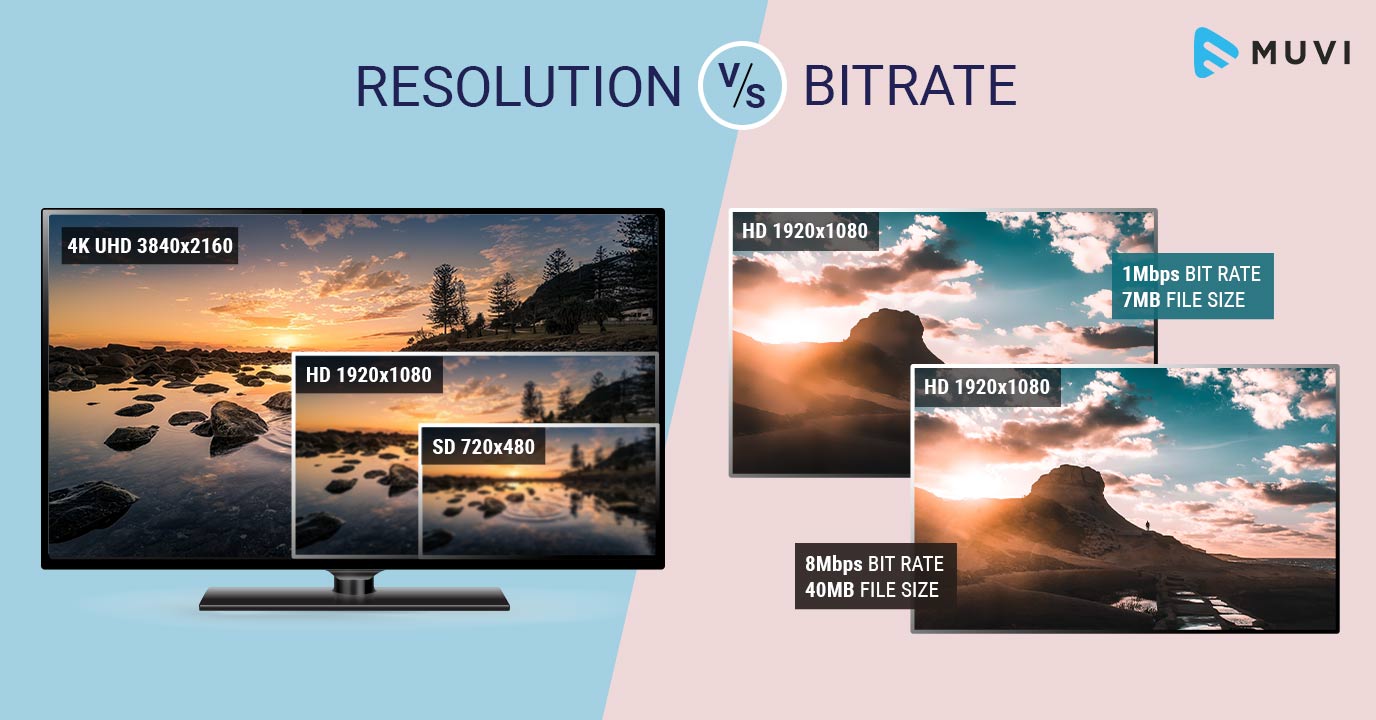
Video Bitrate vs Resolution

When you’re compressing video, the compression algorithm does two things:

Convert video from “pixel domain” to “frequency domain” by DCT (Discrete Cosine Transform). If you are not familiar with DCT, you can read our previous article: How to explain DCT to a 5-year-old?

Some of the information in the frequency domain is discarded through a technique called quantization, with the expectation that the human eye will not perceive this loss of information.

Essentially, when you compress a video, you’re throwing away some information while hoping there’s no loss in video quality. When you overcompress the video, you throw away a lot of information, and the human eye perceives the encoding loss. If you don’t compress the video too much, the file size will be huge, while the video quality will be excellent.

This is known as the “rate-distortion exchange (RDT)” in video compression, and the lower the bitrate, the worse the video quality (assuming the resolution is fixed).

What does RTD mean?

Let’s look at the example below. We use FFmpeg to compress the example video (CrowdRun) to 1.5 mbps and 5 mbps, respectively. With the video screenshots below, can you tell me which one is from the higher bitrate video and which one is from the lower bitrate video?


Obviously the bitrate in the image above is lower and the bitrate in the image below is higher. When using a bitrate of 5 mbps @ 1080p, the video quality is excellent. For the same video, when we use a bitrate of 1.5 mbps, the video quality of CrowdRun becomes very poor.

But is it always like this? Does low bitrate always produce poor quality video? We answer this question with a simple experiment.

Let’s test the “low bitrate = low quality” hypothesis using animated videos. For the following video, we used the popular Simpsons trailer and compressed the video to 2.5mbps and 1mbps using H.264/AVC (make sure all encoder settings are consistent).

Bitrate vs. Video Resolution

Bitrate vs. Video Resolution

Bitrate vs. Video Resolution

which is more important for streaming video?

Bitrate vs. Video Resolution

Many people have this confusion because these two factors can have a profound effect on the encoder’s output.

How do you think it should be chosen?

Choose 1080p or 720p?

Choose 5mbps or 3mbps?

Choose 1080p@5mbps or 1080p@7mbps?

If you don’t know what to choose, great. That’s why I wrote this article: to explain the relationship between bitrate and resolution in simple terms, and to help you choose the right encoder settings.

Let’s start by understanding bitrate.

What is the bitrate of the video?

Video bitrate or bit rate refers to the number of bits transmitted per second of video information. The code rate unit is usually:

kbps or kilobits per second

mbps or megabits per second

When you are compressing video, you usually need to set the video compression software not to exceed a certain bit rate.

For example, if you set the video compression software’s bitrate to 3mbps, the software will compress the video at 3mb per second (on average) and stream it to the decoder or player. This is the code rate.

When you talk about bitrate, you’re really talking about: the relationship between video compression and video quality loss. The more you compress, the lower the quality of the video (and this is not always the case, as we will see later).

When compressing video, the following algorithms can be used for speed control, these are:

CBR (Constant Bitrate) – It is best to keep the bitrate constant if video quality is lost.

VBR (Variable Bitrate) – Maintains consistent video quality, allowing for bitrate fluctuations.

Capped VBR – Keep the video quality as constant as possible, allowing the bitrate to fluctuate within a set range.

This article will not discuss the above frequency control methods in detail. Friends who want to know more, welcome to read: Understanding Frequency Control Modes: What are CBR, VBR, CRF and Capped-CRF?

So when we talk about the bit rate, we should pay attention to the following points:

The quality of high bitrate video is usually higher than that of low bitrate video. I say generally, because the video quality reaches a certain point where it will no longer improve (no matter how much the bitrate increases).

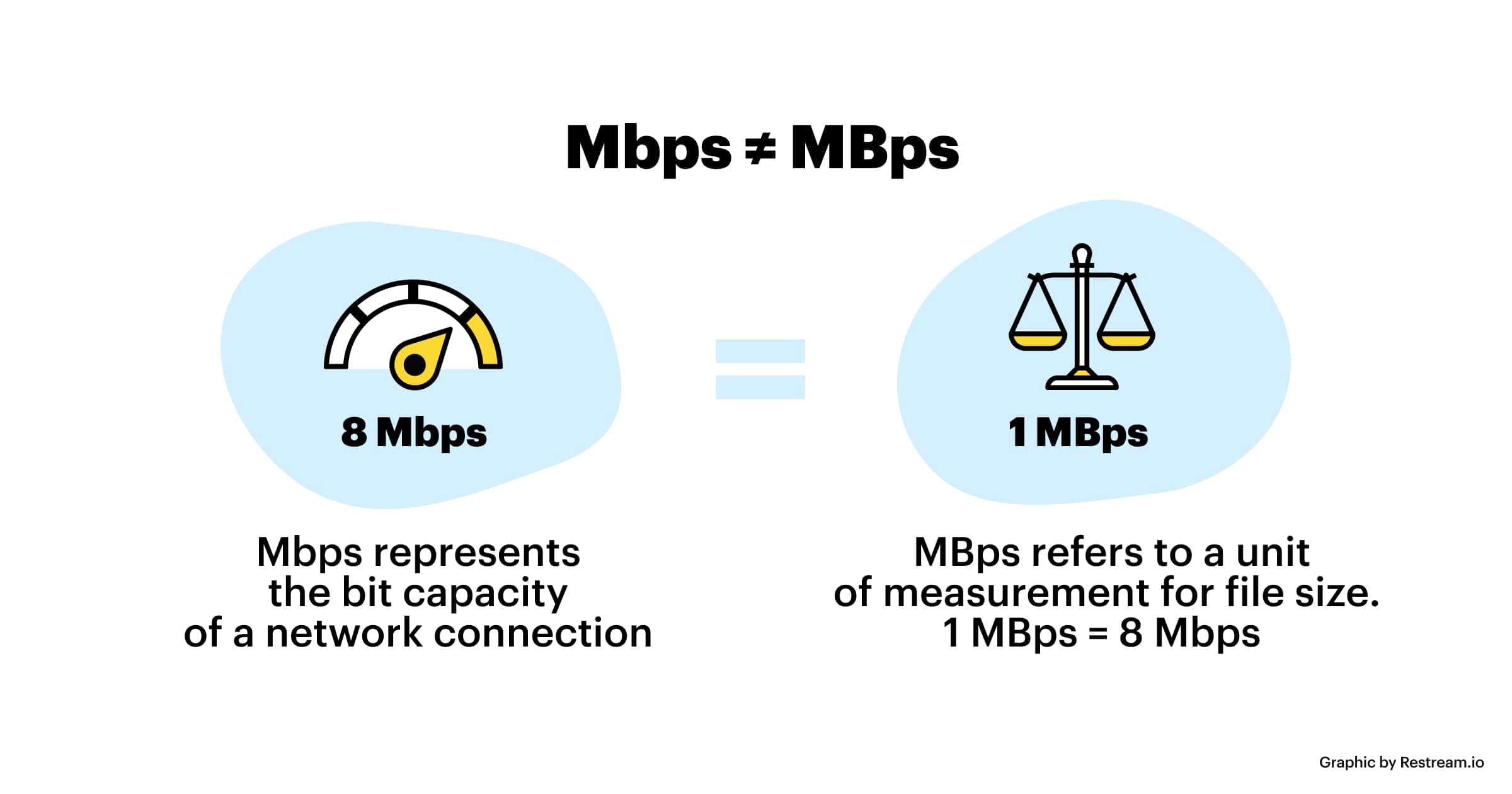
The code rate refers to bits (bit) instead of bytes (byte).

The bit rate alone does not determine the quality of the video, you have to take into account factors like resolution, frame rate, screen size, etc.

Codecs for video compression: H.264/AVC, HEVC, VP9, ​​AV1? If you change the video codec and its settings (or encoding tools), the same bitrate will provide a very different video quality.