MP4 Video Quality


Free Download Mp4Gain
picture

MP4 Video Quality

MP4 Video Quality

Let’s talk about MP4 video quality

As a video production professional, ensuring optimal MP4 video quality is paramount. Understanding the factors that influence MP4 video quality is crucial for creating videos that look their best, whether for streaming, archiving, or sharing. From resolution and bit rate to codecs and encoding settings, many elements contribute to the final result.

Understanding the Key Factors Affecting MP4 Video Quality

MP4 video quality is determined by several interconnected factors. I’ve learned that it’s not just about one setting, but a combination of elements working together. Resolution, bit rate, codec, frame rate, and encoding settings all play a significant role in the final visual output of your MP4 video.

Consider it like baking a cake. You can’t just focus on the sugar; you need the right balance of flour, eggs, and baking time to get a delicious result. Similarly, optimizing MP4 video quality requires careful attention to each of these factors.

Resolution’s Impact on MP4 Video Quality

Resolution refers to the number of pixels in a video frame, determining the level of detail. I always advise choosing the appropriate resolution for your intended viewing platform. Higher resolutions, like 4K (3840 x 2160) or 1080p (1920 x 1080), provide sharper and more detailed images compared to lower resolutions like 720p (1280 x 720) or 480p (854 x 480). Think of it like looking at a picture through a window: a higher resolution is like having a cleaner, clearer window.

* Higher resolution for more detail.
* Choose resolution based on viewing platform.
* Balance resolution with file size considerations.

Bit Rate: The Data Flow Behind MP4 Video Quality

Bit rate measures the amount of data used to encode a video per unit of time, typically expressed in megabits per second (Mbps). A higher bit rate generally results in better MP4 video quality, as more data is available to represent the image. I often use higher bit rates for videos with complex scenes or fast motion. A low bit rate can lead to compression artifacts, such as blockiness or blurring, especially in scenes with a lot of detail. Think of it like painting a picture: a higher bit rate is like having more colors available to create a more vibrant and detailed image.

Codecs and Their Role in MP4 Video Quality

Codecs (coder-decoders) are algorithms used to compress and decompress video data. The choice of codec significantly impacts MP4 video quality and file size. H.264 (AVC) is a widely supported codec that provides a good balance of quality and compression. H.265 (HEVC) offers even better compression efficiency, resulting in smaller file sizes with comparable quality, but requires more processing power. AV1 is a newer, open-source codec that aims to provide even better performance than H.265. I usually recommend H.264 for broad compatibility and H.265 for scenarios where file size is a primary concern.

Frame Rate and Its Influence on MP4 Video Quality

Frame rate refers to the number of frames displayed per second (fps), affecting the smoothness of motion in a video. Common frame rates include 24fps (cinematic look), 30fps (standard for television), and 60fps (smoother motion). I often use higher frame rates for action-packed videos or gaming footage. Using too low frame rate can result in choppy or jerky motion, while too high a frame rate can increase file size without a noticeable improvement in perceived quality.

Encoding Settings for Optimal MP4 Video Quality

Encoding settings play a crucial role in determining MP4 video quality. I always pay close attention to settings like the encoding profile (baseline, main, high), level, and rate control mode (constant bit rate, variable bit rate). The encoding profile and level determine the complexity of the encoding process, while the rate control mode manages the bit rate allocation. Variable bit rate (VBR) encoding often provides better quality than constant bit rate (CBR) encoding, as it dynamically adjusts the bit rate based on the complexity of the scene.

Optimizing MP4 Video Quality for Different Platforms

Different platforms have different requirements and recommendations for MP4 video quality. I always tailor my encoding settings to match the specific platform where the video will be viewed. For example, YouTube recommends different bit rates and resolutions than Vimeo or Facebook. Failing to optimize for the target platform can result in suboptimal video quality or playback issues.

* YouTube: Higher bit rates and resolutions are recommended.
* Vimeo: Similar to YouTube, prioritize quality over file size.
* Facebook: Balanced approach for quality and file size.

The Relationship Between MP4 Video Quality and File Size

There’s an inverse relationship between MP4 video quality and file size. Increasing the resolution, bit rate, or frame rate will generally improve video quality but also increase the file size. I often have to strike a balance between these two factors, especially when dealing with storage limitations or bandwidth constraints. The goal is to achieve the best possible video quality within the given file size limitations.

Common MP4 Video Quality Issues and How to Fix Them

You might encounter some common MP4 video quality issues, like blockiness, blurring, or artifacts. I’ve seen these issues arise from several sources. These problems often result from using too low a bit rate, inappropriate codec, or incorrect encoding settings. To fix these issues, try increasing the bit rate, using a more efficient codec (like H.265), or adjusting the encoding settings.

MP4 Video Quality and the Viewing Experience

Ultimately, the goal is to deliver a viewing experience that is visually appealing and engaging. I always consider the target audience and the intended viewing environment when making decisions about MP4 video quality. Whether it’s a cinematic experience on a large screen or a quick viewing on a mobile device, optimizing MP4 video quality can significantly enhance the overall impact of your video.

Latest words on MP4 video quality

In conclusion, achieving excellent MP4 video quality requires a comprehensive understanding of the various factors involved. By carefully considering resolution, bit rate, codecs, frame rate, and encoding settings, you can optimize your videos for the best possible viewing experience. Remember that striking a balance between video quality and file size is essential, and tools like Mp4Gain can help you achieve this balance.

FAQ about MP4 video quality

What is the most important factor affecting MP4 video quality?

While multiple factors contribute, bit rate is often considered the most important factor affecting MP4 video quality. It determines the amount of data used to encode the video, directly impacting the level of detail and clarity.

Does higher resolution always mean better MP4 video quality?

Not necessarily. While higher resolution can provide more detail, it also requires a higher bit rate to maintain good MP4 video quality. If the bit rate is too low for the resolution, the video may appear blocky or blurry.

Which codec provides the best MP4 video quality?

H.265 (HEVC) generally provides better compression efficiency than H.264 (AVC), meaning it can deliver comparable MP4 video quality at a smaller file size. AV1 is a newer codec that aims to offer even better performance.

What bit rate should I use for 1080p MP4 video?

A good starting point for 1080p MP4 video is a bit rate of 5-8 Mbps for H.264 and 3-5 Mbps for H.265. However, the optimal bit rate depends on the complexity of the video content.

How does frame rate affect MP4 video quality?

Frame rate affects the smoothness of motion in a video. Higher frame rates (e.g., 60fps) can make motion appear smoother, but they also increase file size. Common frame rates include 24fps (cinematic), 30fps (standard), and 60fps (smooth motion).

What are common issues that reduce MP4 video quality?

Common issues that reduce MP4 video quality include using too low a bit rate, selecting an inappropriate codec, incorrect encoding settings, and upscaling low-resolution video to a higher resolution.

What encoding settings are best for MP4 video quality?

Variable bit rate (VBR) encoding generally provides better MP4 video quality than constant bit rate (CBR) encoding. Also, using an appropriate encoding profile (e.g., High) and level can improve quality.

How can I optimize MP4 video quality for YouTube?

To optimize MP4 video quality for YouTube, use a high resolution (1080p or 4K), a bit rate of 8-12 Mbps (for 1080p) or 35-45 Mbps (for 4K), the H.264 codec, and a frame rate that matches your source footage.

What is the relationship between MP4 video quality and file size?

There’s a direct relationship. Increasing the resolution, bit rate, or frame rate will generally improve MP4 video quality but also increase the file size. Finding the right balance depends on your storage and bandwidth limitations.

Can I improve the MP4 video quality of an already existing low-quality video?

While you can’t magically restore detail that wasn’t there originally, you can improve perceived MP4 video quality by using techniques like sharpening filters, noise reduction, and color correction. However, these methods have limitations.

Comments:

This article was super informative! I always wondered why some of my MP4 videos looked so bad. Now I know it’s not just about the resolution, but also the bit rate and codecs. Thanks for breaking it down!

Great explanation of MP4 video quality! I’ve been struggling with getting my videos to look good on YouTube. I’ll definitely try adjusting my encoding settings based on your recommendations.

As a beginner video editor, this article was a lifesaver. I learned so much about MP4 video quality and how to optimize my videos. Thanks for the helpful tips!

Thanks man, this stuff is greek to me but you explained it in a way i could understand with those analogies! The cake and window ones were perfect!

Okay, so you say that h.265 is better but what are the downsides vs h.264?

I’m shooting a short film and need to make sure it looks good on a big screen. This article helped me understand what settings I need to prioritize. Appreciate the info!


Free Download Mp4Gain
picture


Mp4Gain Main Window
picture


Mp4Gain Features
picture


Free Download Mp4Gain
picture

Video Encoding Algorithms

Video Encoding Algorithms

Video Encoding Algorithms

Video Compression Techniques

Video compression techniques are the backbone of efficient video encoding. These methods allow us to reduce the size of video files without significantly compromising quality. Think of it as a clever way to pack a suitcase efficiently, ensuring you can carry more without exceeding weight limits. Video compression algorithms analyze and eliminate redundant information in video frames, making them indispensable for digital video transmission, storage, and streaming.

Video codecs like H.264 and HEVC are at the forefront of video compression techniques. They use sophisticated mathematical models to compress video data while maintaining impressive visual fidelity. Imagine a painter meticulously crafting a masterpiece on a smaller canvas; video compression algorithms do something similar, preserving the essence of the video within a smaller digital footprint.

Digital Video Encoding

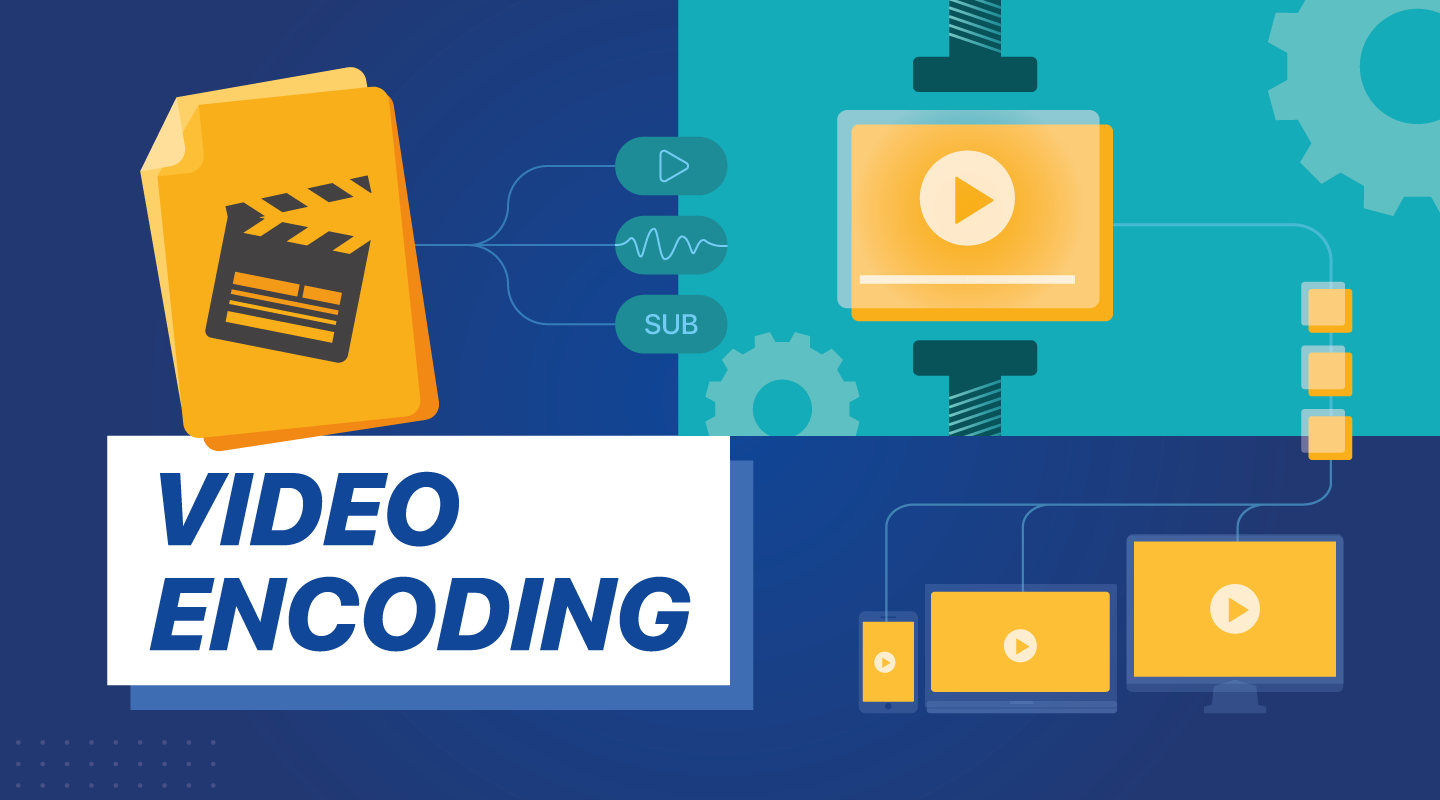
Digital video encoding is the process of converting raw video data into a digital format suitable for storage or transmission. It’s like translating a book into a language that computers can understand. Video encoding algorithms handle this translation, transforming analog video signals or raw digital data into compressed video files.

One crucial aspect of digital video encoding is achieving a balance between file size and video quality. This delicate dance requires careful selection of encoding parameters, such as bitrates, resolutions, and encoding profiles. Digital video encoding is vital for various applications, from creating streaming-friendly video content to optimizing video playback on mobile devices.

Video Encoding Optimization

Video encoding optimization is akin to fine-tuning the performance of a race car. It involves selecting the right video encoding settings to achieve the best possible output. Optimal video encoding enhances video quality, minimizes file size, and ensures compatibility with target devices or platforms.

To achieve video encoding optimization, professionals must choose the appropriate techniques and settings for each type of content. It’s like tailoring a suit for a specific occasion—different videos may require different encoding approaches. Factors such as resolution, bitrate, and codec selection all play critical roles in the optimization process.

Video Compression vs. Encoding

Video compression and video encoding are closely related but distinct processes. Video compression primarily focuses on reducing file size, while video encoding involves the transformation of video data into a digital format. Think of video compression as a suitcase that shrinks to fit more items, and video encoding as translating a book into a digital language.

Video compression employs algorithms to eliminate redundant information and compress video files, making them smaller. In contrast, video encoding encompasses the entire process of converting video data, including compression. Both are essential for efficient video storage and transmission, but they serve different purposes within the video production and distribution pipeline.

Hardware Acceleration in Video Encoding

Hardware acceleration in video encoding leverages specialized hardware components to enhance the encoding process. It’s like having a dedicated co-pilot in an aircraft, sharing the workload and increasing efficiency. Hardware acceleration significantly speeds up video encoding tasks, reducing processing time and energy consumption.

Graphics processing units (GPUs) and dedicated video encoding chips are examples of hardware used for acceleration. These components offload encoding tasks from the CPU, allowing for smoother video playback and faster video processing. Hardware-accelerated encoding is particularly crucial in applications like gaming, video conferencing, and real-time video streaming.

Video Encoding for Streaming

Video encoding for streaming is a specialized application of video encoding tailored to deliver content over the internet. It’s like preparing a gourmet meal for delivery, ensuring that it arrives at its destination in the best possible condition. Streaming video encoding optimizes video files for smooth, buffer-free playback on various devices and network conditions.

Adaptive bitrate streaming, a common technique, adjusts video quality in real-time based on the viewer’s internet connection speed. This ensures a seamless viewing experience, regardless of fluctuations in bandwidth. Video encoding for streaming plays a pivotal role in the world of online entertainment, from YouTube videos to live sports broadcasts.

Adaptive Video Encoding

Adaptive video encoding is a dynamic approach that tailors video quality to match changing network conditions. It’s like driving a car with adaptive cruise control, adjusting your speed to maintain a safe following distance. This technique ensures that viewers receive the best possible video quality, even when faced with unreliable or fluctuating internet connections.

Adaptive video encoding relies on the segmentation of video content into multiple quality levels or bitrates. When network conditions change, the player seamlessly switches between these segments to maintain uninterrupted playback. This technology is particularly valuable in streaming services, where viewers expect a consistent experience regardless of their connection.

Video Encoding and Decoding

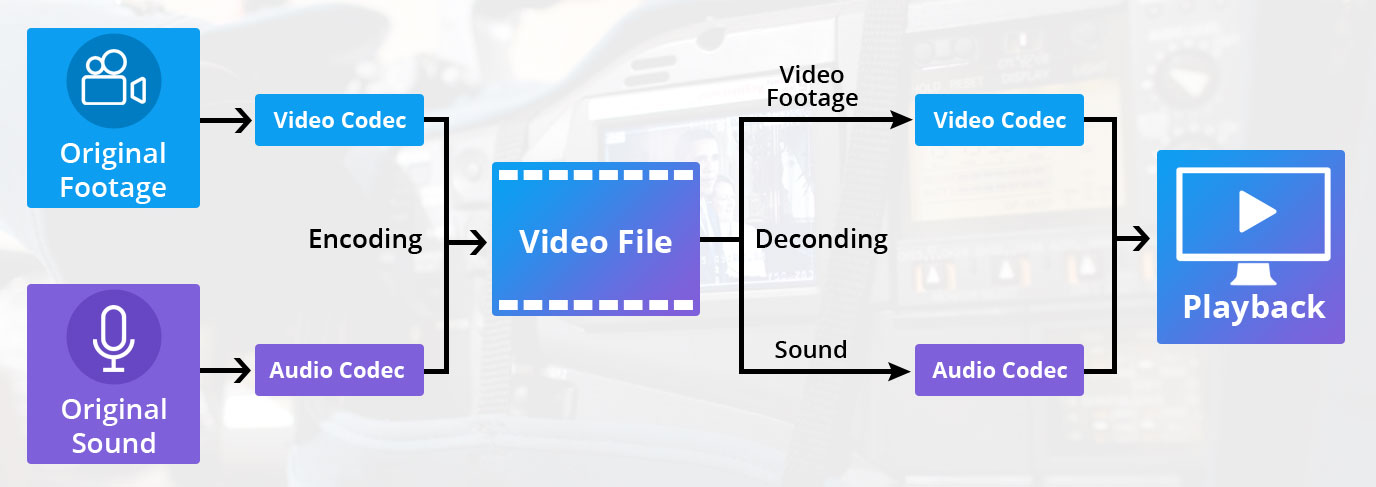
Video encoding and decoding are two sides of the same coin in the world of digital video. Encoding is the process of converting raw video data into a compressed digital format, while decoding involves converting compressed video back into a usable form. It’s like sending a secret message that can only be read by the intended recipient—encoding and decoding ensure that video content is accessible and playable.

Video codecs like H.265 (HEVC) and VP9 are responsible for both encoding and decoding operations. When you stream a video online or watch a movie on your device, these codecs work behind the scenes to deliver the audiovisual experience you enjoy.

H.264 Video Encoding

H.264 video encoding is a widely adopted video compression standard known for its efficiency and versatility. It’s like a Swiss Army knife in the world of video codecs, capable of handling a variety of applications. H.264 excels in balancing video quality, compression efficiency, and compatibility.

This codec is commonly used in video streaming, video conferencing, and online video platforms like YouTube. Its ability to deliver high-quality video with relatively low bitrates has made it a popular choice for a wide range of video content, from webinars to high-definition movies.

HEVC (High-Efficiency Video Coding)

HEVC, or High-Efficiency Video Coding, represents a significant advancement in video compression technology. It’s like upgrading from a compact car to a high-performance sports car in terms of compression efficiency. HEVC offers superior video quality at lower bitrates compared to its predecessors.

HEVC is particularly valuable for applications requiring ultra-high-definition video, such as 4K and 8K content. It reduces storage and bandwidth requirements while maintaining stunning visual clarity. As video resolutions continue to climb, HEVC plays a crucial role in delivering immersive viewing experiences.

Video Encoding for Mobile Devices

Video encoding for mobile devices is a specialized approach to ensure optimal video playback on smartphones and tablets. It’s like tailoring a suit to fit perfectly; mobile video encoding adapts video files for small screens and varying device capabilities. This optimization ensures a seamless and enjoyable viewing experience on mobile platforms.

Efficient video encoding for mobile devices involves considerations like resolution, bitrate, and codec selection. These factors impact not only video quality but also device battery life and data usage. Mobile-friendly video encoding is essential for mobile apps, social media platforms, and on-the-go entertainment.

Video Encoding for VR Content

Video encoding for virtual reality (VR) content presents unique challenges and opportunities. It’s like creating an immersive world within a digital realm, where every detail must be meticulously encoded to deliver a lifelike experience. VR video encoding focuses on maintaining high resolutions, frame rates, and low latency to transport users to virtual worlds.

One of the key aspects of VR video encoding is 360-degree video support. VR users can explore their surroundings by looking in any direction, requiring specialized encoding techniques to ensure smooth and responsive interaction. VR content creators rely on advanced video encoding to bring their virtual adventures to life.

Video Encoding Quality Settings

Video encoding quality settings are the dials and knobs that fine-tune the video encoding process. They’re like the controls on a professional camera, allowing you to adjust settings like exposure, focus, and white balance. These settings play a crucial role in determining the visual and auditory quality of the encoded video.

Key quality settings include bitrate, resolution, frame rate, and codec selection. Choosing the right combination of these settings is essential to achieve the desired video quality and file size. Whether you’re producing high-definition videos for streaming or optimizing videos for mobile devices, understanding and mastering these settings is fundamental to video encoding success.

In the intricate world of video encoding algorithms, each facet serves a unique purpose. From the artistry of video compression techniques to the precision of hardware acceleration, these elements work together to deliver the videos we watch every day. As we explore the depths of digital video encoding, we unlock the secrets that make our viewing experiences seamless and immersive.

Why Video Encoding Profiles Matter

Why Video Encoding Profiles Matter

Why Video Encoding Profiles Matter

In the world of video encoding, understanding the different profiles and their significance is crucial. These profiles determine the available encoding tools and greatly impact the quality and compatibility of your video output. By delving into the intricacies of video encoding profiles, you can optimize your video files for various playback devices and ensure an optimal viewing experience.

The Basics: Profiles and Levels Explained

To comprehend video encoding profiles, it’s essential to grasp the distinction between profiles and levels. Profiles define the encoding tools at your disposal, while levels establish the maximum resolutions, frame rates, and bitrates that can be achieved during the encoding process.

For H.264 encoding, three primary profiles exist: Baseline, Main, and High. Baseline is the most compatible profile, but it sacrifices quality. Main strikes a balance between quality and compatibility. High profile delivers superior quality but may encounter compatibility issues on certain devices.

Each profile also encompasses multiple levels. Higher levels support greater resolutions, frame rates, and bitrates. However, higher levels necessitate more processing power for decoding purposes.

Selecting the Ideal Profile and Level

Choosing the appropriate profile and level for your video encoding depends on several factors:

Target Devices: Consider the devices on which your encoded video will be played. If broad compatibility is your goal, the Baseline profile is a safe bet. However, if you’re targeting high-end devices, the High profile may deliver the best results.

Desired Quality: Determine the desired quality level for your video. If you prioritize excellent quality, the High profile is an attractive option. For a balance between quality and compatibility, the Main profile is a solid choice.

Processing Power: Evaluate the processing capabilities of the playback devices. Lower-level profiles may be necessary for devices with limited processing power to ensure smooth playback.

To illustrate these considerations, let’s explore some examples:

For smartphone playback, selecting the Baseline profile and Level 3 is suitable, offering compatibility and efficient performance.
If your video is destined for a 4K TV, opt for the Main profile and Level 5 to achieve high-quality visuals while maintaining compatibility.
Encoding videos for Blu-ray Discs necessitates the High profile and Level 6, enabling exceptional quality for an immersive viewing experience.

Mastering Video Encoding Profiles and Levels

Understanding video encoding profiles and levels is paramount for optimizing video files. By selecting the appropriate profile and level, you can ensure compatibility with target devices while meeting your desired quality standards. Remember to consider the target devices, prioritize quality, and assess processing power to make informed decisions during the encoding process.

In conclusion, video encoding profiles and levels may appear complex at first, but with a solid grasp of these concepts, you can confidently navigate the intricacies of video encoding and produce high-quality videos that cater to various playback devices.

These final words emphasize the importance of mastering video encoding profiles and levels, providing users with a comprehensive overview of the topic and inspiring confidence in their video encoding endeavors.

Video encoding: what you need to know.

Today a little technical point about video encoding – that is, the last step in creating a view once your editing is complete. The question is often rightly asked because, as well as your editing, mis-coding can completely ruin image quality and undermine both your work and your investment in high-end equipment.

Video Encoding

Depending on the editing software used, you can access different options or be presented differently. They can be offered as presets, fully configurable or not. However, you should find the items described below.

Resolution and image format

The resolution of your video is the number of pixels in height and width. It shows width x height. Marketing terms and language simplifications have rebelled, but we find above all:

‘HD’: 720p or 1280 x 720
“Full HD”: 1080p or 1920 x 1080
“Ultra HD”: 4K or 3840 x 2160

The Importance of Video Encoding - Bold Content Video Production

These resolutions are for an aspect ratio of 16: 9, which is the current standard for most productions. They may differ if you export in a different format, such as 2.35: 1, which is close to 2.39: 1 or 2.40: 1, which is commonly used in the cinema.

Basically, with this quick little focus done, when exporting you usually know what resolution it will deliver. If you’re just starting out and haven’t done anything specific, it should be the same as your source files. For example, if you recorded in 1080p, it will be displayed in 1080p. You can do this if you want to render 720p, but it would be a shame to lower the resolution.

Unless, of course, you’ve followed my article on 4: 3 filming, which is filming in a format that allows more flexibility in post production before exporting in 16: 9.

Frame rate or frames per second

The number of frames per second (fps or “frames per second”) is not difficult to understand: the more important it is, the more your video has frames (or frames) for a second of video. The default for action video is 30 fps (or 29.97). Some export at 60fps – I personally detest this frame rate for classic video. You could talk about it for hours and maybe write an article about it someday, but whatever it is: it’s up to you to choose what you like and choose the size that suits you best.

But be careful, if you’re shooting at 30fps, rendering at 60fps is useless and counterproductive – source files don’t contain enough images. However, you can export without problems at a lower frame rate than the source files.

Codec or format

It is, to put it simply, the reel that your video goes through to be encoded. It should be noted that we often talk about language abuse codec to invoke the video encoding format or the standard, while originally the codec is the software that allows video encoding in one or more formats using appropriate libraries. . For example, here I will approach H.264, a format used by the x264 encoder or codec. In short, this small development is complete, let’s move on.

The codec attributes define the quality of the output video for a given bit rate (and thus a size) and the compression / decompression performance.

In most cases, the second parameter is of no interest to you. Any modern computer can play 4K video encoded with the leading codecs on the market. On the other hand, for a Blu-Ray export, for example, we come to slightly more specific considerations, because the hardware that reads the data on the disc is much less efficient than a PC. As for compression, it goes without saying that it is an advantage to keep your machine running for a few more hours to gain quality or in the disk space occupied by the final display, this time it will recover when you go watch, share or Save video.

Therefore, the quality of the video is the most important factor when choosing a codec. Currently, H.264 is found everywhere for its good performance, while its successor, H.265, promises to nearly halve the bit rate required to achieve the same quality while supporting 8K / 300fps.

Bitrate

Bitrate is the most important factor that will determine the quality of your video. It corresponds to the volume of data written for a second of video: the more it is, the more disk space is used, but the more the amount of information increases, which improves quality. In fact it is just like for a photo: if it is very compressed, the quality deteriorates, but occupies a very small place in its storage medium, otherwise the quality is preserved.

The best video encoder

Get information on the network about the various existing video encodings: the question “what is the best format?” I have not yet found an answer. For now, to maintain a large video in HD-TV format (1080 × 720), the best seems to be the code adopted by Microsoft “h.264 / MPEG4 part10”, also called H.264 Advanced Video Coding (AVC), used on blu-ray discs. The “container”, ie the file format, can vary from .M2TS, from bluray, to .MPEG4.

video encoder

The following is a diagram of the main forms of video compression:

Divx

He is the most famous coder, the one who changed the history of online video transmission. The basic version is free, the paid version (the Pro version) adds better encoding skills (ie for those who want to create Divx with higher quality than the standard version). The latest versions add full encoding and screen support to the HDTV standard.

video formats

Xvid

The open source encoder that competes with Divx Pro. With it you can create high quality videos.

x.264 (AVC / H.264)

The H.264 / AVC encoder is the latest generation (paid) video compression encoder, which achieves the best results (intended both in terms of compression and final quality). It also comes with high definition (HD) compression, designed for TV and Blu-Ray. Unfortunately, the official version of the encoder is shareware (already used in various encoding programs, including Nero), but there is a free version (even open source) called x.264, which can be used for encoding / decoding. In some open source video editing programs, such as AviDemux, this encoder is already built-in and can be used like any other encoder (although a video created with it is currently incompatible with divx player programs). is already embedded in some media players, such as VLC or others.

MKV (Matroska and Haali splitter package)

The MKV format is not a format, but a container (like the avi). Inside it can accommodate the most different codecs, such as Xvid, Divx, H264, AAC, etc. To watch .mkv movies, which recently seem to be spreading more and more (and will become more and more, given the increase in HD 720p or 1080p video, HDTV and Blu-Ray), the Matroska package or a video player that supports this form / container inherent.

FFDShow

It is a very useful open source and filter encoder package for displaying multimedia content such as divx, xvid, mkv, h.264, ac3, etc. It is also widely used by free applications such as BD Rebuilder, RipBot, etc., requiring the operation of your presence.