Video Volume Equalization


Free Download Mp4Gain
picture

Video Volume Equalization

Video Volume Equalization

Audio Normalization

Audio normalization is a technique used to adjust the volume levels of different audio tracks to a consistent level. It ensures that all the audio in a video or audio file is balanced and doesn’t have any sudden jumps or drops in volume. By applying audio normalization, you can enhance the overall listening experience and prevent viewers from constantly adjusting the volume. This process is particularly useful when combining multiple audio sources or when dealing with videos that have inconsistent volume levels.
To perform audio normalization, specialized software or video editing tools can be used. These tools analyze the audio waveform and adjust the volume levels accordingly. They can either increase the volume of quieter sections or decrease the volume of louder sections to achieve a more balanced output. The goal is to maintain the original dynamics of the audio while ensuring a consistent volume throughout the video.

Volume Leveling

Volume leveling is a technique used to equalize the volume levels of different audio tracks within a video or audio file. It aims to eliminate any significant differences in volume between different parts of the content. Volume leveling is particularly useful when dealing with videos that have been recorded in different environments or with varying equipment setups.
The process of volume leveling involves analyzing the audio waveform and adjusting the volume levels accordingly. It ensures that all the audio tracks have a similar perceived loudness, allowing viewers to enjoy a consistent listening experience. By applying volume leveling, you can prevent sudden jumps or drops in volume, which can be distracting or annoying to the audience.
Volume leveling can be achieved using specialized software or video editing tools. These tools analyze the audio and apply gain adjustments to bring the volume levels to a desired target. The adjustments are made in a way that maintains the original dynamics of the audio while ensuring a balanced and pleasant listening experience.

Dynamic Range Compression

Dynamic range compression is a technique used to reduce the difference between the loudest and softest parts of an audio signal. It is commonly used in audio production to control the dynamic range and make the audio more consistent in volume. By compressing the dynamic range, the quieter parts of the audio are brought up in volume, while the louder parts are reduced.
The purpose of dynamic range compression is to ensure that all the audio in a video or audio file can be heard clearly without any parts being too soft or too loud. It helps to maintain a consistent volume level throughout the content, making it easier for viewers to listen without constantly adjusting the volume.
Dynamic range compression can be applied using audio editing software or video editing tools. These tools analyze the audio waveform and automatically adjust the volume levels based on predefined settings or user-defined parameters. The compression process involves reducing the gain of the louder parts and increasing the gain of the quieter parts, resulting in a more balanced and controlled audio output.

Audio Leveling

Audio leveling is a process that aims to equalize the volume levels of different audio tracks within a video or audio file. It ensures that all the audio components have a similar perceived loudness, providing a consistent listening experience for the audience. Audio leveling is particularly useful when combining multiple audio sources or when dealing with videos that have inconsistent volume levels.
To perform audio leveling, specialized software or video editing tools can be used. These tools analyze the audio waveform and adjust the volume levels accordingly. They can increase the volume of quieter sections or decrease the volume of louder sections to achieve a more balanced output. The goal is to maintain the original dynamics of the audio while ensuring a consistent volume throughout the video.

Sound Normalization

Sound normalization is a technique used to adjust the volume levels of audio tracks within a video or audio file. It aims to bring all the audio components to a consistent level, preventing any sudden jumps or drops in volume. Sound normalization enhances the overall listening experience and ensures that viewers don’t have to constantly adjust the volume.
To perform sound normalization, specialized software or video editing tools are used. These tools analyze the audio waveform and adjust the volume levels accordingly. They can increase the volume of quieter sections or decrease the volume of louder sections to achieve a more balanced output. The goal is to maintain the original dynamics of the audio while ensuring a consistent volume throughout the video.

Volume Balancing

Volume balancing is a technique used to equalize the volume levels of different audio tracks within a video or audio file. It ensures that all the audio components have a similar perceived loudness, providing a consistent listening experience for the audience. Volume balancing is particularly useful when combining multiple audio sources or when dealing with videos that have inconsistent volume levels.
To perform volume balancing, specialized software or video editing tools can be used. These tools analyze the audio waveform and adjust the volume levels accordingly. They can increase the volume of quieter sections or decrease the volume of louder sections to achieve a more balanced output. The goal is to maintain the original dynamics of the audio while ensuring a consistent volume throughout the video.

Audio Volume Control

Audio volume control refers to the process of adjusting the volume levels of audio tracks within a video or audio file. It allows you to increase or decrease the volume to achieve a desired listening experience. Audio volume control is essential to ensure that the audio is audible and balanced, preventing any parts from being too soft or too loud.
Audio volume control can be performed using various tools and devices. In video editing software, you can adjust the volume levels of individual audio tracks or apply global volume changes to the entire video. Additionally, audio playback devices such as speakers or headphones often have built-in volume controls that allow you to adjust the output volume.

Volume Equalization Techniques

Volume equalization techniques are methods used to achieve a consistent volume level across different audio tracks within a video or audio file. These techniques aim to eliminate any significant differences in volume between different parts of the content, providing a balanced and pleasant listening experience for the audience.
There are several volume equalization techniques available, including audio normalization, volume leveling, dynamic range compression, and sound normalization. Each technique has its own approach to adjusting the volume levels, but they all share the goal of achieving a consistent volume throughout the video or audio file.

Audio Gain Adjustment

Audio gain adjustment is a process that involves changing the volume levels of audio tracks within a video or audio file. It allows you to increase or decrease the gain of the audio to achieve a desired listening experience. Audio gain adjustment is particularly useful when dealing with videos that have inconsistent volume levels or when combining multiple audio sources.
To perform audio gain adjustment, specialized software or video editing tools can be used. These tools analyze the audio waveform and allow you to manually adjust the gain of individual audio tracks. By increasing or decreasing the gain, you can achieve a more balanced and consistent volume throughout the video.

Volume Control in Videos

Volume control in videos refers to the ability to adjust the volume levels of audio tracks within a video file. It allows you to increase or decrease the volume to achieve a desired listening experience. Volume control is essential to ensure that the audio is audible and balanced, preventing any parts from being too soft or too loud.
In video editing software, you can adjust the volume levels of individual audio tracks or apply global volume changes to the entire video. This gives you control over the audio output and allows you to create a more immersive and enjoyable viewing experience. Volume control is particularly important when combining multiple audio sources or when dealing with videos that have inconsistent volume levels.

Final Words

In conclusion, video volume equalization is a crucial aspect of video production and editing. It ensures that the audio in a video is balanced and consistent, providing a pleasant listening experience for the audience. Techniques such as audio normalization, volume leveling, dynamic range compression, and sound normalization can be used to achieve volume equalization.
By applying these techniques, you can eliminate any sudden jumps or drops in volume, maintain the original dynamics of the audio, and create a more professional and polished video. Whether you’re a content creator, filmmaker, or video editor, mastering video volume equalization will greatly enhance the quality of your videos and improve the overall viewer experience. So, make sure to pay attention to the volume levels and use the appropriate tools and techniques to achieve the desired results.


Free Download Mp4Gain
picture


Mp4Gain Main Window
picture


Mp4Gain Features
picture


Free Download Mp4Gain
picture

Video bit rate

Video bit rate

Video bit rate
Video bit rate

Today, we are going to popularize the concept of bitrate in video playback.

Video bit rate
Video bit rate

When formulating RMVB/RM, the main consideration is network communication and the purpose is to use unpleasant network speed to deliver visually acceptable image quality. Therefore, the characteristic of RMVB/RM encoding format is that better video quality can be obtained at lower bit rate. However, in the case of high bitrate, it is not as good as other encoding formats. It is also an RM/RMVB suffixed file, and its internal encoding format is subdivided into R8/R9/R10, etc., but in general, the above-mentioned characteristics are maintained. It’s just that the compression rate is higher, so RMVB is not used in the field of HD encoding. RMVB looks for a high compression rate and acceptable image quality, so it often compresses some details that are not easy to notice. At first glance, the image is good, but if you look closely, you will find that the image is not sharp, the layers are not clear, and it always gives people a feeling of being blurry all the time. The audio encoding part of the RMVB/RM suffix file also has that situation. The sound compression rate is very high, but it can only be heard. Don’t expect beautiful sound.


The popularity of RMVB is due to the fact that the REAL format is suitable for low-speed network transmission and can achieve acceptable image quality with a smaller file size. Second, with the use of RMVB, relatively full-featured transcoding software and solutions have begun to appear, which is convenient for video lovers and expands the video source. However, as network speeds get faster, better encoders like H264 appear, and because RMVB is not suitable for high-definition video production, and if other hardware manufacturers want to support the format RMVB/RM, you have to pay REAL quite expensive The patent fee caused many hardware manufacturers to stop supporting RMVB files. RMVB documentation is not the completely overwhelming advantage it once was.


Many video files spread on the Internet now have suffixes like AVI, MKV, MP4 and 3GP. Among them, MKV is mainly used for HD video files, MP4, 3GP, etc. They are mainly used in mobile phones and portable devices, etc. AVI is more widely used, not only in high-definition video files, but also in portable devices.


The video encoding format used by VCD is MPEG1, and DVD is MPEG2. Both VCD and DVD are mainly used for home video and audio playback, and generally speaking, VCD is encoded with MPEG1 as a fixed bit rate encoding. DVD can support dynamic bit rate MPEG2 encoding.

In order to ensure the clarity of the image when the image changes drastically, the default encoding rate is high, the standard encoding rate of VCD is 1152Kbps, and the DVD is more open. According to the playing time of the movie, it is generally set between 5000Kbps -8000Kbps, so as not to waste DVD discs Under the premise of capacity, please use a higher bit rate as much as possible to get a higher definition. MPEG1 and MPEG2 are not very effective in the case of ultra-low bit rate, and if the bit rate increases too much, the indications generated by the image effect are not obvious. MKV is encoded in H.264 for high definition video and the 1080p image reaches a bit rate of 30 Mbps.


Note:

VBR: “variable bit rate”, VBR encoding means that the encoder’s output bit rate (or decoder’s input bit rate) can be adaptively adjusted based on the complexity of the encoder’s input source signal , to keep The output quality remains the same instead of keeping the output bitrate the same. VBR is suitable for storage (not very suitable for streaming) and can use limited storage space more efficiently: use more codewords to encode high-complexity segments and use fewer codewords to encode low-complexity segments .

CBR: “fixed bit rate”, CBR encoding means that the output bit rate of the encoder (or the input bit rate of the decoder) must be a fixed (constant) value. CBR is very useful when performing multimedia communications on a channel with limited bandwidth, because the higher bit rate is limited at this time, and CBR can use that channel more easily. But CBR is not suitable for storage,

video bit rate

Video bit rate

Video Bitrate
Video Bitrate

Today, we are going to popularize the concept of bitrate in video playback.

Video Bitrate
Video Bitrate

Data rate refers to the data flow used by a video file in a unit of time, also called bit rate, sampling rate, and bit stream rate. A popular understanding is that it is the most important part of image quality control in video encoding. Generally, the unit we use is kb/s or Mb/s. Generally speaking, at the same resolution, the higher the code stream of the video file, the lower the compression ratio and the higher the image quality. The higher the bit stream, the higher the sampling rate per unit time, the higher the data stream, the higher the accuracy, the closer the processed file is to the original file, the better the image quality, the clearer the image quality and the higher the decoding capability of the playback device is required.


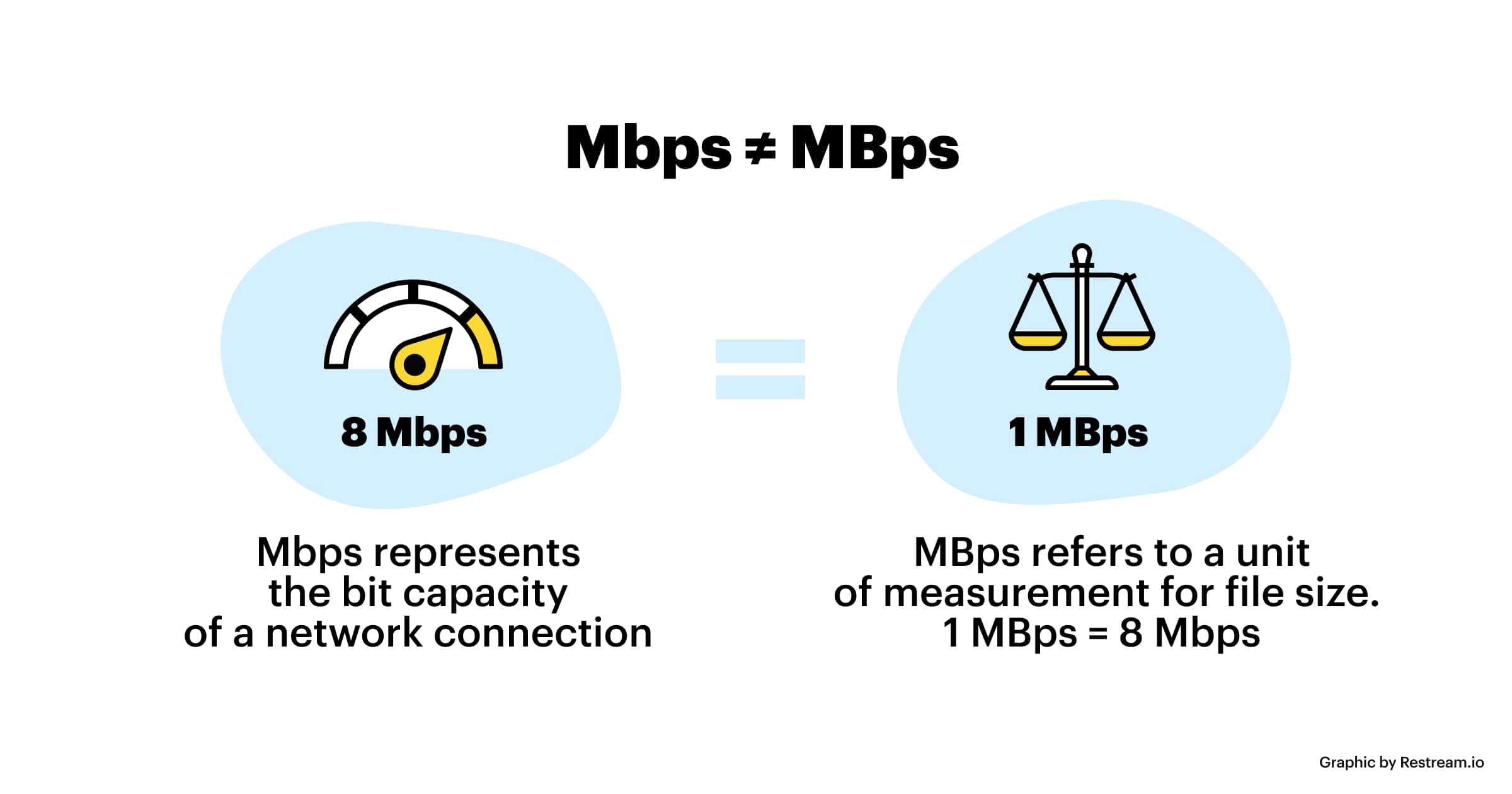
Of course, the larger the code stream, the larger the file size. The calculation formula is file size = time X code rate/8. For example, a 720P RMVB file with a 1 Mbps stream of 90 minutes is common on the Internet and its volume is = 5400 seconds × 1 Mb/8 = 675 MB.


Generally speaking, a video file includes both image and sound, such as an RMVB video file, which contains both video information and audio information. Audio and video have their own sampling methods and different bit rates, that is, the same video Audio and video file bit rate is not the same. And what we’re talking about is the bitrate of a video file, which generally refers to the sum of the bitrate of the audio and video information in the video file.


Taking the most popular and familiar RMVB video file in China as an example, VB in RMVB refers to VBR, which is short for Variable Bit Rate. The Chinese meaning is variable bit rate, which means that RMVB adopts the dynamic encoding method. , use a higher sampling rate for complex dynamic images (singing and dancing, flying cars, wars, actions, etc.), and use a lower sampling rate for static images, make rational use of resources and achieve the image quality and volume effect


The most fundamental difference between code rate and sample rate is that the code rate is for the source file.


There are many types of encoding formats. With the continuous advancement of technology, various encoding formats have been produced for different purposes. The compression rates of different encoding formats are different and have their own characteristics. Some of them can maintain high image quality in the case of low bitrate, but in the case of high bitrate, the image quality indication is not great and some are suitable for high bit rates. High definition image is maintained, but may not work well at low bit rates. Present some common ones.

How does bitrate affect video quality?

How does bitrate affect video quality?

How does bitrate affect video quality


To understand how bitrate affects video quality, we first need to understand how video compression works.

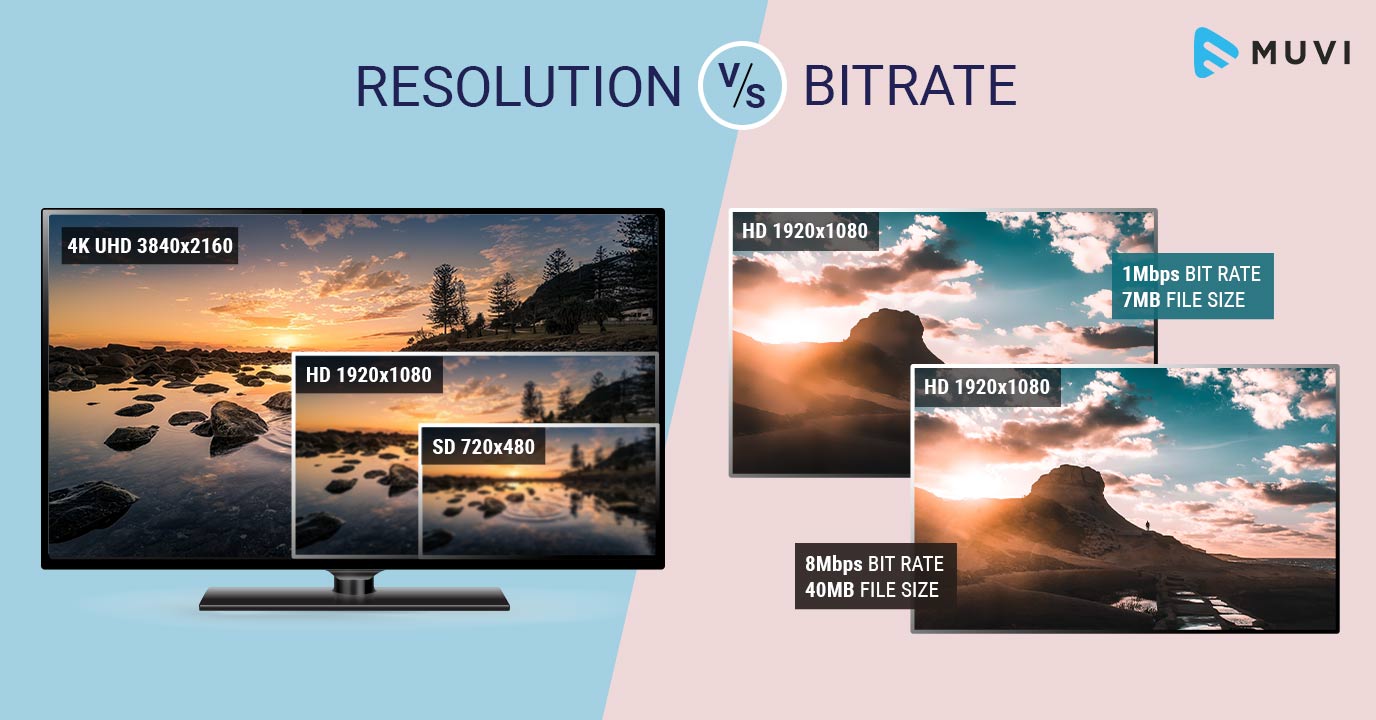
Video Bitrate vs Resolution

When you’re compressing video, the compression algorithm does two things:

Convert video from “pixel domain” to “frequency domain” by DCT (Discrete Cosine Transform). If you are not familiar with DCT, you can read our previous article: How to explain DCT to a 5-year-old?

Some of the information in the frequency domain is discarded through a technique called quantization, with the expectation that the human eye will not perceive this loss of information.

Essentially, when you compress a video, you’re throwing away some information while hoping there’s no loss in video quality. When you overcompress the video, you throw away a lot of information, and the human eye perceives the encoding loss. If you don’t compress the video too much, the file size will be huge, while the video quality will be excellent.

This is known as the “rate-distortion exchange (RDT)” in video compression, and the lower the bitrate, the worse the video quality (assuming the resolution is fixed).

What does RTD mean?

Let’s look at the example below. We use FFmpeg to compress the example video (CrowdRun) to 1.5 mbps and 5 mbps, respectively. With the video screenshots below, can you tell me which one is from the higher bitrate video and which one is from the lower bitrate video?


Obviously the bitrate in the image above is lower and the bitrate in the image below is higher. When using a bitrate of 5 mbps @ 1080p, the video quality is excellent. For the same video, when we use a bitrate of 1.5 mbps, the video quality of CrowdRun becomes very poor.

But is it always like this? Does low bitrate always produce poor quality video? We answer this question with a simple experiment.

Let’s test the “low bitrate = low quality” hypothesis using animated videos. For the following video, we used the popular Simpsons trailer and compressed the video to 2.5mbps and 1mbps using H.264/AVC (make sure all encoder settings are consistent).

Bitrate vs. Video Resolution

Bitrate vs. Video Resolution

Bitrate vs. Video Resolution

which is more important for streaming video?

Bitrate vs. Video Resolution

Many people have this confusion because these two factors can have a profound effect on the encoder’s output.

How do you think it should be chosen?

Choose 1080p or 720p?

Choose 5mbps or 3mbps?

Choose 1080p@5mbps or 1080p@7mbps?

If you don’t know what to choose, great. That’s why I wrote this article: to explain the relationship between bitrate and resolution in simple terms, and to help you choose the right encoder settings.

Let’s start by understanding bitrate.

What is the bitrate of the video?

Video bitrate or bit rate refers to the number of bits transmitted per second of video information. The code rate unit is usually:

kbps or kilobits per second

mbps or megabits per second

When you are compressing video, you usually need to set the video compression software not to exceed a certain bit rate.

For example, if you set the video compression software’s bitrate to 3mbps, the software will compress the video at 3mb per second (on average) and stream it to the decoder or player. This is the code rate.

When you talk about bitrate, you’re really talking about: the relationship between video compression and video quality loss. The more you compress, the lower the quality of the video (and this is not always the case, as we will see later).

When compressing video, the following algorithms can be used for speed control, these are:

CBR (Constant Bitrate) – It is best to keep the bitrate constant if video quality is lost.

VBR (Variable Bitrate) – Maintains consistent video quality, allowing for bitrate fluctuations.

Capped VBR – Keep the video quality as constant as possible, allowing the bitrate to fluctuate within a set range.

This article will not discuss the above frequency control methods in detail. Friends who want to know more, welcome to read: Understanding Frequency Control Modes: What are CBR, VBR, CRF and Capped-CRF?

So when we talk about the bit rate, we should pay attention to the following points:

The quality of high bitrate video is usually higher than that of low bitrate video. I say generally, because the video quality reaches a certain point where it will no longer improve (no matter how much the bitrate increases).

The code rate refers to bits (bit) instead of bytes (byte).

The bit rate alone does not determine the quality of the video, you have to take into account factors like resolution, frame rate, screen size, etc.

Codecs for video compression: H.264/AVC, HEVC, VP9, ​​AV1? If you change the video codec and its settings (or encoding tools), the same bitrate will provide a very different video quality.

What is the bitrate of a typical video?

What is the bitrate of a typical video?

Mp4 Bit Rate
Mp4 Bit Rate

The video bitrate must be higher than 256. What is the video bitrate? The copy is mainly determined according to the video resolution.

Mp4 Bit Rate
Mp4 Bit Rate

usually:

1080*720 split resolution is about 5000K;

720*576 resolution is about 3500K;

640*480 resolution is about 1500K.


Extended information:

1. Calculation formula

The basic algorithm is: bit rate (kbps) = file size (KB) * 8 / time (seconds), for example, D5 disk, 4.3G capacity, considering the different audio formats, it is calculated as 600M, (by so the remaining capacity is 4.3*1024-600=3803.2M), so the video file should not be more than 3.7G.

For example, the video file capacity is 3.446G and the video length is 100 minutes (6000 seconds), the calculation result: the bit rate is approximately equal to 4818 kbps (3.446*1024*1024*8/ 6000=4817.857).

2. Various code rate principles

1. Bitrate is proportional to quality, but file size is also proportional to bitrate.

2. If the bitrate exceeds a certain value, it has little effect on the image quality.

3. DVD capacity is limited, whether it is standard 4.3G, Super Recorded or D9, there are limits. Information in the computer is represented by binary 0 and 1, and each 0 or 1 is called a bit, which is represented by a lowercase b, that is, bit (bit).

What is the bitrate of the mp4 video?

What is the bitrate of the mp4 video?

Mp4 Bitrate
Mp4 Bitrate

What I want to see clearly and occupy a small dot is now converted to rmvb video 512 audio 160K, is there any other way to set it?

Mp4 Bitrate
Mp4 Bitrate


The mp4 video bitrate is usually set to around 800. The basic algorithm is: bitrate (kbps) = file size (KB) * 8 / time (seconds), for example, D5 disk, the capacity is 4.3G, which takes into account different audio formats, is calculated as 600M, (so the remaining capacity is 4.3*1024-600=3803.2M), so the video file should not have more of 3.7G.

And if the video file capacity is 3.446G and the video duration is 100 minutes (6000 seconds), the calculation result: the bit rate is approximately equal to 4818kbps (3.446*1024*1024*8/6000=4817.857 ).


Bit Efficiency:

1. Bit rate in sound refers to the amount of binary data per unit time after converting analog sound signal into digital sound signal, which is an indicator to indirectly measure audio quality. The principle of bitrate in video is the same as in sound, which refers to the amount of binary data per unit of time after the analog signal is converted to a digital signal.

2. In channel coding, the source data block of symbol size K is mapped to a codeword of symbol size N through coding, and K/N becomes the code rate, where assumes that the symbol table before and after encoding does not change.

What video bitrate is appropriate for video? Part 2

What video bitrate is appropriate for video? Part 2

Video Bitrate
Video Bitrate

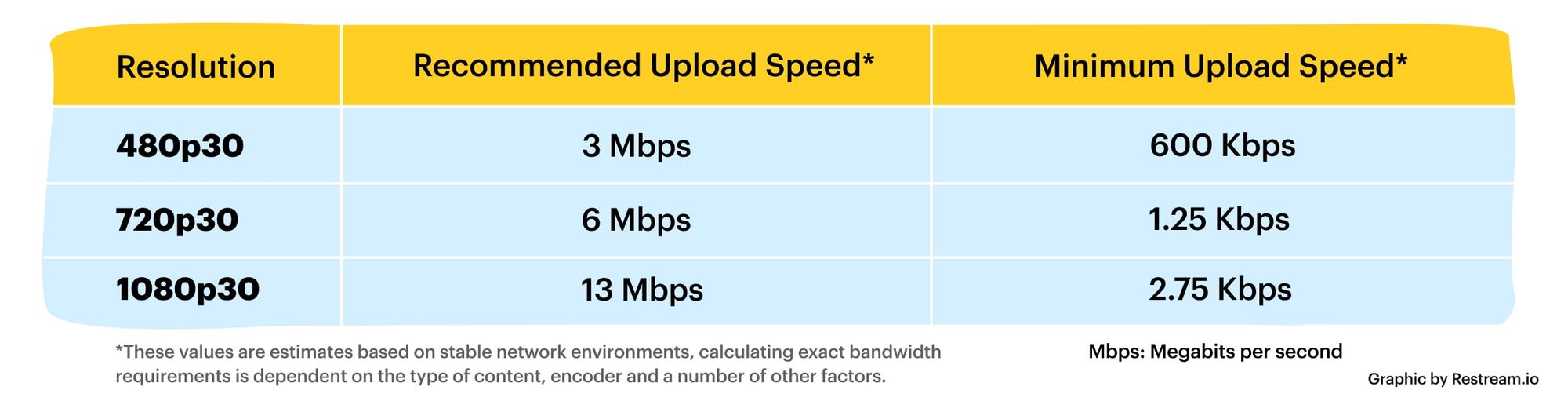
Ultra Clear 720P>=1.5M (Standard 1280×720 resolution, minimum 960*540, this and higher resolutions are in MP4 era) [some websites have this minimum requirement to upload]

Video Bitrate
Video Bitrate

Blu-ray 1080P>=2.5M (1920 × 1080 standard resolution) [optimal 4-8M] [220M when the material is stored] [some websites have this higher requirement for uploading] (it is better to use 720P and 1080P when make videos )

2K=(2048×1080 resolution)
4K=(4096×2160 resolution) [Optimal 8-12M]
The most normative statement is:
reaching 720p resolution is the threshold for high definition signal sources, 720p is called the HD (high definition) standard;
up to 1080p resolution, known as the Full HD (full high definition) Blu-ray standard.
2K refers to 2048 × 1080, and the actual resolution of Quad HD (four times high definition, 2K can be called “four times ultra high definition”) has various specifications, and the ones listed above are just common specifications. ;

4K refers to 3840 × 2160, and the actual resolution of Quad Full HD (four times full HD, 4K is called “four times ultra full HD”) has various specifications, and the ones listed above are just common specifications. .
Blu-ray is the clearest and SD is the worst If your internet speed can’t bring you 1080p, then at least 720p won’t feel blurry to the naked eye.
P refers to the number of horizontal scan lines, and the higher the number, the higher the resolution of the image. The letter P stands for progressive scan.

1. What is the video bitrate?

Video bitrate is the number of bits of video data (color, brightness, and pixels) that are output per second. The unit generally used is kbps.

2. Recommended bitrate for video size and resolution

How much video bitrate is appropriate (above H.264 bitrate, 720P, 1080P output bitrate setting)

3. A set of formulas to set the bitrate is shared with you as follows:

How much video bitrate is appropriate (above H.264 bitrate, 720P, 1080P output bitrate setting)

Regarding the two items of “Use the highest rendering quality” and “Process with the maximum depth” when exporting from PR editing software, the effect of image quality is not obvious on the big screen and the output time can increase exponentially depending on the complexity of the track. I also encountered this problem in the morning. I have been there, it is a waste of time and the effect is average. So I usually don’t choose this.

What video bitrate is appropriate for video?

What video bitrate is appropriate for video?

Video Bit Rate
Video Bit Rate

At present, 720p video recommended minimum bitrate is above, h.264 encoding 2M bitrate is adequate, 1080p is 4M enough
to get a high-quality video, convert it with different bitrates, and then compare the image quality.

Video Bit Rate
Video Bit Rate

The most commonly used are: h.264 encoding, 1080P, 2.5M bit rate or more.
Summary: [h.264 encoding, 2.5M bitrate (up to 4M), maximum 4M bitrate (add 2M to target), most platforms are Blu-ray. 】

1. If the bitrate is higher than the original video, it will not be a bit higher than the original video. When you move, you’ll pick a lower point to compress the file a bit.
2. 1080P 1M bitrate has distortion feeling to watch on computer, and 2M can’t see distortion, you can adjust the bitrate to 4M to get the best.
The following are the bitrate upload requirements for a platform:

How much video bitrate is appropriate (above H.264 bitrate, 720P, 1080P output bitrate setting)

How much video bitrate is appropriate (above H.264 bitrate, 720P, 1080P output bitrate setting)

***Normal 240p, 320p SD, 480p HD, 720p Ultra HD, 1080p Full HD (Blu-ray), 2K, 4k Ultra HD ***
Normal 240P (320×240 standard resolution, it was 3GP, this is basically nobody used)
SD 270P<0.8M (360×270 standard resolution, was 3GP, rarely used) [140M when storing 422 materials]

High definition 480P (360P)>=0.8M (standard resolution of 640 × 480, minimum 480 * 360, was 3GP) [480 re-advertising is called high definition, but the normative statement can only be regarded as standard definition]

The video format conversion bit rate

The video format conversion bit rate

video format conversion bit rate

Image quality, i.e. clarity, is a combination of several factors, in addition to bit rate and resolution, including frame rate.

video format conversion bit rate

Video formats basic knowledge quote: We tell you about MKV, MP4, H.265, bitrate, color depth, etc. – 4K Knowledge Encyclopedia – 4K China Forum – 4K123!

This tutorial is meant to cover some basic video and audio concepts and terminology. You can answer the following frequently asked questions in more detail:
do
What is the difference between these MP4/MKV formats? Which image is better?
How is the video bitrate calculated? Why is it the same 1080p video, some big and some small?
In what format is the image information stored in the video? Is it the same red, green and blue as the monitor?
What exactly does 8bit/10bit mean? Why is it necessary to watch 10-bit video on an 8-bit monitor?
yuv420/444 What do these signs mean? Which is better?
What exactly do lines, planes, textures mean? Why does the video have high and low frequency?
The higher the bitrate, the better the video quality?
This tutorial will be described in detail in the following modules:
1. Encapsulation format (MP4/MKV…) vs media format (H.264/FLAC/AAC…)
2. Basic video parameters: resolution, frame rate and bit rate
3 Image rendering method: RGB model vs YUV model
4, color depth
5, medium chroma sampling
6, low frequency and high frequency in space: plane, texture and line
7, low frequency and high frequency over time: dynamic8
, clarity and brief description

image quality 1. Packet format (MP4/MKV…) vs. media format (H.264/FLAC/AAC…)
MP4+MKV is the most common type of video files you download. These files are actually similar to a package and their suffix is ​​the packaging method of the package. These packages contain video (image only), audio (sound only), subtitles, etc. When the player is playing, please unpack the package first.(The professional term is called separation/division), take out the video, audio, etc., and then play it.

Since they’re just one package, that means the suffix doesn’t guarantee what’s inside or how much. Each element of the package, we call it a track, generally has the following:

Video (Video): In general, there should be, but there are exceptions, such as external audio track in mka format, in fact, there is no mkv video. Please note that when we talk about video, we do not include sound.
Audio (audio): Generally speaking, there should be, but in some cases it is muted, so there is no need to bring it.
Chapter: The segment information that came with the original Blu-ray disc. If the file is checked out, you can see the effect with the chapters in the player:
.potplayer right click screen, option-play-show marker/chapter marker in progress bar.mpc -hc
right click screen, option-setting-on Progress bar shows chapter mark subtitles
(Subtitles): Sometimes the file comes with subtitles, and the subtitles are not directly embedded in the hard subtitles of the video, so they are packed together in the packing container.
Others may have attachments etc which are not listed one by one. There is not necessarily a single track for each type, as MKVs with multiple audio tracks are often seen.

Each track has its own format. For example, it is often said that the video is H.264, the audio is AAC, these are the formats of each track.
Common video formats are H.264 (can be subdivided into 8bit/10bit), H.265 (currently also subdivided into 8bit/10bit), RealVideo (common in early rm/rmvb), VC- 1 (Microsoft-led, common in wmv). Basically H.264=AVC=AVC1, H.265=HEVC.
There are four common audio formats: FLAC/ALAC/TrueHD/DTS-HD MA, which are lossless, and AAC/MP3/AC3/DTS (Core), which are four lossy.

MKV vs MP4, the main differences are:

1. MKV supports encapsulation of FLAC as audio, while MP4 does not. But MP4 can also encapsulate lossless audio tracks (like ALAC, although it is generally believed that the efficiency of ALAC is not as good as FLAC)
2. MKV supports encapsulation of subtitles in ASS/SSA format, but MP4 does not. The subtitles produced by the general subtitle group are in ASS format, so internal subtitles are more common in the MKV format.
3. MP4 is an industry standard and its compatibility with video editing software and playback devices is generally better than MKV. That’s why vcb-s basically chooses the MP4 package for those videos that are optimized for mobile devices.
Beyond that, the two formats are largely interchangeable. For example, they all admit