MP4 Bitrate

What is MP4 Bitrate?
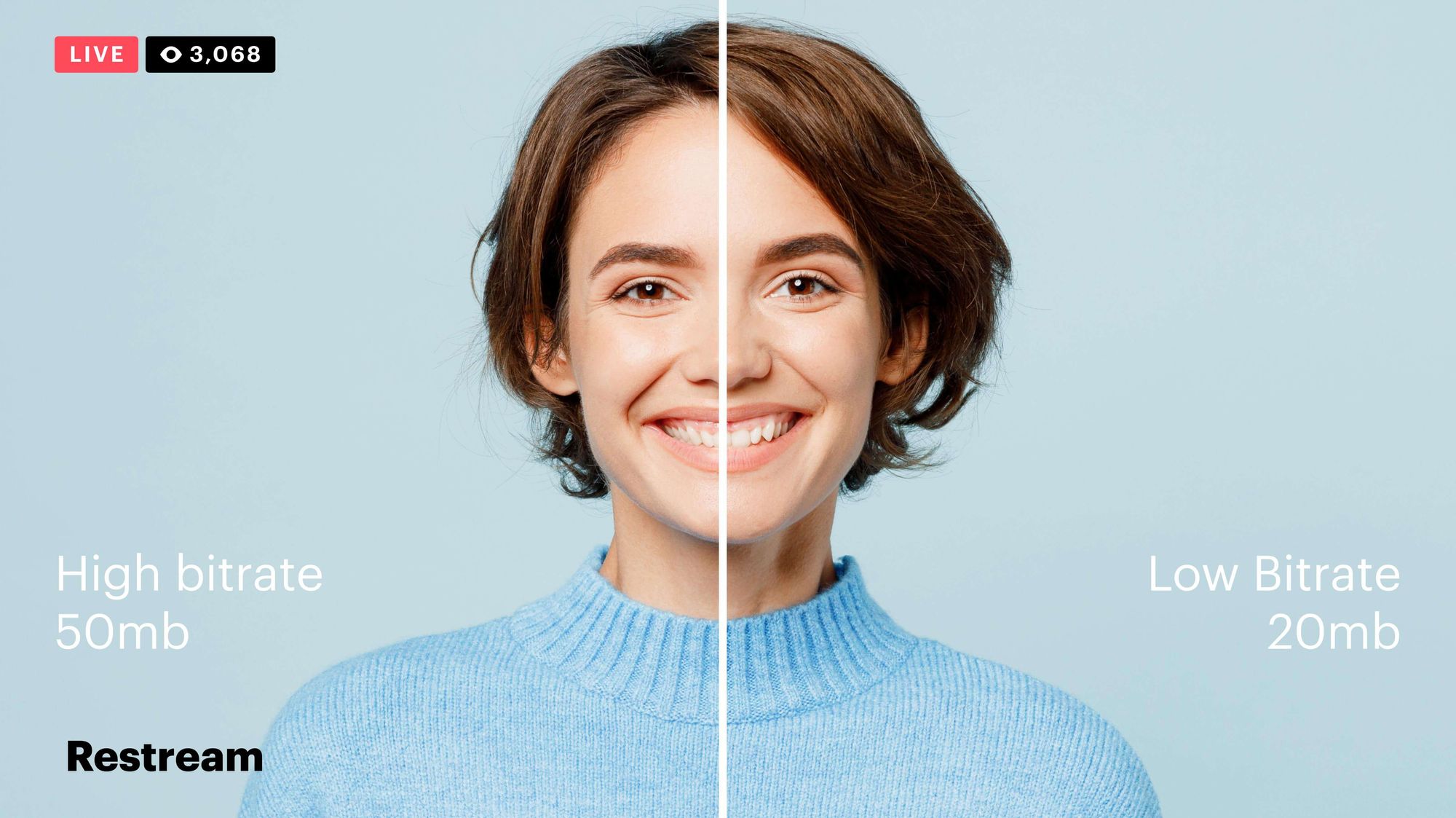
MP4 is a popular video format that is widely used in digital media. It uses a specific compression algorithm to compress video files to make them smaller and easier to share. The bitrate of an MP4 video refers to the amount of data that is used to represent each second of the video. It is typically measured in kilobits per second (kbps) or megabits per second (Mbps). A higher bitrate means that the video will have more data and will be of higher quality, but the file size will also be larger.
Why is MP4 Bitrate Important?
The bitrate of an MP4 video is important because it affects the quality and size of the video file. If the bitrate is too low, the video may appear pixelated or blurry. On the other hand, if the bitrate is too high, the file size will be larger, and it may take longer to upload or download the video. In addition, a higher bitrate requires more bandwidth to stream the video, which may be an issue for viewers with slower internet connections.
How to Choose the Right MP4 Bitrate
When choosing the bitrate for your MP4 video, you should consider the intended use of the video, the resolution of the video, and the file size. For example, a video that is intended to be viewed on a large screen should have a higher bitrate than a video that will be viewed on a smaller screen. Similarly, a video that has a higher resolution will require a higher bitrate to maintain the same quality as a lower resolution video.
As a general rule of thumb, a bitrate of 5-10 Mbps is suitable for 1080p HD video, while a bitrate of 2-5 Mbps is suitable for 720p HD video. For lower resolution videos, such as 480p or 360p, a bitrate of 1-2 Mbps may be sufficient. It’s also important to consider the file size of the video, as larger files will take longer to upload or download and may be more difficult to share.
How to Change MP4 Bitrate
To change the bitrate of an MP4 video, you will need to use video editing software that allows you to adjust the bitrate settings. There are many different video editing software options available, including Adobe Premiere Pro, Final Cut Pro, and Handbrake. These programs allow you to adjust the bitrate settings and other video parameters to optimize the video for your specific needs.
MP4 Bitrate FAQ
What is the maximum bitrate for MP4 videos?
The maximum bitrate for MP4 videos is 10 Mbps. However, this may vary depending on the specific device or platform where the video will be played.
What is the minimum bitrate for MP4 videos?
The minimum bitrate for MP4 videos will depend on the intended use of the video and the resolution of the video. In general, a bitrate of at least 1 Mbps is recommended for standard definition video, while a bitrate of at least 2 Mbps is recommended for high definition video.
What is the recommended bitrate for streaming MP4 videos?
The recommended bitrate for streaming MP4 videos will depend on the resolution of the video and the available bandwidth. As a general rule of thumb, a bitrate of 5-10 Mbps is suitable for 1080p HD video, while a bitrate of 2-5 Mbps is suitable for 720p HD video. For lower resolution videos, such as 480p or 360p, a bitrate of 1-2 Mbps may be sufficient.
However, it’s important to note that these are just general guidelines, and the optimal bitrate will also depend on factors such as the complexity of the video content, the encoding settings used, and the target audience’s viewing preferences.
For example, videos with fast-moving scenes or complex visual effects may require a higher bitrate to maintain a high level of image quality and avoid compression artifacts, while simpler videos with less motion may be able to use a lower bitrate without sacrificing quality.
Additionally, the target audience’s internet connection speed will also affect the recommended bitrate. For viewers with slower internet connections, a lower bitrate may be necessary to ensure that the video plays smoothly without buffering or interruptions.
What are the advantages of using a higher bitrate?
Using a higher bitrate can result in higher quality video with more detail and fewer compression artifacts. This is because a higher bitrate allows for more data to be transmitted and encoded per second, resulting in a more faithful representation of the original video source.
A higher bitrate can also be beneficial for videos with a lot of movement or detail, as it allows the encoding algorithm to capture more information and produce a more detailed image.
However, it’s important to note that using a higher bitrate will also result in larger file sizes and require more bandwidth to stream or download. This can be a disadvantage for viewers with slower internet connections or limited data plans.
What are the disadvantages of using a lower bitrate?
Using a lower bitrate can result in lower quality video with more compression artifacts, such as blurring or pixelation. This is because a lower bitrate means that less data is being transmitted and encoded per second, resulting in a loss of detail and fidelity.
Lower bitrates may also result in a lower overall resolution or frame rate, which can further degrade the quality of the video.
However, using a lower bitrate can also have benefits, such as smaller file sizes and reduced bandwidth requirements. This can be advantageous for viewers with slower internet connections or limited data plans.
Can the bitrate of an MP4 video be adjusted after it’s been encoded?
Yes, it is possible to adjust the bitrate of an MP4 video after it has been encoded. This can be done using video editing software or specialized tools designed for this purpose, such as MP4Gain.
However, it’s important to note that changing the bitrate of a video after it has been encoded can result in a loss of quality or introduce additional compression artifacts. For best results, it’s recommended to encode the video at the desired bitrate from the beginning.
Conclusion
In summary, the bitrate of an MP4 video is an important factor that can affect its quality, file size, and streaming performance. The optimal bitrate will depend on factors such as the resolution of the video, the complexity of the content, and the available bandwidth.
Using a higher bitrate can result in higher quality video with more detail and fewer compression artifacts, while using a lower bitrate can result in smaller file sizes and reduced bandwidth requirements.
If you need to adjust the bitrate of an MP4 video, it is possible to do so using specialized tools such as MP4Gain. However, it’s recommended to encode the video at the desired bitrate from the beginning for best results.
Overall, understanding how bitrate affects MP4 video quality can help you create and deliver video content that meets your needs and those of your audience.