Audio Stream Multiplexing in MP4


Free Download Mp4Gain
picture

Audio Stream Multiplexing in MP4

Audio Stream Multiplexing in MP4

Let’s talk about audio stream multiplexing in MP4

Audio stream multiplexing in MP4 is a fascinating and essential part of how we experience multimedia content today. As someone who has spent years understanding and working with multimedia formats, I can tell you that the process of combining multiple audio streams, along with video and subtitles, into a single MP4 file is like orchestrating a symphony. Each element plays a role, and everything must come together seamlessly for a perfect playback experience.

Imagine you’re watching a movie with multiple audio tracks, such as different languages or director commentaries. Without multiplexing, those tracks would be stored separately, making playback cumbersome. Multiplexing ensures these streams are synchronized and accessible in one file, offering convenience and flexibility.

How MP4 handles audio and video streams

MP4 is a container format designed to handle audio, video, and other data streams. It achieves this by using a structured system called tracks. Think of tracks as individual lanes in a highway, each carrying its unique data.

In my experience, one of MP4’s strengths is its ability to handle diverse codecs like AAC for audio and H.264 or H.265 for video. These codecs compress the data efficiently while maintaining quality, and MP4 ensures all streams are synchronized during playback. This synchronization is achieved through a process called interleaving, where small chunks of audio and video data are stored alternately.

Why audio stream multiplexing is crucial

The importance of multiplexing becomes evident when you consider its role in modern streaming platforms and video editing software. Without proper multiplexing, audio might lag behind the video, or vice versa, ruining the viewer’s experience.

For example, when creating content for platforms like YouTube or Netflix, ensuring smooth playback across devices is critical. Multiplexing helps maintain synchronization, even when network conditions are less than ideal.

Challenges in audio stream multiplexing

Working with audio stream multiplexing isn’t without its challenges. One issue I’ve encountered is handling variable bitrate (VBR) audio, where the amount of data used for audio changes over time. This can complicate synchronization because the timing information must be precise.

Another challenge is dealing with audio drift, which occurs when audio slowly goes out of sync with the video during long playback sessions. Multiplexing software must account for this by inserting synchronization points at regular intervals.

How audio codecs affect multiplexing

Audio codecs play a pivotal role in how streams are multiplexed. For instance, AAC (Advanced Audio Coding) is commonly used in MP4 because of its excellent balance between quality and compression. However, other codecs like MP3 or AC-3 may be used depending on the application.

I’ve found that understanding the characteristics of these codecs helps optimize the multiplexing process. For example, AAC has built-in error correction features, which can prevent glitches during playback even if minor errors occur during multiplexing.

Real-life applications of audio stream multiplexing

You encounter multiplexing daily, often without realizing it. Think about streaming a movie with multiple language options. The MP4 container stores all those audio tracks efficiently, allowing you to switch languages without interrupting playback.

I’ve also seen multiplexing used in video conferencing, where audio from multiple participants is combined with video streams in real time. This ensures a seamless experience, even when participants are in different locations.

Best practices for audio stream multiplexing

From my experience, successful multiplexing requires attention to detail. Here are some best practices:

  • Ensure all audio streams use compatible codecs to avoid playback issues.
  • Maintain proper synchronization by using timestamps for each data packet.
  • Minimize compression artifacts by choosing the right bitrate for each stream.
  • Test the final MP4 file across multiple devices to ensure compatibility.
  • Use reliable multiplexing software to handle complex projects efficiently.

Latest words on audio stream multiplexing in MP4

Audio stream multiplexing in MP4 is more than a technical process; it’s the backbone of how we consume multimedia content today. By understanding the intricacies of this technology, you can appreciate the effort that goes into delivering seamless audio and video experiences.

If you’re looking for a practical tool to handle audio and video synchronization, Mp4Gain offers a reliable solution for ensuring perfect multiplexing in your MP4 files.

FAQ about audio stream multiplexing in MP4

What is audio stream multiplexing in MP4?

Audio stream multiplexing in MP4 refers to combining multiple audio, video, and subtitle streams into a single file while maintaining synchronization for smooth playback.

Why is synchronization important in MP4?

Synchronization ensures that audio and video playback remains aligned, providing a seamless viewing experience, especially in movies or live events.

What codecs are commonly used in MP4?

Common codecs for MP4 include AAC for audio and H.264 or H.265 for video, known for their efficiency and quality.

How does interleaving work in MP4?

Interleaving alternates small chunks of audio and video data to ensure they remain synchronized during playback.

What challenges arise in multiplexing?

Challenges include handling variable bitrate audio and preventing audio drift during extended playback sessions.

Can MP4 files support multiple audio tracks?

Yes, MP4 files can support multiple audio tracks, enabling features like language options and commentary.

Why is MP4 preferred for multiplexing?

MP4 is preferred for its compatibility, efficient compression, and support for multiple streams, including audio, video, and subtitles.

What tools are used for multiplexing MP4 files?

Many tools are available for multiplexing MP4 files, but choosing reliable software ensures accurate synchronization and quality output.

Does multiplexing affect file size?

Multiplexing itself does not significantly affect file size, but the codecs and compression settings used can impact overall storage requirements.

How does multiplexing benefit streaming services?

Multiplexing ensures smooth synchronization of audio and video, even over varying network conditions, enhancing user experience.

Comments:

I found this article really informative! Never realized how much effort goes into syncing audio and video in MP4 files. Great job explaining it.

Very helpful article, but I wish it went deeper into how to handle specific codec issues. Still, I learned a lot!

This was exactly what I needed to understand why my audio was lagging behind the video in my recordings. Thanks for the detailed explanation!

Great insights here. I’ve been struggling with audio drift in long videos, and this clarified a lot of things for me.

Solid article! Could you maybe add a section on how to fix desync problems manually? That would make it perfect.

Very clear and detailed. I appreciate the real-life examples—it made understanding this topic much easier for a non-techie like me.

I liked the FAQs at the end! Multiplexing is such a confusing topic, but this article made it simpler.

Honestly, I wish I found this article earlier. My project was delayed because of sync problems. Thanks for the tips!

This is a goldmine of information. However, I’d love to see more practical tools or step-by-step guides for beginners.


Free Download Mp4Gain
picture


Mp4Gain Main Window
picture


Mp4Gain Features
picture


Free Download Mp4Gain
picture

MP4 Bitrate

MP4 Bitrate

MP4 Bitrate
MP4 Bitrate
MP4 Bitrate
MP4 Bitrate

What is MP4 Bitrate?

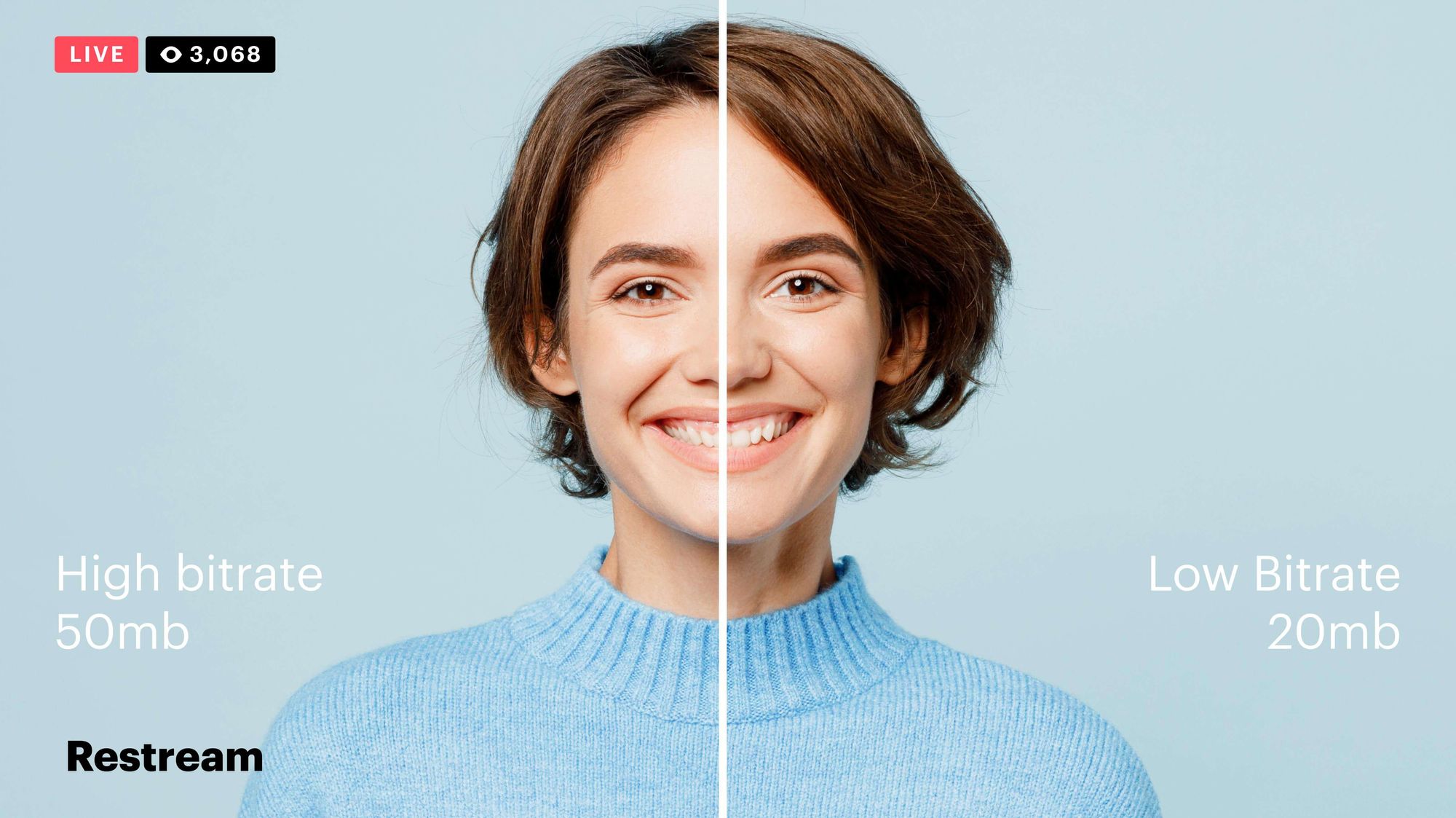
MP4 is a popular video format that is widely used in digital media. It uses a specific compression algorithm to compress video files to make them smaller and easier to share. The bitrate of an MP4 video refers to the amount of data that is used to represent each second of the video. It is typically measured in kilobits per second (kbps) or megabits per second (Mbps). A higher bitrate means that the video will have more data and will be of higher quality, but the file size will also be larger.

Why is MP4 Bitrate Important?

The bitrate of an MP4 video is important because it affects the quality and size of the video file. If the bitrate is too low, the video may appear pixelated or blurry. On the other hand, if the bitrate is too high, the file size will be larger, and it may take longer to upload or download the video. In addition, a higher bitrate requires more bandwidth to stream the video, which may be an issue for viewers with slower internet connections.

How to Choose the Right MP4 Bitrate

When choosing the bitrate for your MP4 video, you should consider the intended use of the video, the resolution of the video, and the file size. For example, a video that is intended to be viewed on a large screen should have a higher bitrate than a video that will be viewed on a smaller screen. Similarly, a video that has a higher resolution will require a higher bitrate to maintain the same quality as a lower resolution video.

As a general rule of thumb, a bitrate of 5-10 Mbps is suitable for 1080p HD video, while a bitrate of 2-5 Mbps is suitable for 720p HD video. For lower resolution videos, such as 480p or 360p, a bitrate of 1-2 Mbps may be sufficient. It’s also important to consider the file size of the video, as larger files will take longer to upload or download and may be more difficult to share.

How to Change MP4 Bitrate

To change the bitrate of an MP4 video, you will need to use video editing software that allows you to adjust the bitrate settings. There are many different video editing software options available, including Adobe Premiere Pro, Final Cut Pro, and Handbrake. These programs allow you to adjust the bitrate settings and other video parameters to optimize the video for your specific needs.

MP4 Bitrate FAQ

What is the maximum bitrate for MP4 videos?

The maximum bitrate for MP4 videos is 10 Mbps. However, this may vary depending on the specific device or platform where the video will be played.

What is the minimum bitrate for MP4 videos?

The minimum bitrate for MP4 videos will depend on the intended use of the video and the resolution of the video. In general, a bitrate of at least 1 Mbps is recommended for standard definition video, while a bitrate of at least 2 Mbps is recommended for high definition video.

What is the recommended bitrate for streaming MP4 videos?

The recommended bitrate for streaming MP4 videos will depend on the resolution of the video and the available bandwidth. As a general rule of thumb, a bitrate of 5-10 Mbps is suitable for 1080p HD video, while a bitrate of 2-5 Mbps is suitable for 720p HD video. For lower resolution videos, such as 480p or 360p, a bitrate of 1-2 Mbps may be sufficient.

However, it’s important to note that these are just general guidelines, and the optimal bitrate will also depend on factors such as the complexity of the video content, the encoding settings used, and the target audience’s viewing preferences.

For example, videos with fast-moving scenes or complex visual effects may require a higher bitrate to maintain a high level of image quality and avoid compression artifacts, while simpler videos with less motion may be able to use a lower bitrate without sacrificing quality.

Additionally, the target audience’s internet connection speed will also affect the recommended bitrate. For viewers with slower internet connections, a lower bitrate may be necessary to ensure that the video plays smoothly without buffering or interruptions.

What are the advantages of using a higher bitrate?

Using a higher bitrate can result in higher quality video with more detail and fewer compression artifacts. This is because a higher bitrate allows for more data to be transmitted and encoded per second, resulting in a more faithful representation of the original video source.

A higher bitrate can also be beneficial for videos with a lot of movement or detail, as it allows the encoding algorithm to capture more information and produce a more detailed image.

However, it’s important to note that using a higher bitrate will also result in larger file sizes and require more bandwidth to stream or download. This can be a disadvantage for viewers with slower internet connections or limited data plans.

What are the disadvantages of using a lower bitrate?

Using a lower bitrate can result in lower quality video with more compression artifacts, such as blurring or pixelation. This is because a lower bitrate means that less data is being transmitted and encoded per second, resulting in a loss of detail and fidelity.

Lower bitrates may also result in a lower overall resolution or frame rate, which can further degrade the quality of the video.

However, using a lower bitrate can also have benefits, such as smaller file sizes and reduced bandwidth requirements. This can be advantageous for viewers with slower internet connections or limited data plans.

Can the bitrate of an MP4 video be adjusted after it’s been encoded?

Yes, it is possible to adjust the bitrate of an MP4 video after it has been encoded. This can be done using video editing software or specialized tools designed for this purpose, such as MP4Gain.

However, it’s important to note that changing the bitrate of a video after it has been encoded can result in a loss of quality or introduce additional compression artifacts. For best results, it’s recommended to encode the video at the desired bitrate from the beginning.

Conclusion

In summary, the bitrate of an MP4 video is an important factor that can affect its quality, file size, and streaming performance. The optimal bitrate will depend on factors such as the resolution of the video, the complexity of the content, and the available bandwidth.

Using a higher bitrate can result in higher quality video with more detail and fewer compression artifacts, while using a lower bitrate can result in smaller file sizes and reduced bandwidth requirements.

If you need to adjust the bitrate of an MP4 video, it is possible to do so using specialized tools such as MP4Gain. However, it’s recommended to encode the video at the desired bitrate from the beginning for best results.

Overall, understanding how bitrate affects MP4 video quality can help you create and deliver video content that meets your needs and those of your audience.

What is the bit rate in a Mp4?

What is the bit rate in a Mp4?

Mp4 Bitrate

Bit rate, also known as data transfer rate, is measured in seconds and determines the rate at which data travels through a communications network. Both video and audio have bit rates, and understanding what that is will help you better deal with your media.

Mp4 Bitrate

1. What is video bit rate (MP4)?

Video bit rate is defined as the number of bits that are processed and the unit is measured in bits per second. This is the speed at which the video is streaming at any given time. The higher the bitrate of mp4, the greater the data transfer at any given time. The exact bit rate of a video can be determined based on the device it will be played on. Good quality video on the web has a bit rate of about 2 Mbps, while standard definition DVDs have a bit rate of 6 Mbps.

2. What is the audio bit rate (MP3)?

The audio bit rate is defined as the number of bits that are used for the playing time per unit to represent the audio after encoding the source. It is defined as the degree of compression used to encode files in the audio aspect. The higher the MP3 bit rate, the better the sound quality and file size.

Part 2. How to choose the right bitrate for your video / audio
After examining the definition of video and audio bit rate, you should know how to choose the correct bit rate for your video or audio files. Since bit rate is related to the quality and size of your video and audio, it is important to choose and change the bit rate for your file. The two most frequently asked questions are listed below:

1.What is a good 1080p bitrate to upload to YouTube?

For YouTube uploads, the recommended video bit rate for a 1080p file is 8 Mbps for standard frame rates (24, 25, and 30). For high frame rates (48, 50, 60), the recommended bit rate for 1080p files is 12 Mbps.

2. What is the best bit rate for iTunes Audio?

Music files in the iTunes store are encoded in 256 kbps AAC by default. Previously, the bitrate of an iTunes song was 128 kbps and now it is 256 kbps. AAC codec files support up to 320 kbps.

Part 3. How to Change Video Bitrate with Simple Steps
There are many ways to compress a video, for example change the video resolution, trim the unwanted part, and convert the video format. However, changing the video bitrate is also a good option.