Bitrate Control Methods in MP4 Encoding


Free Download Mp4Gain
picture

Bitrate Control Methods in MP4 Encoding

Bitrate Control Methods in MP4 Encoding

Let’s talk about bitrate control methods in MP4 encoding

When we talk about bitrate control methods in MP4 encoding, it’s crucial to understand that getting the right balance between quality and file size is key. You’ve probably noticed that when watching videos online or transferring files, you need good quality without large file sizes. Well, I’ve worked in this area for years, and I can tell you firsthand that bitrate control is the secret sauce to achieving this balance. Whether you’re encoding for streaming, playback, or storage, controlling the bitrate properly ensures that your video quality is high, while your file size remains manageable. And let me tell you, the wrong bitrate settings can ruin everything, like trying to fill a gallon jug with a firehose—chaos ensues. So, let’s dive into how bitrate control works, and how you can master it.

Understanding the role of bitrate in video quality

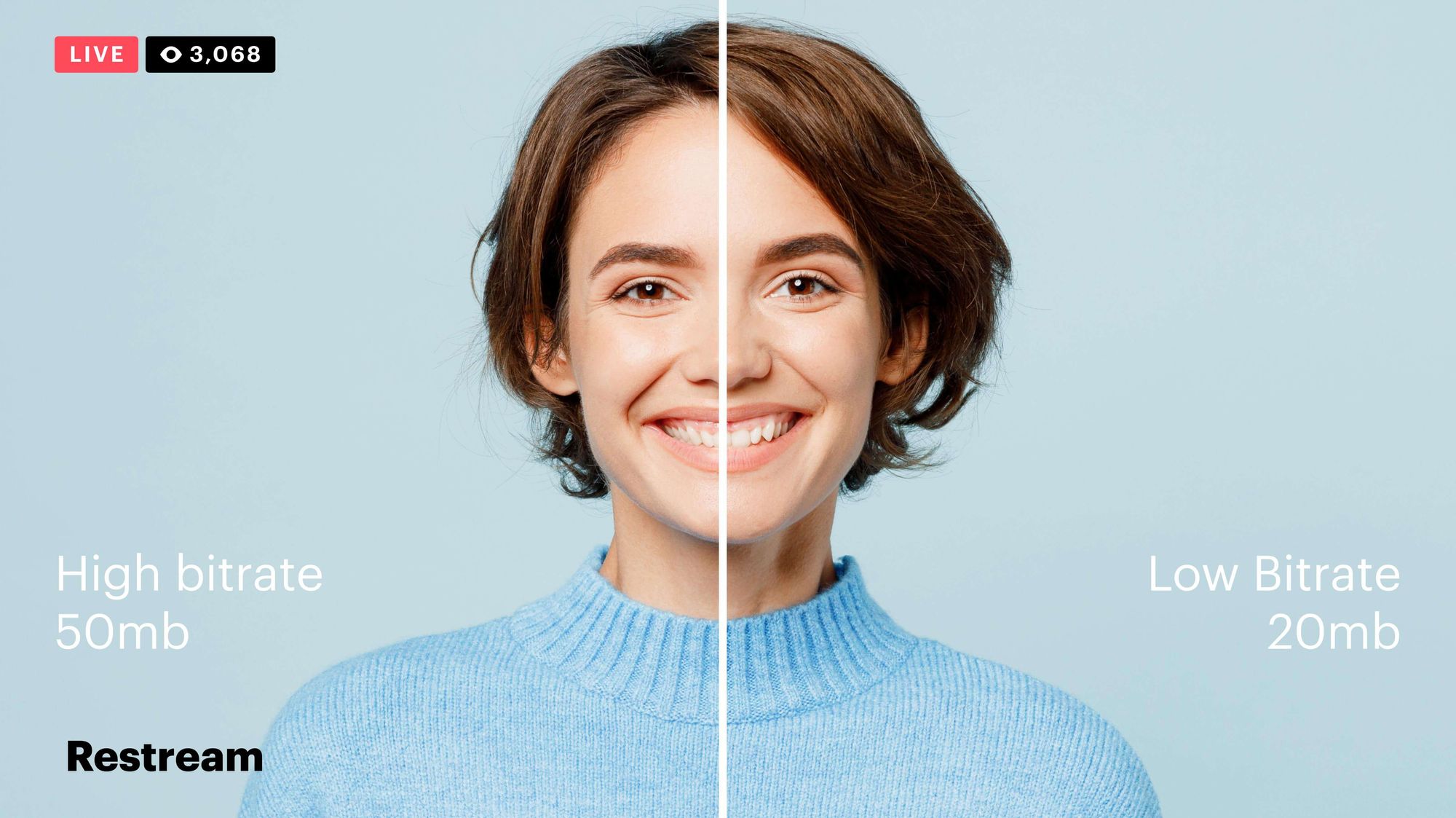
Bitrate essentially determines the quality of your video. It’s like comparing the resolution of an old TV to a modern 4K screen. The more data you allow (higher bitrate), the clearer and sharper your video will look. But with more data comes bigger file sizes. That’s why finding the right bitrate is so important. With too low a bitrate, the video will become pixelated, much like when you try to zoom in too far on a low-resolution image. On the other hand, too high a bitrate creates unnecessarily large files that don’t offer a proportional increase in quality. It’s a fine balance.

Constant Bitrate (CBR) vs. Variable Bitrate (VBR)

When deciding how to control bitrate, you’re typically faced with two options: Constant Bitrate (CBR) or Variable Bitrate (VBR). Both have their pros and cons.

Constant Bitrate (CBR)

With CBR, you’re essentially setting a fixed bitrate for the entire video. This is like setting the speed of a car and sticking with it, no matter whether you’re driving on a straight highway or navigating a twisty mountain road. It’s predictable and ensures compatibility, especially for streaming or broadcasting. However, the downside is that CBR doesn’t account for video complexity. A simple scene with little movement uses the same amount of data as a fast-paced action scene, which can lead to inefficiencies.

Variable Bitrate (VBR)

VBR is more like driving a car with adaptive cruise control. It changes depending on the complexity of the scene. If there’s a lot of action, it increases the bitrate to preserve quality. When the scene is simple, it decreases the bitrate to save space. VBR is generally more efficient than CBR because it adjusts to the content of the video. But it also requires more processing power and can sometimes cause playback issues on devices that expect a constant rate.

Two-pass encoding: The gold standard in VBR

If you really want to optimize your bitrate control, you’ll want to consider two-pass encoding. This method involves scanning the video once to analyze its complexity, then encoding it in the second pass to allocate the appropriate bitrate. Imagine you’re packing a suitcase—you take a look at everything you need to fit inside, then adjust the way you pack to make the most efficient use of space. The result is better quality with a smaller file size. From my experience, two-pass encoding is especially useful for longer videos, where the difference in file size really adds up.

Bitrate control in MP4 encoding: Real-life examples

In real-life applications, bitrate control is everywhere, from YouTube videos to Blu-ray discs. Take streaming services, for example. Ever notice how your video adjusts when your internet slows down? That’s bitrate control at work, using VBR to change the quality dynamically. I’ve had clients frustrated because their videos were buffering, and we had to tweak the bitrate to optimize for streaming. On the other hand, in cases like creating a video for a corporate event, where quality must be consistent, CBR might be your best option to ensure a smooth playback experience on all devices.

How to choose the best bitrate for MP4 encoding

So how do you choose the best bitrate? The answer depends on what you’re trying to achieve. When I work on projects for clients, I start by asking about their priorities. Are they looking for the best possible quality, or do they need to keep file sizes small for easy sharing? If it’s the former, I’ll push the bitrate as high as the medium allows. If it’s the latter, I find that VBR with two-pass encoding offers the best balance. However, if speed and compatibility are more important than anything else, I’ll recommend CBR.

Factors to consider when choosing a bitrate

  • Resolution: Higher resolution requires higher bitrate.
  • Frame rate: More frames per second (FPS) mean more data per second.
  • Device compatibility: Some devices handle high bitrates better than others.
  • Streaming or download: Streaming requires a lower, more consistent bitrate.
  • Storage capacity: Larger bitrates take up more space.

Advanced techniques in bitrate control

If you want to take things a step further, there are advanced techniques to fine-tune your bitrate control. One method I’ve seen growing in popularity is adaptive bitrate streaming (ABR). ABR is the technology behind services like Netflix and YouTube that automatically adjust the quality of your stream based on your internet speed. I remember working with a client who was launching a video platform, and ABR was a game-changer for them. It allowed users with slower internet connections to still enjoy smooth playback, while those with high-speed connections could experience full HD or even 4K quality.

Latest words on bitrate control methods in MP4 encoding

Bitrate control is a vital part of MP4 encoding, and understanding the different methods allows you to optimize both quality and file size. Whether you go for CBR, VBR, or advanced techniques like ABR, choosing the right method depends on your specific needs and the devices your audience will use. As someone who has worked on countless video projects, I’ve found that VBR with two-pass encoding offers the best balance between quality and file size for most cases. But remember, there’s no one-size-fits-all solution. Test different settings to find the right balance for your project. And when it comes to encoding your videos, Mp4Gain offers an excellent solution to help you control the bitrate with ease and efficiency.

Comments:

Man, this article was exactly what I needed. I’ve been having trouble with my videos coming out too big even though the quality isn’t that good. I’m definitely going to try VBR with two-pass encoding now!

– VideoDude101

Great stuff! I do a lot of streaming and was wondering why my videos always end up buffering on slower connections. This article explained everything. Would love to see more about ABR though!

– StreamMaster69

This was really helpful, thanks! I’m still a little confused about choosing the right bitrate for 4K, though. Any advice?

– TechGeek42

I’ve been using CBR for everything and didn’t even know about VBR. I can’t wait to try it on my next project!

– FilmFanatic

This is the first time I’ve read about two-pass encoding explained so clearly. Really helped me understand why my files were so big for no reason.

– SarahTheEditor

Thanks for the article! I was looking for a more detailed explanation of bitrate control and this hit the spot. I’m doing some video work for a local business and file size has been a big issue for us.

– LocalMediaPro

Nice breakdown, but I think you could’ve gone a bit deeper into device compatibility. My videos play fine on my computer, but look terrible on my phone. Any tips?

– JohnVideoMan

I’ve been using Mp4Gain for my personal projects and I gotta say it really simplifies bitrate control. This article just reinforced why I use it!

– CodecKing

I didn’t even know bitrate control was this important. No wonder my last video looked so bad. I’m going to try out your suggestions for my next upload.

– FirstTimeEditor

Good article, but what about HDR videos? Do the same bitrate rules apply there?

– HDRNerd

Related keywords: mp4 encoding, bitrate control methods, CBR vs VBR, video quality, video file size, two


Free Download Mp4Gain
picture


Mp4Gain Main Window
picture


Mp4Gain Features
picture


Free Download Mp4Gain
picture

What is the maximum video bit depth supported by MP4?

What is the maximum video bit depth supported by MP4?

Mp4 video bit depth
Mp4 video bit depth
Mp4 video bit depth
Mp4 video bit depth

Understanding the MP4 Video File Format

As video technology has advanced, so too has the number of video file formats available. One of the most popular video file formats today is the MP4 format. The MP4 format is known for its versatility and compatibility with a wide range of devices and platforms.

One of the key features of the MP4 file format is its ability to compress video data without sacrificing quality. This is achieved through the use of video compression algorithms, which reduce the amount of data required to store video content while maintaining its visual fidelity.

Maximizing Video Quality in MP4

To ensure that your MP4 videos look their best, it’s important to understand the maximum video bit depth supported by the format. Bit depth refers to the number of bits used to represent each color in a video image. The higher the bit depth, the more colors that can be represented, resulting in smoother gradients and more accurate color reproduction.

The maximum video bit depth supported by MP4 is 10 bits per channel, which allows for a total of 1.07 billion possible colors. This is a significant improvement over the 8-bit color depth supported by many other video file formats, which only allows for 16.7 million colors.

To take advantage of the higher bit depth supported by MP4, it’s important to use a video encoder that supports 10-bit color depth. This will ensure that your videos have the maximum possible color accuracy and quality.

Ensuring Compatibility and Playback

While MP4 is a widely supported video file format, it’s important to ensure that your videos are compatible with the devices and platforms you intend to use them on. This includes checking the video codec used in your MP4 files, as well as the audio codec and other technical specifications.

In addition, it’s important to consider the playback software or hardware that will be used to view your MP4 videos. Not all devices and software support the maximum video bit depth of 10 bits per channel, so it’s important to test your videos on a range of devices to ensure they will play back correctly.

Final Words

In conclusion, understanding the maximum video bit depth supported by MP4 is important for ensuring the best possible video quality. By using a video encoder that supports 10-bit color depth and testing your videos on a range of devices, you can ensure that your MP4 videos look their best and are compatible with a wide range of platforms.

MP4 Bitrate

MP4 Bitrate

MP4 Bitrate
MP4 Bitrate
MP4 Bitrate
MP4 Bitrate

What is MP4 Bitrate?

MP4 is a popular video format that is widely used in digital media. It uses a specific compression algorithm to compress video files to make them smaller and easier to share. The bitrate of an MP4 video refers to the amount of data that is used to represent each second of the video. It is typically measured in kilobits per second (kbps) or megabits per second (Mbps). A higher bitrate means that the video will have more data and will be of higher quality, but the file size will also be larger.

Why is MP4 Bitrate Important?

The bitrate of an MP4 video is important because it affects the quality and size of the video file. If the bitrate is too low, the video may appear pixelated or blurry. On the other hand, if the bitrate is too high, the file size will be larger, and it may take longer to upload or download the video. In addition, a higher bitrate requires more bandwidth to stream the video, which may be an issue for viewers with slower internet connections.

How to Choose the Right MP4 Bitrate

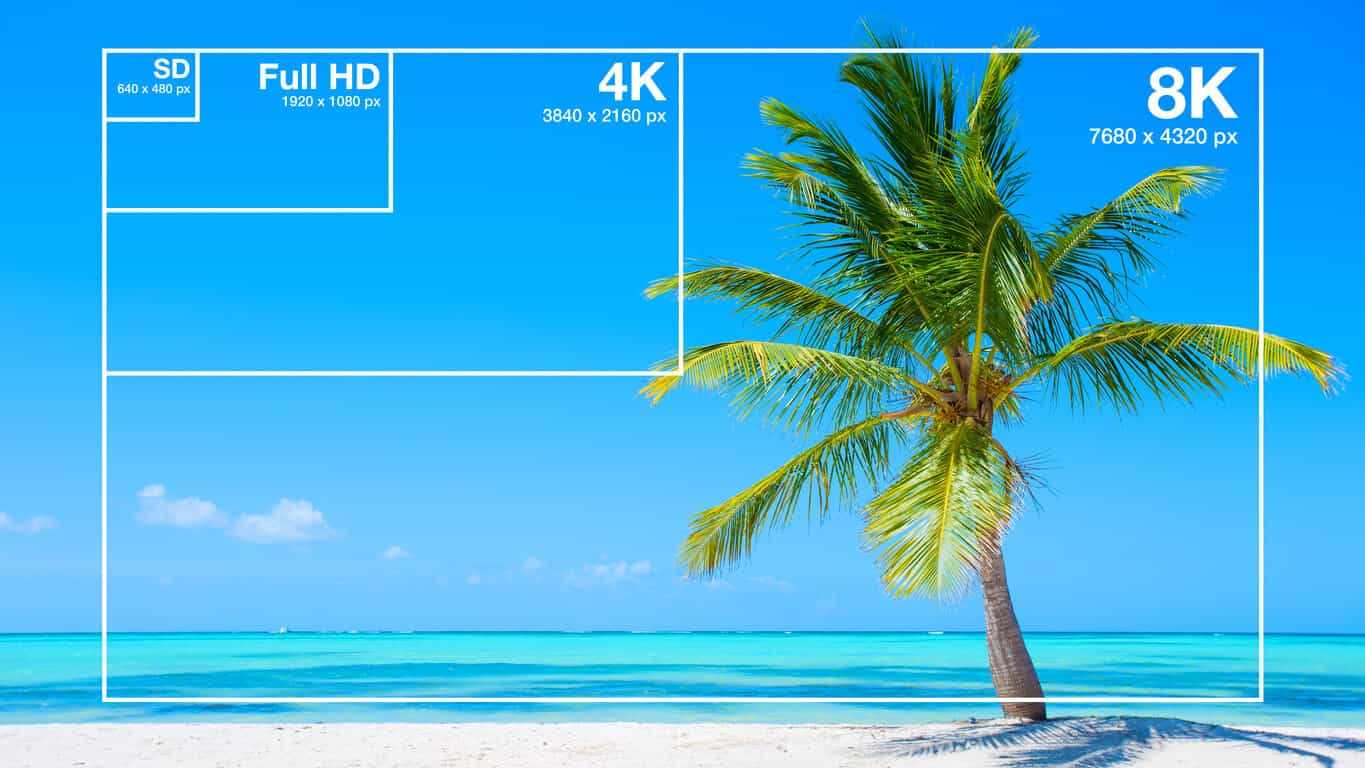
When choosing the bitrate for your MP4 video, you should consider the intended use of the video, the resolution of the video, and the file size. For example, a video that is intended to be viewed on a large screen should have a higher bitrate than a video that will be viewed on a smaller screen. Similarly, a video that has a higher resolution will require a higher bitrate to maintain the same quality as a lower resolution video.

As a general rule of thumb, a bitrate of 5-10 Mbps is suitable for 1080p HD video, while a bitrate of 2-5 Mbps is suitable for 720p HD video. For lower resolution videos, such as 480p or 360p, a bitrate of 1-2 Mbps may be sufficient. It’s also important to consider the file size of the video, as larger files will take longer to upload or download and may be more difficult to share.

How to Change MP4 Bitrate

To change the bitrate of an MP4 video, you will need to use video editing software that allows you to adjust the bitrate settings. There are many different video editing software options available, including Adobe Premiere Pro, Final Cut Pro, and Handbrake. These programs allow you to adjust the bitrate settings and other video parameters to optimize the video for your specific needs.

MP4 Bitrate FAQ

What is the maximum bitrate for MP4 videos?

The maximum bitrate for MP4 videos is 10 Mbps. However, this may vary depending on the specific device or platform where the video will be played.

What is the minimum bitrate for MP4 videos?

The minimum bitrate for MP4 videos will depend on the intended use of the video and the resolution of the video. In general, a bitrate of at least 1 Mbps is recommended for standard definition video, while a bitrate of at least 2 Mbps is recommended for high definition video.

What is the recommended bitrate for streaming MP4 videos?

The recommended bitrate for streaming MP4 videos will depend on the resolution of the video and the available bandwidth. As a general rule of thumb, a bitrate of 5-10 Mbps is suitable for 1080p HD video, while a bitrate of 2-5 Mbps is suitable for 720p HD video. For lower resolution videos, such as 480p or 360p, a bitrate of 1-2 Mbps may be sufficient.

However, it’s important to note that these are just general guidelines, and the optimal bitrate will also depend on factors such as the complexity of the video content, the encoding settings used, and the target audience’s viewing preferences.

For example, videos with fast-moving scenes or complex visual effects may require a higher bitrate to maintain a high level of image quality and avoid compression artifacts, while simpler videos with less motion may be able to use a lower bitrate without sacrificing quality.

Additionally, the target audience’s internet connection speed will also affect the recommended bitrate. For viewers with slower internet connections, a lower bitrate may be necessary to ensure that the video plays smoothly without buffering or interruptions.

What are the advantages of using a higher bitrate?

Using a higher bitrate can result in higher quality video with more detail and fewer compression artifacts. This is because a higher bitrate allows for more data to be transmitted and encoded per second, resulting in a more faithful representation of the original video source.

A higher bitrate can also be beneficial for videos with a lot of movement or detail, as it allows the encoding algorithm to capture more information and produce a more detailed image.

However, it’s important to note that using a higher bitrate will also result in larger file sizes and require more bandwidth to stream or download. This can be a disadvantage for viewers with slower internet connections or limited data plans.

What are the disadvantages of using a lower bitrate?

Using a lower bitrate can result in lower quality video with more compression artifacts, such as blurring or pixelation. This is because a lower bitrate means that less data is being transmitted and encoded per second, resulting in a loss of detail and fidelity.

Lower bitrates may also result in a lower overall resolution or frame rate, which can further degrade the quality of the video.

However, using a lower bitrate can also have benefits, such as smaller file sizes and reduced bandwidth requirements. This can be advantageous for viewers with slower internet connections or limited data plans.

Can the bitrate of an MP4 video be adjusted after it’s been encoded?

Yes, it is possible to adjust the bitrate of an MP4 video after it has been encoded. This can be done using video editing software or specialized tools designed for this purpose, such as MP4Gain.

However, it’s important to note that changing the bitrate of a video after it has been encoded can result in a loss of quality or introduce additional compression artifacts. For best results, it’s recommended to encode the video at the desired bitrate from the beginning.

Conclusion

In summary, the bitrate of an MP4 video is an important factor that can affect its quality, file size, and streaming performance. The optimal bitrate will depend on factors such as the resolution of the video, the complexity of the content, and the available bandwidth.

Using a higher bitrate can result in higher quality video with more detail and fewer compression artifacts, while using a lower bitrate can result in smaller file sizes and reduced bandwidth requirements.

If you need to adjust the bitrate of an MP4 video, it is possible to do so using specialized tools such as MP4Gain. However, it’s recommended to encode the video at the desired bitrate from the beginning for best results.

Overall, understanding how bitrate affects MP4 video quality can help you create and deliver video content that meets your needs and those of your audience.

What is the bitrate of the mp4 video?

What is the bitrate of the mp4 video?

Mp4 Bitrate
Mp4 Bitrate

What I want to see clearly and occupy a small dot is now converted to rmvb video 512 audio 160K, is there any other way to set it?

Mp4 Bitrate
Mp4 Bitrate


The mp4 video bitrate is usually set to around 800. The basic algorithm is: bitrate (kbps) = file size (KB) * 8 / time (seconds), for example, D5 disk, the capacity is 4.3G, which takes into account different audio formats, is calculated as 600M, (so the remaining capacity is 4.3*1024-600=3803.2M), so the video file should not have more of 3.7G.

And if the video file capacity is 3.446G and the video duration is 100 minutes (6000 seconds), the calculation result: the bit rate is approximately equal to 4818kbps (3.446*1024*1024*8/6000=4817.857 ).


Bit Efficiency:

1. Bit rate in sound refers to the amount of binary data per unit time after converting analog sound signal into digital sound signal, which is an indicator to indirectly measure audio quality. The principle of bitrate in video is the same as in sound, which refers to the amount of binary data per unit of time after the analog signal is converted to a digital signal.

2. In channel coding, the source data block of symbol size K is mapped to a codeword of symbol size N through coding, and K/N becomes the code rate, where assumes that the symbol table before and after encoding does not change.

The video format conversion bit rate

The video format conversion bit rate

video format conversion bit rate

Image quality, i.e. clarity, is a combination of several factors, in addition to bit rate and resolution, including frame rate.

video format conversion bit rate

Video formats basic knowledge quote: We tell you about MKV, MP4, H.265, bitrate, color depth, etc. – 4K Knowledge Encyclopedia – 4K China Forum – 4K123!

This tutorial is meant to cover some basic video and audio concepts and terminology. You can answer the following frequently asked questions in more detail:
do
What is the difference between these MP4/MKV formats? Which image is better?
How is the video bitrate calculated? Why is it the same 1080p video, some big and some small?
In what format is the image information stored in the video? Is it the same red, green and blue as the monitor?
What exactly does 8bit/10bit mean? Why is it necessary to watch 10-bit video on an 8-bit monitor?
yuv420/444 What do these signs mean? Which is better?
What exactly do lines, planes, textures mean? Why does the video have high and low frequency?
The higher the bitrate, the better the video quality?
This tutorial will be described in detail in the following modules:
1. Encapsulation format (MP4/MKV…) vs media format (H.264/FLAC/AAC…)
2. Basic video parameters: resolution, frame rate and bit rate
3 Image rendering method: RGB model vs YUV model
4, color depth
5, medium chroma sampling
6, low frequency and high frequency in space: plane, texture and line
7, low frequency and high frequency over time: dynamic8
, clarity and brief description

image quality 1. Packet format (MP4/MKV…) vs. media format (H.264/FLAC/AAC…)
MP4+MKV is the most common type of video files you download. These files are actually similar to a package and their suffix is ​​the packaging method of the package. These packages contain video (image only), audio (sound only), subtitles, etc. When the player is playing, please unpack the package first.(The professional term is called separation/division), take out the video, audio, etc., and then play it.

Since they’re just one package, that means the suffix doesn’t guarantee what’s inside or how much. Each element of the package, we call it a track, generally has the following:

Video (Video): In general, there should be, but there are exceptions, such as external audio track in mka format, in fact, there is no mkv video. Please note that when we talk about video, we do not include sound.
Audio (audio): Generally speaking, there should be, but in some cases it is muted, so there is no need to bring it.
Chapter: The segment information that came with the original Blu-ray disc. If the file is checked out, you can see the effect with the chapters in the player:
.potplayer right click screen, option-play-show marker/chapter marker in progress bar.mpc -hc
right click screen, option-setting-on Progress bar shows chapter mark subtitles
(Subtitles): Sometimes the file comes with subtitles, and the subtitles are not directly embedded in the hard subtitles of the video, so they are packed together in the packing container.
Others may have attachments etc which are not listed one by one. There is not necessarily a single track for each type, as MKVs with multiple audio tracks are often seen.

Each track has its own format. For example, it is often said that the video is H.264, the audio is AAC, these are the formats of each track.
Common video formats are H.264 (can be subdivided into 8bit/10bit), H.265 (currently also subdivided into 8bit/10bit), RealVideo (common in early rm/rmvb), VC- 1 (Microsoft-led, common in wmv). Basically H.264=AVC=AVC1, H.265=HEVC.
There are four common audio formats: FLAC/ALAC/TrueHD/DTS-HD MA, which are lossless, and AAC/MP3/AC3/DTS (Core), which are four lossy.

MKV vs MP4, the main differences are:

1. MKV supports encapsulation of FLAC as audio, while MP4 does not. But MP4 can also encapsulate lossless audio tracks (like ALAC, although it is generally believed that the efficiency of ALAC is not as good as FLAC)
2. MKV supports encapsulation of subtitles in ASS/SSA format, but MP4 does not. The subtitles produced by the general subtitle group are in ASS format, so internal subtitles are more common in the MKV format.
3. MP4 is an industry standard and its compatibility with video editing software and playback devices is generally better than MKV. That’s why vcb-s basically chooses the MP4 package for those videos that are optimized for mobile devices.
Beyond that, the two formats are largely interchangeable. For example, they all admit

What is the bitrate of the mp4 video?

What is the bitrate of the mp4 video?

Mp4 Bitrate

The mp4 video bitrate is usually set to around 800.

mp4 bit rate

The basic algorithm is: bit rate (kbps) = file size (KB) * 8 / time (seconds), for example, D5 disk, the capacity is 4.3G, which takes into account the different audio formats, it is calculated as 600M, (so the remaining capacity is 4.3*1024-600=3803.2M), so the video file should be no more than 3.7G.

And if the capacity of the video file is 3.446G and the length of the video is 100 minutes (6000 seconds), the calculation result: the bit rate is approximately equal to 4818kbps (3.446*1024*1024*8/6000= 4817,857).

Bit Efficiency:

1. The bit rate in sound refers to the amount of binary data per unit time after converting the analog sound signal into a digital sound signal, which is an indicator to indirectly measure the audio quality. The principle of bitrate in video is the same as in sound, both refer to the amount of binary data per unit of time after the analog signal is converted to a digital signal.

2. In channel coding, a source data block of symbol size K is mapped to a codeword of symbol size N through coding, and K/N becomes the code rate, where assumes that the symbol table before and after encoding does not change.

The frame rate of 29.97 is the best.

usually:

1080*720 split resolution is about 5000K;

720*576 resolution is about 3500K;

640*480 resolution is about 1500K.

Extended information:

Some code rate principles:

1. Bitrate is proportional to quality, but file size is also proportional to bitrate.

2. If the bitrate exceeds a certain value, it has little effect on the image quality.

3. DVD capacity is limited, whether it is 4.3G standard, overdubbed or D9, there are limits. The information in the computer is represented by binary 0 and 1, and each 0 or 1 is called a bit, which is represented by a lowercase b, that is, bit (bit); uppercase B is byte, ie byte, one byte = Eight bits, ie 1B=8b; the capital K in front means 1024, that is, 1024 bits (Kb) or 1024 bytes (KB). Indicates the size of the file, usually using bytes (KB) to indicate the size of the file.

What is the bit rate in a Mp4?

What is the bit rate in a Mp4?

Mp4 Bitrate

Bit rate, also known as data transfer rate, is measured in seconds and determines the rate at which data travels through a communications network. Both video and audio have bit rates, and understanding what that is will help you better deal with your media.

Mp4 Bitrate

1. What is video bit rate (MP4)?

Video bit rate is defined as the number of bits that are processed and the unit is measured in bits per second. This is the speed at which the video is streaming at any given time. The higher the bitrate of mp4, the greater the data transfer at any given time. The exact bit rate of a video can be determined based on the device it will be played on. Good quality video on the web has a bit rate of about 2 Mbps, while standard definition DVDs have a bit rate of 6 Mbps.

2. What is the audio bit rate (MP3)?

The audio bit rate is defined as the number of bits that are used for the playing time per unit to represent the audio after encoding the source. It is defined as the degree of compression used to encode files in the audio aspect. The higher the MP3 bit rate, the better the sound quality and file size.

Part 2. How to choose the right bitrate for your video / audio
After examining the definition of video and audio bit rate, you should know how to choose the correct bit rate for your video or audio files. Since bit rate is related to the quality and size of your video and audio, it is important to choose and change the bit rate for your file. The two most frequently asked questions are listed below:

1.What is a good 1080p bitrate to upload to YouTube?

For YouTube uploads, the recommended video bit rate for a 1080p file is 8 Mbps for standard frame rates (24, 25, and 30). For high frame rates (48, 50, 60), the recommended bit rate for 1080p files is 12 Mbps.

2. What is the best bit rate for iTunes Audio?

Music files in the iTunes store are encoded in 256 kbps AAC by default. Previously, the bitrate of an iTunes song was 128 kbps and now it is 256 kbps. AAC codec files support up to 320 kbps.

Part 3. How to Change Video Bitrate with Simple Steps
There are many ways to compress a video, for example change the video resolution, trim the unwanted part, and convert the video format. However, changing the video bitrate is also a good option.