Understanding Video Bitrates and Codecs


Free Download Mp4Gain
picture

Understanding Video Bitrates and Codecs
Video Bitrates and Codecs

Video bitrate and codec are two important concepts that every video creator should understand. In this article, I will explain what they are, how they work together, and how to choose the right settings for your videos.

What is Video Bitrate?

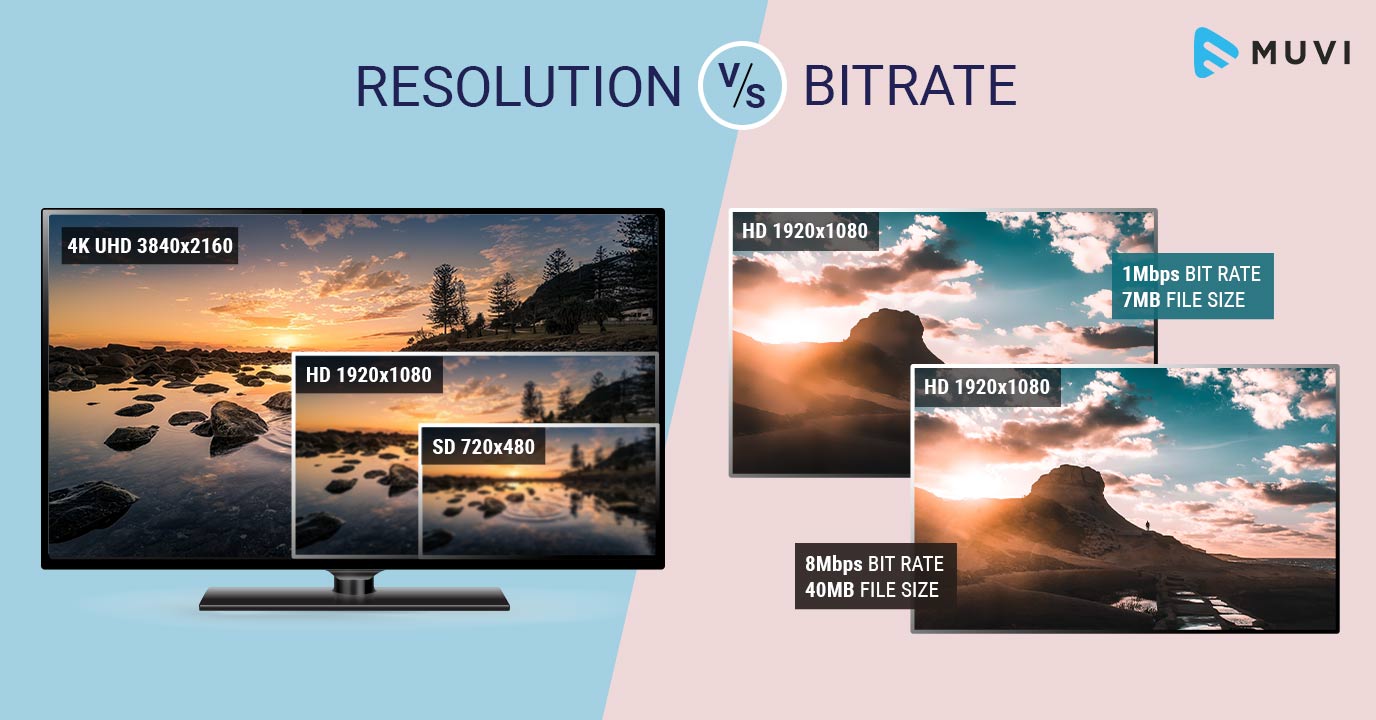
Video bitrate is the amount of data that is encoded per second in a video file. It is measured in bits per second (bps), or kilobits per second (kbps) or megabits per second (Mbps).

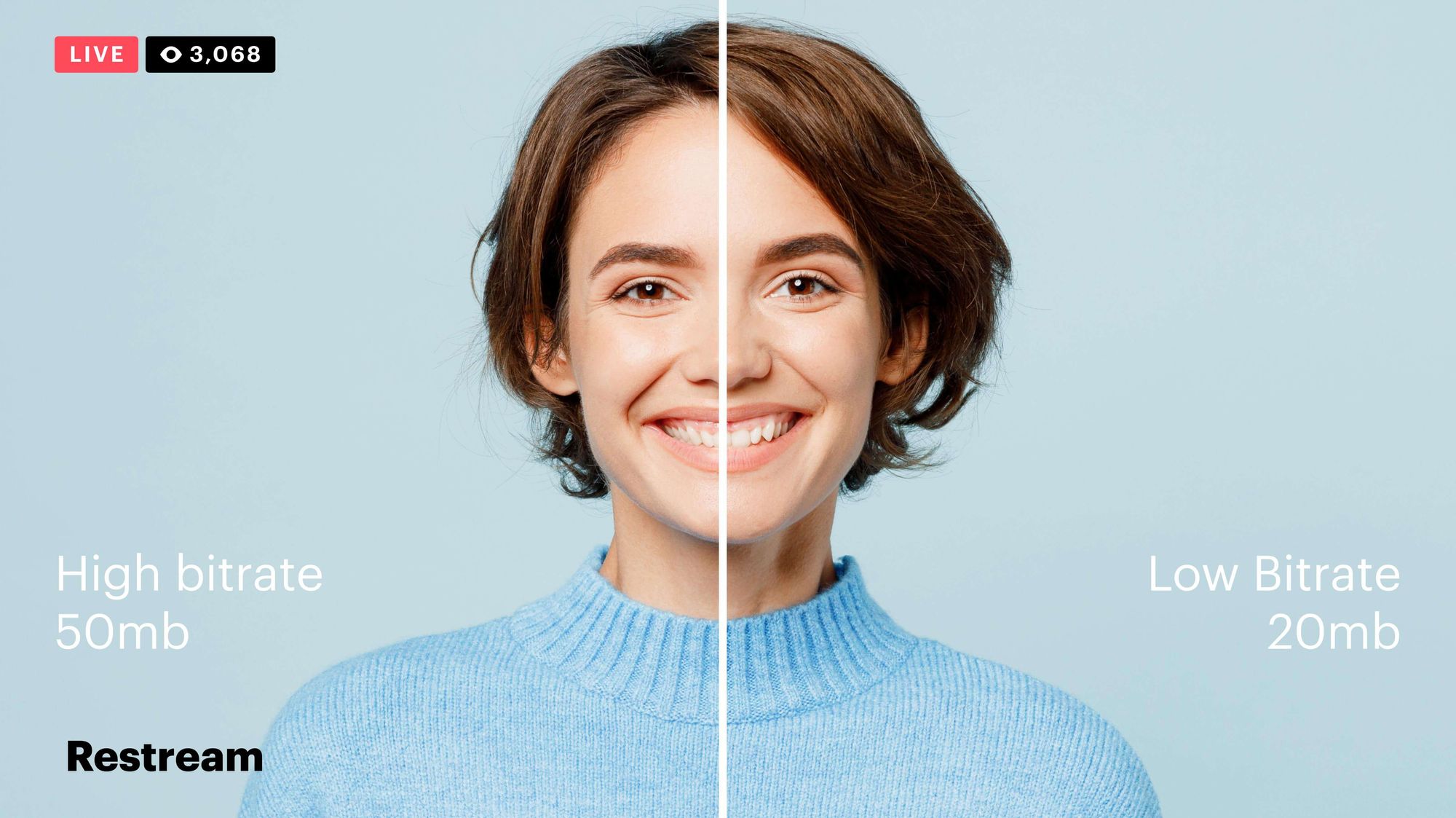
The higher the bitrate, the more data is encoded, and the higher the quality of the video will be. However, a higher bitrate also means a larger file size.

What is a Video Codec?

A video codec is a software program that compresses and decompresses video data. It is responsible for encoding the video data into a format that can be stored or streamed, and then decoding it back into its original form when it is played back.

There are many different video codecs available, each with its own strengths and weaknesses. Some of the most popular video codecs include:

H.264: This is the most widely used video codec. It is a lossy codec, which means that some data is lost during the compression process. However, H.264 is very efficient, and it can produce high-quality video with a relatively small file size.
H.265: This is a newer codec that is designed to be more efficient than H.264. It can produce the same quality of video with a smaller file size.
VP9: This is a free and open-source video codec that is developed by Google. It is similar to H.265 in terms of efficiency, but it is not as widely supported.

How Do Bitrate and Codecs Work Together?

Bitrate and codec work together to determine the quality and file size of a video. The higher the bitrate, the more data is encoded, and the higher the quality of the video will be. However, a higher bitrate also means a larger file size.

The codec determines how the video data is compressed. Some codecs are more efficient than others, and they can produce the same quality of video with a smaller file size.

How to Choose the Right Bitrate and Codec for Your Videos

The right bitrate and codec for your videos will depend on a number of factors, including:

The intended use of the video. If you are uploading your video to YouTube, you will need to choose a bitrate that is compatible with YouTube’s streaming requirements.
The target audience. If you are creating a video for mobile devices, you will need to choose a lower bitrate than if you are creating a video for high-definition televisions.
The file size. If you are limited by the file size, you will need to choose a lower bitrate.

Final Words About Video Bitrates and Codecs

Video bitrate and codec are two important concepts that every video creator should understand. By understanding how they work together, you can choose the right settings for your videos to ensure that they are both high quality and have a reasonable file size.

I hope this article has been helpful. If you have any questions, please feel free to leave a comment below.

Bonus Tips

If you are not sure what bitrate or codec to use, you can always start with a high bitrate and then lower it until you find a balance between quality and file size that you are happy with.
You can use a video bitrate calculator to help you determine the right bitrate for your videos.
There are many different video codecs available, so it is important to do some research to find the best codec for your needs.


Free Download Mp4Gain
picture


Mp4Gain Main Window
picture


Mp4Gain Features
picture


Free Download Mp4Gain
picture

What video bitrate is appropriate for video?

What video bitrate is appropriate for video?

Video Bit Rate
Video Bit Rate

At present, 720p video recommended minimum bitrate is above, h.264 encoding 2M bitrate is adequate, 1080p is 4M enough
to get a high-quality video, convert it with different bitrates, and then compare the image quality.

Video Bit Rate
Video Bit Rate

The most commonly used are: h.264 encoding, 1080P, 2.5M bit rate or more.
Summary: [h.264 encoding, 2.5M bitrate (up to 4M), maximum 4M bitrate (add 2M to target), most platforms are Blu-ray. 】

1. If the bitrate is higher than the original video, it will not be a bit higher than the original video. When you move, you’ll pick a lower point to compress the file a bit.
2. 1080P 1M bitrate has distortion feeling to watch on computer, and 2M can’t see distortion, you can adjust the bitrate to 4M to get the best.
The following are the bitrate upload requirements for a platform:

How much video bitrate is appropriate (above H.264 bitrate, 720P, 1080P output bitrate setting)

How much video bitrate is appropriate (above H.264 bitrate, 720P, 1080P output bitrate setting)

***Normal 240p, 320p SD, 480p HD, 720p Ultra HD, 1080p Full HD (Blu-ray), 2K, 4k Ultra HD ***
Normal 240P (320×240 standard resolution, it was 3GP, this is basically nobody used)
SD 270P<0.8M (360×270 standard resolution, was 3GP, rarely used) [140M when storing 422 materials]

High definition 480P (360P)>=0.8M (standard resolution of 640 × 480, minimum 480 * 360, was 3GP) [480 re-advertising is called high definition, but the normative statement can only be regarded as standard definition]

What is bitrate in a video? | Improve QUALITY

Video Bitrate

Bitrate is, without a doubt, one of the main characteristics that determine the quality of a video.

I’m glad you made it this far to continue learning about video. If you still don’t know about video or editing, remember that you can learn the basics with my video courses (among others).

bit rate

What is video bitrate?

The bitrate or bit rate is the amount of information per second that the video has. It is measured in megabits per second and is directly proportional to its quality.

Generally, we tend to confuse the size of the video with its quality, thinking that 4k size is the video that offers the highest quality. However, this is flatly incorrect.

A high bitrate offers quality: Size VS Quality

Continuing with the topic I was talking about, it is very common for videos with 4k (at least those from professional cameras) have a higher bitrate. This is what makes the video look better quality, mainly, regardless of whether the video is larger or smaller.

How do you notice the difference between a high bitrate and a less high one?

The bitrate tends to show significant differences not simply when recording, but when editing. As I have already told you, with a bitrate of 10-15 mbps / s (at 25 fps) you have more than enough for most jobs. However, and if you are very exquisite, you may want to use a higher bitrate to have more margin for error when correcting and color grading. By the way, if you are interested in learning about color correction and color grading, check out my course.

With a higher bitrate you will notice the following differences than with a lower one:

Sharpness increase.

Superior ability to edit color without the appearance of banding or other unwanted disturbances.
Greater file weight (the higher the bitrate, the larger the file occupies).
However, this is not to say that it will be noticeable for most jobs. If you work in events, I assure you that you will not have a problem.

Bitrate types

If you are one of those who want to know more about everything you study, you can stay and delve deeper with me.

There are two types of bitrate, the constant bitrate and the variable bitrate.

CBR: this is the bitrate that always, whatever is on the plane, the exact same transfer rate will be used. The good news is that a video recorded at a specific size and bitrate will always occupy the same amount. However, it is not the most efficient.
VBR: this is the variable bitrate, and it consists in that a different bitrate will be applied depending on the information that is being recorded. Obviously, if you are recording a super dark black background, you don’t need as much information as if you are recording a scene with a very wide color gamut and a histogram that is padded from blacks to whites. In this case, the bit transfer rate will vary according to the needs of what is being recorded. Of course, we will try to keep an average (the chosen one).
How to know the bitrate of a video, both on Windows and Mac?
I am going to explain to you, both for Windows and Mac, how to find out the bitrate that a video clip has. This is very good because you can see that a video loses quality the more compressed it is. And one of the ways to compress it is by lowering the bitrate.

Windows: right-click on the clip> properties> details tab> video section> total bit rate
Mac: you open the video with the quicktime player> while it is playing press cmd + I> data rate
It is important that you pay attention to whether this data is in kbps or in mbps, because the first is 1000 times less than the second (so that you take it into account in case you want to compare looking from two different computers).

When to compress a video by lowering its bitrate?

There are times when you have already finished editing the video and obviously want to compress it. For this I recommend that you learn about codecs and video formats.

Obviously when you compress the video you will lose quality (the bitrate will decrease). This, a priori, should not be noticed in excess if it is a good compression, since you will no longer edit that video.

Of course I am talking about compressing the final file, never the raw ones used to create the video. You always have to lower the bitrate or compress the final file (in case you want to compress) to avoid losing image quality.