Understanding Video Bitrates and Codecs


Free Download Mp4Gain
picture

Understanding Video Bitrates and Codecs
Video Bitrates and Codecs

Video bitrate and codec are two important concepts that every video creator should understand. In this article, I will explain what they are, how they work together, and how to choose the right settings for your videos.

What is Video Bitrate?

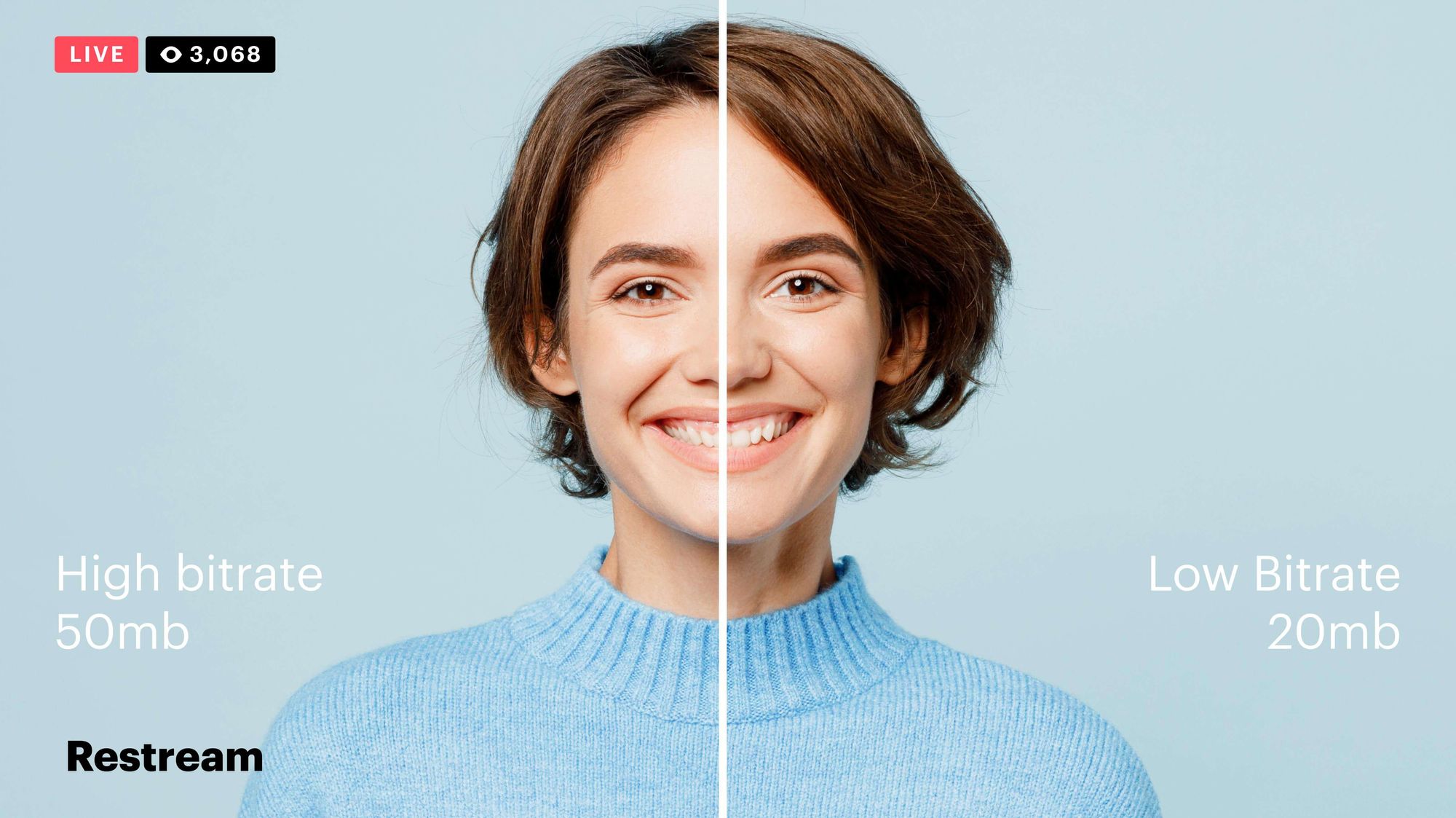
Video bitrate is the amount of data that is encoded per second in a video file. It is measured in bits per second (bps), or kilobits per second (kbps) or megabits per second (Mbps).

The higher the bitrate, the more data is encoded, and the higher the quality of the video will be. However, a higher bitrate also means a larger file size.

What is a Video Codec?

A video codec is a software program that compresses and decompresses video data. It is responsible for encoding the video data into a format that can be stored or streamed, and then decoding it back into its original form when it is played back.

There are many different video codecs available, each with its own strengths and weaknesses. Some of the most popular video codecs include:

H.264: This is the most widely used video codec. It is a lossy codec, which means that some data is lost during the compression process. However, H.264 is very efficient, and it can produce high-quality video with a relatively small file size.
H.265: This is a newer codec that is designed to be more efficient than H.264. It can produce the same quality of video with a smaller file size.
VP9: This is a free and open-source video codec that is developed by Google. It is similar to H.265 in terms of efficiency, but it is not as widely supported.

How Do Bitrate and Codecs Work Together?

Bitrate and codec work together to determine the quality and file size of a video. The higher the bitrate, the more data is encoded, and the higher the quality of the video will be. However, a higher bitrate also means a larger file size.

The codec determines how the video data is compressed. Some codecs are more efficient than others, and they can produce the same quality of video with a smaller file size.

How to Choose the Right Bitrate and Codec for Your Videos

The right bitrate and codec for your videos will depend on a number of factors, including:

The intended use of the video. If you are uploading your video to YouTube, you will need to choose a bitrate that is compatible with YouTube’s streaming requirements.
The target audience. If you are creating a video for mobile devices, you will need to choose a lower bitrate than if you are creating a video for high-definition televisions.
The file size. If you are limited by the file size, you will need to choose a lower bitrate.

Final Words About Video Bitrates and Codecs

Video bitrate and codec are two important concepts that every video creator should understand. By understanding how they work together, you can choose the right settings for your videos to ensure that they are both high quality and have a reasonable file size.

I hope this article has been helpful. If you have any questions, please feel free to leave a comment below.

Bonus Tips

If you are not sure what bitrate or codec to use, you can always start with a high bitrate and then lower it until you find a balance between quality and file size that you are happy with.
You can use a video bitrate calculator to help you determine the right bitrate for your videos.
There are many different video codecs available, so it is important to do some research to find the best codec for your needs.



Free Download Mp4Gain
picture


Mp4Gain Main Window
picture


Mp4Gain Features
picture


Free Download Mp4Gain
picture

Video Compression Methods

Video Compression Methods

Video Compression
Video Compression
Video Compression
Video Compression


Introduction to Video Compression

Video compression is the process of reducing the size of digital video files without sacrificing quality. Compression is necessary for efficient storage and transmission of video over networks or on physical media. The compression process involves removing redundant and non-essential information from the video stream, while retaining as much perceptual quality as possible. There are several video compression methods available, each with its own strengths and weaknesses.

Lossy Compression

Lossy compression is the most common method of video compression. It works by discarding information that is deemed less important, based on visual perception. The discarded information cannot be recovered, which is why this method is called “lossy”. The amount of compression can be adjusted by varying the amount of information that is discarded. Popular lossy video compression codecs include H.264, MPEG-4, and VP9.

Lossless Compression

Lossless compression, on the other hand, retains all of the original information, but compresses it in a way that can be reconstructed exactly. This method is typically used for archival or master copies, where quality cannot be sacrificed. However, lossless compression does not achieve the same degree of compression as lossy methods. Examples of lossless video compression codecs include Apple ProRes and Avid DNxHD.

Hybrid Compression

Hybrid compression methods combine elements of both lossy and lossless compression. These methods use lossy compression on parts of the video that are less important, and lossless compression on parts that are more important. The result is a balance between quality and compression efficiency. One example of a hybrid compression codec is the JPEG2000 format.

Variable Bit Rate (VBR) vs. Constant Bit Rate (CBR)

Video compression can be further classified as either variable bit rate (VBR) or constant bit rate (CBR). In VBR, the bit rate varies depending on the complexity of the video content. This allows for higher quality in complex scenes, while still maintaining a reasonable file size. CBR, on the other hand, maintains a constant bit rate throughout the entire video stream. This results in predictable file sizes, but can lead to lower quality in complex scenes.

Compression Settings

The effectiveness of video compression is highly dependent on the settings used during compression. Key settings include the bitrate, resolution, frame rate, and codec. Higher bitrates and resolutions result in higher quality, but also larger file sizes. The codec used can also have a significant impact on the quality and compression efficiency. Experimenting with different settings can help achieve the desired balance between quality and file size.

Conclusion

Video compression is a necessary part of modern video production and distribution. There are several compression methods available, each with its own advantages and disadvantages. Choosing the right compression method and settings requires a balance between quality and file size.

FAQ

1. What is the difference between lossy and lossless compression?

Lossy compression discards information that is deemed less important, while lossless compression retains all of the original information. Lossy compression achieves higher compression ratios, but at the expense of quality.

2. What are some common video compression codecs?

Some common video compression codecs include H.264, MPEG-4, VP9, Apple ProRes, and Avid DNxHD.

3. What is hybrid compression?

Hybrid compression methods combine elements of both lossy and lossless compression. These methods use lossy compression on parts of the video that are less important, and lossless

The perfect video compression

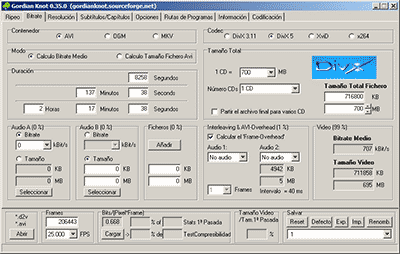
We all like to enjoy great image quality in the videos and movies we watch on the computer, especially if you make your own compressed copies of DVD movies. I have always relied on the popular DivX but, now that there are other types of compression such as Xvid and some as modern as the H.264, it would be worth comparing to discover which one offers the best quality in the smallest size.


For the test I have chosen the movie Transformers, released in November 2007 and directed by Michael Bay, with Shia Labeouf and Megan Fox as protagonists. It is an action movie with a variety of scenes: static in great detail, with movement, explosions, lots of color … ideal for testing. The DVD boasts a very high image quality, as evidenced by the editors of a well-known magazine.

codecs

Choice of codecs, bitrates and encoders

To carry out the test, you have to choose different “compression methods”, each of them to several different “qualities” and using one or several programs that allow to compress in this way.
Things have changed a lot since in 2000 I compressed my first movie in DivX 3.11 format. It took me a whole day looking for information on the Internet on how to do it and my computer at that time (an AMD K6 II of 400Mhz) took all night to compress it in only 650 MB. Since then I have been using all versions of DivX, from 3.11 to the current 6. But the Xvid codec sounds more and more and there are excellent comments from the newest H.264, so the question is on the table: what is The best way to compress to achieve sublime image quality? Well, for this you have to discover which is the best codec and use it at the optimal bitrate with the ideal encoder. But what about that “codec”, “bitrate” and “encoder”?

Codec, the type of compression

The “compression method” is what in the video world is called “codec”, which is the acronym for COmpresor-DECompresor, a program capable of compressing and decompressing the image in a certain way. It is something similar to what photography programs incorporate to allow them to read and write files in JPEG format, for example. The type of compression that incorporates the DVD is called MPEG-2 and is already considered somewhat old, being surpassed by the MPEG-4 standard, more modern and efficient.
The problem is that there are many types of MPEG-4 and it is not clear which one is the best.

On the one hand there is DivX (a variant of the MPEG-4 type called ASP; see official page), which is tremendously popular and more and more DVD lounge players admit it. The decompressor (necessary to watch the videos) is free, but the compressor (to generate them) is paid.

There is also Xvid, (which is the same type as DivX; official page) a competitor of DivX (its name is the same, but vice versa) although completely free.

codec

And finally, the very modern H.264, of the MPEG-4 AVC type, a prodigy of compression according to experts. Well, to find out which one is better, I have compared the generic MPEG-4 with these three contenders. There are several codecs to use this type of compression, but the most popular is the x264, mostly because it is free, which is what I used.

The versions that I have used for this comparison are the following: DivX Pro v6.8.2, Xvid v1.2 and x264 revision 808.

Bitrate, the amount of compression

Already with each of them, you can select the “quality” image, similar to how you choose the quality between 0 and 12 when saving a JPEG file from Photoshop. The difference is that in the world of video this is known as bitrate, which is nothing more than the bit stream per second of video, and is measured in bits per second and their multiples. Since video is a succession of frames formed of pixels (ultimately bits), this parameter measures the flow of information per second; at higher flow, higher quality and vice versa. In our case, I will use measures in “kbps” (“Kb / s” would also work), that is, kilobits per second (be careful, don’t confuse it with KB / s, which would be kiloBytes per second, an 8 times larger unit).
In order not to make the mistake of falling short, I have chosen 7 different bitrates, starting from an intermediate one. Taking the original DVD image, with a 720×304 pixel size frame