Bitrate Control Methods in MP4 Encoding


Free Download Mp4Gain
picture

Bitrate Control Methods in MP4 Encoding

Bitrate Control Methods in MP4 Encoding

Let’s Talk About Bitrate Control in MP4 Encoding

Bitrate control is more than just a technical setting; it’s the backbone of video quality and file size management. When encoding MP4 files, we decide how much data is used to represent each second of video, and that choice impacts everything from playback clarity to download times. Think of bitrate as the “detail level” you choose to capture in a painting—the more paint (or data) you use, the clearer the image, but with more size to handle. Let’s explore why bitrate control matters in MP4 encoding, how various methods impact your final file, and how you can choose the right one to fit your needs.

Why Bitrate Control is Essential in Video Encoding

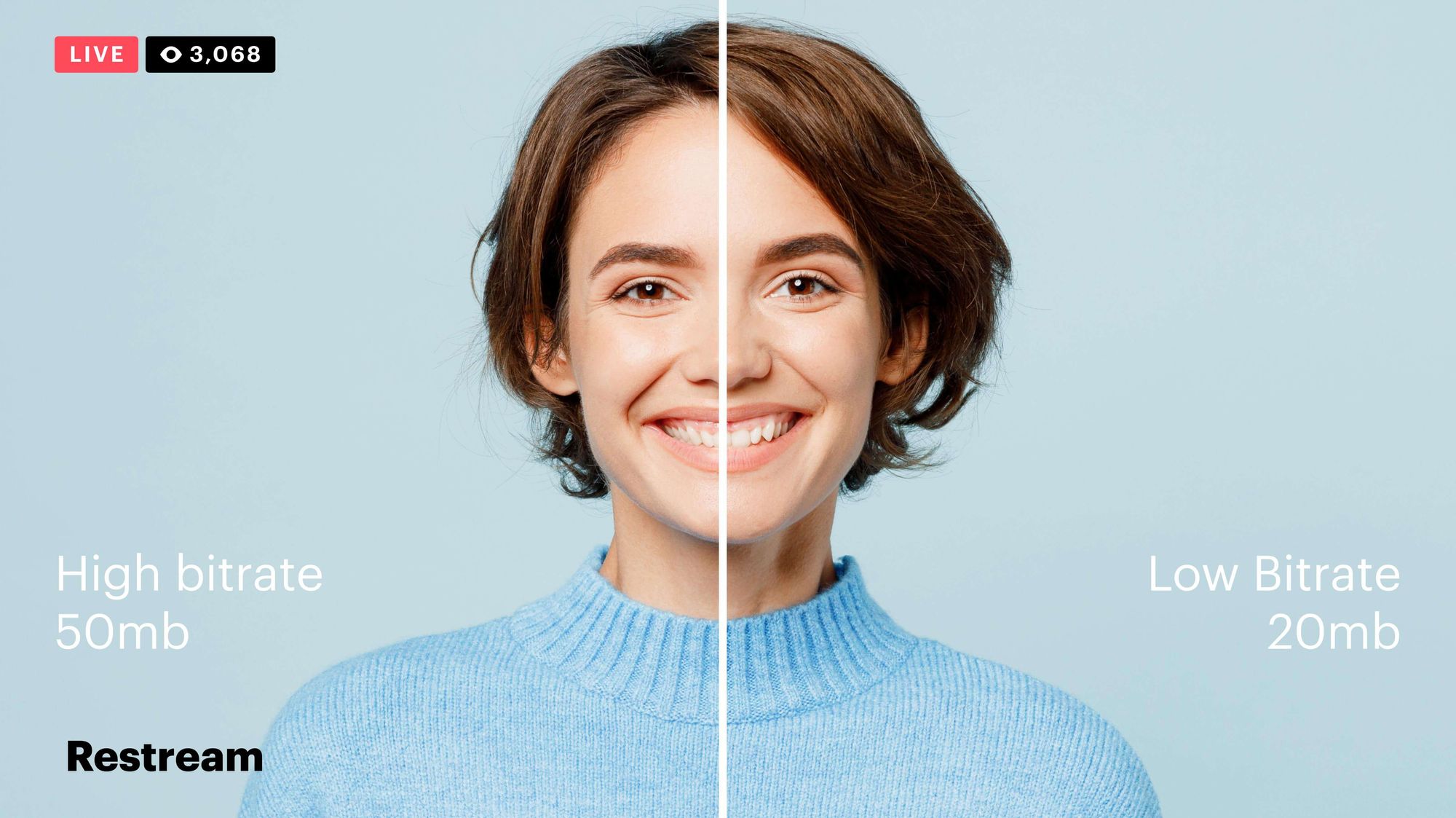
In video encoding, bitrate control isn’t just about file size; it affects the visual and auditory experience. Higher bitrates can make an image sharper and richer, while lower bitrates save space but may sacrifice some quality. Imagine watching a movie at different quality levels—at the highest quality, you see every detail clearly, but if it’s too low, it’s like watching through frosted glass. Getting the bitrate right means balancing quality with practicality, and that’s where bitrate control techniques come into play.

Understanding Bitrate Control: Constant Bitrate (CBR) vs. Variable Bitrate (VBR)

Different encoding methods affect how bitrate is distributed across a video file. Here’s an in-depth look at the two primary methods: Constant Bitrate (CBR) and Variable Bitrate (VBR).

  • Constant Bitrate (CBR): Pros, Cons, and Practical Applications

CBR uses a fixed bitrate throughout the video, keeping data usage steady. This method is straightforward and predictable—no matter the scene, the bitrate remains the same, which can be helpful for streaming on low-bandwidth networks. But there’s a downside: since CBR doesn’t adjust to scene complexity, it may waste data on simple scenes or underrepresent complex scenes. Imagine painting every square inch of a mural with the same amount of paint, even on spots that don’t need it.

  • Variable Bitrate (VBR): Advantages, Drawbacks, and Usage Scenarios

VBR adapts the bitrate based on content complexity, dedicating more data to complex scenes while using less for simpler ones. This flexibility improves overall quality while optimizing file size, but it can increase encoding time. It’s like adjusting brush strokes based on the level of detail needed—more for a detailed section, less for plain areas. VBR is excellent for content where quality is a priority, such as HD movies or high-action scenes, but it requires more computing power and time.

  • Real-World Scenarios Using CBR and VBR in Video Encoding

CBR is typically chosen for live streaming, where a steady bitrate keeps the stream stable. VBR, meanwhile, shines in offline content, where the file is created once, and quality can be optimized. Think of it this way: live sports streaming may benefit from CBR’s stability, while VBR’s adaptability suits a blockbuster movie’s intricate scenes.

Advanced Techniques for Bitrate Control

More sophisticated methods allow for even greater control over bitrate distribution and quality.

  • 2-Pass Encoding: What It Is and Why It Matters

Two-pass encoding allows for the best of both worlds in VBR. During the first pass, the encoder analyzes the video, and in the second pass, it adjusts bitrate distribution based on scene complexity. This approach maximizes quality and minimizes file size, though it takes double the time. If you’re creating high-stakes content like a music video, the time investment for a 2-pass VBR could make a big difference in quality.

  • Average Bitrate (ABR): Balancing Quality and File Size

ABR keeps a consistent average bitrate across the file, but unlike CBR, it allows some variation. This hybrid approach combines predictability with flexibility. For instance, encoding a training video where some scenes are complex and others are static can benefit from ABR’s moderate adaptability without the complexity of VBR.

  • Adaptive Bitrate Streaming and Machine Learning in Encoding

Adaptive bitrate streaming takes bitrate flexibility even further, adjusting in real time based on the viewer’s connection speed. Often used by streaming platforms, this technique ensures that viewers experience the best quality possible without buffering. Machine learning enhances this by predicting viewer needs based on past data, making encoding smarter and more efficient.

Factors Influencing Bitrate Control Decisions

Choosing a bitrate control method is more than a technical choice; it’s a matter of balancing multiple factors.

  • Source Video Quality and Resolution

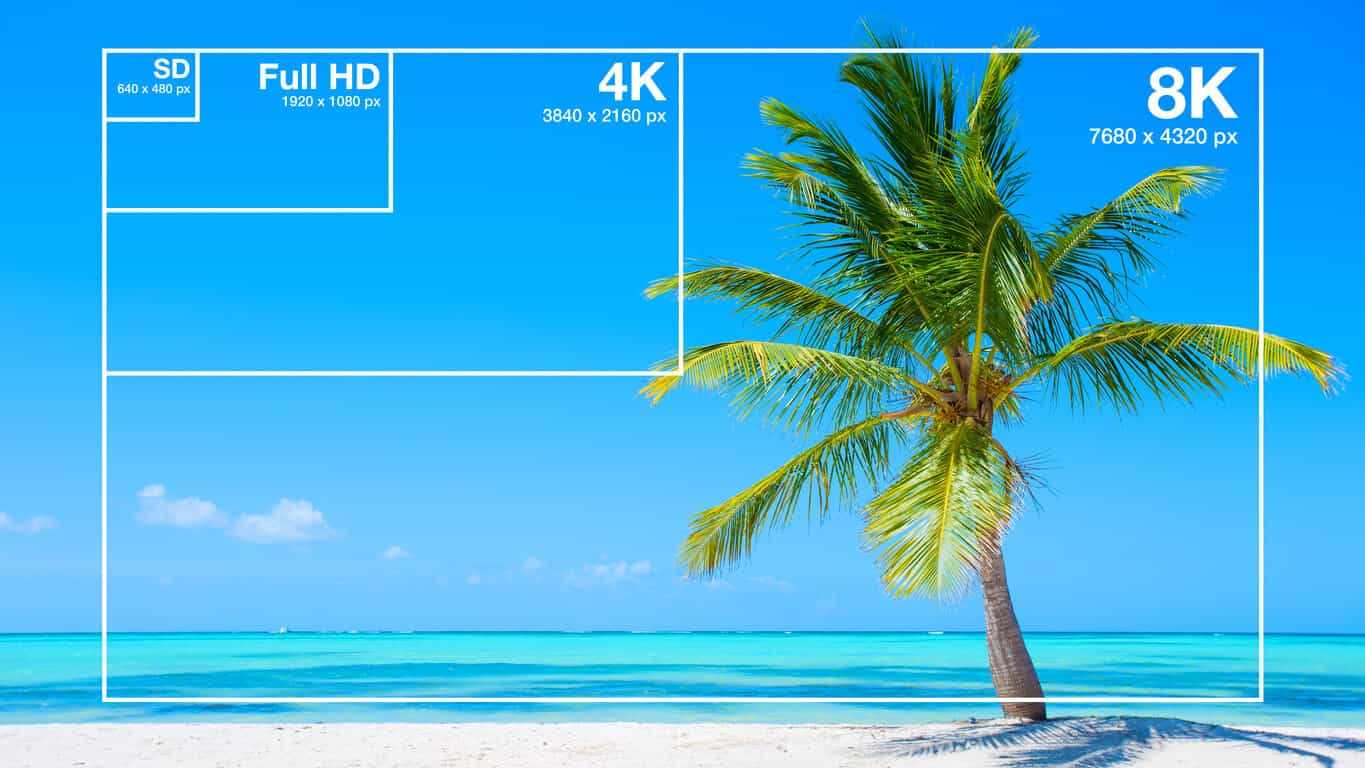
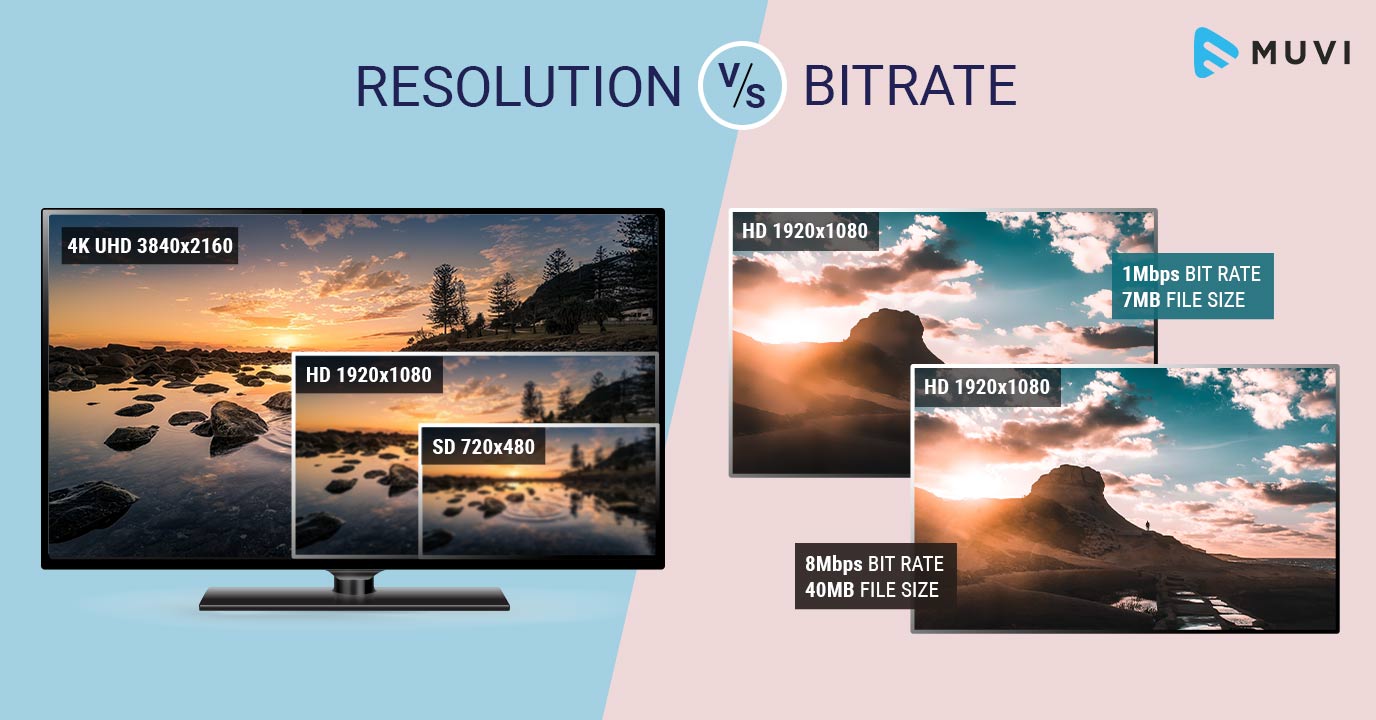
Higher resolution content demands higher bitrate to maintain quality. Encoding a 4K video requires far more data than standard definition to retain clarity, so your bitrate control needs to match the resolution to avoid pixelation.

  • Playback Device Requirements and Limitations

If your content will be viewed on mobile devices, encoding should prioritize smaller file sizes and efficient compression. For larger screens, prioritize quality, as viewers will notice subtle details. It’s like packing for a trip: you’d bring different gear for hiking than for a beach vacation.

  • Bandwidth and Storage Considerations

Encoding for low-bandwidth areas calls for bitrate control methods that preserve quality with minimal data usage. When file storage is limited, efficient compression methods like 2-pass VBR become valuable.

Comparing Different MP4 Encoding Tools and Their Bitrate Control Capabilities

Various encoding tools handle bitrate differently. While all offer CBR and VBR, some excel with advanced features like 2-pass encoding or adaptive bitrate capabilities. High-end tools often support machine learning, analyzing content to maximize compression efficiency without sacrificing quality.

Common Challenges in Bitrate Control and How to Address Them

Bitrate control brings unique challenges, from maintaining quality to managing file size.

  • Maintaining Quality in Low-Bandwidth Conditions

Encoding for low-bandwidth requires carefully balancing bitrate and compression to avoid quality loss. VBR or ABR can help by prioritizing quality in key scenes while conserving data in others.

  • Optimizing for Different Platforms and Devices

Each platform has its playback standards; for instance, social media may require smaller file sizes. Adjust bitrate control to meet these standards without compromising quality.

  • Managing File Size without Losing Quality

It’s tricky to balance quality with small file sizes. Using 2-pass encoding or adaptive bitrate control can help optimize quality by ensuring each scene gets the right amount of data.

Choosing the Best Bitrate Control Method for Your Needs

Selecting the ideal bitrate control method depends on your video type, audience, and storage limits. For a polished product, 2-pass VBR often yields the best results, while live streaming benefits from CBR. Experiment with these methods to find the right fit.

Latest Words on Bitrate Control in MP4 Encoding

Bitrate control continues to evolve, with new tools leveraging machine learning to optimize compression. In the future, we may see real-time adaptive methods that adjust based on user preferences and network conditions, creating smoother viewing experiences than ever. Ultimately, understanding bitrate control empowers you to create videos that balance quality and efficiency.


https://x.com/ricardo_mx_news


Free Download Mp4Gain
picture


Mp4Gain Main Window
picture


Mp4Gain Features
picture


Free Download Mp4Gain
picture

MP4 vs WMV Comparison

MP4 vs WMV Comparison

MP4 vs WMV Comparison

Let’s Talk about MP4 and WMV

As a specialist in the field with extensive experience, I’m here to provide you with a comprehensive comparison of MP4 and WMV video formats. Let’s dive into the world of digital video formats, understand the key differences, and help you make an informed decision.

The Basics of MP4

MP4 vs WMV Comparison

MP4, short for MPEG-4 Part 14, is a widely used video format. It’s like a Swiss Army knife for video because of its versatility. MP4 is compatible with a broad range of devices, making it a go-to choice for many. It uses the H.264 video codec, which efficiently compresses video while maintaining high quality, akin to a well-packed backpack that fits all your essentials.

Getting to Know WMV

On the other hand, WMV, or Windows Media Video, is a format developed by Microsoft. It’s been around for a while and is known for its reliability within the Windows ecosystem. Think of WMV as a trusted old suitcase that never lets you down.

Quality and Compression

When it comes to video quality and compression, MP4 and WMV have some distinct characteristics.

MP4’s utilization of the H.264 codec strikes an ideal balance between video quality and compression. It efficiently reduces file size while preserving sharp images and smooth playback. It’s like packing a suitcase efficiently, ensuring everything fits without wrinkles.

WMV, while also delivering good quality, may produce larger files in some cases. This is because WMV uses its own compression algorithms. Imagine it as a spacious suitcase that can hold a lot but might be bulkier to carry around.

Compatibility

Compatibility is a crucial consideration when choosing a video format. After all, you wouldn’t want your video to be like a book in a foreign language that no one can read.

MP4 is the clear winner in this category. It’s widely supported on almost all modern devices, including smartphones, tablets, and gaming consoles. Most video streaming platforms prefer MP4 due to its efficient streaming capabilities. It’s like having a book that everyone can read without any translation.

WMV, on the other hand, has more limited compatibility. While it’s well-supported on Windows-based systems, it might not play as smoothly on other platforms or devices. It’s like having a book that’s only available in one specific library.

File Size

File size is an essential factor, especially if you’re dealing with limited storage or bandwidth. Let’s compare MP4 and WMV in this aspect.

MP4’s efficient compression makes it ideal for online streaming and sharing. It’s like having a compact e-book that’s easy to send via email or upload to the cloud without taking up too much space.

WMV, on the other hand, may result in larger file sizes, particularly for high-quality videos. It’s like carrying a hefty hardcover book that takes up more shelf space and requires more effort to transport.

Editing and Post-Production

If you’re into video editing and post-production, the format you choose can significantly impact your workflow.

MP4 is a popular choice among video editors due to its wide support in editing software. It’s like working with a versatile set of tools that make editing a breeze.

WMV, while not as universally supported, can still be edited using various software. However, you might need to convert it to a more editing-friendly format, which can be a bit like translating a book before you can read it.

Let’s Talk about Audio

We’ve been focusing on video, but what about the audio component? Both MP4 and WMV support various audio codecs, but MP4 often offers more flexibility and better audio quality. It’s like enjoying a movie with surround sound in a high-end theater.

Future of Video Formats

As technology evolves, new video formats continue to emerge. HEVC (High-Efficiency Video Coding) is one such format that offers even better compression and quality than H.264. It’s like getting a futuristic backpack that’s not only compact but also incredibly lightweight.

Conclusion: The Choice Is Yours

In the battle of MP4 vs. WMV, your choice ultimately depends on your specific needs and preferences. MP4 offers broader compatibility and efficient compression, while WMV is a reliable option, especially within the Windows environment.

Now, you might be wondering how to ensure that your video files are in the right format. Well, this is where I’d like to mention Mp4Gain. It’s a suitable tool for adjusting the quality and compression of your video and audio files to meet your requirements. It’s like having a trusty tool in your video editing arsenal.

Latest Words on MP4 and WMV

In the ever-evolving world of digital media, choosing the right video format is crucial. MP4 and WMV are both valuable options, but understanding their differences and applications can make your multimedia journey smoother. Remember, it’s not just about the format; it’s about what suits your needs best.

Comments:

Hey, great article! I’ve always wondered about the differences between MP4 and WMV. This really helped me make an informed choice for my video projects.

I agree with the article, MP4 is so versatile. It’s like having a multitool for all your video needs!

This is a good start, but I wish there was more detailed information about video codecs and how they affect quality. Could you expand on that?

MP4 is my go-to choice for video sharing on social media. It’s like having a format that speaks the language of the internet.

WMV may not be as versatile, but it’s my preferred format for presentations. It’s like a reliable old friend in a professional setting.

Can you talk more about the future of video formats? I’m curious about what’s coming next in the world of video compression.

Mp4Gain is a neat tool! It’s like having a magic wand for adjusting audio in my videos. Thanks for the tip!

I’d love to hear more about the technical side of video formats. This article is informative, but I crave deeper insights into the nitty-gritty details.

As a Mac user, I lean towards MP4. It’s like the Mac of video formats – sleek, user-friendly, and reliable.

Thanks for simplifying the MP4 vs. WMV debate. This article feels like a friendly chat about digital video formats. Kudos!

I’ve had some issues with WMV files on non-Windows devices. Could you recommend a reliable converter for WMV to MP4?

This article is like a good conversation over a cup of coffee. It made understanding video formats much easier for a non-techie like me.

Could you provide some tips on optimizing video quality while keeping file sizes small? That would be a game-changer!

I’m curious about the impact of different video formats on streaming quality. Can you shed some light on that?

Understanding Video Bitrates and Codecs

Understanding Video Bitrates and Codecs

Video Bitrates and Codecs

Video bitrate and codec are two important concepts that every video creator should understand. In this article, I will explain what they are, how they work together, and how to choose the right settings for your videos.

What is Video Bitrate?

Video bitrate is the amount of data that is encoded per second in a video file. It is measured in bits per second (bps), or kilobits per second (kbps) or megabits per second (Mbps).

The higher the bitrate, the more data is encoded, and the higher the quality of the video will be. However, a higher bitrate also means a larger file size.

What is a Video Codec?

A video codec is a software program that compresses and decompresses video data. It is responsible for encoding the video data into a format that can be stored or streamed, and then decoding it back into its original form when it is played back.

There are many different video codecs available, each with its own strengths and weaknesses. Some of the most popular video codecs include:

H.264: This is the most widely used video codec. It is a lossy codec, which means that some data is lost during the compression process. However, H.264 is very efficient, and it can produce high-quality video with a relatively small file size.
H.265: This is a newer codec that is designed to be more efficient than H.264. It can produce the same quality of video with a smaller file size.
VP9: This is a free and open-source video codec that is developed by Google. It is similar to H.265 in terms of efficiency, but it is not as widely supported.

How Do Bitrate and Codecs Work Together?

Bitrate and codec work together to determine the quality and file size of a video. The higher the bitrate, the more data is encoded, and the higher the quality of the video will be. However, a higher bitrate also means a larger file size.

The codec determines how the video data is compressed. Some codecs are more efficient than others, and they can produce the same quality of video with a smaller file size.

How to Choose the Right Bitrate and Codec for Your Videos

The right bitrate and codec for your videos will depend on a number of factors, including:

The intended use of the video. If you are uploading your video to YouTube, you will need to choose a bitrate that is compatible with YouTube’s streaming requirements.
The target audience. If you are creating a video for mobile devices, you will need to choose a lower bitrate than if you are creating a video for high-definition televisions.
The file size. If you are limited by the file size, you will need to choose a lower bitrate.

Final Words About Video Bitrates and Codecs

Video bitrate and codec are two important concepts that every video creator should understand. By understanding how they work together, you can choose the right settings for your videos to ensure that they are both high quality and have a reasonable file size.

I hope this article has been helpful. If you have any questions, please feel free to leave a comment below.

Bonus Tips

If you are not sure what bitrate or codec to use, you can always start with a high bitrate and then lower it until you find a balance between quality and file size that you are happy with.
You can use a video bitrate calculator to help you determine the right bitrate for your videos.
There are many different video codecs available, so it is important to do some research to find the best codec for your needs.

What video bitrate is appropriate for video? Part 2

What video bitrate is appropriate for video? Part 2

Video Bitrate
Video Bitrate

Ultra Clear 720P>=1.5M (Standard 1280×720 resolution, minimum 960*540, this and higher resolutions are in MP4 era) [some websites have this minimum requirement to upload]

Video Bitrate
Video Bitrate

Blu-ray 1080P>=2.5M (1920 × 1080 standard resolution) [optimal 4-8M] [220M when the material is stored] [some websites have this higher requirement for uploading] (it is better to use 720P and 1080P when make videos )

2K=(2048×1080 resolution)
4K=(4096×2160 resolution) [Optimal 8-12M]
The most normative statement is:
reaching 720p resolution is the threshold for high definition signal sources, 720p is called the HD (high definition) standard;
up to 1080p resolution, known as the Full HD (full high definition) Blu-ray standard.
2K refers to 2048 × 1080, and the actual resolution of Quad HD (four times high definition, 2K can be called “four times ultra high definition”) has various specifications, and the ones listed above are just common specifications. ;

4K refers to 3840 × 2160, and the actual resolution of Quad Full HD (four times full HD, 4K is called “four times ultra full HD”) has various specifications, and the ones listed above are just common specifications. .
Blu-ray is the clearest and SD is the worst If your internet speed can’t bring you 1080p, then at least 720p won’t feel blurry to the naked eye.
P refers to the number of horizontal scan lines, and the higher the number, the higher the resolution of the image. The letter P stands for progressive scan.

1. What is the video bitrate?

Video bitrate is the number of bits of video data (color, brightness, and pixels) that are output per second. The unit generally used is kbps.

2. Recommended bitrate for video size and resolution

How much video bitrate is appropriate (above H.264 bitrate, 720P, 1080P output bitrate setting)

3. A set of formulas to set the bitrate is shared with you as follows:

How much video bitrate is appropriate (above H.264 bitrate, 720P, 1080P output bitrate setting)

Regarding the two items of “Use the highest rendering quality” and “Process with the maximum depth” when exporting from PR editing software, the effect of image quality is not obvious on the big screen and the output time can increase exponentially depending on the complexity of the track. I also encountered this problem in the morning. I have been there, it is a waste of time and the effect is average. So I usually don’t choose this.

What video bitrate is appropriate for video?

What video bitrate is appropriate for video?

Video Bit Rate
Video Bit Rate

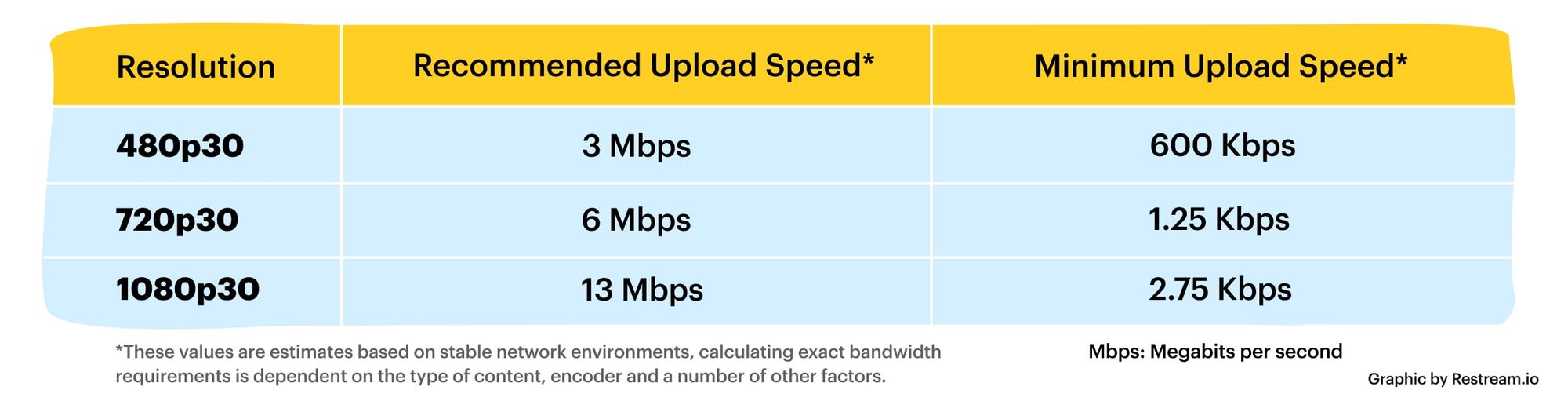
At present, 720p video recommended minimum bitrate is above, h.264 encoding 2M bitrate is adequate, 1080p is 4M enough
to get a high-quality video, convert it with different bitrates, and then compare the image quality.

Video Bit Rate
Video Bit Rate

The most commonly used are: h.264 encoding, 1080P, 2.5M bit rate or more.
Summary: [h.264 encoding, 2.5M bitrate (up to 4M), maximum 4M bitrate (add 2M to target), most platforms are Blu-ray. 】

1. If the bitrate is higher than the original video, it will not be a bit higher than the original video. When you move, you’ll pick a lower point to compress the file a bit.
2. 1080P 1M bitrate has distortion feeling to watch on computer, and 2M can’t see distortion, you can adjust the bitrate to 4M to get the best.
The following are the bitrate upload requirements for a platform:

How much video bitrate is appropriate (above H.264 bitrate, 720P, 1080P output bitrate setting)

How much video bitrate is appropriate (above H.264 bitrate, 720P, 1080P output bitrate setting)

***Normal 240p, 320p SD, 480p HD, 720p Ultra HD, 1080p Full HD (Blu-ray), 2K, 4k Ultra HD ***
Normal 240P (320×240 standard resolution, it was 3GP, this is basically nobody used)
SD 270P<0.8M (360×270 standard resolution, was 3GP, rarely used) [140M when storing 422 materials]

High definition 480P (360P)>=0.8M (standard resolution of 640 × 480, minimum 480 * 360, was 3GP) [480 re-advertising is called high definition, but the normative statement can only be regarded as standard definition]

What is the difference between 128k and 320k music? Part 2

What is the difference between 128k and 320k music? Part 2

Bit Rate

In simple terms, we can think of a sound wave as a curve.

Bit Rate

We know that the curve is made up of points, and the sampling rate is the number of points in the middle of the length per second (the horizontal axis in the figure above). Sampling precision is the number of points in the dynamic range (upper vertical axis). The finer the positioning of these two dimensions, the greater the true sound restoration and the better the sound quality. Of course, the larger the audio file will be. The customer mentioned by the above colleague said that the latest Hi-Res Audio format released by SONY is a 6-channel 192kHz/24-bit recorded audio file. The size of the lossless format, of course, will be more than 200 megabytes.

The sampling frequency is approximately the following depending on the type of use (k is the thousand-bit symbol, 1khz=1000hz):

8khz: used for phones etc, is enough to record human voices.

22.05khz: transmission use frequency.

44.1kb: Audio CD.

48khz: used in DVD and digital TV.

96khz-192khz: used for DVD-Audio, Blu-ray HD, etc.

The common range of sample precision is 8 bits to 32 bits, with 16 bits generally used on CD.

Having said that, my friends are starting to get confused. It’s not the bitrate that determines the sound quality, so why is everyone saying that 320kb sound quality is better than 128kb?

【Audio Compression】

Well, in fact, the bit rate should be said to be another dimension, it is a compression of audio files.

Nowadays, most of the audio formats we use regularly are based on the original “WAV” file of the audio CD (44.1khz sample rate, 16bit sample precision, 2ch). The original recorded sound data is stored in a matrix, which is in PCM format, while WAV format is an encoding format developed by Microsoft. Its function is to reproduce the data in PCM format through encoding.

Since the data in WAV basically completely restores the PCM data, MP3, AAC and other lossless encoding formats are basically recompressed based on the WAV files. Therefore, we can simply think that WAV is the original audio format and other audio formats are compressed formats.

When it comes to compression, storage and transmission are inseparable. The purpose of compression is to improve storage and transmission, so before we talk about compression, we need to understand the basic units of computers.

We all know that the computer is a binary number system, and the files stored by the computer are made up of two numbers, 0 and 1. Therefore, the computer’s transmission is based on each number, and each number is called 1 ” bit”. For example, for an audio piece, its basic data is “0,1,1,1,0,1, 1 ,0”, and when transmitting, these numbers are transmitted one by one. The sampling precision mentioned above is this unit.

The storage unit of the computer is “byte (Byte)”. In the computer, 1 byte consists of 8 bits, that is, 8b(bit)=1B(Byte). In computer parlance, data storage is expressed in decimal and data transmission is expressed in binary, so 1KB=1024B=1024×8b. This is also part of the reason why the hard drive capacity we see does not match the actual capacity.

Go back and talk about audio compression, the bitrate of the audio is actually the compression ratio. So the bitrate really just defines the size of the file, but because under normal conditions the larger the file, the less data you lose, so the sound quality is relatively higher. However, the bit rate itself does not directly affect the quality of the file. For example, if we take a 128kb file as the source file, even if it is converted to a 320kb file, the sound quality will not be better than 128kb. .

What is the difference between 128k and 320k music?

What is the difference between 128k and 320k music?

Bit rate comparision

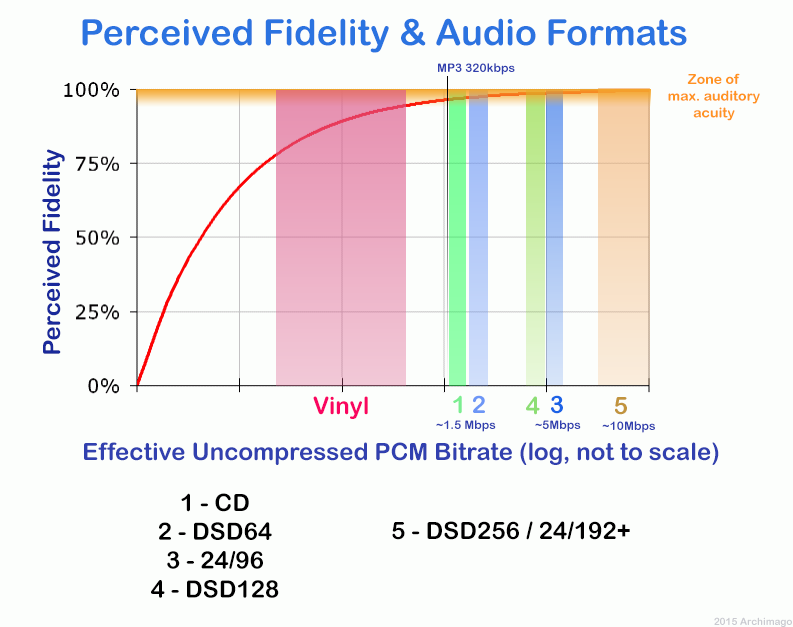
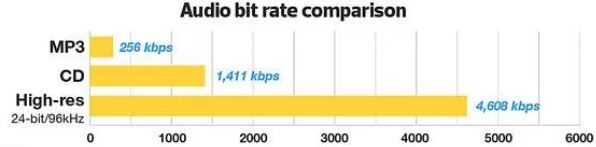
192k is a turning point. Below 192K, the sound quality is relatively damaged, especially the high-frequency part above 16Khz will be cut off.

bitrate

In a nutshell, mp3s above 192k can no longer be listened to with CD sound quality on ordinary home devices, except for Golden Ears and Hifi devices. Of course, these data are not 100% reliable. There are always people on the internet sharing fake mp3 above 192K. In fact, they are converting low bitrate music to high bitrate through software, but the sound quality will not improve. be improved. Windows Media Player compresses it. The resulting mp3 is absolutely wonderful, no matter how high the compressed bitrate is, it will cut perfectly around 16K.

Some time ago, a colleague came across a very troubled client. The mess was said to have been caused by the client asking him to provide song files larger than 100MB-200MB in size. And my colleagues don’t know much about audio formats, so they started endlessly fumbling about FLAC, WAV and audio size. In the end, the colleague did not explain to the client what was going on.

After that, other things happened that made me feel that in the music industry there are too many practitioners around me who have an extremely poor understanding of music and even lack some basic knowledge related to music. I don’t even have the idea to understand, which makes me very sad. It seems that music has only one merchandise attribute, and our practitioners only need to organize the shelves, encode various merchandise, and use the big data of users’ purchase records to recommend merchandise to users, no matter why to users. they like this. features that these products have, and use cold data to provide users with various services.

Therefore, I think it is necessary to write something. I don’t expect practitioners to become people who really love music. I just hope that even if you still think of “her” as a commodity, you can first figure out what you’re selling. and what is..

PS: The content of the first lesson is about media files. Since the relevant content involves a lot of technical stuff, it seems a bit boring, but if you read it carefully, you will find that it is actually very easy to understand, but this basic knowledge can be very helpful.

Bit Rate, Sample Rate, Lossless, MP3, FLAC, APE, 320kb, 192kb, 128kb, 44.1khz, CBR, VBR. Does this bunch of various names make you both familiar and unknown?

The higher the bitrate, the better the sound quality. Lossless music is the highest sound quality, right? So, let’s start with the sound collection.

【Audio composition】

Nowadays, when we talk about audio, everything is digital audio. Digital audio consists of three parts: sample rate, sample precision, and number of sound channels.

Sample Rate: Both the sample rate, which refers to the number of samples per second when recording the sound, expressed in Hertz (Hz).

Sampling Precision: Refers to the dynamic range of the recorded sound, measured in bits (Bit).