Understanding Video Bitrates and Codecs


Free Download Mp4Gain
picture

Understanding Video Bitrates and Codecs
Video Bitrates and Codecs

Video bitrate and codec are two important concepts that every video creator should understand. In this article, I will explain what they are, how they work together, and how to choose the right settings for your videos.

What is Video Bitrate?

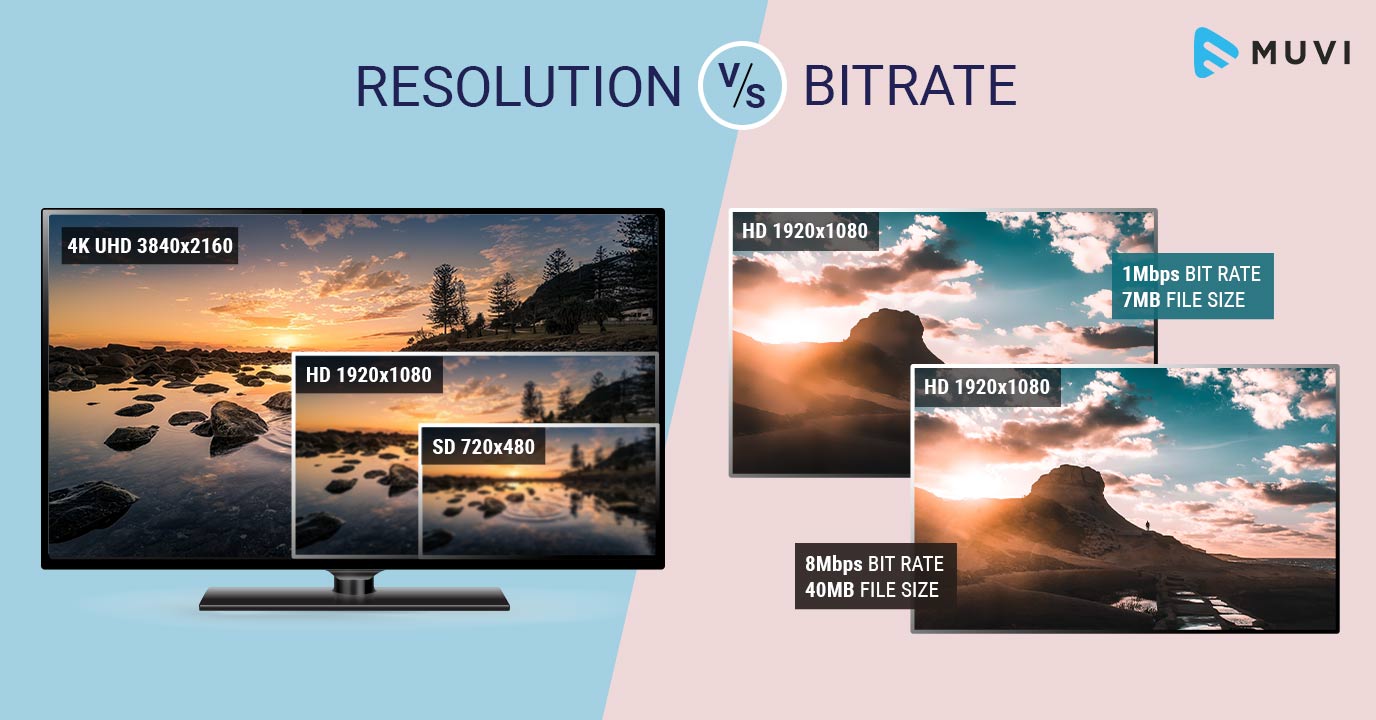
Video bitrate is the amount of data that is encoded per second in a video file. It is measured in bits per second (bps), or kilobits per second (kbps) or megabits per second (Mbps).

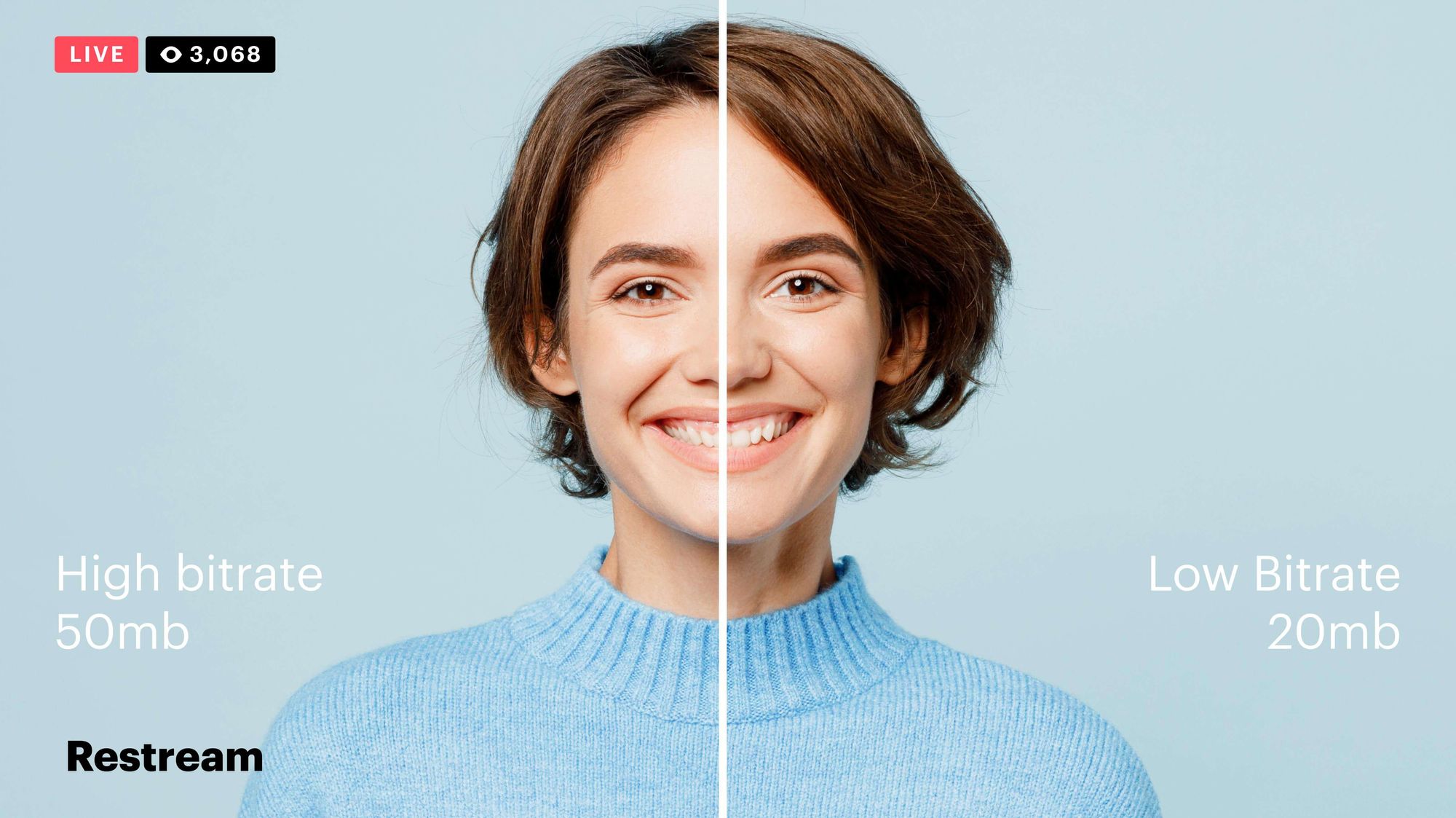
The higher the bitrate, the more data is encoded, and the higher the quality of the video will be. However, a higher bitrate also means a larger file size.

What is a Video Codec?

A video codec is a software program that compresses and decompresses video data. It is responsible for encoding the video data into a format that can be stored or streamed, and then decoding it back into its original form when it is played back.

There are many different video codecs available, each with its own strengths and weaknesses. Some of the most popular video codecs include:

H.264: This is the most widely used video codec. It is a lossy codec, which means that some data is lost during the compression process. However, H.264 is very efficient, and it can produce high-quality video with a relatively small file size.
H.265: This is a newer codec that is designed to be more efficient than H.264. It can produce the same quality of video with a smaller file size.
VP9: This is a free and open-source video codec that is developed by Google. It is similar to H.265 in terms of efficiency, but it is not as widely supported.

How Do Bitrate and Codecs Work Together?

Bitrate and codec work together to determine the quality and file size of a video. The higher the bitrate, the more data is encoded, and the higher the quality of the video will be. However, a higher bitrate also means a larger file size.

The codec determines how the video data is compressed. Some codecs are more efficient than others, and they can produce the same quality of video with a smaller file size.

How to Choose the Right Bitrate and Codec for Your Videos

The right bitrate and codec for your videos will depend on a number of factors, including:

The intended use of the video. If you are uploading your video to YouTube, you will need to choose a bitrate that is compatible with YouTube’s streaming requirements.
The target audience. If you are creating a video for mobile devices, you will need to choose a lower bitrate than if you are creating a video for high-definition televisions.
The file size. If you are limited by the file size, you will need to choose a lower bitrate.

Final Words About Video Bitrates and Codecs

Video bitrate and codec are two important concepts that every video creator should understand. By understanding how they work together, you can choose the right settings for your videos to ensure that they are both high quality and have a reasonable file size.

I hope this article has been helpful. If you have any questions, please feel free to leave a comment below.

Bonus Tips

If you are not sure what bitrate or codec to use, you can always start with a high bitrate and then lower it until you find a balance between quality and file size that you are happy with.
You can use a video bitrate calculator to help you determine the right bitrate for your videos.
There are many different video codecs available, so it is important to do some research to find the best codec for your needs.


Free Download Mp4Gain
picture


Mp4Gain Main Window
picture


Mp4Gain Features
picture


Free Download Mp4Gain
picture

What video bitrate is appropriate for video?

What video bitrate is appropriate for video?

Video Bit Rate
Video Bit Rate

At present, 720p video recommended minimum bitrate is above, h.264 encoding 2M bitrate is adequate, 1080p is 4M enough
to get a high-quality video, convert it with different bitrates, and then compare the image quality.

Video Bit Rate
Video Bit Rate

The most commonly used are: h.264 encoding, 1080P, 2.5M bit rate or more.
Summary: [h.264 encoding, 2.5M bitrate (up to 4M), maximum 4M bitrate (add 2M to target), most platforms are Blu-ray. 】

1. If the bitrate is higher than the original video, it will not be a bit higher than the original video. When you move, you’ll pick a lower point to compress the file a bit.
2. 1080P 1M bitrate has distortion feeling to watch on computer, and 2M can’t see distortion, you can adjust the bitrate to 4M to get the best.
The following are the bitrate upload requirements for a platform:

How much video bitrate is appropriate (above H.264 bitrate, 720P, 1080P output bitrate setting)

How much video bitrate is appropriate (above H.264 bitrate, 720P, 1080P output bitrate setting)

***Normal 240p, 320p SD, 480p HD, 720p Ultra HD, 1080p Full HD (Blu-ray), 2K, 4k Ultra HD ***
Normal 240P (320×240 standard resolution, it was 3GP, this is basically nobody used)
SD 270P<0.8M (360×270 standard resolution, was 3GP, rarely used) [140M when storing 422 materials]

High definition 480P (360P)>=0.8M (standard resolution of 640 × 480, minimum 480 * 360, was 3GP) [480 re-advertising is called high definition, but the normative statement can only be regarded as standard definition]

Normal bit rate for 1080p. Video encoding for Youtube

Normal bit rate for 1080p. Video encoding for Youtube.

Encoding for YouTube

This is a technical article. For non-specialists, we will give you a tip right away: to export videos to Youtube, it would be best to look for a template for youtube in your editing program.

Encoding for YouTube

Since 2005, when YouTube appeared, video compression technologies have improved a lot and YouTube has changed the formats in which video is transmitted several times. Now video uploaded to youtube is recoded, stored on servers and displayed to the viewer in H.264 / AVC, WebM / VP9, ​​WebM / VP8, H.263 / Sorenson Spark, H.263 / formats Simple. It makes no sense to encode videos independently in all these formats and all resolutions, youtube does it for us automatically.

The first step is to make the project with the correct parameters
If you are making a video with the aim of publishing it on the Internet, then the first and reasonable way to start a project in your editing program with parameters corresponding to the requirements of youtube (the main thing is that the resolution of the video and the frame rate match: you need to see what vertical and horizontal dimensions of the source material, choose from the standard youtube sizes the one that best suits the parameters of the source material, and in your editing program make a new project with the selected parameters for youtube ).

For example, you have shot a FullHD video with 25 frames per second, in this case you are doing a 1920 x 1080 project, 25 fps, with progressive scan. Second, the option is to mount the project with the parameters corresponding to the source material and export with the settings on YouTube. For example, for HDV camcorder video with dimensions of 1440 x 1080 with one pixel spread, you can create an HDV project, and when exporting you can simply select Full HD 1920 x 1080 dimensions with one pixel square. The third option is to make a video with some own parameters and youtube will transform it by yourself, but if the proportions are distorted, black bars or a black frame appear, then these will be the consequences of your decision. For example, you have a project with the aspect ratio of a widescreen movie, so you edit and export it at 1920×816 or 2560×1080. Another example, you shoot a vertical video and hope that it will also be viewed on mobile devices …. YouTube is moving in this direction, but knowing that it will look different on your phone and on TV is your conscious choice.

Even if you encode the video with compliance with the recommended parameters, when uploading it to YouTube, it may look a little different from your computer. You need to understand that flash player or html5 player can work in browser, each of them can be different version, use or not use video card hardware acceleration. Also, the files played by the player can be h.264 and webm formats. For these reasons alone, the same video can be viewed differently in different browsers on the same computer, and on different computers, different operating systems, different video card drivers, different versions are added flash. Also, videos uploaded to another video hosting service, for example vimeo, will be transcoded differently and played through another player.

You can download avi, mov, mp4, mpg, webm and other formats. These formats are containers in which compressed video with very different codecs can be stored. That is, if an avi or mp4 file is played on your computer, this does not mean that youtube will accept it. Therefore, we will consider only one option: the mp4 container with the h.264 codec.

Youtube player on computer plays video only in 16×9 aspect ratio window, for videos with other aspect ratios, youtube itself adds black bars on the sides as needed. Therefore, you do not need to do it yourself. To avoid black bars, use the following frame sizes (video resolution):

4320p: 7680 x 4320;
2160p: 3840 x 2160;
1440p: 2560 x 1440;
1080p: 1920 x 1080;
720p: 1280 x 720;
480p: 854 x 480;
360p: 640 x 360;
240p: 426 x 240.

Packaging: MP4
Audio codec: AAC-LC; sampling frequency: 96 or 48 kHz; bit rate 384 kb / s for
stereo video codec: H.264, progressive scan (not interlaced; if you have 1080i video, you must convert it to 1080p so there is no “comb”); High profile; variable bit rate with no limitation on maximum size; 4: 2: 0 color subsampling; the frame rate must match the frame rate of the original video, 24, 25, 30, 48, 50 and 60 frames per second are supported, but you can make videos with other rates.