H.264 Encoding Profiles and Their Impact on MP4


Free Download Mp4Gain
picture

H.264 Encoding Profiles and Their Impact on MP4
H.264 Encoding Profiles and Their Impact on MP4

Let’s talk about H.264 encoding profiles and their impact on MP4

When it comes to H.264 encoding profiles and MP4, understanding the connection is key to getting the most out of your video files. Over the years, I’ve worked extensively with H.264, and it remains the gold standard for balancing video quality with file size. The encoding profiles in H.264 determine everything from compression efficiency to playback compatibility. By diving deep into these profiles, I’ll show you how they shape your MP4 videos, making this knowledge indispensable for both creators and consumers.

Understanding H.264 Profiles and Their Purpose

H.264 encoding profiles are like recipes for compressing video. They specify what features the encoder uses to reduce file size while maintaining visual quality. Think of it like baking a cake—different recipes (profiles) give you different results, tailored to specific devices or purposes.

What Are the Main H.264 Profiles?

When working with MP4 files, you’ll often encounter three main profiles in H.264. Each has unique strengths designed for particular applications.

Baseline Profile

  • Designed for low-complexity devices like mobile phones.
  • Supports lower compression but ensures compatibility with older hardware.
  • Perfect for video calls or simple streams.

Main Profile

  • Offers better compression than Baseline, making it great for standard-definition video.
  • Balances quality and efficiency, ideal for TV broadcasts and some online platforms.
  • Supports interlaced video, unlike Baseline Profile.

High Profile

  • Provides the best quality-to-compression ratio of the three.
  • Commonly used for HD video, Blu-ray discs, and streaming services.
  • Leverages advanced features like CABAC (Context-Adaptive Binary Arithmetic Coding) for efficient compression.

Why MP4 Relies on H.264 Profiles

MP4 files use H.264 because of its universal compatibility and efficiency. Imagine wanting to share a video with someone on a smartphone or a smart TV. Without H.264 profiles, ensuring your video plays perfectly across devices would be like trying to fit a square peg into a round hole. These profiles allow MP4 files to adapt seamlessly.

How H.264 Profiles Impact Quality and Compression

The profile you choose directly affects both the quality of your video and how small the file becomes. For example, High Profile compresses more efficiently but demands more processing power during playback. It’s like packing a suitcase—some methods save space but require careful organization.

Real-World Examples of H.264 Profiles in Use

One of my favorite examples is streaming platforms like YouTube. For standard videos, Main Profile is often used to balance quality and playback smoothness. Meanwhile, 4K content relies on High Profile to deliver stunning visuals without ballooning file sizes.

Advanced Features in High Profile

High Profile is packed with cutting-edge features that make it stand out. One such feature, CABAC, significantly reduces file size without losing quality. Another, adaptive quantization, optimizes bitrate allocation for complex scenes. It’s like upgrading to a premium toolkit—you get more options to fine-tune the results.

Common Misunderstandings About H.264 Profiles

I often hear people say that higher profiles are always better. This isn’t true. Baseline Profile, for instance, remains crucial for low-power devices. Choosing the wrong profile can lead to playback issues or unnecessary strain on hardware, like using a chainsaw to cut butter.

When to Use Each H.264 Profile

Picking the right profile depends on your needs. If you’re targeting mobile users, Baseline Profile is a safe bet. For online content creators, Main Profile offers a great balance. High Profile is best for premium productions, where every detail matters.

How H.264 Enhances MP4 Compatibility

H.264 profiles ensure that MP4 files are playable across almost any device. Without them, video playback would often require additional codecs or software. This universal approach saves time and avoids compatibility headaches.

The Future of Video Encoding Beyond H.264

While H.264 dominates today, newer codecs like H.265 (HEVC) are pushing the envelope further. Still, H.264’s profiles and widespread adoption make it a staple. I often tell clients to think of H.264 as a reliable old friend—always there when you need it.

Latest words on H.264 encoding profiles and their impact on MP4

Mastering H.264 profiles is essential for anyone working with MP4. From Baseline to High Profile, each serves a purpose, shaping how videos look and perform. Whether you’re streaming, editing, or just watching, understanding these profiles unlocks the full potential of MP4. If you’re looking for a tool to optimize your videos, Mp4Gain offers a reliable solution to enhance quality and compatibility.

FAQs About H.264 Encoding Profiles and Their Impact on MP4

What are H.264 encoding profiles?

H.264 encoding profiles define the features and capabilities used during video compression. They determine how efficiently a video is compressed and how compatible it will be with different devices. The most common profiles are Baseline, Main, and High, each optimized for specific use cases like mobile playback, streaming, or high-definition video.

How do H.264 profiles impact MP4 files?

H.264 profiles determine the compression efficiency and playback compatibility of MP4 files. For example, Baseline Profile ensures older devices can play the video, while High Profile delivers superior quality and compression for HD content. The right profile ensures MP4 files work seamlessly across various platforms and devices.

Which H.264 profile is best for streaming video?

For streaming video, Main Profile is often the best choice. It balances quality and compression efficiency while maintaining compatibility with most devices. High Profile can also be used for higher-resolution streams, but it may require more processing power for playback.

Can I use High Profile for all my MP4 files?

While High Profile offers the best quality-to-compression ratio, it is not always the best choice. Devices with limited processing power, like older smartphones, may struggle to play High Profile videos. For maximum compatibility, Baseline or Main Profile might be better options.

Why is H.264 the preferred codec for MP4?

H.264 is the preferred codec for MP4 due to its exceptional balance between compression efficiency and quality. It supports a wide range of devices and platforms, ensuring compatibility without requiring additional software. Its encoding profiles make it versatile for different use cases, from mobile playback to high-definition video production.

How do I choose the right H.264 profile for my video?

Choosing the right H.264 profile depends on your video’s target audience and purpose. For mobile or low-power devices, Baseline Profile is ideal. Main Profile is suitable for standard-definition video and streaming, while High Profile is best for high-definition content or professional-grade projects.

What are the limitations of Baseline Profile?

Baseline Profile lacks advanced compression features like CABAC, which means it produces larger file sizes compared to Main or High Profile. It is optimized for compatibility with older or low-power devices, but this comes at the expense of lower compression efficiency and slightly reduced quality.

Is High Profile suitable for mobile devices?

High Profile can be used for mobile devices, but it may not perform well on older or less powerful smartphones. It requires more processing power for playback, so if compatibility with a wide range of mobile devices is a priority, Baseline or Main Profile might be a better choice.

What role does CABAC play in H.264 profiles?

CABAC, or Context-Adaptive Binary Arithmetic Coding, is an advanced compression feature used in Main and High Profiles of H.264. It significantly reduces file size while maintaining quality. However, it requires more processing power, making it unsuitable for devices that rely on Baseline Profile.

What is the future of H.264 encoding profiles?

Although newer codecs like H.265 and AV1 are emerging, H.264 remains widely used due to its established compatibility and efficiency. Its encoding profiles continue to serve as a reliable standard for MP4 files, ensuring seamless playback and quality for various applications.

Comments:

This article really helped me understand the difference between Baseline and High Profile. I’ve been encoding videos for YouTube, and now I see why my older clips played poorly on mobile devices. Thanks for the clarity!

So much detail here! I didn’t realize the impact CABAC has on compression. It’s crazy how much technology goes into something we take for granted like video streaming.

I think you should explain more about compatibility issues with older devices when using High Profile. I had trouble once with a file not playing on a 2010 smart TV. Just a thought.

Great breakdown of the profiles. This kind of info is hard to find in one place. Keep up the good work, and please do a piece on HEVC next!

I’ve been encoding all my videos using Main Profile, but now I’m wondering if I should switch to High Profile for better quality. Does it really make that much of a difference?

Honestly, this article is gold. I had no idea about adaptive quantization before reading this. Definitely bookmarking this page.

Super helpful! I’ve always been confused about why there are multiple profiles. This cleared it up perfectly. Thank you!

I encode my family videos using Baseline Profile so they’ll play on our old iPads. Reading this made me feel like I actually understand what I’m doing for once!

This is the kind of article I wish I found when I first started encoding videos. It would have saved me hours of trial and error.

Great job explaining such a technical topic in a way that’s easy to understand. More articles like this, please!

I never realized how much thought went into selecting an encoding profile. Makes me appreciate video tech even more. Thanks for the insights!

I’m just getting into video editing, and this helped me a lot. Do you think H.264 is still worth learning, or should I jump straight into HEVC?

The analogies in this article are great. Comparing encoding profiles to recipes really made it click for me. Keep writing!

I wish you’d included a section on the best settings for YouTube uploads. Otherwise, this is a fantastic guide.

Totally agree with the point about universal compatibility. That’s why I stick with H.264—it just works everywhere!


Free Download Mp4Gain
picture


Mp4Gain Main Window
picture


Mp4Gain Features
picture


Free Download Mp4Gain
picture

How the video is compressed

How the video is compressed

Video Compression

Video compression is the reduction and elimination of redundant video data to optimize the storage and transmission of digital video files.

video compression

During this process, the original video signal is processed by an algorithm to create a compressed file ready for transmission and storage. To play a compressed file, use

a reverse algorithm that actually produces the same video image as the original video source. The time it takes to compress, send, decompress, and display a file is called latency. With the same processing power, the more complex the compression algorithm, the higher the latency.

A couple of algorithms that work together is called a video codec (encoder / decoder). Video codecs that use different standards are often incompatible with each other, so the video data,

tablets with one standard cannot be decompressed with another standard. For example, an MPEG-4 Part 2 decoder will not work with an H.264 encoder. The reason for this is the fact that one algorithm cannot correctly decode the result obtained using the work of another algorithm, however it is possible to equip software or hardware with many different algorithms so that it can compress different formats.

Different video compression standards use different methods to reduce data size, and therefore results differ in bit rate, quality, and latency.

Compression results may also differ between encoders using the same standard, as the developer of the encoder is free to choose which standard-defined tool sets to use in it. As long as the result in the encoder output corresponds to the standard’s format and decoder, several implementation methods are possible. This is beneficial because different implementation methods have different goals and different budgets. Professional software encoders for non-real-time optical media should be able to provide better encoded video than hardware encoders for real-time video conferencing built into handheld devices.

Therefore, a specific standard cannot guarantee a specific data speed or quality. Also, the performance of a standard cannot be properly compared to other standards or even to different implementation methods of the same standard without first defining a specific implementation method.

The decoder, unlike the encoder, must implement all the necessary elements of the standard to decode the corresponding bit stream. Therefore, the standard clearly specifies how exactly the decompression algorithm should retrieve each bit of the compressed video image.

The following chart compares the bit rate at the same level of image quality for the following video standards: Motion JPEG, MPEG-4 Part 2 (without motion compensation), MPEG-4 Part 2 (motion compensation), and H. 264 (baseline profile).

For the selected sequence of video frames, the H.264 encoder generates up to 50% fewer bits per second compared to the motion compensated MPEG-4 encoder. The H.264 encoder is at least three times more efficient than an MPEG-4 encoder without motion compensation and at least six times more efficient than Motion JPEG.

Digital video, video [DV – Digit Video, video]

Digital video, video [DV – Digit Video, video]

Video compress!

1. The term used in relation to the systems and tools to create, store, transform, transmit and / or receive (including reproduction) of moving images using computer technology. Digital video is characterized by the following basic parameters: frame rate [frame rate] (measured by the number of interchangeable image frames on the screen per second), screen resolution [spatial resolution] (measured by the number of pixels in an image frame), color depth or color resolution [color resolution] (measured by the number of transmitted color tones), and image quality [image quality] – a complex indicator, including the above. One type of digital video is computer animation.

Video Compression

2. Video presentation format used for recording and data exchange between digital video cameras, VCR and PC. Also called DV editing [DV-the format]. For DV transmission, the IEEE-1394 standard (FireWire or i.LINK) is used. Provides 5: 1 video signal compression ratio, 3.6MB / s signal transmission rate, video frame resolution for PAL – 720×576 and NTSC – 720×480, support for recording and reproduce sound in 4 channels with a sampling frequency of 32 kHz and a bit depth of 12 (or in 2 channels with a sampling frequency of 48 kHz and a bit depth of 16 bits). See [556] for more details.

DV Type-1 (Digital Video Type-1): A variant of the DV format presentation (see above), incompatible with Video for Windows and compatible only with later versions of DirectShow. A file in this format has video and audio components of the recording, which are interleaved (stereo, 48 kHz, 16-bit). This format is the recommended format for processing DV video on a PC [556].
DV Type-2 (Digital Video Type-2) – The original (legacy) version of the DV format on a PC, backward compatible with Video for Windows – Programs running on Video for Windows can only read one file Type -2. In this case, to save data in it, you need to use a special codec. Compared to Type -1, it is more expensive to decode and mix [556].
S-Video is an image format in which chroma and luminance are separated into two separate signals, resulting in higher image quality (see also “stereo video” above).
Component Video [Component Video]: Color video transmitted using three separate channels using one of the color separation models: RGB, YiQ, or YUV.

Intel DVI (Intel Digital Video Interface), Intel Real-time Video – DVI is a hardware / software suite that includes a DVI chipset, an executable software interface, data compression and decompression schemes, and data file formats. DVI format was created in 1984 in Princeton, New Jersey by employees of the USA company the RCA Corporation. Then it changed ownership and from 1988 became the property of Intel Corp., which supports its development. Currently, DVI is a multimedia format for storing audio and video data. Its main features: Supports 16 million colors; it has a maximum resolution of 256×240 pixels; uses its own compression machine and JPEG (5: 4 motion picture compression ratio); it also provides still image storage and compression (lossy and lossless); has a specification on CD-ROM. Audio compression is done using ADPCM and PCM 8. For more information, see [584].

RIFF (Resource, Interchange, File, Format) – “File Format Resource Sharing” from Microsoft is a complex multimedia format used for Windows * *, Windows NT, and OS / 2 operating systems. Its purpose: to adapt various types of data for multimedia programs. The type of data contained in the RIFF file is indicated by the extension: embedded audiovisual data – * .avi; audio data (“wave”) – * .wav; raster data – * .rdi; MIDI data – * .rmi; lots of other RIFF- * .bnd files … Since there are many different multimedia files under the general name RIFF, each of them is processed taking into account the type of data it contains. For example, a RIFF file that contains audiovisual data is often referred to and treated as an AVI file in general and not as a RIFF file. RIFF files are often mistakenly believed to be similar to TIFF (Tag Image File Format) files. Although these formats use the same storage concept, they are incompatible. For more details, see [584].

QT (QuickTime), QTM (QuickTime Movie Resourse Format)

The perfect video compression

We all like to enjoy great image quality in the videos and movies we watch on the computer, especially if you make your own compressed copies of DVD movies. I have always relied on the popular DivX but, now that there are other types of compression such as Xvid and some as modern as the H.264, it would be worth comparing to discover which one offers the best quality in the smallest size.


For the test I have chosen the movie Transformers, released in November 2007 and directed by Michael Bay, with Shia Labeouf and Megan Fox as protagonists. It is an action movie with a variety of scenes: static in great detail, with movement, explosions, lots of color … ideal for testing. The DVD boasts a very high image quality, as evidenced by the editors of a well-known magazine.

codecs

Choice of codecs, bitrates and encoders

To carry out the test, you have to choose different “compression methods”, each of them to several different “qualities” and using one or several programs that allow to compress in this way.
Things have changed a lot since in 2000 I compressed my first movie in DivX 3.11 format. It took me a whole day looking for information on the Internet on how to do it and my computer at that time (an AMD K6 II of 400Mhz) took all night to compress it in only 650 MB. Since then I have been using all versions of DivX, from 3.11 to the current 6. But the Xvid codec sounds more and more and there are excellent comments from the newest H.264, so the question is on the table: what is The best way to compress to achieve sublime image quality? Well, for this you have to discover which is the best codec and use it at the optimal bitrate with the ideal encoder. But what about that “codec”, “bitrate” and “encoder”?

Codec, the type of compression

The “compression method” is what in the video world is called “codec”, which is the acronym for COmpresor-DECompresor, a program capable of compressing and decompressing the image in a certain way. It is something similar to what photography programs incorporate to allow them to read and write files in JPEG format, for example. The type of compression that incorporates the DVD is called MPEG-2 and is already considered somewhat old, being surpassed by the MPEG-4 standard, more modern and efficient.
The problem is that there are many types of MPEG-4 and it is not clear which one is the best.

On the one hand there is DivX (a variant of the MPEG-4 type called ASP; see official page), which is tremendously popular and more and more DVD lounge players admit it. The decompressor (necessary to watch the videos) is free, but the compressor (to generate them) is paid.

There is also Xvid, (which is the same type as DivX; official page) a competitor of DivX (its name is the same, but vice versa) although completely free.

codec

And finally, the very modern H.264, of the MPEG-4 AVC type, a prodigy of compression according to experts. Well, to find out which one is better, I have compared the generic MPEG-4 with these three contenders. There are several codecs to use this type of compression, but the most popular is the x264, mostly because it is free, which is what I used.

The versions that I have used for this comparison are the following: DivX Pro v6.8.2, Xvid v1.2 and x264 revision 808.

Bitrate, the amount of compression

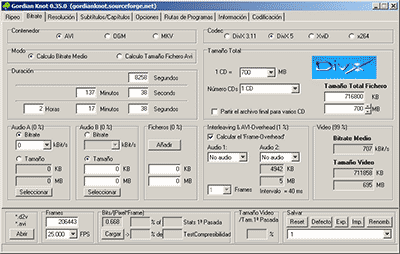
Already with each of them, you can select the “quality” image, similar to how you choose the quality between 0 and 12 when saving a JPEG file from Photoshop. The difference is that in the world of video this is known as bitrate, which is nothing more than the bit stream per second of video, and is measured in bits per second and their multiples. Since video is a succession of frames formed of pixels (ultimately bits), this parameter measures the flow of information per second; at higher flow, higher quality and vice versa. In our case, I will use measures in “kbps” (“Kb / s” would also work), that is, kilobits per second (be careful, don’t confuse it with KB / s, which would be kiloBytes per second, an 8 times larger unit).
In order not to make the mistake of falling short, I have chosen 7 different bitrates, starting from an intermediate one. Taking the original DVD image, with a 720×304 pixel size frame