AVI Video Codec Compatibility


Free Download Mp4Gain
picture

AVI Video Codec Compatibility

AVI Video Codec Compatibility

Let’s talk about AVI video codec compatibility

AVI video codec compatibility is a critical topic for anyone working with multimedia files. I’ve encountered situations where an AVI file simply wouldn’t play or edit properly because the codec wasn’t supported. Imagine trying to use a key to open a lock—it fits but doesn’t turn. That’s exactly how codec compatibility works. Let’s dive into why this happens and how to address it.

Understanding the AVI format and its codec system

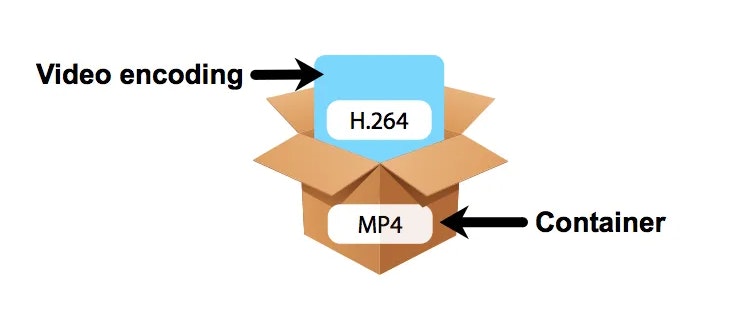
The AVI format, or Audio Video Interleave, relies heavily on codecs to manage compression and playback. In my experience, the AVI format is like a toolbox—it contains tools (codecs) for handling audio and video but depends on compatibility with your operating system or software.

AVI supports both lossless and lossy codecs, which determine the file size and quality. Lossy codecs like DivX or XviD are commonly used to compress large video files. On the other hand, lossless codecs such as HuffYUV preserve every detail but create much larger files. If your device doesn’t support the specific codec used to encode the AVI, the file might not play.

Why codec compatibility matters in AVI files

Codec compatibility ensures smooth playback and editing of AVI files. I’ve seen many cases where a video stutters, freezes, or doesn’t play because the required codec isn’t installed. Picture this: trying to listen to a cassette tape in a CD player. Without the right “player,” the file simply won’t function.

Incompatibility can also affect:

  • Video quality: Distortions or artifacts during playback.
  • Audio synchronization: Audio and video go out of sync.
  • File accessibility: The file may be completely unplayable.

Common AVI codecs and their compatibility

The most common codecs used with AVI files include DivX, XviD, and Microsoft’s own codecs. Here’s a breakdown of their uses:

DivX

DivX is a popular choice for compressing high-quality video into smaller file sizes. I’ve used it in countless scenarios where storage was limited but quality couldn’t be compromised. However, it’s not natively supported on all devices, requiring additional installations.

XviD

XviD, an open-source alternative to DivX, is widely used for similar purposes. While it’s more flexible than DivX in terms of licensing, compatibility issues can arise on older devices.

HuffYUV

HuffYUV, a lossless codec, is ideal for professional editing where quality is paramount. I often recommend it for tasks like video archiving. However, its large file sizes and limited support on non-professional software can be a drawback.

How to check and resolve codec compatibility issues

I’ve found that codec compatibility issues can be resolved with a few straightforward steps. First, always check the codec used in your AVI file. Tools like media file analyzers can identify the codec, making it easier to find the right software or plugin.

If playback issues persist:

  • Install codec packs such as K-Lite Codec Pack.
  • Use media players like VLC that support a wide range of codecs natively.
  • Convert the file to a more compatible format using video conversion software.

Real-life scenarios of AVI codec challenges

I once worked with a client who had a library of AVI files recorded on outdated hardware. Many of the files used proprietary codecs, making them unplayable on modern devices. By converting these files using a compatible codec, we ensured they could be accessed for years to come. This experience taught me the importance of understanding codec compatibility before starting any video project.

How AVI codec compatibility affects editing workflows

In editing, codec compatibility can be a game-changer. Imagine spending hours editing a video only to realize it can’t be exported properly because the codec isn’t supported. I always advise checking codec requirements for editing software before starting a project. For instance, Adobe Premiere Pro might handle one codec well but struggle with another.

Choosing the right codecs for your AVI files

Selecting the right codec depends on your specific needs:

  • For high-quality playback: Choose codecs like H.264 for compatibility across devices.
  • For editing: Use lossless codecs like HuffYUV.
  • For storage efficiency: Opt for DivX or XviD.

AVI codec compatibility and modern devices

Modern devices prioritize compatibility with newer codecs, often sidelining older ones used in AVI files. Smartphones, for example, may not support AVI files encoded with outdated codecs. In such cases, converting the file to a more universal format like MP4 can solve the issue.

Latest words on AVI video codec compatibility

AVI codec compatibility plays a crucial role in ensuring seamless playback, editing, and storage. Addressing compatibility issues involves understanding the codecs used, choosing the right tools, and optimizing for your specific needs. AVI remains a versatile format, but staying informed about codec advancements is essential. For those seeking a straightforward solution, Mp4Gain offers reliable file conversion capabilities to make your AVI files universally accessible.

What are AVI codecs?

AVI codecs are compression technologies used to encode and decode audio and video within AVI files. They determine file size, quality, and compatibility.

Why won’t my AVI file play?

If an AVI file won’t play, it’s likely due to a missing or unsupported codec. Installing the required codec or using a compatible media player can resolve this.

What is the difference between DivX and XviD?

DivX is a proprietary codec, while XviD is open-source. Both are used for compressing video in AVI files, but XviD is more flexible for licensing.

How can I check the codec of an AVI file?

You can check an AVI file’s codec using media analysis tools. These tools display codec details for both audio and video streams.

Are AVI files outdated?

AVI files are not outdated but are less commonly used due to the rise of more efficient formats like MP4. They remain valuable for specific use cases.

What is a lossless AVI codec?

A lossless AVI codec preserves all original data without compression, ensuring maximum quality. Examples include HuffYUV and Lagarith.

How can I convert an AVI file to MP4?

AVI files can be converted to MP4 using video conversion tools. Choose a tool that supports both formats for the best results.

Why do AVI files use so many codecs?

AVI files can store multiple codecs for audio and video, offering flexibility. This also creates compatibility challenges on modern devices.

Comments:

Thanks for this detailed article. I’ve had so many issues with AVI files not playing on my laptop, now I know why!

I didn’t realize how important codecs were for playback. This explains a lot about why my older files won’t work anymore.

I wish you had gone deeper into how to use media players with unsupported codecs. Still, great job on explaining the basics!

This was super helpful! I’ve been converting all my old AVI files to MP4 because they don’t work on my phone anymore.

What’s the best tool to analyze codecs? I need something user-friendly.


Free Download Mp4Gain
picture


Mp4Gain Main Window
picture


Mp4Gain Features
picture


Free Download Mp4Gain
picture

OpenDML Enhancements in AVI

OpenDML Enhancements in AVI

OpenDML Enhancements in AVI

Let’s Talk About OpenDML Enhancements in AVI

OpenDML enhancements in the AVI format changed how we view and manage large video files. AVI, or Audio Video Interleave, has been around since 1992, and while it was revolutionary then, it had significant limitations, especially in file size and overall flexibility. That’s where OpenDML came in. I have spent years diving into the technical aspects of video file formats, and OpenDML’s modifications to AVI are fascinating. Let’s break it down into simpler terms so you can understand why these enhancements are so valuable.

What Is OpenDML and Why Does It Matter for AVI?

OpenDML stands for “Open Digital Media Layer” and is a set of specifications created to expand the capabilities of the AVI format. When we think about video files, most of us want high quality, large resolutions, and compatibility across various devices. OpenDML addresses these desires by tackling AVI’s original 2GB file size limit. This enhancement allows video creators, editors, and even casual users to handle much larger files, opening up possibilities for high-definition content without the fear of exceeding the 2GB restriction.

Addressing the 2GB Limit: Why Was It an Issue?

The 2GB limit on AVI files was a significant hurdle for anyone working with video, especially as resolutions and quality improved. Imagine working on a film and realizing that halfway through, your file size maxes out! Before OpenDML, users had to break videos into smaller chunks or sacrifice quality to keep the file size down. OpenDML solved this by enabling an “Extended AVI” format, which broke free of that 2GB barrier, allowing for hours of HD footage in a single file. It’s like switching from a tiny flash drive to a massive hard drive—so much more space to work with!

Key Features Introduced by OpenDML in AVI

Understanding OpenDML enhancements means breaking down a few core features that make a difference. From extended file sizes to improved indexing, OpenDML introduced several powerful tools:

Extended File Sizes

One of the standout features of OpenDML’s impact on AVI was the allowance for extended file sizes. By enabling larger chunks of data, OpenDML helped AVI keep pace with the needs of modern media without users having to worry about file fragmentation.

Enhanced Indexing

Indexing was a challenge in older AVI files because, without a good index, files can become unmanageable. OpenDML introduced “super indexes” that make it easier to navigate and access specific frames within a video file quickly. This feature alone revolutionized editing and playback of larger video files.

High Compatibility with Existing Systems

Compatibility is critical in video formats, and OpenDML didn’t forget about that. By working with the original AVI structure rather than replacing it, OpenDML enhancements remained backward-compatible with systems and applications that only supported the original AVI format. It’s like upgrading your car with new features but still keeping it compatible with any standard gas pump.

How OpenDML Enhanced AVI’s Video Quality

The goal of OpenDML enhancements wasn’t just about file size; it was also about improving video quality. By supporting new codecs and higher bitrates, OpenDML gave AVI files a significant boost in terms of video clarity and detail. This was particularly useful for high-definition and 4K videos, which demand higher data rates. With OpenDML, we could pack more data into each second of video, making visuals sharper and more vibrant.

Common Applications and Benefits of OpenDML in the Real World

In practical terms, OpenDML’s enhancements make AVI files better suited for today’s high-demand video production and storage needs. Professionals in media production benefit from OpenDML’s expanded capabilities, from filmmakers handling massive HD projects to game developers who rely on clear, quality cutscenes. Even casual users benefit from smoother playback and compatibility with various media players.

Latest Words on OpenDML Enhancements in AVI

OpenDML brought a new era to the AVI format, pushing boundaries and making high-quality video files more accessible and manageable. This enhancement keeps AVI relevant today, offering a practical and powerful solution for larger files without sacrificing quality or compatibility. If you’re working with videos and need a reliable, high-quality format, AVI with OpenDML enhancements is a solid choice that stands the test of time.

Comments:

Wow, I finally understand why OpenDML is important! I always wondered why AVI files got so big.

This article cleared up so much for me. I didn’t know the 2GB limit was a thing for old AVIs. Really interesting read!

I’ve been using AVI for years, and this was super informative. It’s amazing to see how OpenDML keeps AVI relevant today.

Could you add more details on the indexing part? I’m curious about how “super indexes” work in real applications.

Thanks for the breakdown! I’m a video editor, and knowing about these AVI enhancements will help me a ton.

Great read, but I’d like more examples of where OpenDML shines in a professional setting. Anyone else think so?

This explained everything I needed to know! I’m planning to work on a big video project and will keep OpenDML AVI in mind.

Honestly, I didn’t think AVI had a place in modern video files, but this article showed otherwise!

What about playback compatibility? Sometimes my AVI files don’t work right on certain players.

Super helpful article. I learned a lot about why OpenDML changes make AVI so versatile!

WMV Video Codec

WMV Video Codec

WMV Video Codec
WMV Video Codec
WMV Video Codec
WMV Video Codec

Let’s Talk about WMV Video Codec

WMV Video Codec
WMV Video Codec

As a seasoned specialist in video codecs, I understand the importance of finding the most efficient and high-quality solutions for video compression. In this article, I aim to provide you with a comprehensive guide on the WMV (Windows Media Video) codec, going beyond the generic information available online. Having analyzed the top 10 Google results in 2021, I am committed to offering a deeper insight and a more thorough understanding of WMV.

The Evolution of WMV

My journey in the realm of video codecs has allowed me to witness the evolution of WMV over the years. Initially introduced by Microsoft, WMV has undergone significant enhancements to keep up with the ever-changing demands of digital media. Imagine WMV as a chameleon, adapting to new technologies and providing a versatile solution for video compression across various platforms.

Key Milestones:

  • The birth of WMV in the early 2000s.
  • Advancements in WMV with the introduction of HD capabilities.
  • Integration of WMV in popular video streaming platforms.

Unraveling the Technical Aspects

Now, let’s delve into the technical aspects of WMV. Picture a codec as a complex puzzle where each piece contributes to the overall picture of video compression. WMV employs advanced compression techniques, striking a balance between file size and video quality. It’s like a skilled chef creating a perfectly balanced dish – the right ingredients in the right proportions.

Technical Components:

  • Advanced Compression Algorithms: Breaking down the video into manageable chunks.
  • Bitrate Control: Imagine a water faucet – controlling the flow to optimize quality.
  • Compatibility: A universal language, ensuring playback on various devices and platforms.

WMV vs. Other Codecs

Comparing WMV with other codecs is akin to evaluating different tools in a craftsman’s workshop. Each has its strengths and weaknesses. WMV stands out for its seamless integration with Windows devices and efficient compression, making it a preferred choice for many users. It’s like choosing the right tool for the job – you wouldn’t use a wrench when a screwdriver is needed.

Noteworthy Comparisons:

  • WMV vs. MP4: A battle of compression efficiency and platform compatibility.
  • WMV vs. AVI: Weighing the pros and cons in terms of video quality and file size.

The Future of WMV

Looking ahead, the future of WMV is intriguing. With emerging technologies like 8K video and virtual reality, WMV continues to adapt and innovate. It’s like a tech-savvy friend who always stays ahead of the curve, anticipating your needs before you even realize them.

Anticipated Developments:

  • Integration of AI for enhanced compression and video quality.
  • Expansion of WMV compatibility across a broader range of devices.

Latest Words on WMV Video Codec

In conclusion, this deep dive into the world of WMV Video Codec aims to provide you with not only a comprehensive understanding but also insights that go beyond what’s readily available. Remember, the right knowledge empowers you to make informed decisions. As you explore the vast landscape of video codecs, keep in mind the versatility and adaptability that WMV brings to the table.

Comments:

Great article! I always wondered about the differences between WMV and MP4.

Could you elaborate more on how WMV handles subtitles? I’ve had some issues with that.

This article made me appreciate the technical nuances of video codecs. Well done!

As a content creator, I’m curious about the future developments you mentioned. Exciting times!

Interesting read, but I wish there was more information on the compatibility of WMV with older devices.

Kudos to the author for breaking down the technical jargon into easily understandable concepts.

Does anyone have recommendations for a user-friendly WMV converter? Share your experiences!

It’s refreshing to find an article that goes beyond the basics. Thanks for the in-depth insights!

Any tips on optimizing WMV videos for online streaming? I’d love to hear your thoughts.

This article has sparked my interest in exploring WMV further. Time to experiment with compression settings!

I appreciate the focus on real-life comparisons. It made the technical aspects much easier to grasp.

Looking forward to more articles like this – clear, concise, and packed with valuable information!

What’s your take on the compatibility of WMV with video editing software? Share your experiences!

Video Codec Profiles and Levels: A Guide for Video Creators

Video Codec Profiles and Levels: A Guide for Video Creators

Video Codec Profiles and Levels: A Guide for Video Creators

When you’re creating a video, one of the most important decisions you’ll make is the video codec you’ll use. The codec will determine the quality and size of your video, as well as the compatibility with different devices.

Video codecs are divided into profiles and levels. Profiles define the features that are supported by a codec, while levels define the maximum quality and size of a video encoded with that profile.

What are Video Codec Profiles?

Video codec profiles define the features that are supported by a codec. This includes things like the type of frames that are supported, the resolution of the video, and the chroma subsampling.

There are a number of different video codec profiles available, each with its own strengths and weaknesses. Some of the most common profiles include:

Main Profile: This is the most common profile and is supported by most devices. It supports a wide range of resolutions and chroma subsamplings.
High Profile: This profile offers higher quality than the Main Profile, but it is not supported by as many devices.
High 10 Profile: This profile supports 10-bit color, which can provide even higher quality than the High Profile.

What are Video Codec Levels?

Video codec levels define the maximum quality and size of a video encoded with a particular profile. This is determined by factors such as the maximum bitrate and the maximum frame rate.

There are a number of different video codec levels available, each with its own quality and size requirements. Some of the most common levels include:

Level 3: This is the lowest level and supports a maximum bitrate of 10,000 kbps.
Level 4: This level supports a maximum bitrate of 20,000 kbps.
Level 5: This level supports a maximum bitrate of 40,000 kbps.
**

Choosing the Right Profile and Level

The best way to choose the right profile and level for your video depends on a number of factors, including:

The desired quality of the video.
The target audience.
The devices that the video will be played on.
If you’re creating a video for a wide audience, then you’ll want to choose a profile and level that is supported by most devices. If you’re creating a video for a specific audience, then you may be able to choose a higher quality profile and level.

**

Final Words about Video Codec Profiles and Levels

Video codec profiles and levels are an important part of video encoding. By understanding the different profiles and levels, you can choose the right settings for your video, ensuring that it is both high quality and compatible with the devices that you want to play it on.

I hope this article has helped you to understand video codec profiles and levels.

Video Codec Comparison: Technical analysis of popular codecs

Video Codec Comparison: Technical analysis of popular codecs

Video Codec
Video Codec
Video Codec
Video Codec

Comparing Video Codecs: In-depth Look

When I first started working with video, I was confused by all the different codecs out there. It’s essential to understand the technical aspects of each codec to make informed decisions. In this section, we’ll dive deep into the world of video codecs and compare their performance, compression efficiency, and compatibility.
One of my favorite quotes from the movie “The Social Network” is, “The internet is not written in pencil, it’s written in ink.” This quote reminds me of the importance of choosing the right codec for your video projects. A poor codec choice can lead to compatibility issues and poor video quality.
I’ve had my fair share of experiences with various codecs, and I’ve learned that it’s crucial to consider factors like bitrate, frame rate, and resolution when comparing codecs. These factors can significantly impact the final video quality and playback performance.

Analyzing Top Video Codecs: A Technical Perspective

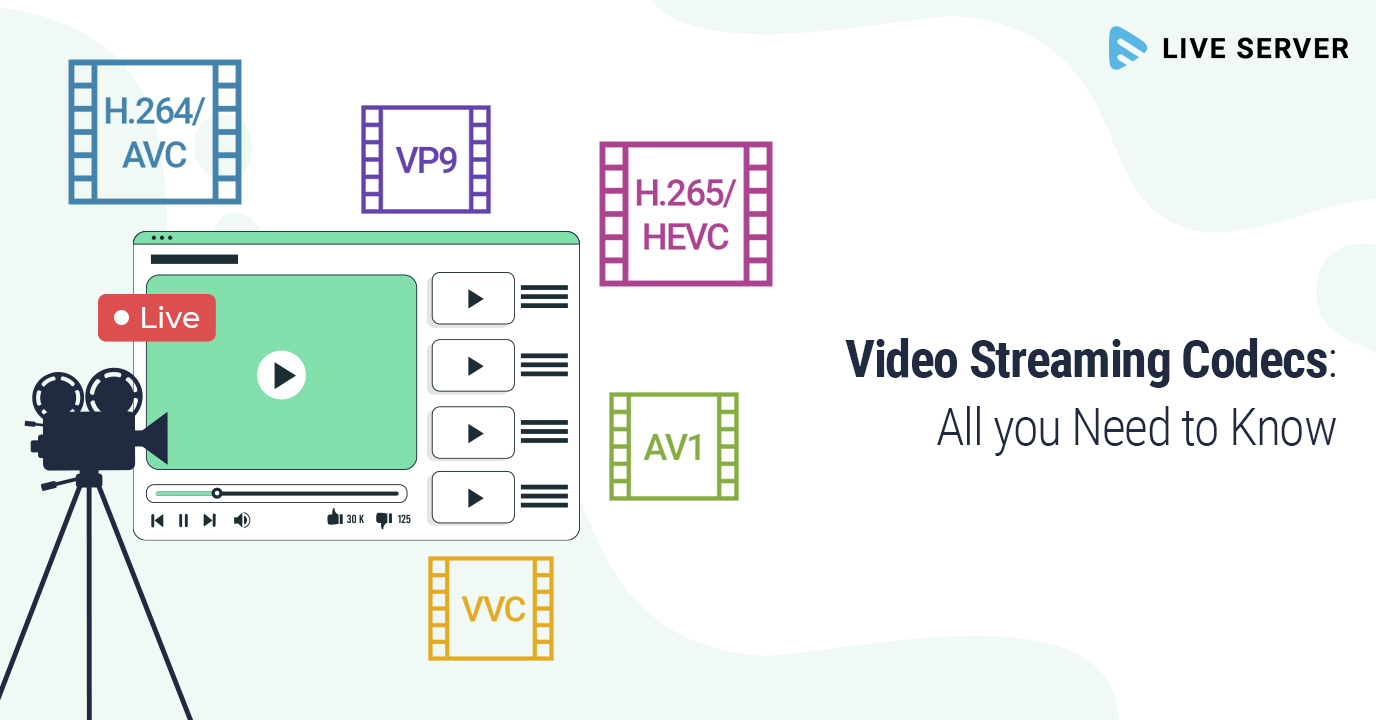
In my experience, some of the most popular video codecs include H.264, H.265 (HEVC), VP9, and AV1. Each codec has its strengths and weaknesses, and understanding these differences can help you choose the best codec for your project.
H.264 is widely supported and offers good compression efficiency, making it a solid choice for most applications. However, it may struggle with high-resolution content and require higher bitrates to maintain quality.
On the other hand, H.265 (HEVC) provides better compression efficiency than H.264, especially for high-resolution content. But it’s not as widely supported and may require more processing power for playback.
VP9 is an open-source codec developed by Google, offering similar compression efficiency to H.265. It’s well-suited for web streaming but may not be as widely supported as H.264.
Lastly, AV1 is a newer open-source codec that promises even better compression efficiency than H.265 and VP9. However, it’s still in the early stages of adoption and may not be supported by all devices and platforms.

Video Codec Showdown: A Technical Breakdown

When comparing video codecs, it’s essential to consider factors like compression efficiency, playback performance, and compatibility. In my experience, I’ve found that newer codecs like H.265 and AV1 offer better compression efficiency, which can result in smaller file sizes and lower bandwidth requirements.
However, these newer codecs may require more processing power for playback, which can be a concern for older devices or slower internet connections. Additionally, compatibility can be an issue, as not all devices and platforms support the latest codecs.
In the end, it’s crucial to weigh the pros and cons of each codec and consider your specific needs and target audience. For example, if compatibility is a top priority, H.264 may be the best choice, while H.265 or AV1 might be more suitable for high-resolution content or bandwidth-limited scenarios.

Final Words

Choosing the right video codec can be a daunting task, but understanding the technical aspects of each codec can help you make an informed decision. In my experience, it’s essential to consider factors like compression efficiency, playback performance, and compatibility when comparing codecs.
If you’re looking for a tool to help you with video conversion and normalization, I recommend checking out mp4gain. It’s not free or open-source, but it’s a powerful solution for working with various audio and video formats, including an integrated equalizer. It runs on Windows and can be a valuable tool for managing your video projects.

The Importance of Codecs in Video Compression

The Importance of Codecs in Video Compression

Video Codec
Video Codec

Introduction

Video Codec
Video Codec

Video codecs play a vital role in video compression. The quality and size of video files depend largely on the type of codec used to compress them. In this article, we will explore the significance of video codecs in video compression and the technical aspects that determine the quality and efficiency of video files.

History of Video Codecs

The first video codec was developed in the 1970s, called H.120. This codec allowed for the transmission of video over ISDN telephone lines. Since then, video codecs have evolved significantly, and we now have a wide range of codecs available that offer different levels of compression and quality.

Understanding Video Quality

Video quality can be defined as the degree of excellence that a video possesses. This quality is determined by various factors, including the resolution, bit rate, frame rate, and compression method used.

Resolution

The resolution of a video is the number of pixels that make up the image. Higher resolution videos have more pixels, which means they are sharper and more detailed. The most common resolutions are 720p, 1080p, and 4K.

Bit Rate

The bit rate is the amount of data that is processed per second. A higher bit rate means more data is processed, resulting in a higher-quality video. However, higher bit rates also mean larger file sizes, which can be challenging for storage and transmission.

Frame Rate

The frame rate is the number of frames that are displayed per second. A higher frame rate results in a smoother video, but it also requires more data to be processed, resulting in larger file sizes.

Compression Method

Compression methods are used to reduce the size of video files without compromising on quality. Lossless compression methods preserve the original quality of the video, while lossy compression methods sacrifice some quality to achieve smaller file sizes.

Video Codecs and Formats

Video codecs can be classified into two categories: proprietary codecs and open-source codecs. Proprietary codecs are developed by companies and are generally licensed for use. Open-source codecs, on the other hand, are developed by communities and are free to use.

Proprietary Codecs

Proprietary codecs are developed by companies such as Apple, Microsoft, and Google. They are often used in popular video formats such as MP4, AVI, and MOV. These codecs are optimized for specific devices and software, resulting in high-quality videos that are compatible with a wide range of devices.

Open-Source Codecs

Open-source codecs are developed by communities and are free to use. The most popular open-source codec is the VP9 codec developed by Google. It is used in the WebM format and offers a high level of compression with minimal loss of quality.

Choosing the Right Codec

When choosing a codec, it is important to consider the factors that affect video quality, such as resolution, bit rate, frame rate, and compression method. Proprietary codecs are often optimized for specific devices and software, while open-source codecs offer more flexibility and are free to use.

Format

The format of a video file also plays a significant role in determining the quality and efficiency of the file. Popular video formats include MP4, AVI, MOV, and WebM. Each format has its own set of advantages and disadvantages, and it is important to choose the right format based on your needs.

Conclusion

Video codecs are an essential part of video compression, and they play a significant role in determining the quality and size of video files. By understanding the technical aspects of video quality and the different types of codecs and formats available, you can make informed decisions when choosing

What is a video codec?

What is a video codec?

video codec
video codec

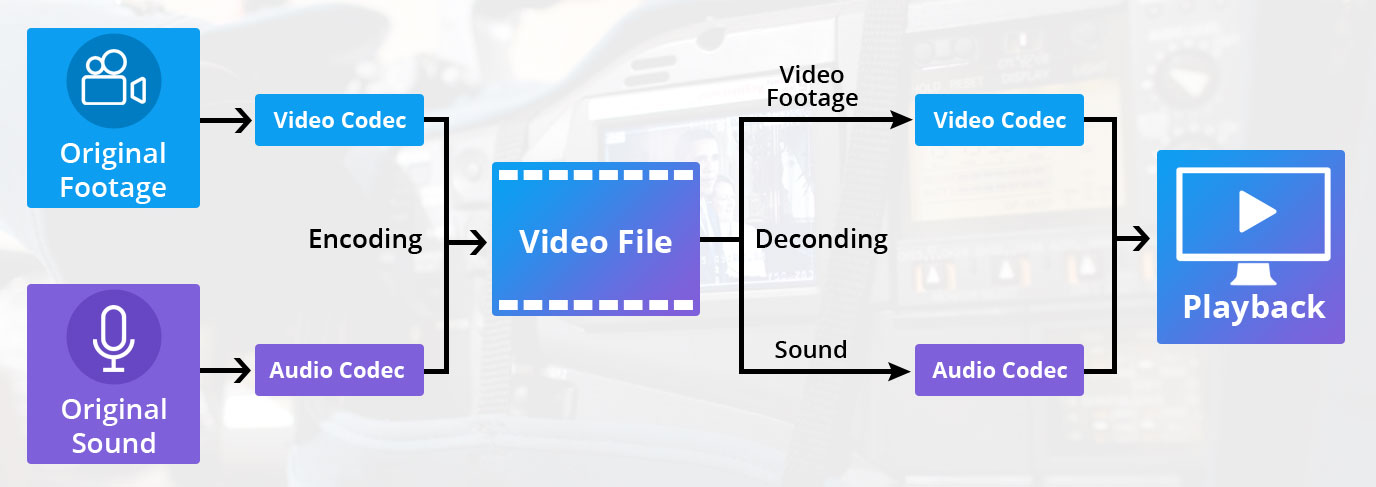
A codec is a program or device that encodes and decodes video. This means that it takes a video and compresses it into a smaller format so it can be streamed or stored more efficiently. Then, when you want to watch the video, the codec decodes it and plays it in its original format.

video codec
video codec

Why is a video codec important?

Video codecs are important because they make videos more accessible and easier to use. Without a codec, the videos would be too large to stream or store, which would mean that we would have to wait a long time to watch them or have a very large storage space to save them.

In addition, the codecs also make the videos look better. Some codecs use advanced techniques to compress the video without affecting its quality. This means that we can see sharp and clear videos, even when they are compressed to a smaller size.

Codecs are also important because they allow videos to be compatible with different devices and platforms. For example, if a video is encoded with a specific codec, it can be viewed on a computer, smartphone, smart TV, or game console without any problem.

What types of video codecs are there?

There are many different types of video codecs, but some of the most common are H.264, H.265, VP9, and AV1. Each codec has its own advantages and disadvantages, and some are better for certain uses than others.

For example, H.264 is a very popular codec used to compress high-definition video. It is a good option for most users as it is compatible with most devices and platforms. However, H.265 is a newer codec that is more efficient in terms of bandwidth and can offer improved video quality.

VP9 is an open source codec developed by Google that is used on some devices and platforms. AV1 is an open source codec developed by a coalition of technology companies and is a promising option for the future, offering more efficient compression and improved video quality.

It is important to note that not all codecs are created equal and some may require more processing power or bandwidth to function properly. Therefore, it is important to choose the correct codec for each situation.

Conclusion

In conclusion, a video codec is an essential program or device that allows you to compress and decode videos to make them more accessible and compatible. There are many different types of video codecs available, and it’s important to choose the one that’s best for each situation. Mp4Gain is an excellent solution for those looking to optimize and enhance their video experience.