Video codecs, or compression-decompression algorithms, are the unsung heroes behind the videos we watch daily. They work like digital magicians, making it possible to store and transmit videos efficiently while preserving image quality. To understand them better, think of video codecs as puzzle masters.
Imagine you have a jigsaw puzzle of a beautiful landscape. However, you need to fit it into a smaller box for storage or mailing. A video codec is like an expert puzzle solver; it disassembles the image into smaller pieces, discards unnecessary ones (compression), and records the steps needed to put it all back together (encoding). When you want to enjoy the landscape again, the video codec reassembles it, like completing the puzzle.
Video codecs come in various types, each with its strengths. Some prioritize smaller file sizes for streaming, while others focus on maintaining pristine quality for high-definition content. Understanding these differences helps you select the right codec for your specific needs.
What Are the Best Video Codecs for Streaming?
When it comes to streaming video content over the internet, the choice of video codec plays a significant role in ensuring a smooth and enjoyable viewing experience. Two popular video codecs for streaming are H.264 and H.265 (also known as HEVC).
H.264, also known as AVC (Advanced Video Coding), has been a long-standing favorite for online streaming platforms. It offers a good balance between video quality and compression efficiency, making it suitable for a wide range of devices and network conditions. It’s like the reliable family car that gets you where you need to go comfortably and without fuss.
On the other hand, H.265, or HEVC (High-Efficiency Video Coding), is like the fuel-efficient hybrid car of the video codec world. It provides superior compression, resulting in smaller file sizes without compromising quality. This makes it an excellent choice for streaming 4K and even 8K video content, where bandwidth is a concern.
As someone deeply immersed in the world of video codecs, I’ve witnessed firsthand how the right codec choice can transform the streaming experience. It’s not just about technicalities; it’s about delivering content that captivates the audience while optimizing resources.
Video Codec Profiles and Levels: A Guide for Video Creators
Video Codec Profiles and Levels: A Guide for Video CreatorsVideo Codec Profiles and Levels: A Guide for Video Creators
When you’re creating a video, one of the most important decisions you’ll make is the video codec you’ll use. The codec will determine the quality and size of your video, as well as the compatibility with different devices.
Video codecs are divided into profiles and levels. Profiles define the features that are supported by a codec, while levels define the maximum quality and size of a video encoded with that profile.
What are Video Codec Profiles?
Video codec profiles define the features that are supported by a codec. This includes things like the type of frames that are supported, the resolution of the video, and the chroma subsampling.
There are a number of different video codec profiles available, each with its own strengths and weaknesses. Some of the most common profiles include:
Main Profile: This is the most common profile and is supported by most devices. It supports a wide range of resolutions and chroma subsamplings.
High Profile: This profile offers higher quality than the Main Profile, but it is not supported by as many devices.
High 10 Profile: This profile supports 10-bit color, which can provide even higher quality than the High Profile.
What are Video Codec Levels?
Video codec levels define the maximum quality and size of a video encoded with a particular profile. This is determined by factors such as the maximum bitrate and the maximum frame rate.
There are a number of different video codec levels available, each with its own quality and size requirements. Some of the most common levels include:
Level 3: This is the lowest level and supports a maximum bitrate of 10,000 kbps.
Level 4: This level supports a maximum bitrate of 20,000 kbps.
Level 5: This level supports a maximum bitrate of 40,000 kbps.
**
Choosing the Right Profile and Level
The best way to choose the right profile and level for your video depends on a number of factors, including:
The desired quality of the video.
The target audience.
The devices that the video will be played on.
If you’re creating a video for a wide audience, then you’ll want to choose a profile and level that is supported by most devices. If you’re creating a video for a specific audience, then you may be able to choose a higher quality profile and level.
**
Final Words about Video Codec Profiles and Levels
Video codec profiles and levels are an important part of video encoding. By understanding the different profiles and levels, you can choose the right settings for your video, ensuring that it is both high quality and compatible with the devices that you want to play it on.
I hope this article has helped you to understand video codec profiles and levels.
Video Codec Comparison: Technical analysis of popular codecs
Video CodecVideo Codec
Comparing Video Codecs: In-depth Look
When I first started working with video, I was confused by all the different codecs out there. It’s essential to understand the technical aspects of each codec to make informed decisions. In this section, we’ll dive deep into the world of video codecs and compare their performance, compression efficiency, and compatibility.
One of my favorite quotes from the movie “The Social Network” is, “The internet is not written in pencil, it’s written in ink.” This quote reminds me of the importance of choosing the right codec for your video projects. A poor codec choice can lead to compatibility issues and poor video quality.
I’ve had my fair share of experiences with various codecs, and I’ve learned that it’s crucial to consider factors like bitrate, frame rate, and resolution when comparing codecs. These factors can significantly impact the final video quality and playback performance.
Analyzing Top Video Codecs: A Technical Perspective
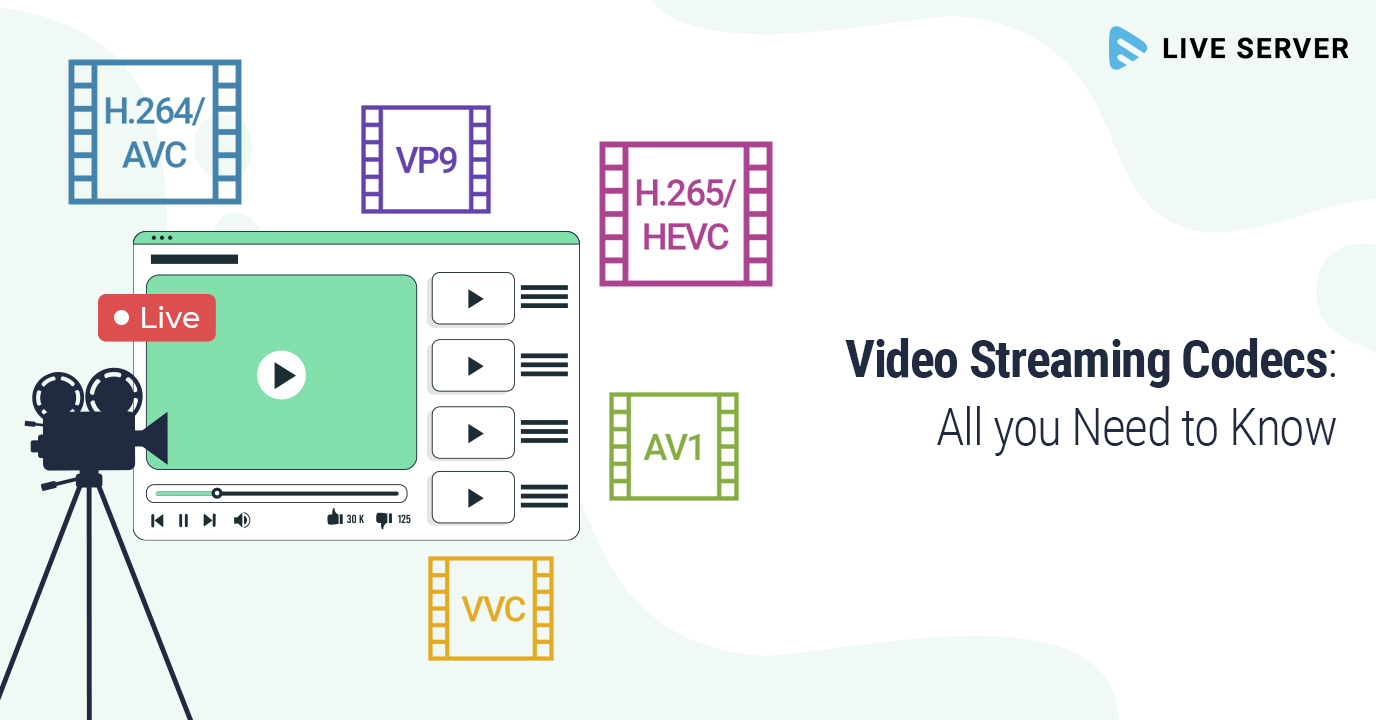
In my experience, some of the most popular video codecs include H.264, H.265 (HEVC), VP9, and AV1. Each codec has its strengths and weaknesses, and understanding these differences can help you choose the best codec for your project.
H.264 is widely supported and offers good compression efficiency, making it a solid choice for most applications. However, it may struggle with high-resolution content and require higher bitrates to maintain quality.
On the other hand, H.265 (HEVC) provides better compression efficiency than H.264, especially for high-resolution content. But it’s not as widely supported and may require more processing power for playback.
VP9 is an open-source codec developed by Google, offering similar compression efficiency to H.265. It’s well-suited for web streaming but may not be as widely supported as H.264.
Lastly, AV1 is a newer open-source codec that promises even better compression efficiency than H.265 and VP9. However, it’s still in the early stages of adoption and may not be supported by all devices and platforms.
Video Codec Showdown: A Technical Breakdown
When comparing video codecs, it’s essential to consider factors like compression efficiency, playback performance, and compatibility. In my experience, I’ve found that newer codecs like H.265 and AV1 offer better compression efficiency, which can result in smaller file sizes and lower bandwidth requirements.
However, these newer codecs may require more processing power for playback, which can be a concern for older devices or slower internet connections. Additionally, compatibility can be an issue, as not all devices and platforms support the latest codecs.
In the end, it’s crucial to weigh the pros and cons of each codec and consider your specific needs and target audience. For example, if compatibility is a top priority, H.264 may be the best choice, while H.265 or AV1 might be more suitable for high-resolution content or bandwidth-limited scenarios.
Final Words
Choosing the right video codec can be a daunting task, but understanding the technical aspects of each codec can help you make an informed decision. In my experience, it’s essential to consider factors like compression efficiency, playback performance, and compatibility when comparing codecs.
If you’re looking for a tool to help you with video conversion and normalization, I recommend checking out mp4gain. It’s not free or open-source, but it’s a powerful solution for working with various audio and video formats, including an integrated equalizer. It runs on Windows and can be a valuable tool for managing your video projects.
Optimize Video Codec Settings for Quality and Size
Video CodecVideo Codec
Video Compression Techniques
As someone who has worked with videos for a while, I know that optimizing video codec settings is essential for achieving the right balance between video quality and size. The best way to achieve this balance is through video compression techniques. Compression helps reduce the size of the video file without significantly affecting its quality. It’s important to understand that compression techniques can differ depending on the type of video you are working with.
One of the most common video compression techniques is bit rate encoding. This technique involves setting a target bit rate, which determines the amount of data that can be used for each second of video footage. Another effective compression technique is keyframe interval, which determines the frequency of the keyframes in the video. The keyframe is a complete frame, while the non-keyframes only contain the changes from the previous frame. A higher keyframe interval can lead to smaller file sizes but may also affect video quality.
As the legendary filmmaker Steven Spielberg said: “I think video compression is one of the most important things that we can focus on in terms of making the user experience much better.” This quote perfectly summarizes the importance of video compression in achieving high-quality videos with smaller file sizes.
Codec Settings for High-Quality Video
When it comes to video codec settings, it’s important to choose the right codec for the job. Codecs are responsible for encoding and decoding video data. Choosing the right codec is important because it can have a significant impact on video quality and file size. Some of the most commonly used video codecs are H.264, HEVC, and VP9.
H.264 is an excellent choice for high-quality video because it can compress the video without significantly affecting its quality. HEVC, on the other hand, is a newer codec that provides even better compression than H.264 but requires more processing power to encode and decode. VP9 is another codec that offers excellent compression with high-quality video but is not as widely supported as H.264 or HEVC.
In my personal experience, I have found that choosing the right codec settings can make a significant difference in the quality of the video. By adjusting the video codec settings, you can achieve high-quality video with a smaller file size.
Video Compression Optimization
Video compression optimization is all about finding the right balance between video quality and file size. The first step in video compression optimization is to choose the right codec settings. Once you have chosen the right codec settings, you can adjust the compression techniques to further optimize the video.
In my experience, I have found that using a multi-pass encoding technique can help achieve better compression. Multi-pass encoding involves analyzing the video multiple times, which allows the encoder to optimize the compression for the entire video. Another effective optimization technique is to reduce the resolution of the video. Reducing the video resolution can significantly reduce the file size without significantly affecting the video quality.
As I always say, “Video compression is a science and an art.” It takes both technical knowledge and creativity to achieve high-quality videos with smaller file sizes. By using the right compression techniques, choosing the right codec, and optimizing the compression, you can achieve excellent video quality with smaller file sizes.
Best Video Codec Settings
When it comes to choosing the best video codec settings, there is no one-size-fits-all solution. The best codec settings will depend on a variety of factors such as the type of video content, intended use, and desired balance between quality and size.
Factors to Consider When Choosing Video Codec Settings
When it comes to optimizing video codec settings for quality and size, there are several factors that need to be taken into consideration. Here are some of the key factors to keep in mind:
Type of Video Content
The type of video content you are working with will have a big impact on the optimal codec settings. For example, if you are working with a video that has a lot of fast motion, you may want to use a codec that is optimized for high motion video. On the other hand, if you are working with a video that has a lot of still images, a codec that is optimized for still images may be a better choice.
Intended Use
The intended use of the video is another important factor to consider when choosing codec settings. If you are creating a video for online streaming, you may want to use a codec that is optimized for streaming. On the other hand, if you are creating a video that will be played on a high-end home theater system, you may want to use a codec that is optimized for high quality playback.
Desired Balance Between Quality and Size
Another important factor to consider when choosing codec settings is the desired balance between quality and size. If you want to prioritize quality over file size, you may want to use a codec that is less efficient but produces higher quality video. On the other hand, if file size is a bigger concern, you may want to use a codec that is more efficient but produces slightly lower quality video.
Understanding Key Video Codec Settings
Now that we’ve discussed some of the factors to consider when choosing video codec settings, let’s take a closer look at some of the key settings you’ll need to adjust:
Bitrate
Bitrate refers to the amount of data that is used to represent each second of video. The higher the bitrate, the better the video quality will be. However, higher bitrates also result in larger file sizes. When choosing a bitrate, it’s important to strike a balance between quality and size.
Frame Rate
Frame rate refers to the number of frames that are displayed per second in the video. The higher the frame rate, the smoother the video will appear. However, higher frame rates also result in larger file sizes. When choosing a frame rate, it’s important to consider the intended use of the video and the capabilities of the playback device.
Resolution
Resolution refers to the number of pixels that are used to display the video. The higher the resolution, the more detail will be visible in the video. However, higher resolutions also result in larger file sizes. When choosing a resolution, it’s important to consider the intended use of the video and the capabilities of the playback device.
Final Words
Choosing the best video codec settings for quality and size can be a complex process, but by considering the type of video content, intended use, and desired balance between quality and size, you can make an informed decision. Remember to adjust key settings such as bitrate, frame rate, and resolution to strike the right balance between quality and size. And if you’re looking for a reliable tool to normalize and convert your audio and video files, give MP4Gain a try!
Video codecs play a vital role in video compression. The quality and size of video files depend largely on the type of codec used to compress them. In this article, we will explore the significance of video codecs in video compression and the technical aspects that determine the quality and efficiency of video files.
History of Video Codecs
The first video codec was developed in the 1970s, called H.120. This codec allowed for the transmission of video over ISDN telephone lines. Since then, video codecs have evolved significantly, and we now have a wide range of codecs available that offer different levels of compression and quality.
Understanding Video Quality
Video quality can be defined as the degree of excellence that a video possesses. This quality is determined by various factors, including the resolution, bit rate, frame rate, and compression method used.
Resolution
The resolution of a video is the number of pixels that make up the image. Higher resolution videos have more pixels, which means they are sharper and more detailed. The most common resolutions are 720p, 1080p, and 4K.
Bit Rate
The bit rate is the amount of data that is processed per second. A higher bit rate means more data is processed, resulting in a higher-quality video. However, higher bit rates also mean larger file sizes, which can be challenging for storage and transmission.
Frame Rate
The frame rate is the number of frames that are displayed per second. A higher frame rate results in a smoother video, but it also requires more data to be processed, resulting in larger file sizes.
Compression Method
Compression methods are used to reduce the size of video files without compromising on quality. Lossless compression methods preserve the original quality of the video, while lossy compression methods sacrifice some quality to achieve smaller file sizes.
Video Codecs and Formats
Video codecs can be classified into two categories: proprietary codecs and open-source codecs. Proprietary codecs are developed by companies and are generally licensed for use. Open-source codecs, on the other hand, are developed by communities and are free to use.
Proprietary Codecs
Proprietary codecs are developed by companies such as Apple, Microsoft, and Google. They are often used in popular video formats such as MP4, AVI, and MOV. These codecs are optimized for specific devices and software, resulting in high-quality videos that are compatible with a wide range of devices.
Open-Source Codecs
Open-source codecs are developed by communities and are free to use. The most popular open-source codec is the VP9 codec developed by Google. It is used in the WebM format and offers a high level of compression with minimal loss of quality.
Choosing the Right Codec
When choosing a codec, it is important to consider the factors that affect video quality, such as resolution, bit rate, frame rate, and compression method. Proprietary codecs are often optimized for specific devices and software, while open-source codecs offer more flexibility and are free to use.
Format
The format of a video file also plays a significant role in determining the quality and efficiency of the file. Popular video formats include MP4, AVI, MOV, and WebM. Each format has its own set of advantages and disadvantages, and it is important to choose the right format based on your needs.
Conclusion
Video codecs are an essential part of video compression, and they play a significant role in determining the quality and size of video files. By understanding the technical aspects of video quality and the different types of codecs and formats available, you can make informed decisions when choosing
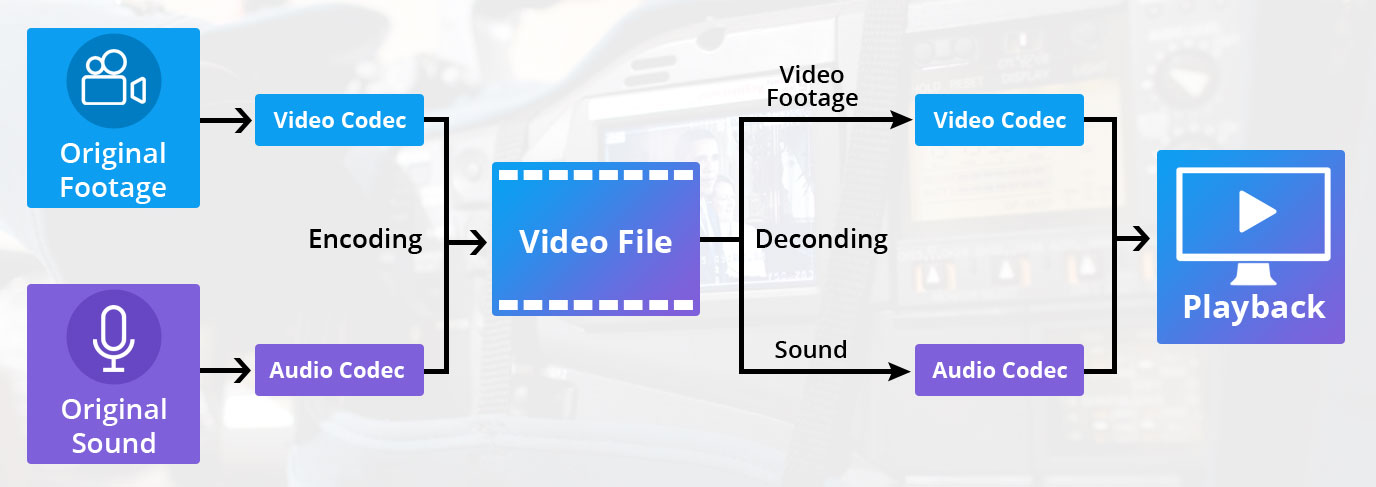
A codec is a program or device that encodes and decodes video. This means that it takes a video and compresses it into a smaller format so it can be streamed or stored more efficiently. Then, when you want to watch the video, the codec decodes it and plays it in its original format.
video codec
Why is a video codec important?
Video codecs are important because they make videos more accessible and easier to use. Without a codec, the videos would be too large to stream or store, which would mean that we would have to wait a long time to watch them or have a very large storage space to save them.
In addition, the codecs also make the videos look better. Some codecs use advanced techniques to compress the video without affecting its quality. This means that we can see sharp and clear videos, even when they are compressed to a smaller size.
Codecs are also important because they allow videos to be compatible with different devices and platforms. For example, if a video is encoded with a specific codec, it can be viewed on a computer, smartphone, smart TV, or game console without any problem.
What types of video codecs are there?
There are many different types of video codecs, but some of the most common are H.264, H.265, VP9, and AV1. Each codec has its own advantages and disadvantages, and some are better for certain uses than others.
For example, H.264 is a very popular codec used to compress high-definition video. It is a good option for most users as it is compatible with most devices and platforms. However, H.265 is a newer codec that is more efficient in terms of bandwidth and can offer improved video quality.
VP9 is an open source codec developed by Google that is used on some devices and platforms. AV1 is an open source codec developed by a coalition of technology companies and is a promising option for the future, offering more efficient compression and improved video quality.
It is important to note that not all codecs are created equal and some may require more processing power or bandwidth to function properly. Therefore, it is important to choose the correct codec for each situation.
Conclusion
In conclusion, a video codec is an essential program or device that allows you to compress and decode videos to make them more accessible and compatible. There are many different types of video codecs available, and it’s important to choose the one that’s best for each situation. Mp4Gain is an excellent solution for those looking to optimize and enhance their video experience.
Codecs are crucial to the quality and efficiency of data encoding. In this practical tip we explain exactly what a codec is.
What is a codec? – 10 facts
The following information will help you understand what a codec is. The following example shows the differences between format, encoder, and decoder and shows how quality and efficiency depend on the codec.
-A codec is a combination of encoder and decoder.
-The objective of a codec is usually to reduce the amount of data for transmission or storage.
-Codecs are used in particular for audio, video and image data, as well as for text compression and encryption.
-In the audio sector there are special codecs for voice or music. -Video and graphics codecs are specially designed for comics / cartoons and real pictures / movies.
Lossy data reduction primarily uses psychophysical tricks to inaccurately encode those parts of image and sound that humans can barely or barely perceive.
-The most popular audio codecs are FLAC and MP3, where FLAC specifies both the format and the codec. MP3 is a codec for audio in MPEG I or MPEG II format.
-The MP3 decoder side is standardized by Fraunhofer and can be obtained without a license. However, the encoder is paid. Therefore, many use the free LAME encoder.
-G.722.2 and Full Rate (FR) voice codecs are used especially in telephony.
-The most popular video codecs are H.265 for UHD TV, DivX and XviD in MPEG-4 Part 2 and H.264 for QuickTime.
-Often various encoded formats like MP3 and JPG are combined into one container file, for example in AVI, MKV, MP4 and FLV.
A simple codec example
The principle of a codec is clarified with an example. An abbreviation codec reduces typed text to abbreviated text and uses it to generate typed text:
-Format: Your digital font format might dictate how all the letters and characters you use are encoded in binary.
-You define the type of encoding in a specification, for example, the rule that each character consists of 8 bits. To do this, write a table showing which bit sequence is assigned to which letter or character.
-Codec: You can now create an abbreviation codec to convert typed text into font formatted abbreviated text.
-To do this, your codec must specify which words will be abbreviated and how, for example, through a set of rules, a large list of abbreviations or a combination.
Encoder – An encoder can now convert typed text to abbreviation format using the rules and directory.
Decoder: a decoder can convert it to written text.
-The efficiency of data reduction is highly dependent on your codec.
-If you only created a directory with three abbreviations, most of the texts will not be noticeably shorter. Compression is low.
-If your list of abbreviations is huge, the device that is going to encode and / or decode the text must have a large memory and a high reading speed.
-However, if you set up a smart set of rules for encoding, your codec is ideally small and the end device doesn’t have to do a lot of computing or reading work.
-If a word can be abbreviated in more than one way, that’s fine. A good encoder would use the most efficient abbreviation.
-However, if an abbreviation can have multiple meanings, you have lost information. This will probably render your codec unusable.
-However, if only the words that you know you are omitting were abbreviated ambiguously, you would have invented a lossy psychophysical encoding. This takes advantage of the fact that you do not visually perceive every existing word optically.
-This idea is not entirely false. Because, as this example shows, we don’t necessarily read exactly what is written.
Speaking of multimedia terminology, there is a fairly widespread confusion between the concept of image and / or sound format and that of audio and / or video container format (also called multimedia container format) To finish bundling it, it is very common to refer to both with the term codec that does not express any of the two previous concepts.
The image, video, audio format… is the way in which this type of information is encoded so that it can be treated by computer, which includes both being able to store it and transmit it. That format, therefore, would be a series of rules to describe images and sound in a computer way; a mathematical model, if you want to see it that way.
A codec (or codec, with tilde, in its Spanish version) is a program that encodes or decodes multimedia information according to a certain format. Once the data is encoded, it can be processed, for example stored or transmitted. As you may have guessed, the word codec is an acronym formed by the English words coder and decoder: encoder and decoder in Spanish.
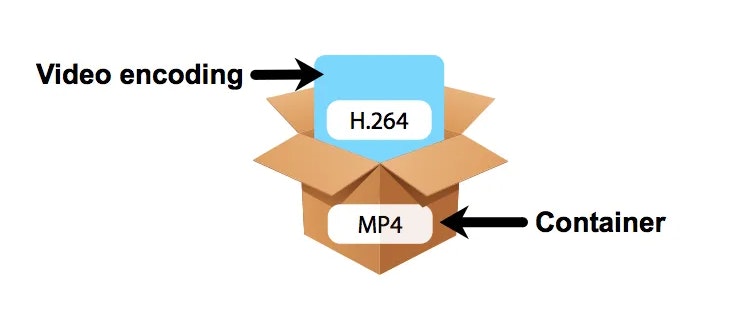
An audio / video container format (or multimedia container format) is a computer file structure according to which audio and / or video is stored or transmitted as well as information associated with them (such as subtitles or bookmarks) The same container You can include together (multiplexed) the different components (tracks) in a single document. It is very common to add an extension to the name of the documents (those few letters that are at the end of the name separated by a period) that usually refer to the type of document. If you are rigorous in establishing that extension, it can serve as a clue to know which container is the document.
Considering the above, we could say that the document «feature film.avi» is a container in AVI format that includes video in MPEG4 format encoded using the Xvid codec. As the orthodox version is a very long phrase, it is common, for example, to say colloquially that the document “short.avi” is an MPEG4: it is obvious that it is an AVI container and everyone will know what codec has installed in their system for what formats
Most of the time, when packaging the information according to a certain format, it is compressed, that is, it is transformed so that the resulting information requires less memory to be stored or less bandwidth when transmitted than the original information.
There are two ways to compress information, with or without losses. Lossless (or lossless) formats allow you to reconstruct the information as it was originally, before compressing, without any difference from the original. In most cases the lossless coding usually allows (much) less compression (takes up much more) and is reserved for the documents that are going to be edited, that is, that they are not final documents.
The most frequent image and sound coding is with losses (lossy) Of course, the coding system seeks to make these losses as less noticeable as possible, considering for this, for example, the movement (What changes the image between a frame and another) The level of quality-compression is usually configurable so you can choose the degree you want between occupying more and having more quality. In line with what has been said about lossless formats, it is not a good idea to code according to a material loss format that is going to be edited since the successive recompressions cause more and more quality information to be lost to images and sound. Do not compress again and again using a lossy format!
One moment, you said that it is better to encode the original material using a lossless format but also that it will take up more. Then I must give the button on my camera that records video without compression? For starters, unfortunately, it is quite rare for your camcorder to have that button (in those of taking pictures and in audio systems it is something that is usually possible) Only in some cameras you can do something like that, they will usually be professionals and of the highest range. On the other hand, be prepared to spend a lot of memory and quickly, since you will need to store a lot and at full speed. So, what should I do? Our advice is that you choose, if you can, the best possible quality, even with losses, for the images you are going to edit and suitable for those that do not require more editing than the “cut” assembly since, properly processed , does not have to be compressed again.