Video Codec Explanation


Free Download Mp4Gain
picture

Video Codec Explanation

Video Codec Explanation

Video codecs, or compression-decompression algorithms, are the unsung heroes behind the videos we watch daily. They work like digital magicians, making it possible to store and transmit videos efficiently while preserving image quality. To understand them better, think of video codecs as puzzle masters.

Imagine you have a jigsaw puzzle of a beautiful landscape. However, you need to fit it into a smaller box for storage or mailing. A video codec is like an expert puzzle solver; it disassembles the image into smaller pieces, discards unnecessary ones (compression), and records the steps needed to put it all back together (encoding). When you want to enjoy the landscape again, the video codec reassembles it, like completing the puzzle.

Video codecs come in various types, each with its strengths. Some prioritize smaller file sizes for streaming, while others focus on maintaining pristine quality for high-definition content. Understanding these differences helps you select the right codec for your specific needs.

What Are the Best Video Codecs for Streaming?

When it comes to streaming video content over the internet, the choice of video codec plays a significant role in ensuring a smooth and enjoyable viewing experience. Two popular video codecs for streaming are H.264 and H.265 (also known as HEVC).

H.264, also known as AVC (Advanced Video Coding), has been a long-standing favorite for online streaming platforms. It offers a good balance between video quality and compression efficiency, making it suitable for a wide range of devices and network conditions. It’s like the reliable family car that gets you where you need to go comfortably and without fuss.

On the other hand, H.265, or HEVC (High-Efficiency Video Coding), is like the fuel-efficient hybrid car of the video codec world. It provides superior compression, resulting in smaller file sizes without compromising quality. This makes it an excellent choice for streaming 4K and even 8K video content, where bandwidth is a concern.

As someone deeply immersed in the world of video codecs, I’ve witnessed firsthand how the right codec choice can transform the streaming experience. It’s not just about technicalities; it’s about delivering content that captivates the audience while optimizing resources.


Free Download Mp4Gain
picture


Mp4Gain Main Window
picture


Mp4Gain Features
picture


Free Download Mp4Gain
picture

Optimize Video Codec Settings for Quality and Size

Optimize Video Codec Settings for Quality and Size

Video Codec
Video Codec
Video Codec
Video Codec


Video Compression Techniques

As someone who has worked with videos for a while, I know that optimizing video codec settings is essential for achieving the right balance between video quality and size. The best way to achieve this balance is through video compression techniques. Compression helps reduce the size of the video file without significantly affecting its quality. It’s important to understand that compression techniques can differ depending on the type of video you are working with.

One of the most common video compression techniques is bit rate encoding. This technique involves setting a target bit rate, which determines the amount of data that can be used for each second of video footage. Another effective compression technique is keyframe interval, which determines the frequency of the keyframes in the video. The keyframe is a complete frame, while the non-keyframes only contain the changes from the previous frame. A higher keyframe interval can lead to smaller file sizes but may also affect video quality.

As the legendary filmmaker Steven Spielberg said: “I think video compression is one of the most important things that we can focus on in terms of making the user experience much better.” This quote perfectly summarizes the importance of video compression in achieving high-quality videos with smaller file sizes.

Codec Settings for High-Quality Video

When it comes to video codec settings, it’s important to choose the right codec for the job. Codecs are responsible for encoding and decoding video data. Choosing the right codec is important because it can have a significant impact on video quality and file size. Some of the most commonly used video codecs are H.264, HEVC, and VP9.

H.264 is an excellent choice for high-quality video because it can compress the video without significantly affecting its quality. HEVC, on the other hand, is a newer codec that provides even better compression than H.264 but requires more processing power to encode and decode. VP9 is another codec that offers excellent compression with high-quality video but is not as widely supported as H.264 or HEVC.

In my personal experience, I have found that choosing the right codec settings can make a significant difference in the quality of the video. By adjusting the video codec settings, you can achieve high-quality video with a smaller file size.

Video Compression Optimization

Video compression optimization is all about finding the right balance between video quality and file size. The first step in video compression optimization is to choose the right codec settings. Once you have chosen the right codec settings, you can adjust the compression techniques to further optimize the video.

In my experience, I have found that using a multi-pass encoding technique can help achieve better compression. Multi-pass encoding involves analyzing the video multiple times, which allows the encoder to optimize the compression for the entire video. Another effective optimization technique is to reduce the resolution of the video. Reducing the video resolution can significantly reduce the file size without significantly affecting the video quality.

As I always say, “Video compression is a science and an art.” It takes both technical knowledge and creativity to achieve high-quality videos with smaller file sizes. By using the right compression techniques, choosing the right codec, and optimizing the compression, you can achieve excellent video quality with smaller file sizes.

Best Video Codec Settings

When it comes to choosing the best video codec settings, there is no one-size-fits-all solution. The best codec settings will depend on a variety of factors such as the type of video content, intended use, and desired balance between quality and size.

Factors to Consider When Choosing Video Codec Settings

When it comes to optimizing video codec settings for quality and size, there are several factors that need to be taken into consideration. Here are some of the key factors to keep in mind:

Type of Video Content

The type of video content you are working with will have a big impact on the optimal codec settings. For example, if you are working with a video that has a lot of fast motion, you may want to use a codec that is optimized for high motion video. On the other hand, if you are working with a video that has a lot of still images, a codec that is optimized for still images may be a better choice.

Intended Use

The intended use of the video is another important factor to consider when choosing codec settings. If you are creating a video for online streaming, you may want to use a codec that is optimized for streaming. On the other hand, if you are creating a video that will be played on a high-end home theater system, you may want to use a codec that is optimized for high quality playback.

Desired Balance Between Quality and Size

Another important factor to consider when choosing codec settings is the desired balance between quality and size. If you want to prioritize quality over file size, you may want to use a codec that is less efficient but produces higher quality video. On the other hand, if file size is a bigger concern, you may want to use a codec that is more efficient but produces slightly lower quality video.

Understanding Key Video Codec Settings

Now that we’ve discussed some of the factors to consider when choosing video codec settings, let’s take a closer look at some of the key settings you’ll need to adjust:

Bitrate

Bitrate refers to the amount of data that is used to represent each second of video. The higher the bitrate, the better the video quality will be. However, higher bitrates also result in larger file sizes. When choosing a bitrate, it’s important to strike a balance between quality and size.

Frame Rate

Frame rate refers to the number of frames that are displayed per second in the video. The higher the frame rate, the smoother the video will appear. However, higher frame rates also result in larger file sizes. When choosing a frame rate, it’s important to consider the intended use of the video and the capabilities of the playback device.

Resolution

Resolution refers to the number of pixels that are used to display the video. The higher the resolution, the more detail will be visible in the video. However, higher resolutions also result in larger file sizes. When choosing a resolution, it’s important to consider the intended use of the video and the capabilities of the playback device.

Final Words

Choosing the best video codec settings for quality and size can be a complex process, but by considering the type of video content, intended use, and desired balance between quality and size, you can make an informed decision. Remember to adjust key settings such as bitrate, frame rate, and resolution to strike the right balance between quality and size. And if you’re looking for a reliable tool to normalize and convert your audio and video files, give MP4Gain a try!

X264 codec

X264 codec

H.264

Frequent questions

H.264

Question: What is the difference between the new H.264 standard and the old MPEG-4 standard?
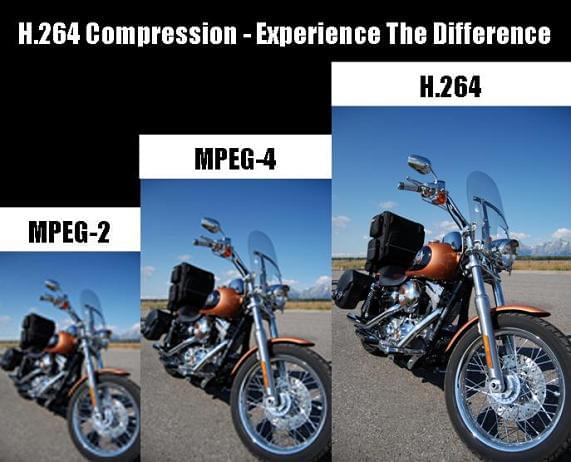
Answer: The H.264 video compression standard (the full name is MPEG-4 Part 10 AVC / H.264) is a logical continuation of the MPEG-4 Part 2 ASP standard (which is often simply referred to as MPEG-4). . The standard itself was adopted in mid-2003, but the truly effective codecs of this standard started to appear recently.

For users, the transition to the new standard means an improvement in the encoding efficiency of their video streams. That is, with the same quality of the compressed sequence, the new standard’s movie will take up less disk space or a smaller channel width (the standard’s developers set a goal of reducing the size by 50%).

More information on the standard can be obtained from the following sources:

Question: Where can I get the x264 codec?

Answer: The x264 codec is an open source H.264 codec. Several independent comparisons (see for example the comparison on the Doom9 website or our lab comparison) show that the x264 codec is one of the best codecs in the new H.264 standard.

The official page for codec developers is http://developers.videolan.org/x264.html. In it, you can subscribe to the codec developers mailing list, download the latest sources or various versions of the codec assembly (executable programs already compiled and ready to use).

Interestingly, the developers do not make official finished versions (releases), that is, the codec changes all the time. New versions of the source code appear almost every day, so it is sometimes difficult to keep track of the changes that take place.

You can find more information and discussions about the codec on the Doom9 forums.

Question: How can I use the console version of the codec?

Answer: The command line is generally used to compress video with the x264 codec. The codec can also be assembled as a Video for Windows filter, but in this case, the user has a limited set of encoding parameters.

In addition, for the convenience of work, various versions of the graphical interface can be used.

Modes of
Bit rate control algorithm The codec has three different bit rate control algorithms:

CRF (constant rate factor): constant quantizer for each type of frame, set by the user. Initialized on the command line as –crf <integer>
ABR (Average Bit Rate): Variation of the quality in different frames to achieve the best quality of the stream at a given bit rate. – Bitrate <integer> se
initializes.There may be additional parameters that control the algorithm:
–ratetol <float> Bit rate tolerance (in percent)
–vbv-maxrate <integer> Maximum frame bit rate
–vbv-bufsize <integer> Buffer size
–vbv-init <float> Initial buffer fill (percent)
Additional parameters can also be configured to control the change in the quantization factor, such as –qpmin <integer>, –qpmax <integer>, –qpstep <integer>, which specify the minimum, maximum quantization factors, and the change maximum. in the quantization factor between frames, respectively. …
Multi-pass mode. Similar to ABR, but allows you to achieve better quality by making multiple passes through the film. The first pass fills the statistics file. To do this, the codec is launched with the –pass 1 parameter. Last Pass encodes the movie using the statistics file generated in the first pass. The codec starts with the –pass 2 parameter. Multiple additional passes can be added between the first and last passes, each of which refines the statistics. In such cases, the codec starts with the –pass 3 parameter.

Digital video encoding and compression

Digital video encoding and compression

H.264

Encoding (compressing) digital video information can seem like a difficult question to understand if you don’t know why it matters, what to look for, and generally how it works.

H.264

Why is video compression important?

The use of digital video filming was introduced in the 1980s. It was clean, uncompressed video information that required large amounts of memory and playback system resources to play and store files. But even today, compression and encoding are a prerequisite for recording any video information, despite the colossal leap in the development of digital electronic technology. Otherwise, uploading, processing, editing, playing and storing video files will become a test of the endurance of your nervous system and the capabilities of your equipment.

How does video encoding work?
In the process of encoding a video signal, the video data stream is continuously analyzed by special software, and unnecessary / unimportant data fragments are simply cut off, this helps to significantly reduce the size of the video file.

There are two types of video compression: frame-by-frame (intra-frame) and inter-frame encoding.

Frame-by-frame compression treats each frame of the video as a separate still image, similar to a photo in jpeg format. This technology is distinguished by good video quality, however, the reduction in video file size is negligible due to the fact that all frames are saved, even if there are no changes to the image for a dozen or even hundreds. of frames. In other words, out of a hundred identical photos, 100 are saved, not one.

Compression between frames works on the opposite polar principle: when a signal is processed, the whole frame is analyzed, but only key changes are saved from frame to frame, as in animation, when you need to show the movement of an object , but the background of the background and the environment around the object are the same. This enables you to significantly reduce the size of the video file compared to the intra-frame compression principle.

Image quality of
video after compression Even the most advanced video compression algorithms result in a loss of quality of the original signal. But the development of software products and codecs has reached a level where the loss of quality is almost imperceptible and indistinguishable from the original to the average human eye, especially to non-professionals in the field of digital video processing.

To preserve the highest possible video quality, while saving the volume of the video file, you need to determine the main key points: video resolution, file size, method of transferring and downloading the video file, predominance of static or dynamic scenes , color, contrast and the like. An important factor that affects the quality and size of the resulting video file is the choice of codec and compression format.

Codecs A
Video file must be compressed and encoded, and then decompressed and decoded with the same set of software tools: a codec, which includes tools to process and play the file. In other words, to view a video file, you have to decode it with the same codec that it was encoded in, for example, a video encoded in the MPEG-4 codec must be decoded with the same MPEG-4 codec; otherwise, you are guaranteed to have problems with playback. of this file.

Compression standard M-JPEG (Motion JPEG) Un
An unlicensed encoding standard created and widely used in the 1990s using intra-frame compression technology. The digital video sequence obtained with this codec is a full weight JPEG image matrix. Although this codec allows the use of a number of tools that reduce file size, it is used very rarely today due to the poor quality of the resulting image, as well as the minimal compression ratio.

MPEG-4 compression standard
Licensed coding standard that uses object-oriented compression (between frames), that is, the movement of each object in the frame is tracked separately, and based on these movements, the video signal is captured. The main advantage of this codec is the wide compression ratio setting, which can be selected for any data transfer rate, low or high. This format is universal, it is designed to watch sweat videos in real time.

Compression standard H.264 Un
licensed copying standard that greatly reduces the amount of digital video information, while making minimal changes to its quality, especially in

Why the H.264 Video Format Continues to Gain Importance for Videos and Streaming

H.264 is a video compression method. Currently, it is considered the industry standard and is one of the most widely used video formats. Full HD video and audio recording is as unthinkable without this encoding and decoding process as modern video playback.

H.264

What does H.264 mean?

The H.264 video format is now in the standard video signal encoding and decoding. It enables the transmission of high-quality video signals without imposing excessive demands on the bandwidth. At the same time, H.264 has a significantly lower bit rate than other formats.

H.264 comparission

You have to know that about H.264

The term the term denotes a method for video compression.
H.264 is now considered the standard for storing and playing video formats.
The decisive factor for the success of the format is its usability up to a resolution of 4K (4092 x 2160 pixels)
The bandwidth of using H.264 ranges from YouTube to televisions and professional video productions.
The video format is an open standard, but it cannot be used without a license fee. This will be paid to the MPEG-LA consortium.

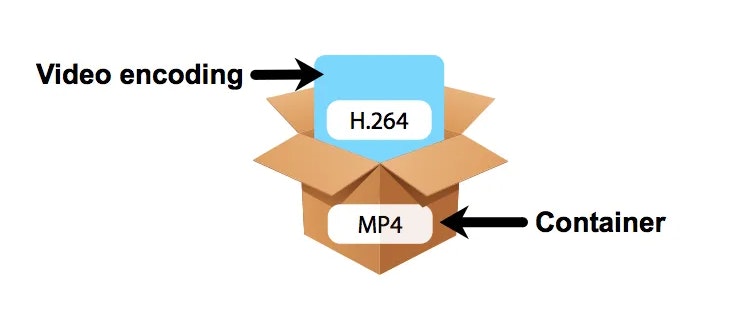
Usually we come in contact with the H.264 standard for video compression in relation to the MP4 file format. However, the two must be distinguished. One is the algorithm for compressing or decompressing. The other of the “containers” in which this process is used.

It should be noted that H.264 is not limited to the MP4 container format. When this standard was developed 15 (!) Years ago, it was deliberately designed for a wide range of applications. If you want to add audio to the image, a container format is required. As an algorithm, H.264 only compresses images.

Today, H.264 is the standard for Blu-Ray video discs. It is used uniformly by different manufacturers. The same applies to high definition television broadcasts. In general, the format is considered suitable for professional high-quality and post-processing. Rather, compression is naturally still data reduction. This is always accompanied by a certain loss compared to the original format!

Video cameras (digital cameras) also use this method to compress their recordings.

Manufacturers such as Apple use H.264 as a codec for QuickTime (version 7 or higher). The same goes for Microsoft Windows Media.

A video file that uses this method is called an H.264 file. These include, for example, MP4, HDTV, Blu-ray, and previously HD DVD.

The compression format supports a wide variety of applications. These are only limited by variables defined in the data flow. These are the maximum resolution or frame rate. The higher the video bitrate, the higher the levels.

What is AVC / Advanced Video Coding?

Advanced Video Coding (AVC) is nothing more than a video file that has been encoded with H.264.

Sometimes the term is also used as a synonym for MP4. This term can be found, for example, in the description of the recording process of digital cameras (so-called AVC camcorders), as well as in relation to Blu-ray and HDTV.

What are the limits of H.264?

The H.264 / AVC standard, contrary to what many believe, is not limited to 4K. It also allows DCI 4K (this corresponds to 4092 x 2160 pixels) at a frame rate of 60 fps (frames per second). SONY uses a system called XAVC, which is nothing more than 4K AVC.

The limits of H.264 today are not on the hardware or software side. But in the bandwidths necessary for transmission. This is where the levels come into play. They define, and limit, the maximum data rate and resolution that are available during playback.

Playback on computer

Basically, H.264 can be used independently of a specific container format. In addition to the more common MP4 video format, the standard can also be used for AVI files, Ogg formats, or Matryoshka containers (. Mkv).

For playing a video on YouTube, MP4 with H.264 is considered the most suitable format. Because these files are the best possible technical compromise between file size and data quality today.

As always, when playing videos encoded using software (a player), the computer’s processor (CPU for short) plays a decisive role. Hardware and graphics card are important.

H.264 explained – Mp4 format

Video formats for the Internet: MP4 and its variants, MP4 / H.264 and MP4 / MPEG-4 – Differences and similarities

The videos that we play online or locally on the computer or any other device may be coded in different ways. Each method of encoding them has its advantages and disadvantages, and there are better formats than others, depending on the use we will give to the video. We have formats such as AVI, MP4, MKV, 3GP, Google WebM, etc. …

h.264 explained mp4

When playing video on the Internet using a browser, the most widespread format and with the best support from browsers, both mobile and desktop, is the MP4 format, and to be more accurate the MP4 / H format. .264, which corresponds to files that normally carry the .mp4 extension. but:

Are all .mp4 files the same?

If they are not similar, what types are there? What are the differences, advantages and disadvantages of each one?
Are they all on the Internet?

MP4 format – Parts, containers and extensions

When we talk about a .mp4 file or MP4 format in general, what we are talking about is what is technically called MPEG-4, part 14. It is a standard format (ISO / IEC 14496-14) and it is a container format for multimedia tracks. That is, this format defines how audio and video tracks (called data streams) can be contained in the file in various formats and may even contain subtitles.

In this container format within the .mp4 file, the audio and video tracks can be encoded in different formats, as appropriate for the application to be provided. While in theory it supports many different formats (almost any) for these audio and video tracks, in practice players of this format only support some specific types, the most frequent being:

Audio: AAC (Advanced Audio Codec, which when released is files with extensions .m4a or .3gp) or MP3 format.
Video: the different variants of MPEG format.
MPEG or Moving Picture Experts Group is a group of “authorities” and audio and video manufacturers that came together at the request of ISO in the late 1980s to create file coding standards for this type of multimedia information, ensuring compatibility between the media to be played, and the playback devices. The first version of the standard, MPEG-1, came out in 1993, and since then there have been many new versions, and within what they call “Parts”, which are specific aspects of the standard and also extensions to the specification of specific things, or improvements to the basic format they are changing.

h.624 mp4

The most prevalent version of this MPEG format is 4 or MPEG-4, which appeared in late 1998, and this is what we know as MP4, due to the expansion of its files. This version is divided into several sub-standards or “Parts” that describe certain format issues (such as the 14 container, as I said at the beginning) and some extensions.

Within parts of the standard, part 10 describes an advanced coding format, that’s what we also know as H.264, but it’s actually also called MPEG-4 part 10, and that’s what Blue-Ray discs used for example. That is why they talk on many internet sites that the H.264 and MPEG-4 are the same. And this is true, but not quite, as parts 2, 12 or 14 of MPEG-4 also describe other compression formats that are MPEG-4, and the container format may also contain MPEG in earlier versions of lower quality such as MPEG -1 or MPEG- 2nd

MPEG-4 part 10 or H.264 or AVC format

Let’s summarize what we know so far: When we talk about MP4 or .mp4 files today, or the “MP4 format”, we’re really talking about the container format. Within this, there may be audio and video in various formats, so only talking about MP4 is not correct (or at least it is not accurate) and more details are needed. Given that the format used to compress the video stream containing MP4 is of vital importance, “last name” for that format is usually set to indicate well what we are referring to.

Thus, reference is made to MP4 / H.264 for videos using MPEG-4 part 10 and which are very high quality compatible videos. It is also common to talk about the MP4 / MPEG-4 format, which in this case usually refers to part 2 of the MPEG-4, which is the original format that was released and is of lower quality so it is usually used for broadcasting IP TV (video surveillance) or distributing certain multimedia content (some “pirate” movies, multimedia CDs …) as it generally weighs less.

The MP4 / H.264 format is what should be used to play directly in browsers, as this is what everyone supports today in all operating systems. It is much more efficient than MPEG-4 part 2 (the original) in coding and offers much better quality, even if we use a low bit rate or reduced bandwidth when reproducing it. It resists transmission failure very well, although some packets are lost, so it works very well for streaming, video conferencing and similar applications. This format is also called AVC (Advanced Video Coding), so sometimes you can read MP4 / AVC, but it’s the same.

By contrast, the H.264 format is more complex and more complicated to code (it may require up to 3 times more computing power than the original MPEG-4 format) and to decode (twice as much power), but today with the devices that the average user has (both computers and mobiles, etc.), this is of little importance.

In summary

Just talking about the “MP4 format” is imprecise. One video with the .mp4 extension may not play in one browser, while another with the same extension does. The difference between them is in the way of encoding the video inside, as .mp4 is a container format.

On the web, the recommended format is MPEG-4 part 10, or what is the same as MP4 / AVC or, much more commonly called, MP4 / H.264. This format works in all browsers on the market, except in very old versions of Internet Explorer.

So when they talk to you about the “MP4 format”, they either talk about MP4 / H.264 or they have to specify it more. If you are unsure about the format of a particular .mp4 file you want to play, you can use a tool like Media Info to tell you how the audio and video tracks are encoded. This program identifies tracks coded as H.264 as AVC, which as we know is the same. If AVC tells you, it’s in the right format for the Internet.

As you can see, the world of multimedia formats is quite complicated technically. Fortunately, as a developer or web designer, all you have to worry about today is that they have an appropriate quality / weight ratio and are coded as MP4 / H.264. So you have it easy