There is currently a wide variety of video formats available to store multimedia content in a file and play it on our devices. Depending on this format (and other multiple factors) the video will basically have a different video quality and a smaller or smaller file size.
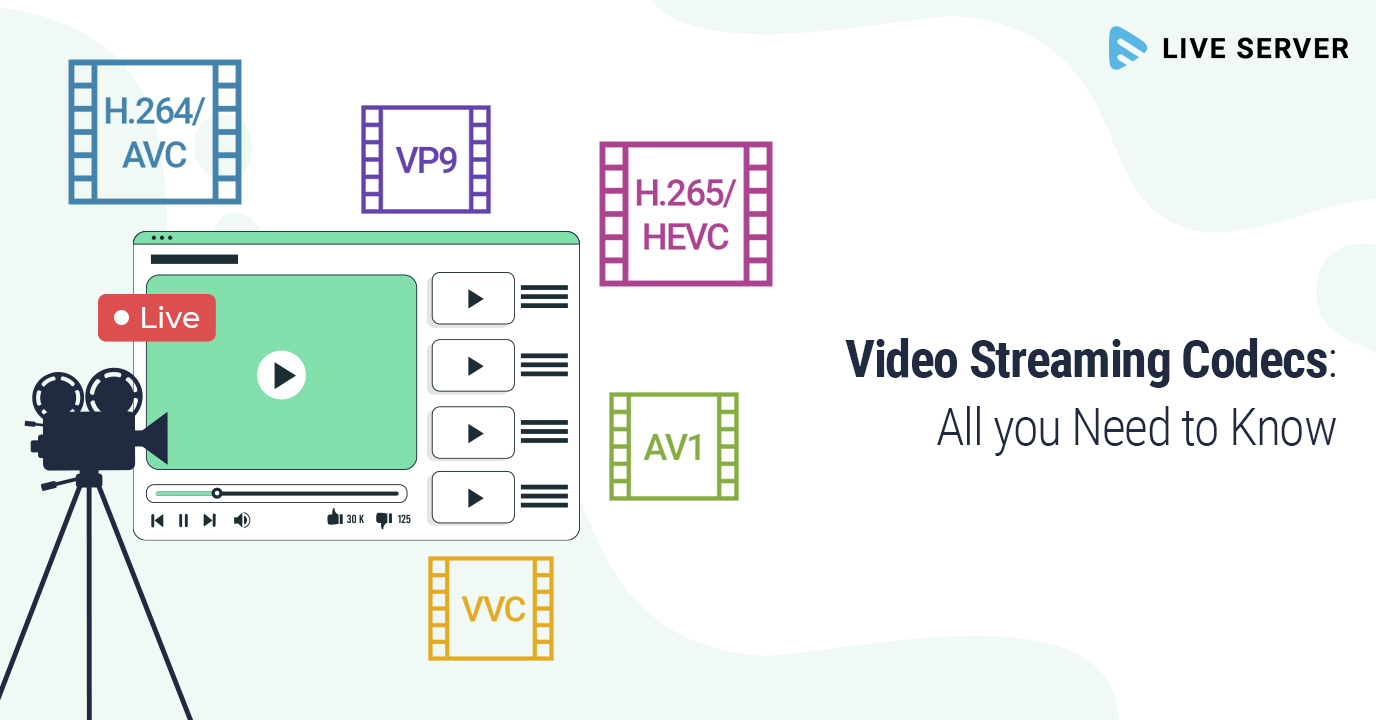
However, if you are not up to date on these issues, you may get lost since we enter concepts such as formats, codecs, containers or related terminology such as AVI, MP3, MP4, DIVX, XVID, OGG, MKV, OGG , FLV, MPG, VP9, HEVC, AAC, H.264, AVC and much more.
Guide to convert video formats
In this brief but detailed guide, our objective will be to explain the difference between all these concepts, often confusing, clearly separating terms such as “container video format” and “video codec”, in addition to learning along the way a simple and practical way of Convert videos to different formats.
Outline of a container format
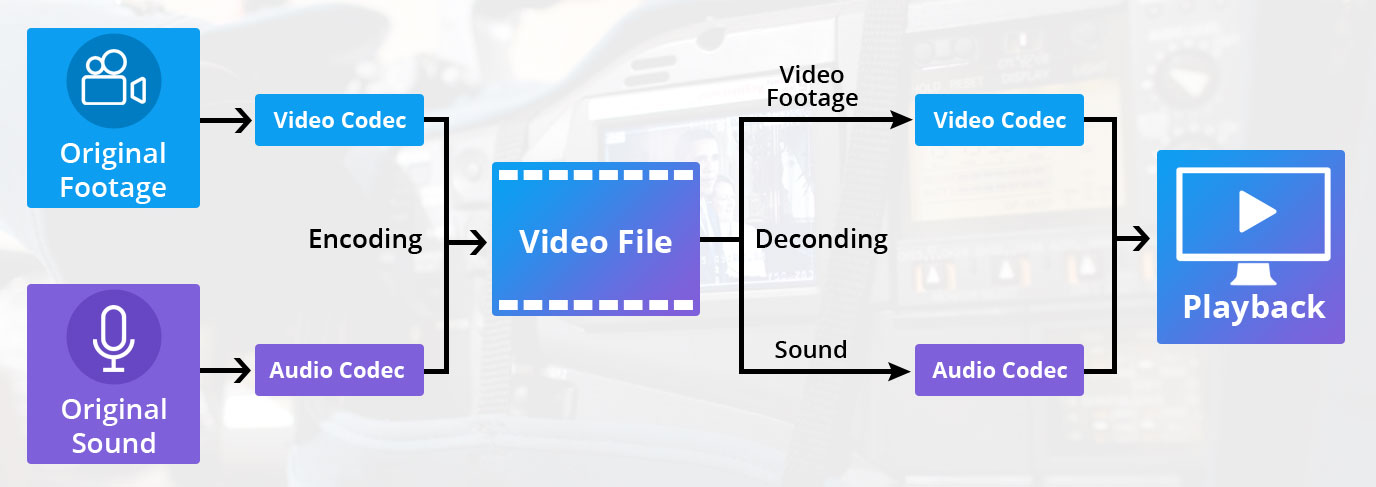
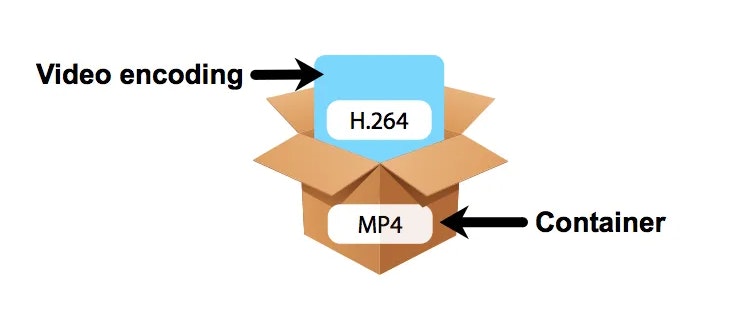
To begin, we must be clear about the difference between these two concepts that are often confused very often: the container format and the video codec. The first one is really the format of the file, the one that surrounds everything (audio, video, etc …), while the second is the format directly related to the video part:
Container format
But let’s see a description of each concept to make it even clearer:
Container format: A video file usually has a specific container format, such as AVI, MP4 or MKV, for example. As the name implies, a file with this format contains several elements (usually and at least, video and audio). However, it is possible that it only includes one of them, or for example multiple audio channels (to have several languages of the same file). Some container formats also allow you to include other elements such as images or integrated subtitles, without the need for external files.
Video codec: It is often confused with the video format, but it really is not the same, since it is related to the video content and not to the container format. It is not a mandatory element, since if a codec is not specified, the video is contained in RAW (uncompressed), taking up a lot of space (for example, 200MB about 10sec). For that reason, a codec is usually chosen to compress the video. Depending on the codec’s choice, better or worse quality will be achieved, and in turn, larger or smaller.
Video specification: Each video codec is usually based on a specific video specification (H.262, H.263, H.264 …), which is nothing more than a set of rules that define how it should behave. This can guide us to know if one codec is more or less recent than another.
Audio codec: In the same way as with the video, we have possible audio channels included in the file. They are also usually compressed with a certain codec to save space: MP3, OGG Vorbis, WMA …
Once this is clear, we will review the most popular container formats and the video codecs that they usually use (this does not imply that they cannot also be used in other container formats):
AVI format (Microsoft, 1992)
Perhaps, in all likelihood, one of the best known container formats is the AVI (Audio video interleave). It was developed by Microsoft in 1992 and is one of the most popular formats, perhaps because of its wide use on Windows platforms. Being one of the first container formats it is the most basic and only allows audio and video channels (although multiple of them can be included, if desired).
If we focus on video codecs, the AVI format accepts almost any VFW-compatible codec, but the most commonly used are the well-known DivX or XviD (which is a bifronte of the previous one).
DivX codec
DivX became popular in version 3.11 and was nothing more than a modified version of a Microsoft codec. Subsequently, and due to its success, they rewrote the code so as not to violate Microsoft patents. However, the DivX project became proprietary, generating a tremendous difference of ideas and causing the birth of a free brother codec: XviD.
Related to DivX was the Stage6 platform which was a kind of YouTube that allowed uploading high quality videos for the time. However, it did not have the necessary financing and failed economically.
XviD codec
XviD became popular as a result of the detriment DivX experienced, surpassing it due to its good quality, efficiency and its open source character. In addition, it also began to be supported on a large number of homemade DVD players, where perhaps, one of the first that stood out was the KISS DP-450.
Although there are currently technically better codecs, XviD is still updated and is still used due to its popularity, compression speed and good performance.
MKV format (Matroska, 2002)
MKV format (Matroska)
MKV format (Matroska)
Matroska, better known by MKV, the extension used in its archives, is an open-source container format that bases its name on the classic Russian Matrioskas dolls that fit inside each other. In addition to the MKV extension (used for video, audio and possible subtitles), there are other extensions used such as MKA (audio only), MKS (subtitles only) or MK3D (3-dimensional video).
Codec x264
This format usually uses some H.264 implementation (codec specification) as a video codec, such as x264. On the other hand, for the audio section you usually use the Vorbis audio codec.
WebM format (Google, 2010)
One of the most recent container formats is WebM (WebMovie), a project slightly based on Matroska. Initially it was developed by the company On2 Technologies, but in 2010 it was purchased by Google, which released the project as a source code, orienting it to the objective of using it with HTML5 as a free standard.
The format has excellent performance and, together with the VP9 codec, make it a very interesting option that seems to have a lot of future.
VP9 codec
The video codec used by WebM is known by VP8, developed by the company On2 Technologies (after a long evolution from TrueMotion S, used in games like Final Fantasy VII). Originally, WebM used VP8 video codec alongside Vorbis audio codec, however, it currently uses VP9 video codec alongside Opus audio codec.
URL | VP9
MPG format (ISO, 1993/1995)
Probably, MPEG-1 and MPEG-2 are one of the most complex concepts to understand. First of all, it must be made clear that these are specifications, and not a format in itself, so each specification is made up of several different concepts:
MPEG-1 / MPEG-2 specification
MPEG-1 / MPEG-2 specification
MPEG-1 Specification (ISO, 1993)
The first one, MPEG-1, is the one used to define the first container format (MPEG-PS) and the VCD storage format (VideoCD, based on H.261). Subsequently, some modifications compatible with VCD that used MPEG-2, such as SVCD (SuperVCD) or KVCD, would also appear.
As a curiosity, mention that contrary to what many people believe, the famous MP3 audio files are not MPEG-3, but MPEG-1 and are defined in the third part of the specification.
MPEG-2 Specification (ISO, 1996)
The second specification, MPEG-2, is the one used to define the container formats (MPEG-PS / MPEG-TS) and the new DVD storage format (H.262). Some MP3 features were also improved and AAC (Advanced Audio Coding), an advanced audio format with numerous improvements over MP3, was introduced.