Progressive vs Interlaced Encoding in MPEG and AVI


Free Download Mp4Gain
picture

Progressive vs Interlaced Encoding in MPEG and AVI
Progressive vs Interlaced Encoding in MPEG and AVI

Let’s talk about Progressive vs Interlaced Encoding in MPEG and AVI

When comparing progressive and interlaced encoding in video formats like MPEG and AVI, it’s essential to understand their impact on video quality, playback, and compatibility. Progressive encoding stores video data sequentially, frame by frame, making it ideal for modern screens. Interlaced encoding, on the other hand, divides each frame into alternating lines, making it compatible with older CRT displays. I’ve spent years examining how these encoding methods perform in various scenarios, and today, I’ll guide you through their unique features and challenges.

What is Progressive Encoding?

Progressive encoding captures and stores each frame as a complete image, which improves video clarity and consistency during playback. This method aligns perfectly with modern display technologies like LCD, LED, and OLED screens. When I think of progressive encoding, I compare it to reading a book page by page—every piece of information is complete and clear. This ensures a smooth viewing experience, especially for fast-moving or high-resolution content.

What is Interlaced Encoding?

Interlaced encoding splits each video frame into two fields—one with the odd lines and the other with the even lines. This was a clever solution for older TVs to reduce bandwidth while maintaining apparent resolution. It’s like watching a video through a picket fence, where your brain fills in the gaps to create the full picture. While it worked well for its time, interlaced encoding struggles with artifacts like combing effects on modern screens.

Key Differences Between Progressive and Interlaced Encoding

  • Progressive encoding provides better quality for fast-moving scenes, as each frame is a complete image.
  • Interlaced encoding is more bandwidth-efficient but prone to visual artifacts on modern displays.
  • Progressive videos are more compatible with current devices and streaming platforms.
  • Interlaced encoding often requires deinterlacing for optimal playback on digital screens.

How Does MPEG Handle Progressive and Interlaced Encoding?

MPEG formats support both progressive and interlaced encoding, making them versatile for various applications. MPEG-2, for example, was widely used in DVDs and broadcast TV, favoring interlaced encoding for compatibility with older TVs. However, MPEG-4 shifted the focus towards progressive encoding, recognizing the growing need for high-quality digital video. I’ve found that MPEG’s flexibility allows it to adapt to evolving viewing habits and technologies.

Why Interlaced Encoding Persisted in Older AVI Files

AVI files, a staple in the early days of digital video, often used interlaced encoding due to hardware limitations and broadcast standards. Back then, storage and bandwidth were precious commodities. Interlaced encoding provided a practical compromise, allowing higher resolutions without overwhelming system resources. However, this choice introduced challenges when those same AVI files were viewed on modern screens, where deinterlacing is often required.

Advantages of Progressive Encoding

Progressive encoding shines in delivering superior image quality and playback consistency. Here’s why I recommend it for most modern applications:

  • Eliminates visual artifacts like combing and flickering.
  • Provides better compatibility with streaming platforms and modern displays.
  • Enhances the viewing experience for high-motion content, such as sports or action movies.

I always advocate for progressive encoding when working with high-definition content or preparing videos for online platforms. It ensures that your videos look sharp and professional.

Challenges with Interlaced Encoding in Modern Video

Interlaced encoding, while innovative for its time, presents significant challenges today. The most noticeable issue is the combing effect, where horizontal lines appear during motion. This happens because modern screens display both fields simultaneously, revealing the incomplete frames. I’ve often had to deal with these artifacts when converting older video libraries, requiring deinterlacing techniques to fix the issues.

Why Deinterlacing Matters

Deinterlacing is crucial for converting interlaced videos into a format compatible with modern displays. Without it, interlaced videos look jittery or blurred. I compare deinterlacing to untangling a knot—it requires precision and the right tools to maintain video quality. Advanced algorithms now make this process more efficient, but it’s not without its challenges, especially for high-resolution or fast-motion content.

Real-Life Applications of Progressive and Interlaced Encoding

Understanding the practical uses of these encoding methods helps in selecting the right one for your needs. For example:

  • Broadcast TV: Interlaced encoding was the standard for decades due to its bandwidth efficiency.
  • Online Streaming: Progressive encoding dominates, ensuring high-quality playback across devices.
  • Film Production: Progressive encoding is preferred for its superior visual fidelity.

In my experience, progressive encoding is almost always the better choice for contemporary applications, while interlaced encoding remains relevant in niche legacy systems.

Future Trends in Video Encoding

The shift towards progressive encoding reflects broader trends in video technology. As displays become more advanced and resolutions increase, the need for precise, artifact-free video grows. I’ve noticed that codecs like H.264 and HEVC prioritize progressive encoding, further cementing its place as the standard for high-quality video. Meanwhile, interlaced encoding continues to fade, primarily surviving in archival content and legacy broadcasts.

Latest words on Progressive vs Interlaced Encoding in MPEG and AVI

Progressive and interlaced encoding serve different purposes and audiences, but progressive encoding is undoubtedly the future. It provides the clarity and compatibility that modern viewers expect, while interlaced encoding struggles to keep up. If you’re working with video content, understanding these differences ensures you choose the best format for your needs. And for those looking to optimize or convert their videos, Mp4Gain is an excellent solution to make the process seamless and effective.

FAQ: Progressive vs Interlaced Encoding in MPEG and AVI

What is progressive encoding?

Progressive encoding stores video data frame by frame, capturing each image as a complete sequence. This method ensures smooth playback on modern screens like LCDs and OLEDs, making it ideal for high-quality video and streaming platforms.

What is interlaced encoding?

Interlaced encoding divides each video frame into two fields—one with odd lines and another with even lines. It was designed for older CRT displays to reduce bandwidth requirements while maintaining visual resolution, but it often creates artifacts on modern screens.

Which is better: progressive or interlaced encoding?

Progressive encoding is generally better for modern devices and digital platforms due to its superior video quality and compatibility. Interlaced encoding may still be useful in legacy systems but often requires deinterlacing for proper playback on newer screens.

Why does interlaced video look bad on modern TVs?

Modern TVs display all video lines simultaneously, revealing the incomplete frames in interlaced video. This creates artifacts like combing effects, which are not present in progressive video.

Can interlaced videos be converted to progressive?

Yes, interlaced videos can be converted to progressive using a process called deinterlacing. Deinterlacing uses algorithms to combine or interpolate the two fields into complete frames, improving compatibility and visual quality.

Why was interlaced encoding used in older AVI files?

Interlaced encoding was used in older AVI files because it reduced bandwidth and storage requirements, making it suitable for early digital video technologies and CRT displays.

Is progressive encoding compatible with streaming platforms?

Yes, progressive encoding is the preferred format for streaming platforms due to its superior video quality and ease of playback on modern devices, including smartphones and smart TVs.

What challenges does interlaced encoding present?

Interlaced encoding can cause visual artifacts like combing effects and flickering when viewed on digital screens. These issues often require additional processing, like deinterlacing, to ensure smooth playback.

How do progressive and interlaced encoding affect file size?

Interlaced encoding can save bandwidth and reduce file size compared to progressive encoding. However, the visual quality trade-offs often make progressive encoding the better choice for high-resolution or modern applications.

What is deinterlacing, and why is it important?

Deinterlacing is the process of converting interlaced video into progressive video. It’s crucial for ensuring smooth playback and eliminating artifacts when interlaced videos are viewed on modern digital screens.

Comments:

Wow, this article was super helpful! I never really understood why old TV shows look so weird on my new TV, but now I get it. Thanks for breaking it down so clearly!

Good info here, but I wish you went more into the specifics of deinterlacing. What’s the best way to do it without losing quality? Anyone else here have tips?

I’ve been converting some old family videos from AVI files, and this article explains a lot of the challenges I’ve faced. Progressive encoding is definitely the way to go.

This is one of the most detailed articles I’ve read on the topic. Learned so much about progressive and interlaced encoding. Keep up the great work!

Interlaced encoding always confuses me, but you made it sound so simple. Appreciate the real-life examples—really helps someone like me understand better!

Progressive encoding sounds like the future. I’ve been researching this for a while, and this article is by far the most comprehensive one. Thanks for sharing!

Not sure I agree with the idea that interlaced encoding is outdated. It still has its place in certain areas, don’t you think?

I’ve always been curious about the difference between these two methods. This really cleared things up for me. Thank you!

I recently digitized some old VHS tapes, and they looked terrible on my HDTV. Now I understand why. This info is invaluable.

The part about deinterlacing was super useful. I’m going to try applying this to my video library and see if it improves playback quality.

I’m new to video editing, and this was so insightful. You’ve saved me a lot of time by explaining these concepts so clearly. Thanks a ton!

This is the type of in-depth explanation I’ve been searching for. It’s hard to find articles that go beyond the basics. Well done!

Could you add more technical details on how progressive encoding works? I’m looking for something more in-depth for my research project.

This was a fantastic read! The comparison between progressive and interlaced was spot on. I learned a lot.


Free Download Mp4Gain
picture


Mp4Gain Main Window
picture


Mp4Gain Features
picture


Free Download Mp4Gain
picture

Handling Anamorphic Video in MP4 Containers

Handling Anamorphic Video in MP4 Containers

Handling Anamorphic Video in MP4 Containers

Let’s Talk About Handling Anamorphic Video in MP4 Containers

Handling anamorphic video correctly within MP4 containers is essential to maintain playback quality across devices. Anamorphic video, which transforms a wide-screen image to fit standard-sized media, brings unique challenges when stored in MP4 format. MP4, a highly compatible video container, doesn’t automatically account for anamorphic adjustments, potentially leading to squished or stretched visuals. In this article, I’ll share my extensive experience with anamorphic video, explaining how it works, the nuances of MP4 handling, and giving practical examples so you can confidently manage anamorphic files in MP4.

Understanding Anamorphic Video: Key Concepts and Real-World Examples

Aspect Ratio vs. Resolution

Aspect ratio and resolution are fundamental to understanding anamorphic video. The aspect ratio describes the video’s width to height ratio, like 16:9 for widescreen TVs. Resolution, however, refers to the pixel count, like 1920×1080. When dealing with anamorphic video, the image stretches, often altering the aspect ratio without changing the resolution. Imagine stretching a balloon: its shape changes without gaining any new material.

The Origins of Anamorphic Video

Originally developed for widescreen cinema, anamorphic video helped theaters showcase large-scale movies without needing super-wide film. Early cinemas relied on anamorphic lenses to capture a wide field onto standard film, which then expanded on screen. In digital video, anamorphic formatting compresses data to save space without losing the cinematic look.

The MP4 Container: How It Works with Anamorphic Video

What is an MP4 Container?

MP4 containers bundle video, audio, and subtitles in a format compatible with nearly every device. This flexibility makes MP4 ideal for video storage and playback, though its compatibility can become complicated with anamorphic video. An MP4 file doesn’t automatically recognize an anamorphic setting, so configuring the correct playback settings is crucial.

Why Anamorphic Video Poses a Challenge for MP4

Anamorphic videos in MP4 containers require special configurations. Without them, you’ll often see “squished” or stretched visuals. Imagine trying to view a widescreen movie on an older, square TV – without adjustments, the image won’t look right. These challenges make it necessary to understand aspect ratios and pixel configurations thoroughly.

Preparing Anamorphic Video for MP4 Containers: Step-by-Step Guide

Choosing the Right Aspect Ratio for MP4 Playback

Selecting the right aspect ratio is key to ensuring videos display correctly. Before encoding, it’s helpful to “flag” anamorphic video files so players recognize the correct dimensions. Flags tell media players to adjust aspect ratios, avoiding issues with distortion during playback.

Encoding Anamorphic Video for MP4 Containers

To encode anamorphic video correctly, I usually start by configuring the pixel aspect ratio (PAR) and display aspect ratio (DAR) settings. This ensures that the video appears in its intended shape. It’s wise to test on a short video segment before committing to the entire file, ensuring your settings deliver the best results.

Using Correct Pixel Aspect Ratio (PAR) Settings

Using the correct PAR helps preserve the original video proportions. If you don’t, the video may appear distorted or compressed. Testing with various settings can help you find the most compatible solution for your display.

Playback Optimization and Device Compatibility

Ensuring Cross-Device Compatibility

To guarantee that anamorphic MP4 files play correctly on various devices, test playback across phones, computers, and TVs. The difference between devices is comparable to viewing the same image on different-sized screens – each will display the video differently.

Resolving Common Playback Issues

If your anamorphic video appears stretched or letterboxed, you can often fix this by adjusting the aspect ratio or scaling settings on your playback device. Many devices offer controls to help with these adjustments, allowing you to avoid letterboxing or pillarboxing effects.

Advanced Techniques for Professional Quality Anamorphic Video

Fine-Tuning Video Bitrate and Quality

Bitrate adjustments can prevent distortions, especially if you’re compressing video for smaller file sizes. Choosing the right balance between bitrate and quality settings can result in professional-looking video, even at lower resolutions.

Maintaining High Resolution and Quality

When scaling anamorphic video, be sure to preserve as much quality as possible. Reducing resolution too much can introduce visible artifacts, while optimal scaling settings maintain clarity, even in widescreen formats.

Latest Words on Handling Anamorphic Video in MP4 Containers

Configuring anamorphic video correctly in MP4 containers enables optimal viewing across devices without distortion or loss of quality. Remember to fine-tune settings like aspect ratio, pixel configuration, and bitrate for the best results. For anyone needing an easy solution to adjust or convert anamorphic videos, Mp4Gain offers comprehensive support for various formats, making it simple to achieve professional-quality playback.

Comments:

Man, I’ve been struggling with this issue forever! It finally makes sense now. Thanks for breaking it down. – VideoGuy123

Good article, but it would help to see more examples. Can you go into what’s best for mobile vs. TV screens? – TechLady007

This really helped me fix my video stretch problem. Following these steps was a lifesaver. – HappyEditor

Any advice for handling these files on older devices? My video still doesn’t look right on an older TV. – RetroFanatic

Thank you for the tips! Never knew aspect ratio was so complex. – MovieBuff93

It would be great to have a visual guide along with these steps. Anyone else agree? – FilmMakerPro

Thanks for this! I had no idea MP4 was so picky with aspect ratios. – CuriousCoder

Man, this article saved my day. Anamorphic videos were driving me crazy! – VideoFan90

Awesome write-up. Super helpful for beginners in video editing. – NewbieNerd

Great info! Mp4Gain sounds like what I need for my projects. – DigitalCreator

I was lost on this topic until I found this article. Thanks! – StudioGuy

Had no idea I could fix my stretched videos with just a few changes. Thanks! – MovieLover2020

This article was super helpful! Finally, my video looks normal. – EditMaster

Great article, though I wish it was a bit longer with more examples. – Sarah_Tech

I used to avoid anamorphic videos because of this issue. Glad to know there’s a fix. – FilmBuff101

https://x.com/ricardo_mx_news/status/1850186947144122729https://x.com/ricardo_mx_news/status/1850186947144122729

https://x.com/ricardo_mx_news/status/1850181030184898600https://x.com/ricardo_mx_news/status/18501810301848986004

https://www.tumblr.com/mp3-mp4/765410514408996864/keyframe-interval-selection-in-mp4-encoding

Mp4 & Quicktime

Mp4 Quicktime: Unleashing the Power of Video Playback

Mp4 & Quicktime
Mp4 & Quicktime
Mp4 & Quicktime
Mp4 & Quicktime

Let’s Talk about Mp4 Quicktime

Mp4 & Quicktime
Mp4 & Quicktime

Embarking on a journey to explore the wonders of Mp4 Quicktime is like stepping into a world where seamless video playback takes center stage. As a seasoned specialist in the realm of multimedia, I’ve witnessed the evolution of video formats, and Mp4 Quicktime stands out as a key player in delivering high-quality, efficient video playback experiences.

Mp4 & Quicktime
Mp4 & Quicktime

The Evolution of Video Formats: A Quicktime Perspective

Picture this: the world of video formats is like a vast library, each format representing a unique chapter in the story of multimedia. Mp4 Quicktime, with its roots in the Quicktime technology, emerges as a pivotal chapter. Quicktime, like a pioneer, laid the foundation for multimedia experiences, and Mp4 Quicktime carries the torch forward, providing a versatile and widely compatible platform for video playback.

Key Features of Mp4 Quicktime:

  • Efficient Compression: Balancing Quality and File Size
  • Broad Compatibility: Seamless Integration Across Devices
  • Streaming Capabilities: Redefining On-the-Go Entertainment

Unveiling the Magic: How Mp4 Quicktime Enhances Video Playback

Now, let’s dive into the magic of Mp4 Quicktime and how it enhances the video playback experience. Imagine this scenario: you’re hosting a movie night, and the crisp, clear visuals, and immersive sound transport everyone into the heart of the story. Mp4 Quicktime ensures that every frame is presented with precision, making it an ideal choice for both casual viewers and multimedia enthusiasts.

Behind the Scenes: The Technology Fueling Mp4 Quicktime

Understanding the technology behind Mp4 Quicktime is akin to peeking behind the curtain of a theater to see the intricate workings of a stage production. Mp4, short for MPEG-4, employs advanced compression algorithms, optimizing file sizes without compromising quality. Quicktime, on the other hand, provides the stage where these optimized Mp4 files come to life, ensuring a smooth and enjoyable viewing experience.

The Technological Symphony:

  • MPEG-4 Compression: Striking the Balance
  • Quicktime Player: The Stage for Multimedia Excellence
  • Integration of Codecs: Ensuring Compatibility

Latest Words on Mp4 Quicktime Advancements

As we navigate the ever-evolving landscape of multimedia technology, it’s crucial to stay updated on the latest advancements in Mp4 Quicktime. Think of it as upgrading your smartphone to access the latest features and capabilities. From enhanced streaming options to improved codec support, staying informed ensures that you can make the most of Mp4 Quicktime’s capabilities for an unparalleled video playback experience.

Pro Tips: Maximizing Your Mp4 Quicktime Experience

Now, let me share some pro tips to help you maximize your Mp4 Quicktime experience. Imagine this as having a secret recipe that elevates your cooking to the next level. These tips cover everything from optimizing playback settings to leveraging lesser-known features, ensuring that you harness the full potential of Mp4 Quicktime for your multimedia needs.

Expert Tips for Mp4 Quicktime Mastery:

  • Playback Optimization: Tailoring Settings to Your Preferences
  • Hidden Features: Unleashing the Full Potential
  • Seamless Integration: Connecting Devices for Enhanced Playback

Let’s Explore Real-Life Applications of Mp4 Quicktime

Transitioning from theory to practice, let’s explore real-life applications of Mp4 Quicktime. Envision this: you’re a content creator, and Mp4 Quicktime becomes your trusted companion for rendering videos with stunning clarity. Whether you’re editing family vacation footage or producing professional content, Mp4 Quicktime seamlessly integrates into your workflow, elevating the quality of your visual creations.

The Future of Video Playback: Mp4 Quicktime’s Role

Peering into the future, the role of Mp4 Quicktime in video playback is set to become even more pronounced. Consider this like anticipating the next blockbuster in the world of cinema. From advancements in streaming technology to innovative approaches in compression algorithms, Mp4 Quicktime is poised to play a leading role in shaping the future of video playback.

Let’s Connect the Dots: Mp4 Quicktime and Your Multimedia Adventure

Wrapping up our exploration of Mp4 Quicktime, consider this as the final scene in a captivating movie. Your journey into the world of video playback, enriched by Mp4 Quicktime’s capabilities, opens up new possibilities for seamless and enjoyable multimedia experiences. Remember, the key lies in continuous exploration and application. Go ahead, unlock the potential of Mp4 Quicktime, and let your multimedia adventure unfold.

Comments:

This article is a game-changer! Finally, someone explained Mp4 Quicktime in a way that makes sense. Can’t wait to apply the pro tips!

— VideoEnthusiast21

Great insights! I’ve been using Mp4 Quicktime for a while, but this article brought a new perspective. Kudos!

— MultimediaExplorer

Excellent read! However, I wish there was more information on the future advancements of Mp4 Quicktime. Excited for what’s to come!

— FutureVisionary

Pro tips are a game-changer! My video playback experience has gone to the next level. Thank you for the valuable insights!

— TechEnthusiast123

As a content creator, I found the real-life applications section extremely helpful. Mp4 Quicktime is now an essential part of my workflow.

— CreativeMind23

Informative article, but I’d love to see more examples of seamless integration with different devices. Keep up the good work!

— IntegrationSeeker

Thank you for demystifying the technological aspects. This article made Mp4 Quicktime’s role crystal clear.

— ClaritySeeker

More insights on the integration of Mp4 Quicktime with video editing software would be appreciated. Nonetheless, a great read!

— EditingEnthusiast

Exciting read! Can’t wait to see how Mp4 Quicktime shapes the future of video playback. The possibilities seem endless!

— FutureGazer

Applying the expert tips has truly enhanced my Mp4 Quicktime experience. Thanks for sharing these valuable insights!

— ProUser99

Normalize video files

Normalize video files

Normalize video files

Standardize video formats

Standardizing video formats is a crucial step in ensuring seamless playback and compatibility across different devices and platforms. When you have a collection of video files in various formats, it can be challenging to manage and share them effectively. To address this, you can use video conversion software to convert all your video files into a single, standardized format.

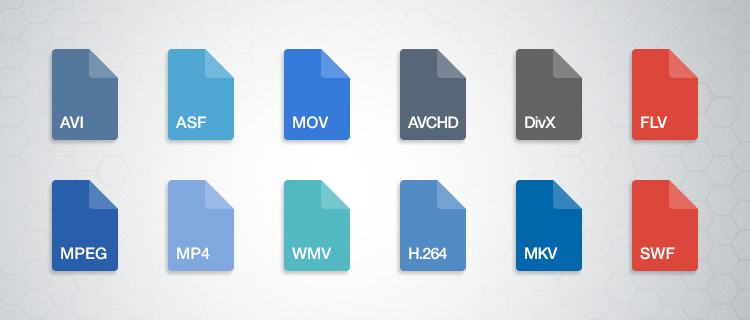
For example, if you have videos in formats like AVI, WMV, and MOV, you can convert them to a widely accepted format like MP4. This not only ensures compatibility but also makes it easier to organize your video library. Plus, most modern devices, including smartphones and smart TVs, support MP4, making it a versatile choice.

By standardizing your video formats, you can save time and avoid potential playback issues, making your video collection more accessible and user-friendly.

Video file consistency

Video file consistency goes beyond just the format; it includes aspects like resolution, frame rate, and audio settings. When you normalize video files for consistency, you’re essentially ensuring that all your videos have the same specifications. This is particularly important when creating a cohesive viewing experience, such as for a video playlist or a series.

Imagine you’re a content creator working on a web series. To maintain viewer engagement, you want all episodes to have identical quality and settings. Normalizing video files in this context involves making sure each episode shares the same resolution, frame rate, and audio settings. Consistency not only looks more professional but also eliminates distractions for your audience.

Using video editing software or dedicated normalization tools, you can easily adjust these parameters to achieve the desired consistency across your video files.

Video quality optimization

Video quality optimization is all about making your videos look their best while keeping file sizes manageable. When dealing with large video files, optimizing them ensures faster streaming and efficient storage. It’s a balance between maintaining high quality and reducing unnecessary bulk.

One of the key factors in video quality is bitrate. Higher bitrates result in sharper images and better sound, but they also lead to larger file sizes. To optimize video quality, you’ll want to find the sweet spot where quality remains excellent, but the file size isn’t excessively large. This is especially important when you’re uploading videos to online platforms, as they often have file size limitations.

Experimenting with different bitrates, resolutions, and codecs can help you strike that balance. Video editing software usually provides options for adjusting these settings, allowing you to fine-tune your videos for optimal quality.

Video compression techniques

Video compression is a fundamental aspect of normalizing video files. Compression techniques help reduce the file size of your videos without sacrificing too much quality. This is particularly useful when you need to save storage space or ensure smooth streaming over the internet.

Common video compression codecs include H.264 and H.265, which are widely supported across various devices and platforms. These codecs employ advanced algorithms to remove redundant information from your video files, resulting in smaller sizes while preserving good visual quality.

When applying video compression, it’s essential to strike a balance between compression level and quality. Higher compression can significantly reduce file size but may lead to a noticeable loss in quality, especially in highly detailed scenes. Experiment with different compression settings to find the right compromise.

Uniform video resolutions

Having uniform video resolutions is essential for a polished and professional look in your video collection. When videos have varying resolutions, it can be jarring for viewers to switch between them. Normalizing video resolutions involves adjusting all your videos to a consistent resolution.

Popular resolutions include 720p (HD), 1080p (Full HD), and 4K (Ultra HD). The choice of resolution depends on your specific needs and the capabilities of your target devices. For example, if you’re creating content for YouTube, 1080p is a standard choice that balances quality and file size.

By maintaining uniform resolutions, you ensure that your videos have a cohesive visual identity, making your content more appealing to viewers.

Consistent video bitrate

Consistency in video bitrate is another critical factor when normalizing video files. The bitrate determines the amount of data used to represent each second of video, directly impacting both quality and file size.

When you have videos with varying bitrates, it can lead to inconsistent quality and playback issues. To address this, normalize the bitrate across all your videos. This means ensuring that they all use a similar bitrate setting, which can be adjusted using video editing software or dedicated normalization tools.

Consistency in bitrate helps maintain a uniform viewing experience and prevents abrupt quality changes when switching between videos.

Video file compatibility

Ensuring video file compatibility is a fundamental step in making your videos accessible across different devices and platforms. Incompatibility issues can lead to frustrating experiences for viewers, such as playback errors or distorted visuals.

Before normalizing your video files, it’s crucial to understand the compatibility requirements of your target audience. Different devices and platforms may have specific format and codec preferences. For example, iOS devices tend to work best with H.264-encoded MP4 files, while some older devices may require different formats.

By researching and catering to the compatibility needs of your audience, you can ensure that your videos are easily accessible and enjoyable for everyone.

Normalizing multimedia files

Normalizing multimedia files extends beyond just video; it includes audio as well. Multimedia files often comprise various elements, such as video, audio, subtitles, and more. Normalization ensures that all these elements are balanced and harmonized for a seamless viewing experience.

For instance, when dealing with multimedia presentations or video editing projects, you want the audio levels to be consistent throughout. You wouldn’t want viewers to constantly adjust their volume because some parts are too quiet, while others are too loud. Normalizing audio levels across your multimedia files can solve this issue.

Additionally, subtitles and captions should be synchronized correctly with the video content, enhancing accessibility and comprehension. Multimedia normalization tools can assist in achieving these goals, providing a well-rounded viewing experience.

Video format conversion

Video format conversion is a versatile process that allows you to adapt your video files for different purposes. Whether you’re preparing videos for online streaming, archiving, or compatibility with various devices, conversion plays a significant role.

Conversion tools enable you to change not only the format but also other attributes like resolution, frame rate, and bitrate. This flexibility ensures that your videos are optimized for their intended use. For instance, when preparing videos for social media, you might convert them to formats and resolutions suitable for each platform’s requirements.

Additionally, format conversion can be handy when you want to preserve old video footage recorded in outdated formats. Converting these videos to modern formats ensures they remain accessible and of acceptable quality.

Video quality enhancement

Enhancing video quality goes beyond normalization; it involves improving the visual and auditory aspects of your videos. While normalization focuses on consistency and compatibility, quality enhancement aims to make your videos more visually appealing and engaging.

There are various techniques and tools available for video quality enhancement. These include color correction, sharpening, denoising, and even special effects. When used judiciously, these enhancements can breathe new life into your videos, making them more captivating for your audience.

For example, if you have older footage with faded colors, color correction can restore vibrancy. Similarly, adding subtle sharpening can make your videos look crisper and more professional.

Remember that quality enhancements should be applied thoughtfully, preserving the integrity of your original content while making it more visually appealing.

Final Words

Normalizing video files involves several aspects, from format standardization to quality optimization. Each step contributes to a smoother viewing experience and greater accessibility for your audience. Whether you’re a content creator, video enthusiast, or someone looking to organize their video collection, understanding these principles can help you make the most of your video files.

By ensuring video format compatibility, maintaining consistency in various attributes, and enhancing overall quality, you can present your videos in the best possible light. Remember that the specific approach may vary depending on your goals and target audience, so always tailor your normalization efforts to your unique requirements.