Audio-video Desynchronization in MP4 Playback


Free Download Mp4Gain
picture

Audio-video Desynchronization in MP4 Playback

Audio-video Desynchronization in MP4 Playback

Let’s Talk About Audio-video Desynchronization in MP4 Playback

When we watch a video, we expect the audio to match the visuals perfectly, but sometimes there’s a noticeable lag, often called desynchronization. It’s a bit like watching a dubbed movie where the words and lips don’t match, which can be pretty distracting. Audio-video desynchronization in MP4 playback isn’t only annoying, but it can make understanding content challenging, especially if timing is crucial. Here, I’ll dive into why this issue happens, and what we can do to fix it, drawing from years of experience in media technology.

What Causes Audio-video Desynchronization in MP4 Playback?

Understanding the root of desynchronization helps us tackle it effectively. MP4 files are complex, packing both audio and video streams, and if either lags behind, we experience desynchronization. I’ll explain the main causes, often unseen, that can lead to this frustrating issue.

Improper Encoding

One of the top culprits is improper encoding. Encoding involves compressing a video and audio file into a playable format, like MP4. If audio and video are encoded separately or with mismatched parameters, the timing can easily go off. Think of encoding like assembling a puzzle; if pieces don’t fit exactly, the final picture won’t be seamless.

Frame Rate Mismatch

MP4 playback relies on consistent frame rates to sync correctly. Sometimes, audio and video are recorded at different rates, causing them to drift apart over time. Imagine walking in step with a friend, then suddenly changing your pace; you’ll quickly end up out of sync. The same happens in video files.

Device Compatibility Issues

Even if an MP4 file is perfectly encoded, playback issues can arise from device incompatibility. Different players and hardware handle synchronization differently, so a file that plays fine on one device might go out of sync on another. This is common when switching between older devices and newer media players.

How to Identify Audio-video Sync Problems in MP4 Files

Identifying desynchronization issues before they become distracting can save time. I’ll walk you through some simple ways to spot sync problems early on.

Play Test Across Multiple Devices

If you notice an issue on one device, try playing the file on a different player or device. This helps determine if the problem is within the file itself or just with the particular player. For example, testing on a computer versus a smartphone can reveal player-specific issues.

Use Synchronization Tools

There are diagnostic tools designed to identify and measure synchronization issues in media files. I often use these tools to check for timing discrepancies, which are especially useful for identifying small lags that might go unnoticed.

Solving Audio-video Desynchronization in MP4 Playback

If you’ve pinpointed the problem, it’s time to fix it. I’ll cover common solutions to bring audio and video back in sync and get your MP4 playback experience back on track.

Adjusting Audio Delay

Many media players have a feature to adjust audio delay. If you notice that the audio leads or lags by a small amount, you can manually tweak the delay to get them back in sync. I use this feature a lot when testing MP4s because a slight nudge can often resolve minor sync issues instantly.

Re-encoding the MP4 File

If manual adjustment doesn’t help, re-encoding might be necessary. Re-encoding creates a new file where audio and video are compressed together, reducing the chance of sync issues. Although it takes time, it’s one of the most reliable ways to fix desync issues for good.

Hardware and Software Optimization

In many cases, upgrading your media player or device software can fix synchronization problems. Sometimes, simply installing the latest version of a media player or updating your device’s software can make a significant difference.

Tips for Avoiding Audio-video Desynchronization in MP4s

Prevention is better than cure, and there are steps you can take to avoid desynchronization issues in the first place. Here’s what I recommend based on years of handling media files.

Ensure Consistent Frame Rates During Recording

Recording audio and video with consistent frame rates is key. If you’re creating MP4s yourself, aim to use the same frame rate for both audio and video to reduce the chance of drift over time.

Test Your Files Before Sharing

Before distributing an MP4, I always playtest it to make sure sync is intact. This step can save hours of troubleshooting later, especially if your content is going to be viewed on a variety of devices.

Latest Words on Audio-video Desynchronization in MP4 Playback

Audio-video desynchronization in MP4 playback can be frustrating, but with the right knowledge, it’s manageable. Remember to check encoding settings, use consistent frame rates, and test your files before sharing. And if issues persist, apps like Mp4Gain can help fine-tune synchronization for seamless playback. By following these steps, you can enjoy MP4s without the worry of out-of-sync audio and video.

Comments:

Jake54: Finally, someone explained this in a way I can understand! I’ve always had issues with video sync, and now I know what to do.

LaraP: Great tips on checking frame rates. I was so confused about why my videos were off on some devices. Very helpful!

ScreenJunkie21: I’ve been using different players for ages because of desync issues, but this guide helped me fix my files instead. Thanks!

TechNerd45: This article is golden. More detailed than most I’ve seen on sync issues. Love the bit about re-encoding to fix it.

JanieB: Anyone else struggling with audio delay? Wish I’d seen this sooner—saved me tons of trial and error.

KidOnTheWeb: So cool you explained it with real-life stuff. Even I could follow, and I’m a total noob with tech. Thanks for this!

VidEditor94: Using this as a checklist for my videos. Just re-encoded a couple of MP4s, and they finally play correctly. Amazing advice!

CamFan: Why don’t other sites break it down like this? I had no idea device compatibility could cause such big issues.

LittleMissEdit: Can anyone recommend a specific tool? I’ve tried a few, but they didn’t fix it long-term. Suggestions welcome!

GadgetGuy123: So useful. I’ve been having issues with my old MP4 files on newer devices, and now they play like a charm.


Free Download Mp4Gain
picture


Mp4Gain Main Window
picture


Mp4Gain Features
picture


Free Download Mp4Gain
picture

Normalize video files

Normalize video files

Normalize video files

Standardize video formats

Standardizing video formats is a crucial step in ensuring seamless playback and compatibility across different devices and platforms. When you have a collection of video files in various formats, it can be challenging to manage and share them effectively. To address this, you can use video conversion software to convert all your video files into a single, standardized format.

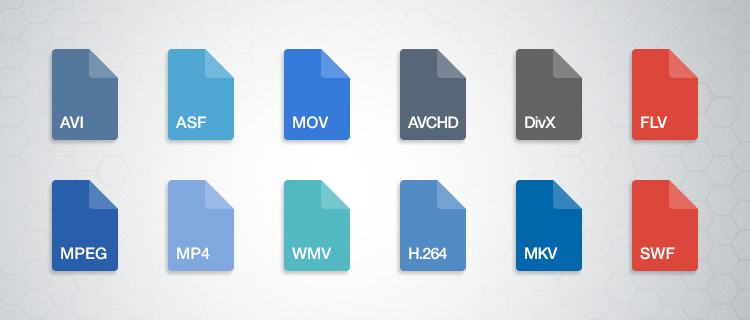
For example, if you have videos in formats like AVI, WMV, and MOV, you can convert them to a widely accepted format like MP4. This not only ensures compatibility but also makes it easier to organize your video library. Plus, most modern devices, including smartphones and smart TVs, support MP4, making it a versatile choice.

By standardizing your video formats, you can save time and avoid potential playback issues, making your video collection more accessible and user-friendly.

Video file consistency

Video file consistency goes beyond just the format; it includes aspects like resolution, frame rate, and audio settings. When you normalize video files for consistency, you’re essentially ensuring that all your videos have the same specifications. This is particularly important when creating a cohesive viewing experience, such as for a video playlist or a series.

Imagine you’re a content creator working on a web series. To maintain viewer engagement, you want all episodes to have identical quality and settings. Normalizing video files in this context involves making sure each episode shares the same resolution, frame rate, and audio settings. Consistency not only looks more professional but also eliminates distractions for your audience.

Using video editing software or dedicated normalization tools, you can easily adjust these parameters to achieve the desired consistency across your video files.

Video quality optimization

Video quality optimization is all about making your videos look their best while keeping file sizes manageable. When dealing with large video files, optimizing them ensures faster streaming and efficient storage. It’s a balance between maintaining high quality and reducing unnecessary bulk.

One of the key factors in video quality is bitrate. Higher bitrates result in sharper images and better sound, but they also lead to larger file sizes. To optimize video quality, you’ll want to find the sweet spot where quality remains excellent, but the file size isn’t excessively large. This is especially important when you’re uploading videos to online platforms, as they often have file size limitations.

Experimenting with different bitrates, resolutions, and codecs can help you strike that balance. Video editing software usually provides options for adjusting these settings, allowing you to fine-tune your videos for optimal quality.

Video compression techniques

Video compression is a fundamental aspect of normalizing video files. Compression techniques help reduce the file size of your videos without sacrificing too much quality. This is particularly useful when you need to save storage space or ensure smooth streaming over the internet.

Common video compression codecs include H.264 and H.265, which are widely supported across various devices and platforms. These codecs employ advanced algorithms to remove redundant information from your video files, resulting in smaller sizes while preserving good visual quality.

When applying video compression, it’s essential to strike a balance between compression level and quality. Higher compression can significantly reduce file size but may lead to a noticeable loss in quality, especially in highly detailed scenes. Experiment with different compression settings to find the right compromise.

Uniform video resolutions

Having uniform video resolutions is essential for a polished and professional look in your video collection. When videos have varying resolutions, it can be jarring for viewers to switch between them. Normalizing video resolutions involves adjusting all your videos to a consistent resolution.

Popular resolutions include 720p (HD), 1080p (Full HD), and 4K (Ultra HD). The choice of resolution depends on your specific needs and the capabilities of your target devices. For example, if you’re creating content for YouTube, 1080p is a standard choice that balances quality and file size.

By maintaining uniform resolutions, you ensure that your videos have a cohesive visual identity, making your content more appealing to viewers.

Consistent video bitrate

Consistency in video bitrate is another critical factor when normalizing video files. The bitrate determines the amount of data used to represent each second of video, directly impacting both quality and file size.

When you have videos with varying bitrates, it can lead to inconsistent quality and playback issues. To address this, normalize the bitrate across all your videos. This means ensuring that they all use a similar bitrate setting, which can be adjusted using video editing software or dedicated normalization tools.

Consistency in bitrate helps maintain a uniform viewing experience and prevents abrupt quality changes when switching between videos.

Video file compatibility

Ensuring video file compatibility is a fundamental step in making your videos accessible across different devices and platforms. Incompatibility issues can lead to frustrating experiences for viewers, such as playback errors or distorted visuals.

Before normalizing your video files, it’s crucial to understand the compatibility requirements of your target audience. Different devices and platforms may have specific format and codec preferences. For example, iOS devices tend to work best with H.264-encoded MP4 files, while some older devices may require different formats.

By researching and catering to the compatibility needs of your audience, you can ensure that your videos are easily accessible and enjoyable for everyone.

Normalizing multimedia files

Normalizing multimedia files extends beyond just video; it includes audio as well. Multimedia files often comprise various elements, such as video, audio, subtitles, and more. Normalization ensures that all these elements are balanced and harmonized for a seamless viewing experience.

For instance, when dealing with multimedia presentations or video editing projects, you want the audio levels to be consistent throughout. You wouldn’t want viewers to constantly adjust their volume because some parts are too quiet, while others are too loud. Normalizing audio levels across your multimedia files can solve this issue.

Additionally, subtitles and captions should be synchronized correctly with the video content, enhancing accessibility and comprehension. Multimedia normalization tools can assist in achieving these goals, providing a well-rounded viewing experience.

Video format conversion

Video format conversion is a versatile process that allows you to adapt your video files for different purposes. Whether you’re preparing videos for online streaming, archiving, or compatibility with various devices, conversion plays a significant role.

Conversion tools enable you to change not only the format but also other attributes like resolution, frame rate, and bitrate. This flexibility ensures that your videos are optimized for their intended use. For instance, when preparing videos for social media, you might convert them to formats and resolutions suitable for each platform’s requirements.

Additionally, format conversion can be handy when you want to preserve old video footage recorded in outdated formats. Converting these videos to modern formats ensures they remain accessible and of acceptable quality.

Video quality enhancement

Enhancing video quality goes beyond normalization; it involves improving the visual and auditory aspects of your videos. While normalization focuses on consistency and compatibility, quality enhancement aims to make your videos more visually appealing and engaging.

There are various techniques and tools available for video quality enhancement. These include color correction, sharpening, denoising, and even special effects. When used judiciously, these enhancements can breathe new life into your videos, making them more captivating for your audience.

For example, if you have older footage with faded colors, color correction can restore vibrancy. Similarly, adding subtle sharpening can make your videos look crisper and more professional.

Remember that quality enhancements should be applied thoughtfully, preserving the integrity of your original content while making it more visually appealing.

Final Words

Normalizing video files involves several aspects, from format standardization to quality optimization. Each step contributes to a smoother viewing experience and greater accessibility for your audience. Whether you’re a content creator, video enthusiast, or someone looking to organize their video collection, understanding these principles can help you make the most of your video files.

By ensuring video format compatibility, maintaining consistency in various attributes, and enhancing overall quality, you can present your videos in the best possible light. Remember that the specific approach may vary depending on your goals and target audience, so always tailor your normalization efforts to your unique requirements.