When it comes to audio quality, choosing between lossy and lossless audio can make a big difference. In audio compression, “lossy” means some data gets removed to make the file smaller, while “lossless” keeps all the original audio information. OGG is a popular format known for flexibility with both lossy and lossless compression, so you can get high-quality sound in a smaller file size. As an audio expert, I’ll walk you through the ins and outs of these formats, drawing from my years of experience with audio compression, so you can make the best choice for your needs.
Understanding OGG Format Basics
The OGG format is like a sturdy container, housing different types of audio codecs. It’s especially popular for its open-source, patent-free nature, and high-quality sound. With OGG, you can have lossy or lossless compression, depending on what matters more—quality or file size. Think of it like packing for a trip: sometimes you need to pack light (lossy), and other times, you want to bring everything (lossless). The flexibility of OGG makes it perfect for anyone who values good sound, but also wants control over file size.
What is Lossy Audio Compression?
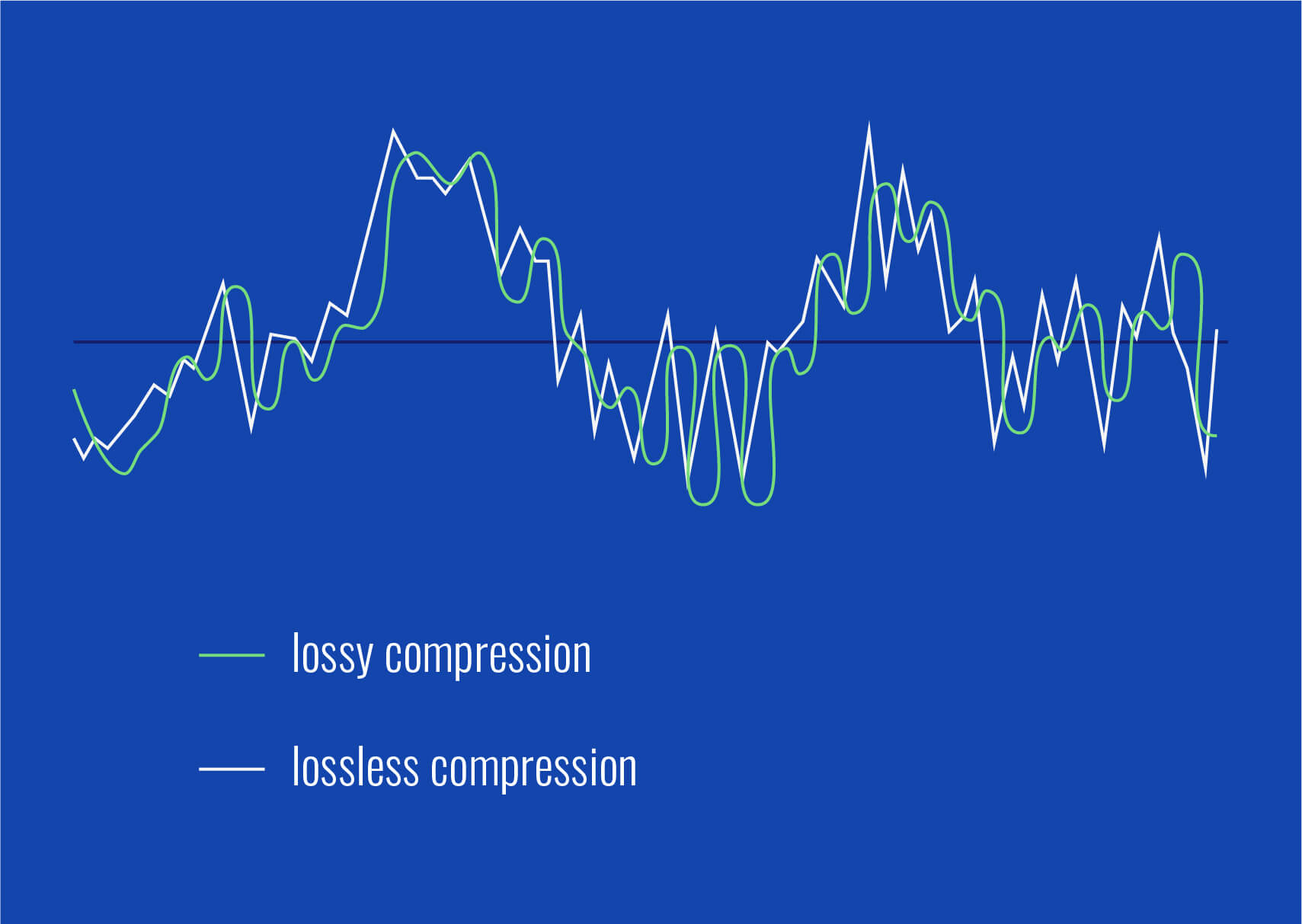
Lossy audio compression removes “unnecessary” parts of audio that our ears may not easily pick up, which makes the file size much smaller. It’s like skimming off the less noticeable sounds in a song or recording. MP3 and OGG Vorbis are common lossy formats. If you’re streaming music online, lossy formats are everywhere. But while the space savings are great, there’s a trade-off: you lose some detail in sound quality. For casual listeners, it’s often a non-issue, but for audiophiles, those subtle sounds matter.
What is Lossless Audio Compression?
In lossless audio compression, all the original audio data is preserved. This format, like OGG FLAC, doesn’t cut any corners. Imagine you’re saving a photo without changing a single pixel; that’s what lossless does for sound. The file is bigger, yes, but you get pure, untouched audio. In my experience, musicians, DJs, and audio engineers often prefer lossless formats because every sound, every subtle tone, is kept intact. For casual listening, though, the larger file size might be more of a hassle than it’s worth.
Comparing OGG Vorbis (Lossy) with OGG FLAC (Lossless)
Comparing OGG Vorbis and OGG FLAC is a bit like comparing a paperback book to a hardcover. OGG Vorbis reduces file size by about 90%, perfect for quick downloads or streaming. OGG FLAC, on the other hand, maintains top quality, but it’s bigger. OGG Vorbis is great for everyday listening, but if you’re an audio purist, OGG FLAC is where you’ll hear the difference. You’ll notice richer, fuller sounds in OGG FLAC, especially in classical or jazz music where subtlety is key.
Quality Differences: Audible or Not?
File Size Considerations
Performance for Streaming vs. Offline Playback
How Lossy Compression Works in OGG Vorbis
OGG Vorbis, the lossy version of OGG, uses advanced algorithms to remove sounds our ears aren’t as sensitive to. It’s like compressing a sponge and squeezing out the excess water, keeping the sponge itself intact but smaller. This way, you get a smaller file size with audio that’s nearly identical to the original. It’s commonly used for streaming music because it keeps quality high and file size low—essential for avoiding buffering issues on slow networks.
The Science Behind Lossless Compression in OGG FLAC
Lossless compression in OGG FLAC is more like folding a sheet—no material is removed; it’s just compacted in a way that you can unfold it back to its original form. The audio data is untouched, making it a favorite among sound engineers who need top fidelity. OGG FLAC is especially valuable in professional settings, like when recording a song or podcast, where every little detail counts.
Pros and Cons of Using Lossy OGG for Audio
Using lossy OGG has a lot of perks, especially if you need to save space. It’s like having a lighter suitcase for travel—you can take it anywhere without the bulk. However, lossy compression may sacrifice some subtle details, so it’s not ideal for everyone. Here are some quick points:
Smaller File Size
Great for Streaming and Download Speeds
Minor Loss of Audio Detail
Not Ideal for High-End Sound Systems
Pros and Cons of Using Lossless OGG for Audio
Lossless OGG, like FLAC, maintains full sound quality. It’s like a heavy-duty suitcase that carries everything you need. While the file size is larger, the quality remains top-notch. Here’s a rundown of pros and cons:
Exceptional Audio Quality
Perfect for Archival Storage
Larger File Size
More Demanding on Storage Space
Is Lossy or Lossless Better for Music Streaming?
If you’re streaming music, you’ll likely lean toward lossy OGG, especially with slower internet speeds. Lossy compression keeps file sizes manageable and minimizes buffering. But for platforms dedicated to high-quality sound, lossless is increasingly common. Lossy streaming is a compromise between quality and accessibility, while lossless streaming is all about giving you the best audio, especially on platforms where fidelity is a top priority.
Best Scenarios for Choosing Lossy OGG
Lossy OGG is perfect for everyday listening, especially when you’re on the go. Whether it’s on a jog or commuting, lossy audio offers high-quality sound without filling up your phone’s storage. When you’re not looking for flawless quality but still want something that sounds good, lossy OGG is the way to go. It’s especially great if you’re listening on devices where audio fidelity isn’t as noticeable.
Best Scenarios for Choosing Lossless OGG
Lossless OGG really shines when quality is paramount, like for a professional DJ or a music producer. It’s also ideal for creating a digital archive of your favorite albums. Lossless OGG ensures every note, every instrument, is perfectly preserved. If you’ve got the storage space and care about every detail in the music, go for lossless OGG. It’s also an excellent choice if you plan to listen on high-quality sound systems where every sound matters.
Do File Size and Storage Space Matter to You?
Lossy OGG saves a ton of space, perfect if you’re low on storage. However, if storage is abundant, lossless OGG is a good way to get premium sound without compromise. I always ask myself, “How important is quality versus storage for me?” If I want to fit more music on my phone, I’ll go lossy. If I’m working on a sound project where I need the best quality, lossless OGG it is.
Final Words on Lossy vs Lossless Audio in OGG
Ultimately, the choice between lossy and lossless OGG depends on your needs and setup. For most listeners, lossy OGG offers a great balance between quality and file size. But for audiophiles, sound engineers, and music lovers who want every detail, lossless OGG can’t be beat. If you’re still on the fence, try testing out both formats in your own environment to hear the difference. And when you’re ready to optimize your audio, MP4Gain is here to help ensure every sound, whether lossy or lossless, is just right.
Comments:
Jackson: Really helpful breakdown! I didn’t even know the difference between lossy and lossless. Helped a lot for my project!
Marie123: Finally I get it! All the tech words usually confuse me but this article was simple and super clear.
SoundwaveMike: Good info, but I’d love to see more on how the lossy compression actually affects different genres of music.
LeeGuitarist: Wow, never knew OGG was that versatile! I always stuck with MP3, but now I’m gonna try OGG FLAC!
BobTheBuilder: Too much detail for my taste, but good for people who want to learn everything about audio!
Anna_Loves_Music: This explained a
lot! I’ve been trying to figure out how to save space on my phone without losing my fave tunes.
Let’s talk about MP4 vs MKV: What Really Sets Them Apart?
When it comes to digital media, choosing the right format can be tricky. Both MP4 and MKV are popular for video files, but their differences can make or break your viewing experience. MP4 is widely compatible and efficient, while MKV is powerful and versatile. Let me dive into the details and explain what makes each format unique, using practical examples to help you pick the right one.
What is MP4?
MP4, or MPEG-4 Part 14, is one of the most widely used video containers. Designed to offer compatibility across a wide range of devices and platforms, MP4 is the go-to format for streaming, video sharing, and playback on virtually any device. If you’ve ever downloaded a video that works seamlessly on your phone, laptop, or smart TV, you likely have MP4 to thank. I’ve found it especially useful when transferring videos between devices since it’s widely supported.
What is MKV?
MKV, or Matroska Video, is an open-source container format that can handle more complex data. While it’s not as universally compatible as MP4, MKV is favored by videophiles for its ability to store multiple audio tracks, subtitles, and video components in one file. It’s like a digital Swiss Army knife, ideal for high-quality video enthusiasts and those who want customizable playback options. For example, if you’re a fan of anime or foreign films with multiple language options, MKV makes it easy to switch between tracks.
Compatibility: Which Container Plays Everywhere?
Compatibility is crucial when choosing a video format. MP4 shines in this area, as it’s natively supported on almost every device. Whether you’re using an iPhone, Android, PlayStation, or streaming to a smart TV, MP4 files usually play without a hitch. MKV, on the other hand, might not work on every device or app without additional codecs or specialized software. If you’re planning to watch videos across different gadgets, MP4 is the safer bet for hassle-free compatibility.
File Size and Compression
MP4 typically produces smaller file sizes due to its efficient compression, making it perfect for storage on devices with limited space or for streaming. For instance, when I need to upload a video to social media or email, I often go with MP4 because it’s quick to upload and doesn’t take much space. MKV files can be larger, especially when they contain high-definition video and multiple audio tracks. While MKV is excellent for preserving quality, you might need more storage capacity if you’re dealing with HD content or a lot of data.
Audio and Subtitle Support
MKV has a clear edge in supporting multiple audio and subtitle tracks within a single file. If you’ve ever watched a foreign movie and wanted the option to switch between the original and dubbed audio, MKV is ideal for that. MP4 can handle subtitles too, but it’s limited compared to MKV. For example, MKV allows for soft subtitles, which means you can enable or disable them during playback, while MP4 usually embeds subtitles directly into the video, giving less flexibility.
Quality Retention and Codec Flexibility
Quality is king when it comes to video files. MKV generally supports a broader range of codecs, which means it can handle high-definition content without sacrificing quality. MP4 is no slouch either, but it’s more restrictive with codecs, which can slightly impact video and audio quality in certain high-resolution scenarios. If you’re creating a digital archive of your favorite movies or shows, MKV would better retain quality over time, especially with high-resolution or lossless audio.
Streaming Capabilities
MP4 is optimized for streaming and widely adopted by platforms like YouTube, Netflix, and Vimeo. If you’re interested in sharing videos online or streaming, MP4 is almost always the best choice. It loads quickly, is easy to buffer, and maintains quality on streaming platforms. MKV isn’t optimized for streaming in the same way, which is why you don’t see it as frequently on major video-sharing platforms.
Editing Flexibility
MKV is often easier to edit because it supports a variety of codecs and doesn’t require re-encoding every time it’s modified. For example, if you’re working on a video project with multiple audio layers or subtitles, MKV offers more flexibility without reducing quality. MP4 files are more compact but may need additional steps to edit, especially if you’re working with different types of media tracks within the video.
Best Use Cases for MP4
Compatible with almost every device, ideal for sharing videos on social media.
Efficient for storage, small file size.
Streamlined for uploading and quick access on video streaming platforms.
Simple video projects or personal recordings without needing multiple audio tracks.
Best Use Cases for MKV
Ideal for high-quality movie archives with multiple audio tracks and subtitles.
Useful for video projects with extensive editing and customization.
Great for fans of foreign films or anime who want multiple language tracks.
Preserves quality for larger, high-definition video files.
Should You Convert MKV to MP4?
Converting between formats can be useful, depending on your needs. For instance, if you have an MKV file that you want to play on a device that only supports MP4, conversion is the way to go. However, remember that converting from MKV to MP4 can sometimes result in loss of quality or loss of features, like multiple audio tracks or subtitles. I recommend using tools like Mp4Gain, which can convert while keeping quality as high as possible, making it a suitable choice for this task.
Latest Words on MP4 vs MKV
In the end, the choice between MP4 and MKV depends on your priorities. If you need a simple, compatible format that works across various devices, MP4 is hard to beat. But if you’re someone who values flexibility, quality, and extra features like multiple audio tracks, MKV might be worth the extra steps to ensure compatibility. Personally, I use both depending on the situation: MP4 for everyday sharing and MKV for high-quality archival. Both formats have their strengths, and understanding them can help you make the right choice.
Comments:
JohnDoe92: I’ve always been confused about the difference! This breakdown really helps me understand why some of my videos don’t play on my old TV. Guess I’ll be sticking to MP4 from now on for compatibility’s sake.
SarahB: Amazing detail! I knew MKV had better options for subtitles, but never understood why. Thanks for the practical examples!
VideoFanatic23: I prefer MKV because I can have multiple audio tracks and choose the language I want. It’s like having all options in one place!
TechSavvy: So helpful! I usually edit videos for family, and MKV definitely gives me more flexibility with quality. Will use MP4 for quick stuff though!
GregO: Great article, but wish there was more on tools for converting without losing quality. Some conversions I’ve tried end up grainy.
Alice_G: MP4 is my go-to for everyday videos, but I can see why MKV is better for archiving. Thanks for clearing that up!
FilmBuff86: Love MKV for my anime collection! Switching between audio tracks and subtitles is such a lifesaver.
PaulT: This article is gold. I’m new to video editing, so now I understand when to choose one over the other. Can we get more on codec differences?
BrendaS: Thanks for the tip about streaming. Never thought about how much easier MP4 is to upload!
MovieLover: Always thought MKV was for pros only. Now I realize it’s just about what you need from your files. This was really well explained!
Gr8Scott: MKV files have been so confusing for me. Thanks for breaking it down! I’ll save my MKVs for movies and use MP4s for everything else.
RickK: Amazing, so many great points here. I’ve converted MKVs to MP4
in the past, but now I know what I’m giving up in the process.
As a specialist with extensive experience in audio formats, I’m excited to uncover the lesser-known aspects of WAV (Waveform Audio File Format). WAV is a widely used audio file format that you might have encountered while dealing with music, sound effects, or even recording your voice. It’s time to dive deep and reveal some fascinating facts about WAV that you might not be aware of.
10 Things You Didn’t Know About WAV
The Origin of WAV
WAV, also known as “WAVE,” was developed by Microsoft and IBM in 1991. Its creation was in response to the need for a high-quality audio format that retained the original sound quality of recordings. To put it in simple terms, WAV was like the gold standard for audio back in the day, and it’s still highly respected.
Lossless Compression
One of the most remarkable features of WAV is its lossless compression. Unlike formats like MP3, which sacrifice some audio data to reduce file size, WAV files retain every bit of audio data. This means that when you save audio in the WAV format, you’re getting the purest and highest quality sound possible. It’s like having a perfectly preserved, timeless masterpiece.
Uncompressed and High Quality
Every time you record a sound or song and save it as a WAV file, you’re preserving the original, uncompressed audio quality. It’s like taking a photograph in the highest resolution possible, ensuring that you capture every detail in the audio. WAV is to audio what a 4K TV is to video – every detail is crystal clear.
No Data Loss in WAV
When you convert audio from one format to another, like WAV to MP3, you might lose some data, and the sound quality can degrade. However, if you always work with WAV files, you won’t experience this loss. It’s like making a copy of your favorite book without any missing pages. Your audio remains unaltered, just the way it was meant to be.
WAV’s Universal Compatibility
WAV files are universally compatible, which means you can play them on virtually any audio player, software, or device. Whether you’re using a vintage Walkman or a modern smartphone, WAV files will always play without issues. Think of it as a universal key that opens every audio door.
Let’s Explore More About WAV
Studio Recording Standard
If you’ve ever been inside a recording studio, you’ll know that they often use WAV as the primary format. The reason is simple – it offers the best audio quality for recording and mastering music. It’s like using the finest artist’s canvas for creating a masterpiece. WAV sets the stage for musical excellence.
CD-Quality Audio
If you’re a fan of audio CDs, you’ll be pleased to know that the audio on CDs is often stored in the WAV format. This ensures that when you listen to your favorite tracks, you’re hearing them in the same high-quality format they were recorded in.
Large File Sizes
One drawback of WAV files is their size. Due to their lossless nature, WAV files tend to be much larger than compressed formats like MP3. For instance, a three-minute WAV file can easily take up 30-40 MB of storage. So, they might not be the best choice for devices with limited storage.
Ideal for Editing
WAV’s uncompressed nature makes it perfect for audio editing. Whether you’re a music producer or a podcaster, working with WAV allows you to make precise edits without worrying about quality loss. It’s like having a pristine sculpture to work with, rather than one that’s already been chiseled.
Notable Alternatives
While WAV is fantastic, there are alternatives like FLAC (Free Lossless Audio Codec) and AIFF (Audio Interchange File Format) that also offer lossless audio. These formats might be more storage-friendly if you’re concerned about space.
Latest Words on WAV
In conclusion, WAV is a powerhouse in the audio world, known for its exceptional audio quality and compatibility. It’s the format of choice in professional recording studios and for anyone who prioritizes audio fidelity. Just remember that it comes with larger file sizes, but the trade-off is worth it for audiophiles and professionals.
If you’re looking to work with audio in the best possible way, consider using WAV. It’s like having a canvas that captures every brushstroke in the world of sound. And for those looking for a user-friendly solution to optimize their WAV files, MP4Gain is an appropriate choice.
Comments:
I had no idea about the history of WAV! Thanks for sharing, this article is a gem!
I always wondered why WAV files were so big, now I know! This article clarified a lot for me.
WAV is my go-to format for recording music. It’s like working with a raw diamond – pure and unaltered.
Can you provide more details on the alternatives like FLAC and AIFF? I’m curious to learn more about them.
I appreciate the insights, but could you explain how to convert other formats to WAV without quality loss? That would be very helpful.
Great article! I’ve been using WAV files for my podcast, and the quality is outstanding. It’s worth the storage space.
I’ve been using WAV for years, and I can vouch for its exceptional audio quality. It’s like having a high-definition audio experience.
WAV’s compatibility is a lifesaver. It’s like a universal remote for audio files, always works like a charm.
I didn’t know that CDs used WAV format. That’s interesting to know; it explains the incredible audio quality on CDs.
The comparison to a raw diamond is spot on. WAV files truly capture the essence of sound without any loss.
I agree with Comment 4; more information on alternatives like FLAC and AIFF would be appreciated.
Thanks for this informative article! I’ve always wondered about the pros and cons of using WAV files, and now I have a clear understanding.
This article should be the go-to guide for anyone working with audio. It provides valuable insights that are hard to find elsewhere.
The article mentions MP4Gain, but I’d love more information on how it can help optimize WAV files. Can you elaborate on that?
Boost the Volume of Lossy Audio FilesBoost the Volume of Lossy Audio Files
Amplify Sound in Lossy Audio Files
When it comes to enhancing the audio quality of your favorite songs or podcasts, you might find yourself dealing with lossy audio files. These files, while space-efficient, often suffer from reduced sound quality. Fortunately, there are ways to amplify the sound in lossy audio files, giving your listening experience a significant boost.
Lossy audio formats, such as MP3, AAC, or OGG, are designed to compress audio data to save storage space. However, this compression can lead to a loss of audio detail and a decrease in overall volume. To address this, you can use audio editing software to amplify the sound. By carefully adjusting the volume levels, you can make the audio more prominent and enjoyable. Just be cautious not to overdo it, as excessive amplification can lead to distortion.
Another effective way to amplify sound in lossy audio files is to use specialized audio processing tools. These tools often come with built-in volume normalization features that can help you increase the loudness while maintaining the audio’s quality. Whether you’re an aspiring musician, a podcast enthusiast, or simply looking to improve your music collection, amplifying sound in lossy audio files can breathe new life into your audio content.
Increase Volume of Compressed Audio
Compressed audio files have become the norm in today’s digital world due to their convenience and storage efficiency. However, one common drawback of these files is that they often lack the volume and punch of their uncompressed counterparts. If you’re wondering how to increase the volume of compressed audio, you’re in the right place.
To boost the volume of compressed audio files, you can start by using audio editing software. Most audio editing programs allow you to adjust the volume levels of individual tracks or sections of a file. Simply open your desired audio file in the software, locate the volume control, and gradually increase it until you achieve the desired loudness. Be cautious not to push the volume too high, as this can result in distortion and a loss of audio quality.
Additionally, consider using dynamic range compression (DRC) techniques. DRC helps balance the loud and quiet parts of an audio file, making it sound more consistent in volume. This technique is particularly useful when dealing with audio files that have uneven loudness levels. With the right adjustments, you can bring out the nuances in your compressed audio while maintaining clarity and preventing clipping.
By employing these techniques, you can effectively increase the volume of your compressed audio files, making them sound more vibrant and engaging.
Audio Volume Enhancement Techniques
Audio volume enhancement techniques are essential tools for anyone looking to improve the sound quality of their audio files, especially those in lossy formats. These techniques involve various methods to make audio files sound louder and more impactful.
One common technique is equalization, which allows you to adjust the balance of frequencies in your audio. By boosting certain frequency ranges, you can make your audio files sound fuller and more vibrant. This is particularly helpful for restoring lost detail in lossy audio files.
Another technique is the use of audio limiters and compressors. These tools help control the dynamic range of your audio, ensuring that loud parts aren’t too overpowering and quiet parts are audible. They can help you achieve a consistent and balanced volume throughout your audio file.
Additionally, you can explore mastering techniques. Mastering involves fine-tuning the overall sound of an audio file, including volume optimization. Professional mastering engineers use specialized software and hardware to enhance the loudness, clarity, and overall quality of audio recordings.
Enhance Audio Loudness in Lossy Formats
Enhancing audio loudness in lossy formats requires a combination of technical expertise and the right tools. Lossy formats like MP3 or AAC often sacrifice audio quality for smaller file sizes, which can result in lower volume levels. Here’s how you can address this issue effectively.
First, consider using audio editing software with volume normalization features. These features analyze the audio file and adjust the volume levels to ensure consistent loudness. This is particularly useful when dealing with a collection of lossy audio files with varying loudness levels.
Furthermore, explore dynamic range compression (DRC) to balance the audio’s dynamics. DRC reduces the difference between the loudest and quietest parts of an audio file, making it sound more uniform in volume. However, be cautious not to apply excessive compression, as it can lead to an unnatural and compressed sound.
Lastly, if you have a specific audio file that needs a volume boost, you can manually adjust the volume using your preferred audio editing software. Keep in mind that raising the volume too much may introduce distortion, so it’s crucial to find the right balance to enhance the loudness while preserving audio quality.
By utilizing these techniques, you can effectively enhance the audio loudness of your lossy format files and enjoy a more immersive listening experience.
Raise the Volume of Low-Quality Audio
Dealing with low-quality audio can be frustrating, especially when the volume is barely audible. Whether it’s an old recording or a poorly encoded audio file, there are ways to raise the volume and salvage the listening experience.
One approach is to use audio restoration software. These tools are designed to improve the quality of audio recordings, including boosting the volume. They often come with noise reduction features, which can help reduce background noise and further enhance the clarity of your audio.
Another option is to employ audio equalization. By adjusting the equalizer settings, you can emphasize the frequencies that are most critical for clarity and volume. Boosting the mid-range frequencies, for example, can make the vocals and instruments more prominent, resulting in a perceptible increase in volume.
If you have access to the original source of the audio, consider re-recording it or obtaining a higher-quality version. This approach eliminates the limitations of the existing low-quality audio file and ensures a better listening experience.
In summary, raising the volume of low-quality audio involves a combination of software tools and, when possible, improving the source material. These steps can help you enjoy clearer and louder audio, even from initially subpar recordings.
Boosting Sound Levels in Lossy Files
Boosting sound levels in lossy audio files is a common requirement for those looking to enhance their audio experience. Lossy formats, while efficient, often compromise on audio quality, resulting in lower volume levels. Here’s how you can effectively increase the sound levels in such files.
One of the simplest methods is to use audio editing software. Most audio editors provide volume adjustment controls that allow you to raise the volume of your lossy audio files. When doing this, be cautious not to push the volume too high, as it can lead to distortion and a loss of audio fidelity.
Additionally, you can explore the use of audio amplification plugins or tools. These specialized software options are designed to boost the loudness of audio files while minimizing the risk of distortion. They often come with presets and fine-tuning options to ensure optimal results.
When boosting sound levels, it’s essential to consider the intended playback environment. Different platforms and devices may have varying volume levels, so aim for a balance that ensures your audio remains clear and enjoyable across different systems.
By following these techniques and experimenting with volume adjustments, you can effectively boost sound levels in your lossy audio files and enjoy an improved listening experience.
Improving Audio Clarity in Compressed Formats
Improving audio clarity in compressed formats, such as MP3 or AAC, is a pursuit for audiophiles and music enthusiasts alike. While these formats offer excellent compression, they can sometimes sacrifice audio quality. Let’s explore how to enhance audio clarity in such files.
One approach is to use high-quality audio conversion tools. These tools can help you convert your compressed audio files into a lossless format, such as FLAC. Once in a lossless format, you can make edits and enhancements without further loss of audio quality. After the improvements, you can convert the file back to a compressed format with improved clarity.
Another technique involves applying equalization to your audio files. By fine-tuning the frequency balance, you can emphasize certain audio elements, such as vocals or instruments, and reduce any muddiness. This can result in clearer and more defined audio, even in compressed formats.
Furthermore, consider using noise reduction software to eliminate background noise and artifacts that may be present in your compressed audio. Reducing these unwanted elements can significantly enhance audio clarity.
Finally, if you have access to the original, uncompressed source of the audio, consider re-encoding it into a higher-quality compressed format. This can provide better clarity while still maintaining a smaller file size compared to lossless formats.
Enhancing audio clarity in compressed formats requires a combination of technical tools and careful adjustments. By experimenting with these techniques, you can achieve remarkable improvements in audio quality.
Loudness Enhancement for Lossy Audio
Loudness enhancement for lossy audio files can make a world of difference in your listening experience. Lossy formats, known for their space-saving benefits, often suffer from lower perceived volume levels. Here’s how you can effectively enhance the loudness of your lossy audio files.
One of the simplest methods is to use an audio player with built-in equalization settings. These settings allow you to boost specific frequency ranges, making the audio sound louder and more impactful. Experiment with different equalizer presets until you find the one that works best for your audio.
Another technique is to employ audio normalization. Many audio editing software tools provide normalization features that adjust the volume of your audio files to a consistent level. This ensures that all tracks play back at a similar loudness, enhancing the overall listening experience.
If you’re looking for a more advanced solution, consider using audio mastering techniques. Mastering involves fine-tuning the audio’s overall quality, including loudness optimization. Professional mastering engineers use specialized equipment and software to achieve the perfect balance of loudness and clarity.
Lastly, be mindful of the playback device you’re using. Some devices have built-in sound enhancements or equalization settings that can further enhance loudness. Experiment with these settings to find the right balance for your preferences.
By implementing these loudness enhancement techniques, you can breathe new life into your lossy audio files and enjoy them at a higher volume without sacrificing quality.
How to Make Quiet Audio Louder
Have you ever encountered audio that’s so quiet you strain to hear it even when you max out your volume controls? Learning how to make quiet audio louder is a valuable skill that can transform your listening experience.
One straightforward method is to use audio editing software. Open the quiet audio file in your chosen software and locate the volume adjustment controls. Gradually increase the volume until it reaches a comfortable level. Keep an eye on the audio waveform to ensure it doesn’t clip, which can result in distortion.
Another technique involves the use of audio normalization. This process analyzes the audio file and adjusts its volume to a consistent level, making quiet parts more audible without causing loud parts to become overly aggressive. Audio normalization is especially useful when you have multiple audio files with varying loudness levels.
Consider employing dynamic range compression (DRC) as well. DRC helps balance the dynamics of your audio, ensuring that the quietest parts are audible without overpowering the louder segments. However, use DRC judiciously to maintain natural audio quality.
Additionally, explore specialized audio enhancement software or plugins designed specifically for increasing the loudness of quiet audio. These tools often offer advanced algorithms to maximize loudness while minimizing distortion.
By mastering these techniques, you can effectively make quiet audio louder, bringing back the enjoyment in your audio content.
Audio Volume Optimization for Lossy Formats
Audio volume optimization for lossy formats is a crucial step to enhance the quality of your compressed audio files. These formats, while convenient, can suffer from reduced loudness. Let’s delve into the strategies for achieving audio volume optimization.
One method is to use audio editing software with volume adjustment capabilities. Open your lossy audio file in the software and increase the volume to your preferred level. Ensure that you maintain a balance between loudness and audio quality to prevent distortion.
Additionally, explore the use of volume normalization tools available in audio editing software. These tools analyze the audio and automatically adjust the volume to a consistent level. This is particularly useful when you have a collection of lossy audio files with varying loudness levels.
Dynamic range compression (DRC) is another technique to consider. DRC helps level out the loud and quiet parts of an audio file, resulting in a more uniform volume. However, exercise caution to avoid over-compression, which can lead to an unnatural sound.
Lastly, when exporting your audio, choose a higher bit rate if possible. This can improve the overall audio quality and contribute to better volume levels in lossy formats.
By applying these strategies for audio volume optimization, you can enjoy your favorite music and podcasts in lossy formats at a higher volume with improved clarity.
Final Words
In conclusion, whether you’re dealing with lossy audio files, compressed formats, or quiet audio, there are various techniques to boost volume and enhance your listening experience. Experiment with different methods, and remember to strike a balance between loudness and audio quality to achieve the best results. By mastering these techniques, you can enjoy your audio content at its fullest potential.
An MP3 file’s volume can sometimes be inadequate, especially if the original recording was done at a low level. Fortunately, there are ways to amplify its volume without relying on external tools. One common method is through normalization, which adjusts the volume by analyzing the track’s loudest point and setting it to a standard level. Another approach is to use equalization, which can increase certain frequencies making the audio sound louder.
However, it’s crucial to be cautious. Over-amplifying can lead to audio clipping, where the loudest parts are cut off, leading to distortion. It’s always a good idea to make a backup of your original file before making any modifications.
“Turn the volume up, but not too loud, lest you break the speakers.” – Unknown
Why is my MP3 file so quiet?
MP3 files can be quiet for a variety of reasons. The initial recording might have been set at a low volume, or the conversion process into the MP3 format might have affected its loudness. It’s also possible that dynamic range compression wasn’t applied during the creation, leading to quieter audio.
Understanding these factors can be essential to prevent such issues in future recordings or conversions. Listening to the file on multiple devices can also give insight into whether the problem lies with the file or with a particular playback device.
“In the quiet, we hear the most noise.” – Unknown
Can I make my MP3 songs louder without distorting them?
Yes, MP3 songs can be made louder without causing distortion, but caution is necessary. It’s essential to increase the volume gradually and listen for any signs of audio clipping or distortion. If the track starts sounding harsh, it’s a sign that the volume is too high.
Using the normalization process is a safer way to achieve a louder sound without distorting the audio. This technique adjusts the track’s overall volume based on its loudest point, ensuring a more consistent and clearer sound.
“The loudest noise comes from the silent adjustment.” – Unknown
Methods to boost MP3 audio quality?
Improving the quality of an MP3 isn’t just about volume. Factors like bit rate, sample rate, and the codec used can all impact audio quality. A higher bit rate typically results in better audio quality but at the cost of a larger file size.
It’s also worth noting that once an MP3 has been compressed at a low bit rate, boosting its quality can be challenging. The best approach would be to obtain or create a new file with a higher bit rate or in a lossless format.
“Quality is not an act, it’s a habit.” – Aristotle
How do volume levels in MP3s work?
Volume levels in MP3s are determined by the amplitude of sound waves in the audio data. This amplitude represents the height of sound waves, and the greater the amplitude, the louder the sound. MP3s utilize a compression algorithm that can sometimes alter these amplitudes, affecting the volume.
To get a consistent volume across multiple MP3s, it’s a good idea to use normalization. This ensures that all songs play back at the same volume level.
“Consistency is the last refuge of the unimaginative.” – Oscar Wilde
Can amplifying an MP3 degrade its quality?
Indeed, over-amplifying an MP3 can degrade its quality. If the audio is amplified too much, it can result in clipping, where the peaks of the sound waves are cut off. This leads to a distorted and unpleasant listening experience.
To avoid this, always amplify in moderation and continuously check the audio for signs of distortion.
“Moderation is the key to lasting enjoyment.” – Hosea Ballou
Why do some MP3s play louder than others?
The perceived loudness of an MP3 can vary due to several factors. The recording environment, the original audio source, and the compression methods used can all play a role. Additionally, the use of dynamic range compression in the creation process can make some MP3s sound louder than others.
To achieve a uniform listening experience, consider using normalization or volume leveling software.
“Variety may be the spice of life, but consistency pays the bills.” – Doug Cooper
Best practices for adjusting MP3 volume?
When adjusting MP3 volume, it’s crucial to:
Always make a backup of the original file.
Use normalization rather than manual amplification for consistent results.
Avoid over-amplifying to prevent distortion.
Test the adjusted audio on different devices to ensure quality.
“Best results are achieved through diligence and practice.” – Unknown
What causes variability in MP3 volume levels?
Variability in MP3 volume levels can be attributed to differences in recording equipment, environments, compression techniques, and mastering processes. The way an MP3 is encoded can also introduce variability, especially if different bit rates and codecs are used.
“Inconsistency is the only thing in which men are consistent.” – Horace Smith
How does normalization affect MP3 loudness?
Normalization adjusts the volume of an MP3 based on its loudest point. Instead of amplifying the entire track uniformly, normalization ensures that the peak volume remains consistent across the file. This results in a balanced audio output that’s loud enough without causing distortion.
“Balance is the key to everything.” – Koi Fresco
Final words
MP3s have become a popular audio format due to their versatility and compatibility. Adjusting their volume for an optimal listening experience requires a careful approach to maintain audio quality. By understanding the intricacies of MP3 audio and following best practices, listeners can enjoy their music and recordings at the perfect volume.
Whether it is image, music or video files, it is important to understand the difference between different types of formats and when to use them. Using the wrong format can ruin the quality of a file or make the file size unnecessarily large.
Some types of media file formats are “lossy” and some types “lossless”. We will explain what these terms mean for the benefits of each type of file format and why you should never convert lossy to lossless formats.
Compression explained.
We use compression to make files smaller so they can retrieve faster and take up less storage space. For example, when you take a photo, your camera captures all the light you can get and collects an image. If you save the image in RAW format, which retains all the clear data that the camera sensor receives, the image can reach 25 MB. (Depending on image resolution: A multi-megapixel camera provides a larger image.)
If we upload these files to a social network or put them on a website, we don’t want these image files to take up so much space. A photo gallery with RAW images could take hundreds of megabytes of space. RAW formats can be used by professional photographers to maintain high image quality during the editing process, but they are not intended for the average person.
Instead, our camera or smartphone converts the image into a JPEG file. JPEG files are much, much smaller than RAW images. When you convert RAW to JPEG, some of the image data is “discarded”, which produces a much smaller file. The conversion process uses a compression algorithm that works well for photos, so they can look pretty good despite compression. You can still see compression elements, depending on the quality settings.
Note that lost formats generally have a setting that controls their loss. For example, JPEG has a variable quality setting. Low quality produces a smaller JPEG image file, but the image quality is significantly poorer. Below is a close-up example of a lost JPEG: various “compression artifacts” can be seen.
We call RAW a “lossless” format because it retains all the original data in the file, while we call JPEG a “lost” format because some data is lost when we convert an image to JPEG. However, these are not the only design and loss-free formats.
Images: RAW, BMP and PNG are all image formats without data loss. JPEG and WebP are lost image formats.
Audio: WAV is a container file that is often used to contain lossless audio, although it is also capable of containing lost sound. FLAC is a lossless audio format, while MP3 is a lossless audio format.
Video: Consumers use few lossless video formats as they involve video files taking up a large amount of space. Common formats like H.264 and H.265 are all lost. H.264 and H.265 can deliver smaller files with higher quality than previous generations of video codecs because it has a “smarter” algorithm that is better at choosing which data to discard.
Some of these lossless formats also provide compression. For example, a WAV file generally contains uncompressed audio and takes up little space. A FLAC file may contain the same lossless sound as a WAV file, but it uses compression to continue creating a smaller file. Formats like FLAC provide no data: they store all data and compress them intelligently, just like ZIP archives. However, they are still much larger in size than MP3s that throw a lot of data.
A conversion can be a loss, even between formats without data loss. For a conversion to be effectively lossless, the data in the original file must fit within the destination file. For example, loss without FLAC files only supports 24-bit audio. If you converted a WAV file containing 32-bit PCM audio to FLAC, the conversion process must generate some data. The conversion process between a WAV file containing 24-bit PCM audio in FLAC would be lossless.





Comments:
Jackson: Really helpful breakdown! I didn’t even know the difference between lossy and lossless. Helped a lot for my project!
Marie123: Finally I get it! All the tech words usually confuse me but this article was simple and super clear.
SoundwaveMike: Good info, but I’d love to see more on how the lossy compression actually affects different genres of music.
LeeGuitarist: Wow, never knew OGG was that versatile! I always stuck with MP3, but now I’m gonna try OGG FLAC!
BobTheBuilder: Too much detail for my taste, but good for people who want to learn everything about audio!
Anna_Loves_Music: This explained a
lot! I’ve been trying to figure out how to save space on my phone without losing my fave tunes.