Let’s talk about MP3-to-MP4 transcoding quality loss
When you convert MP3 files to MP4, you might wonder what happens to the audio quality. Transcoding between formats can lead to loss of fidelity if you’re not careful. I’ve spent years working with digital audio, and one thing is clear: understanding how these formats work is essential to minimizing quality loss. Think of it like making a photocopy of a photo—you might get a usable result, but it won’t capture every detail of the original.
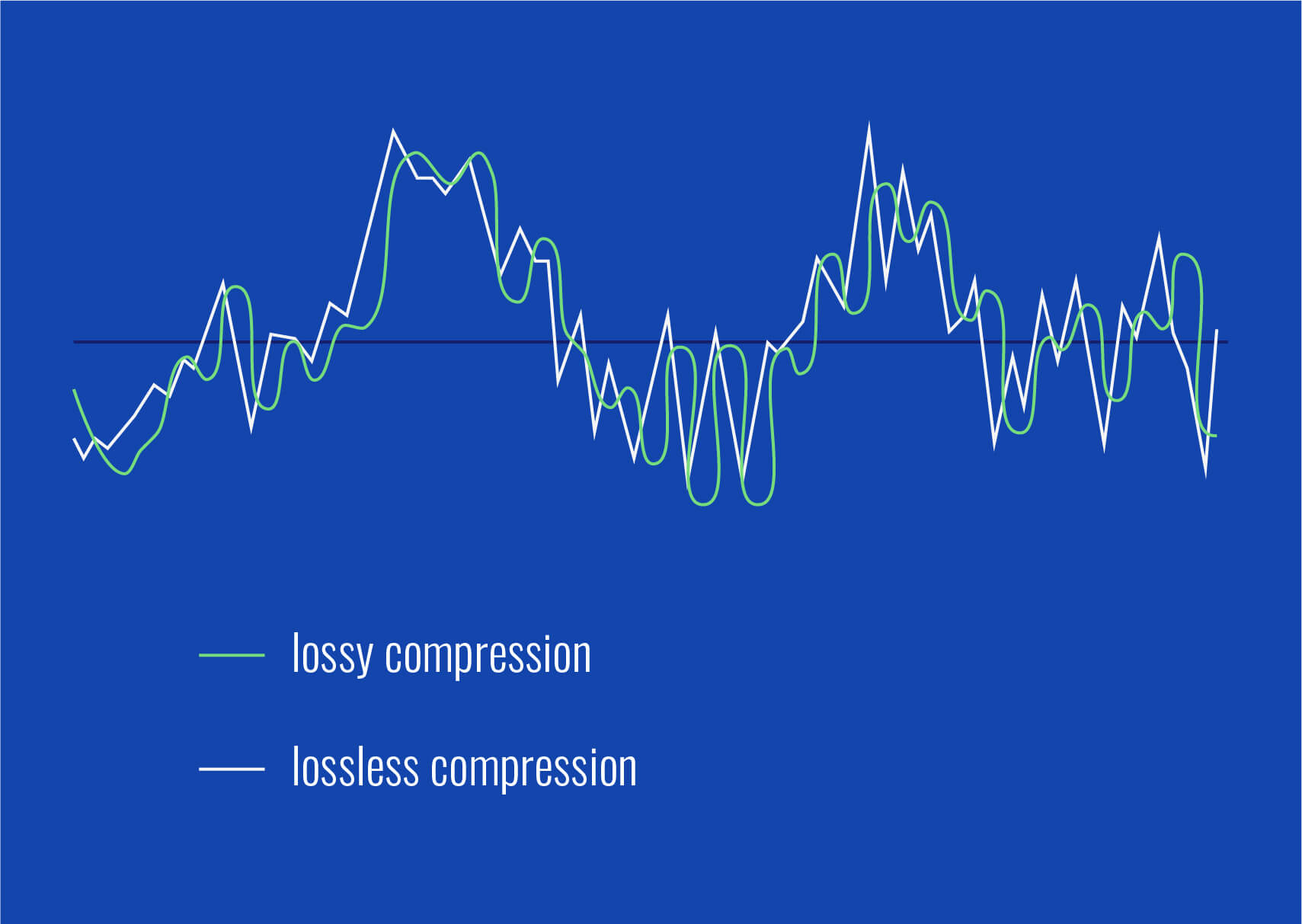
MP3 files are already compressed using lossy algorithms, which means some audio data has been permanently removed to reduce file size. When you transcode an MP3 to MP4, which can contain audio and video, you’re essentially re-encoding an already compressed file. This process can amplify artifacts such as muffled sounds, reduced clarity, or background noise.
Why transcoding can cause quality loss
Transcoding quality loss happens because the original MP3 compression removes data, and the MP4 re-encoding process adds its own layer of compression. Each step reduces the amount of audio information available. Imagine shrinking a high-resolution image twice—it may still look good, but the fine details will blur.
MP4 files are designed to handle audio and video streams, often optimized for compatibility with different devices and platforms. However, their compression methods might not preserve the nuances of the original MP3, especially if the settings aren’t properly adjusted.
Factors influencing audio quality during transcoding
Several factors determine how much quality is lost during MP3-to-MP4 transcoding. Understanding these can help you make better decisions.
Original MP3 quality: Lower bitrates in the source MP3 file leave less data to preserve during transcoding.
Target MP4 settings: Using low bitrates or incompatible codecs in the MP4 can degrade the sound further.
Transcoding tools: Some software programs handle compression better than others, reducing artifact buildup.
How to minimize quality loss
Reducing quality loss during MP3-to-MP4 transcoding is possible with the right approach. Over the years, I’ve learned some simple yet effective techniques to preserve audio fidelity.
Start with the highest-quality MP3 you have. If your MP3 file is already heavily compressed, transcoding will magnify the flaws. Aim for bitrates of 256 kbps or higher to ensure there’s enough data to work with.
Choose the right MP4 settings. Use a high audio bitrate (at least 192 kbps) to maintain quality. Selecting a lossless codec like AAC-LC instead of HE-AAC can also make a big difference.
Avoid transcoding more than once. Each conversion strips away more audio data, so working directly with the original file format whenever possible is ideal.
When transcoding is unavoidable
Sometimes, transcoding from MP3 to MP4 is necessary, like when you need to combine audio with video or adapt files for specific devices. In these cases, using the best tools and settings becomes even more critical.
Look for transcoding software that supports advanced settings for both MP3 and MP4. These tools often provide options to adjust bitrates, sample rates, and codecs, giving you greater control over the output quality.
Real-world applications of MP3-to-MP4 transcoding
In my experience, most people need MP3-to-MP4 transcoding for multimedia projects. For example, if you’re creating a slideshow or video montage, you might need to combine audio tracks with visual content. Choosing the right settings ensures your audience hears crisp, clear sound.
Another common use is optimizing files for streaming. MP4’s flexibility with audio and video streams makes it an excellent choice for platforms like YouTube or social media. However, understanding how transcoding affects your audio ensures the final product sounds professional.
Latest words on MP3-to-MP4 transcoding quality loss
Transcoding MP3 to MP4 doesn’t have to mean sacrificing quality if you take the right precautions. Always start with the best source material, select compatible codecs, and adjust settings to suit your needs. With these steps, you can preserve audio fidelity while benefiting from MP4’s versatility. If you need reliable tools for handling transcoding, Mp4Gain offers a simple and effective solution for professional results.
What causes quality loss in MP3-to-MP4 transcoding?
Quality loss occurs because MP3 is already a lossy format. When re-encoded into MP4, additional compression artifacts may appear, further degrading the sound.
Can you avoid quality loss when transcoding?
While complete preservation isn’t possible, you can minimize loss by starting with high-quality MP3s and using appropriate MP4 settings, such as high bitrates and compatible codecs.
What MP4 audio codec is best for preserving quality?
AAC-LC is the best codec for maintaining quality in MP4 files, offering a good balance between efficiency and fidelity.
Does transcoding multiple times worsen audio quality?
Yes, each transcoding pass removes more audio data, compounding quality loss. Avoid multiple conversions whenever possible.
What bitrate should I use for MP4 audio?
For most applications, use at least 192 kbps to maintain quality. Higher bitrates, like 256 kbps, are ideal for professional use.
Can MP4 files use lossless audio?
Yes, MP4 can include lossless audio codecs like ALAC or FLAC, although these increase file size significantly.
How does the sample rate affect transcoding?
Sample rates determine how accurately audio is captured. Mismatched rates between MP3 and MP4 can cause noticeable artifacts.
Should I convert MP3 to MP4 for video projects?
Yes, if combining audio with video. Ensure proper settings to avoid degrading the MP3 audio during conversion.
What are the best tools for MP3-to-MP4 transcoding?
Look for software that allows custom settings for bitrates, codecs, and sample rates, ensuring maximum control over the output.
Can transcoding improve the audio quality of an MP3?
No, transcoding cannot improve quality. Once data is lost during MP3 compression, it cannot be restored.
Comments:
Why does this always seem more complicated than it should be? I tried converting some old MP3s to MP4, and the sound got worse. Thanks for explaining why!
This article is packed with useful information. I didn’t know that using high bitrates could make such a difference. Definitely going to try that next time.
Honestly, I wish you’d go even deeper into the settings part. Which exact MP4 codecs should we avoid?
I work with audio editing, and I can confirm this advice is solid. Transcoding quality loss is a real problem if you don’t use the right settings.
Super helpful! I didn’t realize that re-encoding multiple times would keep degrading the quality. Makes total sense now.
Thanks for this breakdown. It’s good to know about AAC-LC—I’ve been using HE-AAC and wondering why it sounded off.
Wow, I’ve been doing this wrong for years. Thanks for shedding light on how MP3 quality affects the final MP4 output.
I used Mp4Gain for a recent project, and it worked like a charm! Didn’t expect such a difference in sound quality.
Boost the Volume of Lossy Audio FilesBoost the Volume of Lossy Audio Files
Amplify Sound in Lossy Audio Files
When it comes to enhancing the audio quality of your favorite songs or podcasts, you might find yourself dealing with lossy audio files. These files, while space-efficient, often suffer from reduced sound quality. Fortunately, there are ways to amplify the sound in lossy audio files, giving your listening experience a significant boost.
Lossy audio formats, such as MP3, AAC, or OGG, are designed to compress audio data to save storage space. However, this compression can lead to a loss of audio detail and a decrease in overall volume. To address this, you can use audio editing software to amplify the sound. By carefully adjusting the volume levels, you can make the audio more prominent and enjoyable. Just be cautious not to overdo it, as excessive amplification can lead to distortion.
Another effective way to amplify sound in lossy audio files is to use specialized audio processing tools. These tools often come with built-in volume normalization features that can help you increase the loudness while maintaining the audio’s quality. Whether you’re an aspiring musician, a podcast enthusiast, or simply looking to improve your music collection, amplifying sound in lossy audio files can breathe new life into your audio content.
Increase Volume of Compressed Audio
Compressed audio files have become the norm in today’s digital world due to their convenience and storage efficiency. However, one common drawback of these files is that they often lack the volume and punch of their uncompressed counterparts. If you’re wondering how to increase the volume of compressed audio, you’re in the right place.
To boost the volume of compressed audio files, you can start by using audio editing software. Most audio editing programs allow you to adjust the volume levels of individual tracks or sections of a file. Simply open your desired audio file in the software, locate the volume control, and gradually increase it until you achieve the desired loudness. Be cautious not to push the volume too high, as this can result in distortion and a loss of audio quality.
Additionally, consider using dynamic range compression (DRC) techniques. DRC helps balance the loud and quiet parts of an audio file, making it sound more consistent in volume. This technique is particularly useful when dealing with audio files that have uneven loudness levels. With the right adjustments, you can bring out the nuances in your compressed audio while maintaining clarity and preventing clipping.
By employing these techniques, you can effectively increase the volume of your compressed audio files, making them sound more vibrant and engaging.
Audio Volume Enhancement Techniques
Audio volume enhancement techniques are essential tools for anyone looking to improve the sound quality of their audio files, especially those in lossy formats. These techniques involve various methods to make audio files sound louder and more impactful.
One common technique is equalization, which allows you to adjust the balance of frequencies in your audio. By boosting certain frequency ranges, you can make your audio files sound fuller and more vibrant. This is particularly helpful for restoring lost detail in lossy audio files.
Another technique is the use of audio limiters and compressors. These tools help control the dynamic range of your audio, ensuring that loud parts aren’t too overpowering and quiet parts are audible. They can help you achieve a consistent and balanced volume throughout your audio file.
Additionally, you can explore mastering techniques. Mastering involves fine-tuning the overall sound of an audio file, including volume optimization. Professional mastering engineers use specialized software and hardware to enhance the loudness, clarity, and overall quality of audio recordings.
Enhance Audio Loudness in Lossy Formats
Enhancing audio loudness in lossy formats requires a combination of technical expertise and the right tools. Lossy formats like MP3 or AAC often sacrifice audio quality for smaller file sizes, which can result in lower volume levels. Here’s how you can address this issue effectively.
First, consider using audio editing software with volume normalization features. These features analyze the audio file and adjust the volume levels to ensure consistent loudness. This is particularly useful when dealing with a collection of lossy audio files with varying loudness levels.
Furthermore, explore dynamic range compression (DRC) to balance the audio’s dynamics. DRC reduces the difference between the loudest and quietest parts of an audio file, making it sound more uniform in volume. However, be cautious not to apply excessive compression, as it can lead to an unnatural and compressed sound.
Lastly, if you have a specific audio file that needs a volume boost, you can manually adjust the volume using your preferred audio editing software. Keep in mind that raising the volume too much may introduce distortion, so it’s crucial to find the right balance to enhance the loudness while preserving audio quality.
By utilizing these techniques, you can effectively enhance the audio loudness of your lossy format files and enjoy a more immersive listening experience.
Raise the Volume of Low-Quality Audio
Dealing with low-quality audio can be frustrating, especially when the volume is barely audible. Whether it’s an old recording or a poorly encoded audio file, there are ways to raise the volume and salvage the listening experience.
One approach is to use audio restoration software. These tools are designed to improve the quality of audio recordings, including boosting the volume. They often come with noise reduction features, which can help reduce background noise and further enhance the clarity of your audio.
Another option is to employ audio equalization. By adjusting the equalizer settings, you can emphasize the frequencies that are most critical for clarity and volume. Boosting the mid-range frequencies, for example, can make the vocals and instruments more prominent, resulting in a perceptible increase in volume.
If you have access to the original source of the audio, consider re-recording it or obtaining a higher-quality version. This approach eliminates the limitations of the existing low-quality audio file and ensures a better listening experience.
In summary, raising the volume of low-quality audio involves a combination of software tools and, when possible, improving the source material. These steps can help you enjoy clearer and louder audio, even from initially subpar recordings.
Boosting Sound Levels in Lossy Files
Boosting sound levels in lossy audio files is a common requirement for those looking to enhance their audio experience. Lossy formats, while efficient, often compromise on audio quality, resulting in lower volume levels. Here’s how you can effectively increase the sound levels in such files.
One of the simplest methods is to use audio editing software. Most audio editors provide volume adjustment controls that allow you to raise the volume of your lossy audio files. When doing this, be cautious not to push the volume too high, as it can lead to distortion and a loss of audio fidelity.
Additionally, you can explore the use of audio amplification plugins or tools. These specialized software options are designed to boost the loudness of audio files while minimizing the risk of distortion. They often come with presets and fine-tuning options to ensure optimal results.
When boosting sound levels, it’s essential to consider the intended playback environment. Different platforms and devices may have varying volume levels, so aim for a balance that ensures your audio remains clear and enjoyable across different systems.
By following these techniques and experimenting with volume adjustments, you can effectively boost sound levels in your lossy audio files and enjoy an improved listening experience.
Improving Audio Clarity in Compressed Formats
Improving audio clarity in compressed formats, such as MP3 or AAC, is a pursuit for audiophiles and music enthusiasts alike. While these formats offer excellent compression, they can sometimes sacrifice audio quality. Let’s explore how to enhance audio clarity in such files.
One approach is to use high-quality audio conversion tools. These tools can help you convert your compressed audio files into a lossless format, such as FLAC. Once in a lossless format, you can make edits and enhancements without further loss of audio quality. After the improvements, you can convert the file back to a compressed format with improved clarity.
Another technique involves applying equalization to your audio files. By fine-tuning the frequency balance, you can emphasize certain audio elements, such as vocals or instruments, and reduce any muddiness. This can result in clearer and more defined audio, even in compressed formats.
Furthermore, consider using noise reduction software to eliminate background noise and artifacts that may be present in your compressed audio. Reducing these unwanted elements can significantly enhance audio clarity.
Finally, if you have access to the original, uncompressed source of the audio, consider re-encoding it into a higher-quality compressed format. This can provide better clarity while still maintaining a smaller file size compared to lossless formats.
Enhancing audio clarity in compressed formats requires a combination of technical tools and careful adjustments. By experimenting with these techniques, you can achieve remarkable improvements in audio quality.
Loudness Enhancement for Lossy Audio
Loudness enhancement for lossy audio files can make a world of difference in your listening experience. Lossy formats, known for their space-saving benefits, often suffer from lower perceived volume levels. Here’s how you can effectively enhance the loudness of your lossy audio files.
One of the simplest methods is to use an audio player with built-in equalization settings. These settings allow you to boost specific frequency ranges, making the audio sound louder and more impactful. Experiment with different equalizer presets until you find the one that works best for your audio.
Another technique is to employ audio normalization. Many audio editing software tools provide normalization features that adjust the volume of your audio files to a consistent level. This ensures that all tracks play back at a similar loudness, enhancing the overall listening experience.
If you’re looking for a more advanced solution, consider using audio mastering techniques. Mastering involves fine-tuning the audio’s overall quality, including loudness optimization. Professional mastering engineers use specialized equipment and software to achieve the perfect balance of loudness and clarity.
Lastly, be mindful of the playback device you’re using. Some devices have built-in sound enhancements or equalization settings that can further enhance loudness. Experiment with these settings to find the right balance for your preferences.
By implementing these loudness enhancement techniques, you can breathe new life into your lossy audio files and enjoy them at a higher volume without sacrificing quality.
How to Make Quiet Audio Louder
Have you ever encountered audio that’s so quiet you strain to hear it even when you max out your volume controls? Learning how to make quiet audio louder is a valuable skill that can transform your listening experience.
One straightforward method is to use audio editing software. Open the quiet audio file in your chosen software and locate the volume adjustment controls. Gradually increase the volume until it reaches a comfortable level. Keep an eye on the audio waveform to ensure it doesn’t clip, which can result in distortion.
Another technique involves the use of audio normalization. This process analyzes the audio file and adjusts its volume to a consistent level, making quiet parts more audible without causing loud parts to become overly aggressive. Audio normalization is especially useful when you have multiple audio files with varying loudness levels.
Consider employing dynamic range compression (DRC) as well. DRC helps balance the dynamics of your audio, ensuring that the quietest parts are audible without overpowering the louder segments. However, use DRC judiciously to maintain natural audio quality.
Additionally, explore specialized audio enhancement software or plugins designed specifically for increasing the loudness of quiet audio. These tools often offer advanced algorithms to maximize loudness while minimizing distortion.
By mastering these techniques, you can effectively make quiet audio louder, bringing back the enjoyment in your audio content.
Audio Volume Optimization for Lossy Formats
Audio volume optimization for lossy formats is a crucial step to enhance the quality of your compressed audio files. These formats, while convenient, can suffer from reduced loudness. Let’s delve into the strategies for achieving audio volume optimization.
One method is to use audio editing software with volume adjustment capabilities. Open your lossy audio file in the software and increase the volume to your preferred level. Ensure that you maintain a balance between loudness and audio quality to prevent distortion.
Additionally, explore the use of volume normalization tools available in audio editing software. These tools analyze the audio and automatically adjust the volume to a consistent level. This is particularly useful when you have a collection of lossy audio files with varying loudness levels.
Dynamic range compression (DRC) is another technique to consider. DRC helps level out the loud and quiet parts of an audio file, resulting in a more uniform volume. However, exercise caution to avoid over-compression, which can lead to an unnatural sound.
Lastly, when exporting your audio, choose a higher bit rate if possible. This can improve the overall audio quality and contribute to better volume levels in lossy formats.
By applying these strategies for audio volume optimization, you can enjoy your favorite music and podcasts in lossy formats at a higher volume with improved clarity.
Final Words
In conclusion, whether you’re dealing with lossy audio files, compressed formats, or quiet audio, there are various techniques to boost volume and enhance your listening experience. Experiment with different methods, and remember to strike a balance between loudness and audio quality to achieve the best results. By mastering these techniques, you can enjoy your audio content at its fullest potential.





Comments:
Why does this always seem more complicated than it should be? I tried converting some old MP3s to MP4, and the sound got worse. Thanks for explaining why!
This article is packed with useful information. I didn’t know that using high bitrates could make such a difference. Definitely going to try that next time.
Honestly, I wish you’d go even deeper into the settings part. Which exact MP4 codecs should we avoid?
I work with audio editing, and I can confirm this advice is solid. Transcoding quality loss is a real problem if you don’t use the right settings.
Super helpful! I didn’t realize that re-encoding multiple times would keep degrading the quality. Makes total sense now.
Thanks for this breakdown. It’s good to know about AAC-LC—I’ve been using HE-AAC and wondering why it sounded off.
Wow, I’ve been doing this wrong for years. Thanks for shedding light on how MP3 quality affects the final MP4 output.
I used Mp4Gain for a recent project, and it worked like a charm! Didn’t expect such a difference in sound quality.