Psychoacoustic Threshold Estimation in MP3


Free Download Mp4Gain
picture

Psychoacoustic Threshold Estimation in MP3

Psychoacoustic Threshold Estimation in MP3

Let’s talk about Psychoacoustic Threshold Estimation in MP3

Psychoacoustic threshold estimation in MP3 encoding is a crucial element for efficient compression. In my experience, this process plays a significant role in how audio is perceived by listeners after compression. It’s based on the principles of psychoacoustics, which examine how humans perceive sound. Essentially, psychoacoustic models allow MP3 encoding to remove parts of the audio that are inaudible to the human ear, making the file size smaller without compromising perceived quality. To understand it better, think of how you might ignore background noise when focusing on a conversation in a crowded room. Similarly, MP3 compression removes sounds that would not be heard by a listener under normal conditions.

In MP3 encoding, threshold estimation is done by analyzing the signal’s frequency spectrum. The human ear is more sensitive to certain frequencies and less sensitive to others. By determining which parts of the audio are inaudible based on these sensitivities, MP3 compression algorithms can selectively remove these frequencies. The result is a compressed file that maintains the most important parts of the sound while discarding unnecessary details.

The Role of Psychoacoustics in MP3 Compression

When discussing MP3 compression, psychoacoustics comes into play to ensure the best balance between sound quality and file size. It’s as though I’m packing a suitcase for a trip—choosing the essentials and leaving behind the non-essentials. In MP3 encoding, psychoacoustic models aim to identify which audio frequencies are masked by others, allowing them to be discarded without a noticeable loss in quality.

These psychoacoustic models use data about human hearing perception. For instance, our ears are more sensitive to mid-range frequencies than to low or high frequencies. When encoding an MP3, the algorithm uses this knowledge to reduce the representation of low and high frequencies, especially if they are masked by louder sounds in the mid-range. This approach reduces the file size, making it more efficient while maintaining an acceptable sound quality.

Psychoacoustic Models: Key Techniques for Estimation

Psychoacoustic models are essential for estimating thresholds in MP3 encoding. The two main models used in MP3 compression are the MPEG-1 Layer III and the more complex MPEG-2 Layer III. These models implement specific techniques to determine which parts of the audio signal can be discarded without affecting the perceived quality.

  • Critical Bands: The human ear perceives sounds in frequency groups called critical bands. Each critical band includes frequencies that are close enough together that they affect each other’s perception. When encoding, psychoacoustic models assess these bands and eliminate those that won’t affect the listener’s experience.
  • Masking Effect: This is a phenomenon where a louder sound makes it difficult to hear a quieter sound. The MP3 encoder uses this principle to discard sounds masked by others, reducing the file size.
  • Threshold of Hearing: The threshold of hearing refers to the quietest sound that the average human ear can detect. Sounds below this threshold are effectively inaudible and can be removed during encoding.

Practical Example: How Psychoacoustic Threshold Estimation Works

Imagine you’re listening to your favorite song on your smartphone. The song is compressed into an MP3 file, but somehow it still sounds amazing. What’s happening behind the scenes is the psychoacoustic threshold estimation. For example, if you’re listening to a powerful guitar solo, the MP3 algorithm may eliminate some of the higher frequencies from the background sounds like drums or cymbals that are masked by the louder guitar notes.

From my experience, it’s much like watching a movie with a powerful soundtrack. When the action is intense, the quieter background sounds fade into the background. The MP3 encoder mimics this behavior, focusing on what’s essential to the listener’s perception of the music and discarding less important details. It’s a brilliant way to optimize audio files while preserving the listening experience.

The Benefits of Psychoacoustic Threshold Estimation in MP3

The main benefit of psychoacoustic threshold estimation is the reduction in file size. The more efficient the compression, the smaller the file size, which makes it easier to store and stream audio. This is particularly crucial in a world where bandwidth is often limited, and storage space can be at a premium.

Another benefit is the preservation of sound quality. As an audio professional, I’ve found that effective psychoacoustic modeling ensures that what’s important to the listener remains intact. The algorithm removes what isn’t necessary, but it does so without compromising the overall experience. For example, it’s as if you’re cleaning up a painting by removing minor smudges that no one would notice anyway. The final image (or audio) still looks great but is lighter.

Latest Words on Psychoacoustic Threshold Estimation in MP3

Psychoacoustic threshold estimation is an essential process for MP3 compression. It ensures that audio files are as small as possible while maintaining the best possible quality. From my expertise, understanding psychoacoustics is key to understanding how modern audio compression works. These methods allow for the efficient storage of high-quality sound without sacrificing too much bandwidth or space.

At the end of the day, MP3 encoding wouldn’t be nearly as efficient or effective without psychoacoustic threshold estimation. It’s a fascinating blend of human perception and technology that allows us to enjoy high-quality audio in a convenient format. In cases where precise audio management is critical, using specialized software can further enhance the quality of the compressed file, and Mp4Gain offers a reliable option in this area.

What is psychoacoustic threshold estimation in MP3 encoding?

Psychoacoustic threshold estimation in MP3 encoding is the process of determining which parts of an audio signal are inaudible to the human ear and can be discarded to reduce file size without affecting perceived sound quality.

How does psychoacoustic modeling affect MP3 compression?

Psychoacoustic modeling reduces MP3 file sizes by removing audio frequencies that are masked by louder sounds, ensuring only the most essential elements of the sound are preserved for optimal listening quality.

What is the masking effect in psychoacoustics?

The masking effect is when louder sounds make it difficult to hear quieter ones. MP3 encoders exploit this effect to remove inaudible sounds, making the file more efficient without sacrificing quality.

Why are some frequencies removed in MP3 compression?

Some frequencies are removed in MP3 compression because they are outside the human ear’s sensitivity range or are masked by louder sounds, making them unnecessary for a high-quality listening experience.

How do critical bands influence MP3 encoding?

Critical bands are frequency ranges that the human ear perceives as a group. MP3 encoders use this information to determine which sounds in a frequency band are crucial and which can be discarded without affecting quality.

What are the benefits of psychoacoustic threshold estimation for MP3 files?

The main benefit of psychoacoustic threshold estimation is reduced file size while maintaining sound quality. This is particularly important for efficient storage and streaming of audio files.

How does psychoacoustic modeling enhance listening experience?

Psychoacoustic modeling enhances the listening experience by focusing on the most important frequencies and discarding unnecessary ones, resulting in a clear, high-quality sound that doesn’t take up much storage space.

What is the threshold of hearing in psychoacoustics?

The threshold of hearing refers to the faintest sound that can be perceived by the average human ear. Sounds below this threshold are removed during MP3 encoding because they are inaudible.

How does psychoacoustic threshold estimation improve MP3 file size efficiency?

Psychoacoustic threshold estimation improves MP3 file size efficiency by removing audio frequencies that would go unnoticed by the listener, making the file smaller without sacrificing quality.

Comments:

I’ve always been amazed by how much smaller MP3 files are compared to other formats. This article really breaks down why that is so clearly! The psychoacoustic principles are fascinating.

– AudioFan99

Really interesting read! I never realized that so much of the sound is actually removed when encoding an MP3. This helps explain why high-quality audio formats like FLAC sound so much better.

– MusicLover123

I had no idea that psychoacoustic models played such a big role in MP3 quality. I wonder how much it varies across different types of audio, like classical versus rock music.

– CuriousJoe

Great explanation! Would love to know more about how these models evolve over time and how they’ve impacted newer audio formats.

– SoundGeek2024

I’ve been looking for a deeper dive into how MP3 compression works, and this article really filled in the gaps. So cool to see the science behind it!

– TechieGuy


Free Download Mp4Gain
picture


Mp4Gain Main Window
picture


Mp4Gain Features
picture


Free Download Mp4Gain
picture

Compression artifacts in MP3 and MP4

Compression artifacts in MP3 and MP4

Compression artifacts in MP3 and MP4

Let’s talk about compression artifacts in MP3 and MP4

When we think about digital audio and video, MP3 and MP4 are the first formats that come to mind. But one challenge that often gets overlooked is compression artifacts. These artifacts degrade audio or video quality, making it less enjoyable or even irritating. As an expert who has worked with audio and video files extensively, I’ve seen firsthand how these artifacts appear and affect the final product. Let me explain this in simple terms and show you how to minimize them for better quality.

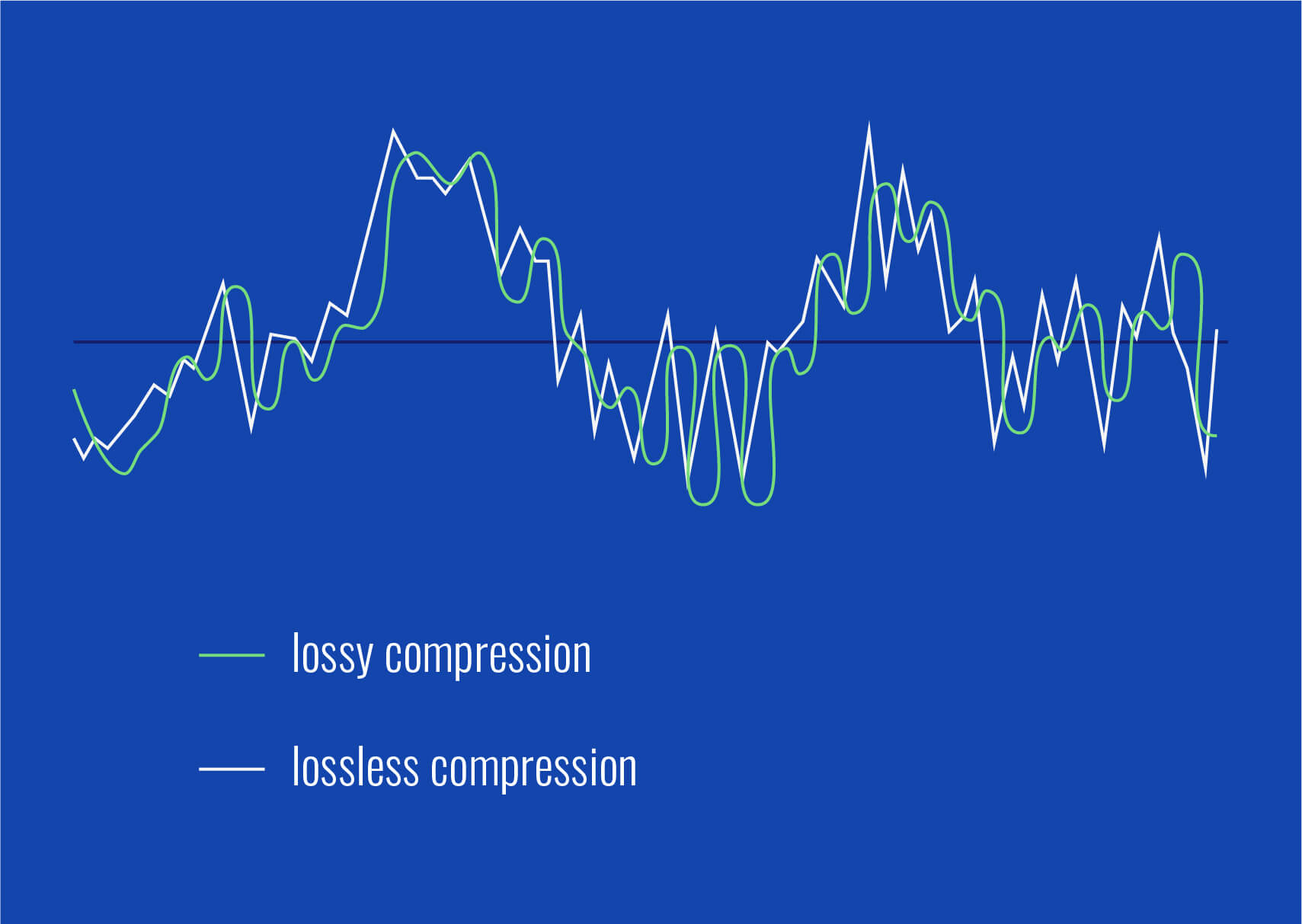
Compression artifacts are like smudges on a window—when you reduce file sizes, details get lost, and what remains is distorted. Imagine saving space in your home by squashing boxes; the boxes may fit, but their contents could get damaged. MP3 and MP4 use lossy compression, meaning they throw away data deemed unnecessary, leading to these imperfections.

What are compression artifacts?

Compression artifacts are the unwanted distortions introduced when reducing file sizes. For MP3 audio, this might mean muffled sounds, harsh treble, or missing details. For MP4 video, you might see blocky visuals, color banding, or ghosting effects. These artifacts appear because the algorithms prioritize smaller file sizes over perfect quality.

Take MP3, for instance. To save space, certain sound frequencies are removed, but this often strips richness from the music. It’s like listening to your favorite band through a thin wall—you hear it, but it’s just not the same. MP4 works similarly with video, where fine details, like subtle textures or gradients, are sacrificed.

How do MP3 compression artifacts affect audio quality?

The impact of compression on audio is noticeable, especially if you’re using good headphones or speakers. I’ve often been frustrated by the tinny sound of an MP3 track with a low bitrate. Compression artifacts in audio usually show up as:

  • Metallic, robotic sounds in vocals.
  • Swishing noises during silent or low-volume parts.
  • Lack of bass or muffled instruments.
  • A sudden drop in clarity during complex music sections.

Imagine listening to a symphony orchestra where some instruments disappear or blend unnaturally. That’s the result of lossy compression trying to simplify the sound spectrum.

How do MP4 compression artifacts impact video quality?

With video, compression artifacts are visual glitches that distract from the viewing experience. I’ve seen this happen often in action-packed scenes or dark sequences in movies. Here are common MP4 artifacts:

  • Blocky pixels appearing in fast-moving scenes.
  • Color banding, where gradients appear as harsh lines instead of smooth transitions.
  • Ghosting, where previous frames leave a faint trace.
  • Smudged or blurry details in textures and backgrounds.

Imagine watching a wildlife documentary and noticing the sky isn’t a smooth gradient but has distinct color bands. That’s an artifact caused by over-compression.

Why do compression artifacts occur in MP3 and MP4?

Compression artifacts result from reducing file sizes by discarding redundant or less noticeable data. This process relies on psychoacoustics for MP3 (understanding what sounds humans don’t notice) and visual perception for MP4. However, these algorithms aren’t perfect.

Let’s compare this to summarizing a book. If you cut out too much, you lose important context, leaving the summary fragmented. Similarly, when compression goes too far, artifacts are inevitable.

How to reduce MP3 and MP4 compression artifacts

If you care about quality, there are ways to minimize these issues. Over the years, I’ve experimented with several approaches, and here’s what I recommend:

  • Choose higher bitrates: For MP3s, 320 kbps offers much better sound. For MP4, use higher bitrates to preserve video details.
  • Use lossless formats: When quality matters most, FLAC for audio and ProRes for video are ideal.
  • Opt for advanced codecs: AAC for audio and HEVC (H.265) for video offer better compression efficiency with fewer artifacts.
  • Test playback on high-quality devices: Use good headphones or displays to spot issues before finalizing your files.
  • Avoid multiple compressions: Repeatedly compressing the same file worsens artifacts. Work with original files whenever possible.

How to identify compression artifacts in your files

One skill I’ve developed is spotting compression artifacts quickly. It’s not hard once you know what to look for:

  • For MP3s, listen to cymbals or vocals—they’re often the first to reveal distortions.
  • In MP4s, check fast-moving scenes or areas with gradients like skies or shadows.
  • Compare with uncompressed originals: A/B testing makes artifacts obvious.

It’s like spotting a fake painting—you notice inconsistencies when you compare it to the real thing.

Latest words on compression artifacts in MP3 and MP4

Compression artifacts are a trade-off between convenience and quality. Understanding why they occur and how to reduce them is essential for anyone serious about audio or video. Over the years, I’ve learned that while artifacts can’t always be avoided, careful choices in settings and formats make a big difference.

If you’re struggling with audio and video quality, Mp4Gain offers a reliable way to enhance files and reduce noticeable artifacts. But remember, no software can fully recover what’s lost in extreme compression, so start with the highest quality possible.

FAQs about compression artifacts in MP3 and MP4

What are compression artifacts?

Compression artifacts are distortions or glitches caused by reducing file sizes in audio and video formats like MP3 and MP4. These include sound loss, blocky visuals, and color banding.

How do compression artifacts affect audio?

In audio, artifacts result in metallic sounds, muffled details, or distorted vocals. This happens when certain frequencies are removed during compression.

What causes compression artifacts in MP4 videos?

MP4 artifacts appear due to aggressive compression, leading to blocky visuals, color banding, and ghosting effects. Fast-moving scenes are most affected.

Can I avoid compression artifacts?

You can reduce artifacts by using higher bitrates, lossless formats, and advanced codecs. Avoid compressing files multiple times for best results.

What is the best bitrate to avoid MP3 artifacts?

A bitrate of 320 kbps is ideal for MP3 files. It minimizes artifacts while maintaining reasonable file sizes.

Why do gradients look bad in compressed videos?

Compression reduces data for smooth transitions, resulting in color banding where gradients appear as harsh lines instead of seamless blends.

Is lossy compression always bad?

Lossy compression is not inherently bad. It balances file size and quality but should be used carefully to avoid noticeable artifacts.

Can compression artifacts be fixed?

Artifacts can be reduced but not entirely fixed. Tools like Mp4Gain help enhance quality, but prevention is better than repair.

What is psychoacoustics in MP3 compression?

Psychoacoustics is the science behind MP3 compression, removing sounds the human ear is less likely to notice to save space.

Why are MP4 artifacts worse in fast-moving scenes?

Fast-moving scenes contain more data, making compression harder. Algorithms struggle to maintain detail, causing blocky artifacts.

Comments:

Wow, this explains so much! I’ve always wondered why my music sounds weird on cheap earphones. Now I know it’s compression artifacts. Great article!

Super helpful! But can you talk more about lossless formats like FLAC? I’m curious about how they compare to MP3 and MP4. Thanks!

This is exactly what I needed to read. I’ve been having trouble with blurry textures in my videos, and now I know what’s causing it.

The info is great, but I wish there were more examples of software to fix artifacts. Still, a great read overall!

Honestly, I didn’t know artifacts were a thing until I started editing videos. This article makes it so clear and easy to understand!

Aliasing Reduction in MP3 Decoding

Aliasing Reduction in MP3 Decoding

Aliasing Reduction in MP3 Decoding

Let’s talk about aliasing reduction in MP3 decoding

Aliasing in MP3 decoding can ruin audio quality, creating distortion that lowers clarity. As an audio expert, I’ve often encountered questions about aliasing artifacts and how they affect sound playback in MP3 files. Let’s dive deep into how aliasing occurs, its impact on MP3 audio quality, and what can be done to reduce these artifacts for better sound clarity.

What is Aliasing in MP3 Decoding?

Aliasing is a type of digital distortion that happens when high-frequency signals are misrepresented during sampling and decoding, creating false or “aliased” frequencies. Picture this like trying to draw a circle with only straight lines—no matter how many lines you use, you won’t get a perfect circle, and jagged edges will appear. In MP3 decoding, these jagged edges show up as unexpected tones that weren’t part of the original sound. This effect can make an MP3 sound harsh or distorted, especially at lower bit rates.

Why Does Aliasing Occur in MP3 Files?

Aliasing occurs when high frequencies are cut off or inaccurately represented, a common trade-off in compression. MP3 compression discards certain audio information to make the file smaller, but when frequencies are oversimplified, they blend in unintended ways, creating artifacts. Imagine compressing a detailed painting into a tiny sketch; some details are bound to get lost. In audio, this loss shows up as aliasing and can interfere with the listening experience by adding noise or reducing clarity.

The Impact of Aliasing on Audio Quality

Aliasing can cause significant audio artifacts, which can make a piece of music sound artificial or degraded. Listeners may notice that high notes sound slightly off or that certain tones blend together incorrectly. This issue is especially apparent with intricate musical pieces where precision matters. For example, classical music or complex instrumentals often suffer the most from aliasing, as the loss of detail changes the intended harmony and balance of the recording.

How MP3 Decoding Algorithms Address Aliasing

Modern MP3 decoders use advanced algorithms to minimize aliasing by smoothing out high frequencies and retaining essential details. These algorithms perform complex calculations that essentially fill in the missing parts of the audio data without taking up extra space. Think of it as a puzzle where the decoder pieces together the music as close to the original as possible. However, not all MP3 decoders are equal in their handling of aliasing, which is why some MP3s sound clearer on certain devices or players.

Common Techniques for Reducing Aliasing Artifacts

  • Anti-Aliasing Filters

    Anti-aliasing filters prevent high-frequency signals from causing distortion during decoding. These filters remove or reduce frequencies that may produce aliasing artifacts, resulting in a smoother audio experience.

  • Higher Bit Rates

    Using higher bit rates during MP3 encoding keeps more of the audio detail intact, minimizing aliasing. Although this creates larger files, the trade-off is a more faithful representation of the original sound.

  • Advanced Decoding Algorithms

    Some MP3 decoders are equipped with advanced algorithms that recognize and correct aliasing during playback. These algorithms work to “smooth out” aliasing effects by recalculating and balancing the frequencies.

Aliasing Reduction and Audio Fidelity in MP3s

Reducing aliasing plays a key role in preserving audio fidelity in MP3 files. As someone deeply involved in audio technology, I know how important it is to maintain the integrity of original recordings. Audio fidelity is all about closeness to the source, and by reducing aliasing, we ensure that the sound quality remains as true to the original as possible.

Using Bit Rates to Manage Aliasing

Choosing a higher bit rate is one of the simplest ways to reduce aliasing. MP3s encoded at 128 kbps or lower are especially prone to aliasing, while higher rates like 256 kbps or 320 kbps provide better sound quality by preserving more audio information. This choice depends on how much storage space you’re willing to use versus the clarity you want.

Does Reducing Aliasing Enhance MP3 Playback on All Devices?

While reducing aliasing improves playback, results can vary across devices. Some MP3 players and smartphones handle aliasing better than others due to more sophisticated decoding chips and software. For example, high-end music players often use advanced decoding algorithms that reduce aliasing much more effectively than standard smartphones.

The Role of Psychoacoustics in Aliasing Reduction

Psychoacoustics, or the study of how we perceive sound, plays a significant role in aliasing reduction. MP3 encoders use psychoacoustic models to determine which frequencies are less noticeable to human ears. By removing these “masked” frequencies, the encoder can reduce the file size while minimizing perceived distortion.

Addressing Aliasing for Different Music Genres

Different genres exhibit varying sensitivities to aliasing. Genres with high-frequency instruments like classical or jazz may suffer more from aliasing artifacts than bass-heavy genres like hip-hop. As a fan of diverse music, I’ve found that adjusting aliasing reduction techniques depending on the genre can enhance listening for specific preferences.

How Future Technology May Solve MP3 Aliasing

With advancements in audio technology, we may see new solutions for aliasing in MP3 decoding. Technologies like AI-driven codecs and machine learning algorithms show promise in analyzing and reducing aliasing without compromising quality. Imagine a system that learns from every playback to improve aliasing reduction over time; this could revolutionize MP3 sound quality.

Latest Words on Aliasing Reduction in MP3 Decoding

Reducing aliasing in MP3 decoding remains essential for achieving clear and enjoyable playback. Through bit rate adjustments, advanced decoders, and psychoacoustic modeling, we can minimize aliasing effects. For those who value high audio quality, reducing aliasing is key to a satisfying listening experience. Remember, Mp4Gain offers tools to refine MP3 playback quality effectively, ensuring an optimal sound experience every time.

Aliasing Reduction in MP3 Decoding – FAQ

What is aliasing in MP3 decoding?

Aliasing in MP3 decoding is a form of distortion caused when high-frequency signals aren’t accurately represented during the compression and decoding processes. This results in artificial tones that degrade sound quality, often making audio sound harsher or distorted.

Why does aliasing occur in MP3 files?

Aliasing happens when high-frequency audio details are oversimplified or removed to reduce file size, causing frequencies to blend in unintended ways. This is common in compressed formats like MP3, especially at lower bit rates, where data is heavily reduced to save space.

How does aliasing impact MP3 audio quality?

Aliasing creates artifacts that make music sound artificial or less clear. High notes may sound off, and tones might blend incorrectly, which is particularly noticeable in complex musical arrangements. Reducing aliasing is essential for preserving audio fidelity.

What methods are available to reduce aliasing in MP3 files?

Common methods for reducing aliasing include using anti-aliasing filters, encoding at higher bit rates, and choosing MP3 decoders with advanced algorithms. These techniques help retain essential audio details, improving playback quality and reducing distortion.

Does bit rate affect aliasing in MP3 files?

Yes, higher bit rates preserve more audio details, which reduces the chances of aliasing. MP3s encoded at lower bit rates (like 128 kbps) are more prone to aliasing, while higher rates, such as 256 kbps or 320 kbps, offer better sound quality with fewer artifacts.

Can all MP3 players reduce aliasing effectively?

Not all MP3 players handle aliasing equally. High-end players and devices with advanced decoding algorithms can minimize aliasing better than standard ones, leading to clearer playback and less distortion.

How does psychoacoustics influence aliasing reduction in MP3s?

Psychoacoustics helps MP3 encoders identify frequencies less noticeable to the human ear. By removing or simplifying these “masked” frequencies, encoders can reduce file size while keeping aliasing and other artifacts less perceptible.

What genres are most affected by aliasing?

Genres with high-frequency instruments, like classical or jazz, are more susceptible to aliasing artifacts, as the loss of detail impacts clarity. Bass-heavy genres like hip-hop may experience fewer noticeable aliasing effects due to their frequency range.

How might future technology improve aliasing in MP3 files?

New technologies like AI-driven codecs and machine learning algorithms are promising solutions for aliasing reduction. They may analyze and optimize playback more effectively, potentially revolutionizing MP3 audio quality by learning and adapting over time.

Is there an app that can enhance MP3 playback quality?

Yes, Mp4Gain is a useful tool for refining MP3 playback quality, helping to reduce aliasing effects and optimize sound performance. It offers an efficient way to enhance audio clarity, ensuring a more enjoyable listening experience.

Comments:

This article answered so many of my questions on aliasing! I didn’t realize it was such a big factor in sound quality. Thanks for explaining it simply.

I knew about bit rates but not much about aliasing. Really informative stuff, but I would like to know more about other audio artifacts. Good read!

Awesome breakdown on why aliasing makes MP3s sound weird sometimes. I usually ignore it but this makes me want to try higher bit rates!

As someone who plays music on various devices, aliasing is something I deal with a lot. Great to see practical tips for reducing it in MP3s!

This is the most detailed guide I’ve found on aliasing! I’ll definitely be more mindful of bit rates when I download music now.

Thanks for the article, but can you also cover how aliasing differs across other audio formats? I’m curious about FLAC and WAV.

Wow, I didn’t know psychoacoustics was involved in MP3 compression. Makes me appreciate digital music even more.

Nice article! I’ve always wondered why certain tracks sound bad on different players. This explains a lot.

Very interesting stuff! I learned a ton about the different techniques for aliasing reduction. Keep up the good work!

Some parts were a bit technical for me, but overall a great explanation of aliasing in MP3s. Good job simplifying a complex topic!

Great read! Really helped clarify some of my issues with MP3 quality. Now I know what to listen for with aliasing.

Could you go into more detail about how to choose decoders that handle aliasing better? I’d love to optimize my setup.

Bit Reservoir Overflow in MP3

Bit Reservoir Overflow in MP3

Bit Reservoir Overflow in MP3

Let’s talk about Bit Reservoir Overflow in MP3

When we talk about MP3 compression, there’s an intricate concept called the bit reservoir that’s crucial for audio quality. Picture the bit reservoir as a flexible “bit bank” that temporarily holds extra bits to manage complex sound sections efficiently. But like any bank, there’s a limit to how much it can store. If these limits are exceeded, we encounter what’s known as bit reservoir overflow. This overflow can significantly impact the sound quality, particularly in audio files that require consistent clarity. Today, I’ll be diving deep into what causes bit reservoir overflow, how it impacts audio quality, and how we can work to manage it.

Understanding the Bit Reservoir Concept in MP3

The bit reservoir, in simplest terms, is an intelligent way to manage bits dynamically across MP3 frames. In MP3 encoding, each frame typically holds a fixed number of bits, which may sometimes be insufficient for complex sound data. To address this, the bit reservoir borrows bits from simpler sections to store extra information for challenging segments, making it a highly efficient approach in maintaining quality across frames.

How Bit Reservoir Overflow Occurs

Bit reservoir overflow happens when there are simply too many bits to fit within the allocated “bank” capacity of an MP3. If the demand for bits in complex segments consistently exceeds the bit reservoir’s limit, overflow can occur, leading to a reduction in audio quality. Imagine trying to fit too much data into a storage space with rigid restrictions; the result can be audio artifacts or reduced clarity as the encoder struggles to keep up.

Impact of Bit Reservoir Overflow on Audio Quality

When the bit reservoir overflows, listeners may experience sudden dips in quality, unexpected noise artifacts, or a muddy sound profile. As an audio engineer, I can tell you that the difference in quality can be quite jarring, particularly in files with fluctuating sound demands. Bit reservoir overflow typically affects genres or segments with complex sounds, like classical music or tracks with high dynamic ranges.

Signs of Bit Reservoir Overflow in Your Audio Files

Identifying bit reservoir overflow is crucial, especially if you work with high-quality audio regularly. Here are some tell-tale signs:

  • Noticeable distortion in high-dynamic-range sections
  • Uneven sound quality across different segments of the track
  • Random noise artifacts or “clicks” that are hard to isolate

Why Bit Reservoir Overflow Happens in Low-Bitrate MP3 Files

Bit reservoir overflow is especially common in MP3 files with low bitrates, where each frame has fewer bits available. For instance, in a 128 kbps file, there is less flexibility for the bit reservoir to hold additional bits, increasing the likelihood of overflow. If you’re working with spoken word or simpler audio, you may not notice, but with music, especially intricate compositions, the overflow becomes apparent.

Techniques to Prevent Bit Reservoir Overflow

In my experience, preventing bit reservoir overflow requires balancing bitrate and audio complexity. Here are some effective methods:

  • Increase bitrate to give each frame more bits
  • Simplify the audio mix, especially in complex sections
  • Use a codec with better handling of bit reservoirs like AAC or Ogg

Optimizing MP3 Encoding to Avoid Overflow

One way to prevent overflow during encoding is to fine-tune the compression settings. Setting a higher bitrate or allowing for variable bitrate (VBR) encoding can help, as it gives each frame a bit more “breathing room.” This makes a notable difference, especially in detailed audio work where quality is essential.

Is Bit Reservoir Overflow Always Avoidable?

There’s no definitive way to avoid bit reservoir overflow altogether. However, choosing the right settings and understanding the limitations of MP3 encoding can go a long way. In cases where overflow is unavoidable, switching to a codec with greater flexibility may be a better solution for preserving audio quality.

Choosing the Right Codec: A Look Beyond MP3

If bit reservoir overflow becomes a persistent problem, it may be worth considering other formats like AAC, which handle bit allocation more efficiently. As an audio professional, I’ve seen how these formats allow for a better balance in managing bits across frames, reducing overflow risks.

Latest Words on Bit Reservoir Overflow in MP3

Bit reservoir overflow is an often-overlooked aspect of MP3 encoding, yet it plays a significant role in determining audio quality. Understanding the mechanics of the bit reservoir and learning to manage overflow can make all the difference in achieving a cleaner, more professional sound. If you’re looking for a tool to help manage your MP3 quality, Mp4Gain is designed to offer optimal audio adjustments to keep overflow issues at bay.


Bit Reservoir Overflow in MP3: Frequently Asked Questions

What is bit reservoir overflow in MP3 encoding?

Bit reservoir overflow in MP3 encoding occurs when there is insufficient space in the bit reservoir—a flexible buffer that helps store bits across audio frames for complex audio passages. Overflow happens when complex audio demands exceed this buffer’s capacity, causing audio artifacts or quality loss.

Why does bit reservoir overflow impact audio quality?

When overflow happens, the MP3 encoder lacks enough bits to faithfully reproduce complex sections of audio, leading to quality issues such as distortion, unwanted noise, or loss of detail. It’s especially noticeable in music with high dynamic ranges or intricate passages.

Can bit reservoir overflow be avoided in MP3 files?

Completely avoiding bit reservoir overflow can be challenging, especially in low-bitrate MP3 files. However, using higher bitrates or switching to codecs like AAC can significantly reduce overflow. For most complex audio, balancing bitrate and compression settings helps mitigate these issues.

Is bit reservoir overflow more common in low-bitrate MP3 files?

Yes, low-bitrate MP3 files are more susceptible to bit reservoir overflow since each frame has fewer bits available, making it harder for the bit reservoir to handle complex audio demands. This limitation often results in quality loss in intricate or high-dynamic audio.

What are some signs of bit reservoir overflow in MP3 audio?

Signs of bit reservoir overflow include unexpected distortion, clicks, or “muddy” sound quality in sections with complex audio. These artifacts often appear in files with high compression, especially if intricate audio segments exceed the bit reservoir’s limits.

How can I prevent bit reservoir overflow when encoding MP3 files?

To prevent overflow, adjust encoding settings by increasing the bitrate or opting for variable bitrate (VBR) encoding, which allocates bits dynamically. Additionally, simplifying audio complexity or switching to a more flexible codec, like AAC, can help manage overflow more effectively.

Should I consider alternative formats to avoid bit reservoir overflow?

Yes, using alternative formats like AAC or Ogg may be beneficial. These formats handle bit allocation differently, reducing the risk of overflow while often providing better audio quality at comparable bitrates.

Comments:

Had no idea bit reservoir overflow was even a thing! This article explains so much, especially for anyone working with MP3 quality issues. Appreciate the deep dive here.

Been struggling with strange noises in my MP3s and finally understand why. Wish I’d known this sooner, but now I know what to adjust. Thanks!

Honestly, I had no clue about this technical stuff with MP3s, but it totally makes sense. Interesting to learn how MP3s handle complexity with the bit reservoir, and the overflow explanation really helped!

Great article. You really nailed the tech details without it feeling overwhelming. I’d love to see even more examples of what files are most affected by overflow.

Not sure I completely get how to prevent overflow, but the article is very clear. Learned more here than from most guides.

Been using MP3 for years, but never realized how much went on behind the scenes with audio quality. This really clarifies things—thanks!

Fascinating read! So bit reservoir overflow happens with low bitrate files? Always thought it was just a generic quality drop. Very insightful!

Read a lot about audio compression, but this is the first I’m hearing about bit reservoir overflow. Makes sense, though, and now I know how to handle it. Thanks!

This breakdown was super helpful. Been curious about bit reservoir limits for a while now, and this cleared up a lot. Thumbs up for the deep insights!

Well explained. I’m a beginner, but this article was easy to follow. Could do with a few more examples, though.

Dynamic Range Compression in MP3

Dynamic Range Compression in MP3

Dynamic Range Compression in MP3

Let’s talk about Dynamic Range Compression in MP3

Dynamic range compression (DRC) in MP3s isn’t a simple volume boost. It’s an advanced method of reducing the difference between the loudest and quietest parts of a track, allowing for a consistent, punchy listening experience. In my work with audio files, I’ve seen how compression can make a track sound more powerful on small speakers or in noisy environments. When used well, DRC can bring life to a song; when overused, it can squish out all dynamics. Let’s dive deep into how DRC works in MP3s, why it’s used, and the effect it has on music quality.

Understanding Dynamic Range in Digital Audio

Dynamic range is simply the difference between the loudest and softest parts of a recording. A great example is listening to an orchestra: the delicate notes barely above silence, followed by a booming crescendo, exemplify natural dynamic range. In digital audio, especially with MP3s, the goal of DRC is often to maintain this range while balancing the sound levels for consistent quality across various playback systems.

How MP3 Compression Affects Dynamic Range

MP3 compression, unlike dynamic range compression, focuses on reducing file size by removing inaudible frequencies. But as file size decreases, there’s a risk of lost detail, especially in the softer parts of a track. When we add DRC on top of this, the MP3 format can end up emphasizing certain sounds while masking others, which could impact the overall balance of the recording.

Why Dynamic Range Compression is Important in MP3s

Using DRC in MP3s isn’t about destroying music dynamics; it’s a way to ensure tracks sound good everywhere. I’ve worked with artists who found that without DRC, some nuances are lost when listening in a car or on earbuds. With controlled compression, songs feel fuller and less jarring, especially for casual listeners who might not catch subtle audio changes.

The Process of Applying Dynamic Range Compression in MP3s

Applying DRC to an MP3 is like adjusting the pressure on a soda bottle to get just the right fizz. Too much, and it overwhelms the listener; too little, and the track sounds flat. Engineers carefully adjust the threshold, ratio, and release time of compression, keeping the sound full without over-compressing the track. Here’s how each step works:

  • Setting the Threshold

    The threshold sets the volume point where compression kicks in. Think of it as a volume limiter—anything above this point is reduced, ensuring that louder sounds don’t overpower softer ones.

  • Determining the Ratio

    Ratio controls how much compression is applied above the threshold. Higher ratios (like 4:1) heavily compress louder sounds, while lower ones (like 2:1) add subtle control, keeping the music’s natural feel intact.

  • Adjusting Attack and Release

    Attack controls how quickly compression engages, and release controls how soon it stops. Fast attack times capture sudden loud sounds, while slower releases allow the audio to breathe, preserving some dynamics.

Benefits of Dynamic Range Compression in MP3

DRC in MP3s has significant benefits for everyday listening. For one, compressed tracks can help save on battery life by reducing the need for constant volume adjustments. Compressed MP3s can also be more enjoyable on mobile devices, as they maintain volume consistency without requiring constant attention from listeners.

Challenges and Drawbacks of Overusing Dynamic Range Compression

Overuse of DRC can lead to what’s called the “Loudness War,” where every sound is equally loud, resulting in what some describe as “listener fatigue.” I’ve encountered this in many tracks that have been compressed repeatedly; they lose depth, leaving the listener with a flat sound. Over-compression risks washing out the music’s original emotion and can turn an intense song into background noise.

Technical Aspects of Dynamic Range Compression in MP3 Encoding

During MP3 encoding, DRC is applied through a lossy algorithm designed to reduce the dynamic range without noticeable loss in audio quality. Engineers face a balancing act: keeping the dynamic range intact without bloating file size. The right codec can make all the difference. In my experience, codecs tuned for music, like LAME, can handle DRC well, balancing audio quality and compression.

Comparing Dynamic Range Compression in MP3 with Other Formats

While MP3 is popular, lossless formats like FLAC can preserve the full dynamic range better. I often tell musicians that for archiving and high-quality listening, FLAC or WAV is ideal, as these formats capture all audio details. MP3, on the other hand, is optimized for casual listening and smaller file sizes, and with DRC, it can still deliver a balanced, enjoyable sound experience.

How to Optimize Dynamic Range Compression for MP3 Files

When I’m working on MP3 files, I find that light compression generally works best. Overdoing it can ruin a track, but slight compression can balance the sound and make it more versatile across devices. Here’s what I recommend:

  • Start with a Low Threshold

    Keep it just below the loudest peaks to ensure softer sounds aren’t impacted.

  • Use a Moderate Ratio

    I suggest starting at 2:1 and adjusting until the desired level of control is achieved.

  • Check the Output on Multiple Devices

    Playing the MP3 on different speakers helps you hear how the compression translates, preventing surprises when the song hits smaller devices.

Latest Words on Dynamic Range Compression in MP3

Dynamic range compression in MP3 is a powerful tool when used wisely, balancing dynamic nuances with the practical need for volume consistency. In my experience, getting it right takes patience and trial, but it can elevate listening across various platforms. If you’re looking to enhance your MP3 files, Mp4Gain offers an effective solution for handling dynamic range compression with precision.

Comments:

I didn’t realize how much DRC impacted sound on different devices. This explains a lot, thanks!

This was super helpful! I’m still confused about setting the ratio, though. Any tips for beginners?

Great breakdown! I think a lot of music today would sound better if they used less compression.

Love the examples with volume and fizzing soda – really makes it clear what’s going on!

Wish I’d known about this sooner, I always wondered why some songs sound weird on my earbuds.

What a fantastic article! Clear and to the point, especially about the impact on MP3 quality.

This is exactly what I needed! I work with music production and this helped me explain DRC to a client.

So interesting! Can you do a follow-up explaining how to fix over-compressed MP3 files?

MP3 compression is such a tricky topic, this article breaks it down so well, really appreciate it.

Love how you used real-life examples to explain the compression. Makes it easier to understand.

Would like more info on codecs and how to pick the right one for different audio projects!

This article cleared up a lot of questions I had. I see why DRC can be good and bad!

Fascinating stuff! I always wondered why music sounded so different in headphones vs speakers.

Audio Clipping in MP3 Compression

Audio Clipping in MP3 Compression

Audio Clipping in MP3 Compression

Let’s talk about audio clipping in MP3 compression

Audio clipping in MP3 compression is an issue that can make or break the quality of the music or sound you’re listening to. When sound is compressed to save storage or bandwidth, sometimes the peaks in the audio are cut off, or “clipped,” which can lead to a harsh, distorted listening experience. MP3 compression, which reduces file size by eliminating parts of the audio that are less likely to be noticed, can sometimes cause clipping if the original audio file has loud, sharp peaks. In this article, I’ll explain why audio clipping happens, what causes it, and how to recognize and prevent it to ensure high-quality audio.

Understanding audio clipping and how it impacts sound quality

Clipping occurs when an audio signal’s amplitude exceeds the maximum limit, creating distortion because the signal has nowhere to go but flat out. Imagine if you shouted directly into a microphone so loudly that it couldn’t capture all the sound; the result would be a rough, chopped-off noise rather than the clear, full sound of your voice. In audio terms, clipping means that the sound wave gets “cut off” at the peaks, which in digital audio becomes a harsh, unpleasant distortion. This type of distortion is particularly noticeable in compressed formats like MP3, as they’re designed to strip away data considered unnecessary.

How MP3 compression can lead to audio clipping

MP3 compression works by removing frequencies that human ears may not pick up as easily. However, if the original audio has intense peaks, the compression process can cut them off rather than preserve the quality. This happens because MP3 algorithms prioritize reducing file size over maintaining the original audio’s peak structure, which can result in clipping on louder sections. I’ve noticed that high-energy tracks with many peaks are particularly susceptible, as MP3 compression forces the audio into a smaller file while trying to preserve most of its integrity.

Factors contributing to clipping in MP3 compression

Various elements can contribute to clipping in MP3 compression, including the bit rate, loudness, and dynamics of the original track. Here are some major contributing factors:

  • High volume levels in the original file
  • Low bit rates used during compression
  • Complex or dynamic sound profiles
  • Poor quality or outdated compression algorithms

If you’ve ever tried converting a loud or heavily produced track to a lower bit rate, you might have noticed that the audio becomes scratchy or distorted. This is the result of inadequate data to capture the full detail of the sound peaks, leading to clipping.

Recognizing audio clipping in MP3 files

Knowing what clipping sounds like can help you recognize it quickly in your MP3 files. Typically, clipped audio will sound “crunchy” or “harsh” during peak moments in a song or recording. Imagine playing a song with loud drums or powerful vocals and hearing an unpleasant buzzing or crackling – that’s often a sign of clipping. Some listeners describe it as a “cut-off” effect, where the sound seems abruptly stopped or truncated.

How clipping affects listening experience and music enjoyment

Clipping can ruin an otherwise perfect listening experience. For instance, if you’re listening to a high-energy rock song, those clipped peaks can reduce the impact of the drums or make the vocals sound strained. As a music enthusiast, it’s frustrating because the song loses the richness and fullness intended by the artist. If you’re serious about sound quality, even subtle clipping can feel like a loss of detail, turning what should be immersive into a hollow experience.

Preventing clipping in MP3 compression

Avoiding clipping while compressing audio requires a balanced approach. First, selecting the right bit rate plays a huge role. Higher bit rates like 256 kbps or 320 kbps retain more audio data and reduce the chance of clipping. Choosing quality compression algorithms is also essential, as they are designed to handle dynamic ranges better. In my experience, I found that adjusting the volume of the original file before compressing can reduce clipping, as this allows more headroom for peaks without flattening them.

Testing for clipping in MP3 files

One way to check for clipping is by listening carefully to high-energy sections of a track. I typically pay attention to parts where the volume peaks, such as crescendos or intense vocal moments, to spot any unwanted distortion. Alternatively, audio analysis software can visually display clipping, showing waveforms that flatline at the top. Personally, I rely on both methods to ensure that my MP3s don’t suffer from clipping, especially when preparing tracks for live sound or digital releases.

Audio clipping vs. other audio distortions

Clipping isn’t the only type of distortion you might encounter, but it is among the most disruptive. Unlike hiss or background noise, which can sometimes be ignored, clipping is a glaring error that cuts into the core quality of a track. Clipping is unique because it specifically affects high peaks, while other distortions may impact a broader range of frequencies. Knowing the difference helps because if you’re hearing distortion only on the loudest parts, it’s likely due to clipping.

Latest words on audio clipping in MP3 compression

To sum up, audio clipping in MP3 compression can seriously affect the quality of your music or audio files. By understanding the causes and symptoms of clipping, you can take steps to prevent it, ensuring a clear and enjoyable listening experience. While MP3 compression has many benefits, being aware of its limitations and taking the proper steps, like adjusting bit rates or monitoring the original track’s levels, can go a long way toward preserving audio quality. For those looking to fine-tune their audio files, Mp4Gain offers an effective solution to prevent clipping and enhance your sound quality without sacrificing file size.

Comments:

Great article! I’ve been having issues with clipping in some of my favorite songs after converting them to MP3. Now I understand why it happens and how I can prevent it. Thanks!

This explains a lot! I always wondered why some songs sound distorted on certain devices. Didn’t know about the impact of bit rate on clipping. Really useful info!

Been struggling with this for a while. I produce music, and clipping has been a nightmare. Maybe I need to look at bit rates more closely. Thanks for the tips!

I love high-quality audio, and clipping ruins it for me every time. Wish more streaming services would be upfront about bit rates and clipping issues. Appreciate the insights here.

Very insightful. I never realized how much clipping affects my listening experience, especially with MP3s. This is a must-read for any audio lover.

Well written. Some parts of my old MP3 collection have this exact problem. Now I know what’s going on, thanks to your easy-to-understand breakdown.

I’m new to audio production, and this article gave me some solid guidance on preventing clipping. Still learning, but this was super helpful!

Thank you for explaining the details! I’m definitely going to try Mp4Gain to fix some of my old files with clipping issues.

Man, I hate when my favorite songs have that crunch sound from clipping. Nice to see some good advice on avoiding it.

I was skeptical, but I learned a lot! I didn’t realize MP3 bit rate had such an impact on clipping. I’ll try higher bit rates from now on.

This is the article I’ve been looking for! I had no idea clipping was such a common issue in MP3s. Thanks for the info.

Pretty good breakdown of clipping. I’ve had trouble understanding it before, but this makes sense now. Great job!

Dynamic Range Adaptation in MP4 Audio Tracks

Dynamic Range Adaptation in MP4 Audio Tracks

Dynamic Range Adaptation in MP4 Audio Tracks

Dynamic Range Adaptation in MP4 Audio Tracks


As an expert in the field of audio engineering, I bring you a comprehensive exploration of dynamic range adaptation in MP4 audio tracks. Buckle up as we unravel the intricacies of this fascinating aspect, aiming to provide insights beyond the standard discourse.

Latest Words on Dynamic Range

In the ever-evolving landscape of audio technology, dynamic range plays a pivotal role. Unlike static range, dynamic range adapts to the varying intensity of audio signals, enriching the overall listening experience. Picture it as the ebb and flow of audio intensity, creating a nuanced sonic journey.

Let’s Talk about Adaptation

Adaptation is the heartbeat of dynamic range in MP4 audio. It ensures that softer sounds are audible while preventing distortion in louder passages. This adaptive quality mimics the way our ears naturally perceive sound, resulting in a more authentic and immersive auditory encounter.

Why Dynamic Range Matters

Dynamic range matters because it mimics the natural ebb and flow of sound in real-life situations. Imagine listening to a classical piece where the soft notes of a piano are as clear as the crescendo of a full orchestra. This fidelity, facilitated by dynamic range adaptation, creates an unparalleled listening experience.

Breaking Down the Technicalities

Behind the scenes, dynamic range adaptation involves complex algorithms that analyze and adjust audio signals on the fly. These algorithms ensure that every note, from the gentlest whisper to the loudest roar, maintains its integrity. This technical prowess contributes to the magic of MP4 audio.

My Personal Journey with Dynamic Range

Throughout my career, I’ve witnessed the transformative power of dynamic range adaptation. Whether in a studio setting or a live concert, the ability to preserve the integrity of each sound, irrespective of its intensity, is what sets exceptional audio experiences apart.

Let’s Talk MP4 and Dynamic Range

MP4, known for its versatility, incorporates dynamic range adaptation seamlessly. This format allows content creators to deliver audio that mirrors their artistic intent without compromise. It’s a testament to how technology can elevate our sensory experiences.

The Future Sounds Dynamic

As we peer into the future, the evolution of dynamic range adaptation promises even greater fidelity. Advancements in audio technology will likely refine these algorithms, bringing us closer to a sonic utopia where every nuance is captured and reproduced faithfully.

The Right Solution: MP4Gain

In the realm of dynamic range adaptation, choosing the right tools is paramount. Among the solutions available, MP4Gain stands out. Its sophisticated algorithms not only maintain dynamic range but enhance it, ensuring your auditory journey is nothing short of extraordinary.

Comments:

“This article opened my ears to the world of dynamic range in MP4. Fascinating insights!”

“I’ve always wondered why some audio sounds richer. Now I get it. Thanks!”

“Any chance we’ll see this technology in live performances soon? Exciting stuff!”

“Great article! I’d love to read more about the technical side of dynamic range adaptation.”

“MP4Gain really does make a difference. Tried it after reading this, and I’m impressed!”

“Could you delve into how dynamic range affects different music genres? Very curious!”

“Kudos for keeping it engaging and informative. Thumbs up from a music enthusiast!”

“I’m sold on MP4Gain. It’s like magic for my music library. More recommendations, please!”

“Informative read, but I wish it touched on the historical aspects of dynamic range in audio.”

“As a tech novice, I appreciate how you broke down the complexities. Well done!”

Audio Jitter

Understanding Audio Jitter


Audio Jitter
Audio Jitter

Audio Jitter, what is this?

Audio jitter is a common term in the realm of digital audio, but what exactly does it mean? In this article, I’ll demystify the concept of audio jitter and provide you with a clear understanding of what it is and how it impacts your audio experience. We’ll delve into the technical aspects, offer real-world examples, and explore ways to mitigate its effects. So, let’s embark on this journey to unravel the mysteries of audio jitter.

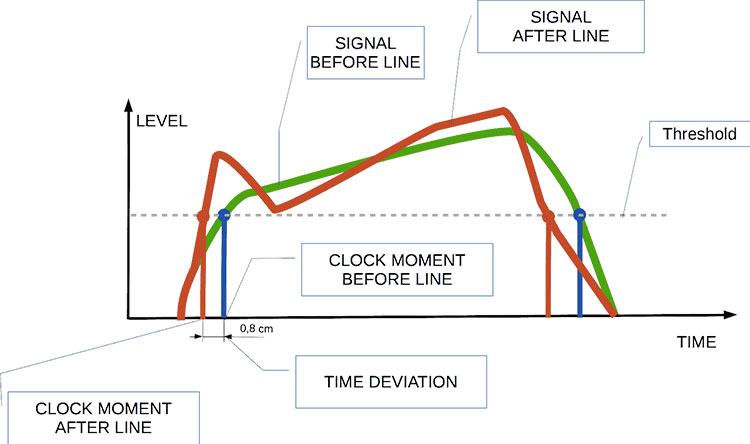
Audio jitter can be thought of as the irregular timing variations in the playback of digital audio signals. These timing variations can manifest as small deviations in the timing of audio samples, leading to audio artifacts like clicks, pops, and distortion. While it may seem like a technical concern, audio jitter can significantly affect your overall listening experience, even if you’re not a seasoned audiophile.

What is Audio Jitter?

Audio jitter, in essence, is the bane of digital audio playback. When you play a digital audio file, it gets converted into an analog signal for your speakers or headphones. The challenge arises when the conversion isn’t perfectly synchronized. Think of it like a metronome that occasionally skips a beat. This timing discrepancy, which we call audio jitter, can distort the sound and result in a less-than-ideal listening experience.

For a real-world analogy, consider a musical ensemble. If the musicians are out of sync, even by a tiny fraction of a second, the result can be dissonant and displeasing to the ear. Similarly, audio jitter disrupts the synchronization between the digital audio source and your playback system.

How Does Audio Jitter Impact Sound Quality?

Audio jitter affects sound quality by introducing unwanted artifacts. These artifacts can include audible clicks, pops, and distortions in the audio stream. To understand the impact, picture a pristine audio signal as a smooth, flowing river. Audio jitter is like tossing pebbles into that river, causing ripples and disturbances. These ripples manifest as audible imperfections in your music or audio.

Think of a jazz drum solo: the precision of the drummer’s beats is crucial to the experience. Even a slight deviation in the rhythm can disrupt the entire performance. Audio jitter works in a similar way, disrupting the timing and rhythm of your audio playback, ultimately degrading the sound quality.

The Technical Aspects of Audio Jitter

Now, let’s delve into the technical side of audio jitter. In the digital domain, audio is typically stored as discrete samples, each representing the amplitude of the sound at a specific moment. The timing of these samples is critical. Audio jitter occurs when the time intervals between these samples deviate from the ideal, leading to inconsistencies in playback.

To put this in context, think of a digital audio player as a conveyor belt, with each audio sample represented by a box. These boxes must move down the belt at precise intervals to maintain the audio’s integrity. If some boxes move faster or slower than others, you’ll encounter audio jitter, which translates to an erratic and unpleasant listening experience.

Addressing Audio Jitter: Practical Solutions

It’s clear that audio jitter can be a nuisance, but what can you do to mitigate its effects? Fortunately, there are practical solutions available. Some high-end audio equipment includes advanced jitter-reduction technologies. Additionally, using dedicated external digital-to-analog converters (DACs) can help improve audio synchronization.

Think of these solutions as a conductor guiding the musicians in an orchestra, ensuring they play in perfect harmony. Advanced equipment and DACs help maintain the precise timing necessary for high-quality audio playback.

Audio Jitter vs. Bit Depth: Exploring the Differences

While audio jitter deals with timing variations, bit depth relates to the depth of information in an audio signal. It’s essential to distinguish between the two. Bit depth determines the resolution of the audio signal, affecting the dynamic range and subtlety of sound. Audio jitter, on the other hand, impacts timing and synchronization. Both factors play a role in overall audio quality, but they address different aspects of the listening experience.

Think of bit depth as the number of colors on a painter’s palette, while audio jitter is akin to the painter’s brush strokes’ precision. They are both crucial for the final masterpiece, but they address different aspects of the artistic process.

The Importance of Low Jitter in High-End Audio Systems

In high-end audio systems, low jitter is a fundamental requirement for achieving audiophile-grade sound quality. Audiophiles demand the utmost precision and clarity in their audio playback, and any deviation in timing is unacceptable. To achieve this, specialized audio components and meticulous engineering are employed to minimize jitter.

Imagine a fine dining experience where every detail, from the presentation to the taste, is meticulously crafted. Audiophiles seek the same level of perfection in their audio experience, and low jitter is a crucial ingredient in achieving it.

Measuring and Analyzing Audio Jitter: Tools and Techniques

To assess and address audio jitter, various tools and techniques are available. One common method involves using dedicated audio analyzers that can pinpoint timing variations. Additionally, software applications can help diagnose and quantify audio jitter in your playback system.

Think of these tools as diagnostic instruments in a doctor’s office. They allow audio enthusiasts and professionals to diagnose and treat any issues related to audio jitter, ensuring the best possible audio quality.

Enhancing Your Audio Experience: Final Thoughts

In the world of digital audio, understanding and managing audio jitter is essential for achieving the best possible listening experience. Whether you’re a casual music lover or a dedicated audiophile, knowing how audio jitter affects your sound quality can lead to informed choices and better audio equipment investments.

So, the next time you enjoy your favorite music or immerse yourself in a captivating movie, remember the role that precise timing plays in your audio journey. Just as a conductor leads an orchestra to create beautiful music, minimizing audio jitter ensures that the symphony of sound reaches your ears with clarity and perfection.

Last Words

In conclusion, audio jitter is a subtle yet critical factor that can significantly impact your audio enjoyment. By delving into the technical aspects of audio jitter and exploring practical solutions, we’ve uncovered the key to enhancing your audio experience. Whether you’re an audiophile or simply someone who appreciates good sound, understanding and addressing audio jitter is a step toward audio perfection.

Boost the Volume of Lossy Audio Files

Boost the Volume of Lossy Audio Files

Boost the Volume of Lossy Audio Files

Amplify Sound in Lossy Audio Files

When it comes to enhancing the audio quality of your favorite songs or podcasts, you might find yourself dealing with lossy audio files. These files, while space-efficient, often suffer from reduced sound quality. Fortunately, there are ways to amplify the sound in lossy audio files, giving your listening experience a significant boost.
Lossy audio formats, such as MP3, AAC, or OGG, are designed to compress audio data to save storage space. However, this compression can lead to a loss of audio detail and a decrease in overall volume. To address this, you can use audio editing software to amplify the sound. By carefully adjusting the volume levels, you can make the audio more prominent and enjoyable. Just be cautious not to overdo it, as excessive amplification can lead to distortion.

Another effective way to amplify sound in lossy audio files is to use specialized audio processing tools. These tools often come with built-in volume normalization features that can help you increase the loudness while maintaining the audio’s quality. Whether you’re an aspiring musician, a podcast enthusiast, or simply looking to improve your music collection, amplifying sound in lossy audio files can breathe new life into your audio content.

Increase Volume of Compressed Audio

Compressed audio files have become the norm in today’s digital world due to their convenience and storage efficiency. However, one common drawback of these files is that they often lack the volume and punch of their uncompressed counterparts. If you’re wondering how to increase the volume of compressed audio, you’re in the right place.
To boost the volume of compressed audio files, you can start by using audio editing software. Most audio editing programs allow you to adjust the volume levels of individual tracks or sections of a file. Simply open your desired audio file in the software, locate the volume control, and gradually increase it until you achieve the desired loudness. Be cautious not to push the volume too high, as this can result in distortion and a loss of audio quality.

Additionally, consider using dynamic range compression (DRC) techniques. DRC helps balance the loud and quiet parts of an audio file, making it sound more consistent in volume. This technique is particularly useful when dealing with audio files that have uneven loudness levels. With the right adjustments, you can bring out the nuances in your compressed audio while maintaining clarity and preventing clipping.

By employing these techniques, you can effectively increase the volume of your compressed audio files, making them sound more vibrant and engaging.

Audio Volume Enhancement Techniques

Audio volume enhancement techniques are essential tools for anyone looking to improve the sound quality of their audio files, especially those in lossy formats. These techniques involve various methods to make audio files sound louder and more impactful.
One common technique is equalization, which allows you to adjust the balance of frequencies in your audio. By boosting certain frequency ranges, you can make your audio files sound fuller and more vibrant. This is particularly helpful for restoring lost detail in lossy audio files.

Another technique is the use of audio limiters and compressors. These tools help control the dynamic range of your audio, ensuring that loud parts aren’t too overpowering and quiet parts are audible. They can help you achieve a consistent and balanced volume throughout your audio file.

Additionally, you can explore mastering techniques. Mastering involves fine-tuning the overall sound of an audio file, including volume optimization. Professional mastering engineers use specialized software and hardware to enhance the loudness, clarity, and overall quality of audio recordings.

Enhance Audio Loudness in Lossy Formats

Enhancing audio loudness in lossy formats requires a combination of technical expertise and the right tools. Lossy formats like MP3 or AAC often sacrifice audio quality for smaller file sizes, which can result in lower volume levels. Here’s how you can address this issue effectively.
First, consider using audio editing software with volume normalization features. These features analyze the audio file and adjust the volume levels to ensure consistent loudness. This is particularly useful when dealing with a collection of lossy audio files with varying loudness levels.

Furthermore, explore dynamic range compression (DRC) to balance the audio’s dynamics. DRC reduces the difference between the loudest and quietest parts of an audio file, making it sound more uniform in volume. However, be cautious not to apply excessive compression, as it can lead to an unnatural and compressed sound.

Lastly, if you have a specific audio file that needs a volume boost, you can manually adjust the volume using your preferred audio editing software. Keep in mind that raising the volume too much may introduce distortion, so it’s crucial to find the right balance to enhance the loudness while preserving audio quality.

By utilizing these techniques, you can effectively enhance the audio loudness of your lossy format files and enjoy a more immersive listening experience.

Raise the Volume of Low-Quality Audio

Dealing with low-quality audio can be frustrating, especially when the volume is barely audible. Whether it’s an old recording or a poorly encoded audio file, there are ways to raise the volume and salvage the listening experience.
One approach is to use audio restoration software. These tools are designed to improve the quality of audio recordings, including boosting the volume. They often come with noise reduction features, which can help reduce background noise and further enhance the clarity of your audio.

Another option is to employ audio equalization. By adjusting the equalizer settings, you can emphasize the frequencies that are most critical for clarity and volume. Boosting the mid-range frequencies, for example, can make the vocals and instruments more prominent, resulting in a perceptible increase in volume.

If you have access to the original source of the audio, consider re-recording it or obtaining a higher-quality version. This approach eliminates the limitations of the existing low-quality audio file and ensures a better listening experience.

In summary, raising the volume of low-quality audio involves a combination of software tools and, when possible, improving the source material. These steps can help you enjoy clearer and louder audio, even from initially subpar recordings.

Boosting Sound Levels in Lossy Files

Boosting sound levels in lossy audio files is a common requirement for those looking to enhance their audio experience. Lossy formats, while efficient, often compromise on audio quality, resulting in lower volume levels. Here’s how you can effectively increase the sound levels in such files.
One of the simplest methods is to use audio editing software. Most audio editors provide volume adjustment controls that allow you to raise the volume of your lossy audio files. When doing this, be cautious not to push the volume too high, as it can lead to distortion and a loss of audio fidelity.

Additionally, you can explore the use of audio amplification plugins or tools. These specialized software options are designed to boost the loudness of audio files while minimizing the risk of distortion. They often come with presets and fine-tuning options to ensure optimal results.

When boosting sound levels, it’s essential to consider the intended playback environment. Different platforms and devices may have varying volume levels, so aim for a balance that ensures your audio remains clear and enjoyable across different systems.

By following these techniques and experimenting with volume adjustments, you can effectively boost sound levels in your lossy audio files and enjoy an improved listening experience.

Improving Audio Clarity in Compressed Formats

Improving audio clarity in compressed formats, such as MP3 or AAC, is a pursuit for audiophiles and music enthusiasts alike. While these formats offer excellent compression, they can sometimes sacrifice audio quality. Let’s explore how to enhance audio clarity in such files.
One approach is to use high-quality audio conversion tools. These tools can help you convert your compressed audio files into a lossless format, such as FLAC. Once in a lossless format, you can make edits and enhancements without further loss of audio quality. After the improvements, you can convert the file back to a compressed format with improved clarity.

Another technique involves applying equalization to your audio files. By fine-tuning the frequency balance, you can emphasize certain audio elements, such as vocals or instruments, and reduce any muddiness. This can result in clearer and more defined audio, even in compressed formats.

Furthermore, consider using noise reduction software to eliminate background noise and artifacts that may be present in your compressed audio. Reducing these unwanted elements can significantly enhance audio clarity.

Finally, if you have access to the original, uncompressed source of the audio, consider re-encoding it into a higher-quality compressed format. This can provide better clarity while still maintaining a smaller file size compared to lossless formats.

Enhancing audio clarity in compressed formats requires a combination of technical tools and careful adjustments. By experimenting with these techniques, you can achieve remarkable improvements in audio quality.

Loudness Enhancement for Lossy Audio

Loudness enhancement for lossy audio files can make a world of difference in your listening experience. Lossy formats, known for their space-saving benefits, often suffer from lower perceived volume levels. Here’s how you can effectively enhance the loudness of your lossy audio files.
One of the simplest methods is to use an audio player with built-in equalization settings. These settings allow you to boost specific frequency ranges, making the audio sound louder and more impactful. Experiment with different equalizer presets until you find the one that works best for your audio.

Another technique is to employ audio normalization. Many audio editing software tools provide normalization features that adjust the volume of your audio files to a consistent level. This ensures that all tracks play back at a similar loudness, enhancing the overall listening experience.

If you’re looking for a more advanced solution, consider using audio mastering techniques. Mastering involves fine-tuning the audio’s overall quality, including loudness optimization. Professional mastering engineers use specialized equipment and software to achieve the perfect balance of loudness and clarity.

Lastly, be mindful of the playback device you’re using. Some devices have built-in sound enhancements or equalization settings that can further enhance loudness. Experiment with these settings to find the right balance for your preferences.

By implementing these loudness enhancement techniques, you can breathe new life into your lossy audio files and enjoy them at a higher volume without sacrificing quality.
How to Make Quiet Audio Louder

Have you ever encountered audio that’s so quiet you strain to hear it even when you max out your volume controls? Learning how to make quiet audio louder is a valuable skill that can transform your listening experience.
One straightforward method is to use audio editing software. Open the quiet audio file in your chosen software and locate the volume adjustment controls. Gradually increase the volume until it reaches a comfortable level. Keep an eye on the audio waveform to ensure it doesn’t clip, which can result in distortion.

Another technique involves the use of audio normalization. This process analyzes the audio file and adjusts its volume to a consistent level, making quiet parts more audible without causing loud parts to become overly aggressive. Audio normalization is especially useful when you have multiple audio files with varying loudness levels.

Consider employing dynamic range compression (DRC) as well. DRC helps balance the dynamics of your audio, ensuring that the quietest parts are audible without overpowering the louder segments. However, use DRC judiciously to maintain natural audio quality.

Additionally, explore specialized audio enhancement software or plugins designed specifically for increasing the loudness of quiet audio. These tools often offer advanced algorithms to maximize loudness while minimizing distortion.

By mastering these techniques, you can effectively make quiet audio louder, bringing back the enjoyment in your audio content.

Audio Volume Optimization for Lossy Formats

Audio volume optimization for lossy formats is a crucial step to enhance the quality of your compressed audio files. These formats, while convenient, can suffer from reduced loudness. Let’s delve into the strategies for achieving audio volume optimization.
One method is to use audio editing software with volume adjustment capabilities. Open your lossy audio file in the software and increase the volume to your preferred level. Ensure that you maintain a balance between loudness and audio quality to prevent distortion.

Additionally, explore the use of volume normalization tools available in audio editing software. These tools analyze the audio and automatically adjust the volume to a consistent level. This is particularly useful when you have a collection of lossy audio files with varying loudness levels.

Dynamic range compression (DRC) is another technique to consider. DRC helps level out the loud and quiet parts of an audio file, resulting in a more uniform volume. However, exercise caution to avoid over-compression, which can lead to an unnatural sound.

Lastly, when exporting your audio, choose a higher bit rate if possible. This can improve the overall audio quality and contribute to better volume levels in lossy formats.

By applying these strategies for audio volume optimization, you can enjoy your favorite music and podcasts in lossy formats at a higher volume with improved clarity.

Final Words
In conclusion, whether you’re dealing with lossy audio files, compressed formats, or quiet audio, there are various techniques to boost volume and enhance your listening experience. Experiment with different methods, and remember to strike a balance between loudness and audio quality to achieve the best results. By mastering these techniques, you can enjoy your audio content at its fullest potential.

Audio Frequency Bands

Exploring Audio Frequency Bands

Audio Frequency Bands

Audio Frequency Spectrum

As a sound engineer, I have always been fascinated by the science of audio frequency bands. The audio frequency spectrum is the range of frequencies that can be heard by the human ear. In this article, we will explore the topic of audio frequency bands and how they affect the sound quality of audio recordings.

My Experience with Audio Frequency Bands

As a sound engineer, I have worked on many recordings where the frequency bands were a crucial part of the sound. One of the most memorable experiences I had was working on a recording of a classical orchestra. The frequency bands of the different instruments had to be carefully balanced to achieve the desired sound.

Audio Frequency Range

The audio frequency range is the range of frequencies that can be produced by an audio system. The range of human hearing is typically considered to be from 20 Hz to 20,000 Hz. However, different audio systems may have different frequency ranges, depending on their design and capabilities.

My Opinion on Audio Frequency Range

In my opinion, the audio frequency range is a crucial aspect of audio quality that should not be overlooked. By understanding the frequency range of an audio system, we can achieve the desired sound for a recording. I highly recommend using MP4Gain for audio frequency analysis and equalization, as it is a powerful and easy-to-use tool that can help you achieve the best possible sound quality for your audio recordings.

Audio Frequency Modulation

Audio frequency modulation is a technique used to transmit audio signals over radio waves. The audio signal is modulated onto a carrier wave, which is then transmitted over the airwaves. The receiver then demodulates the signal to recover the original audio signal.

My Experience with Audio Frequency Modulation

As a sound engineer, I have worked on many recordings that were transmitted over the airwaves using audio frequency modulation. One of the most challenging experiences I had was working on a live broadcast of a sports event. The audio signal had to be carefully modulated and transmitted to ensure that it could be received by listeners all over the world.

Final Words

In conclusion, exploring audio frequency bands is an important aspect of audio quality that can have a significant impact on the sound of a recording. By understanding the frequency spectrum, range, and modulation, we can achieve the desired sound for our audio recordings. I hope this article has been informative and helpful for anyone interested in the topic of audio frequency bands.
Audio frequency bands, audio frequency spectrum, audio frequency range, audio frequency analysis, audio frequency response, audio frequency modulation, audio frequency equalization, audio quality, sound engineering, sound recording, sound production, sound design, sound analysis, sound shaping, sound character, sound energy, sound excitement, sound compression, sound limiter, sound compressor, sound adjustment, sound tools, sound software, sound technology, sound science, sound research, sound measurement, sound performance, sound perception, sound experience, sound listening, sound playback, sound reproduction, sound fidelity, sound accuracy, sound precision, sound clarity, sound resolution, sound depth, sound balance, sound tonality, sound coloration, sound distortion, sound artifacts, sound noise, sound signal, sound programming, sound development, sound innovation, sound trends, sound industry, sound market, sound business, sound education, sound training, sound courses, sound tutorials, sound blogs, sound forums, sound communities, sound websites, sound resources, sound knowledge, sound information, sound data, sound statistics, sound facts, sound figures, sound charts, sound graphs, sound diagrams, sound illustrations, sound examples, sound demonstrations, sound comparisons, sound reviews, sound ratings, sound recommendations, sound tips, sound tricks, sound hacks, sound secrets, sound insights, sound perspectives, sound opinions, sound debates, sound controversies, sound challenges, sound solutions, sound improvements, sound advancements, sound innovations, sound breakthroughs, sound discoveries, sound revelations, sound inspirations, sound motivations, sound aspirations, sound goals, sound achievements, sound success, sound excellence, sound perfection.