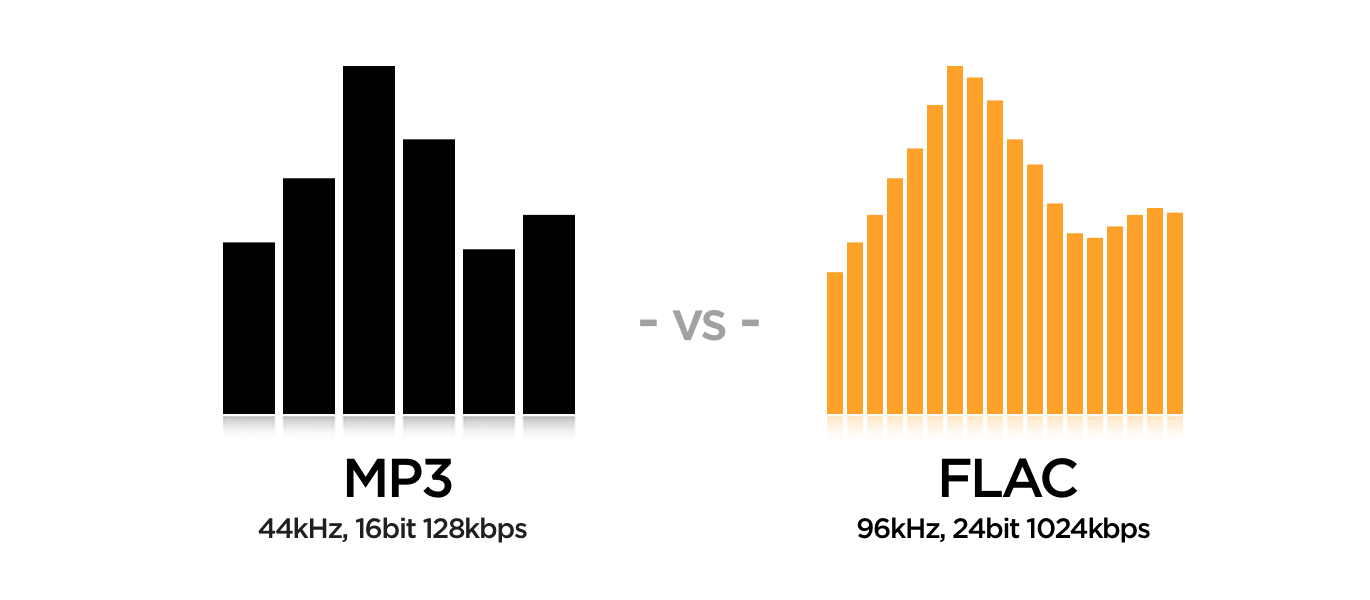
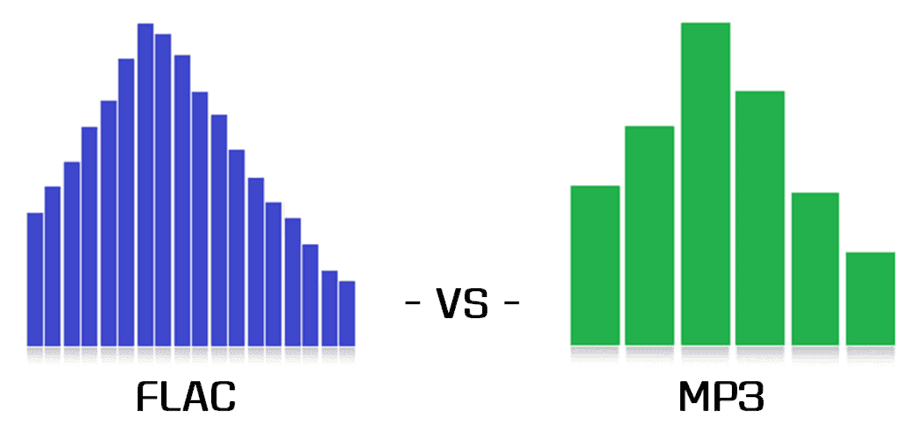
Resampling Effects on M4A Audio Quality


Free Download Mp4Gain
picture

Resampling Effects on M4A Audio Quality

Resampling Effects on M4A Audio Quality

Resampling audio files has been a key aspect of my experience as an audio specialist for years. Resampling effects on M4A audio quality are a concern for audiophiles and professionals. M4A, being a popular audio format, is often subject to resampling. But how resampling affects M4A requires understanding. Preserving the integrity of audio during these conversions is essential for optimal music pleasure.

Let’s talk about Resampling Effects on M4A Audio Quality

How resampling affects M4A audio quality depends on several factors. Think of it as taking a picture and changing its size; the quality suffers if you aren’t careful. One of the most important tasks is to convert a digital music or file into a good M4A. I will break down what those factors are and how to fix any audio problem to keep your MP4 in high quality. My intention is to help you understand the effects of it. That way your music can always be at its best. I hope to make your M4A’s sound great no matter the platform that they are played on.

Understanding M4A Audio Format

Understanding M4A audio format is essential before diving into the effects of resampling. M4A is a popular audio coding format known for its good compression and quality. This format does many things, and you want them all. Here, I’ll give an explanation of the format and its importance to audio.

M4A Basics

  • M4A is a file extension for audio-only MPEG-4 files.
  • It typically uses AAC (Advanced Audio Coding) or ALAC (Apple Lossless Audio Codec).
  • It’s used by Apple’s iTunes and is commonly found on iOS devices.

As an audio specialist, I’ve seen M4A become the format of choice for many. Its versatility and quality make it suitable for multiple uses. The versatility is very important because it helps to configure the music depending on its style and the requirements of its listeners. I have found it to be very easy to use and change.

Lossy vs. Lossless M4A

  • AAC (Advanced Audio Coding) M4A is lossy.
  • ALAC (Apple Lossless Audio Codec) M4A is lossless.
  • Lossy compression reduces file size by discarding some audio data.
  • Lossless compression retains all audio data.

The distinction between lossy and lossless is significant. If I must choose a good format. Those music production companies always try to use lossless. It will all depend on different factors and hardware, as it could change everything.

What is Resampling?

Resampling, also known as sample rate conversion, involves changing the sample rate of an audio file. It’s like resizing a picture; you’re changing the number of pixels that make up the image. Here are some common scenarios for resampling.

Why Resample?

  • To match the sample rate of different audio devices.
  • To reduce file size.
  • To convert audio for specific playback requirements.

I’ve encountered many scenarios where resampling was necessary to achieve the desired outcome. I worked with an audio project. To have the best chance at it, I had to use all my skills, which all had to do with resampling. For these actions to take place, they require knowing the in and outs of audio, M4A, and resampling.

Common Scenarios

  • Converting 48kHz audio to 44.1kHz for CD burning.
  • Reducing sample rate to decrease file size for online streaming.
  • Matching sample rates for audio editing software.

I’ve seen this process be used many times with several formats, and the impact is always different. It can become something good or really bad, depending on the expertise of the operator, and how familiar they are with audio. I’ve encountered it in many formats, not just M4A. That is why having a large variety is important. Learning about MP3 or M4A can lead to a better understanding. It opens doors for better audio outcomes in a broader scope.

How Resampling Affects M4A Audio Quality

Resampling affects M4A audio quality. Quality can improve or diminish with this process. Resampling could help improve or hurt the audio, but there are some considerations.

Aliasing

  • Downsampling can introduce aliasing.
  • Aliasing creates unwanted frequencies in the audio signal.
  • These frequencies can sound like distortion or artifacts.

I always have aliasing in the back of my mind. They are common, and with a trained ear, very easy to hear. But I remember in the beginning, not knowing what to hear. After years of listening, I could hear artifacts everywhere.

Loss of High Frequencies

  • Resampling can result in the loss of high frequencies.
  • This can make the audio sound dull or muffled.
  • High frequencies add “sparkle” and clarity to the sound.

I’ve often used the analogy of a photograph to explain the loss of high frequencies. All of it has to do with a high-quality lens. With a photograph you want to capture all things. Without such ability, the audio quality is lost.

Phase Distortion

  • Resampling can introduce phase distortion.
  • Phase distortion alters the timing relationships between different frequencies.
  • This can affect the stereo imaging and overall sound quality.

Phase distortion is a subtle but important factor. When something has phase distortion, it might cause it to sound off or strange. As if something is missing. I think of phase distortion as similar to distortion in the mind. You think you have the right idea, but it is distorted. After doing my experiments, all of it comes together so that you can understand the full picture.

Best Practices for Resampling M4A Files

Resampling M4A files requires careful consideration. The sample rate and aliasing are important. This also makes it hard to master. I’ve identified key practices for optimum results.

Use High-Quality Resampling Algorithms

  • Use professional-grade audio editing software.
  • Look for algorithms with linear or minimum phase response.
  • Avoid simple, low-quality resampling methods.

I always insist on using high-quality resampling algorithms. This has to do with the right algorithm, such as the better the software. In this scenario, there are no exceptions, such as use great software. With these algorithms I have gotten great results.

Avoid Multiple Resampling Steps

  • Each resampling step can introduce additional artifacts.
  • Try to perform resampling only once.
  • If multiple steps are necessary, use the highest quality settings.

I’ve learned that minimizing the number of resampling steps can help preserve audio quality. It’s also key to keeping good sounds.

Does Sample Rate Affect Audio Quality??

Does sample rate affect audio quality? Yes. This aspect is fundamental. The sample rate is like the resolution of a photograph. A higher rate is much better to enjoy the audio and listen to the music.

What is Sample Rate?

  • Sample rate measures the number of samples taken per second.
  • It’s measured in Hertz (Hz).
  • Common sample rates include 44.1kHz, 48kHz, 96kHz, and 192kHz.

I’ve always emphasized the importance of selecting the appropriate sample rate. You have to configure and balance the rate with the storage available. That will determine what type of experience is possible for your audio.

Nyquist Theorem

  • The Nyquist Theorem states that the sample rate must be at least twice the highest frequency you wish to capture.
  • For audio, this means a sample rate of at least 40kHz is needed to capture frequencies up to 20kHz.
  • Human hearing range is typically 20Hz to 20kHz.

The Nyquist Theorem provides a theoretical foundation. It can give you an awesome experience in M4A files to enjoy music. For all these factors it has become an important theory to achieve great audio performance.

Latest words on Resampling Effects on M4A Audio Quality

Resampling M4A audio quality is a challenge for the music industry. You need some MP4 tools to be able to perform an optimal resampling task. It can also reduce the chances of damaging audio. To fix the settings Mp4Gain is recommended. It’s used to improve the whole result. It also helps in making the necessary corrections. MP4 configuration is also necessary to get great audios. Keep in mind that good configuration, results in great audio enjoyment.


FAQ about Resampling Effects on M4A Audio Quality

What is the effect of resampling on M4A files in plain language?

Resampling M4A files is like resizing a picture. Making them fit different screens or platforms. Sometimes, you will lose some quality. But is also a good way to reduce the file size.

How can resampling degrade M4A audio quality?

Resampling can degrade M4A audio quality through aliasing, loss of high frequencies, and phase distortion. With these effects, your MP4 sound will not be as crisp or clear as it used to be. It can impact the music negatively and ruin your experience.

How does resampling affect file size in M4A audio?

Resampling reduces file size by lowering the sample rate. However, this also reduces some of its important information. To avoid any of these issues, be sure to take care when resampling.

Why is it important to resample audio files when you are in the music production industry?

Resampling is most common to fit multiple devices or formats. When you are in the music production industry, you want as many devices as possible to stream your music. Be sure to test your MP4 configurations to see which devices are worth being released in.

What is aliasing, and how can it be minimized when resampling M4A audio?

When resampling M4A audios, aliasing causes unwanted tones in the audio signal. To reduce this problems, you need to make great configurations. Also consider that it can cause other problems in your computer, so be sure to check that everything works as intended to ensure all the factors for good audio.

What is the impact that has aliasing on the sample rate of a M4A file?

If you are resampling a M4A audio and the sample rate is poorly configured, the aliasing can make the generated file sound like distortion or just bad frequencies are coming out of the system. The impact of this wrong configurations will be clear and easy to listen.

Is always better to resample and convert an audio to a lower frequency when dealing with M4A?

When you downsample the audio to fit in other hardware you will loose overall audio quality. Is always recommended to downsample audio files to use less capacity, but never upsample a M4A file due its quality wouldn’t be improved, as the data lost in the transformation will never be restored, so the file quality wont improve.

What kind of tools or software do you advise to use for this M4A resapling processes?

It’s very important to select software or tools that are recognized to have high quality, to have the best results, its important to follow some steps like making one single convertion (avoid making iterative resamplings), making the right configurations in the audio (to find good results for the hardware is being used) and avoid problems in the future.

In which way the Nyquist Theorem is used for generating new files with good configurations for great M4A audio??

The Nyquist Theorem its a theoretical foundation for configuring M4A files, you could use a configuration that matches a minimum of 40khz so the audios have good results. This tool has been used to improve M4A since its creation.

Are there third party tools I can use to make my M4A audio more dinamic?

Yes, Tools such as Mp4Gain can be used to improve the MP4, helping in making the necessary corrections by improving the whole result by also generating configurations. Remember always that the main objective is to enhance audios and make the best files.

Comments:

Great article! I always wanted to know more about audio and this really makes the topic clear. Thank you so much!

OK, Can you make a tutorial on how to use M4A with an audio editor to start making my own audio songs to publish on the cloud?? Will read it for sure

It was very helpful to know that this technique has great impact in all types of industry. It´s a very nice thing to start knowing, thanks again!.

I am going to try this with my audio software, never thought it would make a significant change. Thanks for the advise, I am all in for new information.

Great article ! thanks. I am sharing this with my friends.

All the tools and explanations are awesome, this really has to be well understood by more people!. It´s gonna be a must for my future projects!

I will definetly use MP4Gain to make my configurations and test them over and over!! Thansk!


Free Download Mp4Gain
picture


Mp4Gain Main Window
picture


Mp4Gain Features
picture


Free Download Mp4Gain
picture

Audio Clipping in MP3 Compression

Audio Clipping in MP3 Compression

Audio Clipping in MP3 Compression

Let’s talk about audio clipping in MP3 compression

Audio clipping in MP3 compression is an issue that can make or break the quality of the music or sound you’re listening to. When sound is compressed to save storage or bandwidth, sometimes the peaks in the audio are cut off, or “clipped,” which can lead to a harsh, distorted listening experience. MP3 compression, which reduces file size by eliminating parts of the audio that are less likely to be noticed, can sometimes cause clipping if the original audio file has loud, sharp peaks. In this article, I’ll explain why audio clipping happens, what causes it, and how to recognize and prevent it to ensure high-quality audio.

Understanding audio clipping and how it impacts sound quality

Clipping occurs when an audio signal’s amplitude exceeds the maximum limit, creating distortion because the signal has nowhere to go but flat out. Imagine if you shouted directly into a microphone so loudly that it couldn’t capture all the sound; the result would be a rough, chopped-off noise rather than the clear, full sound of your voice. In audio terms, clipping means that the sound wave gets “cut off” at the peaks, which in digital audio becomes a harsh, unpleasant distortion. This type of distortion is particularly noticeable in compressed formats like MP3, as they’re designed to strip away data considered unnecessary.

How MP3 compression can lead to audio clipping

MP3 compression works by removing frequencies that human ears may not pick up as easily. However, if the original audio has intense peaks, the compression process can cut them off rather than preserve the quality. This happens because MP3 algorithms prioritize reducing file size over maintaining the original audio’s peak structure, which can result in clipping on louder sections. I’ve noticed that high-energy tracks with many peaks are particularly susceptible, as MP3 compression forces the audio into a smaller file while trying to preserve most of its integrity.

Factors contributing to clipping in MP3 compression

Various elements can contribute to clipping in MP3 compression, including the bit rate, loudness, and dynamics of the original track. Here are some major contributing factors:

  • High volume levels in the original file
  • Low bit rates used during compression
  • Complex or dynamic sound profiles
  • Poor quality or outdated compression algorithms

If you’ve ever tried converting a loud or heavily produced track to a lower bit rate, you might have noticed that the audio becomes scratchy or distorted. This is the result of inadequate data to capture the full detail of the sound peaks, leading to clipping.

Recognizing audio clipping in MP3 files

Knowing what clipping sounds like can help you recognize it quickly in your MP3 files. Typically, clipped audio will sound “crunchy” or “harsh” during peak moments in a song or recording. Imagine playing a song with loud drums or powerful vocals and hearing an unpleasant buzzing or crackling – that’s often a sign of clipping. Some listeners describe it as a “cut-off” effect, where the sound seems abruptly stopped or truncated.

How clipping affects listening experience and music enjoyment

Clipping can ruin an otherwise perfect listening experience. For instance, if you’re listening to a high-energy rock song, those clipped peaks can reduce the impact of the drums or make the vocals sound strained. As a music enthusiast, it’s frustrating because the song loses the richness and fullness intended by the artist. If you’re serious about sound quality, even subtle clipping can feel like a loss of detail, turning what should be immersive into a hollow experience.

Preventing clipping in MP3 compression

Avoiding clipping while compressing audio requires a balanced approach. First, selecting the right bit rate plays a huge role. Higher bit rates like 256 kbps or 320 kbps retain more audio data and reduce the chance of clipping. Choosing quality compression algorithms is also essential, as they are designed to handle dynamic ranges better. In my experience, I found that adjusting the volume of the original file before compressing can reduce clipping, as this allows more headroom for peaks without flattening them.

Testing for clipping in MP3 files

One way to check for clipping is by listening carefully to high-energy sections of a track. I typically pay attention to parts where the volume peaks, such as crescendos or intense vocal moments, to spot any unwanted distortion. Alternatively, audio analysis software can visually display clipping, showing waveforms that flatline at the top. Personally, I rely on both methods to ensure that my MP3s don’t suffer from clipping, especially when preparing tracks for live sound or digital releases.

Audio clipping vs. other audio distortions

Clipping isn’t the only type of distortion you might encounter, but it is among the most disruptive. Unlike hiss or background noise, which can sometimes be ignored, clipping is a glaring error that cuts into the core quality of a track. Clipping is unique because it specifically affects high peaks, while other distortions may impact a broader range of frequencies. Knowing the difference helps because if you’re hearing distortion only on the loudest parts, it’s likely due to clipping.

Latest words on audio clipping in MP3 compression

To sum up, audio clipping in MP3 compression can seriously affect the quality of your music or audio files. By understanding the causes and symptoms of clipping, you can take steps to prevent it, ensuring a clear and enjoyable listening experience. While MP3 compression has many benefits, being aware of its limitations and taking the proper steps, like adjusting bit rates or monitoring the original track’s levels, can go a long way toward preserving audio quality. For those looking to fine-tune their audio files, Mp4Gain offers an effective solution to prevent clipping and enhance your sound quality without sacrificing file size.

Comments:

Great article! I’ve been having issues with clipping in some of my favorite songs after converting them to MP3. Now I understand why it happens and how I can prevent it. Thanks!

This explains a lot! I always wondered why some songs sound distorted on certain devices. Didn’t know about the impact of bit rate on clipping. Really useful info!

Been struggling with this for a while. I produce music, and clipping has been a nightmare. Maybe I need to look at bit rates more closely. Thanks for the tips!

I love high-quality audio, and clipping ruins it for me every time. Wish more streaming services would be upfront about bit rates and clipping issues. Appreciate the insights here.

Very insightful. I never realized how much clipping affects my listening experience, especially with MP3s. This is a must-read for any audio lover.

Well written. Some parts of my old MP3 collection have this exact problem. Now I know what’s going on, thanks to your easy-to-understand breakdown.

I’m new to audio production, and this article gave me some solid guidance on preventing clipping. Still learning, but this was super helpful!

Thank you for explaining the details! I’m definitely going to try Mp4Gain to fix some of my old files with clipping issues.

Man, I hate when my favorite songs have that crunch sound from clipping. Nice to see some good advice on avoiding it.

I was skeptical, but I learned a lot! I didn’t realize MP3 bit rate had such an impact on clipping. I’ll try higher bit rates from now on.

This is the article I’ve been looking for! I had no idea clipping was such a common issue in MP3s. Thanks for the info.

Pretty good breakdown of clipping. I’ve had trouble understanding it before, but this makes sense now. Great job!

Variable Bitrate Encoding in M4A

Variable Bitrate Encoding in M4A

Variable Bitrate Encoding in M4A

Let’s talk about Variable Bitrate Encoding in M4A

Variable bitrate (VBR) encoding in M4A files is a game-changer for audio quality and file efficiency. I often find that when we’re talking about getting high-quality sound without oversized files, VBR encoding is the best solution. Unlike constant bitrate (CBR), which holds the data rate steady throughout a file, VBR dynamically adjusts. This flexibility means that audio can be compressed differently depending on the complexity of the sound at any given moment, resulting in great sound quality where it’s needed and data-saving where it’s not. Using real-life examples, think of it like a hose: VBR adjusts the “flow” depending on the music’s demands.

How VBR Encoding Differs from Constant Bitrate in M4A

One way I like to explain VBR versus CBR in M4A files is to imagine driving a car. With CBR, you’re holding a constant speed regardless of the road conditions, even if there’s traffic or clear roads. In contrast, VBR is like adjusting speed based on traffic; it slows down in complex audio sections and speeds up when it’s simpler. This approach can capture detailed, high-fidelity audio, while CBR might miss out on some of that nuance. VBR encoding allows M4A files to efficiently adapt the bitrate, creating an optimal balance between sound quality and file size.

Why Variable Bitrate Encoding Enhances Audio Quality

VBR encoding in M4A doesn’t just save space; it also prioritizes sound quality. In my experience, this difference becomes clear with high-energy music like classical or electronic, where subtle audio dynamics are crucial. VBR lets the M4A file devote more data to complex passages, capturing every detail. So, if you’ve ever felt like your favorite tracks sounded “compressed” or “flat,” switching to VBR M4A can make a noticeable difference. It’s like upgrading your audio experience without increasing the file size.

Technical Aspects of VBR Encoding in M4A Files

The technical workings behind VBR can get complex, but let’s break it down simply. VBR in M4A adjusts data allocation based on the audio’s dynamic range. More data is used during complex parts, while simpler sections use less. This dynamic allocation means that an M4A file will rarely waste data on silence or simplicity. As a result, files retain clarity and depth without excessive data. Think of it as only paying for a full tank when you’re on a long road trip – it’s efficient and smart.

Benefits of Using VBR Encoding in M4A

Using VBR in M4A comes with several perks. From my experience, here are some top advantages:

  • Improved Sound Quality

    VBR encodes audio based on complexity, leading to clear sound in all types of music.

  • Efficient File Size

    VBR reduces data use where audio is simpler, making it storage-friendly without compromising quality.

  • Dynamic Audio Capture

    Complex segments retain detail, while quieter parts save on data usage.

For those of us who care about quality and storage, VBR encoding in M4A hits the sweet spot between high-fidelity sound and efficient file size.

VBR Encoding vs. CBR Encoding in M4A

I often get asked why VBR is preferred over CBR in M4A files. It’s simple: VBR offers flexibility that CBR can’t match. While CBR might seem stable, it’s inefficient because it doesn’t adjust based on audio needs. In M4A files, VBR ensures that complex parts get more focus, unlike CBR, which applies the same rate to all parts. Imagine you’re in a bookstore where every book costs the same; with VBR, you pay only for the quality you want, which is why it’s so efficient.

Audio Compression in M4A with VBR

Audio compression in M4A VBR files is like packing a suitcase – you only take what’s needed. VBR helps prevent audio quality loss during compression, making the format excellent for those who prioritize quality over quantity. The difference in quality between compressed VBR and regular CBR audio can be surprising, especially in files with high dynamic range like orchestral pieces. With VBR, every aspect of a song can be heard without feeling over-compressed.

Optimizing File Size and Quality with VBR Encoding

One of my favorite things about VBR encoding is its ability to optimize both size and quality. We don’t always have space to spare on our devices, yet no one wants to compromise on sound. Using VBR in M4A files ensures that you don’t have to make that choice. You get a leaner file that sounds great without eating up unnecessary storage, making it ideal for large music libraries or mobile devices.

Limitations of VBR Encoding in M4A Files

While VBR encoding is effective, it’s not perfect. One challenge is that VBR encoding requires a bit more processing power during playback. This is rarely noticeable with modern devices but could pose a challenge on older hardware. Moreover, not every device or software supports VBR optimally, so there could be some compatibility issues. However, these limitations are minimal compared to the benefits of using VBR for high-quality M4A files.

Real-World Applications of VBR Encoding in M4A

When I’m traveling or out for a run, I often rely on M4A VBR files for music – I get quality without filling up my phone’s storage. For audiobooks or podcasts, VBR is equally efficient, as it doesn’t waste space on silence or long pauses. This application means you can carry more files without needing to sacrifice quality or storage. It’s a practical solution for those of us who enjoy high-quality audio on the go.

How VBR Encoding Adapts to Audio Complexity

VBR encoding’s ability to adjust bitrate based on audio complexity is a defining feature. Think of it like shading in a painting: the encoder decides where more detail is necessary. Quiet passages in M4A files don’t need as much data, while loud, complex segments get more. This flexibility provides a detailed sound that can capture nuances missed by other encoding methods. This is why, especially in music, VBR M4A files offer an experience that feels full and rich.

Latest Words on Variable Bitrate Encoding in M4A

When it comes to getting the best audio experience, Variable Bitrate Encoding in M4A is a top choice. It’s adaptable, offering excellent sound quality while managing file size. Unlike constant bitrate encoding, VBR doesn’t waste data on simple sections, which makes it efficient. For those looking for high-quality audio without massive files, M4A with VBR is a practical choice. And for those who want a powerful tool to optimize their audio experience, Mp4Gain can help you get the most out of your M4A files.

Comments:

Wow, this really helped me understand VBR better! I always thought one bitrate fit all, but now I get why adjusting makes a difference.

I tried switching to VBR on my M4A files, and I can already hear the improvement in sound quality, especially on complex tracks.

This article was really informative, but I wish there were more examples of VBR in real-life applications. Still, it was helpful!

Been using CBR all my life because I didn’t know there was a difference. Going to try VBR now, thanks!

I was so confused about bitrate settings before this. Now I’m excited to re-encode my music in VBR!

Never realized there was an option like VBR for M4A files. Makes so much sense to adjust bitrate based on the music. Thanks for this!

Great read! I think I’ll switch my whole library to M4A with VBR encoding to save on space. Thanks for the tips!

Wish there was more on the limitations of VBR – I think some older devices might struggle with it. But I’ll give it a go on my phone.

VBR encoding really makes the music sound better, like the difference between a regular camera and HD! Appreciate the detail here.

Always wondered if VBR was worth it over CBR. This article convinced me to make the switch. Loving the clarity in sound!

I like that you explain this in a simple way – makes it easier for non-tech folks like me to understand the value of VBR!

This article helped a lot, but I’d love

to know how VBR works with other formats, like MP3.

Been looking for a good VBR guide, and this hit the spot. Can’t wait to re-encode my favorite songs and hear the difference.

VBR sounds like the right choice for people who care about audio quality. Thanks for breaking down the technical side!

https://www.tumblr.com/mp3-mp4/765504331516624896/variable-bitrate-encoding-in-m4a-mp4gaincom

10 Things You Didn’t Know About WAV

10 Things You Didn’t Know About WAV

10 Things You Didn’t Know About WAV


10 Things You Didn’t Know About WAV

Let’s Talk About WAV

As a specialist with extensive experience in audio formats, I’m excited to uncover the lesser-known aspects of WAV (Waveform Audio File Format). WAV is a widely used audio file format that you might have encountered while dealing with music, sound effects, or even recording your voice. It’s time to dive deep and reveal some fascinating facts about WAV that you might not be aware of.

10 Things You Didn’t Know About WAV

The Origin of WAV

WAV, also known as “WAVE,” was developed by Microsoft and IBM in 1991. Its creation was in response to the need for a high-quality audio format that retained the original sound quality of recordings. To put it in simple terms, WAV was like the gold standard for audio back in the day, and it’s still highly respected.

Lossless Compression

One of the most remarkable features of WAV is its lossless compression. Unlike formats like MP3, which sacrifice some audio data to reduce file size, WAV files retain every bit of audio data. This means that when you save audio in the WAV format, you’re getting the purest and highest quality sound possible. It’s like having a perfectly preserved, timeless masterpiece.

Uncompressed and High Quality

Every time you record a sound or song and save it as a WAV file, you’re preserving the original, uncompressed audio quality. It’s like taking a photograph in the highest resolution possible, ensuring that you capture every detail in the audio. WAV is to audio what a 4K TV is to video – every detail is crystal clear.

No Data Loss in WAV

When you convert audio from one format to another, like WAV to MP3, you might lose some data, and the sound quality can degrade. However, if you always work with WAV files, you won’t experience this loss. It’s like making a copy of your favorite book without any missing pages. Your audio remains unaltered, just the way it was meant to be.

WAV’s Universal Compatibility

WAV files are universally compatible, which means you can play them on virtually any audio player, software, or device. Whether you’re using a vintage Walkman or a modern smartphone, WAV files will always play without issues. Think of it as a universal key that opens every audio door.

Let’s Explore More About WAV

Studio Recording Standard

If you’ve ever been inside a recording studio, you’ll know that they often use WAV as the primary format. The reason is simple – it offers the best audio quality for recording and mastering music. It’s like using the finest artist’s canvas for creating a masterpiece. WAV sets the stage for musical excellence.

CD-Quality Audio

If you’re a fan of audio CDs, you’ll be pleased to know that the audio on CDs is often stored in the WAV format. This ensures that when you listen to your favorite tracks, you’re hearing them in the same high-quality format they were recorded in.

Large File Sizes

One drawback of WAV files is their size. Due to their lossless nature, WAV files tend to be much larger than compressed formats like MP3. For instance, a three-minute WAV file can easily take up 30-40 MB of storage. So, they might not be the best choice for devices with limited storage.

Ideal for Editing

WAV’s uncompressed nature makes it perfect for audio editing. Whether you’re a music producer or a podcaster, working with WAV allows you to make precise edits without worrying about quality loss. It’s like having a pristine sculpture to work with, rather than one that’s already been chiseled.

Notable Alternatives

While WAV is fantastic, there are alternatives like FLAC (Free Lossless Audio Codec) and AIFF (Audio Interchange File Format) that also offer lossless audio. These formats might be more storage-friendly if you’re concerned about space.

Latest Words on WAV

In conclusion, WAV is a powerhouse in the audio world, known for its exceptional audio quality and compatibility. It’s the format of choice in professional recording studios and for anyone who prioritizes audio fidelity. Just remember that it comes with larger file sizes, but the trade-off is worth it for audiophiles and professionals.

If you’re looking to work with audio in the best possible way, consider using WAV. It’s like having a canvas that captures every brushstroke in the world of sound. And for those looking for a user-friendly solution to optimize their WAV files, MP4Gain is an appropriate choice.

Comments:

I had no idea about the history of WAV! Thanks for sharing, this article is a gem!

I always wondered why WAV files were so big, now I know! This article clarified a lot for me.

WAV is my go-to format for recording music. It’s like working with a raw diamond – pure and unaltered.

Can you provide more details on the alternatives like FLAC and AIFF? I’m curious to learn more about them.

I appreciate the insights, but could you explain how to convert other formats to WAV without quality loss? That would be very helpful.

Great article! I’ve been using WAV files for my podcast, and the quality is outstanding. It’s worth the storage space.

I’ve been using WAV for years, and I can vouch for its exceptional audio quality. It’s like having a high-definition audio experience.

WAV’s compatibility is a lifesaver. It’s like a universal remote for audio files, always works like a charm.

I didn’t know that CDs used WAV format. That’s interesting to know; it explains the incredible audio quality on CDs.

The comparison to a raw diamond is spot on. WAV files truly capture the essence of sound without any loss.

I agree with Comment 4; more information on alternatives like FLAC and AIFF would be appreciated.

Thanks for this informative article! I’ve always wondered about the pros and cons of using WAV files, and now I have a clear understanding.

This article should be the go-to guide for anyone working with audio. It provides valuable insights that are hard to find elsewhere.

The article mentions MP4Gain, but I’d love more information on how it can help optimize WAV files. Can you elaborate on that?