What is a bit rate? Basic bit rate knowledge required for video distribution.


Free Download Mp4Gain
picture

What is a bit rate? Basic bit rate knowledge required for video distribution.
Video Bitrate

Bit rate / bit rate

BitRate


Bit rate is the amount of data per second. Video quality is determined by factors such as “resolution”, “frame rate”, “bit rate” and “codec”. Bit rate is an important factor related to video quality. Therefore, this time, I will explain the basic knowledge of bit rates required for Internet video distribution.

” Table of Contents ”

1. What is a bit rate?
2. Relationship between video bit rate and video image quality
3. Estimated video bit rate
4. Advantages and disadvantages of a high video bit rate
1. What is a bit rate?
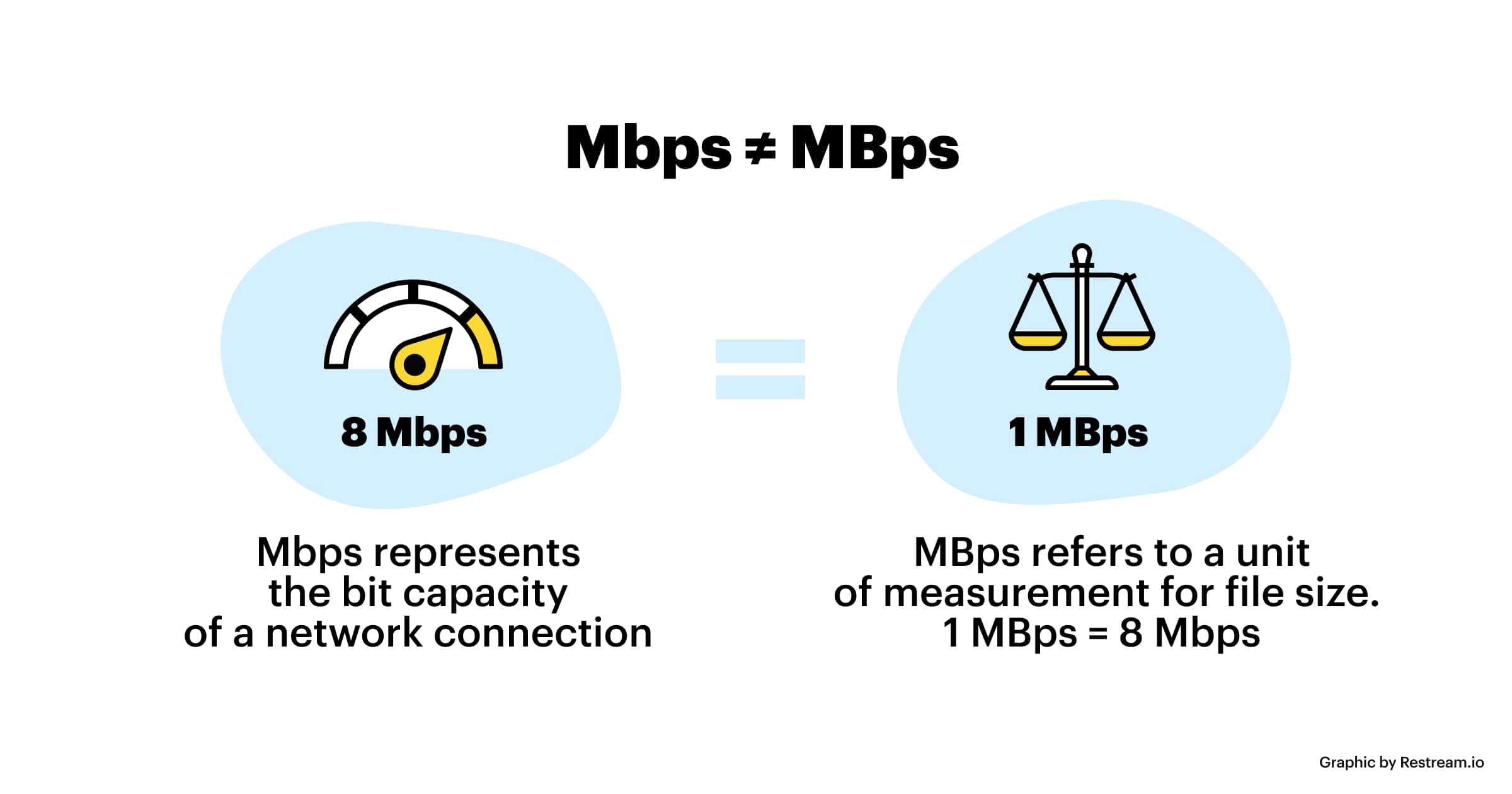
The amount of data per second is called the bit rate. Use bps as the unit. This is an abbreviation for Bit Per Second. For example, if it is written as 500 kbps, k is 1,000, which means “the amount of data of 500,000 bits per second.”

There are two types of video bit rates: “video bit rate” and “audio bit rate”. The total value of “video bit rate” and “audio bit rate” is the total bit rate (oval bit rate) of the video file.

Video Bit Rate / Audio Bit Rate

■ Voice bit rate
The audio bit rate is the bit rate associated with the audio in the video file. Generally, the audio bit rate is lower than the video bit rate.
The guideline for the audio bit rate is as follows.

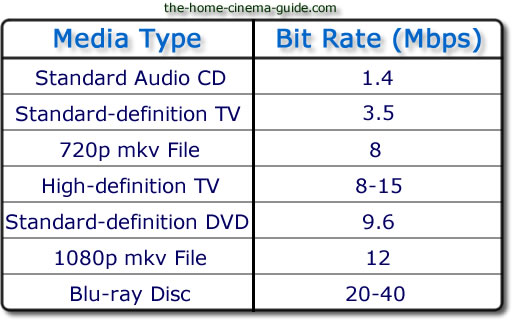
Lossy codecs like MP3, AAC, WMA … 96kbps-128kbps
Sound quality oriented video … 192 to 320 kbps
A codec is a program that encodes (encodes) / decodes (decodes) video and audio data. A lossy codec is a codec that dilutes the data and reduces its weight without affecting it. For more information on codecs, see the following.

[Reference article] What is a codec? Basic knowledge of the codecs required for video distribution.
■ Video bit rate
The video bit rate is the bit rate of the video in the video file. Generally, the video bit rate value is higher than the audio bit rate. The appropriate video bit rate will differ depending on the size of the resolution and the content of the video, such as amount of movement / small amount of movement.

The guideline for video bit rate is explained in “3. Guideline for bit rate”, but the value varies depending on the image quality you want to deliver, such as 500 kps to 70 Mbps. Since the standard for audio is “approximately 96 kbps to 128 kbps”, the video bit rate occupies most of the bit rate of the entire video file.

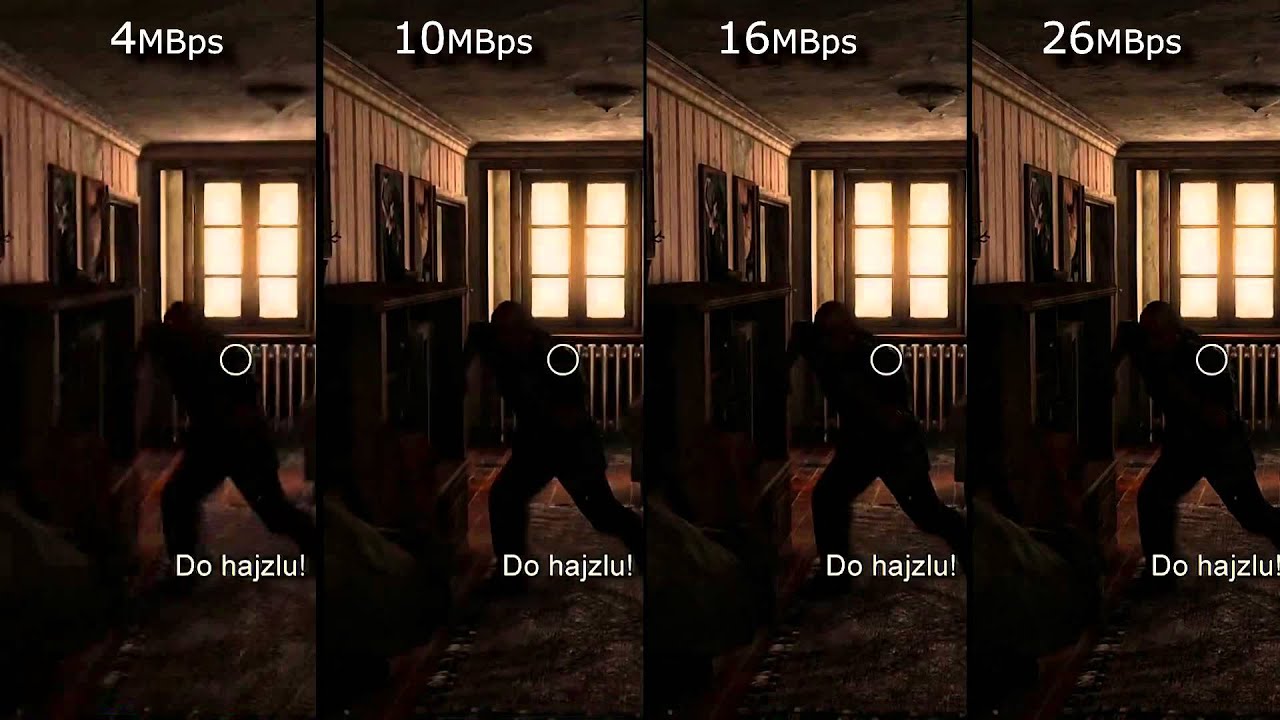
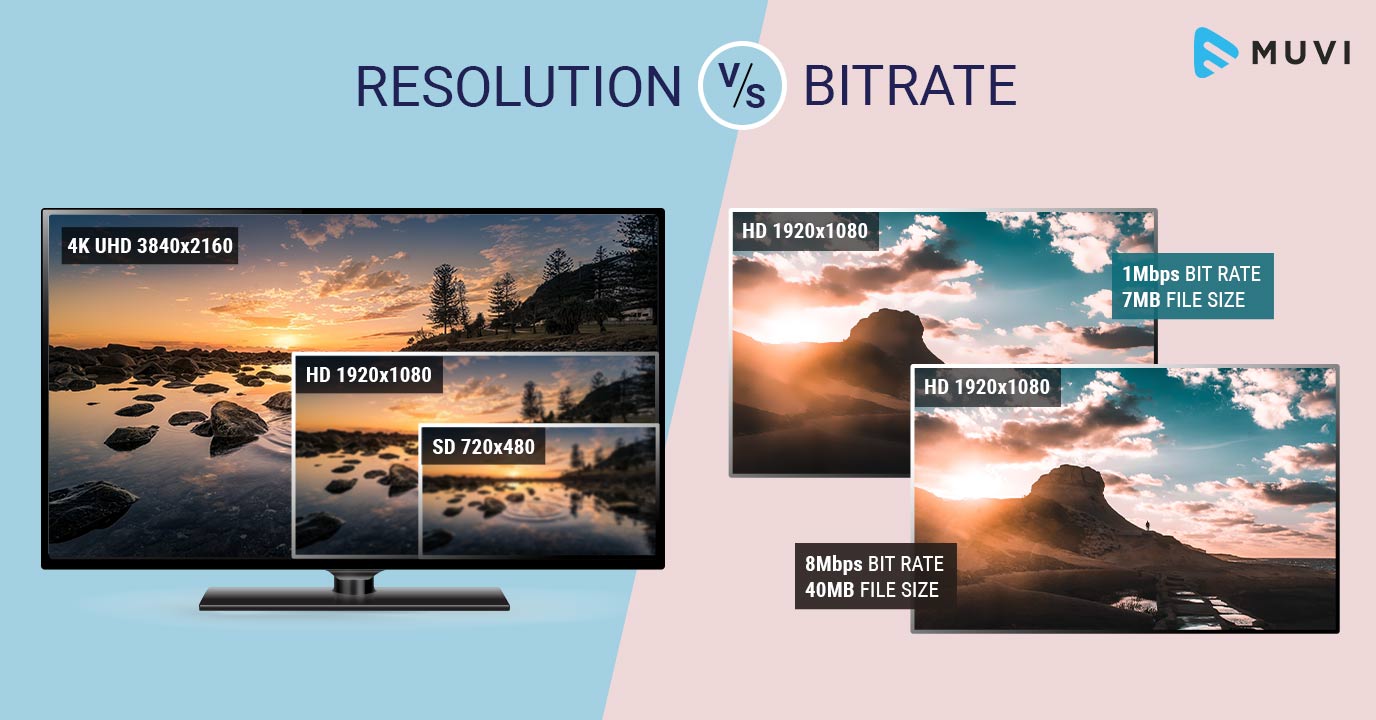
It can be said that the higher the value of the video bitrate, the better the image quality, but that does not mean that “the higher the value, the better”. When displayed at a small resolution, the roughness is not as noticeable even if the bit rate is reduced. On the contrary, even if you encode at a high bit rate, you will not notice the difference in image quality, and in many cases the file size will only increase.

From now on, we will focus on the bitrate of the video.


Free Download Mp4Gain
picture


Mp4Gain Main Window
picture


Mp4Gain Features
picture


Free Download Mp4Gain
picture

What is the encryption mechanism? Part 2

What is the encryption mechanism? Part 2

Video Bitrate

However, in the case of moving images, the quality of the image at the time of encoding will vary depending on whether the video material has a lot of movement or the video material has little movement, even if the bit rate is the same. Therefore, it is necessary to thoroughly judge and encode not only the bit rate, but also the frame rate and keyframe settings, which will be explained later, according to the video material. I hope you understand that “there is a relationship between resolution and proper bit rate” as a determining factor for high definition.

videro bit rate

Point 2: Increase the frame rate if movement is important and lower the frame rate if image quality is important.
While the frame rate (number of frames) is set at 29.97 fps for televisions and 24 fps for movies, the frame rate is freely configurable for Internet video encoding. A video is a collection of continuous images (frames) like a flip book. The more frames per second, the smoother the movement.

In video encoding, the bit rate per second is fixed, so if you increase the frame rate, the number of images in the flip book will increase and the movement will be smoother, but the amount of data allocated per frame will decrease, so the image quality will be better to fall.
On the other hand, if you reduce the number of frames, the number of images in the flip book will decrease and the smoothness of the movement will be a little slower, but the image quality will improve because a large amount of data will be allocated to each frame. .

If you want to emphasize the smoothness of motion in a video with a lot of motion, increase the frame rate (video demo 1). On the other hand, if the video has little movement, it is not necessary to increase the number of frames as much (depending on the degree), so it is effective to lower the frame rate and give priority to improving the image quality

Point 3: insert “keyframes” at short intervals for moving images
A keyframe is a frame that exists as a single still image (an image that is not compressed between frames) and is the starting point for difference information. Depending on the encoder settings, the keyframes are inserted when there is a scene change and the difference information is inserted at regular intervals, such as XX frames and once every XX seconds.

■ Keyframes for moving images
In a moving image, things move or change significantly in a short time. Therefore, inserting keyframes at short intervals improves the reproducibility of small movements.
There is also the advantage that the search is smoother for images with many keyframes. The reason is that the search is based on keyframes, so the more keyframes you have, the easier it is to stop at the target scene. If the position where the search stops is not a keyframe but a difference information frame, the information is fetched to a nearby keyframe, but that time is short.
However, if you increase the number of keyframes too much, the keyframe bit rate will be taken over and the overall video quality will deteriorate, so be careful.
For moving images, the keyframe is approximately once every 3 seconds.

■ Keyframes for images with little movement
Since there is little difference information in a video with little motion, you won’t notice much difference in change even if there are few keyframes. However, if you insert keyframes for too long, search may not work properly and playback may take a long time to start. This is the opposite of the case where there are many keyframes, and if the rewind position is far from the keyframes, it will take time to read.
For those with little movement, the guideline for keyframes is approximately once every 6 to 8 seconds.

So far, “What is the encoding mechanism? Five points to consider for encoding HD video [Part 1]”, “Understanding the appropriate bit rate for the resolution you want to distribute”, motion oriented or image quality I explained three points how to change the “frame rate” and “how to insert keyframes” depending on whether it is important. In [Part 2], we will explain “the advantages and disadvantages of bit rate settings

What is the encryption mechanism?

What is the encryption mechanism?

Video Bitrate

5 points to consider for HD video encoding

Video Bit Rate

Encode

The image quality of Internet videos is almost proportional to the bit rate. However, if the bit rate increases unnecessarily, the file size will increase. “Keep bit rate low”, “Reduce file size” and “Reduce load time” are linked, and there is nothing to say if you can encode in high definition while keeping the bit rate low.
Also, at the beginning, I wrote that “image quality is almost proportional to bit rate”, but I think some of you may have experienced that “I increased the bit rate and encoded, but I am not satisfied with the quality of the image. “So, this time, I will explain five points that are often used to do high definition video encoding.

Encoding Mechanism
First, I will briefly explain the encoding mechanism.
An image is a collection of continuous images (frames), and by changing this in a short time like a flip book, it appears that you are visually moving. Japanese television images are 29.97 frames per second (short for 29.97 fps / frame per second) and most movies and animations are standard 24 fps. Since a large number of frames are required for video, the amount of data is also huge. Therefore, data compression is indispensable for distributing videos on the Internet.

When coding

“Prediction in frame” that compresses data within a frame
“Prediction between frames” that compresses data into consecutive frames
The information is reduced to the extent that it does not affect the visual sense and the data is compressed.

■ What is in-frame prediction?
There are various methodologies for data compression, so I will skip the details here, but the basic idea of ​​within-frame prediction is to divide a frame into small blocks called cells and the colors adjacent to each other in the block. they are the same or similar, they are compressed together.
For example, if there is information “blue blue blue blue blue blue blue blue blue blue red red yellow yellow yellow” information in the divided block, the amount of data can be reduced by combining this with “blue 11, red 2, yellow 3”. It’s an image.

An example of data compression in in-frame prediction (image)

■ What is cross-frame prediction?
However, in the case of video with a time axis, the number of frames is large, so there is a limit to the overall weight reduction based solely on the prediction within the frame. On the other hand, in the prediction between frames, based on the idea that “the contents are similar before and after the consecutive frames”, the cells that do not change from the previous frame reduce the amount of data by reusing information, and the cells that change is converted to data as difference information.

Point 1: learn a suitable bit rate guideline for resolution

The above three are excerpts of the same 640x360px image, but the file sizes are different at 1MB, 250KB, and 50KB. The image quality of 250 kB is lower than that of 1 MB and is much coarser at 50 kB. This is because the amount of data allocated per pixel is reduced, resulting in poor image quality.

The same phenomenon can be said of the videos. Bit rate is the amount of data allocated per second and affects the image quality of the video. If you want to view a video on a large screen, such as viewing it full screen on a computer or TV monitor, you need a sufficient bit rate according to the resolution. On the other hand, when displayed at a small resolution, the roughness is not as noticeable even if the bit rate is reduced. On the contrary, even if you encode at a high bit rate, you will not notice the difference in image quality, and in many cases the file size will only increase.