Compression efficiency in MP4 video streams

Compression efficiency in MP4 video streams

Compression efficiency in MP4 video streams

Let’s talk about compression efficiency in MP4 video streams

Compression efficiency in MP4 video streams determines how effectively data is stored without compromising the viewing experience. This topic is critical as it directly impacts file sizes, streaming quality, and the balance between performance and visual fidelity. With my experience in multimedia optimization, I’ve seen how small tweaks in compression algorithms can result in massive improvements. Think of it like packing a suitcase—how efficiently you organize everything determines whether it fits while still being accessible.

The MP4 format is popular for its versatility and high-quality compression methods, which make it suitable for everything from smartphone videos to streaming platforms. Its efficiency lies in how it uses codecs like H.264 or H.265, which rely on perceptual coding to reduce redundant or less noticeable details. This approach ensures smaller files with impressive quality, something critical in today’s streaming-driven world.

How codecs influence compression efficiency

Codecs play a pivotal role in how MP4 files are compressed. If you’ve ever wondered why two MP4 files of similar duration can have vastly different sizes, the answer lies in their codec.

Modern codecs like H.264 and H.265 use techniques like motion compensation and predictive coding. These identify repeated patterns or predictable movements in video frames, reducing redundant data. For example, a static background in a scene doesn’t need to be re-encoded for every frame; instead, it’s referenced from the first frame where it appears.

The trade-off between compression and quality

Achieving the right balance between file size and quality is a challenge. I often compare this to adjusting a water hose; too much pressure, and you waste water (or data in this case); too little, and you don’t get the result you want. Compression at low bitrates can lead to visible artifacts like blockiness or banding, especially in areas of high motion or gradients.

Efficient MP4 compression ensures that critical visual details remain sharp, even at reduced file sizes. For instance, H.265 is about 50% more efficient than H.264, meaning you can achieve the same quality at half the file size. However, the trade-off comes in encoding and decoding complexity, which requires more processing power.

Factors affecting MP4 compression efficiency

Several factors impact how efficiently an MP4 video stream compresses:

  • Resolution: Higher resolutions, like 4K, demand more data, but smart compression can preserve quality.
  • Bitrate: A higher bitrate delivers better quality but results in larger files.
  • Frame rate: Higher frame rates like 60fps add more data to each second of video.
  • Codec choice: Using H.265 instead of H.264 can drastically improve compression efficiency.

From my experience, I’ve seen how adjusting these parameters can make a significant difference. For example, reducing the frame rate for a slow-moving video can cut file sizes in half without noticeable quality loss.

Real-world examples of MP4 compression efficiency

Think about streaming platforms like Netflix or YouTube. These platforms use advanced MP4 compression to deliver high-quality videos while minimizing bandwidth use. They employ adaptive bitrate streaming, which adjusts video quality in real time based on your internet speed.

Another example is video surveillance systems. Efficient MP4 compression ensures hours of high-definition footage can be stored on limited storage devices without frequent overwrites. In my experience, tweaking settings like resolution and codec can extend storage capacity significantly.

Emerging technologies enhancing compression

New technologies are continually pushing the boundaries of compression efficiency. AI-based video compression is one exciting development. These systems learn to recognize patterns and optimize encoding better than traditional algorithms. AI compression can reduce file sizes by up to 30% compared to standard methods.

Additionally, the emergence of codecs like AV1 promises even better efficiency. AV1 can outperform H.265, providing higher-quality streams at lower bitrates, making it ideal for ultra-high-definition content.

How compression impacts streaming experiences

Streaming services depend heavily on efficient MP4 compression. A poorly compressed video can result in buffering, pixelation, or quality drops, frustrating viewers. Compression ensures smooth playback, even on slower connections. For instance, efficient MP4 streams can adapt to 480p when bandwidth is limited and switch to 4K when speeds improve.

In my work, I’ve seen how optimizing compression settings can create seamless streaming experiences. By balancing bitrate and resolution, we can maintain quality even during fluctuating network conditions.

Optimizing MP4 compression for different use cases

Every application demands a unique approach to MP4 compression. For professional videographers, preserving every detail is crucial, so higher bitrates and advanced codecs are preferred. In contrast, mobile users prioritize smaller file sizes for quicker sharing.

I once optimized a video marketing campaign where we reduced the file size by 70% without compromising quality. This was achieved by carefully selecting resolution, bitrate, and codec settings tailored to the target audience.

Latest words on compression efficiency in MP4 video streams

Compression efficiency in MP4 video streams is a cornerstone of modern multimedia. It balances the need for quality, accessibility, and performance. As a specialist, I’ve seen how advancements like AI and new codecs are reshaping the landscape. Tools like Mp4Gain are invaluable for achieving optimal compression settings, ensuring videos are high-quality yet efficient.

What is compression efficiency in MP4 video streams?

Compression efficiency refers to the ability to reduce file sizes while maintaining high video quality. It uses advanced codecs to achieve this balance.

Why is MP4 compression important?

MP4 compression ensures smaller file sizes, faster streaming, and optimal storage without losing video quality.

How does H.265 improve compression efficiency?

H.265 uses advanced algorithms like motion compensation and prediction, reducing data redundancy and improving efficiency.

What is adaptive bitrate streaming?

Adaptive bitrate streaming adjusts video quality in real time based on internet speed, ensuring smooth playback.

Can AI enhance video compression?

Yes, AI-based systems optimize encoding by recognizing patterns, reducing file sizes more efficiently than traditional methods.

What is AV1 codec?

AV1 is a next-generation codec that offers better compression efficiency than H.265, ideal for high-definition content.

What are compression artifacts?

Compression artifacts are visual distortions like blockiness or banding that occur due to aggressive data reduction.

How does resolution affect compression efficiency?

Higher resolutions demand more data, but efficient compression methods can preserve quality without increasing file sizes excessively.

What is perceptual coding in video compression?

Perceptual coding prioritizes details visible to human eyes, removing less noticeable elements to save space.

How does Mp4Gain optimize MP4 compression?

Mp4Gain helps adjust compression settings for optimal quality and efficiency, tailored to individual needs.

Comments:

I’ve been struggling with compression artifacts on my videos. This article gave me so much insight! Great job explaining codecs.

I still don’t fully get how adaptive bitrate works. Can you elaborate more on how it adjusts in real time?

This was super helpful. I tried reducing the frame rate for my videos, and it worked wonders for file size!

I didn’t know AV1 was better than H.265. Are there any downsides to using it?

Why do some streaming services still use older codecs like H.264 if better options exist? Please explain more!

Wow, I learned so much about perceptual coding. Makes sense why some details are sacrificed for size!

I wish you went deeper into AI compression. That seems like the future. Do you have more resources on that?

Great article, but I think more real-world examples would make it even better. Like specific use cases of AV1.

Didn’t realize how much resolution affects compression efficiency. Time to recheck my encoding settings!

MP4 Resolution Scaling

MP4 Resolution Scaling

MP4 Resolution Scaling

Let’s talk about MP4 resolution scaling

MP4 resolution scaling is one of the most fascinating aspects of digital video processing. It’s the ability to adjust the resolution of a video file to meet different playback requirements or improve compatibility. As someone who’s worked extensively with MP4 files, I’ve encountered numerous scenarios where scaling made all the difference. Imagine resizing a high-definition video to play seamlessly on an older device. It’s like tailoring a jacket to fit perfectly, ensuring every pixel aligns with the screen’s capabilities.

How MP4 resolution scaling works

Resolution scaling in MP4 files involves modifying the pixel dimensions of a video. This process changes the number of horizontal and vertical pixels, impacting the overall quality and file size. For example, shrinking a 4K video to 1080p reduces its pixel count but also makes it easier to stream or store. I often compare this to resizing an image in Photoshop; the content remains, but the dimensions adjust.

Benefits of scaling MP4 resolution

Optimized file sizes

  • Reduced storage requirements for smaller resolutions.
  • Faster upload and download times for compressed videos.
  • Improved streaming experience for lower-bandwidth connections.

Device compatibility

  • Ensures videos play smoothly on older hardware.
  • Eliminates playback issues caused by unsupported resolutions.

Enhanced visual performance

  • Adapts to screen size for better viewing experiences.
  • Prevents unnecessary pixel stretching or compression artifacts.

Common use cases for MP4 resolution scaling

Resolution scaling is essential for diverse applications. In streaming platforms, it’s used to provide multiple quality options like 360p, 720p, or 1080p. I often use scaling for home videos when sharing files with friends who have devices of varying capabilities. It’s like creating multiple servings of a meal to suit different appetites.

Challenges in MP4 resolution scaling

Scaling isn’t always straightforward. Upscaling low-resolution videos often results in blurry images because the extra pixels need to be “invented.” I liken this to inflating a low-quality photo—it might fit a larger frame, but details are lost. On the other hand, downscaling can sometimes strip away subtle visual details.

Best practices for MP4 resolution scaling

When scaling MP4 resolutions, follow these tips for optimal results:

  • Always back up your original video files before making changes.
  • Use high-quality algorithms for upscaling to preserve details.
  • Match the resolution to the target device’s native display.
  • Avoid excessive scaling to prevent quality loss.

Tools for achieving MP4 resolution scaling

There are various tools available for MP4 scaling, each with its strengths. These tools use sophisticated algorithms to resize videos without noticeable quality loss. While I won’t mention specific names, the key is selecting software that supports your desired output resolution and file format.

Impact of resolution scaling on MP4 file quality

Resolution scaling directly affects video quality. Downscaling sharpens images, making them appear crisper on smaller screens. Upscaling, however, requires advanced techniques like AI-based interpolation to fill in missing details. It’s similar to restoring an old painting—you want it to look authentic without overdoing the enhancements.

How MP4 resolution scaling affects file size

Scaling down reduces the file size since fewer pixels require storage. However, the compression settings used during scaling also play a critical role. In my experience, balancing resolution and bitrate is essential. Think of it like packing a suitcase—removing unnecessary items (pixels) creates more space, but overstuffing can still strain the zippers (file quality).

Why resolution scaling is vital for MP4 streaming

Streaming platforms rely heavily on resolution scaling to ensure smooth playback across various internet speeds. Adaptive bitrate streaming is an example where videos dynamically adjust resolution based on available bandwidth. This feature ensures uninterrupted viewing, even during network fluctuations. It’s like having a water tap that adjusts its flow depending on the pressure.

Latest words on MP4 resolution scaling

MP4 resolution scaling is an indispensable tool in modern digital media. Whether you’re preparing content for streaming, sharing videos across devices, or optimizing file storage, understanding and applying scaling techniques can make all the difference. With advancements in technology, the future holds even more sophisticated methods to scale videos without compromising quality. For anyone dealing with video files, mastering MP4 scaling is like learning the art of video craftsmanship.

What is MP4 resolution scaling?

MP4 resolution scaling refers to resizing the video’s pixel dimensions to adjust its quality, file size, or compatibility.

Why is resolution scaling important for MP4 files?

Scaling is important for optimizing storage, ensuring device compatibility, and enhancing playback experiences.

Comments:

I always wondered how scaling works! This article made it so clear, especially with the real-life examples. Thanks for the clarity!

Great article, but I’d like to see more details on the tools used for resolution scaling. Could you dive into that next time?

MP4 Video Quality Settings

MP4 Video Quality Settings

MP4 Video Quality Settings

Let’s talk about MP4 video quality settings

When we think about MP4 video quality settings, we often overlook how crucial they are for creating a seamless viewing experience. I’ve spent years fine-tuning video files to achieve optimal results, and the right settings can make all the difference. Let’s break down the factors that truly matter so you can understand this process as clearly as watching your favorite HD movie.

The balance between file size and video quality is like adjusting a camera lens to get the sharpest picture. For MP4, this involves tweaking resolution, bitrate, frame rate, and codec settings. By optimizing these elements, you ensure your videos look stunning while keeping the file size manageable.

Why resolution matters for MP4 videos

Resolution defines the clarity of your video, and it’s the first setting to consider when adjusting MP4 video quality. Imagine watching a blurry photo slowly become clear; that’s the effect of resolution on video quality.

Higher resolutions like 1080p or 4K deliver crisp images but require more storage and processing power. If you’re working with limited bandwidth or space, 720p can still provide excellent results without overloading your system.

Frame rate and its impact on video quality

The frame rate, or how many frames are displayed per second, directly affects the smoothness of your video. Think of it like flipping through a flipbook—the faster the pages turn, the smoother the motion.

For MP4 videos, 30 frames per second (fps) is standard for most content, but 60 fps is ideal for high-motion scenes like sports or gaming. Keep in mind, though, higher frame rates can increase file size, so you’ll want to balance this with your storage capabilities.

Bitrate settings: the key to video quality

Bitrate determines the amount of data processed per second in your video file, making it one of the most critical MP4 settings. I often compare bitrate to the thickness of paint applied to a canvas—the richer the paint, the more vivid the result.

  • Constant Bitrate (CBR): Ensures consistent quality but may lead to larger file sizes.
  • Variable Bitrate (VBR): Adjusts bitrate dynamically to optimize quality and file size.
  • High bitrate: Best for preserving detail in high-resolution videos.

Experimenting with these options can help you find the perfect trade-off between quality and efficiency.

Choosing the right codec for MP4 videos

A codec compresses your video file while maintaining quality, and the codec you choose can significantly impact the final output. It’s like deciding which tool to use for carving wood—a sharper tool gives better results.

The H.264 codec is widely used for MP4 files due to its excellent balance of compression and quality. For newer applications, the H.265 codec offers even better compression, reducing file sizes while preserving details.

Optimizing audio settings for MP4 videos

While visuals get all the attention, audio is just as crucial for creating an immersive MP4 video experience. Poor sound quality can ruin an otherwise stunning video.

  • Use a sample rate of 44.1 kHz or 48 kHz for clarity.
  • Choose AAC for compression without sacrificing quality.
  • Set an audio bitrate of 128-320 kbps depending on the importance of sound in your video.

These settings ensure your audio matches the quality of your visuals, creating a well-rounded viewing experience.

How file size affects MP4 quality

File size often determines how easily a video can be shared or streamed. I like to think of it as packing a suitcase—overloading it can make the contents messy and hard to manage.

To reduce file size without compromising quality, consider lowering the resolution, using a more efficient codec, or adjusting the bitrate. These small tweaks can have a big impact on how your MP4 video performs across different platforms.

Advanced tips for customizing MP4 settings

For those who want to dive deeper, advanced settings can unlock even better results. It’s like learning to cook a complex dish—you start with the basics, then add your own flavor.

  • Enable two-pass encoding for improved compression efficiency.
  • Adjust the GOP (Group of Pictures) structure to balance quality and encoding speed.
  • Use chroma subsampling settings like 4:2:0 for a good balance between color and file size.

These techniques require some experimentation but can elevate your MP4 videos to professional-grade quality.

Latest words on MP4 video quality settings

MP4 video quality settings might seem overwhelming at first, but with a little guidance, they’re easy to master. By understanding resolution, frame rate, bitrate, and codecs, you can create videos that look amazing and play smoothly across devices. For those who want an all-in-one solution, Mp4Gain simplifies these adjustments, ensuring your videos always look their best.

html
Copiar código

What is the best resolution for MP4 videos?

The best resolution depends on your goals. For streaming or sharing online, 1080p is ideal for its balance of quality and file size. For cinematic projects, 4K offers superior detail.

How does bitrate affect MP4 video quality?

Bitrate controls how much data is allocated per second of video. Higher bitrates result in better quality but larger file sizes. Adjusting bitrate helps balance clarity and storage.

Which codec is better for MP4 files: H.264 or H.265?

H.264 is widely compatible and reliable for most platforms. H.265 provides better compression, making it ideal for high-quality videos with smaller file sizes, but it may not be supported by all devices.

What frame rate should I use for MP4 videos?

Use 30 fps for standard videos, as it ensures smooth motion. For fast-action content, such as sports or gaming, 60 fps is better for fluidity and detail.

How can I reduce MP4 file size without losing quality?

You can reduce file size by lowering resolution, using a more efficient codec like H.265, or applying variable bitrate (VBR) encoding. These methods maintain quality while saving space.

What audio settings work best for MP4 files?

For MP4 audio, use AAC encoding at 128-320 kbps with a sample rate of 44.1 kHz or 48 kHz. These settings ensure high-quality sound that complements the video.

What is two-pass encoding, and should I use it?

Two-pass encoding analyzes your video in the first pass and optimizes it in the second. It’s ideal for ensuring consistent quality and efficiency, especially in high-demand projects.

How does resolution impact streaming performance?

Higher resolutions like 4K offer better quality but require more bandwidth. For smoother streaming with less buffering, opt for 720p or 1080p, depending on your connection speed.

What is chroma subsampling, and why is it important?

Chroma subsampling reduces color data to save space while preserving brightness detail. Settings like 4:2:0 balance quality and file size, making them ideal for most MP4 applications.

Can I play high-quality MP4 videos on all devices?

Most devices support MP4 playback, but older ones may struggle with high-resolution or H.265-encoded files. Check your device’s compatibility to avoid issues.

Comments:

Wow, this helped me so much with my video project! I didn’t know bitrate could make such a difference.

I feel like the section on audio settings could use more examples. Could you add something for beginners?

Great article! I always struggled with getting the right resolution for my YouTube uploads, and this clarified it.

MP4 Video Resolution and Aspect Ratio Handling

MP4 Video Resolution and Aspect Ratio Handling

MP4 Video Resolution and Aspect Ratio Handling

Let’s talk about MP4 video resolution and aspect ratio handling

MP4 video resolution and aspect ratio are at the core of creating visually pleasing and functional videos. When I first started working with videos, I quickly realized that understanding how resolution and aspect ratios interact could make or break the viewing experience. For instance, have you ever watched a video on your phone and noticed black bars on the sides or top? That’s usually a mismatch in the video’s aspect ratio or resolution compared to your screen. Let me break down everything you need to know about these crucial elements and why they matter.

What is MP4 video resolution?

Resolution in MP4 videos refers to the number of pixels displayed on the screen, measured in width by height. The higher the resolution, the sharper and more detailed the video appears. When I think of resolution, it’s like comparing a LEGO model made with hundreds of blocks to one made with just a few—the more blocks (or pixels), the better the detail.

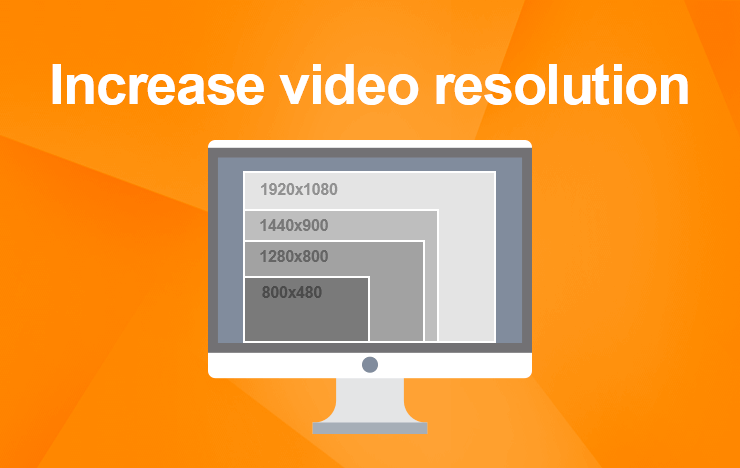
  • Common resolutions include 720p (1280×720), 1080p (1920×1080), and 4K (3840×2160).
  • Higher resolutions require more storage space and processing power for playback.
  • Lower resolutions are often used for streaming to save bandwidth.

I’ve found that 1080p is a sweet spot for most users, offering excellent quality without the massive file sizes of 4K. However, if you’re producing content for high-end platforms or large screens, 4K is quickly becoming the standard.

Understanding aspect ratio in MP4 videos

Aspect ratio describes the proportional relationship between a video’s width and height. You’ve probably heard of 16:9, which is the standard for most modern devices. But other ratios, like 4:3 or even vertical formats like 9:16, are used for specific purposes.

When I first edited a 4:3 video to fit a 16:9 screen, I didn’t account for the stretching that occurred. It reminded me of blowing up a balloon—things look odd when stretched beyond their natural proportions. To avoid such issues, understanding the original aspect ratio is key.

Why 16:9 is the king of aspect ratios

16:9 dominates because it fits most modern screens, from TVs to smartphones, without cropping or letterboxing. It’s like a universal key that opens almost every door in the digital video world. But there’s more to it:

  • 16:9 is ideal for widescreen viewing.
  • It’s compatible with most streaming platforms.
  • It eliminates the need for awkward resizing or cropping.

If you’re uploading to YouTube, TikTok, or any social platform, aligning with their preferred aspect ratio ensures a polished look.

How MP4 handles mismatched resolutions and aspect ratios

Ever seen a video that looks squished or stretched? That’s a sign of improper handling of mismatched resolutions and aspect ratios. MP4 files are designed to be flexible, but mishandling these settings can ruin your video.

For example, a 4:3 video displayed on a 16:9 screen will either stretch unnaturally or have black bars (letterboxing). Similarly, cropping can cut off important parts of the frame. It’s like trying to fit a square peg into a round hole—something has to give.

Solving mismatch issues

  • Use software to resize or crop videos while maintaining the original aspect ratio.
  • Add padding (letterboxing or pillarboxing) to preserve the original look.
  • Encode videos with multiple resolutions and ratios for adaptive streaming.

In my experience, adaptive streaming is a game-changer. It allows platforms to serve the best-fit version of your video based on the viewer’s screen.

Technical insights: How resolution impacts file size and quality

Resolution doesn’t just affect how a video looks—it impacts file size, bandwidth, and playback compatibility. A 4K video may look stunning, but it’s also heavier, requiring more storage and faster internet for smooth playback.

Here’s how resolution affects file size:

  • 1080p is four times smaller than 4K, making it efficient for everyday use.
  • Compression tools can reduce file sizes, but excessive compression leads to quality loss.
  • Bitrate settings play a crucial role in balancing quality and size.

When I share videos, I often use 1080p for social platforms because it’s a practical balance. For archival footage or professional projects, I lean toward 4K to future-proof my work.

The role of codecs in resolution and aspect ratio handling

MP4 relies on codecs like H.264 or H.265 to compress and decompress video data. These codecs ensure that high-resolution videos remain manageable in size without sacrificing quality.

It’s like packing a suitcase—smart packing allows you to fit more while keeping everything organized. Similarly, the right codec lets you maintain quality even at high resolutions. H.265, for instance, offers better compression than H.264, making it perfect for 4K or higher.

Real-world applications of aspect ratios

Choosing the right aspect ratio isn’t just technical—it affects how your audience experiences your content. Here’s what I’ve learned from my projects:

Horizontal aspect ratios for storytelling

  • 16:9 is ideal for films, TV shows, and YouTube videos.
  • 21:9 provides an even more cinematic experience.

When I shoot travel vlogs, 16:9 captures the expansive scenery beautifully. For more dramatic storytelling, I’ve experimented with 21:9, which immerses viewers.

Vertical aspect ratios for social media

  • 9:16 is perfect for TikTok, Instagram Stories, and Snapchat.
  • 1:1 works well for Instagram posts.

Vertical videos are like holding a mirror—it’s natural for phone users. When I create short tutorials, I stick to 9:16 for better engagement.

Latest words on MP4 video resolution and aspect ratio handling

Mastering MP4 video resolution and aspect ratio is essential for creating impactful content. By understanding how these elements interact, you can deliver videos that look professional and meet audience expectations. Whether you’re editing home videos or producing professional content, aligning resolution and aspect ratio with the platform’s standards is key. If you’re struggling with these adjustments, Mp4Gain offers a simple yet powerful solution to optimize your videos.

Frequently Asked Questions about MP4 Video Resolution and Aspect Ratio Handling

What is MP4 video resolution?

MP4 video resolution refers to the number of pixels displayed on the screen, measured in width by height. Higher resolutions like 1080p or 4K offer sharper and more detailed videos, while lower resolutions, such as 720p, save storage space and bandwidth.

Why is aspect ratio important in MP4 videos?

Aspect ratio determines the proportional relationship between the width and height of a video. It ensures that videos display correctly on various devices without distortion, stretching, or cropping. Common ratios include 16:9 for widescreen and 9:16 for vertical formats.

How does MP4 handle mismatched aspect ratios?

When aspect ratios don’t match, MP4 videos may appear stretched, squished, or include black bars (letterboxing or pillarboxing). Proper encoding, resizing, or adding padding can fix these issues to ensure the video looks correct on any screen.

What is the best resolution for MP4 videos?

The best resolution depends on your needs. For general use, 1080p strikes a balance between quality and file size. For professional or large-screen content, 4K is ideal, while 720p is better suited for saving bandwidth.

What are common MP4 aspect ratios?

Common MP4 aspect ratios include 16:9 for widescreen content, 4:3 for older TVs or devices, and 9:16 for vertical videos used on platforms like TikTok and Instagram Stories.

How does resolution affect file size in MP4 videos?

Higher resolutions, like 4K, significantly increase file size and require more storage and processing power. Using efficient codecs, like H.265, can help reduce file size while maintaining quality.

What codec should I use for MP4 videos?

H.264 is widely supported and works well for most resolutions, while H.265 offers better compression and is ideal for high-resolution videos like 4K. Choose a codec based on your playback and storage needs.

What causes black bars on MP4 videos?

Black bars appear when the aspect ratio of the video doesn’t match the screen. This is often resolved by letterboxing or pillarboxing, which adds padding to preserve the video’s original proportions.

How can I optimize MP4 videos for social media?

To optimize MP4 videos for social media, use aspect ratios like 9:16 for vertical platforms (e.g., TikTok, Instagram Stories) or 1:1 for square posts. Ensure the resolution matches platform requirements and use efficient compression to keep file sizes manageable.

What tools can I use to adjust MP4 resolution and aspect ratio?

There are various tools available to adjust MP4 resolution and aspect ratio. These tools let you resize, crop, or add padding to match screen dimensions. Mp4Gain is a highly effective solution for optimizing both resolution and aspect ratio.


Comments:

I’ve always struggled with aspect ratios! Thanks for breaking it down so well. I didn’t know about adaptive streaming before, super helpful!

Why don’t more platforms make it easier to deal with aspect ratios? Every time I upload a 4:3 video to a 16:9 platform, it looks terrible. Thanks for the tips!

This is the first time I’ve understood why 16:9 is so important. Most articles just say it’s common but don’t explain why. Great info here.

I had no idea that codecs could affect the file size so much. I guess I’ve been using the wrong settings all along. Thanks for the insights!

Great article, but I wish you’d talked more about how to handle older aspect ratios like 4:3 for modern screens. Can you expand on that?

Thanks for the detailed explanation. I’m just starting with video editing and this cleared up so many questions I had about resolution.

I’ve been looking for a solution to fix mismatched aspect ratios for weeks! This guide made it clear and simple. Awesome work!

I loved the real-life examples. Comparing resolution to LEGO blocks really helped me visualize the concept. Great writing!

Can you explain more about how bitrate ties into aspect ratio and resolution? I’m curious how that affects overall quality.

Finally, someone explains this in a way I can understand. Most guides are too technical, but this one hit the mark. Thanks a lot!

So helpful! I didn’t even think about how vertical videos are better for phones. Totally makes sense now that you pointed it out.

I use 720p for my videos because my internet is slow. Is that still acceptable for platforms like YouTube?

What is the maximum resolution supported by MP4?

What is the maximum resolution supported by MP4?

Mp4 Resolution
Mp4 Resolution
Mp4 Resolution
Mp4 Resolution

Introduction

As video technology advances, it’s important to know the limitations of the formats we use. In this article, we’ll explore the maximum resolution supported by MP4, one of the most popular video formats. As someone who has worked with video for years, I’ve experienced the frustrations of dealing with unsupported resolutions. Let’s dive in.

Understanding MP4 Video Resolution

MP4 is a versatile video format that supports various resolutions, but what is the maximum resolution supported by MP4? The answer is dependent on the codec used to encode the video. The most common codec used in MP4 videos is H.264, which supports resolutions up to 4096 x 2304 pixels, commonly known as 4K. However, newer codecs such as H.265 can support even higher resolutions, such as 8K.

“Video technology has advanced rapidly in the past decade, and MP4 has been a reliable format for me throughout my career. However, it’s important to keep up with the latest developments to ensure compatibility with newer devices and codecs.”

MP4 Resolution Limitations

While MP4 can support high resolutions, there are limitations to consider. One factor is the device or software used to play the video. Older devices may not support high resolutions, and some software may struggle to play videos at high resolutions smoothly. Another factor is file size – higher resolutions mean larger file sizes, which can impact storage and streaming capabilities.

“In my experience, I’ve found that while high resolutions can be impressive, it’s important to balance quality with practicality. If you’re creating a video for a specific purpose, consider the device or platform it will be played on and adjust the resolution accordingly.”

Maximizing MP4 Video Quality

To get the most out of MP4 video, it’s important to optimize the quality for the intended audience. This can include adjusting the resolution, bit rate, and other settings to balance quality with file size. It’s also important to ensure the video is properly encoded, as poor encoding can result in loss of quality.

“As someone who has worked with video for years, I’ve found that small adjustments can make a big difference in video quality. It’s important to take the time to properly encode and optimize your videos, especially if they will be viewed by a large audience.”

Final Words

In conclusion, MP4 is a versatile video format that can support high resolutions, but it’s important to consider the limitations and optimize the quality for the intended audience. As someone who has experienced the frustration of dealing with unsupported resolutions, I recommend keeping up with the latest developments in video technology and adjusting the resolution to balance quality with practicality. And if you’re looking for a tool to optimize your MP4 videos, consider mp4gain, a reliable and powerful tool for normalizing and converting audio and video files.

Increase MP4 video resolution

Increase MP4 video resolution: Tips and tricks

MP4 video resolution

My experience with low-resolution videos

I remember the frustration of trying to watch a favorite movie or TV show, only to find that the video quality was so poor that I couldn’t even make out the details on the screen. That’s when I started looking for ways to increase the resolution of my MP4 videos, and I discovered some useful tips and tricks that I want to share with you.
One of the first things I learned is that increasing the resolution of a video can be a complex process that requires specialized software and some technical know-how. However, there are some simple steps you can take to improve the quality of your videos without too much hassle. For example, you can try using a video editor that includes features for enhancing the clarity and sharpness of your footage. Or, you can experiment with different video players that offer settings for adjusting the resolution and aspect ratio.

Using MP4Gain to increase video resolution

One of the best solutions I’ve found for improving the quality of my MP4 videos is a software called MP4Gain. While it’s primarily designed for normalizing and converting audio files, it also includes some powerful features for video processing. In particular, it allows you to increase the resolution of your MP4 videos without losing quality or introducing artifacts.
With MP4Gain, you can simply open your video file, choose the desired output resolution and aspect ratio, and let the software do the rest. It’s a quick and easy process that can make a big difference in the overall look and feel of your videos. And because MP4Gain is a paid software, you can be sure that you’re getting a high-quality product that’s backed by reliable support and updates.

Final words

Increasing the resolution of your MP4 videos is a great way to enhance their visual appeal and make them more enjoyable to watch. Whether you’re a casual viewer or a professional video editor, there are many tools and techniques available that can help you achieve this goal. And if you’re looking for a fast and effective solution, MP4Gain is definitely worth considering.