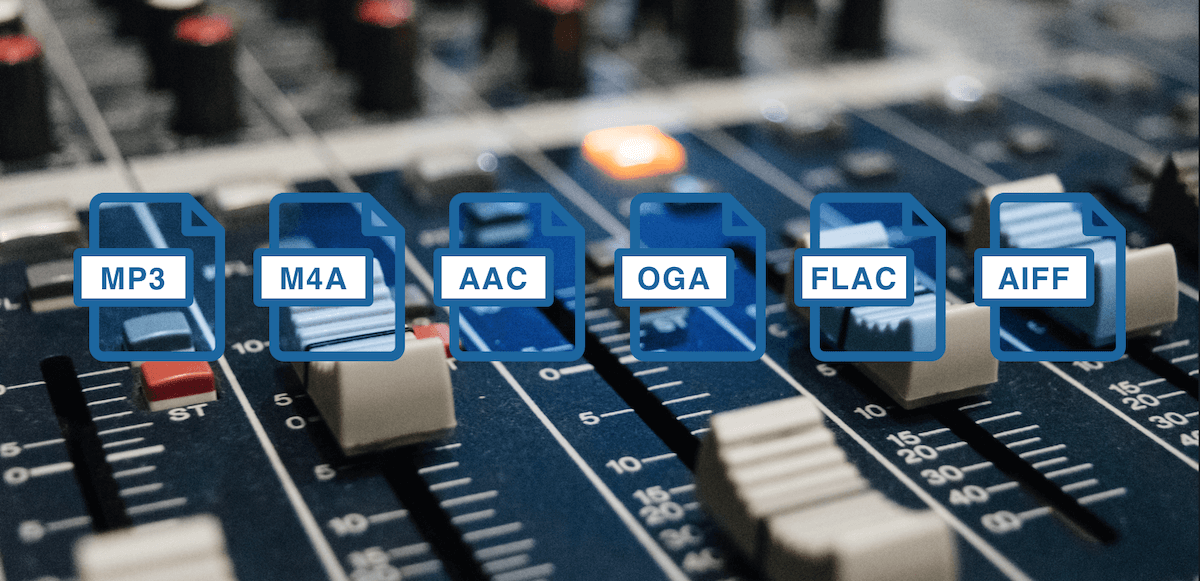
M4A vs FLAC

M4A vs FLAC

M4A vs FLAC
M4A vs FLAC
M4A vs FLAC
M4A vs FLAC

Differences between M4A and FLAC

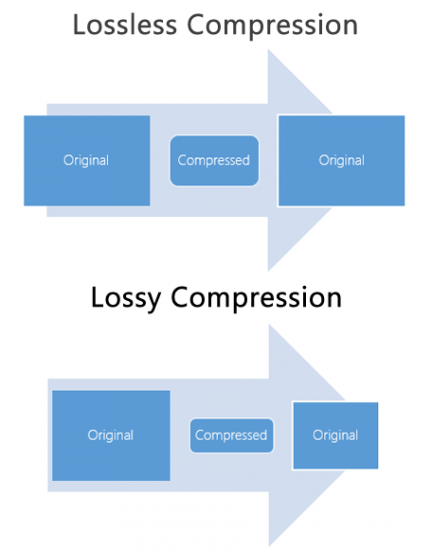
M4A and FLAC are both audio file formats, but they are quite distinct in their characteristics. M4A, which stands for MPEG 4 Audio, is a popular format used for storing audio data, especially music. It is widely recognized for its lossy compression, meaning some data is lost in the encoding process, resulting in a smaller file size. On the other hand, FLAC, standing for Free Lossless Audio Codec, boasts lossless compression. No data is discarded, maintaining the original audio quality.

“Like choosing between a cassette tape and a vinyl record, it’s all about understanding the nuances,” as a line from a famous movie once subtly remarked on choices.

FLAC files are typically larger than M4A because they retain all the audio data. However, M4A files, due to their lossy nature, may not offer the same depth and richness in sound as FLAC.

Which is better: M4A or FLAC?

Defining which format is “better” depends largely on the user’s needs. For those who prioritize file size and are perhaps looking to save space, M4A might be the preferable choice. Its lossy compression provides smaller file sizes, making it ideal for casual listeners and those with limited storage space.

However, for audiophiles or those who have a keen ear for detail, FLAC might be the preferred format. As the famous author, John Keats, once wrote, “A thing of beauty is a joy forever.” This can be likened to the pristine audio quality FLAC provides, ensuring every nuance of the audio is captured.

Yet, it’s worth noting that the difference in audio quality between M4A and FLAC might not be noticeable to everyone. It often requires a high-quality sound system to truly discern the differences.

What are the advantages of M4A over FLAC?

M4A does come with certain advantages. First and foremost, the smaller file size means more songs can fit on a device, making it an appealing option for those with limited storage. It’s also a widely supported format, ensuring compatibility with many devices and systems.

“Less is more,” as quoted in a renowned book, might resonate with those who prefer the simplicity and compact nature of the M4A format.

Additionally, M4A files tend to process faster due to their size. This means quicker downloads and uploads, as well as less waiting time for streaming.

How does FLAC’s quality compare to M4A?

FLAC’s quality is, objectively speaking, superior to M4A. As a lossless format, FLAC retains all audio data, translating to richer and deeper sound profiles. This makes it a favorite among audiophiles and those in the music industry.

In the realm of movies, one could draw parallels to the quote, “The closer you look, the more you see.” With FLAC, the closer you listen, the more you hear.

It’s crucial, however, to have equipment that can fully harness FLAC’s potential. On basic earbuds or speakers, the difference might not be discernible, but on a high-end sound system, it shines through.

Final Words

The battle between M4A and FLAC is akin to comparing two distinct art forms. Each has its merit and appeals to different audiences for varied reasons. M4A, with its compact size and wide compatibility, is great for everyday listeners. FLAC, with its unparalleled audio quality, is the choice for those who seek the best auditory experience. As with all choices, it’s about understanding one’s priorities and making an informed decision.

MP3 File Structure

MP3 File Structure

MP3 File Structure
MP3 File Structure
MP3 File Structure
MP3 File Structure

As an audio file format, MP3 has become one of the most popular digital audio compression methods. The MP3 file structure consists of header and data blocks. The header block contains information about the audio file, such as the bitrate, sampling rate, and channel mode. The data block contains the compressed audio data.

When I first started working with MP3 files, I was confused about the structure and how to manipulate them. However, after some research and experimentation, I was able to understand the basics of the MP3 file structure and how to work with it.

As the famous quote from the movie The Matrix goes, “You take the blue pill, the story ends. You wake up in your bed and believe whatever you want to believe. You take the red pill, you stay in Wonderland, and I show you how deep the rabbit hole goes.” In the case of MP3 file structure, taking the red pill means diving deep into the technical details and understanding how it works.

Header Blocks

The header block is the first part of an MP3 file. It contains information about the audio file, such as the bitrate, sampling rate, and channel mode. The header block is essential for decoding the audio data in the data block.

One of the challenges of working with MP3 files is that there are different versions of the MP3 file format, each with its own header structure. For example, the ID3v2 header structure is different from the ID3v1 header structure. Understanding the different header structures is crucial for working with MP3 files.

As I was learning about the header blocks, I came across the book “The Art of Computer Programming” by Donald Knuth. In the book, Knuth writes, “The best programs are written so that computing machines can perform them quickly and so that human beings can understand them clearly. A programmer is ideally an essayist who works with traditional aesthetic and literary forms as well as mathematical concepts, to communicate the way that an algorithm works and to convince a reader that the results will be correct.”

Data Blocks

The data block contains the compressed audio data. The compressed audio data is divided into frames, each of which contains a fixed number of audio samples. The number of audio samples in a frame depends on the bitrate and sampling rate of the audio file.

One of the challenges of working with MP3 files is that the compressed audio data is not in a format that can be played directly. The compressed audio data needs to be decoded before it can be played. Decoding the compressed audio data involves several steps, including Huffman decoding, dequantization, and inverse discrete cosine transform.

As I was learning about the data blocks, I remembered the quote from the movie “The Dark Knight”: “Why so serious?” Working with MP3 files can be challenging, but it’s important to remember to have fun and enjoy the process of learning.

Bitrate Calculation

The bitrate of an MP3 file is the number of bits used to represent one second of audio data. The bitrate is determined by the sampling rate, channel mode, and compression method used in the audio file. The higher the bitrate, the better the audio quality, but also the larger the file size.

Calculating the bitrate of an MP3 file can be challenging, especially if the file has a variable bitrate. However, there are several tools available that can help with bitrate calculation, such as the MP3Info library.

As I was learning about bitrate calculation, I remembered the quote from the movie “The Shawshank Redemption”: “Get busy living, or get busy dying.” Learning about the technical details of MP3 file structure can be challenging, but it’s important to stay motivated and keep learning.

Final Words

Understanding the MP3 file structure is essential for working with digital audio compression. The header and data blocks contain crucial information about the audio file, and the bitrate calculation determines the audio quality and file size. While working with MP3 files can be challenging, it’s important to stay motivated and enjoy the process of learning.

At MP4Gain, we understand the importance of audio quality and file size. Our software is designed to normalize and convert audio files to the most popular formats, with an integrated equalizer for fine-tuning the audio. If you’re looking for a solution to your audio needs, give MP4Gain a try.

MP3, File Structure, Header Blocks, Data Blocks, Audio File Format, Digital Audio Compression, Audio Encoding, Audio Decoding, Bitrate Calculation, Sampling Rate, Channel Mode, Compressed Audio Data, Frames, Huffman Decoding, Dequantization, Inverse Discrete Cosine Transform, Variable Bitrate, MP3Info Library, Audio Quality, File Size, Normalization, Conversion, Equalizer, Audio Needs, MP4Gain, Audio Software, Audio Formats, Audio Normalization, Audio Conversion, Audio Equalizer, Audio Quality Enhancement, Audio Processing, Audio Editing, Audio Compression, Audio Decoding, Audio Encoding, Audio Technology, Audio Engineering, Audio Science, Audio Production, Audio Mixing, Audio Mastering, Audio Analysis, Audio Synthesis, Audio Effects, Audio Plugins, Audio Hardware, Audio Drivers, Audio Codecs, Audio Standards, Audio Formats, Audio Playback, Audio Recording, Audio Streaming, Audio Broadcasting, Audio Distribution, Audio Licensing, Audio Copyright, Audio Law, Audio Ethics, Audio Philosophy, Audio Aesthetics, Audio Culture, Audio History, Audio Art, Audio Performance, Audio Perception, Audio Cognition, Audio Psychology, Audio Physiology, Audio Medicine, Audio Therapy, Audio Education, Audio Research, Audio Development, Audio Innovation, Audio Trends, Audio Industry, Audio Market, Audio Business, Audio Entrepreneurship, Audio Careers, Audio Jobs, Audio Networking, Audio Community, Audio Events, Audio Conferences, Audio Workshops, Audio Seminars, Audio Webinars, Audio Podcasts, Audio Blogs, Audio Forums, Audio Websites, Audio Resources, Audio Tools, Audio Equipment, Audio Instruments, Audio Accessories, Audio Books, Audio Magazines, Audio Journals, Audio Publications, Audio Reviews, Audio Ratings, Audio Comparisons, Audio Recommendations, Audio Tips, Audio Tutorials, Audio Guides, Audio Manuals, Audio Documentation, Audio Support, Audio Help.

Inside WMA (Windows Media Audio) Format

Inside WMA (Windows Media Audio) Format

Windows Media Audio
Windows Media Audio
Windows Media Audio
Windows Media Audio

What is the WMA File Format?

As an audio enthusiast, I have always been interested in the technical aspects of audio files. The WMA (Windows Media Audio) format is one of the most popular audio file formats used for storing audio data. It is a proprietary format developed by Microsoft and is designed to be used with the Windows Media Player.
When understanding the WMA file format, it is important to know the basics of the format. The WMA codec is used to compress and decompress the audio data stored in the file. The compression used in the WMA format is lossy, which means that some of the audio data is lost during compression.
According to the book “Windows Media Audio 9 Professional Handbook” by Microsoft Corporation, “The WMA format is designed to provide high-quality audio at lower bitrates than other audio formats.” This makes it an ideal format for streaming audio over the internet.

WMA Audio Quality and Compression

The WMA format is known for its high-quality audio at lower bitrates. This is achieved through the use of advanced compression techniques that are designed to preserve the quality of the audio while reducing the file size.
In my personal experience, I have found that the WMA format is an excellent choice for storing high-quality audio content. The ability to use a variety of compression techniques allows for flexibility in the type of content that can be stored in the file.

Extracting Metadata from WMA Files

One of the most useful features of the WMA format is its ability to store metadata within the file. This metadata can include information such as the title of the audio, the artist, and the album. Extracting this metadata can be a valuable tool for audio content creators, as it can help with organization and searchability.
According to the book “Windows Media Audio 9 Professional Handbook” by Microsoft Corporation, “Extracting metadata from WMA files is a simple process that can be accomplished with a variety of tools.” These tools can range from simple command-line utilities to more complex graphical user interfaces.
In my personal experience, I have found that extracting metadata from WMA files can be a time-consuming process. However, the benefits of having organized and searchable audio content make it well worth the effort.

Final Words

In conclusion, understanding the WMA (Windows Media Audio) format is an important task for anyone involved in audio content creation. Understanding the format, the compression used, and the ability to extract metadata can all help to create high-quality, organized, and searchable audio content. As an audio enthusiast, I highly recommend the WMA format for anyone looking to store high-quality audio content.
WMA, Windows Media Audio, audio file format, WMA codec, WMA compression, lossy compression, high-quality audio, lower bitrates, streaming audio, audio content creation, audio organization, audio searchability, command-line utilities, graphical user interfaces, audio enthusiasts, high-quality audio content.

What is digital audio and video?

What is digital audio and video?

Digital Audio and Video

Digital audio and video are types of data that we can store on a computer or other electronic device. They are made up of a series of numbers that represent the sound or image we want to save. This means that instead of using physical materials like film or tape to record sound or video, we can use a computer to store and manipulate digital versions of that data.

Digital Audio and Video

How is sound digitized?

Sound is a type of wave that travels through the air. When we want to digitize sound, we need to find a way to measure that wave and turn it into a series of numbers. We do this by using a device called a microphone, which converts sound waves into electrical signals that can be processed by a computer.

Here’s an example: imagine you’re at a concert and you want to record a song using your phone. You turn on the voice memo app and hold your phone up to the speakers. The microphone in your phone converts the sound waves from the speakers into electrical signals that are then turned into a digital audio file that you can listen to later.

How are multiple sounds combined into a single file?

When we record sound using a microphone, we’re not just capturing one sound at a time. We’re also picking up any other sounds that might be happening in the background, like people talking or the sound of a car driving by. So how do we store all of these different sounds in a single file?

The answer is that each sound is given its own “channel” in the digital audio file. Imagine that you have a stereo system with two speakers – one on the left and one on the right. When you record a song using your phone, the sound that’s coming out of the left speaker is saved in one channel of the audio file, while the sound that’s coming out of the right speaker is saved in another channel.

How are different instruments and voices saved in a single channel?

So now we know how to store multiple sounds in a digital audio file using different channels. But what if we want to save a song that has lots of different instruments and voices playing at the same time? How can we separate out all of those different sounds and make sure they’re saved correctly in the file?

The answer is that each sound is given its own “frequency” in the digital audio file. Think of it like a rainbow: just like how a rainbow has lots of different colors, sound has lots of different frequencies. When we record a song, we’re capturing all of those different frequencies at the same time.

So let’s say we’re recording a song that has a guitar, a bass, a drum set, and a singer. Each of those instruments and the singer’s voice has a different set of frequencies that make up its sound. The guitar might have a lot of high frequencies, while the bass might have a lot of low frequencies. When we record the song, we capture all of those frequencies at the same time and save them in the digital audio file.

How are timbres saved in a digital audio file?

The “timbre” of a sound refers to its unique quality or tone. For example, if you hear a trumpet and a violin playing the same note, you can still tell the difference between the two because they have different timbres. So how do we save the timbre of each instrument or voice in a digital audio file?

To save the timbre of each sound, we use a process called “sampling”. Sampling involves taking tiny snapshots of the sound wave at regular intervals and saving those snapshots as numbers in the digital audio file. The more snapshots we take, the more accurately we can capture the unique timbre of each sound.

Here’s an example: let’s say we’re recording a piano playing a single note. We take 44,100 snapshots of the sound wave per second and save each snapshot as a number in the digital audio file. When we play back the file, the computer reads those numbers and uses them to recreate the sound of the piano note. Because we took so many snapshots per second, we’re able to capture all of the nuances of the piano’s timbre and make it sound like a real piano.

How are noises and other sounds saved in a digital audio file?

When we record sound using a microphone, we’re not just capturing the sounds we want to hear – we’re also capturing any background noise that might be happening. This can include things like people talking, cars driving by, or birds chirping. So how do we deal with all of that extra noise when we save the sound as a digital file?

One way to deal with background noise is to use a process called “noise reduction”. This involves analyzing the digital audio file and looking for parts of the sound that are consistent over time – like the sound of a fan running or the hum of a fluorescent light. The computer can then remove those consistent sounds from the file, leaving behind just the sounds we want to hear.

Another way to deal with background noise is to use a process called “EQ” (short for “equalization”). EQ allows us to boost or cut certain frequencies in the sound to make it sound better. For example, if there’s a lot of low-frequency rumble in a recording, we can use EQ to cut out some of those frequencies and make the sound clearer.

What is digital video?

Digital video is similar to digital audio, but instead of capturing sound waves, we’re capturing images. When we record a video, we’re capturing a series of still images (or frames) at regular intervals and saving them as a digital file.

How are videos saved in digital format?

To save a video in digital format, we need to capture a series of still images (or frames) and save them as a digital file. We do this using a device called a camera, which captures light from the scene we’re filming and turns it into an electrical signal that can be processed by a computer.

Here’s an example: imagine you’re filming a video of your dog playing in the park. You hold up your phone and hit the record button. The camera in your phone captures a series of still images (or frames) of your dog playing and saves them as a digital video file that you can watch later.

How are multiple images combined into a single video file?

When we capture a video, we’re capturing a series of still images (or frames) at regular intervals. To create a smooth video, we need to combine all of those frames into a single file. This is done using a process called “video compression”.

Video compression works by looking for parts of the image that are similar from frame to frame and only saving the parts that are different. For example, if you’re filming a video of a person sitting in a chair, the background behind them might not change much from frame to frame, so the computer can save that part of the image just once and only save the parts that are changing (like the person’s movements).

By only saving the parts of the image that are changing, we’re able to save space and create smaller video files that are easier to store and share. However, too much compression can make the video look blurry or pixelated. So, it’s important to find a balance between file size and video quality when compressing videos.

How do we add sound to a digital video file?

To add sound to a digital video file, we use a process called “audio syncing”. Audio syncing involves combining the digital audio file (which we learned about earlier) with the digital video file so that the sound matches up with the images.

Here’s an example: let’s say you’re filming a concert and you want to create a video of one of the songs. You record the video using your camera and the audio using a separate recording device. When you go to edit the video, you import both the digital audio file and the digital video file into your editing software. Then, you use audio syncing to line up the audio with the video so that the sound matches up with the images.

Conclusion

In conclusion, digital audio and video are complex subjects, but they can be explained in a way that a 6-year-old can understand. Digital audio involves converting sound waves into numbers that can be saved in a digital file. We use sampling to capture the unique timbre of each sound, and we use noise reduction and EQ to deal with background noise. Digital video involves capturing a series of still images (or frames) and saving them as a digital file. We use video compression to combine those frames into a single file and audio syncing to add sound to the video. By understanding these concepts, we can appreciate the technology behind the digital media that we enjoy every day.

How to Convert MP3 to AAC: Exploring the Technicalities of the Advanced Audio Codec

How to Convert MP3 to AAC: Exploring the Technicalities of the Advanced

MP3 to AAC
MP3 to AAC

Audio Codec


MP3 to AAC
MP3 to AAC


The History of AAC

Advanced Audio Coding (AAC) is a widely used audio codec, designed to be the successor of the MP3 format. It was first introduced by the Moving Picture Experts Group (MPEG) as part of MPEG-2 and later extended as MPEG-4 Part 3. Since its release in 1997, AAC has been recognized for its superior audio quality and compression efficiency.

The development of AAC began in 1988 as part of an international collaboration called the Audio Coding Joint Technical Committee (JTC), consisting of experts from several organizations, including AT&T, Fraunhofer Society, and Sony. The goal was to create an audio codec that could deliver high-quality audio while using less bandwidth and storage space than MP3, which was the dominant audio format at the time.

The result of this collaboration was the creation of the MPEG-2 AAC standard in 1994, which was later extended as MPEG-4 Part 3 to include additional features. Today, AAC is supported by a wide range of devices and platforms, including Apple’s iTunes, iPod, and iPhone, as well as Android devices and various media players.

How AAC Works

AAC is a lossy compression codec, meaning that it achieves high compression rates by discarding some of the audio data. However, unlike MP3, which relies on a perceptual coding algorithm to remove irrelevant audio data, AAC uses a more advanced coding algorithm that takes into account the psychoacoustic properties of human hearing.

AAC achieves this by dividing the audio signal into different frequency bands and applying different quantization noise to each band, based on the sensitivity of human hearing at different frequencies. The result is a more efficient use of the available data rate, allowing AAC to deliver higher audio quality at the same bit rate as MP3.

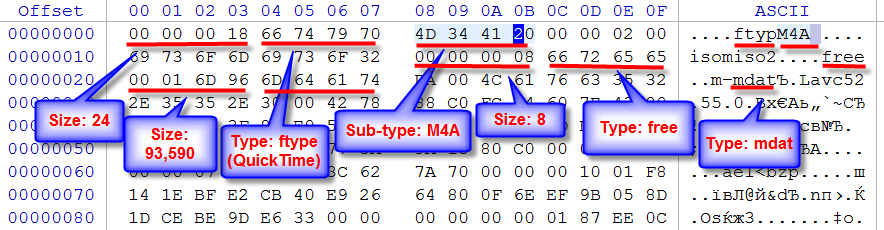
AAC is also a format container, meaning that it can contain audio data encoded in various formats, including stereo, 5.1 surround sound, and even lossless formats like Apple Lossless and FLAC. This flexibility makes AAC a versatile audio format that can be used for a wide range of applications, from music streaming to professional audio production.

Converting MP3 to AAC Using Mp4Gain

Mp4Gain is a versatile audio and video conversion tool that supports a wide range of formats, including MP3 and AAC. With Mp4Gain, you can convert your MP3 files to AAC quickly and easily, without losing any audio quality.

What is a container format?

A container format is a type of file format that can store different types of data in a single file. In the case of audio and video files, a container format is used to package the different types of data that make up the file, including the video and audio streams, metadata, and any subtitles or closed captions.

The benefits of using AAC

AAC has several benefits over other audio formats. Firstly, it offers improved sound quality at lower bitrates than MP3, which means that files can be compressed to a smaller size without sacrificing quality. This is particularly important for mobile devices with limited storage capacity.

Secondly, AAC offers better performance at high bitrates, making it a popular choice for professionals who need high-quality audio, such as musicians, producers, and sound engineers.

Another benefit of using AAC is that it supports up to 48 channels of audio, compared to MP3’s limit of 2 channels. This makes AAC a popular choice for high-end surround sound systems and immersive audio experiences.

Finally, AAC is widely supported by a range of devices and software, including Apple devices, Android devices, and popular media players like VLC and QuickTime.

How to convert MP3 to AAC with Mp4Gain

Now that you understand the benefits of using AAC, you may want to convert your MP3 files to AAC to take advantage of these benefits. Fortunately, Mp4Gain makes it easy to do this.

To convert MP3 to AAC with Mp4Gain, follow these simple steps:

    1. Open Mp4Gain and select the “Audio Converter” option from the main menu.
    2. Click the “Add Files” button and select the MP3 files you want to convert to AAC.
    3. Select “AAC” as the output format from the list of available formats.
    4. Choose the desired bitrate, sampling rate, and channel configuration for the output file. You can also choose to normalize the volume if you want.
  1. Click the “Convert” button to start the conversion process.

Once the conversion process is complete, you will have high-quality AAC files that can be played on a wide range of devices and media players.

Conclusion

AAC is a high-quality audio format that offers several benefits over other formats, including improved sound quality at lower bitrates, better performance at high bitrates, support for multiple channels of audio, and wide compatibility with devices and software.

If you want to take advantage of these benefits, Mp4Gain makes it easy to convert your MP3 files to AAC. With its simple interface and powerful conversion capabilities, Mp4Gain is the perfect tool for anyone who wants to create high-quality, versatile audio files.

Understanding Lossy Audio Compression

Understanding Lossy Audio Compression

Lossy Audio Compression

Audio compression is a critical component of modern audio production. It allows for the reduction of file sizes while maintaining an acceptable level of sound quality. Lossy audio compression is a popular method that achieves this by removing non-essential information from an audio file. In this article, we will dive deep into the technical details of lossy audio compression and explore its advantages and disadvantages, as well as the impact it has on audio quality.

Lossy Audio Compression

The Technical Basics of Lossy Audio Compression

Lossy audio compression works by removing information that is deemed non-essential to the human ear. This information is often in the form of high-frequency sounds or sounds that are below the threshold of human hearing. Lossy compression achieves this by analyzing the audio file and creating a model of the sounds that the human ear can and cannot hear. This model is then used to remove the non-essential information from the audio file.

There are several popular lossy audio compression formats and codecs, including MP3, AAC, and Ogg Vorbis. Each of these formats has its own strengths and weaknesses, and choosing the right one depends on the specific needs of the user.

The Trade-offs of Lossy Audio Compression

While lossy compression is an effective way to reduce file sizes, it does come with some trade-offs. The most significant trade-off is the loss of audio quality. As non-essential information is removed from the audio file, it can result in a loss of dynamic range and a decrease in overall sound quality. However, the degree of quality loss is often subjective and depends on the specific requirements of the user.

When comparing lossy and lossless compression formats, file size is often a significant factor. Lossy compression generally results in much smaller file sizes than lossless compression, but at the cost of some audio quality loss. However, the size difference between the two formats can be significant, making lossy compression a practical solution for many users.

Advanced Techniques for Lossy Audio Compression

Advanced techniques are available for lossy audio compression that can help to improve audio quality while still achieving significant file size reduction. Perceptual coding is one such technique that uses psychoacoustic models to analyze the audio and remove non-essential information in a way that minimizes the impact on sound quality. Another technique involves the use of metadata, which can help to provide additional information about the audio file that can be used to improve compression.

Best Practices for Lossy Audio Compression

There are several best practices that can be followed to achieve the best results when compressing audio files using a lossy format. Some of these practices include choosing the right codec for the specific needs of the user, ensuring that the encoding settings are appropriate for the file being compressed, and avoiding the use of excessive compression, which can result in a loss of sound quality. Additionally, it is important to avoid common mistakes when compressing audio files, such as encoding at too low of a bit rate or not checking the final output for artifacts or distortion.

Psychoacoustic Models
Psychoacoustic models are mathematical models that simulate the way that the human ear processes sound. They are used in perceptual coding to identify which audio signals can be safely removed without causing a noticeable loss in audio quality.

Psychoacoustic models take into account factors such as frequency masking, temporal masking, and the sensitivity of the human ear to different types of audio signals. They can also take into account more complex factors such as the interaction between different audio signals.

Metadata
Metadata is data that is embedded in an audio file and provides additional information about the audio content. In the context of lossy audio compression, metadata can be used to improve the compression process by providing additional information about the audio content.

One common use of metadata in lossy audio compression is to provide information about the target device or playback environment. For example, metadata can provide information about the type of headphones or speakers that the audio file is intended to be played through. This information can be used by perceptual coders to optimize the compression process for the target device or playback environment.

Another common use of metadata in lossy audio compression is to provide information about the audio content itself. For example, metadata can provide information about the genre, tempo, and key of a song. This information can be used to optimize the compression process for the specific characteristics of the audio content.

Best Practices for Lossy Audio Compression
To achieve the best results in lossy audio compression, there are several best practices that should be followed. These include:

  • Use the highest quality compression settings available
  • Use a well-supported and widely-used compression format
  • Use a lossless format for archiving and backup purposes
  • Avoid excessive compression, as this can lead to noticeable audio artifacts
  • Take into account the intended playback environment when compressing audio files
  • Include appropriate metadata to provide additional information about the audio content

Common Mistakes to Avoid
When compressing audio files, there are several common mistakes that should be avoided. These include:

  • Using excessively low compression settings, as this can lead to a noticeable loss in audio quality
  • Using an unsupported or proprietary compression format, as this can lead to compatibility issues
  • Not taking into account the intended playback environment, which can lead to suboptimal compression settings
  • Not including appropriate metadata, which can make it difficult to organize and manage large collections of audio files
  • Using excessive compression, as this can lead to noticeable audio artifacts
    1. Explanation of Audio Compression and Lossy Audio Compression

Audio compression is the process of reducing the size of an audio file without significantly degrading the quality of the sound. Compression is necessary in the world of digital audio because it allows for more efficient storage and transmission of audio files. Without compression, audio files would be prohibitively large, making it difficult to store and share them over the internet.

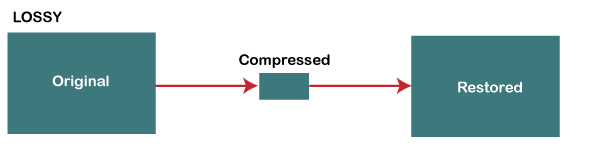
Lossy audio compression is a specific type of audio compression that achieves a high degree of compression by discarding some of the audio data. This means that when you compress an audio file using a lossy compression algorithm, some of the data is permanently lost, and the resulting file is of lower quality than the original. Lossy compression is used widely because it allows for much higher compression ratios than lossless compression, making it more practical for everyday use.

    1. Importance of Audio Compression in Modern Audio Production

Audio compression is an essential tool in modern audio production. The ability to compress audio files allows for more efficient use of storage space and bandwidth, which are essential resources in the world of digital media. Audio compression also makes it possible to stream high-quality audio over the internet, which has revolutionized the way we consume music and other audio content.

However, it’s important to remember that audio compression is not without its downsides. Lossy compression, in particular, can have a significant impact on the quality of the audio, and it’s essential to understand the trade-offs involved when choosing a compression format and level of compression.

    1. The Technical Basics of Lossy Audio Compression

At its most basic level, lossy audio compression works by analyzing the audio file and discarding information that is deemed unnecessary for human perception. This information can include sounds that are too quiet to hear, or frequencies that are outside the range of human hearing. By discarding this information, the compression algorithm can significantly reduce the size of the audio file while still retaining much of the original sound quality.

The specific techniques used in lossy audio compression can vary, but most algorithms use some combination of frequency masking, quantization, and other mathematical techniques to achieve compression. The result is a smaller file size that can be easily stored or transmitted, but with some loss of audio quality.

    1. The Most Commonly Used Lossy Audio Compression Formats and Codecs

There are many different lossy audio compression formats and codecs available, each with its own strengths and weaknesses. Some of the most commonly used formats and codecs include:

    • MP3 – one of the most widely used audio compression formats, with a high degree of compatibility and a good balance between file size and sound quality
    • AAC – a newer format that is widely used for streaming audio and has a better sound quality than MP3 at the same bitrate
    • OGG – an open-source format that is popular for internet radio and streaming
    • WMA – a format developed by Microsoft that is commonly used for streaming and downloading audio files from the internet
    • FLAC – a lossless audio compression format that is capable of compressing audio files without any loss of quality, but with larger file sizes than lossy formats

The Fascinating History of Lossy Compression

Lossy compression is a method of data compression that reduces the size of a file by discarding information that is deemed to be unnecessary. This technique has been used for decades in various fields, including image, audio, and video processing, to make files smaller and easier to share or store.

The first significant work on lossy image compression was done in the early 1970s by a group of researchers at the University of Southern California. They developed the first image compression algorithm, called the discrete cosine transform (DCT), which is still used today in the popular JPEG image format.

In the 1980s, the Moving Pictures Experts Group (MPEG) was established to develop standards for digital video compression. They introduced the MPEG-1 and MPEG-2 video formats, which became widely adopted in the industry. The success of these formats led to the creation of newer standards, such as MPEG-4 and H.264, which are still used in modern video streaming services.

Lossy compression has also been essential for audio processing. In the late 1980s, the MP3 format was developed by the Fraunhofer Society in Germany, which used a perceptual coding algorithm to remove information that the human ear cannot detect. MP3 quickly became the standard for digital music distribution, leading to the creation of newer formats such as AAC and OGG Vorbis.

However, lossy compression is not without its drawbacks. Because it removes data, it can lead to a loss of quality, especially if the compression is too aggressive. This can result in artifacts or distortions in the processed image, audio, or video.

Despite these limitations, lossy compression remains an important tool in the modern digital world. It allows for more efficient storage and sharing of multimedia content and has revolutionized industries such as music, film, and photography. As technology continues to evolve, it’s likely that new and more efficient lossy compression techniques will be developed, further enhancing the way we share and consume digital content.

Why are there so many video and audio formats, and is there a difference?

Why are there so many video and audio formats, and is there a difference?

Audio File Formats
Audio File Formats

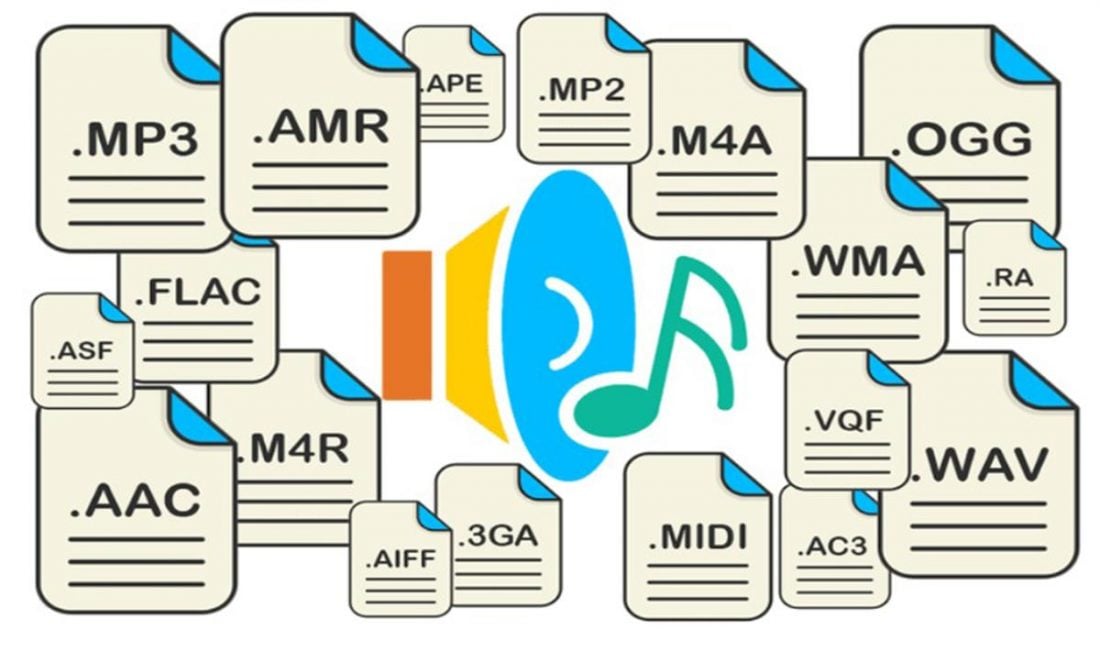
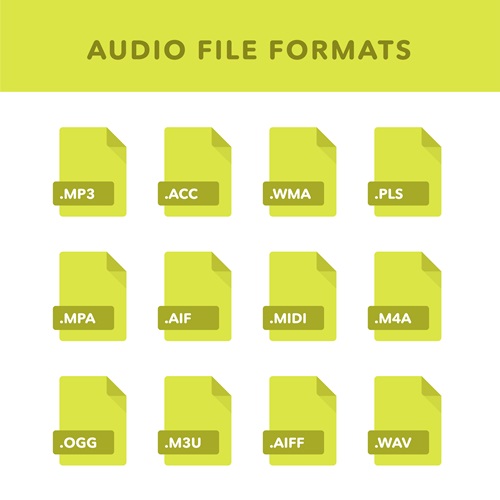
I found that there are many video and audio formats, what is the difference between them? Is there a player that supports most audio and video playback formats?

Audio File Formats
Audio File Formats

The difference lies in the encoding method. Original video and audio require a lot of storage space. In the era when the storage device was still in MB as a large drive, various lossy compression encoding formats began to appear. The difference between various encoding formats is the compression ratio. The pros and cons of height and reduction ratio.

Basically, there are more advanced encodings that can provide high-quality audio and video effects with higher compression ratio.

1. Format
MP3 MP3 uses MPEG Audio Layer 3 technology to compress music into a file with a smaller capacity at a compression ratio of 1:10 or even 1:12. Files are compressed to a smaller size. But also very good at keeping the original sound quality. It is precisely because of the small size and high sound quality of MP3 that the MP3 format has become almost synonymous with online music. The music per minute MP3 format is only 1 MB in size, so the size of each song is only 3-4 megabytes.

Supplement: the highest bit rate is 320K, and there is no high frequency part is its default. The sound quality is not high!

2. Format
WMA WMA achieves a higher compression ratio by reducing data traffic while maintaining sound quality. The compression rate can generally reach 1:18, and the generated file size is only half of the corresponding MP3 file. This is very important for models that only assemble 32M. It supports both WMA and RA formats, which means that the 32M space is virtually expanded by 2 times. In addition, WMA can also add copy prevention through the DRM scheme, or add restrictions on playback time and number of playbacks, or even restrictions on playback machines, which can effectively prevent piracy.
Supplement: 128 kbps is the optimal compression ratio of wma, 128 kbps wma = 192 kbps mp3

What is an audio file format?

What is an audio file format?

audio file format
audio file format

MP3

audio file format
audio file format

When it comes to downloading music, the MP3 audio file format used to reign supreme.


In fact, this format is so synonymous with mobile music solutions that “MP3 players” are now the common format for audio playback devices.

However, for various reasons, it is less prominent these days. However, it continues. Understanding MP3 files can also help us understand other formats more easily, so we’ll start there.

An MP3 file is a lossy audio file, which means that it discards data that our ears cannot hear. Almost everyone has a hearing range between 2oHz and 20kHz. The upper limit actually decreases with age, but generally speaking, it’s a lie within the range of every noise you hear. Since we know that other frequencies are redundant, MP3 discards all frequencies outside this range.


To save more space, MP3 files use some more tricks. Audio engineers use noise modeling algorithms based on the psychoacoustic effects of the human ear and brain to remove parts of music that we shouldn’t be hearing. For example, the brain cannot distinguish between two frequencies that are next to each other. Also, adult ears have difficulty recognizing the direction of high-frequency sounds. It also starts to lose sensitivity above 16kHz. Also, loud sounds can mask quieter sounds. All of these can be removed, with little noticeable difference in final audience.

Basically, MP3 files remove frequencies that we can’t hear and frequencies that we can hear individually, but not because of how they’re combined in a particular song.

MP3 divides the track into 576 sample frames and uses the Fast Fourier Transform (FFT) to obtain frequency data from these frames. The frequency data is then analyzed to see if there is any opportunity to apply compression rules based on human hearing as described above. If so, these parts are rounded down (quantized) to reduce the bitrate, which helps save space. Data on how to restore each frame to its full sonic representation is stored in a 32-bit header.


The bitrate determines the maximum file size allowed per frame. The more aggressive the compression, the more likely the algorithm will remove things that are audible. Also, this type of filtering and cutting is not perfect, and quantization can leave artifacts that some people may hear. This lossy psychoacoustic compression is followed by lossless Huffman encoding compression similar to .zip files to save even more space.