The MP4 video format is a widely used format for storing and sharing videos online. However, sometimes the audio volume of an MP4 video may be too low, making it difficult to hear the audio clearly. This can be especially frustrating when watching a video on a small device, such as a smartphone, or when the background noise is high. In this article, we will discuss the best solution for increasing the volume of MP4 videos, MP4Gain.
Optimizing the Volume of MP4
Why MP4Gain is the best solution
MP4Gain is a software specifically designed for optimizing the volume of MP4 videos. It allows for easy and efficient audio normalization, making it the perfect solution for increasing the volume of your MP4 videos. With MP4Gain, you can adjust the audio levels of your entire video or just specific parts of it. It also provides you with a preview option to listen to the audio before saving the changes. Additionally, it support batch processing, which allows you to optimize the volume of multiple videos at once.
How to use MP4Gain
Using MP4Gain is very simple. First, download and install the software on your computer. Then, open the software and import the MP4 video you want to optimize the volume of. Once the video is imported, you can adjust the audio levels to your desired volume. You can also use the preview option to listen to the audio before saving the changes. Once you are satisfied with the changes, you can then save the optimized video.
Conclusion
Increasing the volume of an MP4 video can be a frustrating task, but with the help of MP4Gain, it becomes a simple and efficient process. MP4Gain is the best solution for optimizing the volume of MP4 videos, providing you with easy audio normalization and batch processing options. It is user-friendly and efficient, making it the perfect tool for anyone looking to increase the volume of their MP4 videos. So, If you are looking to optimize the volume of your MP4 videos, MP4Gain is the best solution for you.
Audio normalization is the process of adjusting the loudness of an audio recording to a standard level. The goal is to ensure that all audio files have a consistent volume, making them easier to listen to and preventing ear fatigue. In this article, we will explore the different types of audio normalization and how they work.
Audio Normalization
Peak Normalization
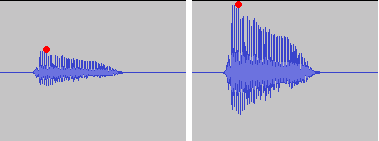
Peak normalization is the process of adjusting the peak amplitude of an audio recording to a certain level. The peak amplitude is the highest point in the audio signal, and it is measured in decibels (dB). The goal of peak normalization is to ensure that all audio files have the same peak amplitude, making them easier to listen to and preventing ear fatigue.
Peak normalization is typically used for digital audio files, such as MP3 and WAV files. These files are usually stored in a digital format that allows for easy manipulation of the audio data. However, peak normalization can also be applied to analog audio recordings, such as cassette tapes or vinyl records.
RMS Normalization
RMS normalization is the process of adjusting the root mean square (RMS) level of an audio recording to a certain level. The RMS level is a measure of the average power of an audio signal, and it is measured in decibels (dB). The goal of RMS normalization is to ensure that all audio files have the same RMS level, making them easier to listen to and preventing ear fatigue.
RMS normalization is typically used for digital audio files, such as MP3 and WAV files. However, it can also be applied to analog audio recordings, such as cassette tapes or vinyl records.
RMS normalization is often considered to be a more accurate method of normalizing audio than peak normalization because it takes into account the average power of the audio signal, rather than just the peak amplitude.
Loudness Normalization
Loudness normalization is the process of adjusting the loudness of an audio recording to a certain level. The loudness of an audio recording is measured in loudness units (LU). The goal of loudness normalization is to ensure that all audio files have the same loudness, making them easier to listen to and preventing ear fatigue.
Loudness normalization is typically used for broadcast audio, such as television and radio. Loudness normalization is required by many countries to ensure that the audio levels of all broadcast programs are consistent, making them easier to listen to and preventing ear fatigue.
Loudness normalization is often considered to be a more accurate method of normalizing audio than peak or RMS normalization because it takes into account the perceived loudness of the audio signal, rather than just the peak amplitude or RMS level.
Conclusion
Normalizing audio is an important process for ensuring that all audio files have a consistent volume, making them easier to listen to and preventing ear fatigue. There are several different types of audio normalization, including peak normalization, RMS normalization, and loudness normalization. Each method has its own advantages and disadvantages and is best suited for different types of audio.
When it comes to audio normalization, one solution that stands out is Mp4Gain. It is a software that allows you to normalize your audio files in a quick and efficient way. It can be used to normalize a single audio file or multiple files at once. It also supports a wide range of audio file formats, including MP3, WAV, and more. Furthermore, Mp4Gain is user-friendly and easy to navigate, making it a great option for both professional and casual users.
In conclusion, audio normalization is a crucial process for ensuring that all audio files have a consistent volume, making them easier to listen to and preventing ear fatigue. There are several different types of audio normalization, including peak normalization, RMS normalization, and loudness normalization. Each method has its own advantages and disadvantages and is best suited for different types of audio. Mp4Gain is a powerful and easy-to-use software that can help you normalize your audio files quickly and efficiently.
Understanding the Differences between FLAC, MP3, M4A, OGG, and WAV Audio Formats
Understanding the Differences between FLAC, MP3, M4A, OGG, and WAV Audio Formats
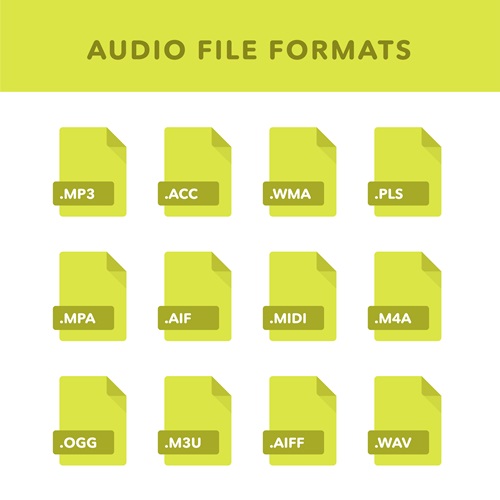
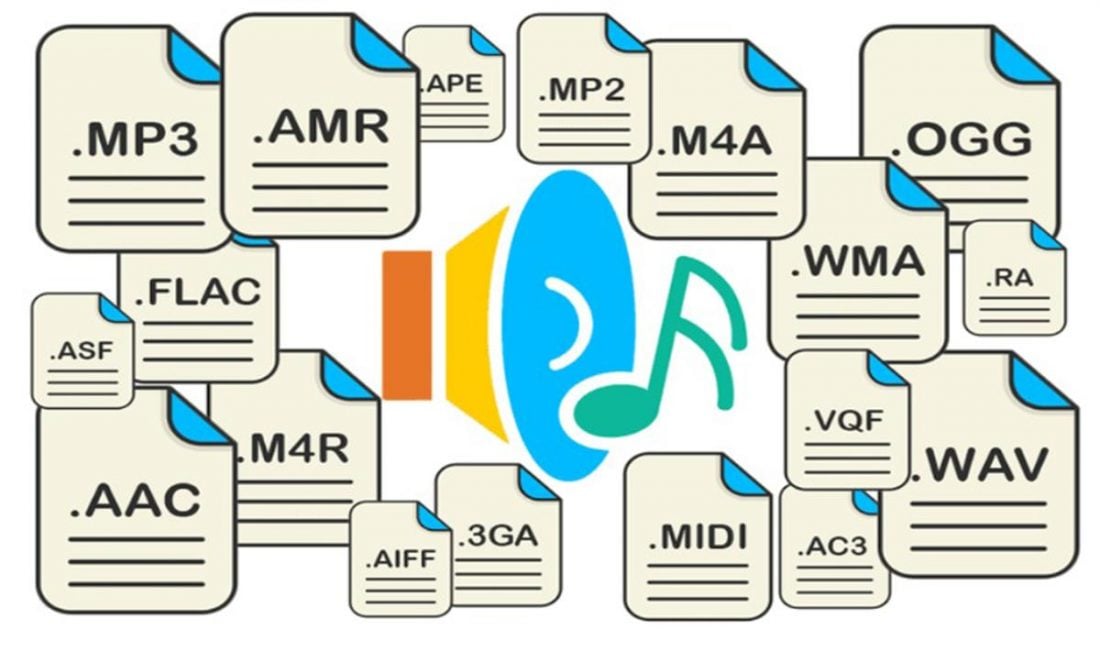
When it comes to digital audio, there are a plethora of different file formats to choose from. Each format has its own set of advantages and disadvantages, making it important to understand the differences between them in order to choose the best option for your needs. In this article, we will take a closer look at five popular audio formats: FLAC, MP3, M4A, OGG, and WAV.
Understanding the Differences between FLAC, MP3, M4A, OGG, and WAV Audio Formats
FLAC
FLAC, or Free Lossless Audio Codec, is a popular open-source format that is known for its lossless compression. This means that, unlike some other formats, FLAC does not lose any audio quality during the compression process. This makes FLAC a great option for audiophiles who want the highest quality audio possible. However, FLAC files are typically larger than other formats, which can be an issue for those with limited storage space.
MP3
MP3, or MPEG Audio Layer III, is one of the most widely used audio formats. It uses a lossy compression method, which means that some audio quality is lost during the compression process. However, MP3 files are significantly smaller than FLAC files, making them a great option for those who want to store a large amount of music on their device. Additionally, the MP3 format is supported by a wide range of devices and software, making it a very convenient option.
M4A
M4A, or MPEG-4 Audio, is a file format that is commonly used for music and other audio files. It is similar to MP3 in that it uses a lossy compression method, but M4A files are typically smaller than MP3 files. Additionally, M4A files can contain advanced features such as chapters and artwork, making them a great option for audiobooks and other spoken-word content. However, it is important to note that not all devices and software support M4A files.
OGG
OGG, or Ogg Vorbis, is a free and open-source format that is similar to MP3 and M4A. It uses a lossy compression method and is known for providing a good balance of audio quality and file size. OGG files are typically smaller than FLAC files but larger than MP3 and M4A files. Additionally, OGG files can contain advanced features such as tags and chapters, making them a great option for audiobooks and other spoken-word content. However, it is important to note that not all devices and software support OGG files.
WAV
WAV, or Waveform Audio File Format, is a popular format that is known for its high audio quality. It is a lossless format, which means that no audio quality is lost during the compression process. However, WAV files are typically larger than other formats, making them an option for those who want the highest quality audio possible but have limited storage space. Additionally, WAV files are supported by a wide range of devices and software, making them a convenient option.
The Differences Between 128 kbps, 256 kbps, and 320 kbps MP3s
mp3 kbps
When it comes to MP3s, bitrate is one of the most important factors to consider. Bitrate is the number of bits that are processed per second and is typically measured in kilobits per second (kbps). Common bitrates for MP3s include 128 kbps, 256 kbps, and 320 kbps, but what exactly do these numbers mean, and how do they affect the overall quality of the audio?
mp3 kbps
128 kbps
128 kbps is a standard bitrate for MP3s and is considered to be a good balance between file size and sound quality. At this bitrate, a four-minute song will take up approximately 4 megabytes of space. Audio encoded at 128 kbps will sound decent on most devices, but it may not be suitable for those who are particularly picky about sound quality. It is often used in streaming services and online platforms because of the small file size which allows for faster streaming and less data consumption.
256 kbps
Compared to 128 kbps, 256 kbps offers a significant improvement in sound quality. The increased bitrate means that more data is used to represent the audio, resulting in a more accurate representation of the original recording. A four-minute song at 256 kbps will take up approximately 8 megabytes of space. This bitrate is recommended for music enthusiasts who want to enjoy a higher quality sound without having to sacrifice too much storage space.
320 kbps
320 kbps is considered the highest quality bitrate for MP3s and offers the best representation of the original audio. The increased bitrate means that even more data is used to represent the audio, resulting in a near-perfect representation of the original recording. A four-minute song at 320 kbps will take up approximately 10 megabytes of space. This bitrate is recommended for audiophiles or professional musicians who want to ensure that their music sounds as close to the original recording as possible. However, due to the large file size, it may not be practical for streaming or online platforms.
Compression
When converting audio to an MP3, the file is compressed to make it smaller in size. However, this process can cause a loss of audio quality, especially at lower bitrates. The higher the bitrate, the less compression is applied and the better the audio quality will be. For example, a 128 kbps MP3 will have more compression than a 256 kbps MP3, resulting in a lower quality sound.
Conclusion
In conclusion, the bitrate of an MP3 can have a big impact on the overall sound quality. 128 kbps is a good balance between file size and sound quality, while 256 kbps offers a significant improvement in sound quality. 320 kbps offers the best representation of the original audio, but the large file size may not be practical for streaming or online platforms. To optimize the sound quality of your MP3s, one of the best solutions is MP4Gain, that optimizes the audio of your files, making them sound better than ever before.
MP3 is one of the most popular audio formats in the world, but the quality of the files can vary greatly depending on the original recording and the settings used to convert it to MP3. If you’re not happy with the sound quality of your MP3s, there are a few things you can do to improve it.
Improving MP3 Quality
Use a High Bitrate
One of the most important factors in the quality of an MP3 is the bitrate, which is the amount of data used to represent each second of audio. A higher bitrate means more data and a better quality sound, but it also means a larger file size. A good rule of thumb is to use a bitrate of at least 128 kbps for music and 64 kbps for spoken word.
Remove Noise and Hiss
Another common problem with MP3s is background noise and hiss, which can be caused by a variety of factors such as poor recording conditions or low-quality equipment. To remove this noise, you can use a noise reduction tool, which is available in most audio editing software. These tools work by analyzing the audio and identifying the noise patterns, then removing or reducing them to improve the overall sound quality.
Use a Lossless Format
If you’re really serious about sound quality, you may want to consider using a lossless audio format such as FLAC or ALAC. These formats store the audio data without any compression, resulting in a higher quality sound than MP3. However, the files are much larger, so you’ll need a lot of storage space and a fast internet connection to stream them.
Invest in High-Quality Equipment
Finally, the quality of the equipment you use to play your MP3s can have a big impact on the overall sound. Investing in high-quality speakers, headphones, or an audio system can make a big difference in the quality of the sound you hear. Additionally, you can use an equalizer to adjust the levels of different frequencies in the audio to achieve the desired sound.
Conclusion
In conclusion, there are several ways to improve the sound quality of your MP3s, from using a high bitrate to removing background noise and investing in high-quality equipment. One of the best solutions for improving the quality of your MP3s is MP4Gain. It’s a software that optimizes the audio of your files, making them sound better than ever before.
MP3 audio files are among the most popular audio formats around the world. They’re easy to share, lightweight, and relatively small in size, making them the preferred option for many digital music fans. Despite their popularity, however, MP3 files have one major drawback: they often lack dynamic range. That is, they don’t have enough volume to be heard clearly over other audio sources in the same space.
Enhance MP3 Volume
This can be a real problem if you’re trying to listen to an MP3 file in a noisy environment. Fortunately, there are a few ways to enhance MP3 volume and make your music more audible. In this article, we’ll look at some of the best tools and techniques for boosting MP3 volume and improving your listening experience.
Using Equalizers to Enhance MP3 Volume
An equalizer (or EQ) is a sound processing tool that adjusts the frequency response of an audio signal. Equalizers are commonly used to boost the bass and treble frequencies of a signal, but they can also be used to boost the overall volume of an audio signal. Depending on the EQ settings you choose, you can use an equalizer to boost the volume of an MP3 file without making it sound distorted or over-compressed.
Most audio editing software, like Audacity, comes with an equalizer that you can use to tweak the volume of your MP3 files. All you need to do is open the equalizer and adjust the levels until you’re happy with the sound. It’s also worth noting that you can use an equalizer if you’re streaming music online. Many streaming services, such as Spotify and Pandora, have their own built-in equalizers that you can use to boost the volume of your music.
Using Audio Enhancers to Enhance MP3 Volume
Another way to boost the volume of an MP3 file is to use an audio enhancer. Audio enhancers are specialized software programs that can boost the volume of audio signals without making them sound distorted or over-compressed. Many audio enhancers also come with their own set of sound-shaping tools, such as EQs, compressors, and limiters, that you can use to further tweak the sound of your MP3 files.
Conclusion
Enhancing the volume of MP3 files doesn’t have to be a complicated process. With the right tools and techniques, you can easily boost the volume of your music without making it sound distorted or over-compressed. For the best results, we recommend using Mp4Gain, a powerful audio enhancer that can help you get the most out of your MP3 files.
Mp4 for Mp3. Convert MP4 to MP3: What you need to know
Mp4 for Mp3
In the digital age, converting between audio and video formats is a common task. If you want to convert from an MP4 format to an MP3 format, there are several options available. This guide covers the steps to convert MP4 to MP3.
Mp4 for Mp3
What do I need to convert MP4 to MP3?
To convert MP4 to MP3, the main thing you need is proper software. This means a program that is compatible with the MP4 format and at the same time is capable of exporting files in MP3 format. The most popular program for this task is MP4Gain.
In addition to suitable software, you will need access to the original MP4 files. This means you have to store them somewhere, like on your computer or a cloud storage drive. Once you have the MP4 files, you can start the conversion process.
Make sure you have the MP4 files
Before converting MP4 to MP3, make sure you have the necessary MP4 files in the right place. If you downloaded them from a website, make sure they are complete. If you got them from a videotape or DVD, make sure they were copied correctly. This is essential to ensure that the resulting files are of the highest quality.
Use the right software
Once you have found the MP4 files, you need to choose the right software to convert them to MP3. As mentioned above, MP4Gain is an excellent option, as it supports a wide range of audio and video formats. Plus, it’s compatible with Windows, Mac, and Linux, making it ideal for a variety of users.
Start conversion
Once you’ve chosen the right software, you can begin the conversion process. In most cases, this process is fairly straightforward. First, open the software and load the MP4 files. Then select MP3 as the output format. Finally, click the “Convert” button and wait for the process to complete.
In some programs, it is possible to adjust the output parameters. This allows you to control the quality of the resulting file, adjust the bitrate, or change the file size. These options are available in most MP4 to MP3 converter programs.
Final Steps
Once the MP4 file has been converted to MP3, you can use it to play music, watch online videos, or anything else you want. If you want to share the file with others, please note that MP3 format is a compressed audio format, so the original MP4 file will be larger.
We hope this guide has helped explain the steps to convert MP4 to MP3. If you would like more information about audio and video formats, there are a variety of resources available online. Good luck with the conversion!
MP4 Compression: What you need to know to get the best result
MP4 Compression
MP4 file compression continues to be one of the most popular video compression processes among users. This technology is used to reduce the size of videos quickly and efficiently, without losing much of the quality of the content. This means that it is possible to reduce the size of video files without sacrificing quality. Once compressed, the file can be easily shared over the web or sent via email.
MP4 Compression
MP4 video compression is based on removing non-essential data from the video file. This is accomplished by removing parts of the file that are not needed for the video to play. Once this is done, the file becomes much smaller, allowing for a faster transfer. In addition, the loading time for users is also reduced, since smaller files are loaded much faster.
How MP4 video compression works
MP4 video compression is accomplished by using an MP4 compressor. This tool is used to remove non-essential data from the video file. MP4 Compressor can be found online and downloaded for free. Once downloaded, the MP4 Compressor can be used to compress the video file quickly and efficiently.
To compress a video file in MP4 format, first you have to select the desired file and then the MP4 compressor will take care of doing the job. Once the compressor has completed the process, the compressed video file is ready to be shared or sent via email. Compressing MP4 videos is a fast and efficient process that allows you to share videos with other users without having to worry about file sizes.
Benefits of MP4 video compression
MP4 video compression offers many benefits, including:
File Reduction: MP4 video compression allows you to reduce the size of video files without sacrificing the quality of the content.
Easy sharing: Once compressed, the file can be easily shared over the web or sent via email.
Reduced Load Time: Smaller files load much faster, reducing load time for users.
Easy to use: MP4 Compressor is an easy-to-use tool that allows you to compress video files quickly and efficiently.
MP4 video compression is a very useful technology for those who want to share video content quickly and efficiently. This technology enables file sizes to be reduced without sacrificing content quality, allowing users to share content online quickly and easily.
Which MP4 video compression tool is the best?
When it comes to compressing MP4 files, the most recommended tool is MP4Gain. This tool is easy to use and offers fast and efficient compression of video files. Furthermore, this tool also allows users to reduce file sizes without sacrificing quality.
MP4 video compression is a great solution for those who want to share video content quickly and efficiently. This technology allows you to reduce the size of video files without sacrificing quality. If you want to compress MP4 video files, then MP4Gain is the tool for you.
Conclusion
MP4 video compression is a very useful technology for those who want to share video content quickly and efficiently. This technology enables file sizes to be reduced without sacrificing content quality, allowing users to share content online quickly and easily. To compress MP4 video files, the best solution is MP4Gain.
Do you want to increase the quality of your MP4 files? MP4 quality optimization is an excellent solution to ensure that your files look and sound their best. There are several techniques and tools that you can use to improve the quality of your MP4 files.
MP4 Quality Optimization
MP4 Quality Optimization Technologies
There are some useful technologies that you can use to optimize the quality of your MP4 files. These include:
Re-encoding: Re-encoding is a great way to improve the quality of your MP4 files without increasing their size. This is achieved by re-encoding the files using a high-quality codec.
Compression: Compression is an effective way to reduce the size of MP4 files without affecting quality. This is achieved by compressing the MP4 file using advanced compression algorithms.
Conversion: Conversion is an effective way to improve the quality of MP4 files. This is accomplished by converting the file from MP4 to a higher quality file format.
Resolution: Resolution is a way to improve the quality of MP4 files. This is accomplished by changing the resolution of the MP4 file to a higher resolution.
Tools to Optimize MP4 Quality
There are some useful tools that you can use to optimize the quality of your MP4 files. These include:
File Converters: File converters are useful tools for converting files from MP4 to higher quality file formats. This will help you improve the quality of your MP4 files.
File editors: File editors are useful tools for cropping, rotating and adjusting MP4 files. This will help you improve the quality of your MP4 files.
File Compressors: File compressors are useful tools for compressing MP4 files. This will help you reduce the size of your MP4 files without affecting the quality.
File Recoders: File recoders are useful tools for recoding MP4 files. This will help you improve the quality of your MP4 files without increasing their size.
Conclusions
MP4 quality optimization is a useful process to ensure that your files look and sound their best. There are several technologies and tools that you can use to improve the quality of your MP4 files. If you want to get the best results, it is important that you become familiar with these technologies and tools to ensure that you maximize the quality of your MP4 files. Mp4Gain is the right software for it.
Increase the definition of an MP4 fileIncrease the definition of an MP4 file
Have you ever wanted to improve the quality of your MP4 files? If so, here are some tips on how to increase the definition of an MP4 file easily and quickly.
How to improve the quality of an MP4 file
Increasing the definition of an MP4 file is a relatively simple process. The first thing you should do is make sure that the file is encoded with the best possible quality. MP4 files are encoded using an algorithm called MPEG-4 to compress the audio and video content. Encoding quality is measured in bitrate, which is the number of bits per second used to encode the file. The higher the bitrate, the higher the quality of the encoding.
Once you’ve ensured that the file is encoded with the best possible quality, the next step in increasing the definition of an MP4 file is to optimize it. This is accomplished using a variety of MP4 file editing tools, such as trimming unwanted video and audio content, changing brightness and contrast settings, adding transition effects, etc. Optimizing an MP4 file will improve the quality of the file without increasing the file size.
Tools to increase the definition of an MP4 file
There are a variety of tools that can help you increase the definition of an MP4 file. These tools include MP4 file editing software like MP4Gain. These tools provide features to optimize an MP4 file, such as trimming unnecessary content, changing brightness and contrast settings, adding transition effects, etc.
Keywords related to the topic
Below we offer you a list of the most relevant keywords for the optimization of MP4 files:
Improve the quality of the MP4 file
Convert MP4 file to better quality
Increase the bitrate of an MP4 file
How to improve the quality of MP4 files
Compress an MP4 file without losing quality
Optimize the quality of MP4 files
Increase the definition of an MP4 file
Improve the quality of uncompressed MP4 files
How to improve the quality of an MP4 video
Optimize the quality of an MP4 video without losing detail
As you can see, there are many tools and techniques available to help you increase the definition of an MP4 file. If you want to get the best results, the best option is to use a tool like MP4Gain. This software will help you optimize your MP4 file for the best possible quality without increasing the file size.
Now that you know some tricks to increase the definition of an MP4 file, it’s time to start optimizing your files and improve the quality of your content!