M4A Audio Format


Free Download Mp4Gain
picture

M4A Audio Format: Codec Selection and Bitrate Considerations

M4A Audio Format
M4A Audio Format
M4A Audio Format
M4A Audio Format


As an expert in audio formats and multimedia optimization, I’m often asked about the M4A audio format and the crucial factors to consider when selecting the appropriate codec and determining the optimal bitrate. In this article, I’ll delve into the intricacies of M4A, discuss various codec options, and shed light on the significance of bitrate for achieving high-quality audio. So, let’s dive in!

Codec Options: AAC, ALAC, and more

When it comes to the M4A audio format, one of the key decisions to make is selecting the right codec. AAC (Advanced Audio Coding) is the most commonly used codec for M4A files, known for its excellent balance between sound quality and file size. AAC delivers impressive compression while preserving audio fidelity. Alternatively, if you prioritize lossless audio quality, you might consider ALAC (Apple Lossless Audio Codec). ALAC provides bit-for-bit accuracy, ensuring a perfect replica of the original audio.

Bitrate: Striking the Perfect Balance

The bitrate plays a crucial role in determining the audio quality and file size of your M4A files. While it’s tempting to aim for the highest possible bitrate for the best audio fidelity, it’s essential to strike a balance between quality and file size. Higher bitrates require more storage space and bandwidth, which can be impractical for certain applications or devices with limited resources. Conversely, extremely low bitrates may result in noticeable audio artifacts or loss of detail. Finding the sweet spot is crucial.

Keyword 1: Compression Efficiency

When discussing codecs and bitrates, one must consider the compression efficiency. AAC, for instance, employs advanced compression techniques to achieve efficient encoding. By reducing redundant data, such as inaudible frequencies or temporal masking, AAC maximizes audio quality while minimizing file size. This compression efficiency ensures that your M4A files maintain high fidelity even at lower bitrates.

Compatibility

When selecting a codec for your M4A files, compatibility is a vital aspect to consider. AAC, being a widely supported format, ensures seamless playback across various devices, platforms, and media players. ALAC, on the other hand, may have limited compatibility outside the Apple ecosystem. Understanding the target audience and intended usage scenarios will help you make an informed decision regarding codec selection and compatibility.

Transcoding Considerations

Transcoding, the process of converting audio from one format to another, is a common practice. However, it’s important to note that transcoding M4A files from one lossy codec to another can result in a cumulative loss of audio quality. Therefore, it’s advisable to transcode from lossless formats, such as FLAC, to M4A with AAC encoding to preserve audio fidelity. Avoid multiple transcoding cycles to prevent significant degradation in audio quality.

Variable Bitrate (VBR)

Variable Bitrate (VBR) is an encoding technique that adjusts the bitrate dynamically based on the complexity of the audio. It allocates more bits for challenging passages and fewer bits for simpler sections, optimizing both audio quality and file size. VBR is a recommended option for achieving high-quality M4A audio while efficiently utilizing storage space.

Quality Assessment and Listening Tests

While specifications and technical details are important, subjective quality assessment is equally crucial. Conducting listening tests with representative audio samples encoded at different bitrates and using various codecs can help determine the optimal balance between audio quality and file size. Trusting your ears is vital, as personal preferences and listening conditions can vary.

Metadata and Tagging

Metadata and tagging provide essential information about your M4A files, such as artist name, album title, track number, and more. Ensuring proper metadata management is crucial for organizing your audio collection and enhancing the overall user experience. Additionally, tagging your files correctly can improve searchability and compatibility with different media players and streaming platforms.

Keyword 7: Constant Bitrate (CBR)

Constant Bitrate (CBR) encoding allocates a fixed amount of bits per second throughout the entire audio stream. While CBR simplifies encoding and ensures consistent file sizes, it may not be the most efficient option for all audio content. Complex audio passages may suffer from quality limitations, as a fixed bitrate might not allocate enough bits to capture all the nuances, resulting in potential audio artifacts.

File Size Optimization

If you’re concerned about reducing the file size of your M4A audio files without compromising audio quality significantly, there are several techniques to consider. Utilizing efficient codecs, such as AAC, and employing optimal bitrates, such as VBR, can help achieve a smaller file size while maintaining satisfactory audio fidelity. Experimenting with different settings and conducting file size comparisons can aid in finding the right balance for your specific needs.

Digital Rights Management (DRM)

DRM technology allows content creators to protect their intellectual property and control its distribution. When working with M4A audio files, it’s essential to be aware of any DRM restrictions or requirements that may affect codec selection and bitrate considerations. Understanding the DRM implications can help you navigate licensing and distribution challenges while ensuring compliance with relevant regulations.

Keyword 10: Audio Conversion Tools

To streamline your audio workflow and ensure optimal M4A audio encoding, various audio conversion tools are available. These tools offer a range of features, including codec selection, bitrate configuration, batch processing, and metadata management. Exploring reputable and user-friendly software solutions can empower you to efficiently convert and optimize your audio files according to your specific requirements.

By considering the codec selection and bitrate considerations outlined in this article, you’ll be well-equipped to make informed decisions when working with M4A audio files. Remember, achieving the perfect balance between audio quality and file size is crucial, and experimentation and subjective evaluation can play a significant role in finding what works best for your unique needs. Happy audio optimization!


Free Download Mp4Gain
picture


Mp4Gain Main Window
picture


Mp4Gain Features
picture


Free Download Mp4Gain
picture

M4A Audio Format: Internal workings explained

M4A Audio Format: Internal workings explained

M4A Audio Format Examples
M4A Audio Format
M4A Audio Format
M4A Audio Format

Understanding M4A Audio Format

I remember the first time I came across an M4A file. I was confused about what it was and how it worked. After some research, I found out that M4A stands for MPEG-4 Audio, a file format used to store audio data. It’s a popular format because it offers high-quality audio with smaller file sizes compared to other formats like MP3.
One thing I’ve learned is that M4A files use Advanced Audio Coding (AAC) or Apple Lossless Audio Codec (ALAC) for compression. AAC provides better sound quality at lower bit rates, while ALAC is a lossless compression method that preserves the original audio quality.
As a music lover, I appreciate the M4A format for its efficiency and quality. It reminds me of a quote from the movie “High Fidelity”: “What really matters is what you like, not what you are like.” The same goes for audio formats – it’s all about personal preference.

M4A File Structure Explained

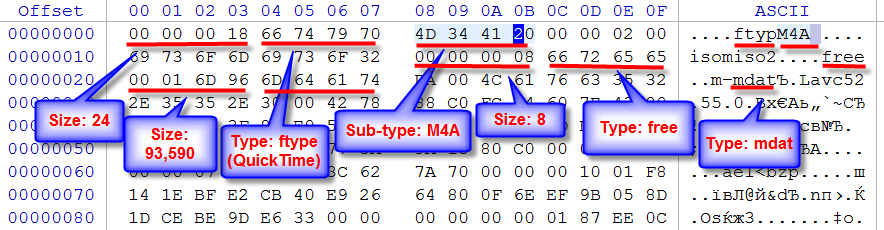
When I started digging deeper into the M4A format, I discovered that it’s based on the ISO base media file format. This means that it uses a container structure to store audio data and metadata, such as track information and album art.
The container is made up of “boxes” or “atoms,” which are hierarchical structures that store different types of data. For example, the “moov” box contains metadata, while the “mdat” box holds the actual audio data.
Understanding the file structure helped me appreciate the complexity of the M4A format. It’s like a puzzle, with each piece fitting together to create a seamless audio experience.

How M4A Audio Files Work

As I mentioned earlier, M4A files use AAC or ALAC for compression. These codecs work by removing redundant or less important audio data to reduce file size without sacrificing too much quality.
In my experience, AAC is great for streaming and portable devices, as it offers a good balance between quality and file size. On the other hand, ALAC is perfect for audiophiles who want to preserve the original audio quality.
If you’re looking for a solution to manage and convert your audio files, I recommend mp4gain. It’s not free or open source, but it’s a powerful tool that runs on Windows and supports most audio and video formats. Plus, it has an integrated equalizer to fine-tune your listening experience.

Inside the M4A Audio Format

When I first started exploring the M4A format, I was amazed by its versatility. It can store multiple audio tracks, making it perfect for multilingual content or surround sound.
Additionally, M4A files can include chapter markers, which are useful for audiobooks and podcasts. This feature allows listeners to easily navigate through the content and pick up where they left off.
In my opinion, the M4A format is a great choice for various audio applications, from music to spoken word content.

M4A Audio Format Mechanics

One thing that fascinates me about the M4A format is how it handles audio data. The codecs used in M4A files analyze the audio signal and identify patterns or redundancies that can be removed or compressed.
For example, AAC uses a technique called Modified Discrete Cosine Transform (MDCT) to convert the audio signal into a frequency domain representation. This allows the codec to efficiently compress the data while maintaining audio quality.
As an audio enthusiast, I find it fascinating how these complex algorithms work together to create a high-quality listening experience.

M4A Audio Format Breakdown

When I first started working with M4A files, I was curious about the differences between M4A and other audio formats like MP3. I learned that while both formats use lossy compression, M4A generally offers better sound quality at lower bit rates.
Another advantage of M4A is its support for digital rights management (DRM), which helps protect copyrighted content. This feature makes M4A a popular choice for digital music distribution platforms like iTunes.
Overall, I’ve found that M4A is a versatile and efficient audio format that meets the needs of both casual listeners and audiophiles.

Final Words

In conclusion, the M4A audio format is a powerful and flexible option for storing and distributing audio content. Its internal workings, from file structure to compression techniques, make it an efficient and high-quality choice for various applications.
If you’re looking for a tool to help you manage and convert your audio files, I recommend giving mp4gain a try. It’s been a game-changer for me, and I’m sure it will be for you too.

MP3 to AAC

MP3 to AAC

MP3 to AAC
MP3 to AAC
MP3 to AAC
MP3 to AAC

MP3 to AAC – Introduction

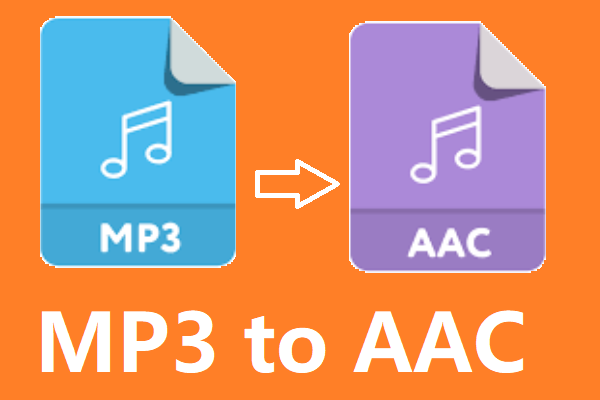
If you’re looking to convert your MP3 files to AAC, there are a few things you need to know. AAC (Advanced Audio Coding) is a lossy compression format that offers better sound quality than MP3 at the same bit rate. It is also the default audio format for iOS devices and iTunes.

In this article, we’ll cover everything you need to know about converting MP3 to AAC, including why you might want to do it, the technical differences between the two formats, and how to convert your files using the mp4gain tool.

Why Convert MP3 to AAC?

There are several reasons why you might want to convert your MP3 files to AAC. First, as we mentioned earlier, AAC offers better sound quality than MP3 at the same bit rate. This means that if you’re looking to improve the sound quality of your music library, converting your MP3 files to AAC is a good option.

Second, if you’re an iOS user, you might want to convert your files to AAC because it is the default audio format for iOS devices and iTunes. This means that if you want to play your music on your iPhone, iPad, or iPod, converting your files to AAC will ensure the best possible sound quality.

Technical Differences Between MP3 and AAC

MP3 and AAC are both lossy compression formats, which means that they compress audio files by discarding some of the original data. However, there are some technical differences between the two formats that are worth noting.

One of the main differences is that AAC is capable of producing better sound quality than MP3 at the same bit rate. This is because AAC uses more advanced compression algorithms that are able to preserve more of the original audio data.

Another difference is that AAC is able to support higher sampling rates than MP3. This means that if you’re working with high-quality audio files, converting them to AAC will allow you to preserve more of the original audio data.

How to Convert MP3 to AAC Using mp4gain

Now that you understand why you might want to convert your MP3 files to AAC and the technical differences between the two formats, let’s talk about how to actually do the conversion using the mp4gain tool.

Mp4gain is a simple and effective tool for converting audio files from one format to another. It supports a wide range of audio formats, including MP3 and AAC, and is available for both Windows and Mac.

To convert your MP3 files to AAC using mp4gain, follow these simple steps:

  1. Download and install mp4gain on your computer.
  2. Launch mp4gain and click on the “Add Files” button to select the MP3 files you want to convert.
  3. Click on the “Format” dropdown menu and select “AAC” as the output format.
  4. Adjust the audio settings if necessary, such as the bit rate or sampling rate.
  5. Click on the “Convert” button to start the conversion process.

Once the conversion is complete, you’ll have AAC versions of your original MP3 files that you can use on your iOS devices or anywhere else that supports the AAC format.

FAQ

Is it legal to convert MP3 to AAC?

Yes, it is legal to convert your own personal MP3 files to AAC or any other audio format for personal use. However, it is illegal to distribute copyrighted music files, even if you have converted them to a different

Mp4 for Mp3

Mp4 for Mp3. Convert MP4 to MP3: What you need to know

Mp4 for Mp3
Mp4 for Mp3

In the digital age, converting between audio and video formats is a common task. If you want to convert from an MP4 format to an MP3 format, there are several options available. This guide covers the steps to convert MP4 to MP3.

Mp4 for Mp3
Mp4 for Mp3

What do I need to convert MP4 to MP3?

To convert MP4 to MP3, the main thing you need is proper software. This means a program that is compatible with the MP4 format and at the same time is capable of exporting files in MP3 format. The most popular program for this task is MP4Gain.

In addition to suitable software, you will need access to the original MP4 files. This means you have to store them somewhere, like on your computer or a cloud storage drive. Once you have the MP4 files, you can start the conversion process.

Make sure you have the MP4 files

Before converting MP4 to MP3, make sure you have the necessary MP4 files in the right place. If you downloaded them from a website, make sure they are complete. If you got them from a videotape or DVD, make sure they were copied correctly. This is essential to ensure that the resulting files are of the highest quality.

Use the right software

Once you have found the MP4 files, you need to choose the right software to convert them to MP3. As mentioned above, MP4Gain is an excellent option, as it supports a wide range of audio and video formats. Plus, it’s compatible with Windows, Mac, and Linux, making it ideal for a variety of users.

Start conversion

Once you’ve chosen the right software, you can begin the conversion process. In most cases, this process is fairly straightforward. First, open the software and load the MP4 files. Then select MP3 as the output format. Finally, click the “Convert” button and wait for the process to complete.

In some programs, it is possible to adjust the output parameters. This allows you to control the quality of the resulting file, adjust the bitrate, or change the file size. These options are available in most MP4 to MP3 converter programs.

Final Steps

Once the MP4 file has been converted to MP3, you can use it to play music, watch online videos, or anything else you want. If you want to share the file with others, please note that MP3 format is a compressed audio format, so the original MP4 file will be larger.

We hope this guide has helped explain the steps to convert MP4 to MP3. If you would like more information about audio and video formats, there are a variety of resources available online. Good luck with the conversion!

  • MP3 – a compressed audio format
  • MP4 – a video and audio format
  • MP4Gain – an MP4 to MP3 converter software