Make MP3 Louder

Make MP3 Louder

Make MP3 Louder
Make MP3 Louder
Make MP3 Louder
Make MP3 Louder

Increase MP3 Volume with MP4Gain

As a music lover, it’s frustrating when your favorite MP3 files are too quiet. You want to listen to them loudly without damaging your ears, but how can you make MP3 louder? The answer is MP4Gain. This Windows-based software can normalize and amplify the volume of your MP3 files without any loss in quality. With just a few clicks, you can increase the volume of your MP3s and enjoy them at the perfect volume.

Amplify MP3 Sound with Simple Steps

You don’t need to be an audio expert to make your MP3 files louder. With MP4Gain, it’s a simple process that anyone can do. After installing the software, just drag and drop your MP3 files into the program. MP4Gain will analyze and normalize the volume of each file, so they all sound at the same level. Then, you can amplify the volume to your desired level, and save the files. It’s that easy!

Make MP3 Louder Online with These Tips

If you don’t want to install software on your computer, you can make your MP3 files louder online. There are many websites that offer this service, but be careful as some of them can reduce the quality of your audio. Look for a reliable and trustworthy website that can amplify the volume without any loss in quality. Also, keep in mind that online tools may have limitations, and the results may not be as good as with dedicated software like MP4Gain.

How to Make MP3 Louder: Tips and Tricks

Aside from using software or online tools, there are some tips and tricks that you can use to make your MP3 files louder. For example, you can use an equalizer to boost the volume of certain frequencies. You can also try compressing the file, which can make the quieter parts louder while keeping the louder parts unchanged. However, keep in mind that these techniques may not work for all MP3 files, and you may still need to use dedicated software like MP4Gain to achieve the desired results.

Boost MP3 Volume: Conclusion

In conclusion, if you’re looking to make your MP3 files louder, MP4Gain is the ultimate solution. It’s easy to use, affordable, and can provide great results. Whether you’re a music lover, a podcaster, or a video creator, having your MP3 files at the perfect volume is essential. Don’t settle for quiet MP3s anymore, boost their volume with MP4Gain!

MP3 to AAC

MP3 to AAC

MP3 to AAC
MP3 to AAC
MP3 to AAC
MP3 to AAC

MP3 to AAC – Introduction

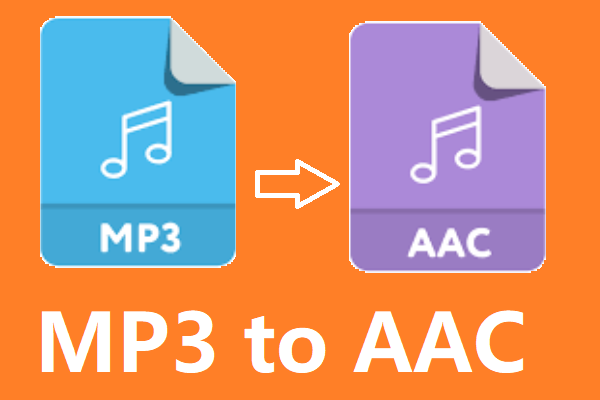
If you’re looking to convert your MP3 files to AAC, there are a few things you need to know. AAC (Advanced Audio Coding) is a lossy compression format that offers better sound quality than MP3 at the same bit rate. It is also the default audio format for iOS devices and iTunes.

In this article, we’ll cover everything you need to know about converting MP3 to AAC, including why you might want to do it, the technical differences between the two formats, and how to convert your files using the mp4gain tool.

Why Convert MP3 to AAC?

There are several reasons why you might want to convert your MP3 files to AAC. First, as we mentioned earlier, AAC offers better sound quality than MP3 at the same bit rate. This means that if you’re looking to improve the sound quality of your music library, converting your MP3 files to AAC is a good option.

Second, if you’re an iOS user, you might want to convert your files to AAC because it is the default audio format for iOS devices and iTunes. This means that if you want to play your music on your iPhone, iPad, or iPod, converting your files to AAC will ensure the best possible sound quality.

Technical Differences Between MP3 and AAC

MP3 and AAC are both lossy compression formats, which means that they compress audio files by discarding some of the original data. However, there are some technical differences between the two formats that are worth noting.

One of the main differences is that AAC is capable of producing better sound quality than MP3 at the same bit rate. This is because AAC uses more advanced compression algorithms that are able to preserve more of the original audio data.

Another difference is that AAC is able to support higher sampling rates than MP3. This means that if you’re working with high-quality audio files, converting them to AAC will allow you to preserve more of the original audio data.

How to Convert MP3 to AAC Using mp4gain

Now that you understand why you might want to convert your MP3 files to AAC and the technical differences between the two formats, let’s talk about how to actually do the conversion using the mp4gain tool.

Mp4gain is a simple and effective tool for converting audio files from one format to another. It supports a wide range of audio formats, including MP3 and AAC, and is available for both Windows and Mac.

To convert your MP3 files to AAC using mp4gain, follow these simple steps:

  1. Download and install mp4gain on your computer.
  2. Launch mp4gain and click on the “Add Files” button to select the MP3 files you want to convert.
  3. Click on the “Format” dropdown menu and select “AAC” as the output format.
  4. Adjust the audio settings if necessary, such as the bit rate or sampling rate.
  5. Click on the “Convert” button to start the conversion process.

Once the conversion is complete, you’ll have AAC versions of your original MP3 files that you can use on your iOS devices or anywhere else that supports the AAC format.

FAQ

Is it legal to convert MP3 to AAC?

Yes, it is legal to convert your own personal MP3 files to AAC or any other audio format for personal use. However, it is illegal to distribute copyrighted music files, even if you have converted them to a different

How to Optimize MP3 Quality

How to Optimize MP3 Quality

How to Optimize MP3 Quality

MP3 is one of the most popular digital audio formats worldwide. Its widespread use is due to its small file size, which makes it easy to store and share music. However, this compression also reduces the quality of the audio file. To get the most out of your MP3s, you need to optimize them for the best possible quality. Here is a comprehensive guide on how to optimize your MP3 quality.

How to Optimize MP3 Quality

Understanding MP3 Compression

MP3 is a lossy audio compression format that reduces the file size of an audio track by discarding some of the audio data. This process is called compression. The amount of data discarded depends on the compression rate used when the MP3 was created. Higher compression rates result in smaller file sizes but also reduce the quality of the audio. The compression rate is measured in kilobits per second (kbps). A higher kbps rate means better sound quality but larger file sizes.

Choosing the Right Bitrate

The most important factor that affects the quality of an MP3 file is the bitrate. The bitrate determines the amount of data that is used to represent one second of audio. The higher the bitrate, the more data is used to represent the audio, resulting in better sound quality. However, higher bitrates also mean larger file sizes.

The recommended bitrate for MP3 files is 320 kbps. This provides excellent sound quality, but the file size is relatively large. If you’re short on storage space or want to upload your music to a streaming service, you may need to use a lower bitrate.

For most listeners, a bitrate of 128 kbps is sufficient for casual listening. This produces a relatively small file size and decent sound quality. However, if you have a good set of headphones or speakers, you may want to use a higher bitrate to get the most out of your music.

Using Variable Bitrate Encoding

Variable Bitrate (VBR) encoding is an MP3 encoding method that uses a different bitrate for different parts of the audio file. This allows the encoder to use a higher bitrate for complex parts of the music and a lower bitrate for simpler parts, resulting in a better overall sound quality.

VBR encoding produces smaller file sizes than constant bitrate encoding while maintaining similar sound quality. This makes it a good option if you want to save space without sacrificing too much sound quality.

Avoiding Transcoding

Transcoding is the process of converting an audio file from one format to another. For example, converting a WAV file to an MP3. Transcoding can reduce the quality of the audio file, especially if you’re converting from a lossy format like MP3 to another format. Each time you transcode an audio file, you lose some of the audio data, resulting in a lower quality sound. Therefore, it’s best to avoid transcoding MP3 files whenever possible.

Normalization

Normalization is a process that adjusts the volume of an audio file to a standard level. It ensures that all tracks have the same perceived loudness, making it easier to listen to music without constantly adjusting the volume. Normalization can also help prevent distortion, which can occur when the volume is too high.

There are many software tools available that can normalize MP3 files, including MP4Gain. However, it’s important to note that normalization can sometimes reduce the dynamic range of the music, resulting in a less natural sound.

Conclusion

Optimizing MP3 quality requires a careful balance between file size and audio fidelity. By following the tips and techniques discussed in this article, you can enhance the sound quality of your MP3 files without significantly increasing their size.

To summarize, start by selecting a high-quality source file, such as a CD or a lossless audio format. When converting to MP3, choose a high bitrate and use a variable bitrate setting for maximum efficiency. Use a low-pass filter to remove high-frequency noise, and avoid using equalization unless necessary. Lastly, consider using software like MP4Gain to further enhance the volume and overall sound quality of your MP3 files.

By taking these steps, you can create MP3 files that sound great and take up less space on your device or online storage. Whether you’re a music enthusiast, a podcast creator, or just someone looking to optimize their audio collection, these tips will help you achieve the best possible sound quality for your MP3 files.

MP4 to MP3

MP4 to MP3

MP4 to MP3
MP4 to MP3

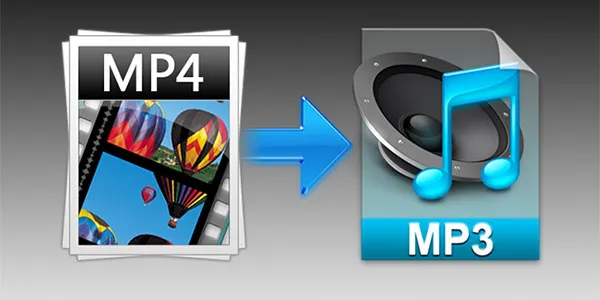
In today’s digital age, the consumption of media has become an integral part of our daily lives. With the rise of online streaming platforms, video sharing websites, and music applications, we have access to a vast collection of digital content. However, sometimes we may want to convert a video file, like an MP4, to an audio file, like an MP3, in order to extract or obtain the song in a more portable format. This is where the MP4 to MP3 conversion comes in, and in this article, we will discuss the process of conversion, as well as the benefits of using MP4Gain to maintain high audio quality.

MP4 to MP3
MP4 to MP3

Understanding MP4 to MP3 Conversion

MP4 is a digital video format that is widely used for streaming and downloading videos from the internet. However, MP4 is not compatible with all devices, and it takes up more storage space than an MP3 file. MP3, on the other hand, is a digital audio format that is smaller in size and widely supported by all audio players. MP4 to MP3 conversion is the process of extracting audio from an MP4 video and saving it as an MP3 audio file.

There are several ways to convert an MP4 to an MP3 file. One way is by using a software program, like MP4Gain, that can provide high-quality audio output.

Benefits of using MP4Gain for Mp4 to Mp3 Conversion

MP4Gain is a software program that not only converts MP4 to MP3, but also provides a range of features to enhance the audio quality of the output file. One of the main benefits of using MP4Gain is its ability to maintain the high audio quality of the original file. The software uses advanced algorithms to analyze the audio and adjust the volume levels to provide a consistent sound throughout the track.

Another benefit of using MP4Gain is its ability to convert MP4 to many other audio formats, such as MP3 to OGG, MP3 to FLAC, MP3 to WAV, MP3 to M4A, and more. This provides users with more flexibility to use their audio files on different devices and platforms. The conversion process is simple and efficient, and it can be done with just a few clicks of a button.

Additionally, MP4Gain can adjust the volume levels of the output file according to the user’s preferences. This means that users can increase or decrease the volume of the audio file to suit their needs. The software can also normalize the audio levels to provide a consistent sound throughout the track.

Technical Aspects of MP4 to MP3 Conversion

MP4 to MP3 conversion involves several technical aspects that are important to understand. One of these aspects is the bit rate of the audio file. The bit rate determines the quality of the audio and the size of the file. A higher bit rate means better quality but a larger file size, while a lower bit rate means lower quality but a smaller file size.

Another important technical aspect of MP4 to MP3 conversion is the sampling rate. The sampling rate determines the number of times per second that the audio is recorded. A higher sampling rate means better quality but a larger file size, while a lower sampling rate means lower quality but a smaller file size.

Tips for Using MP4Gain

When using MP4Gain to convert MP4 to MP3 or other audio formats, there are several tips to keep in mind. First, it’s important to choose the right output format based on your needs. For example, if you’re converting a video to an audio file for use on a specific device, make sure to choose the format that is supported by that device.

Second, pay attention to the bit rate and sampling rate when choosing the output format. Higher bit rates and sampling rates can provide better quality audio, but they also result in larger file sizes. Choose a bit rate and sampling rate that meets your needs, based on factors such as storage space and desired audio quality.

Third, use MP4Gain to adjust the volume levels and normalize the audio to provide a consistent sound throughout the track. This will help prevent sudden changes in volume and provide a better listening experience.

In conclusion, MP4 to MP3 conversion is a useful process for extracting audio from video files. MP4Gain is a great tool for converting MP4 to MP3, as well as other audio formats, while maintaining high audio quality. Understanding the technical aspects of MP4 to MP3 conversion can help you choose the right output format and settings for your needs. With the right tools and knowledge, you can easily convert your MP4 files to MP3 and enjoy your favorite music on any device.

Mp4 for Mp3

Mp4 for Mp3. Convert MP4 to MP3: What you need to know

Mp4 for Mp3
Mp4 for Mp3

In the digital age, converting between audio and video formats is a common task. If you want to convert from an MP4 format to an MP3 format, there are several options available. This guide covers the steps to convert MP4 to MP3.

Mp4 for Mp3
Mp4 for Mp3

What do I need to convert MP4 to MP3?

To convert MP4 to MP3, the main thing you need is proper software. This means a program that is compatible with the MP4 format and at the same time is capable of exporting files in MP3 format. The most popular program for this task is MP4Gain.

In addition to suitable software, you will need access to the original MP4 files. This means you have to store them somewhere, like on your computer or a cloud storage drive. Once you have the MP4 files, you can start the conversion process.

Make sure you have the MP4 files

Before converting MP4 to MP3, make sure you have the necessary MP4 files in the right place. If you downloaded them from a website, make sure they are complete. If you got them from a videotape or DVD, make sure they were copied correctly. This is essential to ensure that the resulting files are of the highest quality.

Use the right software

Once you have found the MP4 files, you need to choose the right software to convert them to MP3. As mentioned above, MP4Gain is an excellent option, as it supports a wide range of audio and video formats. Plus, it’s compatible with Windows, Mac, and Linux, making it ideal for a variety of users.

Start conversion

Once you’ve chosen the right software, you can begin the conversion process. In most cases, this process is fairly straightforward. First, open the software and load the MP4 files. Then select MP3 as the output format. Finally, click the “Convert” button and wait for the process to complete.

In some programs, it is possible to adjust the output parameters. This allows you to control the quality of the resulting file, adjust the bitrate, or change the file size. These options are available in most MP4 to MP3 converter programs.

Final Steps

Once the MP4 file has been converted to MP3, you can use it to play music, watch online videos, or anything else you want. If you want to share the file with others, please note that MP3 format is a compressed audio format, so the original MP4 file will be larger.

We hope this guide has helped explain the steps to convert MP4 to MP3. If you would like more information about audio and video formats, there are a variety of resources available online. Good luck with the conversion!

  • MP3 – a compressed audio format
  • MP4 – a video and audio format
  • MP4Gain – an MP4 to MP3 converter software