
Apple M4A Format: The Ultimate Guide

Let’s talk about Apple M4A format. You’re here because you want to understand what M4A is all about, especially within the Apple ecosystem. As someone who has worked extensively with audio formats for over a decade, I can tell you that M4A is more than just another file extension. It’s a versatile format with unique characteristics, and my goal is to demystify it for you. From its roots to its advantages and disadvantages, we’ll cover everything you need to know. I’ll also share my experiences working with M4A and provide tips to make your audio endeavors smoother. I hope this article provides all the information you need.
What Exactly is the Apple M4A Format?
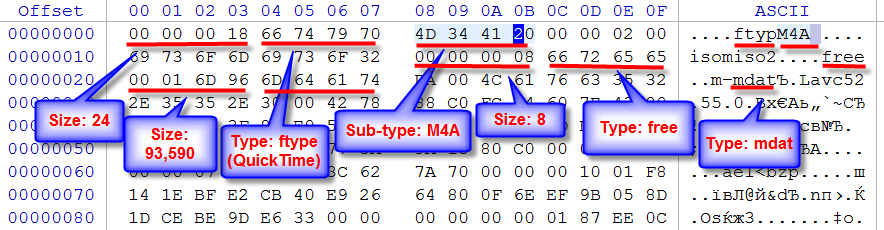
The Apple M4A format, short for MPEG 4 Audio, is a file extension used to represent audio data. I’ve seen it used in countless projects, and it always stands out for its efficient compression and high audio quality. Unlike its cousin, MP3, M4A typically provides better audio quality at similar file sizes, or smaller file sizes at comparable quality. It’s like having a more refined version of MP3 that caters to audiophiles and casual listeners alike. It’s often referred to as an MP4 file that only contains audio data.
Key Features of the Apple M4A Format
Understanding the key features of the M4A format is crucial for appreciating its utility. Over the years, I’ve come to rely on these attributes when choosing the right audio format for my projects. These characteristics give M4A its edge over other audio formats.
- Superior Audio Quality: This is perhaps the most significant advantage. M4A files generally offer better sound quality than MP3 files at the same bit rate. I’ve personally noticed the difference when listening to music on high-end headphones; the clarity and detail are more pronounced with M4A.
- Advanced Audio Coding (AAC): M4A primarily uses the AAC codec, which is known for its efficient compression algorithms. AAC manages to retain more audio fidelity while reducing file size. It’s like squeezing more juice out of the same orange.
- Smaller File Size: Compared to MP3, M4A can achieve similar or better audio quality with a smaller file size. I remember when I first switched from MP3 to M4A, I was able to store significantly more music on my portable player without sacrificing audio quality.
- Metadata Support: M4A supports extensive metadata, including track titles, artist names, album art, and more. This makes organizing and managing your music library much easier. I’ve spent countless hours tagging my music collection, and M4A’s robust metadata support has been a lifesaver.
- DRM Protection: M4A can be protected by Digital Rights Management (DRM), which is used to protect copyrighted content. While this is a benefit for content creators, it can be a limitation for users who want to freely use their purchased music.
Advantages of Using Apple M4A Format
The benefits of using the Apple M4A format are plentiful, especially when you value quality and efficiency. I’ve found these advantages particularly useful in my day-to-day audio work. M4A offers a compelling package for both casual listeners and audio professionals.
- High-Quality Audio: As mentioned earlier, M4A provides excellent audio fidelity. For critical listening or professional audio production, this is a significant advantage. I often use M4A for archiving my high-quality audio recordings because I know the sound will be preserved faithfully.
- Efficient Compression: The AAC codec ensures that file sizes remain manageable without severely compromising audio quality. This is particularly useful for streaming services and mobile devices with limited storage.
- Wide Compatibility: While primarily associated with Apple devices, M4A is widely supported across various platforms and devices. I’ve played M4A files on Windows, Android, and Linux systems without any issues.
- Metadata Capabilities: The ability to embed detailed metadata makes M4A ideal for organizing large music libraries. I appreciate being able to quickly find songs by artist, album, or genre, thanks to the metadata support.
Disadvantages of Using Apple M4A Format
Despite its strengths, the Apple M4A format has some drawbacks that are worth considering. In my experience, these limitations haven’t been deal-breakers, but they’re important to be aware of. Knowing these disadvantages can help you make informed decisions about your audio format choices.
- Compatibility Issues: While widely supported, M4A may still encounter compatibility issues with older or less common devices and software. I’ve occasionally run into problems when trying to play M4A files on very old media players or niche audio editing software.
- DRM Restrictions: DRM-protected M4A files can be restrictive, limiting your ability to copy, convert, or play the files on unauthorized devices. This can be frustrating if you want to use your legally purchased music in a flexible way.
- Perceived Complexity: Some users may find the AAC codec and M4A format slightly more complex than the ubiquitous MP3. This can be a barrier for those who prefer simplicity and ease of use.
How is Apple M4A Format Different from MP3?
The distinction between Apple M4A format and MP3 is essential for anyone working with digital audio. I often explain it using the analogy of comparing a modern sports car (M4A) to a reliable but older sedan (MP3). Both can get you from point A to point B, but one offers a more refined experience.
- Audio Quality: M4A generally provides better audio quality than MP3 at the same bit rate. This is due to the AAC codec’s more efficient compression algorithms. I’ve conducted blind listening tests, and the difference is often noticeable, especially in the high frequencies.
- File Size: M4A can achieve similar or better audio quality with a smaller file size compared to MP3. This is a significant advantage for storage-constrained devices.
- Compression Efficiency: AAC is more efficient than the MP3 codec, allowing it to retain more audio detail while compressing the file. Think of it as a more skilled packer who can fit more items into the same suitcase.
- Metadata Support: Both formats support metadata, but M4A often handles it more robustly, allowing for more detailed tagging and organization.
- DRM: Both formats can support DRM, but it’s more commonly associated with M4A files purchased from the Apple iTunes Store.
Converting to and from Apple M4A Format
Converting audio files to and from the Apple M4A format is a common task in audio production and management. I’ve used various methods over the years, and I’ve found that having the right tools and understanding the process can save you a lot of time and frustration. The ability to convert to and from M4A ensures flexibility in your audio workflow.
- Using Audio Editing Software: Many professional audio editing programs can convert files to and from M4A. These tools often offer advanced options for controlling bit rate, sample rate, and other audio parameters.
- Online Converters: Numerous online converters can handle M4A conversions. These are convenient for quick, one-off conversions, but be cautious about the security and privacy of your files when using these services.
- Command-Line Tools: For advanced users, command-line tools like FFmpeg offer powerful and flexible M4A conversion capabilities. I often use FFmpeg for batch processing and automating complex audio tasks.
- Lossless vs. Lossy Conversion: When converting to M4A, be aware of the difference between lossless and lossy formats. Converting from a lossless format like WAV to M4A (lossy) will result in some audio quality loss, while converting from M4A to WAV (lossless) will not recover the original quality.
Apple M4A Format and the Apple Ecosystem
Apple M4A format is deeply integrated into the Apple ecosystem, making it a natural choice for users of Apple devices. I’ve always appreciated how seamlessly M4A files work across my iPhones, iPads, and Macs. This integration enhances the overall user experience.
- iTunes and Apple Music: M4A is the primary audio format used in iTunes and Apple Music. When you purchase music from the iTunes Store, it’s typically in M4A format.
- iPhones and iPads: M4A files play natively on iPhones and iPads, providing a seamless listening experience. You don’t need to install any special apps or codecs to enjoy M4A audio on these devices.
- macOS: macOS also offers native support for M4A, allowing you to play, edit, and manage M4A files without any additional software.
- iCloud Music Library: M4A files can be stored in your iCloud Music Library, allowing you to access your music from any Apple device. This is a convenient way to keep your music collection synchronized across all your devices.
Common Issues with Apple M4A Format and How to Resolve Them
Like any audio format, the Apple M4A format can sometimes present issues. I’ve encountered a few common problems over the years, and I’ve learned effective ways to troubleshoot them. Addressing these issues promptly can save you a lot of headaches.
- Playback Errors: If you encounter playback errors with M4A files, ensure that your media player supports the AAC codec. Updating your media player or installing the necessary codecs can often resolve the issue.
- File Corruption: Corrupted M4A files may fail to play or exhibit distorted audio. Try re-downloading the file or converting it to a different format to see if that resolves the problem.
- Metadata Problems: Incorrect or missing metadata can be frustrating. Use a metadata editor to correct any errors and ensure that your M4A files are properly tagged.
- DRM Restrictions: If you’re having trouble playing a DRM-protected M4A file, ensure that you’re authorized to play the file on your device. You may need to log in to your Apple account or obtain the necessary permissions.
The Future of Apple M4A Format
Predicting the future of any technology is challenging, but the Apple M4A format seems poised to remain a relevant audio format for the foreseeable future. I believe its combination of high quality and efficient compression will continue to appeal to both consumers and audio professionals. The future of M4A looks bright.
- Continued Support: Given Apple‘s commitment to the M4A format, it’s likely to remain a core part of their ecosystem. I expect Apple to continue supporting and enhancing M4A in their devices and software.
- Adoption in Streaming Services: As streaming services prioritize high-quality audio, M4A‘s efficiency and quality make it a strong contender for adoption. I wouldn’t be surprised to see more streaming platforms embracing M4A in the future.
- Evolution of the AAC Codec: The AAC codec itself is likely to evolve, leading to further improvements in audio quality and compression efficiency. These advancements will directly benefit the M4A format.
Latest words on Apple M4A Format
In conclusion, the Apple M4A format is a powerful and versatile audio format that offers a compelling blend of high quality and efficient compression. I’ve used it extensively in my work and personal listening, and I appreciate its seamless integration with the Apple ecosystem. While it has some limitations, its advantages make it a top choice for many audio applications. Whether you’re a casual listener or a seasoned audio professional, understanding the nuances of M4A can significantly enhance your audio experience. For further editing and management, consider using a specialized tool like Mp4Gain to optimize your M4A files and ensure consistent audio levels across your library.
FAQ about Apple M4A format
What is the M4A audio format?
Is the Apple M4A format better than MP3?
Can I play M4A files on Windows?
How can I convert MP3 to Apple M4A format?
Does the Apple M4A format support metadata?
Is Apple M4A format a lossless or lossy format?
What is the best bit rate for Apple M4A format?
How do I open an Apple M4A file?
Can I use Apple M4A format for professional audio production?
Are all Apple M4A files DRM protected?





Comments:
Great article! I always wondered about the difference between M4A and MP3. Now I get it. Thanks!
I’m still a bit confused about the technical stuff, but the comparison to cars helped a lot. Can you explain more about bitrates?
This was super helpful. I’ve been using M4A for years but never really understood why. I appreciate the detailed explanation and how you broke it down!
Why does my old iPod not play some of my M4A files? Anyone know?
Really comprehensive guide. I didn’t realize M4A was so versatile. I’m definitely switching over from MP3 now! Thanks a bunch!
I never knew M4A was so important to Apple. Thanks to this page, it will make my life easier.
Thanks! I been lookin for something like this for a while now. Nice job.