Principles of Video EncodingPrinciples of Video Encoding
Video Compression Techniques
Video compression is the process of reducing the size of a video file without compromising its quality. There are two types of video compression techniques: lossy and lossless. Lossy compression removes some of the data from the video file, resulting in a smaller file size but a lower quality video. Lossless compression, on the other hand, compresses the video file without losing any data, resulting in a smaller file size but the same quality video.
Video Encoding Standards
Video encoding standards are used to ensure that videos can be played on different devices and platforms. The most common video encoding standards are H.264 and H.265. H.264 is an older standard that is widely used, while H.265 is a newer standard that offers better compression and higher quality video.
Video Bitrate
Video bitrate refers to the amount of data that is used to encode one second of video. The higher the bitrate, the better the quality of the video, but the larger the file size. The bitrate is usually measured in kilobits per second (kbps) or megabits per second (Mbps).
Video Codec
Video Quality
Video quality is determined by a number of factors, including the resolution, frame rate, and bitrate of the video. Higher resolution, frame rate, and bitrate generally result in better quality video. However, higher quality video also requires more storage space and processing power.
Video Resolution
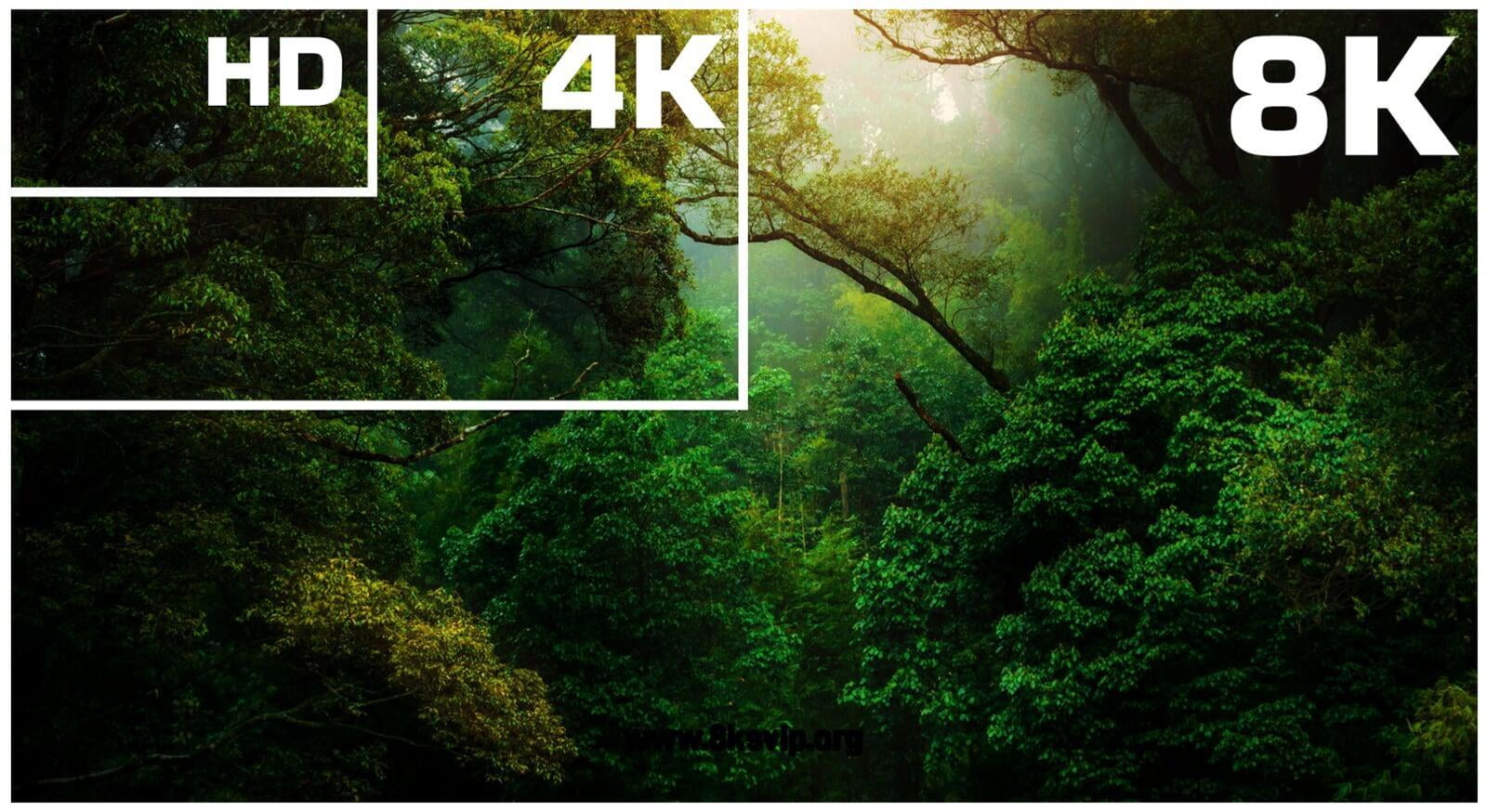
Video resolution refers to the number of pixels in the video frame. The most common video resolutions are 720p, 1080p, and 4K. Higher resolution video offers better quality, but also requires more storage space and processing power.
Video Frame Rate
Video frame rate refers to the number of frames that are displayed per second in the video. The most common frame rates are 24, 30, and 60 frames per second. Higher frame rates result in smoother video, but also require more storage space and processing power.
In conclusion, understanding the principles of video encoding is essential for creating high-quality videos that can be played on different devices and platforms. By using the right video compression techniques, encoding standards, bitrate, codec, resolution, and frame rate, you can create videos that are optimized for different viewing experiences. As a video enthusiast, I have learned that the key to creating great videos is to experiment with different settings and techniques until you find the perfect combination that works for your specific needs.
Principles of Video Encoding, Video Compression Techniques, Video Encoding Standards, Video Bitrate, Video Codec, Video Quality, Video Resolution, Video Frame Rate, Video Compression, Lossy Compression, Lossless Compression, H.264, H.265, Video Storage, Video Processing, Video Creation, Video Enthusiast, Video Settings, Video Techniques, Video Optimization, Video Viewing Experience.
What is the maximum video bit depth supported by MP4?
Mp4 video bit depthMp4 video bit depth
Understanding the MP4 Video File Format
As video technology has advanced, so too has the number of video file formats available. One of the most popular video file formats today is the MP4 format. The MP4 format is known for its versatility and compatibility with a wide range of devices and platforms.
One of the key features of the MP4 file format is its ability to compress video data without sacrificing quality. This is achieved through the use of video compression algorithms, which reduce the amount of data required to store video content while maintaining its visual fidelity.
Maximizing Video Quality in MP4
To ensure that your MP4 videos look their best, it’s important to understand the maximum video bit depth supported by the format. Bit depth refers to the number of bits used to represent each color in a video image. The higher the bit depth, the more colors that can be represented, resulting in smoother gradients and more accurate color reproduction.
The maximum video bit depth supported by MP4 is 10 bits per channel, which allows for a total of 1.07 billion possible colors. This is a significant improvement over the 8-bit color depth supported by many other video file formats, which only allows for 16.7 million colors.
To take advantage of the higher bit depth supported by MP4, it’s important to use a video encoder that supports 10-bit color depth. This will ensure that your videos have the maximum possible color accuracy and quality.
Ensuring Compatibility and Playback
While MP4 is a widely supported video file format, it’s important to ensure that your videos are compatible with the devices and platforms you intend to use them on. This includes checking the video codec used in your MP4 files, as well as the audio codec and other technical specifications.
In addition, it’s important to consider the playback software or hardware that will be used to view your MP4 videos. Not all devices and software support the maximum video bit depth of 10 bits per channel, so it’s important to test your videos on a range of devices to ensure they will play back correctly.
Final Words
In conclusion, understanding the maximum video bit depth supported by MP4 is important for ensuring the best possible video quality. By using a video encoder that supports 10-bit color depth and testing your videos on a range of devices, you can ensure that your MP4 videos look their best and are compatible with a wide range of platforms.
As video technology advances, it’s important to know the limitations of the formats we use. In this article, we’ll explore the maximum resolution supported by MP4, one of the most popular video formats. As someone who has worked with video for years, I’ve experienced the frustrations of dealing with unsupported resolutions. Let’s dive in.
Understanding MP4 Video Resolution
MP4 is a versatile video format that supports various resolutions, but what is the maximum resolution supported by MP4? The answer is dependent on the codec used to encode the video. The most common codec used in MP4 videos is H.264, which supports resolutions up to 4096 x 2304 pixels, commonly known as 4K. However, newer codecs such as H.265 can support even higher resolutions, such as 8K.
“Video technology has advanced rapidly in the past decade, and MP4 has been a reliable format for me throughout my career. However, it’s important to keep up with the latest developments to ensure compatibility with newer devices and codecs.”
MP4 Resolution Limitations
While MP4 can support high resolutions, there are limitations to consider. One factor is the device or software used to play the video. Older devices may not support high resolutions, and some software may struggle to play videos at high resolutions smoothly. Another factor is file size – higher resolutions mean larger file sizes, which can impact storage and streaming capabilities.
“In my experience, I’ve found that while high resolutions can be impressive, it’s important to balance quality with practicality. If you’re creating a video for a specific purpose, consider the device or platform it will be played on and adjust the resolution accordingly.”
Maximizing MP4 Video Quality
To get the most out of MP4 video, it’s important to optimize the quality for the intended audience. This can include adjusting the resolution, bit rate, and other settings to balance quality with file size. It’s also important to ensure the video is properly encoded, as poor encoding can result in loss of quality.
“As someone who has worked with video for years, I’ve found that small adjustments can make a big difference in video quality. It’s important to take the time to properly encode and optimize your videos, especially if they will be viewed by a large audience.”
Final Words
In conclusion, MP4 is a versatile video format that can support high resolutions, but it’s important to consider the limitations and optimize the quality for the intended audience. As someone who has experienced the frustration of dealing with unsupported resolutions, I recommend keeping up with the latest developments in video technology and adjusting the resolution to balance quality with practicality. And if you’re looking for a tool to optimize your MP4 videos, consider mp4gain, a reliable and powerful tool for normalizing and converting audio and video files.
Motion Estimation in VideoMotion Estimation in Video
Motion Estimation and Compensation
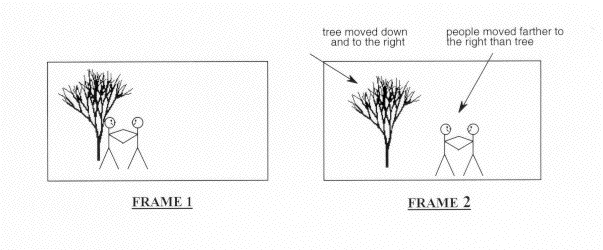
Motion estimation and compensation are fundamental techniques used in video compression. Motion estimation refers to the process of analyzing consecutive video frames to identify the motion vectors between them. Motion compensation, on the other hand, involves using these motion vectors to predict the pixel values of the current frame based on the previous frame. By utilizing motion estimation and compensation, video compression algorithms can efficiently remove temporal redundancies, resulting in smaller file sizes without significant quality loss.
I first encountered the concept of motion estimation during my undergraduate studies in computer science. We were tasked with implementing a simple video compression algorithm, and I quickly learned that motion estimation was a crucial component. As I delved deeper into the topic, I came across the book “Video Coding for Mobile Communications: Efficiency, Complexity, and Resilience” by K.R. Rao et al., which provided a comprehensive overview of motion estimation algorithms and their applications.
Motion Estimation Algorithms
There are several motion estimation algorithms used in video compression, each with its strengths and weaknesses. One of the most popular methods is block matching, which divides the frame into small blocks and compares them with corresponding blocks in the previous frame to find the best match. Another commonly used technique is optical flow, which estimates the motion vectors by analyzing the brightness patterns between frames.
In my experience with video compression software, I have found that the choice of motion estimation algorithm can significantly impact the compression efficiency and visual quality of the output. For example, block matching algorithms tend to perform well on videos with simple, uniform motion, while optical flow methods excel in more complex scenes with dynamic motion.
Video Coding Standards
Video compression standards are crucial for ensuring interoperability and compatibility between different devices and software. Some of the most widely used standards include H.264/AVC, HEVC, and MPEG-4. These standards define the encoding process, including the motion estimation and compensation techniques used, and specify the parameters required for decoding.
As someone who has worked extensively with video coding standards, I can attest to the importance of following these guidelines to ensure compatibility and optimal performance. However, it is worth noting that some proprietary codecs, such as Apple’s ProRes and Google’s VP9, may offer superior performance in certain scenarios.
In conclusion, motion estimation is a critical component of video compression, allowing for efficient removal of temporal redundancies. By utilizing motion estimation and compensation techniques, video compression algorithms can significantly reduce file sizes without compromising quality. As I have learned through my experiences with video compression, the choice of motion estimation algorithm and adherence to video coding standards are crucial factors in achieving optimal compression efficiency and visual quality.
video compression, motion estimation, motion compensation, block matching, optical flow, video coding standards, H.264/AVC, HEVC, MPEG-4, video coding research, video compression techniques, video compression software, video quality, compression efficiency, temporal redundancies, compatibility, proprietary codecs, ProRes, VP9, K.R. Rao, video coding for mobile communications, file size reduction, video frames, motion vectors, pixel values, previous frame, brightness patterns.
MPEG decoding is the process of converting compressed digital video data into a viewable format. This process is necessary because most digital videos are compressed to save space and reduce bandwidth requirements. Decoding MPEG involves using a special algorithm to decompress the data and extract the video and audio streams. Once the video and audio streams are separated, they can be played back on a computer or other device.
According to the book “Video Demystified” by Keith Jack, “Decoding MPEG requires a powerful processor and specialized hardware.” This is because the process is computationally intensive and requires a lot of processing power to be done in real-time. Many modern computers and mobile devices are capable of decoding MPEG on their own, but some may require specialized software or hardware to do so.
MPEG Decoder
An MPEG decoder is a piece of software or hardware that is designed to decode MPEG-encoded video files. Decoders come in many different forms, from standalone devices to software that can be installed on a computer. Most modern media players, such as VLC, have built-in MPEG decoders that can play back MPEG-encoded video files without the need for additional software.
As noted by the book “Digital Video Processing” by A. Murat Tekalp, “The quality of an MPEG decoder determines the quality of the video output.” This is because the decoding process can introduce artifacts and other issues that can degrade the quality of the video. It is important to use a high-quality decoder to ensure that the video is decoded correctly and looks its best.
Decoding Video Files
Decoding video files is an essential part of playing back digital video content. Many different video codecs are used to compress video data, and each requires a specific decoder to play back the content. MPEG is just one of many video codecs that are commonly used. Other popular codecs include H.264, HEVC, and AV1.
As stated by the movie “The Matrix”, “Unfortunately, no one can be told what decoding video files is. You have to see it for yourself.” While decoding video files may seem complicated, modern media players and other software have made the process much easier. With the right software and hardware, anyone can decode and play back digital video content with ease.
Final Words:
In conclusion, MPEG decoding is an essential process for playing back digital video content. Whether you are using a standalone device or a computer with specialized software, understanding how MPEG decoding works is important for getting the best possible video playback experience. If you’re looking for a high-quality MPEG decoder, consider using mp4gain to ensure that your video files are decoded correctly and look their best.
Video compression is the process of reducing the size of a digital video file without compromising its quality. MPEG (Moving Picture Experts Group) codec is one of the most widely used video compression techniques in the world. It is known for its ability to compress videos without significantly reducing their quality. As a result, MPEG codec is used in various multimedia applications, including DVDs, digital television, and streaming video platforms.
According to renowned filmmaker Martin Scorsese, “Compression is interesting because you can actually get more information on a disc if you compress it than if you don’t. You’re just using the data more efficiently.” MPEG codec helps achieve this efficiency, making it a popular choice among content creators.
Digital Video Format
MPEG codec is also popular because it supports multiple digital video formats, including MPEG-1, MPEG-2, MPEG-4, and MPEG-7. Each of these formats is optimized for different types of content and applications. For example, MPEG-1 is ideal for low-resolution video and audio playback, while MPEG-4 is ideal for streaming high-quality videos over the internet.
MPEG-2, on the other hand, is widely used in digital television broadcasting, while MPEG-7 is used for multimedia content management. Overall, MPEG codec has revolutionized the way we consume and distribute digital video content.
Video Encoding
Video encoding is the process of converting a raw video file into a compressed digital format. MPEG codec is one of the most efficient and reliable video encoding techniques available. It uses complex algorithms to analyze the video content and compress it while maintaining its quality.
As noted by filmmaker George Lucas, “The whole industry is based on technology. It’s not based on storytelling. If the technology is great, everybody in the world can do it.” MPEG codec’s ability to compress videos while maintaining their quality has made it an essential component of the video production process.
In conclusion, MPEG codec is a crucial video compression technique that has transformed the way we consume and distribute digital video content. Its ability to compress videos without significantly reducing their quality has made it a popular choice among content creators and consumers alike. If you’re looking for a reliable video compression solution, MPEG codec is definitely worth considering.
Final Words:
Whether you’re a content creator or a consumer, MPEG codec is an essential component of the digital video ecosystem. Its ability to compress videos while maintaining their quality has made it an industry standard. If you’re looking for a reliable video compression solution, consider using MPEG codec to optimize your digital video content.
Video compression is the process of reducing the size of digital video files without sacrificing quality. Compression is necessary for efficient storage and transmission of video over networks or on physical media. The compression process involves removing redundant and non-essential information from the video stream, while retaining as much perceptual quality as possible. There are several video compression methods available, each with its own strengths and weaknesses.
Lossy Compression
Lossy compression is the most common method of video compression. It works by discarding information that is deemed less important, based on visual perception. The discarded information cannot be recovered, which is why this method is called “lossy”. The amount of compression can be adjusted by varying the amount of information that is discarded. Popular lossy video compression codecs include H.264, MPEG-4, and VP9.
Lossless Compression
Lossless compression, on the other hand, retains all of the original information, but compresses it in a way that can be reconstructed exactly. This method is typically used for archival or master copies, where quality cannot be sacrificed. However, lossless compression does not achieve the same degree of compression as lossy methods. Examples of lossless video compression codecs include Apple ProRes and Avid DNxHD.
Hybrid Compression
Hybrid compression methods combine elements of both lossy and lossless compression. These methods use lossy compression on parts of the video that are less important, and lossless compression on parts that are more important. The result is a balance between quality and compression efficiency. One example of a hybrid compression codec is the JPEG2000 format.
Variable Bit Rate (VBR) vs. Constant Bit Rate (CBR)
Video compression can be further classified as either variable bit rate (VBR) or constant bit rate (CBR). In VBR, the bit rate varies depending on the complexity of the video content. This allows for higher quality in complex scenes, while still maintaining a reasonable file size. CBR, on the other hand, maintains a constant bit rate throughout the entire video stream. This results in predictable file sizes, but can lead to lower quality in complex scenes.
Compression Settings
The effectiveness of video compression is highly dependent on the settings used during compression. Key settings include the bitrate, resolution, frame rate, and codec. Higher bitrates and resolutions result in higher quality, but also larger file sizes. The codec used can also have a significant impact on the quality and compression efficiency. Experimenting with different settings can help achieve the desired balance between quality and file size.
Conclusion
Video compression is a necessary part of modern video production and distribution. There are several compression methods available, each with its own advantages and disadvantages. Choosing the right compression method and settings requires a balance between quality and file size.
FAQ
1. What is the difference between lossy and lossless compression?
Lossy compression discards information that is deemed less important, while lossless compression retains all of the original information. Lossy compression achieves higher compression ratios, but at the expense of quality.
2. What are some common video compression codecs?
Some common video compression codecs include H.264, MPEG-4, VP9, Apple ProRes, and Avid DNxHD.
3. What is hybrid compression?
Hybrid compression methods combine elements of both lossy and lossless compression. These methods use lossy compression on parts of the video that are less important, and lossless
Digital audio and video are types of data that we can store on a computer or other electronic device. They are made up of a series of numbers that represent the sound or image we want to save. This means that instead of using physical materials like film or tape to record sound or video, we can use a computer to store and manipulate digital versions of that data.
Digital Audio and Video
How is sound digitized?
Sound is a type of wave that travels through the air. When we want to digitize sound, we need to find a way to measure that wave and turn it into a series of numbers. We do this by using a device called a microphone, which converts sound waves into electrical signals that can be processed by a computer.
Here’s an example: imagine you’re at a concert and you want to record a song using your phone. You turn on the voice memo app and hold your phone up to the speakers. The microphone in your phone converts the sound waves from the speakers into electrical signals that are then turned into a digital audio file that you can listen to later.
How are multiple sounds combined into a single file?
When we record sound using a microphone, we’re not just capturing one sound at a time. We’re also picking up any other sounds that might be happening in the background, like people talking or the sound of a car driving by. So how do we store all of these different sounds in a single file?
The answer is that each sound is given its own “channel” in the digital audio file. Imagine that you have a stereo system with two speakers – one on the left and one on the right. When you record a song using your phone, the sound that’s coming out of the left speaker is saved in one channel of the audio file, while the sound that’s coming out of the right speaker is saved in another channel.
How are different instruments and voices saved in a single channel?
So now we know how to store multiple sounds in a digital audio file using different channels. But what if we want to save a song that has lots of different instruments and voices playing at the same time? How can we separate out all of those different sounds and make sure they’re saved correctly in the file?
The answer is that each sound is given its own “frequency” in the digital audio file. Think of it like a rainbow: just like how a rainbow has lots of different colors, sound has lots of different frequencies. When we record a song, we’re capturing all of those different frequencies at the same time.
So let’s say we’re recording a song that has a guitar, a bass, a drum set, and a singer. Each of those instruments and the singer’s voice has a different set of frequencies that make up its sound. The guitar might have a lot of high frequencies, while the bass might have a lot of low frequencies. When we record the song, we capture all of those frequencies at the same time and save them in the digital audio file.
How are timbres saved in a digital audio file?
The “timbre” of a sound refers to its unique quality or tone. For example, if you hear a trumpet and a violin playing the same note, you can still tell the difference between the two because they have different timbres. So how do we save the timbre of each instrument or voice in a digital audio file?
To save the timbre of each sound, we use a process called “sampling”. Sampling involves taking tiny snapshots of the sound wave at regular intervals and saving those snapshots as numbers in the digital audio file. The more snapshots we take, the more accurately we can capture the unique timbre of each sound.
Here’s an example: let’s say we’re recording a piano playing a single note. We take 44,100 snapshots of the sound wave per second and save each snapshot as a number in the digital audio file. When we play back the file, the computer reads those numbers and uses them to recreate the sound of the piano note. Because we took so many snapshots per second, we’re able to capture all of the nuances of the piano’s timbre and make it sound like a real piano.
How are noises and other sounds saved in a digital audio file?
When we record sound using a microphone, we’re not just capturing the sounds we want to hear – we’re also capturing any background noise that might be happening. This can include things like people talking, cars driving by, or birds chirping. So how do we deal with all of that extra noise when we save the sound as a digital file?
One way to deal with background noise is to use a process called “noise reduction”. This involves analyzing the digital audio file and looking for parts of the sound that are consistent over time – like the sound of a fan running or the hum of a fluorescent light. The computer can then remove those consistent sounds from the file, leaving behind just the sounds we want to hear.
Another way to deal with background noise is to use a process called “EQ” (short for “equalization”). EQ allows us to boost or cut certain frequencies in the sound to make it sound better. For example, if there’s a lot of low-frequency rumble in a recording, we can use EQ to cut out some of those frequencies and make the sound clearer.
What is digital video?
Digital video is similar to digital audio, but instead of capturing sound waves, we’re capturing images. When we record a video, we’re capturing a series of still images (or frames) at regular intervals and saving them as a digital file.
How are videos saved in digital format?
To save a video in digital format, we need to capture a series of still images (or frames) and save them as a digital file. We do this using a device called a camera, which captures light from the scene we’re filming and turns it into an electrical signal that can be processed by a computer.
Here’s an example: imagine you’re filming a video of your dog playing in the park. You hold up your phone and hit the record button. The camera in your phone captures a series of still images (or frames) of your dog playing and saves them as a digital video file that you can watch later.
How are multiple images combined into a single video file?
When we capture a video, we’re capturing a series of still images (or frames) at regular intervals. To create a smooth video, we need to combine all of those frames into a single file. This is done using a process called “video compression”.
Video compression works by looking for parts of the image that are similar from frame to frame and only saving the parts that are different. For example, if you’re filming a video of a person sitting in a chair, the background behind them might not change much from frame to frame, so the computer can save that part of the image just once and only save the parts that are changing (like the person’s movements).
By only saving the parts of the image that are changing, we’re able to save space and create smaller video files that are easier to store and share. However, too much compression can make the video look blurry or pixelated. So, it’s important to find a balance between file size and video quality when compressing videos.
How do we add sound to a digital video file?
To add sound to a digital video file, we use a process called “audio syncing”. Audio syncing involves combining the digital audio file (which we learned about earlier) with the digital video file so that the sound matches up with the images.
Here’s an example: let’s say you’re filming a concert and you want to create a video of one of the songs. You record the video using your camera and the audio using a separate recording device. When you go to edit the video, you import both the digital audio file and the digital video file into your editing software. Then, you use audio syncing to line up the audio with the video so that the sound matches up with the images.
Conclusion
In conclusion, digital audio and video are complex subjects, but they can be explained in a way that a 6-year-old can understand. Digital audio involves converting sound waves into numbers that can be saved in a digital file. We use sampling to capture the unique timbre of each sound, and we use noise reduction and EQ to deal with background noise. Digital video involves capturing a series of still images (or frames) and saving them as a digital file. We use video compression to combine those frames into a single file and audio syncing to add sound to the video. By understanding these concepts, we can appreciate the technology behind the digital media that we enjoy every day.
1. The term used in relation to the systems and tools to create, store, transform, transmit and / or receive (including reproduction) of moving images using computer technology. Digital video is characterized by the following basic parameters: frame rate [frame rate] (measured by the number of interchangeable image frames on the screen per second), screen resolution [spatial resolution] (measured by the number of pixels in an image frame), color depth or color resolution [color resolution] (measured by the number of transmitted color tones), and image quality [image quality] – a complex indicator, including the above. One type of digital video is computer animation.
2. Video presentation format used for recording and data exchange between digital video cameras, VCR and PC. Also called DV editing [DV-the format]. For DV transmission, the IEEE-1394 standard (FireWire or i.LINK) is used. Provides 5: 1 video signal compression ratio, 3.6MB / s signal transmission rate, video frame resolution for PAL – 720×576 and NTSC – 720×480, support for recording and reproduce sound in 4 channels with a sampling frequency of 32 kHz and a bit depth of 12 (or in 2 channels with a sampling frequency of 48 kHz and a bit depth of 16 bits). See [556] for more details.
DV Type-1 (Digital Video Type-1): A variant of the DV format presentation (see above), incompatible with Video for Windows and compatible only with later versions of DirectShow. A file in this format has video and audio components of the recording, which are interleaved (stereo, 48 kHz, 16-bit). This format is the recommended format for processing DV video on a PC [556].
DV Type-2 (Digital Video Type-2) – The original (legacy) version of the DV format on a PC, backward compatible with Video for Windows – Programs running on Video for Windows can only read one file Type -2. In this case, to save data in it, you need to use a special codec. Compared to Type -1, it is more expensive to decode and mix [556].
S-Video is an image format in which chroma and luminance are separated into two separate signals, resulting in higher image quality (see also “stereo video” above).
Component Video [Component Video]: Color video transmitted using three separate channels using one of the color separation models: RGB, YiQ, or YUV.
Intel DVI (Intel Digital Video Interface), Intel Real-time Video – DVI is a hardware / software suite that includes a DVI chipset, an executable software interface, data compression and decompression schemes, and data file formats. DVI format was created in 1984 in Princeton, New Jersey by employees of the USA company the RCA Corporation. Then it changed ownership and from 1988 became the property of Intel Corp., which supports its development. Currently, DVI is a multimedia format for storing audio and video data. Its main features: Supports 16 million colors; it has a maximum resolution of 256×240 pixels; uses its own compression machine and JPEG (5: 4 motion picture compression ratio); it also provides still image storage and compression (lossy and lossless); has a specification on CD-ROM. Audio compression is done using ADPCM and PCM 8. For more information, see [584].
RIFF (Resource, Interchange, File, Format) – “File Format Resource Sharing” from Microsoft is a complex multimedia format used for Windows * *, Windows NT, and OS / 2 operating systems. Its purpose: to adapt various types of data for multimedia programs. The type of data contained in the RIFF file is indicated by the extension: embedded audiovisual data – * .avi; audio data (“wave”) – * .wav; raster data – * .rdi; MIDI data – * .rmi; lots of other RIFF- * .bnd files … Since there are many different multimedia files under the general name RIFF, each of them is processed taking into account the type of data it contains. For example, a RIFF file that contains audiovisual data is often referred to and treated as an AVI file in general and not as a RIFF file. RIFF files are often mistakenly believed to be similar to TIFF (Tag Image File Format) files. Although these formats use the same storage concept, they are incompatible. For more details, see [584].
QT (QuickTime), QTM (QuickTime Movie Resourse Format)
We all like to enjoy great image quality in the videos and movies we watch on the computer, especially if you make your own compressed copies of DVD movies. I have always relied on the popular DivX but, now that there are other types of compression such as Xvid and some as modern as the H.264, it would be worth comparing to discover which one offers the best quality in the smallest size.
For the test I have chosen the movie Transformers, released in November 2007 and directed by Michael Bay, with Shia Labeouf and Megan Fox as protagonists. It is an action movie with a variety of scenes: static in great detail, with movement, explosions, lots of color … ideal for testing. The DVD boasts a very high image quality, as evidenced by the editors of a well-known magazine.
Choice of codecs, bitrates and encoders
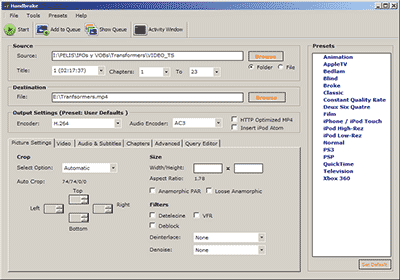
To carry out the test, you have to choose different “compression methods”, each of them to several different “qualities” and using one or several programs that allow to compress in this way.
Things have changed a lot since in 2000 I compressed my first movie in DivX 3.11 format. It took me a whole day looking for information on the Internet on how to do it and my computer at that time (an AMD K6 II of 400Mhz) took all night to compress it in only 650 MB. Since then I have been using all versions of DivX, from 3.11 to the current 6. But the Xvid codec sounds more and more and there are excellent comments from the newest H.264, so the question is on the table: what is The best way to compress to achieve sublime image quality? Well, for this you have to discover which is the best codec and use it at the optimal bitrate with the ideal encoder. But what about that “codec”, “bitrate” and “encoder”?
Codec, the type of compression
The “compression method” is what in the video world is called “codec”, which is the acronym for COmpresor-DECompresor, a program capable of compressing and decompressing the image in a certain way. It is something similar to what photography programs incorporate to allow them to read and write files in JPEG format, for example. The type of compression that incorporates the DVD is called MPEG-2 and is already considered somewhat old, being surpassed by the MPEG-4 standard, more modern and efficient.
The problem is that there are many types of MPEG-4 and it is not clear which one is the best.
On the one hand there is DivX (a variant of the MPEG-4 type called ASP; see official page), which is tremendously popular and more and more DVD lounge players admit it. The decompressor (necessary to watch the videos) is free, but the compressor (to generate them) is paid.
There is also Xvid, (which is the same type as DivX; official page) a competitor of DivX (its name is the same, but vice versa) although completely free.
And finally, the very modern H.264, of the MPEG-4 AVC type, a prodigy of compression according to experts. Well, to find out which one is better, I have compared the generic MPEG-4 with these three contenders. There are several codecs to use this type of compression, but the most popular is the x264, mostly because it is free, which is what I used.
The versions that I have used for this comparison are the following: DivX Pro v6.8.2, Xvid v1.2 and x264 revision 808.
Bitrate, the amount of compression
Already with each of them, you can select the “quality” image, similar to how you choose the quality between 0 and 12 when saving a JPEG file from Photoshop. The difference is that in the world of video this is known as bitrate, which is nothing more than the bit stream per second of video, and is measured in bits per second and their multiples. Since video is a succession of frames formed of pixels (ultimately bits), this parameter measures the flow of information per second; at higher flow, higher quality and vice versa. In our case, I will use measures in “kbps” (“Kb / s” would also work), that is, kilobits per second (be careful, don’t confuse it with KB / s, which would be kiloBytes per second, an 8 times larger unit).
In order not to make the mistake of falling short, I have chosen 7 different bitrates, starting from an intermediate one. Taking the original DVD image, with a 720×304 pixel size frame