Bit Depth in Audio


Free Download Mp4Gain
picture

Bit Depth in Audio

Bit Depth in Audio
Bit Depth in Audio
Bit Depth in Audio
Bit Depth in Audio

Audio Bit Depth Explained

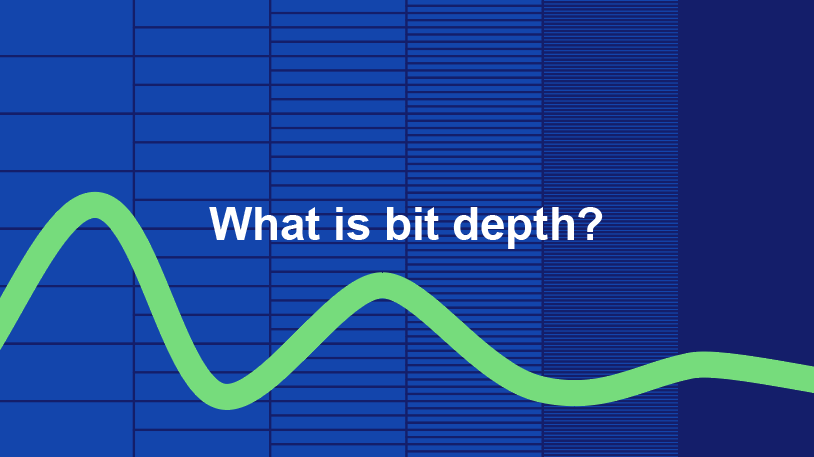
Audio bit depth refers to the number of bits used to represent the amplitude of an audio signal at each sample point. In simpler terms, it determines the dynamic range of digital audio. A higher bit depth allows for a more detailed representation of sound, capturing subtle nuances and minimizing quantization noise.
Imagine bit depth as a measurement of how finely audio is divided into individual steps. For instance, a 16-bit audio recording has 65,536 possible amplitude levels, while a 24-bit recording offers a staggering 16,777,216 levels. This increased granularity results in smoother, more accurate sound reproduction.

Understanding Bit Depth in Audio

To grasp the significance of bit depth, consider it as the shades of color in a painting. A higher bit depth provides a broader palette of colors, allowing for a more accurate depiction of the original image. Similarly, in audio, a greater bit depth captures a wider range of volume levels, preserving the subtleties of a musical performance or the nuances of a voice.
In practical terms, when you listen to music or a podcast, a higher bit depth ensures that you can hear the softest whispers and the loudest drum hits without distortion or loss of detail. It’s like having a more precise lens to view the sonic landscape.

Audio Resolution and Bit Depth

Bit depth and audio resolution are closely linked. Audio resolution refers to the level of detail and accuracy in an audio recording. Bit depth plays a pivotal role in determining this resolution. Think of it as the difference between watching a video in standard definition versus high definition. A higher bit depth offers a more lifelike and faithful representation of sound.
When recording or listening to music, you’ll often encounter terms like “16-bit” or “24-bit.” These numbers indicate the bit depth of the audio, with 24-bit audio being the gold standard for high-quality recordings. It’s akin to having a sharper, more detailed image in photography.

Now, let’s explore more facets of bit depth in audio.

Importance of Bit Depth in Sound

Bit depth is paramount in the world of sound because it directly impacts audio fidelity and the ability to reproduce music or voice accurately. It ensures that every subtle nuance, from the softest piano notes to the powerful guitar riffs, is faithfully captured and played back with precision.
Consider this: when recording a classical piano performance, the pianist’s delicate touch on the keys is as vital as the thunderous crescendos. A higher bit depth preserves the intricate dynamics, making you feel as if you are sitting in the concert hall, immersed in the music.

Bit depth is the foundation of audio quality, and understanding its role can help you appreciate the importance of using higher bit depths in audio production and playback.

How Bit Depth Affects Audio Quality

The impact of bit depth on audio quality is akin to the role of paint quality in a masterpiece. Just as a skilled artist requires high-quality pigments for a vivid painting, audio engineers rely on a greater bit depth for lifelike and rich audio recordings.
A lower bit depth might result in noticeable “stepping” or quantization noise, especially in quiet passages of a recording. This noise can be distracting and diminish the overall listening experience. On the other hand, a higher bit depth provides a smooth, natural curve to the audio waveform, minimizing these artifacts and delivering pristine sound.

Consider your favorite music track—the artist’s emotions, the resonance of instruments, and the atmosphere of the recording venue. All these subtleties are better preserved and conveyed through higher bit depth, elevating your listening experience to a new level.

Bit Depth in Digital Audio

In the digital realm, bit depth plays a pivotal role in the accuracy of audio representation. Think of it as pixels in a high-resolution photograph; more pixels mean finer details. Similarly, a higher bit depth translates to a more accurate depiction of sound.
In applications like digital audio workstations (DAWs) and music players, you often have the option to choose between different bit depths for your audio projects. Opting for a higher bit depth can lead to more professional-sounding results, particularly in the realms of music production, film scoring, and sound design.

Bit Depth vs. Sample Rate

While bit depth and sample rate are both critical aspects of digital audio, they serve different purposes. Bit depth determines the accuracy of amplitude representation, while sample rate governs how often the audio waveform is sampled per second.
Picture bit depth as the color depth in a photograph and sample rate as the frames per second in a video. A higher bit depth allows for greater tonal accuracy, while a higher sample rate captures more audio snapshots per second, preserving high-frequency content.

In many scenarios, a balanced approach between bit depth and sample rate is essential to achieve optimal audio quality. The synergy between these two factors ensures that audio recordings faithfully capture the richness and subtleties of the original source.

Bit Depth in Music Production

For music producers, bit depth is a critical consideration when working on audio projects. It influences the quality of sound recordings and the ability to manipulate audio during the production process.
When mixing and mastering music, a higher bit depth provides ample headroom for processing audio without introducing artifacts or degrading quality. This allows producers to apply effects, equalization, and compression with greater precision.

Additionally, when releasing music, opting for a higher bit depth ensures that your audience experiences the full depth and nuance of your compositions, whether they’re listening through high-end headphones or a powerful sound system.

16-Bit vs. 24-Bit Audio

The choice between 16-bit and 24-bit audio often arises when considering audio quality and storage requirements. A 16-bit audio file occupies less space compared to a 24-bit file, but it also has limitations in capturing subtle audio details.
16-bit audio is akin to a compact camera with limited resolution, suitable for casual snapshots. In contrast, 24-bit audio offers the quality of a professional DSLR camera, capturing a broader dynamic range and preserving the finer nuances of sound.

When deciding between the two, it’s essential to consider the specific use case. For audiophiles, professional audio production, and high-end sound systems, 24-bit audio is the preferred choice for its ability to deliver an immersive and faithful listening experience.

Bit Depth for Audio Recording

In the realm of audio recording, selecting the appropriate bit depth is a pivotal decision. It directly affects the quality and flexibility of the recorded material, whether you’re tracking vocals, instruments, or ambient sounds.
Recording at a higher bit depth, such as 24-bit, provides audio engineers with a safety net during the recording process. It allows them to capture a wide dynamic range without the risk of clipping or distortion. This is particularly valuable when dealing with unpredictable elements in live recordings or capturing the subtleties of acoustic instruments.

In essence, bit depth choice during audio recording is like choosing the canvas size for a painting. A larger canvas provides more room for creativity and detail, and a higher bit depth offers greater sonic canvas for audio professionals.

Final Words

In the realm of audio, bit depth serves as the bedrock of quality and fidelity. It determines how faithfully sound is captured, preserved, and reproduced. Understanding the importance of bit depth allows you to appreciate the nuances in your favorite music, the clarity in podcasts, and the immersive soundscapes in movies.
Whether you’re an aspiring musician, an audio engineer, or simply a passionate listener, recognizing the role of bit depth in audio enriches your experience. It’s the difference between seeing the world in black and white and experiencing it in full color.

So, the next time you enjoy your favorite song or immerse yourself in a cinematic adventure, remember that bit depth is the silent hero behind the scenes, ensuring that every sonic detail reaches your ears with precision and clarity.


Free Download Mp4Gain
picture


Mp4Gain Main Window
picture


Mp4Gain Features
picture


Free Download Mp4Gain
picture

Flac and Ogg Volume Adjuster

Flac and Ogg Volume Adjuster

Flac and Ogg Volume Adjuster

Are you tired of dealing with uneven audio levels in your Flac and Ogg files? Well, you’re not alone. Many audio enthusiasts and professionals often face the challenge of maintaining consistent sound quality across their collections. In this article, I’ll delve into the world of Flac and Ogg volume adjustment and explore various methods to tackle this issue effectively.

Audio File Format Adjustments

Before we dive into volume adjustments, it’s crucial to understand the nature of Flac and Ogg audio formats. Flac, short for Free Lossless Audio Codec, and Ogg Vorbis are popular choices for storing high-quality audio. Flac provides lossless compression, preserving audio quality without sacrificing file size, while Ogg is known for its open-source nature and efficient compression.

Sound Volume Control for Flac and Ogg

To control the volume of your Flac and Ogg files, you’ll need specialized tools or software designed for audio processing. These tools allow you to adjust the volume levels without compromising the overall audio quality. Keep in mind that it’s essential to maintain a balance between amplifying the audio and preventing distortion.

Adjusting Audio Levels in Flac and Ogg

One common method for volume adjustment is using an audio editor. These editors offer precise control over the audio, enabling you to increase or decrease the volume as needed. It’s important to preview the changes and make incremental adjustments to achieve the desired result.

Whether you’re a music enthusiast or a professional sound engineer, the ability to adjust volume levels in Flac and Ogg files is invaluable. By understanding the intricacies of these audio formats and utilizing the right tools, you can ensure a consistent and enjoyable listening experience.

Normalizing Sound in Flac and Ogg Files

Normalization is another technique to bring uniformity to your audio collection. This process adjusts the volume of each file to a standard level, eliminating extreme variations. Normalization algorithms analyze the audio content and adjust the gain accordingly, making it ideal for batch processing large libraries.

Volume Equalization for Flac and Ogg

Volume equalization is about ensuring that all your Flac and Ogg files have similar loudness levels. This technique is essential when you’re creating playlists or organizing audio for playback. Volume equalization tools use various methods to balance the audio, providing a seamless listening experience.

Audio Gain in Flac and Ogg Formats

Audio gain, also known as amplification, allows you to increase the overall loudness of your Flac and Ogg files. This can be particularly useful if you have older recordings or content with low volume levels. However, it’s crucial to exercise caution and avoid over-amplification, which can lead to distortion.

Balancing Audio in Flac and Ogg Files

Balancing audio involves adjusting the volume levels of individual tracks within a file. This is handy when dealing with live recordings or albums where tracks may have varying loudness. Balancing tools provide a means to fine-tune each track’s volume to create a consistent listening experience.

Flac and Ogg Audio Level Management

Managing audio levels in Flac and Ogg files is an ongoing process, especially if you frequently add new content to your collection. Regularly reviewing and adjusting volume levels ensures that your audio library remains enjoyable and free from sudden volume spikes or drops.

Tweaking Volume in Flac and Ogg

Sometimes, you may want to apply specific tweaks to the volume of your Flac and Ogg files. This could involve emphasizing certain frequencies or applying dynamic range compression to enhance the audio quality. Experimenting with these tweaks can lead to a more personalized listening experience.

Enhancing Audio Dynamics in Flac and Ogg

Audio dynamics play a crucial role in the overall quality of your listening experience. Adjusting volume levels in Flac and Ogg files can help bring out the nuances in your music. By carefully managing audio dynamics, you can ensure that every note and sound is delivered with precision and clarity.
Final Words

Flac and Ogg volume adjustment is an essential aspect of maintaining an enjoyable audio collection. Whether you’re a music enthusiast or a professional, understanding the tools and techniques available can significantly enhance your listening experience. With the right approach, you can achieve balanced and consistent audio quality in your Flac and Ogg files.

Mp3 Audio Booster

Mp3 Audio Booster

Mp3 Audio Booster
Mp3 Audio Booster
Mp3 Audio Booster
Mp3 Audio Booster

Boosting Audio in MP3 Files: A Comprehensive Guide

Volume Enhancement

When it comes to enhancing the audio in your MP3 files, one of the most common goals is to boost the volume. Whether you’re listening to music or podcasts, having a low volume can be frustrating. Boosting the volume of your MP3 files can make your listening experience more enjoyable. To do this, you can use various software tools that allow you to increase the volume level of your audio files. However, be cautious not to overdo it, as excessive volume boosting can result in distortion.

Equalization

Equalization, often referred to as EQ, is another essential aspect of audio enhancement. EQ allows you to adjust the balance of frequencies in your MP3 files. You can boost or cut specific frequency ranges to make the audio sound more balanced and tailored to your preferences. For instance, you can increase the bass frequencies for a richer, deeper sound or adjust the treble for sharper clarity. Many audio editing software packages offer built-in EQ tools, making it easy to fine-tune your MP3 files.

Bass Boost

If you’re a fan of deep, thumping bass, then bass boost is the keyword you need to explore. Bass boost techniques enhance the low-frequency elements of your MP3 audio, giving it a more pronounced and impactful bass response. This can be particularly useful when listening to genres like hip-hop or electronic music, where a powerful bassline is essential for the overall experience. Remember, though, to use bass boost in moderation, as excessive bass can overwhelm other elements of the audio.

Treble Adjustment

On the opposite end of the spectrum, we have treble adjustment. This allows you to fine-tune the higher-frequency components of your MP3 files. Adjusting the treble can make vocals and instrumentals sound crisper and more detailed. It’s an effective way to improve the clarity of audio, especially for genres like classical music or podcasts where articulate speech is crucial.

Sound Quality Improvement

Enhancing sound quality is a broader goal that encompasses various techniques. You can improve sound quality by eliminating background noise, reducing distortion, and ensuring that your MP3 files are encoded at a high bit rate. Sound quality improvement aims to make your audio as clear and pristine as possible, providing an enjoyable listening experience without any distractions.

Noise Reduction

Noise reduction techniques come in handy when your MP3 files contain unwanted background noise, such as hiss, hum, or static. Noise reduction software can analyze the audio and remove or reduce these unwanted sounds, resulting in cleaner and more enjoyable listening.

Audio Amplification

Audio amplification involves increasing the overall loudness of your MP3 files without compromising audio quality. It’s a subtle form of volume enhancement that can make a significant difference in the perceived loudness of your audio.

Audio Enhancement Tools

There are various specialized audio enhancement tools available that cater to specific needs. These tools often come with a range of features, from advanced equalization to noise reduction, allowing you to tailor your MP3 audio to your liking.

Audio Editing Software

If you’re looking for comprehensive control over your MP3 files, consider using audio editing software. These powerful programs provide a wide array of tools for enhancing and customizing your audio, from adjusting volume and equalization to adding effects and transitions.

Amplify MP3 Files

Amplify MP3 files” is a straightforward keyword that directly addresses the task at hand. Amplifying your MP3 files is the process of increasing their volume, and there are various methods and tools available to achieve this.

In conclusion, enhancing the audio in your MP3 files can greatly enhance your listening experience. Whether you’re looking to boost the volume, fine-tune the frequencies, or improve overall sound quality, there are numerous tools and techniques at your disposal. Experiment with these keywords and explore the various options to tailor your MP3 audio to your preferences.

Final Words
Remember that while these techniques can significantly improve your audio, it’s essential to use them judiciously and maintain a balance between enhancement and maintaining the integrity of the original audio.

Boost the volume of lossless audio files

Boost the volume of lossless audio files

Boost the volume of lossless audio files

There are a few different approaches toing the volume of lossless audio files. One simple method is to use an audio editor to adjust the overall gain or amplitude of the tracks. Most audio software allows you to increaseibel for an entire file or selection. Raising it a few is usually sufficient for a subtle boost without risking clipping or distortion.

Amplify sound

Another option isify specific frequency ranges give the perception of increased volume without pushing the levels into the red example boosting low mids highs a couple dB can make quiet passages seem louder while keeping peak levels in check. You’ll want to be judicious to avoid unwanted harshness or fuzziness. Test any adjustments by switching between the original and files.

Louder audio</2>
Whetherizing an entire album oring a few choice tracks’s to listen critically and make incremental changes. Jumping the gain by 6 dB right off the bat may end up distorting the signal in certain sections. Take your time tweaking levels up or down just 1- dB a time listen closely for any clipping artifacts. You can always go additional amplification later if needed you’ve dialed it in.

Normalize volume

Many digital audio workstations include normalization features that can automatically increase or decrease the overall volume to target a level, like -1 dB FS. This helps ensure consistent loudness different tracks or albums. However, normalization alone may not enough of a volume boost for some listeners. In those cases combination of normalization followed by manual gain adjustments tends to work well.

Adjust gain

Fine- the gain structure is art and part science. As an audio engineer, I’ve found helpful over the years to visualize the waveform on the screen making level adjustments. how close certain transients are approaching 0 dB gives a visual cue for how much headroom remains.’s a process of trial and error to find the optimal balance of loudness versus potential clipping.
2>Enhance dynamics</2>
For a more sophisticated volume boost, you can use dynamic range compression to subtly enhance the perceived loudness without resorting to gain increases. A gentle mix of compression on peaks combined with upward on valleys brings up the average level while retaining the original dynamic signature. This to sound more natural than a simple amplification.

Optimize levels

Whether you’re prepping audio for streaming services or want your music collection to sound its best, taking the time to levels pays off like to an initial pass followed by rounds of selective gain adjustments, checking for clipping or distortions each step. Proper staging is key – you don’t to-process and damage the fidelity of yourless files in the process.

Balance levels

Especially when working with full album releases or multi-track recordings, maintaining a balanced mix paramount Boosting some elements too much can throw off the overall cohesion. I find it useful to A/B between the and processed versions, toggling back and forth to compare. This helps identify where adjustments may bewing the tonal balance or drawing attention away important parts of the.Loudness matching

For playlists, compilations or broadcast content, loudness matching a consistent volume between tracks without jarring changes. production tools let you analyze the integrated loudLUFS) of different files and apply normalization, compression or make-up gain to closely target a playback loudness like -16 LUFS. This results in a seamless, fatiguing-free listening experience from start to finish.

Equalize volume

Subtle EQ can also play a supporting role in optimizing levels. For example, a slight high-frequency boost bring up noise or sibilance without pushing other elements over the top. Or a touch more low-end fullness could enhance the perception of volume. It’s all about finding complementary techniques that work together harmoniously. With some trial and error, you can coax that last bit loudness from lossless files while preserving their pristine quality.
Final Words
In the end there’s right or wrong way to volume – it depends on your goals and source material. The most important things are to listen carefully, make incremental adjustments, and avoid damaging clipping at all costs lossless. Have patience and trust your ears. With some practice, you a good feel for optimizing in a natural, transparent way.

.

WMA File Type Explained

WMA File Type Explained

WMA File Type Explained

WMA stands for Windows Media Audio and it is a popular audio format developed by Microsoft. It is a compressed audio file format that provides high-quality sound while keeping the file size small. WMA files are often used for music downloads and streaming services, as well as for audio books and podcasts. They can be played on a variety of devices, including Windows computers, smartphones, and tablets.
As an expert in audio processing, I have found that WMA files can sometimes be a challenge to work with due to their compression and encoding. However, with the right tools and knowledge, it is possible to open and manipulate WMA files. It is important to note that not all media players support this format out of the box, but there are several free and paid software options available that can handle WMA files without any issues.

How to Open a WMA File

Opening a WMA file is a straightforward process, but it may require downloading and installing additional software. Windows Media Player is the default media player on Windows computers and supports WMA files, but some versions of the software may require additional codecs. Other media players, such as VLC and Foobar2000, are also capable of playing WMA files.
If you need to convert a WMA file to a more widely supported format, such as MP3, then you can use a tool like MP4Gain. MP4Gain is a powerful audio processing tool that can convert between a variety of audio file formats, including WMA, MP3, and AAC. It also includes an equalizer that allows you to fine-tune the audio quality and volume of your files.

Final Words

In conclusion, understanding what a WMA file is and how to open it can be essential for anyone working with digital audio. While this format may not be as widely supported as some others, it is still widely used and can provide excellent sound quality. Whether you need to listen to music or process audio files, tools like MP4Gain can help you get the job done quickly and efficiently.

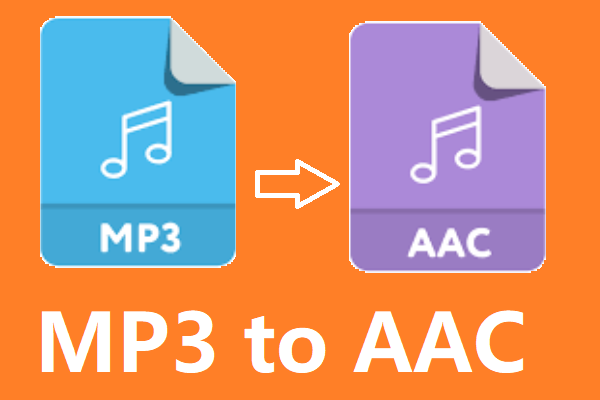
How to Convert MP3 to AAC: Exploring the Technicalities of the Advanced Audio Codec

How to Convert MP3 to AAC: Exploring the Technicalities of the Advanced

MP3 to AAC
MP3 to AAC

Audio Codec


MP3 to AAC
MP3 to AAC


The History of AAC

Advanced Audio Coding (AAC) is a widely used audio codec, designed to be the successor of the MP3 format. It was first introduced by the Moving Picture Experts Group (MPEG) as part of MPEG-2 and later extended as MPEG-4 Part 3. Since its release in 1997, AAC has been recognized for its superior audio quality and compression efficiency.

The development of AAC began in 1988 as part of an international collaboration called the Audio Coding Joint Technical Committee (JTC), consisting of experts from several organizations, including AT&T, Fraunhofer Society, and Sony. The goal was to create an audio codec that could deliver high-quality audio while using less bandwidth and storage space than MP3, which was the dominant audio format at the time.

The result of this collaboration was the creation of the MPEG-2 AAC standard in 1994, which was later extended as MPEG-4 Part 3 to include additional features. Today, AAC is supported by a wide range of devices and platforms, including Apple’s iTunes, iPod, and iPhone, as well as Android devices and various media players.

How AAC Works

AAC is a lossy compression codec, meaning that it achieves high compression rates by discarding some of the audio data. However, unlike MP3, which relies on a perceptual coding algorithm to remove irrelevant audio data, AAC uses a more advanced coding algorithm that takes into account the psychoacoustic properties of human hearing.

AAC achieves this by dividing the audio signal into different frequency bands and applying different quantization noise to each band, based on the sensitivity of human hearing at different frequencies. The result is a more efficient use of the available data rate, allowing AAC to deliver higher audio quality at the same bit rate as MP3.

AAC is also a format container, meaning that it can contain audio data encoded in various formats, including stereo, 5.1 surround sound, and even lossless formats like Apple Lossless and FLAC. This flexibility makes AAC a versatile audio format that can be used for a wide range of applications, from music streaming to professional audio production.

Converting MP3 to AAC Using Mp4Gain

Mp4Gain is a versatile audio and video conversion tool that supports a wide range of formats, including MP3 and AAC. With Mp4Gain, you can convert your MP3 files to AAC quickly and easily, without losing any audio quality.

What is a container format?

A container format is a type of file format that can store different types of data in a single file. In the case of audio and video files, a container format is used to package the different types of data that make up the file, including the video and audio streams, metadata, and any subtitles or closed captions.

The benefits of using AAC

AAC has several benefits over other audio formats. Firstly, it offers improved sound quality at lower bitrates than MP3, which means that files can be compressed to a smaller size without sacrificing quality. This is particularly important for mobile devices with limited storage capacity.

Secondly, AAC offers better performance at high bitrates, making it a popular choice for professionals who need high-quality audio, such as musicians, producers, and sound engineers.

Another benefit of using AAC is that it supports up to 48 channels of audio, compared to MP3’s limit of 2 channels. This makes AAC a popular choice for high-end surround sound systems and immersive audio experiences.

Finally, AAC is widely supported by a range of devices and software, including Apple devices, Android devices, and popular media players like VLC and QuickTime.

How to convert MP3 to AAC with Mp4Gain

Now that you understand the benefits of using AAC, you may want to convert your MP3 files to AAC to take advantage of these benefits. Fortunately, Mp4Gain makes it easy to do this.

To convert MP3 to AAC with Mp4Gain, follow these simple steps:

    1. Open Mp4Gain and select the “Audio Converter” option from the main menu.
    2. Click the “Add Files” button and select the MP3 files you want to convert to AAC.
    3. Select “AAC” as the output format from the list of available formats.
    4. Choose the desired bitrate, sampling rate, and channel configuration for the output file. You can also choose to normalize the volume if you want.
  1. Click the “Convert” button to start the conversion process.

Once the conversion process is complete, you will have high-quality AAC files that can be played on a wide range of devices and media players.

Conclusion

AAC is a high-quality audio format that offers several benefits over other formats, including improved sound quality at lower bitrates, better performance at high bitrates, support for multiple channels of audio, and wide compatibility with devices and software.

If you want to take advantage of these benefits, Mp4Gain makes it easy to convert your MP3 files to AAC. With its simple interface and powerful conversion capabilities, Mp4Gain is the perfect tool for anyone who wants to create high-quality, versatile audio files.