Know the “bit rate”

Know the “bit rate”

Sample Rate

Which is important in determining the amount of video data and image quality.

Sampling

This time, we will learn about “bit rate” which is one of the important factors in determining the image quality of video.

It is closely related to this article, but you can learn more about video screen resolutions and frame rates in another article.

If you are unsure, I recommend reading the article on screen resolutions and frame rates before reading this article.

Points to consider when deciding the frame rate (fps) of a video
The optimal resolution of the video screen is not always Full HD! Consider the screen resolution of the video.
Table of Contents
What is a bit rate?
Relationship between screen resolution, frame rate, and bit rate
Based on the above, let’s consider the relationship between resolution / frame rate, amount of data, and bit rate.
What to do to improve image quality
Consider the optimal resolution, frame rate, and bit rate for each type of content.
Points for building a video distribution service Free distribution
Video Recording and Live Distribution Guide You Can Do In-House for Free

What is a bit rate?
Bit rate is expressed in bps.
Short for bits per second, which indicates how many bits of data a video creates per second.
For example, a 1 Mbps video will have 0.125 megabytes of data per second. It will be 7.5 MB in 1 minute.
As with screen resolution and frame rate, you can decide what bit rate you want.

Since 8 bits are 1 byte, it becomes “1 Mbit ÷ 8 = 0.125 Mbyte”.
Relationship between screen resolution, frame rate, and bit rate
Let’s review a bit.

The screen resolution indicates the height of the number of pixels in the video.
The frame rate shows how many images a video is made up of per second.
Bit rate represents the amount of data per second.

Based on the above, let’s consider the relationship between resolution / frame rate, amount of data, and bit rate.
4K resolution is four times the area of ​​Full HD, so more data is required to draw.
Since video at 60fps has twice as many frames as at 30fps, more data is required to draw.

for instance

If you want to make a “1Mbps in Full HD / 30fps” video with the same image quality in “4K / 60fps”

Resolution area 4 times x frame rate 2 times = 8 times

The amount of data required is required and in theory 8Mbps is a guide.

However, as mentioned above, the bit rate can be set arbitrarily, so it is also possible to make “1Mbps video at 4K / 60fps”.

It makes no sense to convert a Full HD / 30fps video into a 4K / 60fps video.
Even if you double the number of 30 videos per frame to 60, the same image will continue for 2 frames and the number of frames will be wasted.
Similarly, when it comes to resolution, it doesn’t make sense to stretch what originally only had Full HD resolution to 4K.
Therefore, it is a good idea to prepare the video that will be the material to create video content with the highest resolution and high frame rate possible. It is not wasted when converted to a lower number.
If you’re not ready, don’t forget to set the resolution and frame rate below the footage video.
What to do to improve image quality
It turned out that the higher the resolution and the bit rate, the better the video can be drawn without using a lot of data.

So to improve image quality, should the bitrate be increased anyway?
This is not bad, but the article on screen resolutionBut the same thing that I wrote will happen.
In other words, the higher the bit rate, the larger the file size.
If the file size is large, the transfer of video data to the viewer will be slow, and in the case of smartphones, the monthly data traffic will soon disappear.

With that in mind, we need to find the best bit rate.
When sending videos over the Internet, the lower the amount of data, the better.
The correct answer is to aim for a video with a small amount of data and sufficient image quality.

Next, I prepared two videos of the same video with different bit rates. See how the image quality changes with the bit rate.

Relationship between kHz and bit

Relationship between kHz and bit

Use an audio interface when recording live sound to your DAW. At this time, the A / D converter converts analog to digital
and kHz or bits are used during this conversion process.

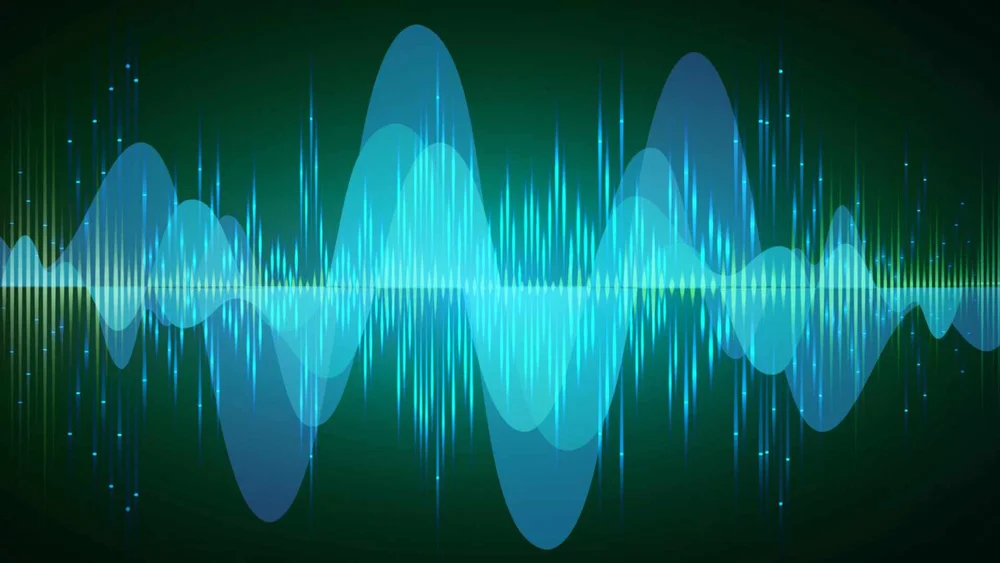
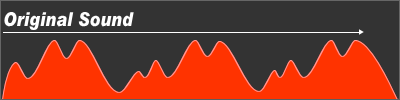
Let’s take a look at the following figure. It is analog, so of course it is continuous.

analog

Analog input waveform
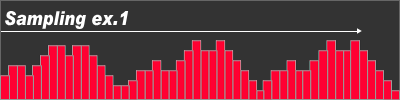
When
converted with low kHz (sampling frequency) and low bits (speed), it becomes as shown in the figure below.

Digital

Waveform after digital recording Low sample rate
The prototype of the original sound of the original is somehow preserved.
When converting with a high sample rate and bit rate, it will be as shown in the figure below.

Waveform after digital recording High sampling frequency
It is close to the original waveform.

The
Above figure shows the difference between low sample rate and low bit rate and high sample rate and high bit rate.

Now about the sample rate and bit rate.

The sampling rate, also known as “sampling”,
represents how many times it is sampled per second.

The bit rate, also known as “quantization”,
indicates how many steps the loudness is reproduced from silence to maximum volume.

The following figure is the picture. The apparent difference between “16 bit and 24 bit” is 24-16 = 8, but in reality there is a stage difference of 16,777,216 steps-65,536 steps = “16,711,680 steps”. The difference between 16-bit and 24-bit is actually 256 times.
16-bit 44.1 kHz recording
24-bit 48kHz recording

By the way, the sampling frequency is 48 kHz ÷ 44.1 kHz = 1,088 times.

It makes no sense to judge sound quality by numbers, but
I think the relationship between sample rate and bitrate is not negligible difference.

Another thing related to sound is the “standards / features”.

Audio CDs are created at 44.1 kHz, 16-bit, but as the response of
frequency is 20 Hz to 20 kHz, to be precise, the sound
between 20 Hz and 20 kHz it is sampled 44,100 times per second and
volume is 65,536. What we record on stage is the
“CD” we are listening to.

By the way, the bit rate is 1411.2 kbps.

Just a bit for reference on the ability to generate data.
Information such as headings and labels is actually added, so it will be a bit larger.

Taking WAV as an example,
data size = sample rate (Hz) x number of bits x number of channels x time (seconds)
1 second stereo sound source (2ch) recorded at 44.1 kHz, 16-bit

When converted to WAV,
44,100 (Hz) x 16 bits x 2 channels x 1 second = 1,411,200 bits
Byte conversion = 1,411,200 bits ÷ 8 = 176,400
Byte Conversion KB = 176,000 Bytes ÷ 1024 = 172KB

One second of WAV data is 172 KB.

So how many minutes of WAV data can you burn to a CD-R?

CD-R 650 MB = 665,600 KB ÷ 172 KB (1 second) =
Converted to 3869 seconds = 3869 seconds ÷ 60 = 64 minutes

The time that WAV can be recorded on a CD-R in data format is 64 minutes.
* The recording time in CD-DA format and the recording time in WAV data
differ depending on the recording format.

Reference:
1Byte = 8bit
1KB = 1024byte
1MB = 1024KB = 1,048,576Byte
1GB = 1024MB = 1,073,741,824Byte
1TB = 1024GB = 1,099,511,627,776Byte

As always,
I think there may be minor errors in the omission of rounding in the calculation and the content of the explanation, but please understand it at the OK level if it is approximately correct.