Why is important bitrate in audio quality?


Free Download Mp4Gain
picture

Why is important bitrate in audio quality?
Why is important bitrate in audio quality?

Bitrate

Bitrate is a crucial factor when it comes to audio quality. It refers to the amount of data processed per unit of time in an audio file.

Audio Quality

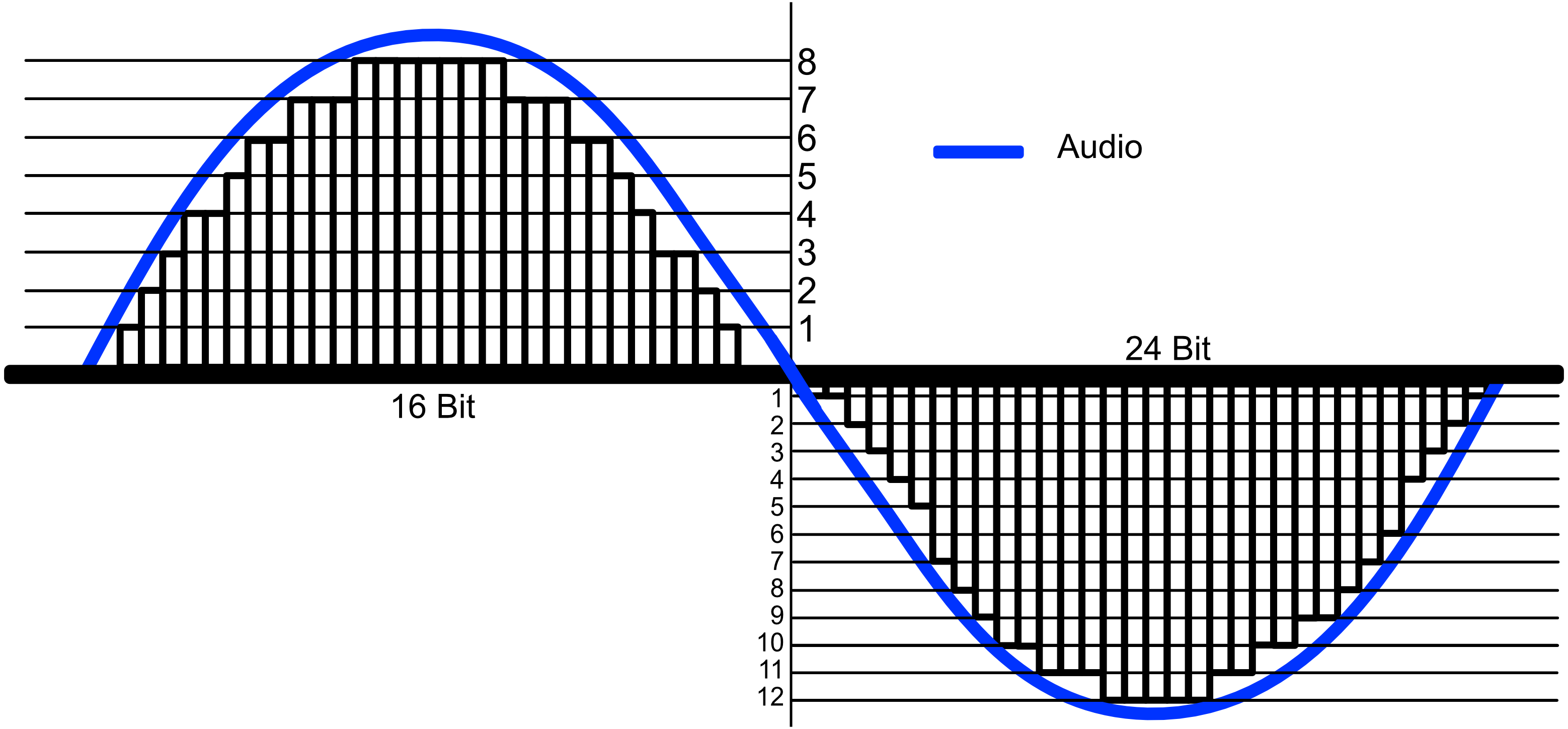
Audio quality is directly influenced by the bitrate of an audio file. Higher bitrates result in better sound reproduction and a more accurate representation of the original sound.

Sound Reproduction

The level of detail and accuracy in sound reproduction is determined by the bitrate of an audio file. A higher bitrate allows for more information to be captured and preserved, resulting in a clearer and more immersive listening experience.

Data Compression

Bitrate and data compression go hand in hand. Lower bitrates often involve more aggressive compression techniques, which can lead to a loss of audio data and a reduction in audio quality.

File Size

The bitrate of an audio file directly affects its file size. Higher bitrates require more data to be stored, resulting in larger file sizes. It’s important to strike a balance between audio quality and file size, especially when considering storage limitations or bandwidth constraints.

Streaming Services

Streaming services rely on efficient compression techniques to deliver audio files over the internet. Bitrate plays a crucial role in determining the streaming quality. Higher bitrates result in better audio fidelity but require more bandwidth.

Internet Bandwidth

The choice of bitrate for streaming or downloading audio files depends on the available internet bandwidth. Higher bitrates require more bandwidth to ensure a smooth streaming experience without interruptions or buffering.

Audio Formats

Different audio formats support varying levels of bitrate and, consequently, audio quality. Lossless formats like FLAC and WAV offer the highest audio fidelity as they preserve all the original data. Lossy formats like MP3 and AAC sacrifice some audio data to reduce file size.

Lossless

Lossless audio formats preserve all the original data, resulting in the highest audio fidelity. They are ideal for audiophiles and professionals who require the utmost accuracy in sound reproduction.

Lossy

Lossy audio formats use compression algorithms to reduce file size by sacrificing some audio data. They offer a good balance between audio quality and file size, making them suitable for everyday listening and storage purposes.

Listening Environment

The listening environment can significantly impact the perception of audio quality. Factors such as background noise, acoustics, and speaker quality can affect our ability to discern subtle differences in bitrate.

Background Noise

In a noisy environment, a lower bitrate may be sufficient as the background noise masks some of the audio details. However, in a quiet and controlled environment, a higher bitrate becomes more noticeable, providing a more immersive and enjoyable listening experience.

Acoustics

The acoustics of a room or space can influence the way audio is perceived. Proper acoustic treatment can enhance the overall audio quality, allowing for better sound reproduction and minimizing unwanted reflections or distortions.

Speaker Quality

The quality of speakers or headphones used for audio playback also plays a significant role in the overall audio experience. Higher quality speakers can better reproduce the nuances and details captured in high-bitrate audio files.

Music

Bitrate is particularly important when it comes to music. Higher bitrates allow for a more accurate representation of the original recording, resulting in a richer and more immersive musical experience.

Podcasts

Podcasts, like music, can greatly benefit from higher bitrates. Clearer and more detailed audio reproduction enhances the listening experience, making it easier to follow conversations and understand the content being discussed.

Audio Content

Whether it’s music, podcasts, audiobooks, or other forms of audio content, bitrate plays a crucial role in delivering a high-quality listening experience. Choosing the right bitrate ensures that the audio is faithfully reproduced and enjoyed to its fullest potential.


Free Download Mp4Gain
picture


Mp4Gain Main Window
picture


Mp4Gain Features
picture


Free Download Mp4Gain
picture

Exploring Audio Bitrates: Technical Deep Dive

Exploring Audio Bitrates: Technical Deep Dive

Audio Bitrates
Audio Bitrates
Audio Bitrates
Audio Bitrates

In this article, we will explore the technical aspects of audio bitrates. We will discuss what a bitrate is, how it affects audio quality, and how to choose the right bitrate for your needs.

What is a bitrate?

A bitrate is the number of bits per second that are used to encode an audio file. The higher the bitrate, the more data is used to encode the file, and the higher the quality of the audio will be. However, higher bitrates also result in larger file sizes.

How does bitrate affect audio quality?

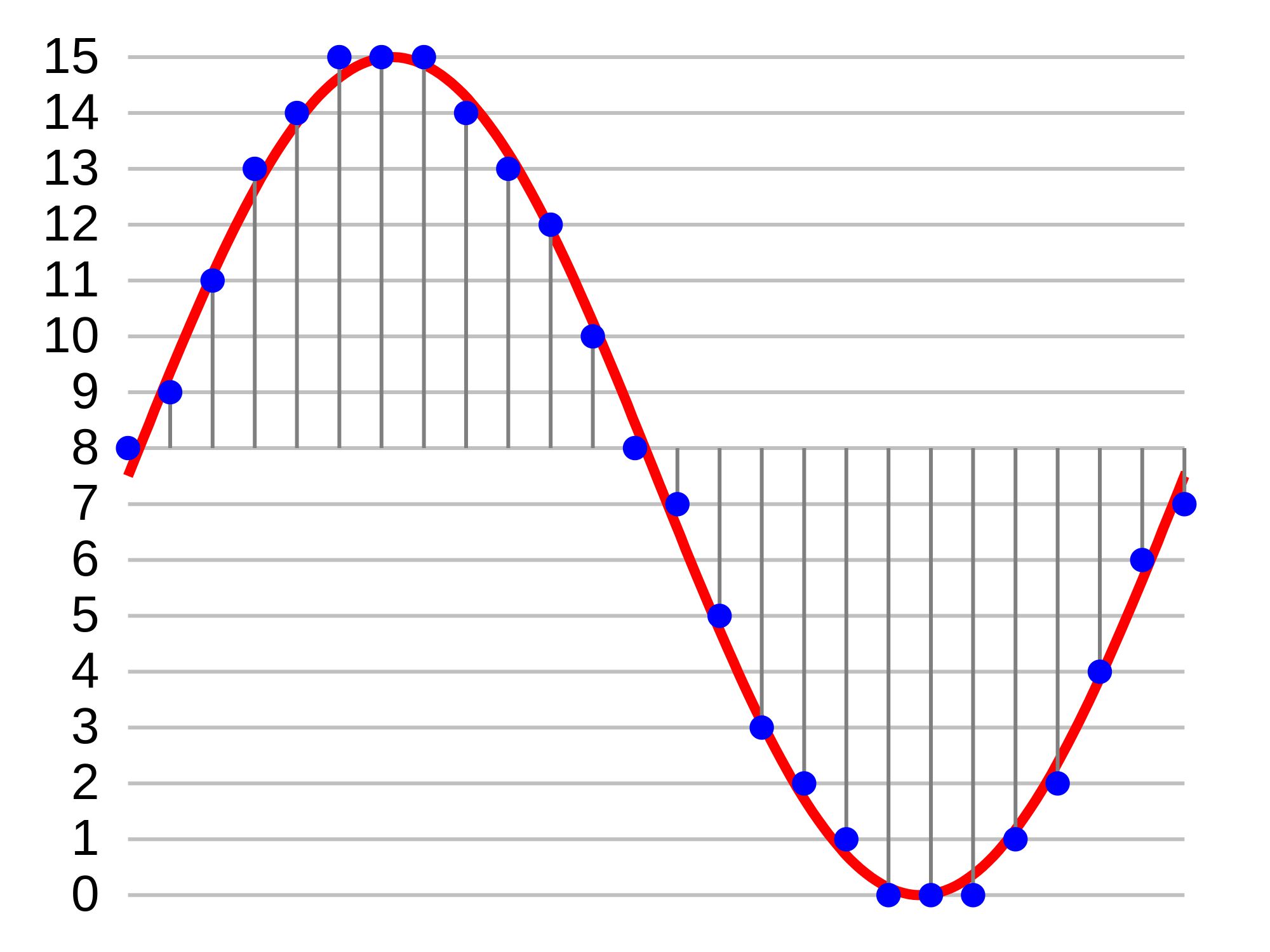
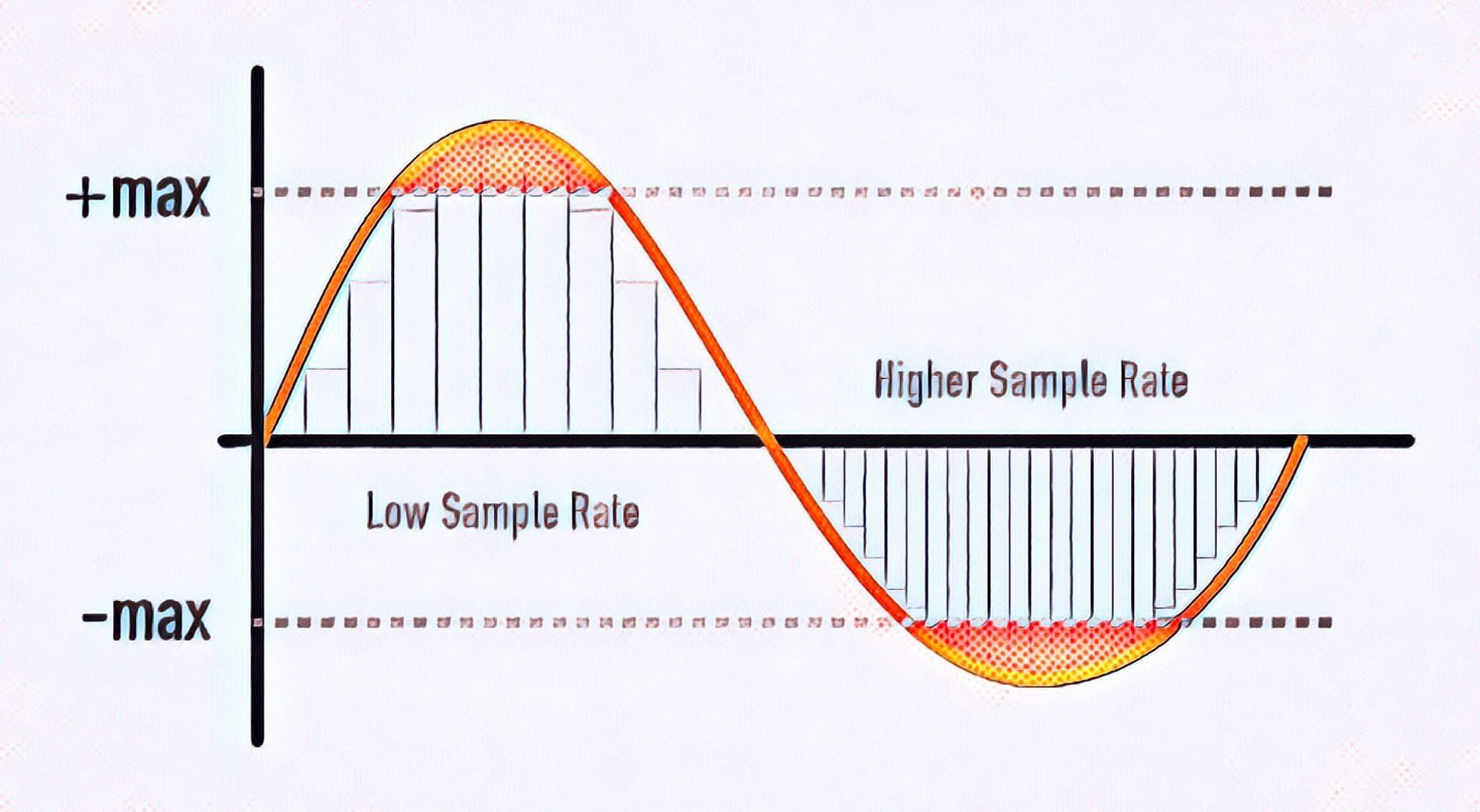
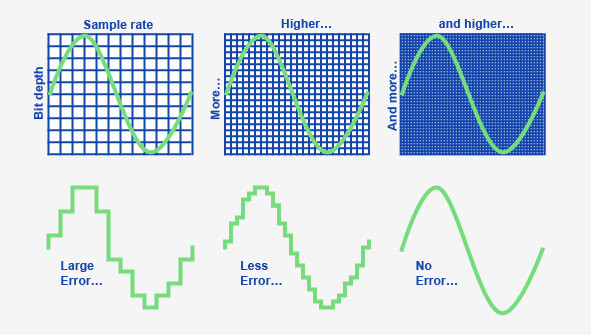
Bitrate affects audio quality by determining how much data is used to represent the original sound waves. Higher bitrates allow for more data to be used, which results in more accurate representations of the original sound waves. This results in better audio quality, such as increased clarity and reduced noise.

How to choose the right bitrate

The right bitrate for you will depend on a number of factors, including:

  • The type of audio you are listening to. For example, music and speech have different requirements.
  • The quality of your audio equipment. Higher-quality equipment can reproduce higher bitrates without introducing any noticeable distortion.
  • Your personal preferences. Some people may prefer the sound of higher bitrates, while others may not notice a difference.

General bitrate recommendations

Here are some general bitrate recommendations for different types of audio:

  • Speech: 32 kbps to 96 kbps
  • Music: 128 kbps to 320 kbps
  • High-quality audio: 256 kbps to 512 kbps or higher

It is important to note that these are just general recommendations. The best way to determine the right bitrate for you is to experiment and see what sounds best to your ears.

Final words about audio bitrates

Audio bitrate is an important factor to consider when choosing an audio file format or when setting up an audio streaming service. By understanding how bitrate affects audio quality, you can choose the right bitrate for your needs and get the best possible listening experience.


Mp4Gain

Mp4Gain

The Importance of Bitrate in Digital Audio and Video

The Importance of Bitrate in Digital Audio and Video

The Importance of Bitrate in Digital Audio and Video

Have you ever watched a video that was all glitchy and the sound was all messed up? Or listened to a song and it sounded like it was being played on a scratched record? Well, that’s because of something called the bitrate.

The Importance of Bitrate in Digital Audio and Video

What is Bitrate?

Bitrate is the number of bits of information that are processed in a certain amount of time. In digital audio and video, it determines the quality of the sound and video. The higher the bitrate, the better the quality, and the more information is processed.

Why is Bitrate Important?

When you watch a video or listen to a song, the bitrate helps to determine the quality of the sound and video. The higher the bitrate, the more information is processed, and the better the quality. If the bitrate is low, then the quality will be poor and you might miss out on important details.

For example, if you’re watching a video of a concert and the bitrate is low, then you might not be able to hear the singer’s voice clearly or see the instruments being played. This can be really frustrating and ruin the whole experience for you.

How Does Bitrate Affect Digital Audio and Video?

Bitrate affects digital audio and video in several ways. For one, it affects the file size. If the bitrate is high, then the file size will be large, and if the bitrate is low, then the file size will be small.

Another way that bitrate affects digital audio and video is by affecting the quality. If the bitrate is high, then the quality will be good, and if the bitrate is low, then the quality will be poor. This can be especially noticeable when you’re watching a video with a lot of movement, like a sports game or a music video.

Finally, bitrate can also affect how long it takes to download or upload a video or audio file. If the bitrate is high, then it will take longer to download or upload, and if the bitrate is low, then it will take less time.

How to Choose the Right Bitrate for Your Digital Audio and Video

When it comes to choosing the right bitrate for your digital audio and video, there are a few things to keep in mind. First, think about what you’re using the video or audio for. If it’s for personal use, then a lower bitrate might be okay, but if it’s for professional use, then a higher bitrate is probably better.

Another thing to consider is the quality of the video or audio. If you want the best quality possible, then a higher bitrate is the way to go. But if you don’t need the best quality and just want something that’s good enough, then a lower bitrate might be fine.

Finally, think about the file size. If you don’t have a lot of storage space, then a lower bitrate might be a good choice, but if you have plenty of storage space, then a higher bitrate might be the way to go.

Keyframes for moving images

Keyframes for moving images

Bitrate vs Resolution

In a moving image, things move or change significantly in a short time. Therefore, inserting keyframes at short intervals improves the reproducibility of small movements.

Bitrate

There is also the advantage that the search is smoother for images with many keyframes. The reason is that the search is based on keyframes, so the more keyframes you have, the easier it is to stop at the target scene. If the position where the search stops is not a keyframe but a difference information frame, the information is fetched to a nearby keyframe, but that time is short.
However, if you increase the number of keyframes too much, the keyframe bit rate will be taken over and the overall video quality will deteriorate, so be careful.
For moving images, the keyframe is approximately once every 3 seconds.

■ Keyframes for images with little movement

Since there is little difference information in a video with little motion, you won’t notice much difference in change even if there are few keyframes. However, if you insert keyframes for too long, search may not work properly and playback may take a long time to start. This is the opposite of the case where there are many keyframes, and if the rewind position is far from the keyframes, it will take time to read.
For those with little movement, the guideline for keyframes is approximately once every 6 to 8 seconds.

So far, “What is the encoding mechanism? Five points to consider for encoding HD video [Part 1]”, “Understanding the appropriate bit rate for the resolution you want to distribute”, motion oriented or image quality I explained three points how to change the “frame rate” and “how to insert keyframes” depending on whether it is important. In [Part 2], we will explain “the advantages and disadvantages of bitrate setting (CBR / VBR), proper usage” and “correct aspect ratio and interlaced processing”.

Learn a suitable bit rate guideline for resolution

Learn a suitable bit rate guideline for resolution

video bitrate

This is because the amount of data allocated per pixel is reduced, resulting in poor image quality.

Video Bitrate or Resolution

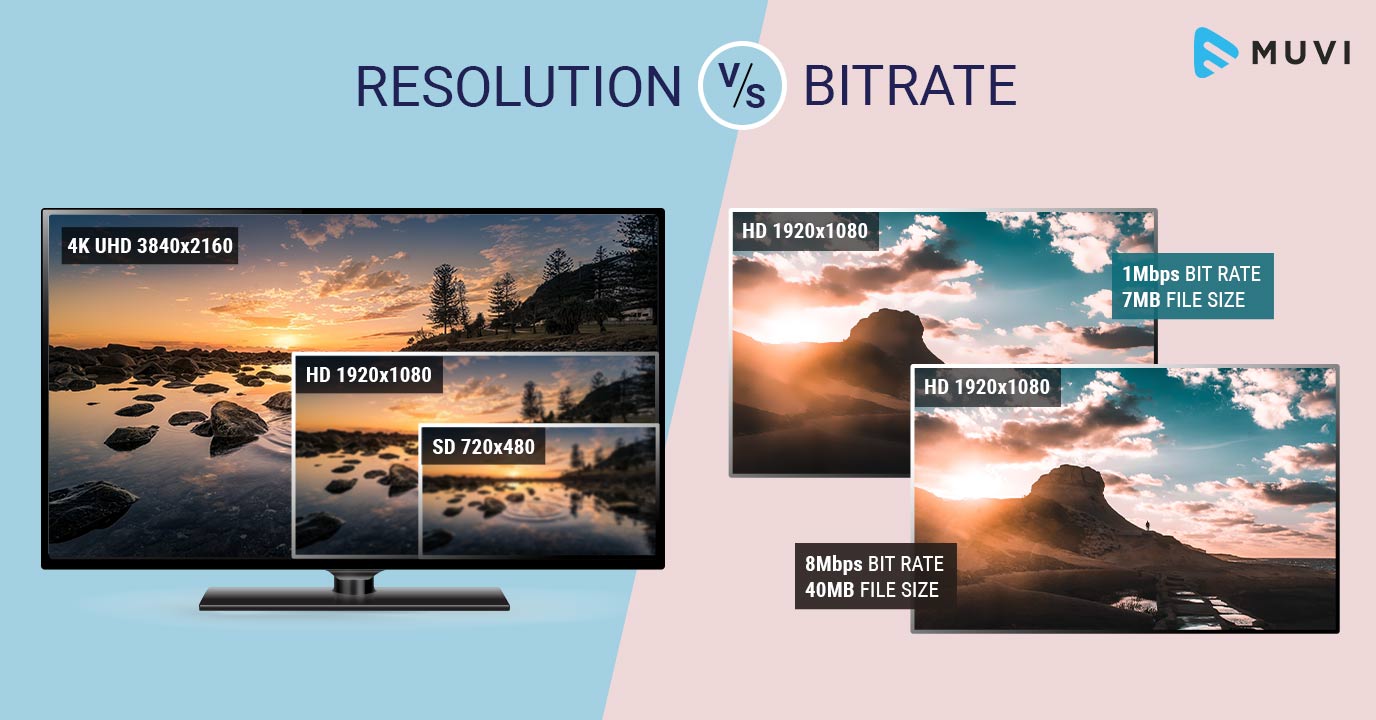
The same phenomenon can be said of the videos. Bit rate is the amount of data allocated per second and affects the image quality of the video. If you want to display a video on a large screen, such as full screen display on a computer or TV monitor, you need a sufficient bit rate according to the resolution. On the other hand, when displayed at a small resolution, the roughness is not as noticeable even if the bit rate is reduced. On the contrary, even if you encode at a high bit rate, you will not notice the difference in image quality, and in many cases the file size will only increase.

Below is a list of the appropriate resolutions and bit rates commonly used for Internet video distribution.

<< Estimated resolution and suitable bitrate >>
* Figures are based on 30 fps assumption and based on our opinions as of June 2021.
* The appropriate bit rate may vary slightly depending on the video content.

resolution Video with little movement Video with a lot of movement
SD (720 x 480 px) 500 kps-1 Mbps 1 Mbps-2 Mbps
HD (1280 x 720 px) 2.4 Mbps-4.5 Mbps 4.5 Mbps-9 Mbps
Full HD (1920 x 1080px) 4.5 Mbps-9 Mbps 9 Mbps-18 Mbps
4K (4096 x 2160 px) 25 Mbps-35 Mbps 35 Mbps ~ 70 Mbps
However, in the case of moving images, the image quality at the time of encoding will differ depending on whether the video material has a lot of movement or the video material has little movement, even if the bit rate is the same. Therefore, it is necessary to thoroughly judge and encode not only the bit rate, but also the frame rate and keyframe settings, which will be explained later, according to the video material. I hope you understand that “there is a relationship between resolution and proper bit rate” as a determining factor for high definition.

Point 2: Increase the frame rate if motion is important and lower the frame rate if image quality is important.
The frame rate (number of frames) is set at 29.97 fps for televisions and 24 fps for movies, while the frame rate is freely configurable for Internet video encoding. A video is a collection of continuous images (frames) like a flip book. The more frames per second, the smoother the movement.

In video encoding, the bit rate per second is fixed, so if you increase the frame rate, the number of images in the flip book will increase and the movement will be smoother, but the amount of data allocated per frame will decrease, so the image quality will be better to fall.
On the other hand, if you reduce the number of frames, the number of images in the flip book will decrease and the smoothness of the movement will be a little slower, but the image quality will improve because a large amount of data will be allocated to each frame.

If you want to emphasize the smoothness of motion in a video with a lot of motion, increase the frame rate (video demo 1). On the other hand, if the video has little movement, it is not necessary to increase the number of frames as much (depending on the degree), so it is effective to lower the frame rate and give priority to improving the image quality (Video Demo 2 ).

Point 3: insert “keyframes” at short intervals for moving images
A keyframe is a frame that exists as a single still image (an image that is not compressed between frames) and is the starting point for difference information. Depending on the encoder settings, the keyframes are inserted when there is a scene change and the difference information is inserted at regular intervals, such as XX frames and once every XX seconds.

What is the encryption mechanism? 5 Points to Consider for HD Video Encoding [Part 1]

What is the encryption mechanism? 5 Points to Consider for HD Video Encoding [Part 1]

sample rate

Encode

Sample Rate

The image quality of Internet videos is almost proportional to the bit rate. However, if the bit rate increases unnecessarily, the file size will increase. “Keep bit rate low”, “Reduce file size” and “Reduce load time” are linked, and there is nothing to say if you can encode in high definition while keeping the bit rate low.
Also, at the beginning, I wrote that “image quality is almost proportional to bit rate”, but I think some of you may have experienced that “I increased the bit rate and encoded, but I am not satisfied with the quality of the image. “So, this time, I will explain five points that are often used to do high definition video encoding.

” Table of Contents ”

Encoding Mechanism
Point 1: learn a suitable bit rate guideline for resolution
Point 2: Increase the frame rate if motion is important and lower the frame rate if image quality is important.
Point 3: insert “keyframes” at short intervals for moving images
* You can read the second part (Point 4, Point 5) here.

Encoding Mechanism
First, I will briefly explain the encoding mechanism.
An image is a collection of continuous images (frames), and by changing this in a short time like a flip book, it appears that you are visually moving. Japanese television images are 29.97 frames per second (short for 29.97 fps / frame per second) and most movies and animations have a standard of 24 fps. Since a large number of frames are required for video, the amount of data is also huge. Therefore, data compression is indispensable for distributing videos on the Internet.

When coding

“Prediction in frame” that compresses data within a frame
“Prediction between frames” that compresses data into consecutive frames
Information is reduced and data is compressed within the range that does not affect the visual sense.

■ What is in-frame prediction?
There are various methodologies for data compression, so I will skip the details here, but the basic idea of ​​within-frame prediction is to divide a frame into small blocks called cells and the colors adjacent to each other in the block. they are the same or similar, they are compressed together.
For example, if there is information “blue blue blue blue blue blue blue blue blue blue red red yellow yellow yellow” in the divided block, the amount of data can be reduced by combining this with “blue 11, red 2, yellow 3”. It’s an image.

An example of data compression in in-frame prediction (image)

■ What is cross-frame prediction?
However, in the case of video with a time axis, the number of frames is large, so there is a limit to the overall weight reduction based solely on the prediction within the frame. On the other hand, in the prediction between frames, based on the idea that “the contents are similar before and after the consecutive frames”, the cells that do not change from the previous frame reduce the amount of data by reusing information and the cells that change It becomes data as difference information.

Prediction between frames (image)

From here, I’ll explain five specific code points.

What format do you choose when copying? AIFF, ALAC, AAC … Check the sound quality of each one by “appearance” Part 2

What format do you choose when copying? AIFF, ALAC, AAC … Check the sound quality of each one by “appearance” Part 2

Sample Rate

The “lossless compression” method, to which Apple Lossless and FLAC belong, is a method that can completely restore the original audio data during playback, at the cost of a low compression rate.

Sample Rate

The file size is large, but the sound quality is equivalent to that of a CD. The bit rate fluctuates automatically according to the content of the audio data, and the compression rate is not constant accordingly.

AIFF and WAV are “uncompressed” methods. Extract the original audio data and create a file as is. It does not compress, so it has a lot of capacity, but the sound quality is perfect.

Let’s take a closer look at the table.

■ Don’t say it again … Considering the playback environment, the format selection criteria for copying are as follows: As

You can see from the “Compression rate” and “Sound quality” items in the table, both are highly rated. It has around “AAC / 256kbps” and “MP3 / 192kbps”, which is a Rossy format with a higher bit rate. While ensuring good sound quality, the file size can also be reduced. It also has an excellent balance with the capacity of the integrated SSD / HDD of PC, iOS devices, smartphones, etc.

The default setting for iTunes is AAC / 256kbps, and the specifications for music files sold on the iTunes Store are the same. You can tell that the current standard is around here. In terms of playback compatibility, AAC and MP3 are widespread, and no matter which one you choose, you don’t have to worry about the playback environment.

On the other hand, it is the lossless format that Apple Lossless and FLAC belong to that can reduce the file size to some extent while maintaining the best sound quality equivalent to that of a CD. If you want to give the highest priority to sound quality from an audio point of view, I would like to select this. It will be a bit difficult to balance it with the capacity of SSD / HDD, smartphone, etc. from the PC, but if it can be erased, it is convenient to use this format.

For example, if you don’t have that many CDs, creating a library in a lossless format will not put too much pressure on your PC’s SSD / HDD and you will be able to sync all the songs on your iOS device. Alternatively, you can deal with this by coming up with sync settings for iOS devices, etc. (I’ll explain later). If so, it is better to have a lossless format that can maintain the best sound quality, and there are few errors in the long run.

Just keep in mind that Apple Lossless and FLAC are a bit difficult to choose in terms of the playback environment. Until now, iTunes and iOS devices do not support FLAC, and many other devices and software do not support Apple Lossless. As of June 2012, at the time of writing, many network players only support FLAC. However, with Apple Lossless opening font in October 2011, support for the same format is expanding, so I’d like to keep an eye out for this trend as well.

AIFF and WAV are uncompressed formats. Of course, the sound quality remains the same as that of a CD. However, the data capacity is not compressed at all. In other words, the uncompressed format “has the same sound quality as the lossless format and has a larger file size than the lossless format.” In that sense, there is no reason to choose it unless you are particular about it.

Well finally the highlight of this era. Let’s review the “appearance” of “what is the actual deterioration in sound quality for each compression format?”

What format do you choose when copying? AIFF, ALAC, AAC … Check the sound quality of each by “appearance”

What format do you choose when copying? AIFF, ALAC, AAC … Check the sound quality of each by “appearance”

Bit Rate

Music files are the mainstream of Imadoki’s audio playback sources.

bitrate

Except when purchased from an online distribution, the sound quality of the music files used here is largely related to the work of reading audio data from a CD to a PC, the so-called “ripping” setting. This time I would like to review that part in a little more detail.

The first half of this article describes the basics of the extraction format for those who want to know what sound quality to choose when extracting. Perhaps this first half is common information to many file and web readers.

However, the highlights are beyond that. “Really Terrifying Audio Compression” … So, in the second half of the article, “How much does the compressed file actually deteriorate the sound?” And “How much does the sound quality change depending on the bit rate value?” you will check with (→ Visually check the sound quality of AIFF, ALAC, AAC!). I would like you to stay with us until the end.

■ Don’t say it’s time to change … First, let’s review the basics

The scheme of the options for copying is “compression format (file format)” and “bit rate”. These two determine the sound quality and file size, which is another important factor.

“Compressed format (file format)” refers to formats such as AAC, MP3, Apple Lossless, and FLAC. This selection determines the sound quality, file size, and playback environment.

The “bit rate” is the amount of data allocated per second of audio. The higher the value (kbps), the higher the sound quality, but the larger the file size.

In the case of iTunes, call this screen “Load Settings” from the environment settings and configure the extraction.

Please refer to the following table based on that. We have summarized the characteristics of typical compression formats and bit rate settings.

The item “Sample Bitrate Settings” in the table is quoted from the default settings provided in iTunes (* iTunes does not support FLAC)

First of all, pay attention to the second item from the left of the table. Compression formats can be broadly classified into “lossy compression”, “lossless compression” and “uncompressed”.

The “lossy compression” method, to which AAC and MP3 belong, achieves a high compression rate = a significant reduction in file capacity by reducing some of the data when compressing audio data. In contrast, the original audio data cannot be fully restored during playback and deterioration in sound quality is inevitable. The degree of deterioration in sound quality changes depending on the bit rate setting. The lower the value of the bit rate, the greater the deterioration in sound quality and, conversely, the higher the value of the bit rate, the more mitigated.