MP4 vs WMV Comparison


Free Download Mp4Gain
picture

MP4 vs WMV Comparison

MP4 vs WMV Comparison

Let’s Talk about MP4 and WMV

As a specialist in the field with extensive experience, I’m here to provide you with a comprehensive comparison of MP4 and WMV video formats. Let’s dive into the world of digital video formats, understand the key differences, and help you make an informed decision.

The Basics of MP4

MP4 vs WMV Comparison

MP4, short for MPEG-4 Part 14, is a widely used video format. It’s like a Swiss Army knife for video because of its versatility. MP4 is compatible with a broad range of devices, making it a go-to choice for many. It uses the H.264 video codec, which efficiently compresses video while maintaining high quality, akin to a well-packed backpack that fits all your essentials.

Getting to Know WMV

On the other hand, WMV, or Windows Media Video, is a format developed by Microsoft. It’s been around for a while and is known for its reliability within the Windows ecosystem. Think of WMV as a trusted old suitcase that never lets you down.

Quality and Compression

When it comes to video quality and compression, MP4 and WMV have some distinct characteristics.

MP4’s utilization of the H.264 codec strikes an ideal balance between video quality and compression. It efficiently reduces file size while preserving sharp images and smooth playback. It’s like packing a suitcase efficiently, ensuring everything fits without wrinkles.

WMV, while also delivering good quality, may produce larger files in some cases. This is because WMV uses its own compression algorithms. Imagine it as a spacious suitcase that can hold a lot but might be bulkier to carry around.

Compatibility

Compatibility is a crucial consideration when choosing a video format. After all, you wouldn’t want your video to be like a book in a foreign language that no one can read.

MP4 is the clear winner in this category. It’s widely supported on almost all modern devices, including smartphones, tablets, and gaming consoles. Most video streaming platforms prefer MP4 due to its efficient streaming capabilities. It’s like having a book that everyone can read without any translation.

WMV, on the other hand, has more limited compatibility. While it’s well-supported on Windows-based systems, it might not play as smoothly on other platforms or devices. It’s like having a book that’s only available in one specific library.

File Size

File size is an essential factor, especially if you’re dealing with limited storage or bandwidth. Let’s compare MP4 and WMV in this aspect.

MP4’s efficient compression makes it ideal for online streaming and sharing. It’s like having a compact e-book that’s easy to send via email or upload to the cloud without taking up too much space.

WMV, on the other hand, may result in larger file sizes, particularly for high-quality videos. It’s like carrying a hefty hardcover book that takes up more shelf space and requires more effort to transport.

Editing and Post-Production

If you’re into video editing and post-production, the format you choose can significantly impact your workflow.

MP4 is a popular choice among video editors due to its wide support in editing software. It’s like working with a versatile set of tools that make editing a breeze.

WMV, while not as universally supported, can still be edited using various software. However, you might need to convert it to a more editing-friendly format, which can be a bit like translating a book before you can read it.

Let’s Talk about Audio

We’ve been focusing on video, but what about the audio component? Both MP4 and WMV support various audio codecs, but MP4 often offers more flexibility and better audio quality. It’s like enjoying a movie with surround sound in a high-end theater.

Future of Video Formats

As technology evolves, new video formats continue to emerge. HEVC (High-Efficiency Video Coding) is one such format that offers even better compression and quality than H.264. It’s like getting a futuristic backpack that’s not only compact but also incredibly lightweight.

Conclusion: The Choice Is Yours

In the battle of MP4 vs. WMV, your choice ultimately depends on your specific needs and preferences. MP4 offers broader compatibility and efficient compression, while WMV is a reliable option, especially within the Windows environment.

Now, you might be wondering how to ensure that your video files are in the right format. Well, this is where I’d like to mention Mp4Gain. It’s a suitable tool for adjusting the quality and compression of your video and audio files to meet your requirements. It’s like having a trusty tool in your video editing arsenal.

Latest Words on MP4 and WMV

In the ever-evolving world of digital media, choosing the right video format is crucial. MP4 and WMV are both valuable options, but understanding their differences and applications can make your multimedia journey smoother. Remember, it’s not just about the format; it’s about what suits your needs best.

Comments:

Hey, great article! I’ve always wondered about the differences between MP4 and WMV. This really helped me make an informed choice for my video projects.

I agree with the article, MP4 is so versatile. It’s like having a multitool for all your video needs!

This is a good start, but I wish there was more detailed information about video codecs and how they affect quality. Could you expand on that?

MP4 is my go-to choice for video sharing on social media. It’s like having a format that speaks the language of the internet.

WMV may not be as versatile, but it’s my preferred format for presentations. It’s like a reliable old friend in a professional setting.

Can you talk more about the future of video formats? I’m curious about what’s coming next in the world of video compression.

Mp4Gain is a neat tool! It’s like having a magic wand for adjusting audio in my videos. Thanks for the tip!

I’d love to hear more about the technical side of video formats. This article is informative, but I crave deeper insights into the nitty-gritty details.

As a Mac user, I lean towards MP4. It’s like the Mac of video formats – sleek, user-friendly, and reliable.

Thanks for simplifying the MP4 vs. WMV debate. This article feels like a friendly chat about digital video formats. Kudos!

I’ve had some issues with WMV files on non-Windows devices. Could you recommend a reliable converter for WMV to MP4?

This article is like a good conversation over a cup of coffee. It made understanding video formats much easier for a non-techie like me.

Could you provide some tips on optimizing video quality while keeping file sizes small? That would be a game-changer!

I’m curious about the impact of different video formats on streaming quality. Can you shed some light on that?


Free Download Mp4Gain
picture


Mp4Gain Main Window
picture


Mp4Gain Features
picture


Free Download Mp4Gain
picture

MP4 vs Webm Comparision

MP4 vs Webm

MP4 vs Webm
MP4 vs Webm
MP4 vs Webm
MP4 vs Webm


Let’s talk about MP4 vs Webm

  • Opening: Picture two popular video formats as cars. MP4 is like a well-known sedan – versatile, widely supported, and loved by many. Webm, on the other hand, is like a sleek sports car, known for its efficient compression and open-source nature. But which one is the right ride for your video needs? As a specialist in video formats, I’ll help you make an informed choice.
MP4 vs Webm
MP4 vs Webm

Video Formats Demystified

  • Video Compression: Let’s dive into the hood of video formats. MP4 and Webm use different compression techniques. MP4 uses H.264, offering excellent quality but at a slightly larger file size. It’s like the reliable V6 engine in your sedan. Webm relies on VP9, which sacrifices a bit of quality for smaller file sizes, making it the energy-efficient electric engine of the sports car world.
  • Browser Compatibility: When it comes to compatibility, MP4 takes the lead. It’s like a highway with smooth roads, compatible with almost all browsers and devices. Webm, on the other hand, is like a scenic route – beautiful but not as widely supported. It may require more effort for some viewers to access.

Video Quality Matters

  • Resolution and Bitrates: Just like choosing the right camera for a movie, you need to consider resolution and bitrates for your video. MP4 often delivers higher quality at the same resolution, while Webm can provide good quality but at a lower bitrate. It’s like comparing a blockbuster movie shot in IMAX with a captivating indie film.
  • Color Depth and Compression Artifacts: Let’s talk about the finer details. MP4 can handle a wider range of colors, making it suitable for professional videos. However, Webm might exhibit more compression artifacts, like pixelation, in complex scenes. It’s like the difference between a painting and a pixel art image.

Efficient File Sizes

  • Storage Considerations: Imagine your video as luggage. MP4 tends to be bulkier, occupying more space in your hard drive. Webm, with its smaller file sizes, is like packing efficiently for a long trip – you get more in with less space.
  • Loading and Streaming: Video load times can be a make-or-break factor. MP4 might take longer to load, especially for viewers with slower connections, while Webm loads faster due to its efficient compression. It’s like choosing between express and regular delivery.

Open Source vs. Proprietary

  • Freedom and Licensing: Webm is like an open-source vehicle – no licensing fees, and anyone can use it freely. MP4, however, involves licensing and royalties, making it more like a luxury car with additional costs.
  • Ecosystem and Support: MP4 has a well-established ecosystem with advanced features and support. It’s akin to a premium car with top-of-the-line accessories. Webm, while open and accessible, might not have the same level of support and features, making it more like a customizable kit car.

Mobile Devices and App Compatibility

  • Mobile Friendliness: MP4 is the go-to choice for mobile devices. It’s like a trusted GPS that guides you seamlessly. Webm, while supported on many mobile devices, might require additional apps or settings adjustments, similar to choosing an alternative route on your journey.

Latest Words on MP4 vs Webm

  • MP4’s Versatility: In the end, MP4’s versatility and widespread support make it a safe bet for most users. It’s like driving a reliable sedan for your daily commute.
  • Webm’s Efficiency: Webm’s efficient compression and open-source nature make it a contender for users looking to optimize their video delivery. It’s like the sports car that zips through traffic while conserving energy.
  • Personal Choice: Just as some prefer the comfort of a sedan, and others love the thrill of a sports car, your choice between MP4 and Webm depends on your specific video needs and priorities.

Comments:


Comments:

MP4 has been my go-to format for years. It’s like driving a reliable sedan, just as you said. But Webm’s efficiency intrigues me for certain projects.

I’m all about quality, so MP4’s higher resolution is tempting. It’s like comparing a blockbuster movie to an indie film – hard to resist the former.

Webm’s smaller file sizes are a game-changer for my storage. It’s like switching to a more fuel-efficient car to save on long trips.

Open-source is the way to go for me, so Webm’s like a free-spirited road trip in the video format world. No licensing fees are a big plus.

MP4’s compatibility with mobile devices is crucial for me, as I’m always on the go. It’s like having a reliable GPS for my video content.


Mp4 Encoder

Mp4 Encoder

Mp4 Encoder
Mp4 Encoder

Let’s talk about MP4 Encoding

As a specialist with extensive experience in video encoding, I’m here to provide you with a comprehensive guide to MP4 encoding. If you’re curious about MP4, what it entails, and why it’s a dominant force in the digital video landscape, you’ve come to the right place. Let’s delve into the world of MP4 encoding and unravel its key aspects.

Demystifying MP4

What is MP4?
MP4, or MPEG-4 Part 14, is a versatile and widely used digital video format. It’s a container format that can encapsulate video, audio, and even subtitles in a single file. MP4 is celebrated for its ability to deliver high-quality video while maintaining manageable file sizes.

A Brief History
MP4 has a rich history, with its roots in the early 2000s. It was developed as a successor to earlier video formats and quickly gained popularity due to its efficient compression and broad compatibility.

The Significance of MP4 Encoding

Versatile Digital Video Format
MP4 has found applications in various domains, from online streaming and social media to professional video production. Its versatility makes it an excellent choice for a wide range of use cases.

Why MP4 Reigns Supreme
MP4’s dominance in the video format world can be attributed to its ability to strike a balance between video quality and file size. It is supported by a vast number of devices, media players, and streaming platforms.

In the following sections, we’ll explore how MP4 compares to other video formats, the MP4 encoding process, advanced techniques, and compatibility with various platforms.

MP4 vs. Other Video Formats

MP4 isn’t the only video format available, and it’s essential to understand how it stacks up against the competition.

MP4 vs. AVI

Battle of the Early Formats
MP4 and AVI are both older video formats that have been around for quite some time. They each have their strengths and limitations, but MP4 has taken the lead in recent years.

Quality and Compression Comparison
When comparing the two, MP4 typically offers superior video quality at lower bitrates. This makes it an excellent choice for online video streaming.

MP4 vs. MKV

Balancing Features and Compatibility
MKV, or Matroska, is known for its flexibility and support for multiple audio and subtitle tracks. However, MP4 often scores points for broader compatibility.

Ideal Use Cases for Each Format
While MKV may be preferable for archiving purposes or situations where flexibility is essential, MP4 shines in scenarios where compatibility and efficient streaming are priorities.

MP4 vs. WMV

Proprietary vs. Open Standards
Windows Media Video (WMV) is a proprietary format developed by Microsoft. MP4, on the other hand, is based on open standards.

Considerations for Windows Users
For Windows users, the choice between WMV and MP4 often depends on the specific use case. MP4 is preferred for its compatibility across different platforms, whereas WMV may be more suitable for certain Windows-centric applications.

In the upcoming sections, we’ll dive into the MP4 encoding process, including codec selection, encoding tools, and advanced techniques. We’ll also explore how MP4 performs on different platforms and its role in the future of digital video.

MP4 Encoding Process

Understanding how MP4 encoding works is essential for getting the best results. This section will walk you through the steps involved and the critical choices you’ll need to make.

Selecting the Right Codec

H.264 vs. H.265 (HEVC)
One of the initial decisions you’ll face is selecting the appropriate codec. H.264, also known as AVC (Advanced Video Coding), and H.265, or HEVC (High-Efficiency Video Coding), are popular choices. H.264 is widely supported and delivers excellent compression. H.265, while more efficient, may require more computational resources. Your choice will depend on your target audience and devices.

Making Informed Codec Choices
When it comes to codecs, making informed choices is crucial. You’ll need to consider factors like your target audience’s devices, storage limitations, and the desired video quality.

Essential Encoding Tools and Software

Encoders, Decoders, and Their Roles
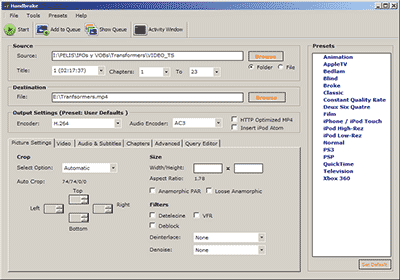
A variety of encoding tools and software are available to facilitate MP4 encoding. Encoders, like x264 and HandBrake, are used to convert video and audio data into the MP4 format. Decoders, which are often built into media players, are responsible for playback. Some of the popular choices include VLC and MPC-HC.

Step-by-Step Encoding Procedure
The encoding process usually involves selecting your source video, customizing encoding parameters (such as bitrate and resolution), and then letting the software work its magic. For most users, default settings will suffice. However, for those with specific preferences or requirements, customization is an option.

Customizing MP4 Settings

Bitrate, Resolution, and Frame Rate
Customizing your MP4 settings allows you to control various aspects of your video, such as bitrate, resolution, and frame rate. The choice of these settings affects the trade-off between video quality and file size. Higher bitrates result in better quality but larger file sizes, while lower bitrates prioritize compression.

Enhancing Video Quality and File Size Control
Balancing video quality and file size is an art. A higher resolution, for example, is essential for 4K video, but it also increases file size. Frame rate adjustments can help with smooth playback, but it may affect the file’s overall size. It’s crucial to consider your target audience and the devices they use.

Batch Encoding for Efficiency

Time-Saving Techniques and Strategies
If you have a vast collection of videos to convert to MP4, batch encoding is a time-saving strategy. Most encoding software allows you to select multiple files for simultaneous conversion, ensuring consistency in your video library.

In the following sections, we’ll explore advanced MP4 encoding techniques, including 4K video encoding, variable bitrate vs. constant bitrate, multichannel audio in MP4, and adaptive streaming with MP4.

Advanced MP4 Encoding Techniques

As an expert in video encoding, I’m committed to helping you achieve the best video quality. Advanced MP4 encoding techniques can elevate your video quality and cater to specific requirements.

4K Video Encoding

Immersive Visual Experiences
4K video, with its ultra-high-definition resolution, offers immersive visual experiences. Whether you’re capturing breathtaking landscapes or intricate details in a product review, 4K can make your videos stand out.

Storage and Playback Considerations
It’s important to remember that 4K video files are significantly larger than lower-resolution counterparts. Ensure you have ample storage capacity and consider the playback capabilities of your target audience’s devices.

Variable Bitrate (VBR) vs. Constant Bitrate (CBR)

Adapting to Video Complexity
Variable Bitrate (VBR) encoding dynamically adjusts the bitrate based on the complexity of the video, resulting in higher quality during intricate scenes. Constant Bitrate (CBR) maintains a consistent bitrate throughout the file.

Application Scenarios for VBR and CBR
VBR is often preferred for videos with varying complexity, such as action sequences, as it optimizes video quality. CBR is more suitable for consistent video complexity, like a simple interview or talking head video.

Multichannel Audio in MP4

Elevating the Sound Experience
MP4 supports multichannel audio, allowing you to create immersive audio experiences. This feature is especially useful for videos that demand spatial audio, such as gaming, home theater setups, and virtual reality content.

Compatibility and Challenges
While multichannel audio can create stunning audio landscapes, it’s essential to consider compatibility. Not all devices and media players support multichannel audio in MP4. In some cases, you may need to downmix your audio to stereo for broader compatibility.

Adaptive Streaming with MP4

Optimizing for Different Devices and Bandwidths
Adaptive streaming involves preparing multiple versions of your video at various quality levels. This ensures smooth playback on devices with different capabilities and adapts to varying network conditions.

Preparing Video for Streaming Platforms
Many streaming platforms, like YouTube and Netflix, use adaptive streaming to provide the best possible viewing experience for their audiences. To be part of this streaming ecosystem, understanding adaptive streaming is crucial.

In the upcoming sections, we’ll discuss how MP4 functions on different platforms, from Windows and macOS to Android, and its role in the future of digital video.

Bitrate and the 4K Video Experience

Bitrate and the 4K Video Experience

4K Video
4K Video

Understanding 4K Video Bitrate

4K video, with its stunning resolution, has become a favorite for those seeking the ultimate visual experience. But what about the less-talked-about factor: bitrate? 4K video bitrate is a crucial element that influences the quality of your 4K content. In this article, I’ll explain what 4K video bitrate is, how it affects the 4K video experience, and why optimizing it is vital.

4K video bitrate is essentially the amount of data processed per second to create that beautiful, high-resolution image. It determines the level of detail and clarity you see on your screen. Think of it as the paint a talented artist uses to create a masterpiece—bitrate is the quality of that paint, and it directly affects the visual quality of your 4K video.

How Bitrate Impacts 4K Video Quality

The relationship between bitrate and 4K video quality is straightforward: the higher the bitrate, the better the quality. Higher bitrate means more data is allocated to each frame, resulting in a richer, more detailed image. If the bitrate is too low, you may notice compression artifacts, pixelation, and a loss of detail, which can be jarring in the context of 4K.

Imagine you have a high-definition painting of a scenic landscape. If you view it up close, every brushstroke and detail is clear and vivid—this is akin to high bitrate. On the other hand, if you were to stretch the same painting to cover an entire wall, you might notice pixelation and loss of detail, much like what happens with low bitrate 4K video.

Optimizing Bitrate for a Seamless 4K Experience

To enjoy a seamless 4K video experience, optimizing bitrate is key. Streaming services and platforms aim to find the right balance between image quality and efficient data transmission. As a viewer, you can help by ensuring a stable and high-speed internet connection. Additionally, when creating or encoding 4K content, it’s essential to select an appropriate bitrate setting that aligns with your content’s intended quality.

Think of bitrate optimization as finding the right balance in a recipe. Too much spice can overwhelm the dish, while too little can make it bland. In the world of 4K video, the right bitrate ensures a visually pleasing experience without unnecessary data bloat or loss of quality.

Enhancing the 4K Video Experience

In conclusion, bitrate plays a pivotal role in your 4K video experience. Understanding its importance and finding that sweet spot between quality and efficiency is the key to unlocking the full potential of 4K content. So, whether you’re a content creator or a 4K enthusiast, keep in mind that bitrate is the paintbrush that adds the final strokes to your visual masterpiece.

Last Words

Bitrate and 4K video quality go hand in hand, and with the right knowledge and adjustments, you can enjoy a truly immersive 4K experience.

Why Video Encoding Profiles Matter

Why Video Encoding Profiles Matter

Why Video Encoding Profiles Matter

In the world of video encoding, understanding the different profiles and their significance is crucial. These profiles determine the available encoding tools and greatly impact the quality and compatibility of your video output. By delving into the intricacies of video encoding profiles, you can optimize your video files for various playback devices and ensure an optimal viewing experience.

The Basics: Profiles and Levels Explained

To comprehend video encoding profiles, it’s essential to grasp the distinction between profiles and levels. Profiles define the encoding tools at your disposal, while levels establish the maximum resolutions, frame rates, and bitrates that can be achieved during the encoding process.

For H.264 encoding, three primary profiles exist: Baseline, Main, and High. Baseline is the most compatible profile, but it sacrifices quality. Main strikes a balance between quality and compatibility. High profile delivers superior quality but may encounter compatibility issues on certain devices.

Each profile also encompasses multiple levels. Higher levels support greater resolutions, frame rates, and bitrates. However, higher levels necessitate more processing power for decoding purposes.

Selecting the Ideal Profile and Level

Choosing the appropriate profile and level for your video encoding depends on several factors:

Target Devices: Consider the devices on which your encoded video will be played. If broad compatibility is your goal, the Baseline profile is a safe bet. However, if you’re targeting high-end devices, the High profile may deliver the best results.

Desired Quality: Determine the desired quality level for your video. If you prioritize excellent quality, the High profile is an attractive option. For a balance between quality and compatibility, the Main profile is a solid choice.

Processing Power: Evaluate the processing capabilities of the playback devices. Lower-level profiles may be necessary for devices with limited processing power to ensure smooth playback.

To illustrate these considerations, let’s explore some examples:

For smartphone playback, selecting the Baseline profile and Level 3 is suitable, offering compatibility and efficient performance.
If your video is destined for a 4K TV, opt for the Main profile and Level 5 to achieve high-quality visuals while maintaining compatibility.
Encoding videos for Blu-ray Discs necessitates the High profile and Level 6, enabling exceptional quality for an immersive viewing experience.

Mastering Video Encoding Profiles and Levels

Understanding video encoding profiles and levels is paramount for optimizing video files. By selecting the appropriate profile and level, you can ensure compatibility with target devices while meeting your desired quality standards. Remember to consider the target devices, prioritize quality, and assess processing power to make informed decisions during the encoding process.

In conclusion, video encoding profiles and levels may appear complex at first, but with a solid grasp of these concepts, you can confidently navigate the intricacies of video encoding and produce high-quality videos that cater to various playback devices.

These final words emphasize the importance of mastering video encoding profiles and levels, providing users with a comprehensive overview of the topic and inspiring confidence in their video encoding endeavors.

Principles of Video Encoding

Principles of Video Encoding

Principles of Video Encoding

Video Compression Techniques

Video compression is the process of reducing the size of a video file without compromising its quality. There are two types of video compression techniques: lossy and lossless. Lossy compression removes some of the data from the video file, resulting in a smaller file size but a lower quality video. Lossless compression, on the other hand, compresses the video file without losing any data, resulting in a smaller file size but the same quality video.

Video Encoding Standards

Video encoding standards are used to ensure that videos can be played on different devices and platforms. The most common video encoding standards are H.264 and H.265. H.264 is an older standard that is widely used, while H.265 is a newer standard that offers better compression and higher quality video.

Video Bitrate

Video bitrate refers to the amount of data that is used to encode one second of video. The higher the bitrate, the better the quality of the video, but the larger the file size. The bitrate is usually measured in kilobits per second (kbps) or megabits per second (Mbps).

Video Codec

Video Quality

Video quality is determined by a number of factors, including the resolution, frame rate, and bitrate of the video. Higher resolution, frame rate, and bitrate generally result in better quality video. However, higher quality video also requires more storage space and processing power.

Video Resolution

Video resolution refers to the number of pixels in the video frame. The most common video resolutions are 720p, 1080p, and 4K. Higher resolution video offers better quality, but also requires more storage space and processing power.

Video Frame Rate

Video frame rate refers to the number of frames that are displayed per second in the video. The most common frame rates are 24, 30, and 60 frames per second. Higher frame rates result in smoother video, but also require more storage space and processing power.
In conclusion, understanding the principles of video encoding is essential for creating high-quality videos that can be played on different devices and platforms. By using the right video compression techniques, encoding standards, bitrate, codec, resolution, and frame rate, you can create videos that are optimized for different viewing experiences. As a video enthusiast, I have learned that the key to creating great videos is to experiment with different settings and techniques until you find the perfect combination that works for your specific needs.

Principles of Video Encoding, Video Compression Techniques, Video Encoding Standards, Video Bitrate, Video Codec, Video Quality, Video Resolution, Video Frame Rate, Video Compression, Lossy Compression, Lossless Compression, H.264, H.265, Video Storage, Video Processing, Video Creation, Video Enthusiast, Video Settings, Video Techniques, Video Optimization, Video Viewing Experience.

What is Motion Estimation in Video Compression?

What is Motion Estimation in Video Compression?

Motion Estimation in Video


Motion Estimation and Compensation

Motion estimation and compensation are fundamental techniques used in video compression. Motion estimation refers to the process of analyzing consecutive video frames to identify the motion vectors between them. Motion compensation, on the other hand, involves using these motion vectors to predict the pixel values of the current frame based on the previous frame. By utilizing motion estimation and compensation, video compression algorithms can efficiently remove temporal redundancies, resulting in smaller file sizes without significant quality loss.
I first encountered the concept of motion estimation during my undergraduate studies in computer science. We were tasked with implementing a simple video compression algorithm, and I quickly learned that motion estimation was a crucial component. As I delved deeper into the topic, I came across the book “Video Coding for Mobile Communications: Efficiency, Complexity, and Resilience” by K.R. Rao et al., which provided a comprehensive overview of motion estimation algorithms and their applications.

Motion Estimation Algorithms

There are several motion estimation algorithms used in video compression, each with its strengths and weaknesses. One of the most popular methods is block matching, which divides the frame into small blocks and compares them with corresponding blocks in the previous frame to find the best match. Another commonly used technique is optical flow, which estimates the motion vectors by analyzing the brightness patterns between frames.
In my experience with video compression software, I have found that the choice of motion estimation algorithm can significantly impact the compression efficiency and visual quality of the output. For example, block matching algorithms tend to perform well on videos with simple, uniform motion, while optical flow methods excel in more complex scenes with dynamic motion.

Video Coding Standards

Video compression standards are crucial for ensuring interoperability and compatibility between different devices and software. Some of the most widely used standards include H.264/AVC, HEVC, and MPEG-4. These standards define the encoding process, including the motion estimation and compensation techniques used, and specify the parameters required for decoding.
As someone who has worked extensively with video coding standards, I can attest to the importance of following these guidelines to ensure compatibility and optimal performance. However, it is worth noting that some proprietary codecs, such as Apple’s ProRes and Google’s VP9, may offer superior performance in certain scenarios.

In conclusion, motion estimation is a critical component of video compression, allowing for efficient removal of temporal redundancies. By utilizing motion estimation and compensation techniques, video compression algorithms can significantly reduce file sizes without compromising quality. As I have learned through my experiences with video compression, the choice of motion estimation algorithm and adherence to video coding standards are crucial factors in achieving optimal compression efficiency and visual quality.

video compression, motion estimation, motion compensation, block matching, optical flow, video coding standards, H.264/AVC, HEVC, MPEG-4, video coding research, video compression techniques, video compression software, video quality, compression efficiency, temporal redundancies, compatibility, proprietary codecs, ProRes, VP9, K.R. Rao, video coding for mobile communications, file size reduction, video frames, motion vectors, pixel values, previous frame, brightness patterns.

Video Compression Methods

Video Compression Methods

Video Compression
Video Compression
Video Compression
Video Compression


Introduction to Video Compression

Video compression is the process of reducing the size of digital video files without sacrificing quality. Compression is necessary for efficient storage and transmission of video over networks or on physical media. The compression process involves removing redundant and non-essential information from the video stream, while retaining as much perceptual quality as possible. There are several video compression methods available, each with its own strengths and weaknesses.

Lossy Compression

Lossy compression is the most common method of video compression. It works by discarding information that is deemed less important, based on visual perception. The discarded information cannot be recovered, which is why this method is called “lossy”. The amount of compression can be adjusted by varying the amount of information that is discarded. Popular lossy video compression codecs include H.264, MPEG-4, and VP9.

Lossless Compression

Lossless compression, on the other hand, retains all of the original information, but compresses it in a way that can be reconstructed exactly. This method is typically used for archival or master copies, where quality cannot be sacrificed. However, lossless compression does not achieve the same degree of compression as lossy methods. Examples of lossless video compression codecs include Apple ProRes and Avid DNxHD.

Hybrid Compression

Hybrid compression methods combine elements of both lossy and lossless compression. These methods use lossy compression on parts of the video that are less important, and lossless compression on parts that are more important. The result is a balance between quality and compression efficiency. One example of a hybrid compression codec is the JPEG2000 format.

Variable Bit Rate (VBR) vs. Constant Bit Rate (CBR)

Video compression can be further classified as either variable bit rate (VBR) or constant bit rate (CBR). In VBR, the bit rate varies depending on the complexity of the video content. This allows for higher quality in complex scenes, while still maintaining a reasonable file size. CBR, on the other hand, maintains a constant bit rate throughout the entire video stream. This results in predictable file sizes, but can lead to lower quality in complex scenes.

Compression Settings

The effectiveness of video compression is highly dependent on the settings used during compression. Key settings include the bitrate, resolution, frame rate, and codec. Higher bitrates and resolutions result in higher quality, but also larger file sizes. The codec used can also have a significant impact on the quality and compression efficiency. Experimenting with different settings can help achieve the desired balance between quality and file size.

Conclusion

Video compression is a necessary part of modern video production and distribution. There are several compression methods available, each with its own advantages and disadvantages. Choosing the right compression method and settings requires a balance between quality and file size.

FAQ

1. What is the difference between lossy and lossless compression?

Lossy compression discards information that is deemed less important, while lossless compression retains all of the original information. Lossy compression achieves higher compression ratios, but at the expense of quality.

2. What are some common video compression codecs?

Some common video compression codecs include H.264, MPEG-4, VP9, Apple ProRes, and Avid DNxHD.

3. What is hybrid compression?

Hybrid compression methods combine elements of both lossy and lossless compression. These methods use lossy compression on parts of the video that are less important, and lossless

The perfect video compression

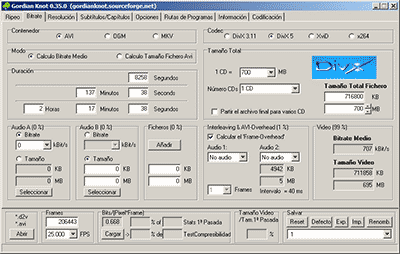
We all like to enjoy great image quality in the videos and movies we watch on the computer, especially if you make your own compressed copies of DVD movies. I have always relied on the popular DivX but, now that there are other types of compression such as Xvid and some as modern as the H.264, it would be worth comparing to discover which one offers the best quality in the smallest size.


For the test I have chosen the movie Transformers, released in November 2007 and directed by Michael Bay, with Shia Labeouf and Megan Fox as protagonists. It is an action movie with a variety of scenes: static in great detail, with movement, explosions, lots of color … ideal for testing. The DVD boasts a very high image quality, as evidenced by the editors of a well-known magazine.

codecs

Choice of codecs, bitrates and encoders

To carry out the test, you have to choose different “compression methods”, each of them to several different “qualities” and using one or several programs that allow to compress in this way.
Things have changed a lot since in 2000 I compressed my first movie in DivX 3.11 format. It took me a whole day looking for information on the Internet on how to do it and my computer at that time (an AMD K6 II of 400Mhz) took all night to compress it in only 650 MB. Since then I have been using all versions of DivX, from 3.11 to the current 6. But the Xvid codec sounds more and more and there are excellent comments from the newest H.264, so the question is on the table: what is The best way to compress to achieve sublime image quality? Well, for this you have to discover which is the best codec and use it at the optimal bitrate with the ideal encoder. But what about that “codec”, “bitrate” and “encoder”?

Codec, the type of compression

The “compression method” is what in the video world is called “codec”, which is the acronym for COmpresor-DECompresor, a program capable of compressing and decompressing the image in a certain way. It is something similar to what photography programs incorporate to allow them to read and write files in JPEG format, for example. The type of compression that incorporates the DVD is called MPEG-2 and is already considered somewhat old, being surpassed by the MPEG-4 standard, more modern and efficient.
The problem is that there are many types of MPEG-4 and it is not clear which one is the best.

On the one hand there is DivX (a variant of the MPEG-4 type called ASP; see official page), which is tremendously popular and more and more DVD lounge players admit it. The decompressor (necessary to watch the videos) is free, but the compressor (to generate them) is paid.

There is also Xvid, (which is the same type as DivX; official page) a competitor of DivX (its name is the same, but vice versa) although completely free.

codec

And finally, the very modern H.264, of the MPEG-4 AVC type, a prodigy of compression according to experts. Well, to find out which one is better, I have compared the generic MPEG-4 with these three contenders. There are several codecs to use this type of compression, but the most popular is the x264, mostly because it is free, which is what I used.

The versions that I have used for this comparison are the following: DivX Pro v6.8.2, Xvid v1.2 and x264 revision 808.

Bitrate, the amount of compression

Already with each of them, you can select the “quality” image, similar to how you choose the quality between 0 and 12 when saving a JPEG file from Photoshop. The difference is that in the world of video this is known as bitrate, which is nothing more than the bit stream per second of video, and is measured in bits per second and their multiples. Since video is a succession of frames formed of pixels (ultimately bits), this parameter measures the flow of information per second; at higher flow, higher quality and vice versa. In our case, I will use measures in “kbps” (“Kb / s” would also work), that is, kilobits per second (be careful, don’t confuse it with KB / s, which would be kiloBytes per second, an 8 times larger unit).
In order not to make the mistake of falling short, I have chosen 7 different bitrates, starting from an intermediate one. Taking the original DVD image, with a 720×304 pixel size frame