H.264 video codec


Free Download Mp4Gain
picture

H.264

This codec was developed by the ITU (International Telecommunications Union) with the sober name h.26L. In 2001 several consortia and companies joined forces and continued development jointly. Microsoft also participated in the development of H.264.

H.264 CODEC

This video codec is now compatible with numerous companies and end devices, including Adobe and Apple. The H.264 codec is one of the video codecs that has also made the leap to the codecs compatible with Blu Ray and HD-DVD. Well, the quality of this video codec is amazing, but it comes at a price. Very few video bloggers and small businesses will invest in the staggering licensing costs.

H.264 technical characteristics
CAVLC / CABAC encoder
Multiple frames of reference
Intra frames: all types of macroblocks (16×16, 8×8 and 4×4)
Using B frames as frames of reference
adaptive temporal transformation (8 × 8 and 4 × 4)
Custom quantization matrices
Optimization for multi-core processors
Mixed frames of reference for submacroblocks
Alpha and beta unlock filters
Interlaced
Additional H.264 features
Speed ​​control: constant quantization (CQP), constant speed factor (CRF)
Nominal distortion optimization
Customizable B frames
Various motion detection mechanisms (Diamond, Hexagon, Desigual Multi-Hexagon)
Optimized quantization of nominal distortion (trellis)

H.264 levels and profiles

In 2003, the first versions of the H.264 video codec were released with the ITU-T H.264 standard. In this standard, the first 3 profiles were defined for H.264, the baseline, the main and the high profile. Over time, the High 10, High 4: 2: 2 and High 4: 4: 4 profiles were added. These profiles define the encoding parameters to be used, as according to the standard not all features can be used arbitrarily .

Various H.264 levels have also been defined in the ITU-T H.264 standard, which define the maximum video sizes, bit rates, and other parameters such as the number of macroblocks allowed in the H.264 video codec. To create true standards-compliant H.264 videos, visit Wikipedia’s H.264 level overview and adjust its parameters according to your desired level / profile.

x264 is the most widespread derivative of the H.264 codec under the GPL and at the same time command line encoder for the H.264 MPEG-4-AVC video format. It is an open source solution that is available for all platforms such as Windows, Linux, and Unix.

This encoder was developed as part of the VideoLAN project and can be downloaded for free from the project pages at http://www.videolan.org/developers/x264.html.

Technical characteristics x264
CAVLC / CABAC encoder
Multiple frames of reference
Intra frames: all types of macroblocks (16×16, 8×8 and 4×4)
Using B frames as frames of reference
Adaptive temporal transformation (8×8 and 4×4)
Custom quantization matrices
Optimization for multi-core processors
Alpha and beta unlock filters
Interlaced
Additional Features x264
Speed ​​control: constant quantization (CQP), constant speed factor (CRF), single-pass and multi-pass ABR
Mixed frames of reference for submacroblocks
Various motion detection mechanisms (Diamond, Hexagon, Desigual Multi-Hexagon)
Optimized quantization of nominal distortion (trellis)
The encoder supports both 32-bit and 64-bit and multi-threaded platforms, which is particularly interesting for multi-core processors like Xeon, Phenom, or dual-core processors.

The Videcodec x264 also supports the H.264 levels and profiles defined for the H.264 codec in the ITU-T H.264 standard, which define the maximum video sizes, bit rates and other parameters such as the number of macro blocks allowed in the video. To create true standards-compliant H.264 / x264 videos, visit Wikipedia’s H.264 / x264 level overview and adjust its parameters according to your desired level / profile.


Free Download Mp4Gain
picture


Mp4Gain Main Window
picture


Mp4Gain Features
picture


Free Download Mp4Gain
picture

What are Codecs?

What are Codecs

CODECS

Whether you make your own video and audio files available on the Internet or want to use existing resources, there are a host of different player programs, codecs, and file formats available. Here we guide you through the jungle of MPEG, AVI, MKV & Co. On the one hand, the relationships between the different components of the system are explained. This will solve puzzles for example why only certain AVI videos are displayed on your computer and how you can solve such problems. On the other hand, the advantages and disadvantages of the different formats and methods are explained. In this way, you can evaluate what quality you can expect from an audio or video file and which files are particularly suitable for your purposes.

Codecs

As an end user, you are particularly familiar with one type of program: playback programs (or “players”). They play audio or video files and are therefore the software equivalent to CD or DVD playback devices. The program interface contains elements of a remote control: there are buttons for play, forward, backward, pause, etc. B. Windows Media Player, VLC Player, or Apple iTunes. Instead of inserting a data carrier, the files must be opened on the software players. Audio and video files can only be opened by a player if it can do something with the file format used.

File formats

The digital data with which analog video or audio signals are represented can be organized in various formats. This can best be explained for a single image – there are multiple ways to store individual pixels in a file. For example, if the image points are stored one after the other from left to right or first from top to bottom in the file it is of course a convention that must be specified. The way a color value is stored must also be clearly defined. These and many other specifications are determined by the respective file format. To store the data, a predefined encoding rule is always followed, which is ultimately decisive for the data to be interpreted correctly. Perhaps the difference between individual formats is better understood if you think of them as different data carriers: CDs, large and small discs, tapes, etc. they may contain audio data, but you still cannot put a disc in the CD player! The MPEG, Quicktime or Matroska formats are equally different. These formats are also known as container formats. The container can easily be imagined as a box that in turn contains various audio and video codecs. These codecs can encode and decode files, that is, compress a signal for transport, and then decompress it again during playback. if you think of them as different data carriers: CDs, large and small discs, tapes, etc. can contain audio data; however, you cannot put a disc in the CD player. The MPEG, Quicktime or Matroska formats are equally different. These formats are also known as container formats. The container can easily be imagined as a box that in turn contains various audio and video codecs. These codecs can encode and decode files, that is, compress a signal for transport, and then decompress it again during playback. if you think of them as different data carriers: CDs, large and small discs, tapes, etc. can contain audio data; however, you cannot put a disc in the CD player. The MPEG, Quicktime or Matroska formats are equally different. These formats are also known as container formats. The container can easily be imagined as a box that in turn contains various audio and video codecs. These codecs can encode and decode files, that is, compress a signal to transport it and then decompress it again during playback. The MPEG, Quicktime or Matroska formats are equally different. These formats are also known as container formats. The container can easily be imagined as a box that in turn contains various audio and video codecs. These codecs can encode and decode files, that is, compress a signal to transport it and then decompress it again during playback. The MPEG, Quicktime or Matroska formats are equally different. These formats are also known as container formats. The container can easily be imagined as a box that in turn contains various audio and video codecs. These codecs can encode and decode files, that is, compress a signal to transport it and then decompress it again during playback.

Many different codecs for playing video and audio data
In the living room, the various playback devices are often combined into one system, so multiple devices are not necessary. Different playback programs work the same way: they can read and play different formats. A separate codec is used for each format. These are snippets that only do one job: encode and decode audio or video information. Each codec can be used to write and read exactly one format. Different codecs are used for different formats; correspond roughly to the individual technical components of your stereo system. But instead of a K device for playing discs and a C device for playing DVDs, there is an M codec for playing audio in MP3 files and a W codec for playing video according to the MPEG-4 standard in MP4 files. Most of the players already have multiple codecs built in and therefore can play multiple file formats. There is also the possibility for a player to learn to understand other file formats by adapting additional codecs. Just as you can connect additional devices to your stereo system, such as an old record player or a high-end CD player, the players can be upgraded with plug-ins. A codec plugin is independent of a specific player and can be used by different players. Additional codecs are required, eg. Eg B. if you want to play newer or rarely used file formats with your playback software.

What audio codecs are common?

Audio Codecs

Depending on whether you want to burn your audio file to CD, make it available on the Internet, or edit it with an audio editor, the different audio formats are in question. Codecs are responsible for converting to and from the various formats:

Audio Formats

PCM (pulse code modulation)

Pulse code modulation is a coding process in which an analog signal can be digitized with almost no loss. Audio material encoded in this way is ideal for further processing because it is not compressed. Data generated with this method is generally saved as wave files with the extension “.wav”.

MP3 (MPEG-1 Audio Layer 3)

The encoding process is actually called MPEG-1 Audio Layer 3 or MPEG-2 Audio Layer 3 and was developed by the Fraunhofer Institute for Integrated Circuits. The name is derived from the associated MP3 file extension of the format. It is one of the first lossy compression processes to rely on psychoacoustic effects on perception to reduce the amount of data. In addition to the original codec from the Fraunhofer Institute, there is also the open source encoder LAME. Files containing data streams encoded in this way usually end in “.mp3”. There are also other container formats that can hold MP3 data streams, such as AVI or MP4.

AAC (advanced audio coding)

AAC is a lossy encoding method that can compress audio data (on a CD) to one-sixteenth of its original size. Compared to MP3, the process can demonstrate higher compression and improved sound quality. Therefore, various online music stores and online radio stations rely on this format. MP4 is designed as a container format to store compressed audio signals. Files containing such an audio track usually end in “.mp4” or “.m4a”.

Vorbis

This open source format is patent-free and therefore can be used by software developers without license fees. The format is also suitable for streaming. Compression is lossy and better than MP3. Although many hardware playback devices now support this format, it is not as widespread as MP3. The data stream is usually embedded in an OGG container. Associated files end in “.ogg” or “.oga”.

WMA (Windows Media Audio)

WMA is an encoding process developed by Microsoft and also offers lossy compression. Many hardware playback devices now support this format, because it is very popular in the music industry due to its built-in copy protection (Digital Rights Management (DRM)). If the file contains only audio data, it ends with “.wma”. ASF is used as the container format.

Why do you need “file formats”?

Digital data used to represent analog video or audio signals can be organized in different formats. The best way to explain this is with a single image – there are multiple options for storing individual pixels in a file. For example, if the image points are stored one after the other from left to right or first from top to bottom in the file it is of course a convention that must be specified. The way a color value is stored must also be clearly defined. These and many other definitions are determined by a specification, which is then implemented in the respective file format. To store the data, a predefined encoding rule is always followed, which is ultimately decisive for the data to be interpreted correctly. You can think of individual formats as different data carriers: CDs, large and small video cassettes, audio tapes, etc. can contain audio data; however, you cannot load a cassette in the CD player. WAV, MP4, WMA or MP3 file formats are equally different.

Many file formats are actually container formats. The term is intended to make it clear that different formats can be used within a convention. For example, an MP4 file can contain different video and audio formats that can also appear in the same file at the same time.

CODECS AND CONTAINERS

CODECS AND CONTAINERS

I.CODEC

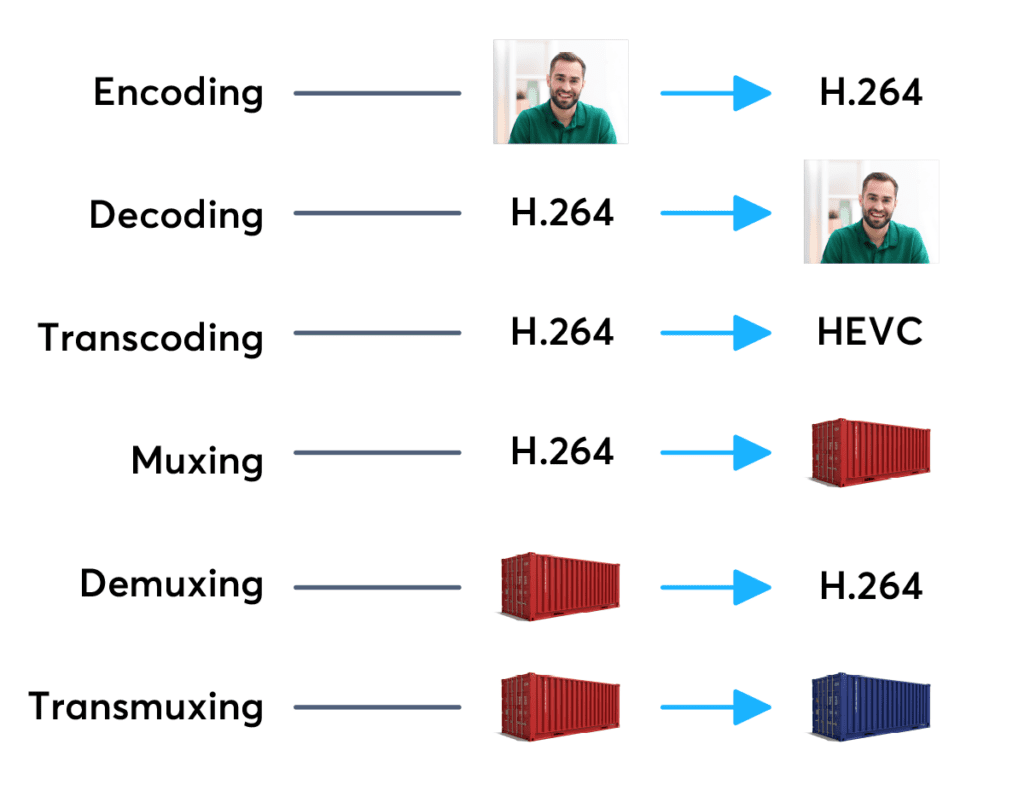
Codecs are components (circuits, modules) or computer programs that create a stream of data to encode and / or can decode. The term “Codec” is a made-up word that consists of parts of the English terms CO der and DEC o. (En) Encoders are used to encode data streams for transmission (eg Reed-Solomon contributes to DVB error protection), Encrypt (eg AACS as content protection for Blu-ray Disc) or to reduce the amount of data (compression method, for example, MP3 for audio). The decoder (decoder) retrieves the encoder’s original input information from the encoded data stream.

codecs and containers

2. CODECS FOR COMPRESSING DATA STREAMS

No medium of storage or transmission is infinitely large. Therefore, the available resources must be budgeted. Therefore, it is very important to reduce the amount of data that must be transmitted or stored. There are different compression methods adapted to the information to be compressed.

Codecs and containers
Each compression method has its advantages and disadvantages. There is a trade-off between compression factor (= ratio of source file size to target file size), compression quality (= lossless / lossy -> type and number of artifacts), speed, usability , decoder distribution and finally also costs. Compression processes and their implementation in the market play an extremely important economic role, since compression algorithms can be patented and their use must be compensated by the payment of licenses by device manufacturers or software users. Some kind of content encryption can also be achieved through proprietary and undisclosed compression algorithms, allowing distribution control.

Operating principle

Compressing a digital signal means that parts of the information must be suppressed without changing the content of the information. These ‘superfluous’ data, the so-called redundancies and irrelevancies are components of information, for example an image, that are present several times (redundant) or cannot be perceived by humans (irrelevant). Furthermore, redundancies can also occur in the digital data describing the image, for example. All compression methods are based on the principle of eliminating redundant information. In most compression processes, several different algorithms are used one after the other to eliminate redundancies in content and data. Algorithms that discover and avoid redundancies on a purely mathematical basis usually work lossless without loss), that is, no information is lost. After compression and subsequent decompression the information then corresponds 1: 1 to the original. Compression algorithms that evaluate information components based on physiological models (for example, MP3) for their importance and then discard unimportant information (irrelevance reduction), function lossy with loss), since information it is lost during compression.

3. FILES WITH COMPRESSED CONTENT

If the data is compressed through a certain process, it must be put into a format in which it can be distributed. These can be streams that are streamed like DVB, for example, or files that are stored on a storage medium. The compressed “raw data” thus creates a structure that allows the data as in a container (transport container). The way this container or container format is made depends on the transmission medium, the operating system and the specific application.

II. CONTAINER FORMATS

Container files are file structures that simplify external (multimedia) data and allow exchange, even across platform boundaries. Container formats describe how this user data is stored (not how it is encoded!). In principle, cabinet files can contain all kinds of data, but they are generally restricted to specific data. Specialized in data types. For example, PDF files are ideal for reproducing documents that are true to the original, consisting of font information and raster or vector graphics, whereas an AVI file generally contains movie and sound information.

Container formats for multimedia applications always use already encoded data streams, i.e. compressed

How do the audio and video codecs work?

For what purposes and how are codecs used?

Let’s start with the analysis of the name that is the result of the union of two words CODer and DECoder. In fact, through the codecs it should be possible both to decode multimedia, audio or video files, as well as to create them.
In reality, codecs do not always allow file creation and the reason is often legal or commercial in nature.

Codec

Its internal functioning is usually very complex, due to
to the nature of the processing they must perform. While the
The purpose is to allow the expansion capacity of the different players, so that they can see or let us listen to the content of the files written in a format that they did not understand at the time of their launch.

Codec

Regardless of the file format, the content is always the same, that is, a movie or audio, intended to be played.
So it was decided to introduce an additional software layer between the file and the player, which filters access to the file itself and that
always makes the player “see” the same type of object even if the file format varies.

In order to use codecs, you first need to know
its existence, which is why in Windows systems there are
parts of the log file, which collect information
on the different multimedia filters installed. Generally, your
Interaction with players is done through COM interfaces.
Simply put, when we tell our favorite player to open a media file, it will do nothing more than retrieve the list of installed codecs and try to open the file with
each. If one of the codecs is successful, the player will use it
to show us or listen to the file.

As we have seen, its use is completely transparent for the user and is completely managed by the player. Some players even manage the installation of the necessary codecs. However, it is also possible to install them manually. On Windows systems, codecs that use COM technology are generally in the form of DLLs that must be registered, a procedure that involves entering all public interfaces of the codec in the registry file.
To do this, you need to run the command
“Regsvr32 <dll name>” while uninstalling it
just add the “/ u” option to the first command.

Other operating systems use some interprocess communication mechanism other than COM, but the structure does not change. That is, it is always a filter to access the file.

The existence of different formats and related CODECs arises for technical and commercial reasons. Different multimedia companies usually prefer to define their own encoding formats, to optimize their use by their applications.
And in addition to this, by defining their own format, they are not obliged to pay user licenses
. This mainly applies to file generation; in fact, many codecs are simply decoders.

In this way, companies can add read support for various formats to their applications at no additional cost, while using their proprietary format for saving.

Best Bluetooth Audio Codec

In recent years, the disappearance of 3.5 mm ports from smartphones is causing wireless audio to gain a lot of strength. And among all wireless technologies, Bluetooth stands out strongly.

aptX, aptX HD, SBC o ACC

With the latest versions of Bluetooth, the connectivity between the devices is very stable. The technology already works. So manufacturers are starting to put more emphasis on streaming audio quality by focusing on improving codecs that compress audio files and stream them wirelessly from source to audio device.

 Bluetooth Audio Codec

Basic concepts

Bitrate or bit rate (kbps): usually measured in kbps or Mbps. It is the amount of data that is transmitted per second through the Bluetooth connection.
Sampling frequency (kHz): is the number of data per second in an audio file. We have to bear in mind that we need two data to accurately capture a frequency, which is why refresh rates around 40 kHz (44.1 kHz or 48 kHz) are very common, which is twice the frequency range of the human ear.
Bit Depth (-bit): Represents the number of bits saved for each audio sample. Higher bit depth records a signal more accurately. The quality of CDs is 16-bit, but high-resolution files are typically 24-bit.
If we didn’t compress the files, the bitrate could be calculated by multiplying the sample rate by the bit depth.
Best audio codecs for Bluetooth
Codecs are encoding and decoding algorithms that compress audio into manageable data packets for more efficient transmission.

The efficiency of the codec will determine the speed at which the audio data is sent and also the resulting audio quality.

One very important thing to keep in mind is that, to use a certain codec, both the audio source and receiver must be compatible with it.

This means that, even if my headphones are aptX, if my mobile doesn’t support the aptX codec, the connection between the two can never be aptX. The Bluetooth protocol will negotiate the connection and choose the next best codec. If there are none in between (AAC, for example), the final connection will end up using the SBC codec (which is universal).
Next, we are going to see the most used audio codecs in Bluetooth connections:

To read later …

► The 7 Best Turntables of 2020: Buying, Setting Up and More
► The 8 best Bluetooth and TWS headphones of 2020: cheap, sports, gaming …
► The 7 Best Bluetooth Speakers of 2020 – We Tried Them All!
SBC (low-complexity SubBand Codec)
sbc
The SBC codec was developed by the SIG (Special Interest Group), the organization responsible for developing Bluetooth technology, for the A2DP (Advanced Audio Distribution Profile) audio profile. This codec is one of the minimum requirements that any Bluetooth audio device must be able to use in order to connect to a wireless source. This means that all Bluetooth audio devices have to be capable of working with this codec as a minimum. ref

The SBC was created in 1993 and requires very little computing power. The downside is that the compression efficiency is not very good, so even at its maximum bitrate of 328 kbps, it does not achieve remarkable sound quality either. Also, the sound is quite delayed.

AAC (Advanced Audio Coding)
aac
The AAC codec was developed by several companies (AT&T, Fraunhofer Institute, Dolby Laboratories, Sony Corporation and Nokia) and was announced internationally by the MPEG group (Moving Pictures Experts Group) in April 1997. Besides being a codec used by the protocol Bluetooth, AAC is also one of the most popular codecs on the internet thanks to being used extensively by Apple and YouTube.

The AAC is characterized by having a much higher audio quality for the same bit rate as the SBC codec, however the latency is usually even worse. Ref

aptX, aptX LL, aptX HD, and aptX Adaptive
aptx
AptX (audio data reduction technology) is a codec designed in the 80s of the last century and used in the cinema and on the radio. The codec was later acquired by the company CSR (Cambridge Silicon Radio) which in turn was bought in August 2015 by Qualcomm.ref

The codec is characterized by offering better sound quality, but it requires more processing power. Its typical compression ratio is 4: 1.

Currently, the codec has three variations (aptX Low Latency, aptX HD, aptX Adaptive) that reduce latency or improve your audio quality.

aptX LL (Low Latency): has latencies close to 30 ms. For comparison, the SBC codec has typical latencies of 170 ms. So it is almost 6 times faster.

Best YouTube Video Format: Codec

The best format for Youtube videos is Codec. The Codec is the part of the software that deals with the encoding and decoding of the information that forms the audio or video stream. Newer codecs also take care of compression and decompression and therefore, while encoding and decoding the signal, they use mathematical algorithms that allow you to save storage space at the expense of quality.

codec

Compression

When playing video files, compression is done using mathematical functions that reduce the number of frames per second or lower the resolution of the pixels that make up the image. In audio files, compression is done by removing frequencies that are not completely perceptible to the human ear and the number of bits that make up the sound information.

codecs

Container

The best option for the extension is mp4. The frame rate must be the same as what you recorded and edited at. The most popular container formats are MKV or AVI.

codec

Video formats

Youtube uses the 1080p HD streaming format and MPEG-2 compatible with the DVD format and saved with an .MPG extension. If you cannot send the video in MPEG-2 format, please choose MPEG-4 format.

MPEG-2
Audio codec: MPEG Layer II and Dolby AC-3
Audio bit rate: 128Kbps or higher
MPEG-4
Video codec: H.264
Audio codec: AAC
Audio bit rate: 128Kbps or higher

Minimum audiovisual duration

The minimum duration is 33 seconds, excluding black and still images on the video channel, as well as silence and background noise on the audio channel.

Frame rates

videos should be at their native frame rate without resampling. For film originals, a 24 fps or 25 fps “progressive” master produces the best results. Typically frame rates are set to 24, 25, or 30 frames per second.

Resampling techniques are not recommended as they allow images to shake and often result in poor video quality. Examples: upsampling and transfer as “telecine pulldown”.

Dimensions

Videos must use native aspect ratios and uploaded videos must never include black “letterbox” and “pillarbox” bars. Youtube player uses frames that allow videos to be displayed correctly, without cropped or stretched images

Video resolution

For videos intended for sale and rental, you must provide a minimum resolution of 1920 x 1080 with a 16: 9 aspect ratio.
For free or ad content, YouTube does not require a minimum resolution, but recommends a resolution of at least 1280 x 720 for videos with a 16: 9 aspect ratio and a resolution of at least 640 x 480 for videos with an aspect ratio. of 4: 3.
If the videos are of lower quality, they are not visible to the public on YouTube and are used as a reference for Content ID. These videos are typically “quarter” resolution, ie 320 x 240. However, videos must be longer than 200 lines to produce effective references.

Bitrate

Bit rates depend on the codec. It is the number of bits per unit of time (attention! We are talking about bits and not bytes), generally measured in KiloBits per second. For the same format, the more information per second, the higher the quality or resolution of the movie or audio. Videos should be optimized for frame rate, aspect ratio, and resolution rather than bit rate.

THE VIDEO FORMATS

What is a CODEC?

codec
A CODEC is a program that deals with transforming – encoding and decoding
– an analog signal (audio or video) into digital. This transformation takes place
by compressing the original signal which is made “lighter” at the end
of its easier storage and / or transmissibility. There are several CODECs and
consequently different video file formats, each with its own characteristics
peculiar.
The AVI format. AVI, which stands for Audio Video Interleave, is a container format

Video Formats
released by Microsoft in 1992 as the standard video format for the system
Windows operating. Plenty of compression codecs are supported, guaranteeing
a broad generality of use. Finally, it guarantees an excellent level of compatibility
with software for non-linear editing.
The MOV format. This is Apple’s proprietary video format, as well as the
main multimedia extension for Mac OS type systems. The main software
for viewing MOV format files is QuickTime. The MOV format is great
for multimedia products (eg CD-ROM).
Microsoft Windows Media formats. It is essentially an attempt by Microsoft to unify different video formats. These are WMV (or WMA) files. Among the advantages made available, the use of the MPEG-4 codec, which guarantees excellent performance even with relatively low bitrate levels. Furthermore, an excellent level of efficiency and quality is guaranteed with regard to internet video streaming operations.

The 3GP format. The 3GP format, rather modern, linked to the continuous technological evolution of mobile devices, indicates a type of file expressly designed to interface with video telephony services: for example for recording multimedia files via mobile phones or smartphones.

The MPEG-4 format. Shortened to MP4, it is a multimedia file format usually used for saving video and audio content in high quality, occupying a small space, ie good quality and “light” files at the same time.

The MPEG-2 format. Standard developed by the Moving Picture Expert Group, it is suitable for broadcast productions (NTSC, PAL). It is therefore aimed primarily at an audience of users such as televisions, satellite channels and DVD producers.

DV and HDV formats. As for the DV format, it is a fully digital video recording format very suitable for non-linear editing procedures.

The HDV format is the evolution in high definition and is the result of an agreement on the technical specifications between four giants such as Canon, JVC, Sharp and Sony. The most well-known video editing software have equipped themselves with adequate support for the HDV format. For other editing programs it may be necessary to resort to suitable plugins for compatibility.

The DivX format. DivX is a proprietary multimedia technology based on a variant of the MPEG-4 codec. Among other things, this technology includes a famous video compressor developed by DivX Inc. and used by many people around the world.

The peculiarity of DivX, in addition to its presence in several consumer electronics products, lies in its versatility in producing small files of long-lasting movies, leaving the image quality almost unchanged.

Everything you need to know about video codecs, containers, and compression.

Explaining the difference between codecs and containers is relatively simple, but the difficult part is trying to understand each format. The lines begin to blur when you realize that the most common codecs are not exclusive and can use various compression technologies to get the job done. The blurred line is almost invisible when you start talking about formats like MPEG-4, which can be classified as container and codec, but it is a complicated classification that is better to leave for another time.

codecs

So how is the difference between dozens of codec and container options taught? Don’t do it.There are only a handful of technologies used for online video, and most of your effort will be devoted to understanding how they work, as well as understanding the trade-offs you face in deciding what to use. .

Lossless vs Lossy

You can spend weeks studying technologies that are only used for a relatively small number of applications. Therefore, we will focus our attention on the technologies that you will use for most video encoding and playback needs.

What is a codec?

A codec, or encoder / decoder, is an encoding tool that processes video and stores it in a sequence of bytes. Codecs use algorithms to effectively reduce the size of the audio or video file and then unzip it when necessary. There are dozens of different types of codecs, and each uses different technology to encode and reduce your video file for the intended application.

Depending on the codec, this encoding occurs in two ways: Lossy or lossless compression How does file compression work? How does file compression work? One can argue that file compression is at the heart of how the modern Web works, as it allows us to share files that would otherwise take a long time to transfer. but how does it work? See more information.

Lossy compression

When looking for manageable file sizes, lossy compression is the most viable method available. Although it certainly loses quality in audio, video or both, compression is a necessary evil (currently) in a world dominated by the need to share and store what would otherwise be equivalent to impractical file sizes. Your average Blu-ray, for example, can top 40 gigabytes, and that kind of storage space would not only be expensive, but would make digital downloads and purchases inconvenient, if not a waste of time. The key when using lossy compression is to set the highest quality compression format for its intended use, so that it follows the fine line between quality loss and file size.

Lossless compression

Lossless compression works much the same as a ZIP or RAR archive, because after compressing and decompressing, the archive is essentially the same. By using smart algorithms, the file does not lose a lot of quality, but it is not an efficient way to store large files because there is not much compression that actually occurs. Also, streaming large video files online uses a lot of bandwidth (although H.265 encoding can change that) to make it a viable compression option.

Unless you work in the film or video editing industry, you are unlikely to share video files in a lossless format (if you do). To put this in perspective, even a 4K TV does not contain the resolution necessary to display a movie shot on a modern camera and is delivered without compression. In fact, it’s not even close (yet). While 4k video is beautiful, 8 Ultra HD videos to watch on your new 4K TV [things to see] 8 Ultra HD videos to watch on your new 4K TV [things to see] We have tracked high and low and found some 4K videos that take full advantage of the ridiculous amount of pixels at your disposal, for free. Read more, it is not the size of an uncompressed video format.

Although a Blu-ray movie is less than 50 gigabytes (if required on disc), the first downloadable 4K movie (available to consumers – trailer below) is 160 gigabytes! The uncompressed 1080p video is mind-blowing 410 gigabytes per hour, and that doesn’t include the audio file, which can add an additional 7 gigabytes per hour, depending on how it was recorded.

What are codecs?

First, it is useful to know the technical definition of codecs. They are programs that encode and decodify multimedia files, which favor compression for storage and unpacking for viewing.

Multimedia files

When using a media file, a codec is used, even without knowing it. Each file with an MP3 or AVI extension, for example, was created with a codec. Currently, to play music or watch a movie, you need a codec to read these media files. But why?

Codec

Listening to and viewing multimedia files At the beginning of personal computing, the main multimedia files used were WAV and MIDI audio. The WAVs recorded the ambient sound and made short clips. MIDIs were sound synthesizers because they used the computer’s sound card to replicate music. The big problem with these formats was that the MIDI files weren’t music, just any computer playback (currently, MIDI sound technology is used in the polyphonic tones of cell phones) and the WAVs were extremely large.

codec

The problem with WAV

But why are WAV files (and still are) so large? To understand this, it is enough to know that the human ear perceives only one sound track and does not listen as much as possible. However, the WAV can perceive and record these inaudible sounds and transform them into information along with the perceivable ones. In this way, WAV sound files have a lot of information, from unnecessary to what we need.

The way to deal with excess information was to develop a program that would take only the useful parts of the WAV files. In this way the MP3 was created, that is, it is a compressed sound file with only the necessary information.

Starting with the video files

Viewing video files It all started in the late 1980s, with the MPEG project, the Motion Picture Expert Group, or the Animated Picture (or Movie) Expert Group. This group developed a system to compress movie files for storage and playback on computers, without excess size or weight. Imagine that in an 800×600 movie, full screen in high resolution, there are 30 different images per second and each image is made on average with about 500,000 dots. Each point is one byte of information, so each second of film would have approximately 15 MB of information. That way, a CD with a capacity of 700 MB would only fit 50 seconds of film!

This group developed a way to encode these images from the film so they didn’t take up as much space. Despite having lost some of its quality, the film was playable on any computer, in addition to providing detailed observation. These files were either MPEG or MPG. MP3 would actually be the third layer of MPEG, the sound layer (that’s why it’s called MP3). The MP4 format would be a fourth layer of MPEG, with videos in high definition.

Understand how it works

The codec is a small program to encode and decode information from a multimedia file. It encodes the original format in a smaller size for storage and then decodes it, converting it back into an image and / or sound for all to see.

Therefore, you must have the codec installed on your computer to view certain multimedia files. A video in AVI format, for example, can be compressed with different codecs, such as XVID or DIVX. And for your computer to read that information, you need to have that code to decode the movie and watch it.

Existing core codecs

Currently, a primary audio codec, MP3, is used. In addition to some different video codecs, such as XVID, DIVX, RMVB, M4V, among many others. Fortunately, there is the K-Lite Codec Pack, a great package with all of these core codecs and many others, all of which are playable with Media Player Classic. The important thing is that with the K-Lite Codec Pack installed, you will hardly find a file format that requires a codec that is not on your computer.

There are different versions of K-Lite. They are:

K-Lite Mega Codec Package: With this package you offer the vast majority of necessary codecs and also the advantage of having the Media Player Classic ready.

K-Lite Codec Pack Full: Bring all the codecs you will need, without Media Player Classic.

Other possible packages

If you are not satisfied with the K-Lite Codec Pack packages, there are other download options in Baixaki. Some are:

Windows Essentials Codec Pack: allows decoding of other file formats, such as APE audio and FLV video.

Real alternative: a package with codecs for viewing files in Real Media, such as RMA audio and RMVB and RMVB video.