MP4 Encoding for High Frame Rate


Free Download Mp4Gain
picture

How to Optimize MP4 Encoding for High Frame Rate
High Frame Rate MP4 Encoding

When it comes to video encoding, achieving a high frame rate in your MP4 files can greatly enhance the viewing experience. In this article, I will share my expertise and insights on optimizing MP4 encoding for high frame rates, ensuring you have a deep understanding of the process. Let’s dive in!

Key Parameters for High Frame Rate Video Encoding

To optimize MP4 encoding for high frame rates, it’s crucial to understand key parameters. The frame rate, bitrate, and codec are the primary factors to consider. A higher frame rate, such as 60 or 120 frames per second, ensures smooth video playback, but it also requires a higher bitrate to maintain quality. H.265 is an efficient codec choice for high frame rates, offering smaller file sizes without compromising quality. Experiment with these parameters to find the perfect balance for your specific needs.

How High Frame Rate Affects Video Quality

High frame rates, like 60fps or 120fps, deliver exceptional video quality by capturing more frames per second. This creates smoother motion and reduces motion blur, making it ideal for action-packed content like gaming or sports videos. However, it’s worth noting that not all displays can take full advantage of high frame rates. To appreciate the difference, you need a monitor or TV with a high refresh rate, typically 120Hz or above. For an immersive experience, combining high frame rates with compatible hardware is key.

Ideal Frame Rate for Smooth Video Playback

The ideal frame rate for smooth video playback depends on the content and the audience’s preferences. While 30fps is considered standard for most videos, high frame rates like 60fps or 120fps are perfect for fast-paced content. Gamers and sports enthusiasts often prefer 120fps for the unparalleled smoothness it provides. However, it’s essential to ensure your audience’s devices can handle the chosen frame rate to avoid playback issues.

Last Words about How to Optimize MP4 Encoding for High Frame Rate

In conclusion, optimizing MP4 encoding for high frame rates is a powerful way to enhance video quality and viewer experience. By selecting the right software, adjusting key parameters, and understanding the impact of high frame rates on video quality, you can create outstanding content. Remember to consider your audience’s preferences and device capabilities when choosing the ideal frame rate. With the knowledge shared in this article, you’ll be well on your way to producing top-notch high frame rate MP4 videos.


Free Download Mp4Gain
picture


Mp4Gain Main Window
picture


Mp4Gain Features
picture


Free Download Mp4Gain
picture

Mp4 Format

Mp4 Format

Mp4 Format
Mp4 Format
Mp4 Format
Mp4 Format

What is MP4 format and how does it work?

MP4, also known as MPEG-4 Part 14, is a digital multimedia container format most commonly used to store video and audio. However, it can also store other data such as subtitles and still images. The format streamlines the multimedia files for both streaming and storage purposes. MP4 files are marked by the .mp4 extension and are known for their ability to compress complex multimedia files without significantly degrading quality.
MP4 operates by compressing video and audio files, making them more manageable for playback on various devices. This compression is achieved through codecs, which are algorithms that encode and decode the data.
“The beauty of digital technology is that it lets you compress the impossible into the possible.” – Unknown

Why is MP4 so popular?

MP4’s popularity can be attributed to its versatility and adaptability. It’s universally accepted on most platforms and devices, which means users don’t have to worry about file compatibility. Its efficient compression capability ensures that files retain good quality even when they’re reduced in size, making it ideal for streaming and sharing online.
Another reason for its widespread acceptance is the fact that it can store multiple types of data, including video, audio, subtitles, and even interactive features. This multi-functionality makes it a go-to for various multimedia applications.
“In a world of constant change, the fundamentals are more important than ever.” – Jim Rohn

What are the benefits of using MP4?

Among the many benefits of the MP4 format, some stand out more than others. It offers high-quality video and audio playback, even when the file size is reduced, making it ideal for online streaming. The format’s adaptability means it can be used on virtually any device or platform without compatibility issues.
Moreover, the MP4 format supports advanced features like 3D graphics, menus, and user interactivity, adding more dimension to its usage. It’s also a secure format, offering DRM (Digital Rights Management) support to protect copyrights.
“The essence of strategy is choosing what not to do.” – Michael Porter

How does MP4 compare to other video formats?

When comparing MP4 to other video formats, its versatility and efficiency stand out. While formats like AVI or MOV may offer higher quality, they typically come with larger file sizes. MP4 strikes a balance between quality and size, making it ideal for various applications, from streaming to storage.
The adaptability of MP4 also means it’s less likely users will encounter compatibility issues. This ease of use and wide acceptance give it an edge over other formats in the market.
“Comparison is the death of joy.” – Mark Twain

Can MP4 files contain audio and video?

Yes, MP4 files can contain both audio and video. In fact, this dual capability is one of the reasons for its widespread use. By integrating video and audio into one file, it streamlines the playback process and ensures synchronization between the two. It also means users only need to manage a single file when sharing or transferring content.
“In unity, there is strength.” – Mattie Stepanek

How is the quality of an MP4 video?

The quality of an MP4 video is generally very good, especially considering its compact size. The format uses advanced compression algorithms which ensure that quality isn’t significantly compromised. Of course, like with any compression, there might be some loss of detail, but for most users and applications, MP4 offers a satisfactory quality-to-size ratio.
“Quality is not an act, it’s a habit.” – Aristotle

What are the drawbacks of MP4 format?

While MP4 offers numerous advantages, it’s not without its drawbacks. One potential issue is that if an MP4 file becomes corrupt, often the entire file becomes unplayable. Some other formats might still play portions of a damaged file. Additionally, while MP4 compression is efficient, it’s not always the best for professional applications where the highest quality is desired.
“Every solution breeds new problems.” – Arthur Bloch

Are there any alternatives to MP4?

Yes, there are many alternatives to MP4, including AVI, MKV, MOV, and WMV, to name a few. Each format has its strengths and is suited for particular applications or platforms. While MP4 is versatile and widely accepted, sometimes specific situations or needs might make another format more suitable.
“Variety’s the very spice of life, That gives it all its flavor.” – William Cowper

How can I ensure the best quality when converting to MP4?

When converting to MP4, it’s essential to use high-quality source files and avoid excessive compression. Using a reliable converter that allows for customization of settings can help users optimize quality and file size as per their needs.
“Do not squander time, for that’s the stuff life is made of.” – Benjamin Franklin

Why are MP4 files sometimes large?

While MP4 is known for its efficient compression, the file size can still become large, especially when dealing with lengthy videos or those with high resolution. The codecs used, bit rate, and the complexity of the content can all influence the final file size.
“Size does matter. But so does depth.” – Neil Strauss

Final Words

The MP4 format has revolutionized the way we consume multimedia content, providing a balance between quality and size. Its versatility ensures that it remains a top choice for many, from casual users to professionals. Understanding its strengths and potential limitations can help users make the most out of this influential format.

Codecs and media containers.

Codecs and media containers.

Codecs and Containers

Bitrate. Recommendations for video encoding.

Video Container and Video Codecs

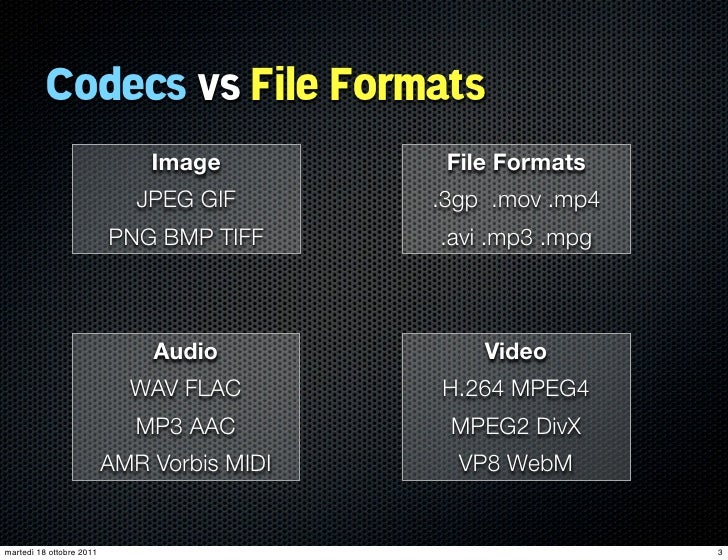
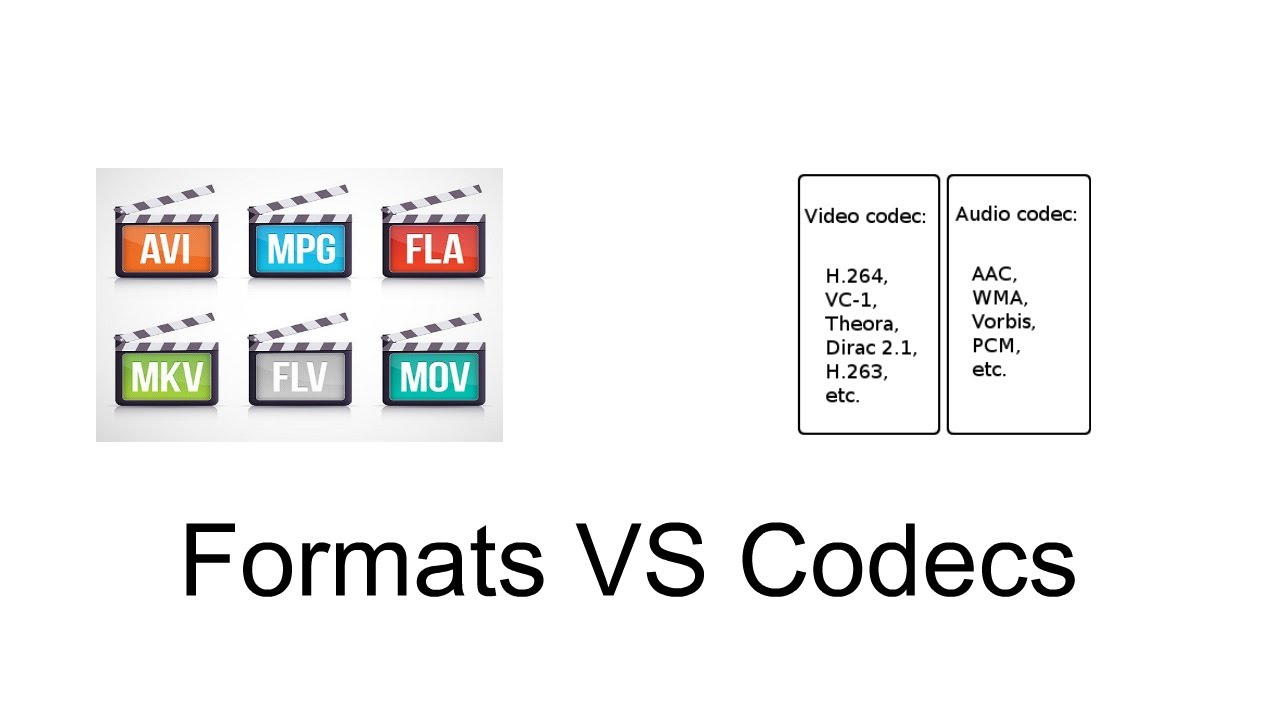
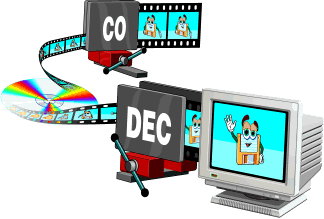
To compress digital media files, special programs are used – codecs (encoders). This is a kind of “formula” that determines how audio and video content can be packaged. Codecs also perform the reverse decoding operation, in this case they are called decoders.

Encoder (encoder, encoder in English): a program and / or device used to convert information from one type to another (encoding).
A decoder is essentially the same as an encoder, but it converts in the opposite direction.

Codec (English codec): encoder and decoder in one block.
Compression ratio is the ratio of the size of the input file (not encoded) to the size of the output file (encoded). For example, a compression ratio of 11: 1 means that the encoded file is 12 times smaller than the original.
Bit rate: the number of bits allocated to record a unit of time of audio information. They are generally measured in kb / s, that is, kilobits per second (kb / s or kbps in English).
Most codecs for audio and visual data use lossy compression to obtain an acceptable final (compressed) file size. There are also lossless codecs. But for most applications, lossy codecs are more beneficial, as the subtle degradation in quality is justified by a significant reduction in data volume. Almost the only exception is when the data will undergo post-processing: in this case, repeated encoding / decoding losses will have a serious impact on quality.

The most popular are the following codecs:

psd, bmp, rle, dib, gif, eps, jpg, pcx, raw, png, tif, etc. – images.
flag, ogg, opus, wav, pcm, wma, mp3, aac, as3, dts, flac, etc. – Audio;
ffdshow, indeo, mjpeg, mpeg-1, mpeg-2, mpeg-4 (h.261, h.263, h.264), wmv – video.

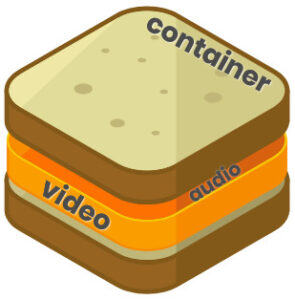
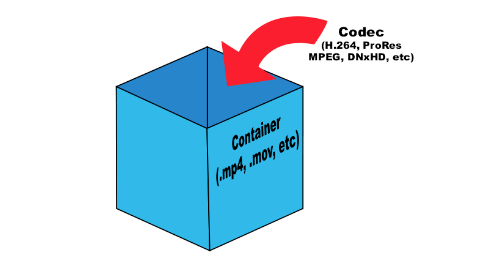
Any operating system initially contains a certain set of codecs, but these are generally not sufficient to play certain video file formats. The codecs convert the data into a special file called a container. A container is a special shell that stores information encrypted by codecs. Basically, media containers are video file formats that contain data about their internal structure. The container can store various information, in particular, images, audio, video and subtitles. Different types of containers determine the quantity and quality of information that can be stored in them, but they do not affect the way the data is encoded.

The most popular are the following containers:

ogg, mp3, mka, wav, wma, mp3, aac, dts, flac, etc. – Audio;
DivX, XviD, AVI, MP4, MPEG, WMV, MOV, VOB, MKV, FLV, MPG, dv, flv, ts, m2ts, mp4, etc. – video.
To determine which format to convert a video into, you must proceed from the task set. Imagine this situation: you have a beautiful video clip of the wedding photos and you want to play it on your TV screen (without HD). To do this, you can burn video in DVD format (as3 – audio, vob – video).

Next, let’s look at the most famous video file formats:
AVI (Audio-Video Interleaved) is one of the most common media containers for Windows operating systems. This format can contain four types of information: video, audio, text and midi. This container can contain video of various formats from MPEG-1 to MPEG-4. AVI has a large number of varieties in terms of internal structure and can be played on smartphones, communicators and other devices. The AVI media container does not impose any restrictions on the type of codec used.
WMV (Windows Media Video) is a digital video format created and controlled by Microsoft. WMV files can contain audio and video data packed with Windows Media Audio (WMA) and Windows Media Video (WMV) codecs.
MOV is a format developed by Apple for the QuickTime media player. To play such files, you must have a QuickTime player or players with MOV codecs already installed. The format can contain video, animation, graphics, 3D. This format supports any audio and video codecs.
ASF (Advanced Streaming Format) is a Microsoft streaming format. Based on MPEG-4 and used to transfer low and medium bit rate videos to the Internet. ASF is a multimedia container that supports almost all video codecs.
MPG or MPEG (Moving Picture Experts Group) – A video file containing video encoded with codecs:
mpeg1 – The standard was developed in 1992 with the capabilities of 2-speed CD-ROMs and 486 computers in mind
The mpeg2 standard was adopted in

Formats and codecs

As a result of the process of sampling an analog audio signal we obtain a sequence of binary numbers (numerical streams) that can be written to particular types of files (audio files or sound files) stored on various types of digital media (CD, DVD, HD or other).

Codecs and formats

These files can have three different encoding formats:

Uncompressed – All data derived from the sampling process is written to the stored file.
Lossy: the information contained in the stored file is less than that contained in the source data (information loss).
Lossless – The information contained in the stored file is identical to that contained in the source data, but the data is still compressed.

Formats & Codecs
In fact, these different possibilities arise from the need that when we want to store all the information related to a signal in a digital medium, we may need to reduce the storage space occupied in order to benefit from the portability or transmissivity of the encoded stream. We must resort to compression of the information itself in such a way that it also allows the reverse operation.

This operation is performed using codecs that are programs (or devices) that deal with both the digitization of signals (typically audio or video) and their digital encoding and / or decoding.

There are several types of codecs, different from each other by the type of signal on which they must operate and by the encoding / compression algorithm implemented in them. Each encoding format can be derived from several different codecs. In fact, these allow you to listen to proprietary formats opened by any file reader, keeping the physical layer separate from the logical format of its representation.

The advantages of compression are:

takes up less space on the target media.
spend less time during data transfer (bit rate).
The cost (disadvantages) is the increase in read / write times linked to decompression / compression times and, in the case of audio files, also in terms of audio quality.

Bitrate

Before delving into the different types of audio formats, let’s focus on concepts related to data transmission speed, since audio files are intrinsically linked to the time that passes: each second is associated with a certain information content and therefore both to a certain subsequence of figures. binary. The number of binary digits that make up these subsequences is called the bit rate.

Bit rate is the number of binary digits used to store one second of information.

CDs, for example, have a sampling frequency equal to 44,100Hz as standard, which therefore generates 44,100 values ​​per second for each channel. In the case of a stereo file, they are multiplied by 2, and since sampling is done at 16 bits (exactly equal to 2 bytes), they must be multiplied by 2:

44,100 * 2 * 2 * 60 (seconds) = 10,584,000 bytes (~ 10MB) every minute

Bitrate is expressed in kilobits per second (kbps) and can range from 32 to 320 kbps. For example, if we wanted to calculate the bit rate of the previous file we would have to calculate:

44,100 * 2 * 2 * 8 (bytes to bit) = 1,411,200 bits / second (1,411 kbs)

The calculations we have just carried out refer to an uncompressed format, whereas in the case of compressed formats, as the total length of the file decreases, the average length of the subsequences also decreases, and consequently the bit rate. mean that will correspond to the compression factor.

In fact, if a file with a 1411 Kbps bit rate like the one in the previous example were compressed at an average bit rate of 320 Kbps, we would have reduced the original file size by a factor of approximately 4.5 (1411/320).

Currently in the most advanced codecs there are three types of bitrate implementation:

CBR (BitRate from Costant). The simplest, most used and now least effective method. The bit rate remains constant in each frame and this means that the encoder will always use the same number of bits to encode each musical passage. In practice, the more complex passages will have a lower quality than those with little dynamics or silence since they will be encoded with an always equal number of bits, while more would be needed for the former and less for the latter. A great advantage of this mode is that the size of the resulting file is always proportional to the length of the part and is easily evaluated.

ABR (Average Bit Rate). Average bit rate is a mode that outperforms CBR and consists of a kind of variable bit rate. The encoder encodes the regions that need it with more bits and the simpler ones with less.

What are codecs?

First, it is useful to know the technical definition of codecs. They are programs that encode and decodify multimedia files, which favor compression for storage and unpacking for viewing.

Multimedia files

When using a media file, a codec is used, even without knowing it. Each file with an MP3 or AVI extension, for example, was created with a codec. Currently, to play music or watch a movie, you need a codec to read these media files. But why?

Codec

Listening to and viewing multimedia files At the beginning of personal computing, the main multimedia files used were WAV and MIDI audio. The WAVs recorded the ambient sound and made short clips. MIDIs were sound synthesizers because they used the computer’s sound card to replicate music. The big problem with these formats was that the MIDI files weren’t music, just any computer playback (currently, MIDI sound technology is used in the polyphonic tones of cell phones) and the WAVs were extremely large.

codec

The problem with WAV

But why are WAV files (and still are) so large? To understand this, it is enough to know that the human ear perceives only one sound track and does not listen as much as possible. However, the WAV can perceive and record these inaudible sounds and transform them into information along with the perceivable ones. In this way, WAV sound files have a lot of information, from unnecessary to what we need.

The way to deal with excess information was to develop a program that would take only the useful parts of the WAV files. In this way the MP3 was created, that is, it is a compressed sound file with only the necessary information.

Starting with the video files

Viewing video files It all started in the late 1980s, with the MPEG project, the Motion Picture Expert Group, or the Animated Picture (or Movie) Expert Group. This group developed a system to compress movie files for storage and playback on computers, without excess size or weight. Imagine that in an 800×600 movie, full screen in high resolution, there are 30 different images per second and each image is made on average with about 500,000 dots. Each point is one byte of information, so each second of film would have approximately 15 MB of information. That way, a CD with a capacity of 700 MB would only fit 50 seconds of film!

This group developed a way to encode these images from the film so they didn’t take up as much space. Despite having lost some of its quality, the film was playable on any computer, in addition to providing detailed observation. These files were either MPEG or MPG. MP3 would actually be the third layer of MPEG, the sound layer (that’s why it’s called MP3). The MP4 format would be a fourth layer of MPEG, with videos in high definition.

Understand how it works

The codec is a small program to encode and decode information from a multimedia file. It encodes the original format in a smaller size for storage and then decodes it, converting it back into an image and / or sound for all to see.

Therefore, you must have the codec installed on your computer to view certain multimedia files. A video in AVI format, for example, can be compressed with different codecs, such as XVID or DIVX. And for your computer to read that information, you need to have that code to decode the movie and watch it.

Existing core codecs

Currently, a primary audio codec, MP3, is used. In addition to some different video codecs, such as XVID, DIVX, RMVB, M4V, among many others. Fortunately, there is the K-Lite Codec Pack, a great package with all of these core codecs and many others, all of which are playable with Media Player Classic. The important thing is that with the K-Lite Codec Pack installed, you will hardly find a file format that requires a codec that is not on your computer.

There are different versions of K-Lite. They are:

K-Lite Mega Codec Package: With this package you offer the vast majority of necessary codecs and also the advantage of having the Media Player Classic ready.

K-Lite Codec Pack Full: Bring all the codecs you will need, without Media Player Classic.

Other possible packages

If you are not satisfied with the K-Lite Codec Pack packages, there are other download options in Baixaki. Some are:

Windows Essentials Codec Pack: allows decoding of other file formats, such as APE audio and FLV video.

Real alternative: a package with codecs for viewing files in Real Media, such as RMA audio and RMVB and RMVB video.

The best video codec packs

Having trouble playing videos?

Simply install a codec package and you can magically watch all the videos you want.

codec pack

If you’ve ever downloaded a video from the network and couldn’t play it and the media player in your operating system returns one or more errors, you’re likely to be a victim of the notorious codecs. Fortunately, there’s no need to worry: it’s not malware or viruses that are ready to steal all of your data or, worse, block access to your PC. It is a software component with which you can play any kind of multimedia file after installation on your PC.

codec pack

The codec is a complementary software for the multimedia player, which is responsible for encoding and decoding multimedia files (video, audio, but also pictures) so that they can be played on the PC. In the case of an audio file, the codec enables the audio player to listen to music. In the case of a video file, the codec “decrypts” the data stream and translates it into audio and image. Over the years, the number of available (and usable) codecs has grown exponentially, multiplying the options available to users. However, codecs are not “interchangeable” and there is a risk that you will have to try many before you find the one that is right for you.

To prevent these situations from occurring with a certain frequency, some software houses specializing in multimedia products have created so-called codec packages. In fact, they are files that allow you to install dozens of codecs at the same time. In this way, the user does not have to fight too much and can see the downloaded video online in a few minutes. It’s about choosing the best codec package (that best suits your needs) and installing it on your PC.

K-Lite Codec Pack

The K-lite codec package is considered by many to be the best available codec package (at least the most complete) and features an extremely simple user interface and a file of several dozen codecs that are updated regularly. This means that users always have the latest version of the codec available (already available, e.g. the codec for videos compressed with HEVC / H.265), and there is no problem.

Codecs and bit rates, how much do they influence the quality of MP3s?


The importance of codecs

Everything that has been written about the bit rate is valid
“with the same codec”, ie with the same algorithm
Coding, but the quality of the algorithms is very variable,
since the perception model, fundamental control of the levels of
compression.

codec

Those who are best able to mimic natural perception will get it
the best results since the cutoff frequencies will be
least audible and significant, while a codec with a perceptual model
Unrealistic creates flat and empty passages of important frequencies.

video container

In addition, a bad codec easily introduces “artifacts”; or
Sounds that are not available in the original originate from poor quantization
of some frequencies, especially if the original is not perfect.

Like most things in the computer world, codecs are evolving
In addition to the codec type, it is important that it is current and updated
for increasingly powerful algorithms.

Codecs fall into two categories: “fast”
and slow “. The most important fast codecs include blade,
QDesign and Xing, fast compression, but low to medium quality,
among the slow but high quality Fraunhofer and Lame are these
latest free and especially valid for high bit rates.

You can achieve good results with Fraunhofer coding
Most listeners cannot do this even at 128 Kbit / s and 320 Kbit / s
Distinguish MP3 from the original while compressing with Xing
o Blade with 128 Kbit / s can detect obvious artifacts and only with 256 Kbit / s
Audio reaches the quality of an MP3 compressed with 128 Kbit / s
Fraunhofer.

The just released Xing algorithm had the advantage of lower costs
Rights compared to Fraunhofer and faster coding speed
(It was also the first to implement variable bit rate VBR coding), but
Today’s processor performance is like that. for this
Factor is less important.

The lame algorithm has the advantage that no fees have to be paid
and of remarkable quality, especially at high bit rates – an MP3 from
128 Kbit / s encoded with Lame are less than one compressed with Fraunhofer.
but significantly better than Xing, and 256 Kbit / s Lame has the same quality
Fraunhofer.

At the moment, Lame is the best option for those who
You can afford larger files, while those that need to be careful
about the size, maybe because they have to offer files on an amateur website
or because they have an MP3 player with limited memory, they can pay well
Get a Fraunhofer encoder.

Xing, Blade, and other faster algorithms are not recommended, though
Pay attention to quality.

General quality and bit rate considerations
So that most listeners are of acceptable quality,
using a quality codec like Fraunhofer the bit rate that is normally used
(128 kbps, 1 MB per minute) is usually sufficient, especially if
Songs have a limited frequency range.

For some traces or for more sensitive ears a
highest bit rate, e.g. B. 256 Kbit / s (2 MB per minute, 1/5 of
Corresponding WAV).

64 kbit / s bit rates are always insufficient and with low quality codecs
like Xing or Blade are practically unknown.

Finally, we have to dispel a false myth: it is not possible to point it out
Music genres that need a higher bit rate, classical music too
Sometimes it can be made acceptable at 128 kbps because
Use restricted frequencies, while some rock or pop songs can
suffer because synthesizer tones and human voices are
easily exposed to the “artifact” effect.

Only lyrical music that has always been the most difficult
play and jazz (with cymbals,
Artifacts easy to suffer) certainly not suitable for MP3 and require bit rates
higher.

However, the results vary from song to song and are not
possible to give a general rule. It must be remembered that the audiophile,
The hi-fi musician or hobbyist can almost always
Distinguish an MP3 file with 320 Kbit / s from the original on the audio CD.
So if you have storage space, WAV files or codecs without loss of information
like WMA9 Lossless or FLAC (Free Lossless Audio Codec) always have a quality
Consider MP3, even if they are two to four times larger than
an MP3 with 320 Kbit / s.