Audio Codec Converter


Free Download Mp4Gain
picture

Audio Codec Converter: An Essential Tool for Any Audiophile
Audio Codec Converter

If you’re a music enthusiast, you know how important it is to have your music in the best quality possible. However, not all devices and media players support the same audio formats, which can be frustrating. This is where an audio codec converter comes in handy. In this article, we’ll explore what an audio codec converter is, how it works, and its benefits for any audiophile.

What is an Audio Codec Converter?

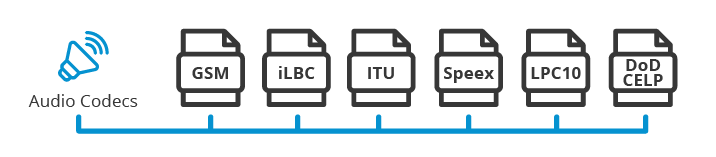
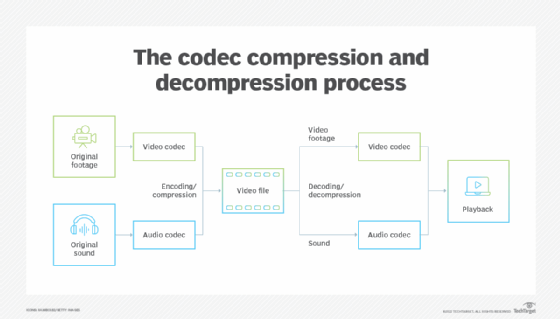
An audio codec converter is a software application that enables you to convert your audio files from one format to another. Audio codecs are algorithms that compress and decompress audio data, allowing it to be stored and transmitted efficiently. Different devices and media players use different codecs to support different audio formats. For instance, an MP3 player might only support the MP3 format, while a CD player might support WAV and AIFF formats.

With an audio codec converter, you can easily convert your audio files from one format to another, making them compatible with your desired device or media player. This tool can also help you compress your files to save space or improve their quality by changing the bitrate, sample rate, and other parameters.

How Does an Audio Codec Converter Work?

Most audio codec converters operate by decoding the original audio file and then encoding it into the desired format. The software uses a codec library that contains all the codecs needed to decode and encode various audio formats. The converter then applies the necessary compression algorithms to reduce the file size or improve the quality, depending on the user’s preferences.

Some audio codec converters also support batch conversion, which allows you to convert multiple files at once. This feature is especially useful when you have a large music collection that you want to convert to a new format or compress to save storage space.

Benefits of an Audio Codec Converter

Here are some of the benefits of using an audio codec converter:

  • Compatibility: An audio codec converter enables you to play your music on any device or media player that supports different formats.
  • Quality: You can improve the quality of your music by converting it to a higher bitrate or changing other parameters.
  • Compression: You can compress your files to save storage space on your device or media player without compromising the quality.
  • Organization: You can easily organize your music collection by converting all your files to a single format.

Frequently Asked Questions (FAQs)

What are the most common audio codecs?

The most common audio codecs are MP3, AAC, WAV, and FLAC. MP3 is the most widely used codec for music, while AAC is used by Apple devices. WAV is a lossless codec that is often used for professional audio recordings, while FLAC is a lossless codec that provides higher quality than MP3 or AAC.

Can I convert DRM-protected audio files using an audio codec converter?

No, most audio codec converters cannot convert DRM-protected files due to copyright laws. However, there are some software applications that can remove DRM protection, allowing you to convert the files to your desired format.

Do I need a special software to play my converted audio files?

Most devices and media players support the most common audio formats, so you shouldn’t need any special software to play your converted files. However, some specialized formats may require specific software or codecs. For instance, if you want to play high-resolution audio files, you might need a media player that supports FLAC or DSD formats.

Is an audio codec converter difficult to use?

No, most audio codec converters are designed to be user-friendly and intuitive. You don’t need any technical knowledge to use them. Simply select the files you want to convert, choose the output format and parameters, and start the conversion process. The software will guide you through the process and provide you with feedback on the progress.

Conclusion

An audio codec converter is an essential tool for any music lover who wants to enjoy their music in different formats and on different devices. It enables you to convert your audio files easily and quickly, improving their quality and compatibility. With the right audio codec converter, you can organize your music collection, save storage space, and enjoy your favorite tunes in the best quality possible.



Free Download Mp4Gain
picture


Mp4Gain Main Window
picture


Mp4Gain Features
picture


Free Download Mp4Gain
picture

WebM Converter

Top 5 Reasons Why You Need a WebM Converter for Your Video Files

WebM Converter
WebM Converter
WebM Converter
WebM Converter


If you’re looking for an efficient way to convert your video files, a WebM converter can be a great option. Here are the top five reasons why:

1. Compatibility with Web Browsers

WebM is a video format that is designed for use on the web. It is compatible with all major web browsers, including Chrome, Firefox, and Safari. By converting your video files to WebM, you can ensure that your videos will play seamlessly on all devices.

2. Smaller File Sizes

One of the main benefits of using WebM is that it produces smaller file sizes than other video formats. This means that your videos will load faster and take up less storage space on your devices. By using a WebM converter, you can easily convert your existing videos to this more efficient format.

3. High-Quality Video

Despite the smaller file sizes, WebM videos maintain a high level of video quality. They are able to achieve this by using advanced compression techniques that preserve the detail and clarity of the video. With a WebM converter, you can enjoy high-quality video while still keeping your file sizes small.

4. Open-Source Format

WebM is an open-source format, which means that it is free to use and modify. This makes it an ideal choice for developers who want to create web-based video applications. By using a WebM converter, you can take advantage of this open-source format and create your own custom video applications.

5. Cross-Platform Support

WebM is supported on a wide range of platforms, including Windows, macOS, Linux, and Android. By converting your videos to WebM, you can ensure that they will play on all of your devices, regardless of the operating system you are using.

Frequently Asked Questions (FAQs)

  1. What is a WebM converter?

    A WebM converter is a software tool that allows you to convert video files to the WebM format. This format is designed for use on the web and offers a range of benefits, including smaller file sizes and high-quality video.

  2. Do I need a WebM converter?

    If you want to ensure that your video files are compatible with all major web browsers and have smaller file sizes, then a WebM converter can be a great tool to have. Additionally, if you want to take advantage of the open-source nature of the WebM format, then a converter can help you create custom video applications.

  3. Are there any downsides to using WebM?

    One potential downside of using WebM is that it is not as widely used as other video formats, such as MP4. This means that some applications may not support WebM videos. However, as WebM becomes more popular, this is becoming less of an issue.

In conclusion, a WebM converter can be a valuable tool for anyone who wants to optimize their video files for the web. By converting your videos to WebM, you can enjoy faster load times, smaller file sizes, and high-quality video on all of your devices. So why not give it a try and see how it can improve your web video experience?

Overall, a WebM converter is a useful tool to have in your video editing arsenal. Whether you are a professional video editor or just someone who wants to share videos on the web, a WebM converter can help you optimize your videos for the best viewing experience. So why not explore the different WebM converter options available and start creating amazing web videos today!

Video to MP3 Converter

The Ultimate Guide to Using a Video to MP3 Converter

Video to MP3 Converter

Meta Description: Discover how to easily convert your favorite videos into MP3 audio files with the help of a Video to MP3 converter. Our comprehensive guide covers everything you need to know to get started.

Introduction

Are you tired of not being able to listen to your favorite videos on-the-go because you can’t download them as audio files? Do you want to extract the audio from a video to use it as a ringtone, background music, or for any other purpose? If so, you’ve come to the right place. In this article, we’ll show you how to use a Video to MP3 converter to convert your videos into high-quality MP3 audio files.

What is a Video to MP3 Converter?

A Video to MP3 converter like Mp4Gain is a software tool that allows you to extract the audio from a video and convert it into an MP3 audio file. The process is simple and easy-to-use, and it can be done in just a few clicks.

How to Use a Video to MP3 Converter

Using a Video to MP3 converter is a straightforward process. Here’s how to do it:

  1. Download and install Mp4Gain on your computer.
  2. Open the software and click on the “Add Files” button.
  3. Select the video file that you want to convert to MP3.
  4. Choose the output format as MP3.
  5. Click on the “Convert” button to start the conversion process.
  6. Wait for the conversion to complete and then locate the MP3 file on your computer or mobile device.

Benefits of Using a Video to MP3 Converter

There are many benefits of using a Video to MP3 converter. Here are a few of them:

  • Convenience: Converting a video to MP3 allows you to listen to your favorite videos as audio files on-the-go.
  • Compatibility: MP3 is a widely-used audio format that is compatible with most devices, media players, and platforms.
  • Quality: A good Video to MP3 converter can extract high-quality audio from a video, preserving the original sound quality.
  • Customization: Converting a video to MP3 allows you to customize the audio file by adding metadata, album art, or by adjusting the bitrate, sample rate, and other parameters.

Frequently Asked Questions (FAQs)

Q: Is it legal to convert a video to MP3?

A: It depends on the video’s copyright status and the laws of your country. In general, it is legal to convert a video to MP3 for personal use or if the video is in the public domain. However, it is illegal to convert copyrighted videos to MP3 without permission from the copyright owner.

Q: Can I convert a video to MP3 on my mobile device?

A: Yes, there are many Video to MP3 converter apps available for Android and iOS devices that allow you to convert videos to MP3 on-the-go.

Q: What is the best Video to MP3 converter?

A: There are many Video to MP3 converters available on the market, both free and paid. Some popular ones include Any Video Converter, Freemake Video Converter, and Online Video Converter.

Conclusion

Converting a video to MP3 has never been easier, thanks to the availability of Video to MP3 converter software. In this guide, we’ve covered everything you need to know to get started with this process, including what a Video to MP3 converter is, how to use it, and the benefits of doing so. By following the steps outlined in this article, you’ll be able to extract high-quality audio from your favorite videos and listen to them on-the-go. Whether you’re looking to create a custom ringtone or simply enjoy your favorite songs in audio format, a Video to MP3 converter is a powerful tool that can help you achieve your goals. So why wait? Download a Video to MP3 converter today and start converting your videos into MP3s!

Audio to MP3 Converter

Transforming Your Audio Files into MP3 Format: The Benefits of Using an Audio to MP3 Converter

Audio to MP3 Converter

Are you tired of dealing with incompatible audio files on your devices? Or are you someone who wants to save storage space by compressing your audio files? The solution to your problem is an Audio to MP3 Converter. This software application enables you to convert your audio files to the popular MP3 format with ease.

The Advantages of Using an Audio to MP3 Converter

  • Compatibility: MP3 format is compatible with a wide range of devices, including smartphones, laptops, tablets, and MP3 players. Converting your audio files to MP3 ensures that you can listen to your music on any device without compatibility issues.
  • Compression: MP3 files are compressed, which means that they take up less space than other audio file formats. This makes it easier to store and share your music files.
  • Quality: An Audio to MP3 Converter allows you to adjust the quality of the MP3 files you create. You can choose to keep the original quality, reduce the quality to save space, or increase the quality for better listening experiences.
  • Batch Conversion: An Audio to MP3 Converter lets you convert multiple audio files at once, saving you time and effort.

How to Use an Audio to MP3 Converter like Mp4Gain

Using an Audio to MP3 Converter is a straightforward process. Follow these simple steps:

  1. Download and install Mp4Gain on your device.
  2. Open the software and select the audio files you want to convert.
  3. Select the MP3 format and adjust the quality settings if required.
  4. Click on the “Convert” button to start the conversion process.
  5. Wait for the software to finish converting your files. Once done, you can find your new MP3 files in the destination folder.

FAQs about Audio to MP3 Converter

1. What audio file formats can I convert to MP3 using an Audio to MP3 Converter?

Most Audio to MP3 Converters support a wide range of audio file formats, including WAV, WMA, AAC, FLAC, OGG, and more.

2. Is an Audio to MP3 Converter free?

There are both free and paid Audio to MP3 Converter software options available. Some free software may have limited features, while paid software may offer more advanced features and better quality conversions.

3. Can I adjust the quality of the MP3 files I create?

Yes, an Audio to MP3 Converter allows you to adjust the quality of the MP3 files you create. You can choose to keep the original quality, reduce the quality to save space, or increase the quality for better listening experiences.

Conclusion

An Audio to MP3 Converter is a useful tool for anyone who wants to convert their audio files to the popular MP3 format. It offers a wide range of benefits, including compatibility, compression, quality, and batch conversion. With the easy-to-use software available, anyone can convert their audio files to MP3 in just a few simple steps.

Audio to WAV Converter

Audio to WAV Converter: Everything You Need to Know

Audio to WAV Converter

If you’re struggling with incompatible audio file formats and need to convert your audio files to a different format, an audio to WAV converter may be just what you need. In this article, we’ll go over everything you need to know about audio to WAV converters, including their benefits, features, and how to use them.

What is an Audio to WAV Converter?

An audio to WAV converter is a software application that allows you to convert audio files to the WAV format. WAV stands for Waveform Audio File Format, and it’s a common format used for storing uncompressed audio files. WAV files are high-quality and compatible with most media players and devices.

Benefits of Using an Audio to WAV Converter

  • High-quality audio: WAV files are uncompressed, which means they maintain the original audio quality of the source file.
  • Compatibility: WAV files are compatible with most media players and devices, including Windows and Mac computers, smartphones, and tablets.
  • Editing: WAV files are easy to edit with audio editing software, making them a popular choice for professional audio production.

Features of an Audio to WAV Converter

Most audio to WAV converters have the following features:

  • Batch conversion: Convert multiple audio files at once.
  • Customization: Choose the output settings, including bitrate, sample rate, and channel.
  • User-friendly interface: Easy-to-use interface for simple and fast conversions.
  • Support for multiple formats: Convert audio files from various formats, including MP3, AAC, WMA, and more.

How to Use an Audio to WAV Converter

Using an audio to WAV converter is simple and straightforward. Here are the basic steps:

  1. Download and install the audio to WAV converter software.
  2. Select the audio files you want to convert.
  3. Choose the output settings, including bitrate, sample rate, and channel.
  4. Start the conversion process.

Frequently Asked Questions (FAQs)

What is the difference between WAV and MP3?

WAV files are uncompressed, which means they maintain the original audio quality of the source file. MP3 files, on the other hand, use compression to reduce the file size, which can result in a loss of audio quality. WAV files are larger than MP3 files, but they offer higher audio quality.

Can I convert WAV files to other audio formats?

Yes, most audio to WAV converters also allow you to convert WAV files to other audio formats, including MP3, AAC, WMA, and more.

Is an audio to WAV converter free?

There are both free and paid audio to WAV converter software available. Free software may have limited features or be supported by ads, while paid software may offer more advanced features and support.

Conclusion

An audio to WAV converter can help you convert audio files to the WAV format quickly and easily. WAV files are high-quality and compatible with most media players and devices. With the right audio to WAV converter software, you can enjoy high-quality audio and edit your audio files easily.

Mp4Gain is the best wav converter, download it and test it.

Audio Extraction

The Ultimate Guide to Audio Extraction: How to Get the Most Out of Your Audio Files


Audio Extraction
Audio Extraction
Audio Extraction
Audio Extraction


Introduction to Audio Extraction

Have you ever wanted to extract audio from a video or a song, but didn’t know how to do it? Audio extraction is the process of separating the audio track from a video file, music video or even a DVD. This can be useful for a variety of reasons, such as creating a music playlist, removing background music or sound effects from a video, or simply enjoying the audio on its own.

In this guide, we will discuss everything you need to know about audio extraction, including what it is, how it works, and the best tools to use for extracting audio from various sources.

What is Audio Extraction?

Audio extraction is the process of isolating the audio from a multimedia file, such as a video or a DVD, and saving it as a separate audio file. This can be done using specialized software or online tools, and it can be used for a variety of purposes, such as creating a music playlist or removing unwanted audio from a video.

How Does Audio Extraction Work?

Audio extraction works by separating the audio track from the video or DVD file. This can be done using software that is specifically designed for audio extraction, such as VLC Media Player or Audacity. These tools allow you to import the video or DVD file, and then select the audio track that you want to extract.

Once you have selected the audio track, you can then save it as a separate audio file in a variety of formats, such as MP3, WAV, or AAC. The resulting audio file will contain only the audio from the original video or DVD file.

Best Tools for Audio Extraction:

There are a variety of tools that you can use for audio extraction, depending on your needs and preferences. Here are some of the best tools for audio extraction:

  1. VLC Media Player: VLC is a popular media player that also has built-in audio extraction capabilities. Simply open the video or DVD file in VLC, select the audio track that you want to extract, and save it as a separate audio file.
  2. Audacity: Audacity is a free, open-source audio editing tool that can also be used for audio extraction. Import the video or DVD file into Audacity, select the audio track, and then export it as a separate audio file.
  3. Any Audio Converter: Any Audio Converter is a free tool that allows you to extract audio from a variety of sources, including videos and DVDs. Simply import the video or DVD file, select the audio track, and then save it as a separate audio file.

FAQs:

1. Is it legal to extract audio from a video or DVD?

The legality of audio extraction depends on the copyright laws in your country. In some cases, it may be legal to extract audio for personal use, but illegal to distribute or share the extracted audio. It’s always best to consult a legal professional if you have any doubts.

2. Can I extract audio from streaming services like Netflix or Amazon Prime Video?

Extracting audio from streaming services is often prohibited by the terms of service for these services. It is best to check the terms of service before attempting to extract audio from any streaming service.

3. What formats can I save the extracted audio in?

The formats you can save the extracted audio in will depend on the software or tool you are using for audio extraction. However, common formats include MP3, WAV, and AAC.

4. Can I extract audio from a video with multiple audio tracks?

Yes, you can extract audio from a video with multiple audio tracks. Most audio extraction tools will allow you to select the specific audio track you want to extract.

5. What can I do with extracted audio?

There are many things you can do with extracted audio, including creating a music playlist, removing background music or sound effects from a video, or simply enjoying the audio on its own.

Conclusion:

Audio extraction is a useful process that allows you to isolate and save audio from a multimedia file. With the right tools, you can extract audio from videos, music videos, and even DVDs. Whether you want to create a music playlist or remove unwanted audio from a video, audio extraction is a valuable tool to have in your arsenal.

We hope this guide has helped you understand what audio extraction is, how it works, and the best tools to use for audio extraction. Remember to always check the copyright laws in your country before extracting audio from any multimedia file.

Video Enhancement: How to Transform Your Footage into a Cinematic Masterpiece

Video Enhancement: How to Transform Your Footage into a Cinematic Masterpiece

Video Enhancement
Video Enhancement
Video Enhancement
Video Enhancement

The Basics of Video Enhancement

In today’s digital age, video has become an integral part of our lives. Whether it’s for personal use or professional purposes, the quality of the video is crucial to make it more engaging and impactful. This is where video enhancement comes in. Video enhancement is the process of improving the visual quality of the video by applying various techniques such as color correction, noise reduction, and sharpening. In this article, we will explore the different methods and tools of video enhancement, and how they can help you turn your footage into a cinematic masterpiece.

Color Correction

Color correction is a technique used to adjust the colors of the video footage to make them more vibrant, natural, and appealing. It involves adjusting the brightness, contrast, and saturation of the colors to achieve the desired effect. Color correction can be done manually by adjusting the settings of the camera before filming, or by using software specifically designed for color grading.

Noise Reduction

Noise reduction is the process of removing unwanted grain or static from the video footage. This can be caused by low light, high ISO, or compression artifacts. Noise reduction tools use algorithms to analyze the video and selectively reduce the noise without affecting the details or sharpness of the video.

Sharpening

Sharpening is the process of enhancing the details and edges of the video to make them appear more crisp and defined. This can be done through software that applies filters to the footage or by adjusting the sharpness settings of the camera before filming.

Other Techniques

Other techniques that can be used for video enhancement include:

  • Stabilization – removing shaky footage
  • Color Grading – enhancing the colors and tones of the footage
  • Slow Motion – slowing down the footage to emphasize certain moments
  • Special Effects – adding visual effects such as lens flares, light leaks, or transitions to enhance the overall look of the video

Frequently Asked Questions

Can video enhancement improve the quality of low-resolution footage?

While video enhancement can improve the quality of low-resolution footage to some extent, it cannot completely restore the lost details. It is always best to film in the highest resolution possible to ensure the best quality footage.

Can video enhancement fix out-of-focus footage?

Video enhancement cannot fix out-of-focus footage. It is important to ensure that the footage is in focus before filming to avoid blurry or unusable footage.

Conclusion

Video enhancement is a crucial step in making your video footage more engaging and impactful. By applying techniques such as color correction, noise reduction, and sharpening, you can transform your footage into a cinematic masterpiece. Remember to film in the highest resolution possible and use the appropriate techniques to ensure the best quality footage. With practice and experimentation, you can master the art of video enhancement and create stunning visuals that captivate your audience.

What is the difference between video enhancement and video editing?

Video enhancement is the process of improving the visual quality of the video by applying various techniques such as color correction, noise reduction, and sharpening. Video editing, on the other hand, involves the process of selecting and arranging the footage to tell a story or convey a message. While video enhancement can be a part of the video editing process, it is not the same thing.

Is video enhancement only for professional videographers?

No, anyone can use video enhancement techniques to improve the quality of their video footage, regardless of their level of experience or expertise. With the availability of user-friendly software and tutorials online, even beginners can enhance their footage and make it more engaging and impactful.

Can video enhancement be done on a smartphone?

Yes, there are many apps available that allow you to enhance your video footage on your smartphone. These apps typically offer basic features such as color correction and noise reduction, but may not be as powerful as desktop software.

What are some common mistakes to avoid when doing video enhancement?

Some common mistakes to avoid when doing video enhancement include over-saturating the colors, over-sharpening the footage, and applying too many effects. It is important to use these techniques judiciously and with a discerning eye, keeping in mind the overall look and feel of the footage.

Can video enhancement be used to alter the content of the footage?

No, video enhancement should not be used to alter the content of the footage or to misrepresent the reality of the situation. The purpose of video enhancement is to improve the visual quality of the footage, not to manipulate or distort it.

Are there any ethical considerations to keep in mind when doing video enhancement?

Yes, it is important to be transparent and honest about any enhancements made to the footage. If the footage has been significantly altered, it may be necessary to disclose this to the audience. Additionally, it is important to respect the privacy and dignity of any individuals featured in the footage and to obtain their consent before sharing it publicly.

Understanding Video Resolution

Understanding Video Resolution: Everything You Need to Know

Video Resolution
Video Resolution

Video Resolution – Introduction

Video Resolution
Video Resolution

Video resolution is one of the most important factors to consider when watching or creating videos. It affects the overall quality of the video and can make a huge difference in how enjoyable it is to watch. In this article, we’ll cover everything you need to know about video resolution, from the basics of what it means to how it affects your viewing experience.

What is Video Resolution?

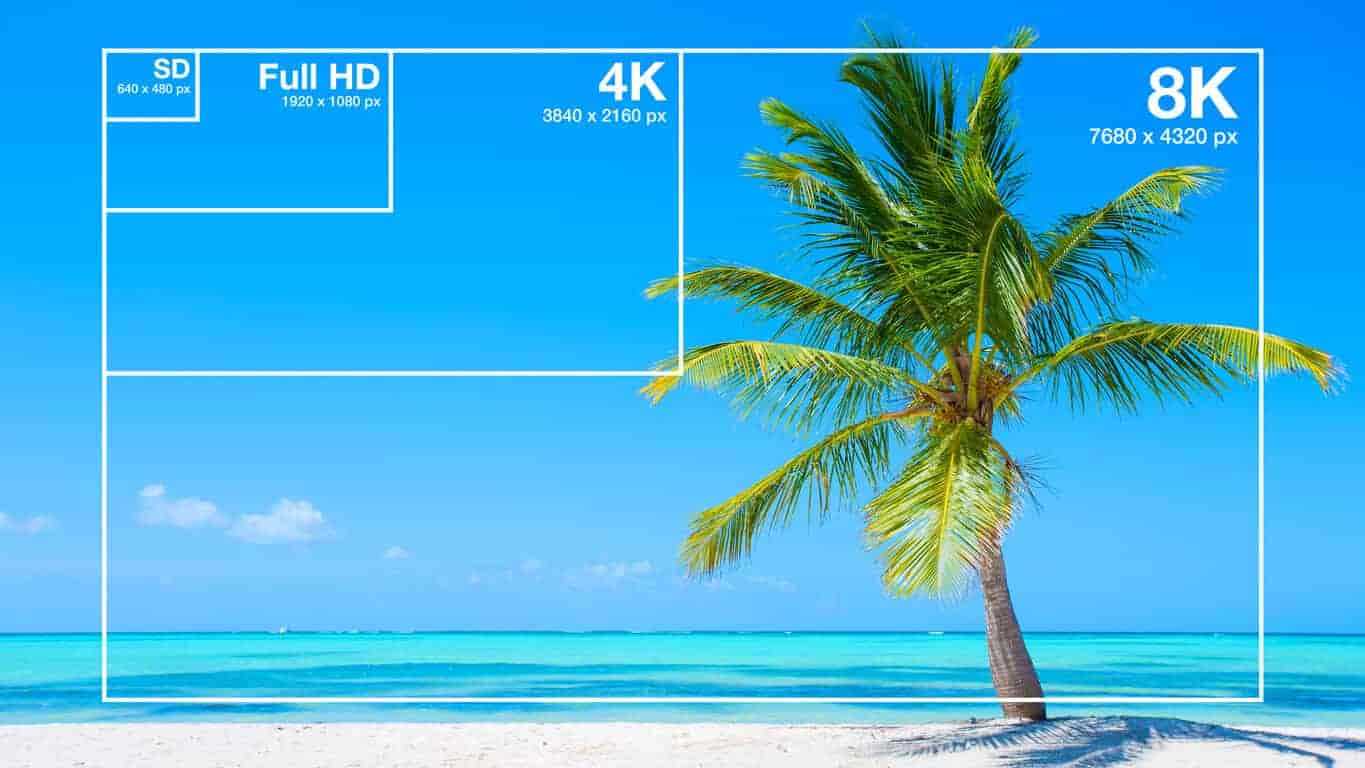
Video resolution refers to the number of pixels displayed on a screen in a video. A pixel is a tiny dot that makes up a part of an image or video. The more pixels there are in a video, the sharper and more detailed the image will be.

Video resolution is measured in terms of the number of pixels that are displayed horizontally and vertically on a screen. For example, a video resolution of 1920×1080 means that there are 1920 pixels displayed horizontally and 1080 pixels displayed vertically on the screen. The higher the number of pixels, the higher the video resolution.

Common Video Resolutions

  • 480p – 640×480 pixels
  • 720p – 1280×720 pixels
  • 1080p – 1920×1080 pixels
  • 4K – 3840×2160 pixels
  • 8K – 7680×4320 pixels

How Video Resolution Affects Viewing Experience

The video resolution can have a significant impact on the viewing experience. Videos with higher resolutions look sharper and more detailed, and are generally more enjoyable to watch. However, the difference in quality may not be noticeable on smaller screens or if the video is compressed.

Another important factor to consider is the size of the screen. A video with a high resolution will look better on a larger screen than on a smaller one. This is because the pixels are spread out over a larger area, making the image appear sharper and more detailed.

Factors that Affect Video Resolution

There are several factors that can affect the video resolution, including:

1. Recording Device

The recording device is one of the most important factors that affect the video resolution. Cameras with higher resolutions will capture videos with more pixels, resulting in a higher video resolution.

2. Compression

Videos are often compressed to make them smaller and easier to share. However, compression can also reduce the video resolution and make the video look less sharp and detailed.

3. Display Device

The display device, such as a TV or computer monitor, is also an important factor that affects the video resolution. If the display device has a lower resolution than the video, the video will be downscaled to match the capabilities of the display device.

FAQs

Q: What is the difference between 1080p and 4K resolution?

A: 4K resolution has four times the number of pixels as 1080p resolution, resulting in a much sharper and more detailed image.

Q: Can I watch a 4K video on a non-4K TV?

A: Yes, you can still watch a 4K video on a non c-4K TV, but the video will be downscaled to match the capabilities of the display device, resulting in a lower video resolution.

Q: Why do some videos look better than others even if they have the same resolution?

A: Video quality is influenced by several factors, such as the recording device, lighting, and color grading. Videos shot with high-end cameras and with good lighting and color grading will generally look better than videos shot with lower-end cameras or under poor lighting conditions.

Conclusion

Video resolution is an important factor to consider when watching or creating videos. The higher the video resolution, the sharper and more detailed the image will be. The size of the screen also plays a role in the viewing experience, as higher resolutions look better on larger screens. When creating videos, it’s important to use a recording device with a high resolution and to avoid excessive compression to maintain the video quality. Overall, understanding video resolution can help you make better decisions when it comes to choosing the right video to watch or creating high-quality videos yourself.

MP3 Normalizer: How to Select the Best Software for Audio Quality Improvement

MP3 Normalizer: How to Select the Best Software for Audio Quality Improvement

Mp3 Normalizer
Mp3 Normalizer
Mp3 Normalizer
Mp3 Normalizer

MP3 audio files are a popular format for music and other audio recordings, but they can vary widely in volume levels and quality. To improve the listening experience, many people turn to MP3 normalizer software. But with so many options available, what features should you look for when selecting the best software for audio quality improvement? In this article, we’ll explore the top features to consider and answer some common questions about MP3 normalizer software.

Features to Look for in MP3 Normalizer Software

When selecting MP3 normalizer software, there are several key features to consider:

Batch Processing

If you have a large collection of MP3 files, you’ll want software that can process multiple files at once. Batch processing allows you to select a folder or group of files to be normalized, saving you time and effort.

Preserve Audio Quality

The primary goal of MP3 normalizer software is to improve audio quality. Look for software that can normalize volume levels without causing any distortion or loss of quality to the audio file.

Customizable Settings

Different audio files may require different normalization settings. Look for software that allows you to adjust the normalization settings, such as target volume level, peak normalization, and RMS normalization.

File Format Support

While MP3 is a popular audio format, it’s not the only one. Look for software that supports a wide range of audio file formats, such as WAV, FLAC, and AAC.

Simple User Interface

MP3 normalizer software should be user-friendly and easy to use. Look for software with a simple and intuitive interface that allows you to quickly select and normalize your audio files.

How MP3 Normalizer Software Works

MP3 normalizer software works by analyzing the volume levels of an audio file and adjusting them to a target level. The software scans the entire audio file, identifies the loudest and quietest parts, and then adjusts the volume levels to create a more consistent listening experience. This can improve the overall audio quality and prevent the need to constantly adjust the volume levels during playback.

Free vs. Premium MP3 Normalizer Software

There are both free and premium options available for MP3 normalizer software. Free software can be a great option for those on a budget, but it may not offer the same level of features or customization options as premium software. Premium software typically offers more advanced features and better performance.

Potential Loss of Quality or Distortion

While MP3 normalizer software is designed to improve audio quality, it is possible for the software to cause loss of quality or distortion during the normalization process. To avoid this, select software that uses advanced algorithms to preserve audio quality and avoid any unnecessary adjustments that could cause distortion.

Normalization Time

The amount of time it takes to normalize an MP3 file can vary depending on the size of the file and the processing power of your computer. In general, however, most files can be normalized within a few minutes.

Advantages of MP3 Normalizer Software

Using MP3 normalizer software can offer several advantages over adjusting the volume levels manually. For one, it can save you time and effort, as you won’t need to manually adjust the volume levels for each file. Additionally, MP3 normalizer software can improve the overall listening experience by creating a more consistent volume level across multiple files.

Best Software for Different Audio Files

Certain MP3 normalizer software programs may be better suited for certain types of audio files. For example, some software may be better suited for music files, while others may be better suited for speech recordings. Look for software that offers customizable settings and options to ensure optimal results for the specific type of audio file you’re working with.

File Size and Normalization

The normalization process can affect the overall file size of an MP3 audio file. When normalizing, the software may need to make adjustments to the audio file, which can result in a larger file size. However, this increase in file size is usually minimal and shouldn’t be a significant concern.

Cost of MP3 Normalizer Software

The cost of MP3 normalizer software can vary widely, depending on the features and level of performance offered. Some software may be available for free, while others may cost several hundred dollars. Additionally, some software may require ongoing subscription fees or additional costs for updates or advanced features. When selecting MP3 normalizer software, consider your budget and the features you require to find the best option for your needs.

Recommended Settings and Best Practices

To ensure optimal results when using MP3 normalizer software, there are some recommended settings and best practices to follow. For example, it’s important to choose the correct normalization settings for the specific type of audio file you’re working with. Additionally, it’s a good idea to make a backup copy of your original audio files before normalizing them, in case of any unexpected issues or changes.

Conclusion

Selecting the best MP3 normalizer software for your needs can help improve the overall audio quality of your files and provide a more consistent listening experience. When selecting software, consider features such as batch processing, customizable settings, and file format support, and be sure to choose software that can preserve audio quality and avoid distortion. With the right software and best practices, you can easily normalize your MP3 files and enjoy a better listening experience.

Mp3 Huffman Encoding

Mp3 Huffman Encoding

Huffman Encoding
Huffman Encoding
Huffman coding
Huffman coding

Introduction to Mp3 Huffman Encoding

Are you an audiophile who loves listening to music but is always running out of storage space on your devices? Do you ever wonder how digital audio files are compressed to save space? If you’re curious about the technology behind digital audio compression, you’ve probably heard of MP3 and Huffman encoding.

MP3 is a popular digital audio format that has revolutionized the way we listen to and store music. It allows us to compress large audio files into smaller, more manageable sizes without compromising on sound quality. Huffman encoding, on the other hand, is a data compression algorithm that reduces the size of data by encoding it in a more efficient way.

But what happens when these two technologies come together? In this article, we’ll explore the magic of MP3 Huffman encoding and how it has transformed the digital audio landscape.

What is MP3 Huffman Encoding?

MP3 Huffman encoding is a type of lossy audio compression that uses a combination of two compression algorithms – MP3 and Huffman encoding. This technology was first introduced in the mid-1990s and quickly became the standard for digital audio compression.

The MP3 compression algorithm is based on psychoacoustic principles, which means that it takes advantage of the limitations of human hearing to remove any redundant or irrelevant data from an audio file. This allows MP3 to achieve high compression ratios without sacrificing sound quality.

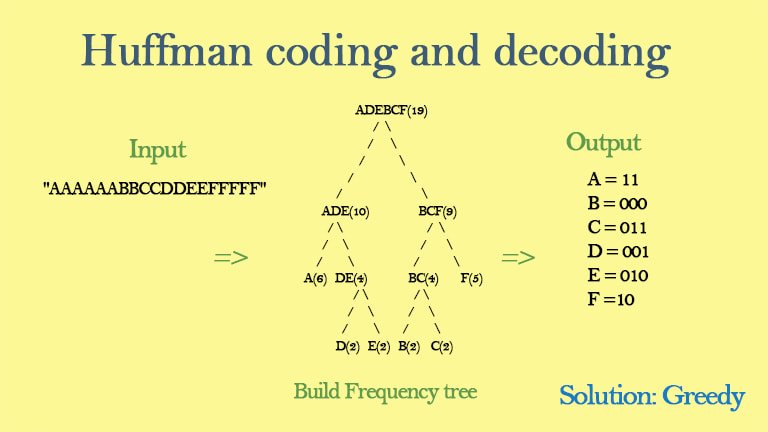
Huffman encoding, on the other hand, is a more general-purpose compression algorithm that is used to compress any type of data, not just audio. It works by analyzing the frequency of occurrence of each data element and then assigning a variable-length code to each element. This variable-length code allows more frequently occurring data elements to be represented by shorter codes, reducing the overall size of the data.

When MP3 and Huffman encoding are combined, the result is a highly efficient audio compression algorithm that can compress audio files to a fraction of their original size while maintaining near-CD quality sound.

How Does MP3 Huffman Encoding Work?

MP3 Huffman encoding works by first breaking down an audio file into a series of individual frames. Each frame represents a small portion of the audio, typically around 26 milliseconds in length. These frames are then processed using the MP3 compression algorithm to remove any redundant or irrelevant data.

Once the frames have been compressed using MP3, they are further compressed using Huffman encoding. Huffman encoding works by creating a Huffman tree, which is a binary tree that is used to assign variable-length codes to each data element.

The Huffman tree is created by analyzing the frequency of occurrence of each data element in the compressed audio frames. More frequently occurring data elements are assigned shorter codes, while less frequently occurring elements are assigned longer codes. This allows the compressed audio frames to be represented using fewer bits, reducing the overall size of the audio file.

When the audio file is played back, the MP3 Huffman decoder uses the Huffman tree to decode the variable-length codes back into their original data elements. The resulting audio is almost identical to the original uncompressed audio, but with a much smaller file size.

The Benefits of MP3 Huffman Encoding

MP3 Huffman encoding has several benefits over other audio compression technologies:

    • High compression ratios: MP3 Huffman encoding can compress audio files to a fraction of their original size without sacrificing sound quality.
    • Near-CD quality sound: The psychoacoustic principles used in MP3 compression ensure that the resulting audio is almost identical to the original uncompressed audio.

How MP3 Huffman Encoding Revolutionized Digital Audio

The introduction of MP3 Huffman encoding revolutionized the way we listen to and store music. Before this technology, digital audio files were large and cumbersome, making them difficult to store and share. MP3 Huffman encoding allowed us to compress these files into smaller, more manageable sizes, making it easier to store and share music online.

With the rise of the internet and digital music, MP3 Huffman encoding became the de facto standard for digital audio compression. This technology allowed music lovers to store thousands of songs on their devices, opening up a whole new world of possibilities for music consumption.

Today, MP3 Huffman encoding is still widely used, although newer technologies like AAC and OGG have emerged as potential successors. However, MP3 remains one of the most popular digital audio formats, and its influence can be seen in the way we consume and enjoy music today.

Frequently Asked Questions

What is the difference between MP3 and MP3 Huffman encoding?

MP3 is a digital audio format that uses psychoacoustic principles to compress audio files. MP3 Huffman encoding is a combination of the MP3 compression algorithm and Huffman encoding, which allows for even greater compression ratios while maintaining high sound quality.

Is MP3 Huffman encoding lossless or lossy?

MP3 Huffman encoding is a type of lossy audio compression. This means that some information is lost during the compression process, resulting in a smaller file size. However, the resulting audio is almost identical to the original uncompressed audio.

Can MP3 Huffman encoding be used for other types of data compression?

Yes, Huffman encoding is a general-purpose data compression algorithm that can be used to compress any type of data, not just audio. However, the combination of MP3 and Huffman encoding is specifically optimized for audio compression.

Conclusion

MP3 Huffman encoding is a powerful technology that has revolutionized the digital audio landscape. By combining the MP3 compression algorithm with Huffman encoding, we can compress large audio files into smaller, more manageable sizes without sacrificing sound quality.

This technology has opened up a whole new world of possibilities for music lovers, allowing us to store and share thousands of songs on our devices. Although newer technologies may emerge in the future, MP3 Huffman encoding will always be remembered as a groundbreaking innovation that changed the way we listen to and store music.