Bitrate Can Help You Get Better Quality in MP3 and MP4

Bitrate Can Help You Get Better Quality in MP3 and MP4

Bitrate Can Help You Get Better Quality in MP3 and MP4

Let’s Talk About Bitrate in MP3 and MP4

Bitrate can make or break the quality of your music or video files. I’ve spent years working with audio and video, and I can tell you that bitrate is a game-changer when it comes to getting the best sound and picture quality. Imagine a water pipe: the bitrate is like the pipe’s width. A wider pipe (higher bitrate) lets more water (data) flow through, giving you a richer sound or clearer video. Lower bitrate, on the other hand, restricts the data flow, which is like squeezing a pipe down; the result is less quality. Let’s dive into how bitrate impacts MP3 and MP4 quality and why understanding this can transform your listening and viewing experience.

What is Bitrate and Why Does It Matter?

Bitrate is the rate at which data is processed and transferred. In MP3s and MP4s, bitrate affects quality more than you might think. Higher bitrate means better quality, but also larger file sizes. Think of it like digital storage in your closet: high-bitrate files store every detail, but they take up more space. Lower bitrate compresses the details, which saves space but sacrifices some quality.

How Bitrate Affects MP3 Quality

For MP3 audio, bitrate is crucial. High-bitrate MP3s preserve more of the original recording’s sound detail, making music sound full and dynamic. I remember testing low-bitrate MP3s on different sound systems, and each time, they sounded flat and lifeless. If you want rich bass and clear vocals, go for a higher bitrate.

Common MP3 Bitrates

  • 128 kbps – Standard quality, good for most casual listeners.
  • 192 kbps – Enhanced clarity, offering decent audio for music enthusiasts.
  • 256 kbps – Higher quality with noticeable improvements in bass and vocals.
  • 320 kbps – Top-notch quality, closest to the original recording without being lossless.

How Bitrate Affects MP4 Quality

With MP4 video files, bitrate impacts both the video and audio components. When I watch a movie in high-bitrate MP4, the colors are vivid, and the sounds are rich. A low-bitrate MP4 might show pixelation and murky audio, especially on larger screens. This is why bitrate matters for video just as much as audio.

Recommended MP4 Bitrates

  • 500-1000 kbps – Suitable for low-resolution video, good for small screens.
  • 1000-2500 kbps – Ideal for standard definition video.
  • 2500-5000 kbps – Recommended for HD quality, providing clearer visuals.
  • 5000+ kbps – Best for Full HD and higher, excellent clarity on large screens.

Choosing the Right Bitrate: Balancing Quality and File Size

When selecting bitrate, it’s essential to balance quality with file size. You don’t always need the highest bitrate—sometimes, it’s more about fitting your needs. For instance, if you’re streaming on a mobile device, a lower bitrate can still provide good quality while saving data. However, if you’re playing files on high-end speakers, go for the highest bitrate possible.

Bitrate and Streaming: What You Should Know

When streaming MP3 or MP4 files, bitrate influences both quality and buffering speed. Higher bitrate streams may deliver better quality but can cause more buffering if your internet speed isn’t up to par. Personally, I recommend adjusting bitrate based on your internet connection to avoid interruptions.

How to Check and Adjust Bitrate

Checking bitrate is straightforward. On most devices, you can view the bitrate information within the file properties. Adjusting bitrate usually requires re-encoding with software that allows you to choose the bitrate. It’s like resizing a photo; changing bitrate affects file quality and size, so choose the right balance based on your needs.

Is Higher Always Better? When to Opt for Lower Bitrate

While high bitrate typically means better quality, there are cases where lower bitrate works just fine. For podcasts or spoken-word audio, for instance, a lower bitrate still delivers good clarity without taking up much space. It’s all about the type of content and how you’re consuming it.

Comparing Bitrate to Sample Rate and Resolution

Though bitrate is vital, sample rate and resolution also play roles in quality. For MP3s, sample rate affects audio fidelity, and for MP4s, resolution impacts video clarity. Together, these factors determine overall quality. I find that focusing on bitrate alone can sometimes mislead; balancing all three aspects yields the best results.

Practical Tips for Optimal Bitrate Selection

To optimize bitrate, consider both your device and personal preferences. For everyday music listening on headphones, 192 kbps MP3 might be enough. But for home theater setups, I suggest 320 kbps or lossless formats. Adjusting based on usage can save storage and still offer great sound.

Latest Words on Bitrate and Quality

Bitrate is a powerful factor in determining the quality of MP3 and MP4 files. Whether you’re listening to music or watching videos, selecting the right bitrate makes a difference. With the right tools, like Mp4Gain, you can achieve the perfect balance between quality and file size for any format or device.

Comments:

Wow, this article really explained bitrate well! I always thought higher was better but now I see it’s not that simple. Good job!

I wish there was more info on sample rates. I think that impacts quality too, right?

My friend shared this with me, and I have to say, it’s been super helpful. I feel like I finally get what bitrate is!

This article cleared up so much for me. I was struggling to understand why my audio files were so big, now I get it. Thanks!

Could you go into detail about bitrate in streaming? I think that’s a big topic too!

I’m not a tech person, but this really helped me understand why my audio files sound different at different bitrates. Nice work!

My son is a musician, and I shared this with him to help with his recordings. He said it’s super helpful, thank you!

I was looking for info on MP4 bitrate specifically, and this nailed it! I’m a video editor, so quality is everything to me.

Love the real-life examples in this! Makes something technical feel easy to understand. Keep up the great work!

I’m kinda new to this and was overwhelmed with all the info about bitrate. This is really straightforward. Appreciate it!

Thanks for explaining bitrate so clearly. I always had a hard time choosing settings, but now I know exactly what to do.

Just what I was looking for! Really needed a simple explanation of bitrate and this article delivered. Thanks!

Can you add a section on bitrate comparison? Like a chart or something. It’d be useful for quick reference!

This article was so informative! I’d been looking for something like this that’s easy to understand. Cheers!

I work in audio production, and I shared this with my team. Great explanations, especially for beginners. Thank you!

https://x.com/ricardo_mx_news/status/1850664808464474479

Handling anamorphic video in MP4 containers

Handling Anamorphic Video in MP4 Containers

Handling anamorphic video in MP4 containers

Let’s talk about Handling Anamorphic Video in MP4 Containers

– Opening to address what anamorphic video is, why handling it in MP4 containers is unique, and the benefits and challenges of this format. – Clarify how anamorphic video adjusts visual dimensions and why MP4 is a preferred format.

Understanding Anamorphic Video Basics

What is Anamorphic Video?

  • Definition and key features
  • Origins and typical uses
  • Comparison with standard widescreen

How Anamorphic Compression Works

  • Horizontal stretching and image distortion explained
  • Examples from film production to home video
  • Benefits of compression for wider aspect ratios

Why MP4 is Ideal for Anamorphic Video

Benefits of MP4 Containers

  • Compression advantages and quality preservation
  • Compatibility with devices and editing software
  • Efficient handling of large files

Challenges of Using MP4 for Anamorphic Video

  • Possible quality loss in rendering
  • Device and software limitations with MP4
  • Special settings needed for correct display

Setting Up Anamorphic Video in MP4 Containers

Essential Software Settings

  • Resolution and pixel aspect ratios (PAR)
  • Correct frame aspect ratios (FAR) for MP4
  • Encoding options: ensuring accurate playback on various devices

Step-by-Step Guide for Proper Encoding

  • Choosing the correct aspect ratio
  • Setting pixel aspect ratio and frame size
  • Ensuring compatibility with playback platforms

Common Issues and Fixes for Anamorphic Video in MP4

Fixing Aspect Ratio Distortions

  • When playback doesn’t match encoded aspect ratio
  • Common causes of stretched or squished images
  • How to correct ratio settings to maintain original appearance

Resolving Playback and Compatibility Problems

  • Best practices for cross-device compatibility
  • Software and codec issues and solutions
  • Practical fixes for streaming issues on different devices

Optimizing Anamorphic Video Quality in MP4 Containers

Encoding and Compression Tips

  • Balancing file size with image clarity
  • Choosing bitrate and resolution for the best results
  • How to adjust settings for different playback devices

Advanced Techniques for Maximum Quality Retention

  • High-efficiency codecs and their role
  • Using color depth settings to improve visuals
  • Maintaining quality in stretched and compressed frames

Latest Words on Handling Anamorphic Video in MP4 Containers

– Wrap up the article with expert advice on managing anamorphic video in MP4, focusing on maximizing quality and compatibility while handling practical challenges.

What is the Best Video Format for High Quality?

What is the Best Video Format for High Quality?

Best Video Format
Best Video Format
Best Video Format
Best Video Format


If you’re looking for the best video format for high quality, it’s important to understand the different formats available and their strengths and weaknesses. The best video format will depend on your intended use, whether it’s for streaming, editing, or playback on a specific device.

Best Video Formats for Streaming

Streaming video has become increasingly popular in recent years, with platforms like Netflix and YouTube dominating the market. To ensure the best quality streaming experience, the best video format is one that is optimized for streaming.

The most popular streaming video format is H.264, which is widely supported by most devices and platforms. It offers high-quality video compression with a relatively small file size, making it ideal for streaming. Another popular streaming format is VP9, which is used by YouTube and offers higher quality video at lower bitrates.

Best Video Formats for Editing

If you’re planning to edit your videos, it’s important to choose a format that will retain the highest quality of your footage. The best video formats for editing are those that support high bitrates and high color depths.

One of the most popular formats for editing is ProRes, which is a proprietary format developed by Apple. It offers high-quality compression and is widely supported by most editing software. Another popular format is DNxHD, which is supported by Avid editing software and offers high-quality compression for editing.

Best Video Formats for Playback on Specific Devices

If you’re planning to playback your videos on a specific device, it’s important to choose a format that is compatible with that device. Different devices support different video formats, so it’s important to do your research to ensure compatibility.

For example, if you’re planning to playback your videos on an iPhone or iPad, the best format is H.264, which is supported by Apple devices. If you’re planning to playback your videos on a Samsung device, the best format is MP4, which is widely supported by Android devices.

What about 4K and HDR?

If you’re looking to create or playback 4K or HDR videos, it’s important to choose a format that supports these features. The most popular format for 4K video is HEVC/H.265, which offers high-quality compression with a smaller file size compared to other formats.

For HDR video, the most popular formats are HDR10 and Dolby Vision, which offer improved color depth and contrast compared to standard video formats.

What is the Future of Video Formats?

As technology continues to advance, video formats are also evolving. One of the newest formats is AV1, which is developed by the Alliance for Open Media and offers high-quality compression with a smaller file size compared to other formats.

Another format on the horizon is MPEG-5 Part 1 (EVC), which offers improved compression for HDR video and is expected to become the standard for video compression in the future.

People Also Ask

What is the difference between a container and a codec?

A container is a file format that holds audio, video, and other data together in a single file. A codec is a software that compresses or decompresses audio or video data. The container format and the codec used can affect the quality and compatibility of your videos.

What is the difference between lossy and lossless compression?

Lossy compression is a method of compressing video or audio data by removing some of the data to reduce file size. Lossless compression, on the other hand, compresses the data without losing any information. Lossless compression is preferred for editing

Choosing the Best Video Format for Your Needs

Choosing the Best Video Format for Your Needs

Best Video Format
Best Video Format

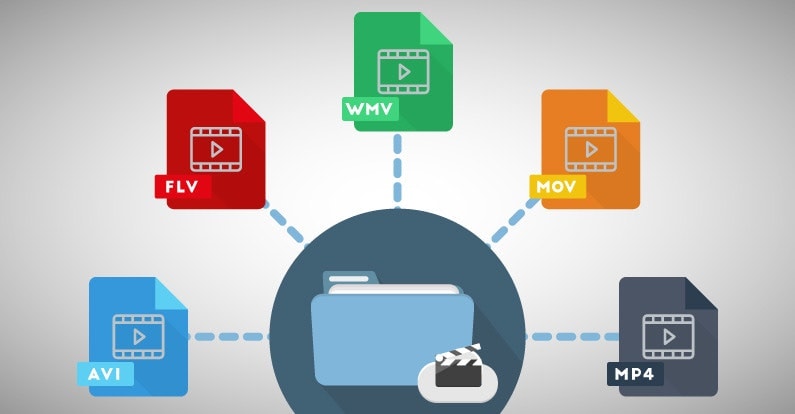
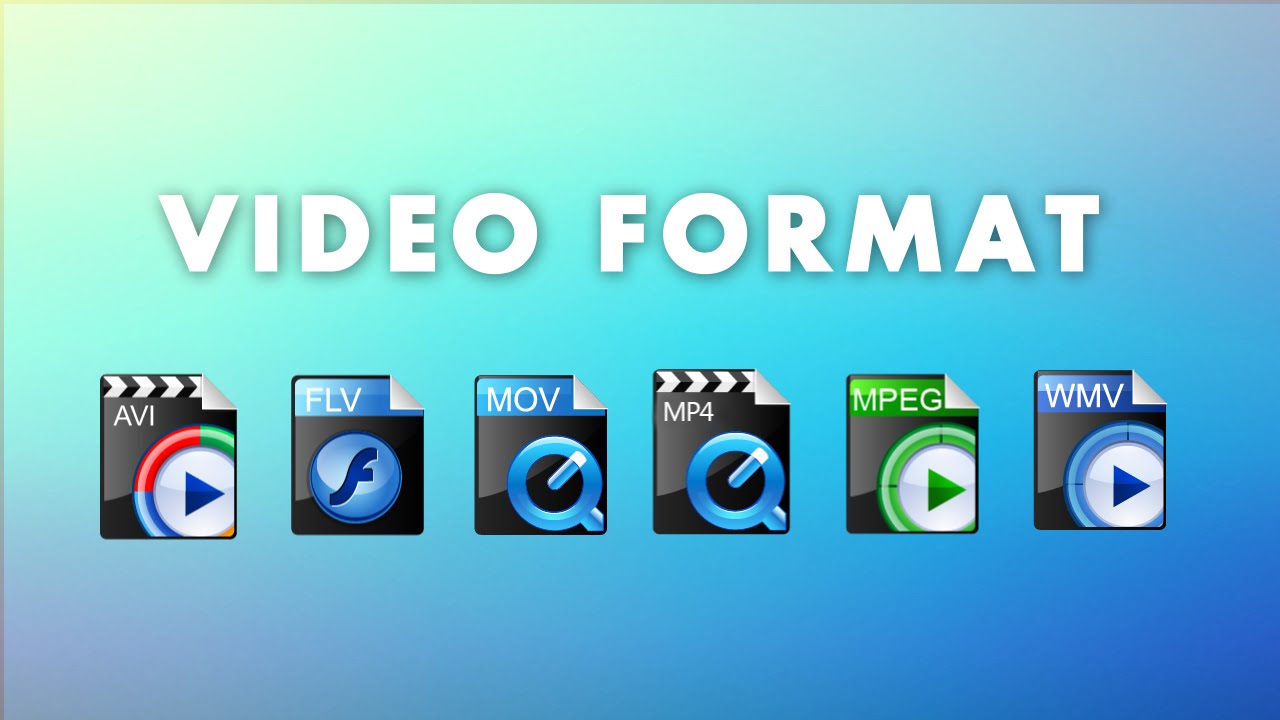
When it comes to video content, choosing the right format is crucial to ensure that your viewers enjoy the best possible experience. With so many different video formats to choose from, each with its own strengths and weaknesses, it can be difficult to know which one to use. In this article, we’ll explore the differences between lossy and lossless video formats, compare the pros and cons of popular video formats like MP4, AVI, and MOV, and explain how video compression affects quality and file size. Finally, we’ll provide some tips on how to choose the right video format for your specific needs.

Best Video Format
Best Video Format

Understanding the Differences Between Lossy and Lossless Video Formats

Before we dive into the specifics of different video formats, it’s important to understand the basics of video compression. Video compression is the process of reducing the size of a video file without sacrificing too much quality. There are two types of video compression: lossy and lossless.

With lossy compression, data is removed from the video file in order to decrease its size. This results in a smaller file size, but the quality of the video is often compromised. Lossy compression is often used when a smaller file size is a priority, such as when uploading videos to the internet or sending them via email.

Lossless compression, on the other hand, maintains the quality of the video while reducing its size by removing any redundant data. However, this often results in a larger file size. Lossless compression is often used when high-quality video is essential, such as when creating a master copy for archiving or when working on a video project that requires the highest possible quality.

Comparing the Pros and Cons of Popular Video Formats

Now that we’ve covered the basics of video compression, let’s take a look at some of the most popular video formats and their pros and cons.

MP4

MP4 is a popular video format that uses lossy compression to strike a good balance between quality and file size. MP4 files can be played on a variety of devices and are widely supported across different platforms. They’re also ideal for uploading to the internet or sending via email due to their smaller file size. However, the quality of the video may suffer if the compression is set too high.

AVI

AVI is an older video format that uses lossless compression to ensure the highest possible quality. This format is often used when the quality of the video is of utmost importance, such as when creating a master copy for archiving. However, the trade-off is a larger file size, which can make AVI files difficult to work with or share.

MOV

MOV is a video format created by Apple that uses lossy compression to achieve a good balance between quality and file size. MOV files are often used in the film and television industry due to their high quality, but they can be difficult to work with on non-Apple devices. They’re also less widely supported on the web than other formats, such as MP4.

FLV

FLV is a video format that was popularized by Adobe Flash Player. FLV files are often used for streaming video on the web due to their small file size and ability to be played back in a web browser. However, the quality of the video may be lower than other formats, and the format itself is becoming less popular as Adobe discontinues support for Flash Player.

WMV

WMV is a video format created by Microsoft that uses lossy compression. It’s often used for streaming video online, as it provides a good balance of quality and file size. However, like MOV, WMV files can be difficult to work with on non-Microsoft devices.

How Does Video Compression Impact Quality and File Size?

As we’ve seen, video compression is essential for reducing file size and ensuring that videos can be easily shared or uploaded to the internet. However, the amount of compression used can have a significant impact on the quality of the video.

When a video is compressed, some of the data is removed in order to reduce the file size. The more data that is removed, the smaller the file size will be, but the quality of the video will suffer. If too much data is removed, the video may become pixelated or blurry, with visible artifacts or distortion.

The amount of compression used can also impact the “burstiness” or variety of the video file. A highly compressed video may have less variation in its color and contrast, which can make it appear less dynamic and engaging to viewers. On the other hand, a less compressed video may have more variation in its color and contrast, which can make it appear more vibrant and visually interesting.

What Video Format is Best for Streaming, Editing, and Archiving?

Now that we’ve covered the basics of video compression and explored some of the most popular video formats, let’s take a closer look at which format is best for specific use cases.

Streaming

For streaming video on the web, MP4 is often the best choice due to its small file size and wide compatibility with different devices and platforms. However, if high-quality video is essential, MOV may be a better choice, despite its limited support outside of Apple devices.

Editing

When it comes to editing video, lossless formats like AVI or MOV are often the best choice. These formats maintain the highest possible quality, which is important when making edits to the video. Once the editing is complete, the video can be exported to a more compressed format like MP4 for sharing or uploading to the internet.

Archiving

If you’re creating a master copy of a video for archiving purposes, a lossless format like AVI is often the best choice. This ensures that the highest possible quality is maintained, which is essential for long-term preservation. However, keep in mind that lossless formats often result in larger file sizes, which may be difficult to store or share.

Using Mp4Gain to Normalize Video Formats

No matter which video format you choose, it’s important to ensure that the audio is normalized to a consistent level. This is where Mp4Gain comes in. Mp4Gain is a tool that allows you to convert between the major video formats and normalize the audio to a consistent level.

By using Mp4Gain, you can ensure that your videos have a consistent level of audio, regardless of the format they were originally recorded in. This can be particularly helpful if you’re working with videos from different sources or if you’ve edited together multiple videos into one project.

Additionally, Mp4Gain can also be used to normalize the audio of music files, which can be especially helpful if you’re creating a playlist or if you’re a DJ who needs to ensure that all the tracks have a consistent volume.

Using Mp4Gain is easy. Simply download the software and choose the video or audio file that you want to normalize. Mp4Gain will automatically analyze the file and adjust the volume to a consistent level. You can then save the file in the format of your choice, with the normalized audio included.

Conclusion

When it comes to video formats, there’s no one-size-fits-all solution. The best format for your needs will depend on a variety of factors, including the intended use of the video, the devices and platforms it will be viewed on, and the desired balance of quality and file size.

However, by understanding the differences between lossy and lossless formats, comparing the pros and cons of popular video formats, and considering the impact of video compression on quality and file size, you can make an informed decision about which format to choose.

Regardless of the format you choose, it’s important to ensure that the audio is normalized to a consistent level. Mp4Gain is a powerful tool that can help you achieve this, while also allowing you to convert between the major video formats. By using Mp4Gain, you can ensure that your videos and audio files have a consistent level of audio, making them more enjoyable and professional.

So whether you’re a videographer, editor, or simply a video enthusiast, consider using Mp4Gain to take your videos to the next level.