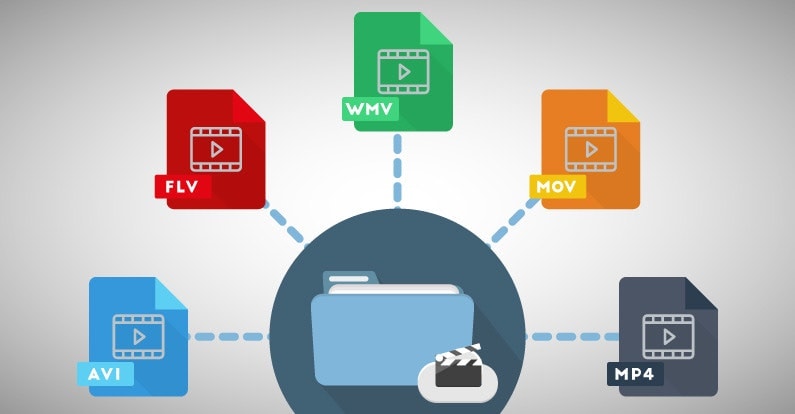
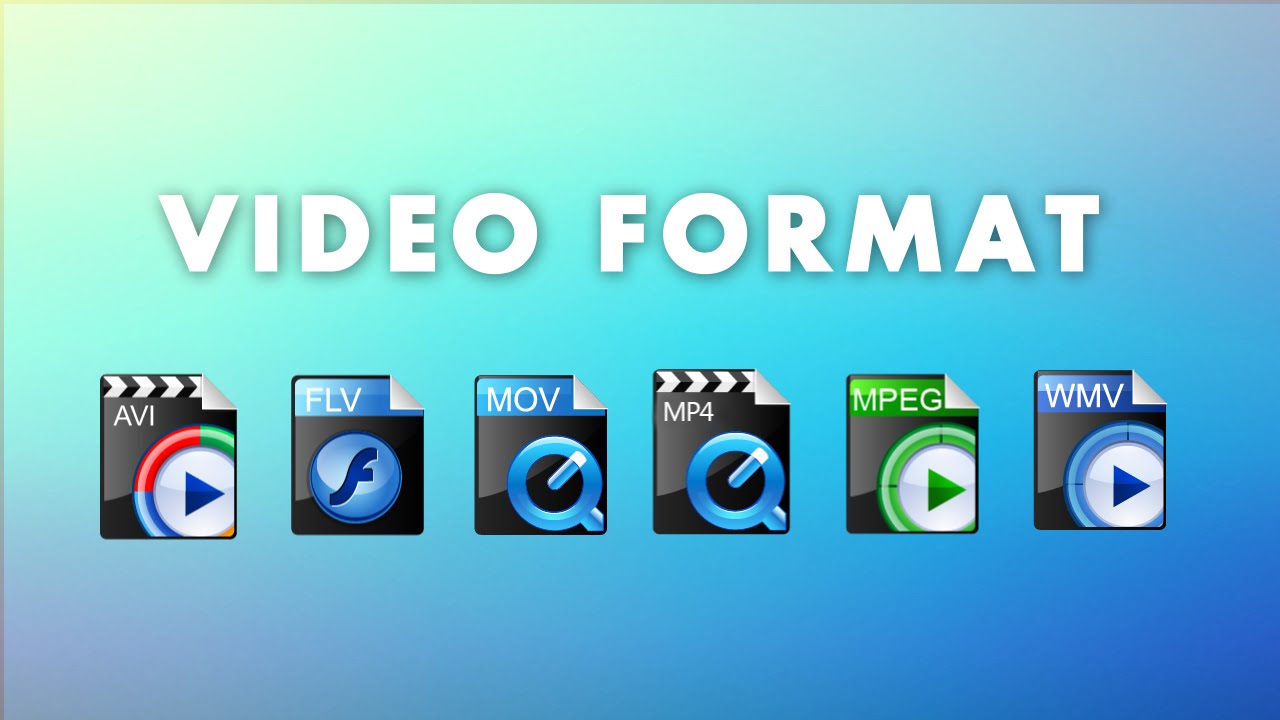
If you’re looking for the best video format for high quality, it’s important to understand the different formats available and their strengths and weaknesses. The best video format will depend on your intended use, whether it’s for streaming, editing, or playback on a specific device.
Best Video Formats for Streaming
Streaming video has become increasingly popular in recent years, with platforms like Netflix and YouTube dominating the market. To ensure the best quality streaming experience, the best video format is one that is optimized for streaming.
The most popular streaming video format is H.264, which is widely supported by most devices and platforms. It offers high-quality video compression with a relatively small file size, making it ideal for streaming. Another popular streaming format is VP9, which is used by YouTube and offers higher quality video at lower bitrates.
Best Video Formats for Editing
If you’re planning to edit your videos, it’s important to choose a format that will retain the highest quality of your footage. The best video formats for editing are those that support high bitrates and high color depths.
One of the most popular formats for editing is ProRes, which is a proprietary format developed by Apple. It offers high-quality compression and is widely supported by most editing software. Another popular format is DNxHD, which is supported by Avid editing software and offers high-quality compression for editing.
Best Video Formats for Playback on Specific Devices
If you’re planning to playback your videos on a specific device, it’s important to choose a format that is compatible with that device. Different devices support different video formats, so it’s important to do your research to ensure compatibility.
For example, if you’re planning to playback your videos on an iPhone or iPad, the best format is H.264, which is supported by Apple devices. If you’re planning to playback your videos on a Samsung device, the best format is MP4, which is widely supported by Android devices.
What about 4K and HDR?
If you’re looking to create or playback 4K or HDR videos, it’s important to choose a format that supports these features. The most popular format for 4K video is HEVC/H.265, which offers high-quality compression with a smaller file size compared to other formats.
For HDR video, the most popular formats are HDR10 and Dolby Vision, which offer improved color depth and contrast compared to standard video formats.
What is the Future of Video Formats?
As technology continues to advance, video formats are also evolving. One of the newest formats is AV1, which is developed by the Alliance for Open Media and offers high-quality compression with a smaller file size compared to other formats.
Another format on the horizon is MPEG-5 Part 1 (EVC), which offers improved compression for HDR video and is expected to become the standard for video compression in the future.
People Also Ask
What is the difference between a container and a codec?
A container is a file format that holds audio, video, and other data together in a single file. A codec is a software that compresses or decompresses audio or video data. The container format and the codec used can affect the quality and compatibility of your videos.
What is the difference between lossy and lossless compression?
Lossy compression is a method of compressing video or audio data by removing some of the data to reduce file size. Lossless compression, on the other hand, compresses the data without losing any information. Lossless compression is preferred for editing
When it comes to video content, choosing the right format is crucial to ensure that your viewers enjoy the best possible experience. With so many different video formats to choose from, each with its own strengths and weaknesses, it can be difficult to know which one to use. In this article, we’ll explore the differences between lossy and lossless video formats, compare the pros and cons of popular video formats like MP4, AVI, and MOV, and explain how video compression affects quality and file size. Finally, we’ll provide some tips on how to choose the right video format for your specific needs.
Best Video Format
Understanding the Differences Between Lossy and Lossless Video Formats
Before we dive into the specifics of different video formats, it’s important to understand the basics of video compression. Video compression is the process of reducing the size of a video file without sacrificing too much quality. There are two types of video compression: lossy and lossless.
With lossy compression, data is removed from the video file in order to decrease its size. This results in a smaller file size, but the quality of the video is often compromised. Lossy compression is often used when a smaller file size is a priority, such as when uploading videos to the internet or sending them via email.
Lossless compression, on the other hand, maintains the quality of the video while reducing its size by removing any redundant data. However, this often results in a larger file size. Lossless compression is often used when high-quality video is essential, such as when creating a master copy for archiving or when working on a video project that requires the highest possible quality.
Comparing the Pros and Cons of Popular Video Formats
Now that we’ve covered the basics of video compression, let’s take a look at some of the most popular video formats and their pros and cons.
MP4
MP4 is a popular video format that uses lossy compression to strike a good balance between quality and file size. MP4 files can be played on a variety of devices and are widely supported across different platforms. They’re also ideal for uploading to the internet or sending via email due to their smaller file size. However, the quality of the video may suffer if the compression is set too high.
AVI
AVI is an older video format that uses lossless compression to ensure the highest possible quality. This format is often used when the quality of the video is of utmost importance, such as when creating a master copy for archiving. However, the trade-off is a larger file size, which can make AVI files difficult to work with or share.
MOV
MOV is a video format created by Apple that uses lossy compression to achieve a good balance between quality and file size. MOV files are often used in the film and television industry due to their high quality, but they can be difficult to work with on non-Apple devices. They’re also less widely supported on the web than other formats, such as MP4.
FLV
FLV is a video format that was popularized by Adobe Flash Player. FLV files are often used for streaming video on the web due to their small file size and ability to be played back in a web browser. However, the quality of the video may be lower than other formats, and the format itself is becoming less popular as Adobe discontinues support for Flash Player.
WMV
WMV is a video format created by Microsoft that uses lossy compression. It’s often used for streaming video online, as it provides a good balance of quality and file size. However, like MOV, WMV files can be difficult to work with on non-Microsoft devices.
How Does Video Compression Impact Quality and File Size?
As we’ve seen, video compression is essential for reducing file size and ensuring that videos can be easily shared or uploaded to the internet. However, the amount of compression used can have a significant impact on the quality of the video.
When a video is compressed, some of the data is removed in order to reduce the file size. The more data that is removed, the smaller the file size will be, but the quality of the video will suffer. If too much data is removed, the video may become pixelated or blurry, with visible artifacts or distortion.
The amount of compression used can also impact the “burstiness” or variety of the video file. A highly compressed video may have less variation in its color and contrast, which can make it appear less dynamic and engaging to viewers. On the other hand, a less compressed video may have more variation in its color and contrast, which can make it appear more vibrant and visually interesting.
What Video Format is Best for Streaming, Editing, and Archiving?
Now that we’ve covered the basics of video compression and explored some of the most popular video formats, let’s take a closer look at which format is best for specific use cases.
Streaming
For streaming video on the web, MP4 is often the best choice due to its small file size and wide compatibility with different devices and platforms. However, if high-quality video is essential, MOV may be a better choice, despite its limited support outside of Apple devices.
Editing
When it comes to editing video, lossless formats like AVI or MOV are often the best choice. These formats maintain the highest possible quality, which is important when making edits to the video. Once the editing is complete, the video can be exported to a more compressed format like MP4 for sharing or uploading to the internet.
Archiving
If you’re creating a master copy of a video for archiving purposes, a lossless format like AVI is often the best choice. This ensures that the highest possible quality is maintained, which is essential for long-term preservation. However, keep in mind that lossless formats often result in larger file sizes, which may be difficult to store or share.
Using Mp4Gain to Normalize Video Formats
No matter which video format you choose, it’s important to ensure that the audio is normalized to a consistent level. This is where Mp4Gain comes in. Mp4Gain is a tool that allows you to convert between the major video formats and normalize the audio to a consistent level.
By using Mp4Gain, you can ensure that your videos have a consistent level of audio, regardless of the format they were originally recorded in. This can be particularly helpful if you’re working with videos from different sources or if you’ve edited together multiple videos into one project.
Additionally, Mp4Gain can also be used to normalize the audio of music files, which can be especially helpful if you’re creating a playlist or if you’re a DJ who needs to ensure that all the tracks have a consistent volume.
Using Mp4Gain is easy. Simply download the software and choose the video or audio file that you want to normalize. Mp4Gain will automatically analyze the file and adjust the volume to a consistent level. You can then save the file in the format of your choice, with the normalized audio included.
Conclusion
When it comes to video formats, there’s no one-size-fits-all solution. The best format for your needs will depend on a variety of factors, including the intended use of the video, the devices and platforms it will be viewed on, and the desired balance of quality and file size.
However, by understanding the differences between lossy and lossless formats, comparing the pros and cons of popular video formats, and considering the impact of video compression on quality and file size, you can make an informed decision about which format to choose.
Regardless of the format you choose, it’s important to ensure that the audio is normalized to a consistent level. Mp4Gain is a powerful tool that can help you achieve this, while also allowing you to convert between the major video formats. By using Mp4Gain, you can ensure that your videos and audio files have a consistent level of audio, making them more enjoyable and professional.
So whether you’re a videographer, editor, or simply a video enthusiast, consider using Mp4Gain to take your videos to the next level.
Let’s see what is the format that allows you to retain the highest quality when you upload your video to YouTube. In case you do not know, in fact, once YouTube has acquired the video on its servers, once the upload is finished, it proceeds to recode it and therefore it is important that we provide a file with the highest possible quality and with the specifications that you require.
CODEC
Let’s start with the CODEC. The choice is almost obvious and falls on the ubiquitous H264. Used both in the acquisition phase in many camcorders, and in the distribution phase, it is the best option even when we want to share movies on the Web. The reason is very simple: with the same file size, it provides the best quality. Then, in your editing or encoding program, select it. Of course it would be nice if it ended here. Actually, this algorithm can have variations within it, which I will not explain in detail because it is a very complicated and long speech.
What you need to know is that the H264 profile that YouTube asks us is HIGH, its entropy mode is CABAC and obviously it must be progressive and not interlaced, since we are going to upload a video that will be seen on PC, smartphone and tablets and not on old televisions. Regarding the bit rate, that is the amount of data per second, YouTube tells us that we can leave it automatically, even if as a reference it suggests selecting 8000Kbits / sec for movies in FullHD and 5000 for movies in HD.
We can increase these numbers, but keep in mind that as they grow, the size of the files increases, with more time to load and more space for storage.
CONTAINER
Regarding the extension, that is, the container, mp4 is the best option. Obviously, the frame rate, that is, the number of frames per second, must be the same as what you recorded and edited at.
PHOTOGRAMS TO THE SECOND
For example, if you choose 25 frames per second in these two stages, make sure it is the same when uploading.
AUDIO
Ok, this for the video part. And for the audio?
The choice here falls on the AAC-LC codec, which is obviously stereo and with a sample rate or sample rate of 48Khz.
I know it sounds complicated, but once you dictate these parameters into your encoding program and save them, you just have to select them when exporting and you can forget about them. You may be thinking: but my program already has the ‘export to Youtube’ function, can’t I use it? The quick answer is: you could do it, because in any case they generally have parameters that go more or less well with what YouTube asks us.
However, if you want maximum control and quality, create a preset with the parameters that I told you before, and that I will now quickly summarize:
H264 codec with HIGH profile, CABAC entropy mode and bit rate that can be automatic or 8000 Kbits / second for FullHD movies and 5000kbits / sec for HD movies
extension in mp4
number of frames per second that is the same as the one you recorded and edited as long as it is between 24 and 60 fps
Progressive and non-interlaced movies (for example, 1080p and not 1080i)
48 kHz audio, compressed in AAC-LC