If you’re looking for the best video format for high quality, it’s important to understand the different formats available and their strengths and weaknesses. The best video format will depend on your intended use, whether it’s for streaming, editing, or playback on a specific device.
Best Video Formats for Streaming
Streaming video has become increasingly popular in recent years, with platforms like Netflix and YouTube dominating the market. To ensure the best quality streaming experience, the best video format is one that is optimized for streaming.
The most popular streaming video format is H.264, which is widely supported by most devices and platforms. It offers high-quality video compression with a relatively small file size, making it ideal for streaming. Another popular streaming format is VP9, which is used by YouTube and offers higher quality video at lower bitrates.
Best Video Formats for Editing
If you’re planning to edit your videos, it’s important to choose a format that will retain the highest quality of your footage. The best video formats for editing are those that support high bitrates and high color depths.
One of the most popular formats for editing is ProRes, which is a proprietary format developed by Apple. It offers high-quality compression and is widely supported by most editing software. Another popular format is DNxHD, which is supported by Avid editing software and offers high-quality compression for editing.
Best Video Formats for Playback on Specific Devices
If you’re planning to playback your videos on a specific device, it’s important to choose a format that is compatible with that device. Different devices support different video formats, so it’s important to do your research to ensure compatibility.
For example, if you’re planning to playback your videos on an iPhone or iPad, the best format is H.264, which is supported by Apple devices. If you’re planning to playback your videos on a Samsung device, the best format is MP4, which is widely supported by Android devices.
What about 4K and HDR?
If you’re looking to create or playback 4K or HDR videos, it’s important to choose a format that supports these features. The most popular format for 4K video is HEVC/H.265, which offers high-quality compression with a smaller file size compared to other formats.
For HDR video, the most popular formats are HDR10 and Dolby Vision, which offer improved color depth and contrast compared to standard video formats.
What is the Future of Video Formats?
As technology continues to advance, video formats are also evolving. One of the newest formats is AV1, which is developed by the Alliance for Open Media and offers high-quality compression with a smaller file size compared to other formats.
Another format on the horizon is MPEG-5 Part 1 (EVC), which offers improved compression for HDR video and is expected to become the standard for video compression in the future.
People Also Ask
What is the difference between a container and a codec?
A container is a file format that holds audio, video, and other data together in a single file. A codec is a software that compresses or decompresses audio or video data. The container format and the codec used can affect the quality and compatibility of your videos.
What is the difference between lossy and lossless compression?
Lossy compression is a method of compressing video or audio data by removing some of the data to reduce file size. Lossless compression, on the other hand, compresses the data without losing any information. Lossless compression is preferred for editing
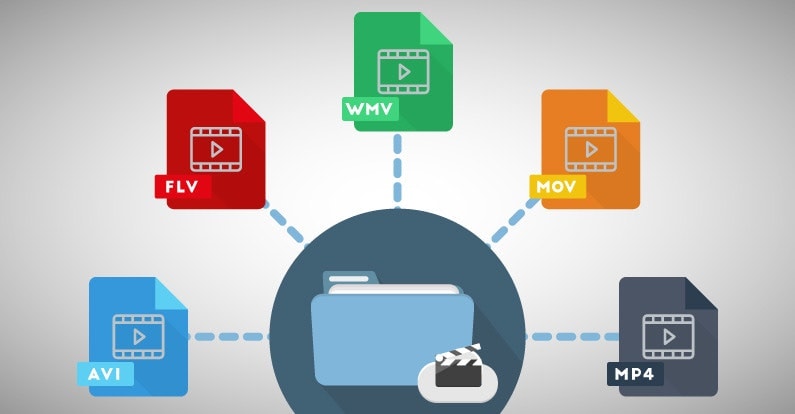
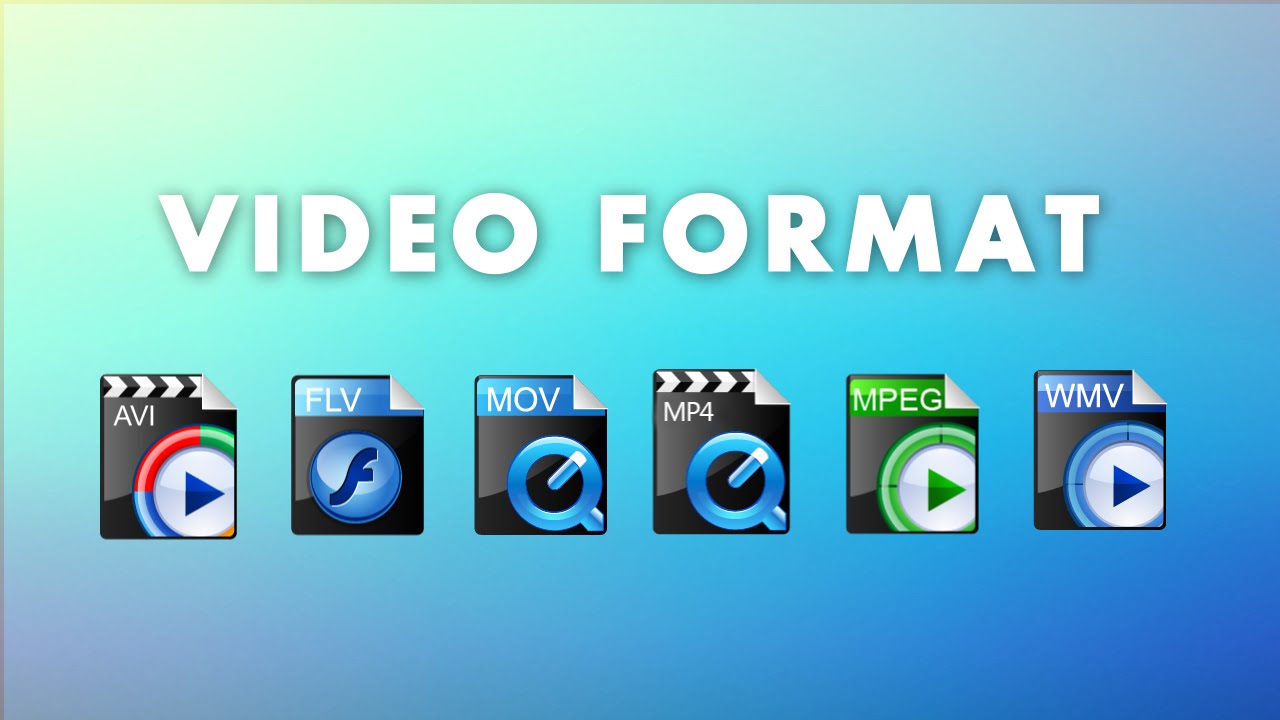
When it comes to video content, choosing the right format is crucial to ensure that your viewers enjoy the best possible experience. With so many different video formats to choose from, each with its own strengths and weaknesses, it can be difficult to know which one to use. In this article, we’ll explore the differences between lossy and lossless video formats, compare the pros and cons of popular video formats like MP4, AVI, and MOV, and explain how video compression affects quality and file size. Finally, we’ll provide some tips on how to choose the right video format for your specific needs.
Best Video Format
Understanding the Differences Between Lossy and Lossless Video Formats
Before we dive into the specifics of different video formats, it’s important to understand the basics of video compression. Video compression is the process of reducing the size of a video file without sacrificing too much quality. There are two types of video compression: lossy and lossless.
With lossy compression, data is removed from the video file in order to decrease its size. This results in a smaller file size, but the quality of the video is often compromised. Lossy compression is often used when a smaller file size is a priority, such as when uploading videos to the internet or sending them via email.
Lossless compression, on the other hand, maintains the quality of the video while reducing its size by removing any redundant data. However, this often results in a larger file size. Lossless compression is often used when high-quality video is essential, such as when creating a master copy for archiving or when working on a video project that requires the highest possible quality.
Comparing the Pros and Cons of Popular Video Formats
Now that we’ve covered the basics of video compression, let’s take a look at some of the most popular video formats and their pros and cons.
MP4
MP4 is a popular video format that uses lossy compression to strike a good balance between quality and file size. MP4 files can be played on a variety of devices and are widely supported across different platforms. They’re also ideal for uploading to the internet or sending via email due to their smaller file size. However, the quality of the video may suffer if the compression is set too high.
AVI
AVI is an older video format that uses lossless compression to ensure the highest possible quality. This format is often used when the quality of the video is of utmost importance, such as when creating a master copy for archiving. However, the trade-off is a larger file size, which can make AVI files difficult to work with or share.
MOV
MOV is a video format created by Apple that uses lossy compression to achieve a good balance between quality and file size. MOV files are often used in the film and television industry due to their high quality, but they can be difficult to work with on non-Apple devices. They’re also less widely supported on the web than other formats, such as MP4.
FLV
FLV is a video format that was popularized by Adobe Flash Player. FLV files are often used for streaming video on the web due to their small file size and ability to be played back in a web browser. However, the quality of the video may be lower than other formats, and the format itself is becoming less popular as Adobe discontinues support for Flash Player.
WMV
WMV is a video format created by Microsoft that uses lossy compression. It’s often used for streaming video online, as it provides a good balance of quality and file size. However, like MOV, WMV files can be difficult to work with on non-Microsoft devices.
How Does Video Compression Impact Quality and File Size?
As we’ve seen, video compression is essential for reducing file size and ensuring that videos can be easily shared or uploaded to the internet. However, the amount of compression used can have a significant impact on the quality of the video.
When a video is compressed, some of the data is removed in order to reduce the file size. The more data that is removed, the smaller the file size will be, but the quality of the video will suffer. If too much data is removed, the video may become pixelated or blurry, with visible artifacts or distortion.
The amount of compression used can also impact the “burstiness” or variety of the video file. A highly compressed video may have less variation in its color and contrast, which can make it appear less dynamic and engaging to viewers. On the other hand, a less compressed video may have more variation in its color and contrast, which can make it appear more vibrant and visually interesting.
What Video Format is Best for Streaming, Editing, and Archiving?
Now that we’ve covered the basics of video compression and explored some of the most popular video formats, let’s take a closer look at which format is best for specific use cases.
Streaming
For streaming video on the web, MP4 is often the best choice due to its small file size and wide compatibility with different devices and platforms. However, if high-quality video is essential, MOV may be a better choice, despite its limited support outside of Apple devices.
Editing
When it comes to editing video, lossless formats like AVI or MOV are often the best choice. These formats maintain the highest possible quality, which is important when making edits to the video. Once the editing is complete, the video can be exported to a more compressed format like MP4 for sharing or uploading to the internet.
Archiving
If you’re creating a master copy of a video for archiving purposes, a lossless format like AVI is often the best choice. This ensures that the highest possible quality is maintained, which is essential for long-term preservation. However, keep in mind that lossless formats often result in larger file sizes, which may be difficult to store or share.
Using Mp4Gain to Normalize Video Formats
No matter which video format you choose, it’s important to ensure that the audio is normalized to a consistent level. This is where Mp4Gain comes in. Mp4Gain is a tool that allows you to convert between the major video formats and normalize the audio to a consistent level.
By using Mp4Gain, you can ensure that your videos have a consistent level of audio, regardless of the format they were originally recorded in. This can be particularly helpful if you’re working with videos from different sources or if you’ve edited together multiple videos into one project.
Additionally, Mp4Gain can also be used to normalize the audio of music files, which can be especially helpful if you’re creating a playlist or if you’re a DJ who needs to ensure that all the tracks have a consistent volume.
Using Mp4Gain is easy. Simply download the software and choose the video or audio file that you want to normalize. Mp4Gain will automatically analyze the file and adjust the volume to a consistent level. You can then save the file in the format of your choice, with the normalized audio included.
Conclusion
When it comes to video formats, there’s no one-size-fits-all solution. The best format for your needs will depend on a variety of factors, including the intended use of the video, the devices and platforms it will be viewed on, and the desired balance of quality and file size.
However, by understanding the differences between lossy and lossless formats, comparing the pros and cons of popular video formats, and considering the impact of video compression on quality and file size, you can make an informed decision about which format to choose.
Regardless of the format you choose, it’s important to ensure that the audio is normalized to a consistent level. Mp4Gain is a powerful tool that can help you achieve this, while also allowing you to convert between the major video formats. By using Mp4Gain, you can ensure that your videos and audio files have a consistent level of audio, making them more enjoyable and professional.
So whether you’re a videographer, editor, or simply a video enthusiast, consider using Mp4Gain to take your videos to the next level.
Google Corporation sets a number of requirements and offers many recommendations on video format, codec, bit rate, and resolution to upload to YouTube servers. Clips should be added in the highest resolution available, ensuring high image quality when viewed on large screens, flexibility when converting or rendering after editing.
Videos intended for rental should have a frame size of at least 1080p (Full HD) and an aspect ratio of 16 to 9, the parameters of most modern monitors. For commercial videos where you plan to insert ads, there are no frame size restrictions. However, you should not upload files with frame sizes below 720p at 16: 9 and 480p at 4: 3. With low quality, users with large monitors will find it uncomfortable to watch video footage, they may miss its content.
It is worth knowing that after downloading the video, YouTube always re-converts the material to optimize the playback quality.
In what format can you upload videos to YouTube?
In search of information on what video format is needed to upload to YouTube, you can re-read dozens of pages of information in articles and forums, and when you try to upload a finished file, you run into a problem. The service will not read it. At the same time, a file of a certain format may be compatible with a video hosting service, but the video codec used to encode it is not. To avoid duplicate work, convert or save your work in the following formats:
The platform does not support pure audio files, even in such common formats as WAV and MP3. If you want to share your own composition or track that does not violate the rights of its owner, convert the audio to MP4 or other format by adding a video sequence in the form of a cover or a series of thematic images. The following types of files can be used as an audio track:
AAC (in a MOV container);
FLAC;
MP3 (included in a WAV container);
PCM (to WAV).
Buy Video Downloader for YouTube (download videos, change video …
The resource administration does not give recommendations on the most suitable format, however, it is advisable to give preference to MP4 due to a number of characteristics of the container. For example, most digital devices write in MP4, many media players are sharp for it, the format has a higher compression ratio than AVI.
Video size (resolution and aspect ratio)
The size of a video to upload to YouTube depends on the way it is viewed: in an Internet browser, an application for the Android or iOS mobile platform, a third-party player, and the format: classic horizontal or vertical, shot on a mobile device. The player for mobile platforms adapts to the dimensions of the video, regardless of its orientation, trying to fill the maximum area of the screen with useful content. In this case, the frame is neither stretched nor compressed.
The YouTube video player window has a length-to-height ratio of 16 to 9. Deviating from the royalties is not recommended; this is a classic format, the most widespread in the world.
When playing videos with different settings, gray or white bars may appear in the corners or at the top and bottom of the screen, depending on the active theme. They will be black in the internet browser. Avoid the appearance of these stripes in the video during recording and eliminate them during editing. They make it more difficult to automatically resize the player window.
VDSLR.RU – Export Premiere video to Vimeo and Youtube without black …
The optimal video size for YouTube in 16: 9 progressive scan is shown in the table. Meeting the requirements will prevent solid color streaks on the sides or below and above the image when viewed on most mobile devices, televisions and monitors.
Height (p) Resolution (px)
2160 3840 x 2160
1440 2560 x 1440
1080 1920 x 1080
720 1280 x 720
480 854 x 480
360 640 x 360
240 426 x 240
It is advisable to take care of the video transmission format (1080p) and MPEG-2 or MPEG-4 for DVD players. The following features ensure that there are no playback issues in any way, regardless of device and platform.
The best format for YouTube videos is Codec. The codec is the part of the software that deals with the encoding and decoding of the information that constitutes the transmission of audio or video. The newer codecs also deal with compression and decompression, and therefore when encoding and decoding signals, they use mathematical algorithms that allow you to save storage space at the expense of quality.
Compression
In video file playback, compression is performed using mathematical functions that reduce the number of frames per second or decrease the resolution of the pixels that make up the image. In audio files, compression is performed by removing the frequencies that are not fully perceptible to the human ear and the number of bits that make up the sound information.
Container
The best option for the extension is mp4. The frame rate should be the same as that recorded and edited. The most common container formats are MKV or AVI.
Video formats
Youtube uses the HD 1080p streaming format and the MPEG-2 steam supports the DVD format and is saved with a .MPG extension. If you can’t send the video in MPEG-2 format, choose the MPEG-4 format.
MPEG-2
Audio codec: MPEG Layer II and Dolby AC-3
Audio Bit Rate: 128Kbps or higher MPEG-4
Video codec: H.264
Audio codec: AAC
Audio Bit Rate: 128Kbps or higher
Minimum audiovisual duration
The minimum duration is 33 seconds, excluding black and static images on the video channel, as well as silence and background noise on the audio channel.
Frame rates
Videos must be at the native frame rate without resampling. As for film originals, a 24fps or 25fps progressive master produces the best results. Frame rates are typically set to 24, 25, or 30 frames per second.
It is not advisable to use resampling techniques as they allow the images to vibrate and often result in poor video quality. Examples: upsampling and transfer like “telecine pulldown”.
Dimensions
Videos must use native aspect ratios, and uploaded videos should never include the black bands of “letterbox” and “pillarbox”. The Youtube player uses frames that allow you to watch videos correctly, without cropped or stretched images.
Video resolution
YouTube would like high definition videos.
For videos intended for sale and rental, you must provide a minimum resolution of 1920 x 1080 with an aspect ratio of 16: 9.
For free or advertising content, YouTube does not require a minimum resolution, but recommends a resolution of at least 1280 x 720 for videos with an aspect ratio of 16: 9 and a resolution of at least 640 x 480 for videos with an aspect ratio. 4: 3.
If the videos are of lower quality, they are not visible to the public on YouTube and are used as a reference for Content ID. These videos generally have a “quarter” resolution, which is 320 x 240. However, the videos must have more than 200 lines to produce effective references.
Bitrate
Bit rates depend on the codec. It is the number of bits per unit of time (attention! We are talking about bits and not bytes), generally measured in KiloBits per second. For the same format, the more information per second, the higher the quality or resolution of the film or audio. Videos should be optimized based on frame rate, aspect ratio, and resolution rather than bitrate.
Wondering what is the best YouTube video format? We see this in this guide!
Hello, Today we’ll see what format you can keep the highest quality when you upload a video to YouTube. If you didn’t know that YouTube captured the video on its servers when it was uploaded, it will be encoded again. It is therefore important that we provide you with the highest quality file with our required specifications.
CODEC
Let’s start with CODEC. The choice is obvious and falls into the ubiquitous H264. It is widely used in both the shooting and distribution stages of many cameras and is the best choice even if we want to share movies online. The reason is very simple: having the same file size, it offers the best quality. Select it in your app to edit or encode. Of course, it would be great if it ended here. In fact, there may be variations in this algorithm that I will not explain in detail because it is a very complex and lengthy language.
What you need to know is that the H264 profile that YouTube requires of us is HIGH, its entropy mode is CABAC, and of course it has to be progressive, not intertwined, because we’ll upload the video, which will be on your computer, smartphone, and on a tablet instead of old TVs. In terms of bit rate, i. Y. The amount of data per second, YouTube tells us that we can leave it automatically, even if it shows that we want to choose 8000 Kbit / s for FullHD movies and 5000 HD movies.
We can increase this number, but keep in mind that as files grow, it will take longer to upload files and there will be more space for archiving.
CONTAINER
For an extension, ie a container, mp4 is the best choice. Obviously, the frame rate, i.e. the number of frames per second, should match the one you captured and edited.
FRAMES PR SECOND
For example, if you select 25 frames per second in these two phases, make sure they are the same when loading.
SOUND QUALTY
Okay, as far as the video part is concerned. What about the sound?
The choice depends on the AAC-LC codec, which is obviously stereo and has a sampling rate or sampling rate of 48 kHz.
I know this may sound complicated, but once you have dictated and saved these settings in your encoder, you just need to select them after export and forget about them. Maybe you think: But my app already has an Export to Youtube feature. I can’t use it? Quick Answer: You can do this, because in any case, they usually have settings that more or less meet YouTube’s needs.
However, for maximum control and quality, create a preset with the parameters I’ve given you before, which I’ll summarize quickly:
-H264 codec with high profile, CABAC entropy mode and bit rate, which can be automatic or 8000 Kbit / s for FullHD movies and 5000 Kbit / s for HD movies
-Extension mp4
– Frame rate per second corresponding to recorded and edited, provided it is between 24 and 60 frames per second
– Progressive and non-interlaced movies (e.g. 1080p instead of 1080i)
-48 kHz audio compressed with AAC-LC