Choosing the Best Video Format for Your Needs
When it comes to video content, choosing the right format is crucial to ensure that your viewers enjoy the best possible experience. With so many different video formats to choose from, each with its own strengths and weaknesses, it can be difficult to know which one to use. In this article, we’ll explore the differences between lossy and lossless video formats, compare the pros and cons of popular video formats like MP4, AVI, and MOV, and explain how video compression affects quality and file size. Finally, we’ll provide some tips on how to choose the right video format for your specific needs.

Understanding the Differences Between Lossy and Lossless Video Formats
Before we dive into the specifics of different video formats, it’s important to understand the basics of video compression. Video compression is the process of reducing the size of a video file without sacrificing too much quality. There are two types of video compression: lossy and lossless.
With lossy compression, data is removed from the video file in order to decrease its size. This results in a smaller file size, but the quality of the video is often compromised. Lossy compression is often used when a smaller file size is a priority, such as when uploading videos to the internet or sending them via email.
Lossless compression, on the other hand, maintains the quality of the video while reducing its size by removing any redundant data. However, this often results in a larger file size. Lossless compression is often used when high-quality video is essential, such as when creating a master copy for archiving or when working on a video project that requires the highest possible quality.
Comparing the Pros and Cons of Popular Video Formats
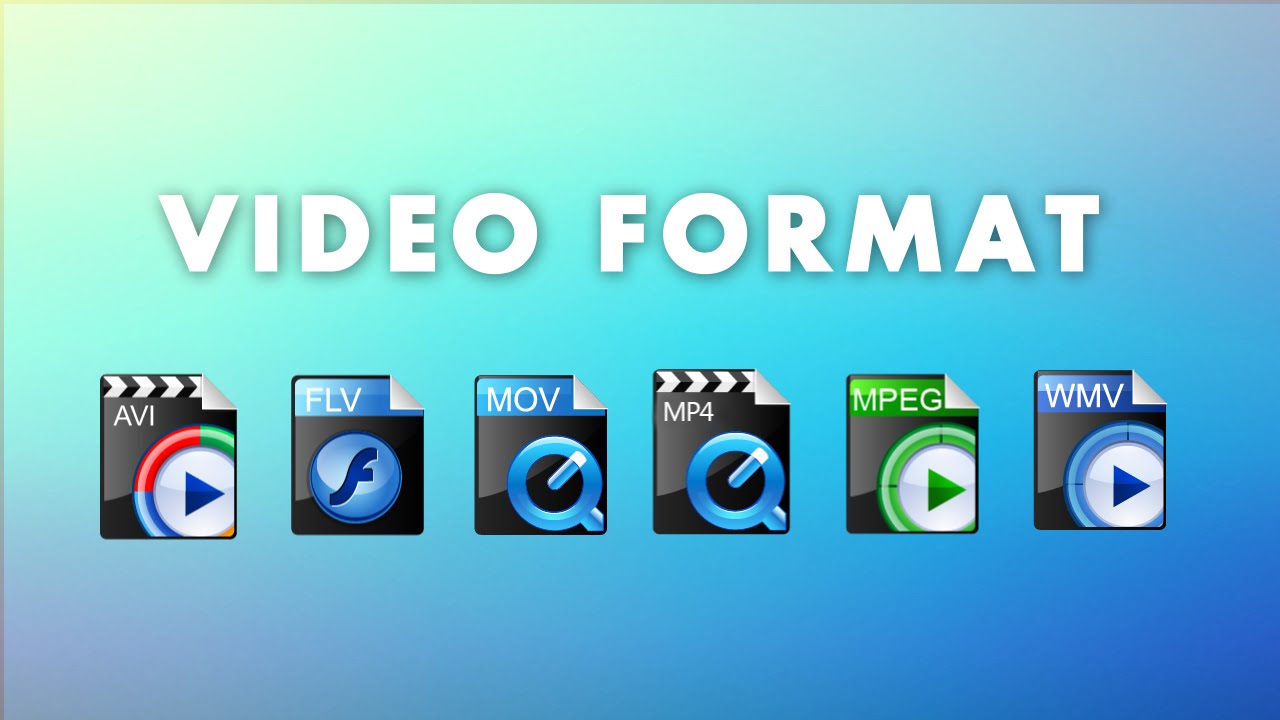
Now that we’ve covered the basics of video compression, let’s take a look at some of the most popular video formats and their pros and cons.
MP4
MP4 is a popular video format that uses lossy compression to strike a good balance between quality and file size. MP4 files can be played on a variety of devices and are widely supported across different platforms. They’re also ideal for uploading to the internet or sending via email due to their smaller file size. However, the quality of the video may suffer if the compression is set too high.
AVI
AVI is an older video format that uses lossless compression to ensure the highest possible quality. This format is often used when the quality of the video is of utmost importance, such as when creating a master copy for archiving. However, the trade-off is a larger file size, which can make AVI files difficult to work with or share.
MOV
MOV is a video format created by Apple that uses lossy compression to achieve a good balance between quality and file size. MOV files are often used in the film and television industry due to their high quality, but they can be difficult to work with on non-Apple devices. They’re also less widely supported on the web than other formats, such as MP4.
FLV
FLV is a video format that was popularized by Adobe Flash Player. FLV files are often used for streaming video on the web due to their small file size and ability to be played back in a web browser. However, the quality of the video may be lower than other formats, and the format itself is becoming less popular as Adobe discontinues support for Flash Player.
WMV
WMV is a video format created by Microsoft that uses lossy compression. It’s often used for streaming video online, as it provides a good balance of quality and file size. However, like MOV, WMV files can be difficult to work with on non-Microsoft devices.
How Does Video Compression Impact Quality and File Size?
As we’ve seen, video compression is essential for reducing file size and ensuring that videos can be easily shared or uploaded to the internet. However, the amount of compression used can have a significant impact on the quality of the video.
When a video is compressed, some of the data is removed in order to reduce the file size. The more data that is removed, the smaller the file size will be, but the quality of the video will suffer. If too much data is removed, the video may become pixelated or blurry, with visible artifacts or distortion.
The amount of compression used can also impact the “burstiness” or variety of the video file. A highly compressed video may have less variation in its color and contrast, which can make it appear less dynamic and engaging to viewers. On the other hand, a less compressed video may have more variation in its color and contrast, which can make it appear more vibrant and visually interesting.
What Video Format is Best for Streaming, Editing, and Archiving?
Now that we’ve covered the basics of video compression and explored some of the most popular video formats, let’s take a closer look at which format is best for specific use cases.
Streaming
For streaming video on the web, MP4 is often the best choice due to its small file size and wide compatibility with different devices and platforms. However, if high-quality video is essential, MOV may be a better choice, despite its limited support outside of Apple devices.
Editing
When it comes to editing video, lossless formats like AVI or MOV are often the best choice. These formats maintain the highest possible quality, which is important when making edits to the video. Once the editing is complete, the video can be exported to a more compressed format like MP4 for sharing or uploading to the internet.
Archiving
If you’re creating a master copy of a video for archiving purposes, a lossless format like AVI is often the best choice. This ensures that the highest possible quality is maintained, which is essential for long-term preservation. However, keep in mind that lossless formats often result in larger file sizes, which may be difficult to store or share.
Using Mp4Gain to Normalize Video Formats
No matter which video format you choose, it’s important to ensure that the audio is normalized to a consistent level. This is where Mp4Gain comes in. Mp4Gain is a tool that allows you to convert between the major video formats and normalize the audio to a consistent level.
By using Mp4Gain, you can ensure that your videos have a consistent level of audio, regardless of the format they were originally recorded in. This can be particularly helpful if you’re working with videos from different sources or if you’ve edited together multiple videos into one project.
Additionally, Mp4Gain can also be used to normalize the audio of music files, which can be especially helpful if you’re creating a playlist or if you’re a DJ who needs to ensure that all the tracks have a consistent volume.
Using Mp4Gain is easy. Simply download the software and choose the video or audio file that you want to normalize. Mp4Gain will automatically analyze the file and adjust the volume to a consistent level. You can then save the file in the format of your choice, with the normalized audio included.
Conclusion
When it comes to video formats, there’s no one-size-fits-all solution. The best format for your needs will depend on a variety of factors, including the intended use of the video, the devices and platforms it will be viewed on, and the desired balance of quality and file size.
However, by understanding the differences between lossy and lossless formats, comparing the pros and cons of popular video formats, and considering the impact of video compression on quality and file size, you can make an informed decision about which format to choose.
Regardless of the format you choose, it’s important to ensure that the audio is normalized to a consistent level. Mp4Gain is a powerful tool that can help you achieve this, while also allowing you to convert between the major video formats. By using Mp4Gain, you can ensure that your videos and audio files have a consistent level of audio, making them more enjoyable and professional.
So whether you’re a videographer, editor, or simply a video enthusiast, consider using Mp4Gain to take your videos to the next level.