Perceptual Entropy in MP3 Compression


Free Download Mp4Gain
picture

Perceptual Entropy in MP3 Compression
Perceptual Entropy in MP3 Compression

Let’s talk about perceptual entropy in MP3 compression

When we think of compressing audio files, the concept of perceptual entropy often comes up. In simple terms, perceptual entropy is the key to making MP3 files smaller without making them sound lower in quality. As a specialist in audio technology, I’ve spent years examining how different methods can reduce file size while keeping what the listener actually hears intact. Perceptual entropy is central to that process because it helps us decide what data is essential and what isn’t. Let’s dive into the science behind perceptual entropy in MP3s, and I’ll show you how it all works, using some real-life examples to make it easier to understand.

What is perceptual entropy?

Perceptual entropy is a measure of how complex or unpredictable an audio signal is to the human ear. It’s like understanding which parts of a song your brain considers crucial and which it doesn’t mind losing in compression. In the world of audio engineering, we refer to this as perceptual coding, a technique that allows us to remove certain parts of an audio signal that are less noticeable. The MP3 format uses this principle extensively, focusing on parts of the audio that the human ear is sensitive to while discarding less crucial data. This is why an MP3 can be much smaller in size yet still sound almost identical to the original recording.

How does perceptual entropy impact MP3 compression?

The role of perceptual entropy in MP3 compression is all about making smart choices. Imagine you’re packing for a trip but have limited luggage space. You’ll prioritize essentials over less-needed items. Similarly, perceptual entropy allows MP3 compression algorithms to determine which audio elements should stay and which can go. This focus on essential audio content lets us create smaller files without sacrificing perceived quality, a process made possible by decades of research into how our ears and brains process sound.

Why does perceptual entropy matter to listeners?

Perceptual entropy is crucial because it directly affects how we experience sound. When you listen to an MP3, perceptual entropy is why you still hear most details despite heavy compression. Without this concept, audio files would either be too large to store easily or sound hollow and distorted after compression. As someone who works with audio files daily, I can attest that perceptual entropy lets us enjoy high-quality audio while using minimal storage space, a huge win for consumers and professionals alike.

The role of psychoacoustics in perceptual entropy

Psychoacoustics is the study of how we perceive sound, and it’s the science behind perceptual entropy. Our ears don’t hear every frequency equally; some are more noticeable than others. For instance, a whisper in a quiet room is clear, but it would be lost in a noisy crowd. This concept applies to MP3 compression. By understanding psychoacoustics, we can identify parts of audio that the brain will ignore or mask in favor of other sounds. This approach allows us to apply perceptual entropy principles, reducing the data we need to store while maintaining audio quality.

Examples of perceptual masking in everyday life

Perceptual masking is something we experience daily. Think about driving in traffic with the radio on. While you might hear the music, the car horns and engine noises in the background don’t affect your ability to understand the song. Perceptual entropy relies on this same masking effect to compress audio files. By removing sounds that are masked by louder or more prominent sounds, MP3 files become more manageable without losing important audio details. This technique is the cornerstone of how MP3s achieve efficient, high-quality compression.

How MP3 compression algorithms use perceptual entropy

MP3 compression algorithms, such as those based on the Layer 3 format, leverage perceptual entropy by dividing audio data into critical and non-critical components. When encoding a file, the algorithm focuses on the parts that carry the most perceptual weight, ignoring data the ear is less likely to notice. This step-by-step filtering process allows the MP3 to retain audio fidelity while keeping file size minimal. From my experience working with MP3s, understanding how these algorithms work has been invaluable in optimizing both storage and sound quality.

The balance between file size and sound quality

Finding a balance between file size and sound quality is a challenge that perceptual entropy addresses. As we compress an audio file, there’s always a risk of degrading its quality. However, by focusing on perceptual entropy, MP3 technology allows us to keep the parts of audio that matter most while trimming away excess. The result is a smaller, high-quality audio file that meets both storage and listening standards. For anyone who’s ever struggled with storage space but still wants great sound, perceptual entropy is the hero behind the scenes making that possible.

Challenges and limitations of perceptual entropy in MP3s

Despite its benefits, perceptual entropy has limitations, especially when it comes to complex sounds like orchestras or high-definition audio. With very intricate music, some nuances can be lost because the algorithm may discard data deemed “unimportant.” As an audio expert, I’ve seen how this can sometimes result in a slightly artificial sound when listening closely. However, most listeners rarely notice these changes, proving that perceptual entropy is highly effective in everyday audio scenarios, though not flawless.

Comparing perceptual entropy in MP3 vs. other audio formats

While MP3 is the most well-known format that uses perceptual entropy, other formats like AAC and OGG Vorbis also rely on similar principles. However, each format applies perceptual entropy differently. In my experience, AAC generally provides better sound quality at similar bitrates, while OGG Vorbis offers more flexibility for open-source projects. Comparing these formats helps us appreciate the unique strengths and weaknesses of MP3 compression. Understanding these differences is essential for selecting the right format for specific needs.

Applications of perceptual entropy beyond MP3s

Perceptual entropy is not exclusive to MP3s; it also applies to video and image compression. For example, in JPEG images, certain colors or details that are less noticeable to the human eye can be removed without affecting the perceived quality. In video compression, perceptual entropy helps reduce data by focusing on high-visibility frames while discarding redundant or low-impact pixels. This cross-media application shows how powerful perceptual entropy is in digital media, making it an essential concept across various types of files beyond just audio.

Latest words on perceptual entropy in MP3 compression

Perceptual entropy revolutionizes how we experience digital audio, enabling us to store and share music with minimal data loss. MP3 compression is all about balancing sound quality with file size, and perceptual entropy is the science that makes it happen. By focusing on the sounds that matter most to our ears, we get smaller files that still deliver excellent audio quality. Whether we’re saving space on our devices or streaming online, perceptual entropy continues to shape the way we enjoy digital sound. For those who want a reliable solution for enhancing and normalizing their MP3s, Mp4Gain offers a great tool to fine-tune audio without compromising quality, allowing even better use of the principles behind perceptual entropy.

Comments:

JamesV45: Wow, this article is exactly what I needed! I’ve always wondered how MP3s manage to stay small but still sound great. Now I know perceptual entropy is the reason behind it. Thanks for such an in-depth explanation!

SoundGeek29: This really cleared up a lot of things for me. I always thought compressing audio would ruin the quality, but now I see how the tech makes it work. Really appreciate the details and the examples, made it super easy to get.

AudioFanatic: Amazing article, but I’d love to see more about how other formats like FLAC compare. This got me thinking about what format is really the best. Thanks!

M4db3atz: Man, this is a goldmine of info. So many people don’t even know what perceptual entropy is. Thanks for explaining it in a way even non-audio folks can understand. Keep it up!

SarahJ: I feel like I actually understand MP3s better now. I didn’t know there was so much science behind it, but it makes sense now why MP3s don’t sound bad even when compressed. Appreciate the clear explanations!

DigitalListener: The examples made this so much easier to get. Never thought of perceptual entropy this way. I wish more articles explained it like this. Thanks a ton!

Lucas_P: I agree with everyone, this article is top-notch! I’m no expert, but now I feel like I actually understand what makes MP3s work. Great job making a complex topic easy to understand.

MikeSoundTech: I’m working with sound files all the time, and this article just made so much sense to me. The perceptual entropy concept explains so much about why MP3s are still relevant. Would be interested to see more about how this applies to other file types, though.

AnnaTheAudioNerd: This was awesome to read! I’ve always felt like audio compression was kind of a mystery, but now I feel like I get it. The real-life examples helped a lot. Wish there was even more detail, though!

JohnnyT: Dang, never thought I’d find myself reading a whole article about perceptual entropy, but this was actually really interesting. Learned a ton. Thanks for keeping it simple!

ZenSound: This article is spot on! Perceptual entropy is such an overlooked part of compression. The science behind MP3s really comes alive here. Thanks for such a thorough breakdown.

AudioKing87: Loved it! Now I can explain to my friends why MP3s don’t sound bad even when they’re super small. Thanks for putting this in plain language!

NickLoud: Interesting read! I’d heard of perceptual coding before, but this gave me a way better understanding of how it works with MP3s. Makes me want to learn even more about audio compression.

SweetSoundWave: Honestly, this is one of the best articles on audio compression I’ve come across. It’s clear, detailed, and actually useful. More articles like this, please!

Jenna_M: Thanks for writing this up! I’m doing a project on audio formats, and this article is exactly what I needed. The section on psychoacoustics and perceptual entropy was especially helpful!


Free Download Mp4Gain
picture


Mp4Gain Main Window
picture


Mp4Gain Features
picture


Free Download Mp4Gain
picture

Video Compression in MP4 Containers

Video Compression in MP4 Containers

Video Compression in MP4 Containers

Let’s Talk About Video Compression in MP4 Containers

Understanding video compression within MP4 containers opens up a world of efficient video storage and high-quality playback. If you’ve ever watched videos online or saved space on your phone by compressing files, you’ve encountered video compression in action. My goal here is to clarify what video compression does within MP4 files, why it’s used across devices, and how it balances quality and file size. Think of it as the perfect tool for squeezing a massive video into a manageable size without losing that crisp, clear image you want.

So, let’s dive into the how, what, and why of video compression in MP4 containers, covering the technical details and sharing insights from real-world applications. By the end, you’ll know why MP4 is the top choice for video format, how it compresses videos, and why it’s so efficient. I’ll also share some practical examples to make it easy to understand.

What is Video Compression, and Why is it Essential?

Video compression is like folding a large map into a small, pocket-sized square. You’re shrinking the original content to save space while keeping the important parts intact. In video terms, compression allows large video files to fit into the smaller storage spaces of our devices, making them easier to download, store, and stream. When you compress a video, you’re balancing between file size and quality, which means a well-compressed video still looks sharp and clear without hogging too much space.

Most of us don’t realize it, but compression plays a huge role every time we watch videos on platforms like YouTube or Netflix. Without it, high-quality video would need massive amounts of data and storage. Thanks to compression, we can access these videos smoothly, even on lower data speeds. With MP4 files, compression becomes efficient and universal, working across different devices and keeping video quality high while reducing space.

How Does Video Compression Work in an MP4 Container?

Compression within an MP4 container is a clever process that removes unnecessary information from each video frame, keeping only what’s essential to maintain visual quality. The MP4 format is incredibly popular because it efficiently holds compressed video and audio data. To make this possible, an MP4 file uses codecs, or “coders-decoders,” that encode (compress) and decode (play back) video and audio.

Most MP4 files use codecs like H.264 or H.265, which are standards in video compression technology. Think of these codecs as high-tech filters that decide which parts of the video need to be kept and which parts can be simplified or removed. By simplifying certain visual details, the codec reduces the amount of data stored, making the file size smaller without visible quality loss to the human eye. This process ensures that when you play back the video, the device knows exactly how to reconstruct those compressed frames accurately.

Advantages of Using MP4 for Video Compression

There are many reasons why MP4 is the industry standard for video storage and streaming. For starters, MP4 offers exceptional compatibility with nearly all devices—phones, tablets, smart TVs, computers—making it the go-to format. This means you can download, upload, or share MP4 videos without worrying about compatibility issues. I like to think of MP4 as a universal “language” for video that any device can understand.

Another great advantage is that MP4 compresses videos effectively, maintaining high quality at lower file sizes. This efficiency makes MP4 perfect for high-resolution video, especially when sharing or streaming, without hogging bandwidth. MP4 files are also flexible; they can handle different resolutions, from low to ultra-high-definition, adapting well to both older devices and the latest 4K screens.

Types of Compression: Lossless vs. Lossy in MP4 Videos

In the world of video compression, there are two main types: lossless and lossy compression. These two methods work differently, each with its own strengths and best use cases. When compressing MP4 files, you might be using one or the other, depending on the balance between quality and file size you need.

Lossless Compression
Lossless compression is like storing a folded piece of paper without making any permanent changes. This method keeps every bit of original data, meaning no quality is lost, but the file size remains relatively large. If you’re archiving high-quality videos or working in professional video production, you might use lossless compression to preserve every pixel.

Lossy Compression
On the other hand, lossy compression sacrifices some data to achieve a much smaller file size. By removing details that aren’t easily noticeable, lossy compression maintains a high-quality appearance without all the original data. This type is commonly used in MP4 files, especially for streaming or sharing videos online, where file size matters more than absolute quality.

Techniques Used in MP4 Video Compression

MP4 video compression uses several key techniques to balance file size and quality effectively. Understanding these methods helps explain why MP4 performs so well. One major approach is intra-frame compression, which compresses each frame individually. It’s similar to reducing a single photo’s size without considering what comes before or after it. This method is used when the video needs high quality, like in professional video editing.

Another technique, inter-frame compression, looks at groups of frames, only saving changes from one frame to the next. For example, in a scene where only the background changes, inter-frame compression saves data on that background, avoiding duplication. This type of compression dramatically reduces file sizes and works particularly well for video playback and streaming. Together, these techniques ensure MP4 files are both compact and high-quality, able to store data efficiently without sacrificing much of what the eye sees.

Challenges in Video Compression and How to Overcome Them

Video compression in MP4 containers has some common challenges, often involving the balance between quality and file size. Compressing too much can cause visible artifacts, like blurring or pixelation, especially in fast-motion scenes. You may have noticed these issues when watching videos with poor resolution, where the image looks distorted or blocky.

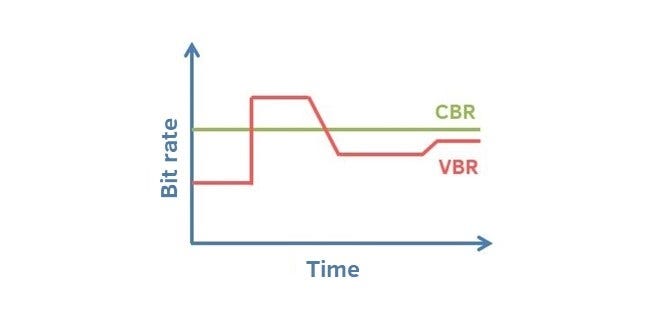
One way to tackle these problems is by choosing the correct codec settings, like adjusting the bit rate. The bit rate determines how much data is allocated per second of video; a higher bit rate generally keeps quality high but increases file size. When I work with MP4 compression, I adjust the bit rate based on my needs, lowering it for online videos where file size matters and increasing it for higher-quality videos. Additionally, using variable bit rates (VBR) instead of fixed bit rates (CBR) can help manage these trade-offs by allowing more data for complex scenes and less for simpler ones. This dynamic adjustment ensures that both quality and size are optimized.

Balancing Quality and Compression in MP4 Files

Achieving the perfect balance between quality and compression in MP4 videos requires fine-tuning based on the intended use. If you’re compressing videos for personal storage, prioritizing quality with a moderate level of compression often works best. For web streaming, reducing the file size significantly can be more important than preserving every visual detail. I often choose settings based on where the video will be used, opting for higher compression for online videos and lower compression for high-definition display.

Experimenting with settings like resolution, frame rate, and bit rate can also influence the final file size. Lowering the resolution or frame rate reduces file size, but it can make the video less smooth or detailed. For instance, reducing a video’s resolution from 1080p to 720p lowers file size and compression requirements, making it ideal for web videos without noticeable quality loss. On the other hand, maintaining high frame rates and resolution for action-heavy videos ensures clarity, especially when watched on larger screens.

Choosing the Right Settings for Different Uses

When deciding on the best compression settings, it’s essential to consider where the video will be viewed. For example, a video meant for social media may prioritize smaller file sizes over perfect clarity, while a video for a professional presentation might demand higher quality. Here’s how I break it down:

  • Web Streaming: Medium to high compression to reduce buffering.
  • Social Media Sharing: High compression for quicker uploads and downloads.
  • Professional Video: Minimal compression to maintain top quality.

These practical settings help balance quality with usability, making MP4 a versatile choice for any purpose.

Latest Words on Video Compression in MP4 Containers

Video compression within MP4 containers is an essential tool for creating efficient, high-quality video files. By using techniques like intra-frame and inter-frame compression, adjusting bit rates, and choosing the right settings, we can maintain excellent visual quality while reducing file sizes for easy sharing and storage. For everyday use, MP4 is an ideal choice, providing compatibility, compression, and quality in a single, versatile format. Whether you’re watching a movie on your phone or sharing videos on social media, MP4 makes the experience seamless and efficient.

For those seeking a reliable tool to optimize their MP4 videos, Mp4Gain offers an effective solution for handling compression while preserving quality. It’s designed to simplify the balance between quality and file size, making it easy to store, share, and stream video without compromising on clarity.

Comments:

JohnDoe99: Really great article! I’ve always wondered how video compression works, especially in MP4s. This explained it so clearly. Thanks for the tips on bit rate settings, that was super helpful.

VideoGuru88: I use MP4 all the time but didn’t know about intra-frame vs. inter-frame compression. Makes sense now why some videos look better on my phone! Great read!

TechSavvyChris: Wish there was even more detail on how to adjust settings for different devices. But otherwise, this covered so much! Definitely saving this one.

PixelPusher22: The section on challenges is so relatable. I always get frustrated with artifacts in compressed videos. Thanks for breaking down how to avoid them!

CamcoderGal: This helped a ton with my YouTube uploads. I finally understand bit rate and why some videos look pixelated. Loved the easy explanations!

HappyViewer123: Never realized there was so much behind video compression! I always just clicked ‘compress’. Thanks for the info, really cool stuff!

GoGetEmVideoFan: Super insightful article! The tips about choosing the right compression based on where the video will be used is exactly what I needed.

VideoEditorPro: Nicely done! Appreciate the balance between technical detail and readability. Wish I’d read this sooner.

SocMediaBuff: Very helpful for making social media videos look good without using up all my data. Learned a lot about codec settings, so thanks!

TechyMike: Just tried Mp4Gain and found it super easy to use. Great tip at the end!

StaceyVids: I liked this article but would have loved to see a bit more about lossy vs. lossless. Still, really informative and helped clear up a lot of confusion!

CompressionFan23: This article hit all the right points. I’m a bit of a compression geek, and this added to my knowledge. Thanks!

HDMovieMaker: I didn’t realize MP4 was so flexible. Really useful for keeping high quality without big files. Appreciate the insight!

JonTheEditor: This was so interesting. Made me rethink how I approach compression in my own projects. Thanks for the practical advice.

VideoFan2020: This was an eye-opener! I thought compression just meant losing quality, but this showed me there’s a lot more to it. Kudos for a well-written piece!


https://mx.pinterest.com/pin/1088041591224461968
https://mx.pinterest.com/pin/1090011916061424096
https://www.tumblr.com/mp3-mp4/765443525138644992/video-compression-in-mp4-containers-mp4gaincom

Bitrate Part 2

Bitrate Part 2

bitrate

The amount of information transmitted through the channel per unit of time is called the bit rate, and the unit is bits per second (bit/s), called the bit rate.

BITRATE

Bitrate is often used in communications as a synonym for connection speed, transmission speed, channel capacity, peak throughput, and digital bandwidth capacity. The higher the bit rate, the higher the data transfer. Bit rate in video refers to the sampling rate at which an analog signal is converted to a digital signal [4] . Video file quality is often measured in terms of bitrate. [4] .
Distinction of conceptedit transmission
Baud rate is also known as waveform rate or modulation rate. The code for a data unit is represented by a finite combination of numbers, each of which is a symbol (or code point). In electrical communication, an electrical waveform is often used to represent one or more symbols. Waveforms with different characteristics may represent different symbol values ​​or symbol combination values, and the duration of the waveform corresponds to the duration of the symbol or symbol combination it represents. Obviously, the shorter the duration of an electrical waveform, the more waveforms are transmitted in a unit of time, or the more data is transmitted, that is, the higher the data rate. Therefore, we can define the baud rate as follows: In the process of data transmission, the number of waveforms transmitted per unit time on the line is the baud rate, and its unit is “baud” [5] .
“Bit rate” and “baud rate” are speed units defined in two different concepts, and it is often easy to confuse them when you are not careful. When binary waveform is used, baud rate and bit rate have the same value, but their meanings are different [5] .
Difference: Both bit rate and baud rate are units that measure the transmission rate of a modem. In data transmission, data information is represented by binary numbers “0” and “1”, and each binary number is called 1 bit. The number of bits transmitted through the channel per unit of time is called the bit rate, expressed in bits per second, usually abbreviated as bit/s. The number of symbols transmitted through the channel per unit of time is called the baud rate, also called the modulation rate. Bit rate and baud rate are consistent only when modulated with two values. For example, in quadrature modulation, every two bits of the data signal form a symbol, and there are 4 values: 00, 01, 10 and 11, which represent the phase changes of the 4 types of carrier signals respectively, for Therefore, send such a symbol. It is equivalent to transmitting two bits of data, and the baud rate is equivalent to half the bit rate. The usual transmission rates of 300, 600, 1200 and 9600, etc., refer to the baud rate, which indicates that the number of binary numbers transmitted per unit of time is 300, 600, 1200 and 9600 [6] .

Bit rate

Bit rate

Bitrate

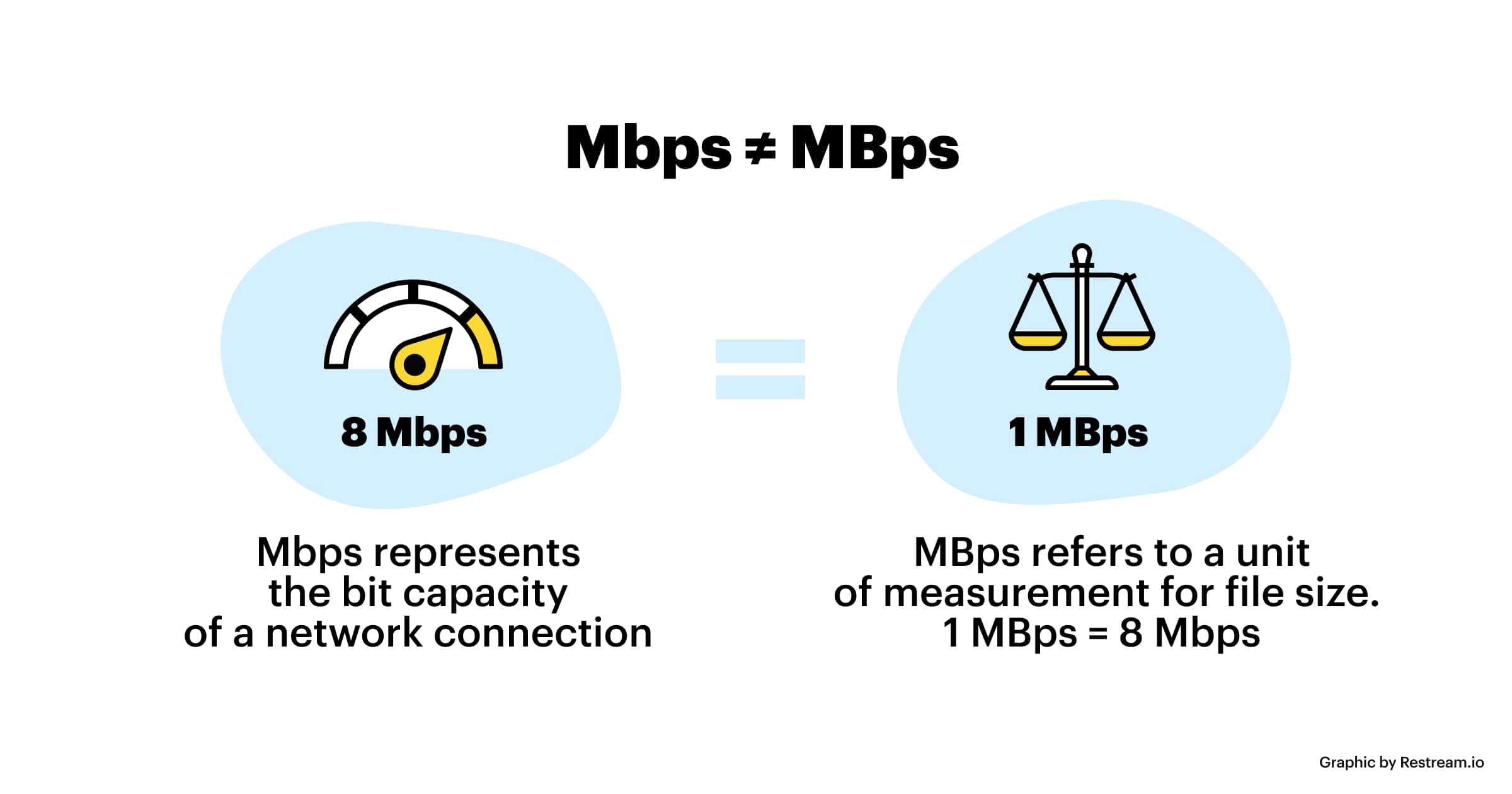
Bit rate refers to the number of bits (bit) transmitted per unit of time, in bps (bit per second).

bit rate

Bit rate is also known as “binary bit rate”, commonly known as “code rate”. Indicates the number of bits transmitted per unit of time. It is used to measure the transmission speed of digital information, often written as bit/sec. According to the number of bits occupied by each image storage frame and the transmission bit rate, the digital image information transmission speed can be calculated [1].
In modern digital communication, the transmission volume of digitized video and other information is large, so it is often measured in kilobits per second or megabits per second, which are written as kbit/sec (or kbps) and Mbit/sec. (or Mbps respectively). ). For example, the amount of information digitized from an ordinary color TV signal can reach 216 Mbit/sec. A good digital broadcast channel can transmit dozens of color TV programs, and its capacity can reach several gigabits or gigabits per second (written as Gbit/sec or Gbps) [1] .
Bitrate is often used to measure the quality of video files.
flexibility edit stream
Because each network is unique and each access line has different conditions (such as length, attenuation, crosstalk environment, etc.), access lines from different telephone companies must support different data rates. For ADSL and VDSL modems, it is best to set the data rate to one of many possible data rates. For example, DMT-based ADSL and VDSL can theoretically change the tariff at fine intervals, and CAP-based RADSL (Rate Adaptive ADSL) also provides some flexibility in tariff configuration [2].
However, telephone companies may want to limit xDSL service to a small set of rates sufficient to provide a variety of services. If a limited set of tariffs can be adapted to a wide range of services, then the management of the services in this case is simpler than in the case of variable tariffs. Telephone companies want the choice of modem speed to be under the control of the network, not the user [2] .
In this mode, the selection of the transmission rate set of the xDSL network must be prudent. In this case, there is a possibility that two adjacent systems receive traffic at very different rates and the system must be able to handle such a situation. The other model, the “best match” approach using adaptive rate ADSL (similar to a voiceband modem), is more beneficial to new network operators and Internet Service Providers (ISPs) [2] .
Transmission control method
Most bit rate control schemes consist of two parts. Part of the encoded bit stream output by the encoder is fed into a buffer. For a constant bitrate channel, the data in the buffer is fetched at a constant rate, and if the buffer is large enough, the bitrate variation caused by the MPEG picture type, etc. can be smoothed out. This is necessary for both constant bit rate transmission and variable bit rate transmission in general. However, in practice, the buffer size is always limited. The buffering process will bring a delay to the system, and this delay is proportional to the size of the buffer. Latency is often a serious issue for real-time image communication, so buffers should be kept as small as possible. That is, long-term fluctuations in bitrate due to changes in scene content or changes, etc. they cannot be softened in this way, so another part is needed. This is to send some measure of the output bitrate to the encoder to control the encoding process, thus changing the output bitrate [3] .

Sample rate and bit rate of MP3 Part 2

Sample rate and bit rate of MP3 Part 2

BIT RATE

The number of digits in the sound is equivalent to the number of colors on the screen, indicating the amount of data per sample.

bit rate

Of course, the larger the amount of data, the more accurate the playback sound, so as not to confuse the sound. of the teapot with the train whistle. In the same way, it is more clear and precise for the image, so as not to confuse blood and ketchup. [However, limited by the function of human organs, 16-bit sound and 24-bit image are basically the limits of ordinary humans, and the higher digits can only be distinguished by instruments. For example, the phone has 7-bit sound sampled at 3 kHz and the CD has 16-bit sound sampled at 44.1 kHz, so the CD is clearer than the phone. ]

When you understand the above two concepts, bitrate is easy to understand. Take the phone as an example, 3000 samples per second, each sample is 7 bits, then the phone’s bit rate is 21000. And the CD is 44100 samples per second, two channels, each sample is 13 bit PCM encoded, so the CD bit rate is 44100*2*13=1146600, which means the CD data volume per second is about 144KB. the capacity of a CD is 74 minutes equal to 4440 seconds, which is 639360KB=640MB.

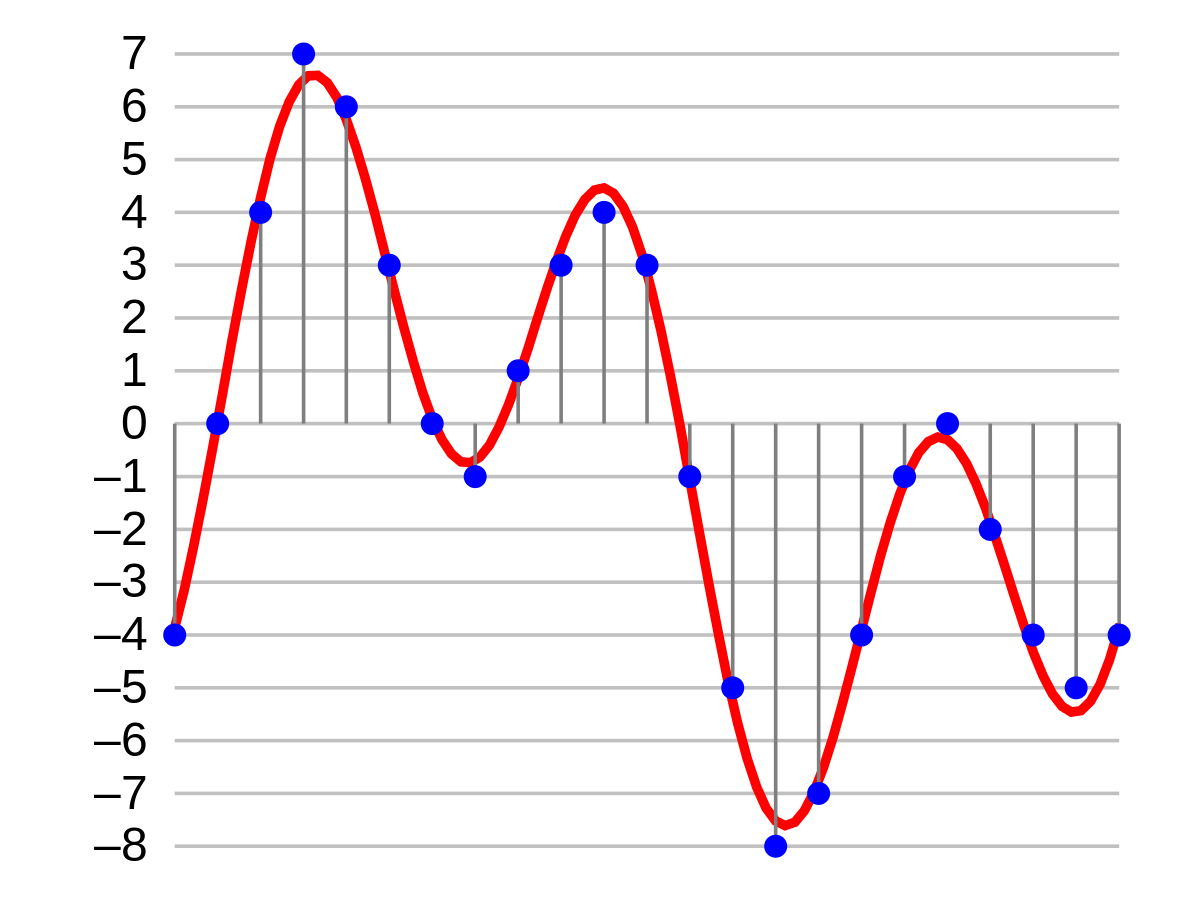
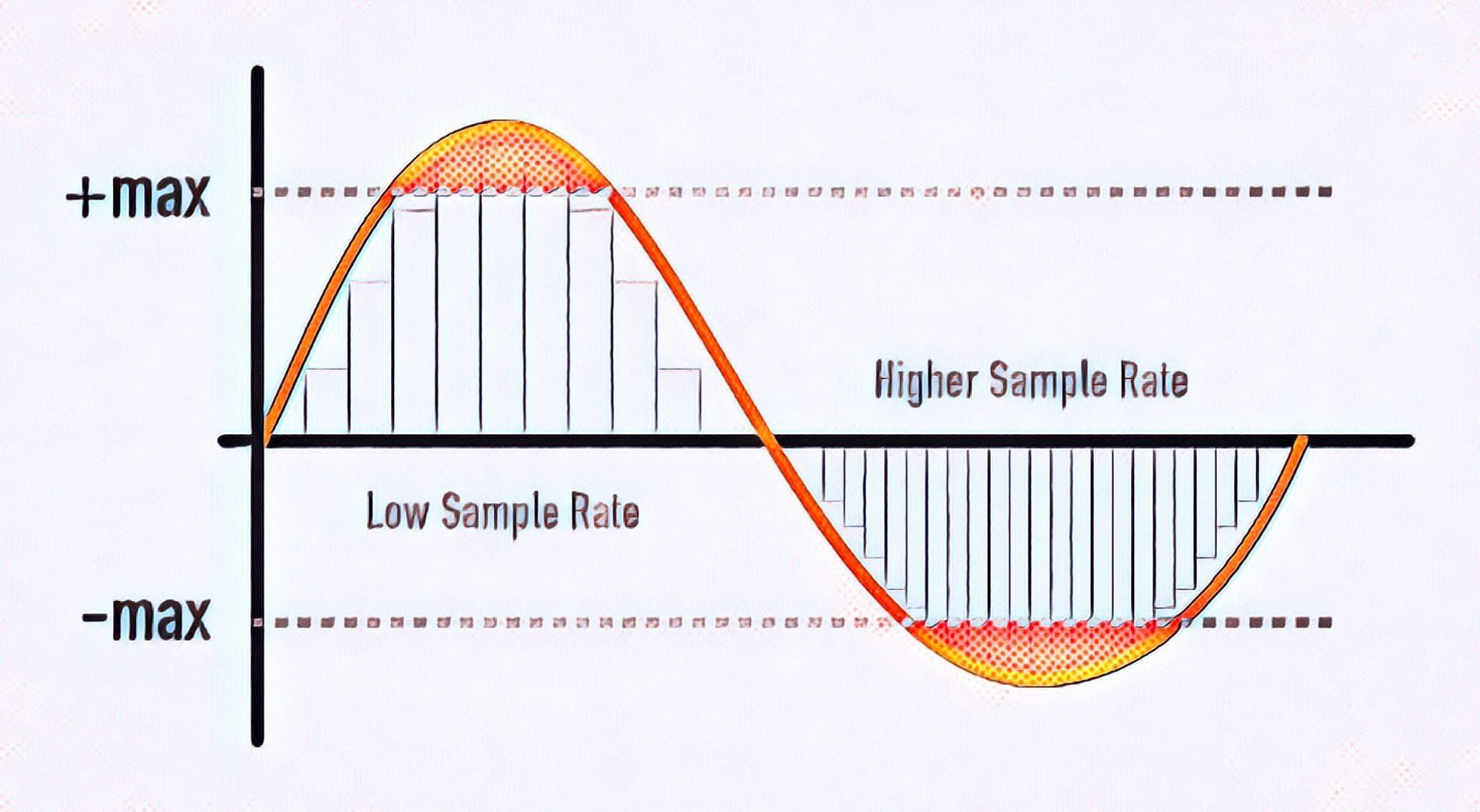
Sound is actually a type of energy wave, so it also has the characteristics of frequency and amplitude, with frequency corresponding to the time axis and amplitude corresponding to the level axis. The wave is infinitely smooth, and the string can be considered to be made up of innumerable points. Since the storage space is relatively limited, in the process of digital encoding, the points of the string must be sampled. The sampling process consists of extracting the frequency value of a certain point. Obviously, the more points that are extracted in one second, the richer the frequency information that can be obtained. To restore the waveform, there must be two sampling points in one vibration. The highest frequency that can be felt is 20kHz, so to meet the auditory requirements of the human ear, at least 40k samples per second, expressed at 40kHz, and this 40kHz is the sample rate. Our common CD has a sample rate of 44.1 kHz. It is not enough to have only frequency information, we must also obtain and quantify the energy value of this frequency to represent the strength of the signal. The number of quantization levels is an integer power of 2, and the sample size of our common CD bit is 16 bits, that is, 2 to the power of 16. Sample size is harder to understand than bit rate. sampling, because it makes it seem abstract. For a simple example: suppose a wave is sampled 8 times, and the energy values ​​corresponding to the sampling points are A1-A8, but we only use 2-bit sampling size, as a result we can only keep the 4 point values ​​in A1-A8 and discard the other 4. If we use the 3bit sample size, all 8 point information is recorded. The higher the sample rate and sample size values, the closer the recorded waveform is to the original signal.

MP3 sample rate and bit rate

MP3 sample rate and bit rate

Bit Rate

When we listen to mp3 and watch movies, we will notice two parameters.

BIT RATE

The most common ones are 44.1 KHz sample rate and 192 Kbps bit rate. So what is the sample rate and what is the bit rate? What is the relationship between them? Explain:

The process of converting an analog audio signal to a digital audio signal is called sampling. In a nutshell, how many data points does it take to record a 1 second long sound via waveform sampling. For example: the sound sample rate of 44.1 KHz is equivalent to spending 44,000 data points to describe the sound waveform for 1 second. In principle, the higher the sample rate, the better the sound quality; sampling frequency is generally divided into three levels: 22.05KHz, 44.1KHz and 48KHz; 22.05KHz can only achieve FM radio sound quality, and 44.1KHz is the theoretical limit of CD sound quality, 48KHz has reached DVD quality.

Sampling rate refers to the sampling frequency when converting sound (analog signal) to mp3 (digital signal), i.e. how many data points are sampled per unit of time. (The data for a sample point is 8 (or even more) bits long.)

Bit rate refers to the number of bits (bits) transmitted per second. The unit is bps (bit per second). The higher the bitrate, the more data transmitted and the better the sound quality.

It can be said that the sample rate and bit rate are like the horizontal and vertical coordinates on the coordinate axis. The sampling frequency on the abscissa represents the data points sampled per second. The bit rate on the ordinate represents the precision when quantizing analog quantities with digital quantities.

The sample rate is similar to the number of frames of moving images. For example, the sampling rate of movies is 24 Hz, the sampling rate of PAL format is 25 Hz, and the sampling rate of NTSC format is 30 Hz. When we play back the still images sampled at the same rate as the sampling frequency, we see a continuous image. In the same way, when a CD recorded at a sampling rate of 44.1 kHz is played back at the same rate, a continuous sound can be heard. Obviously, the higher the sample rate, the more coherent the sound will be heard and the picture will be seen. [Of course, the sampling rate that human auditory and visual organs can distinguish is limited, which is basically higher than sound sampled at 44.1kHZ, and most people haven’t noticed the difference. ]

Quality (bit rate)

Quality (bit rate)

Bit Rate

In multimedia technology, quality is often used to judge the effect of audio, and quality here is actually bitrate.

Bit Rate

1. Introduction
2 sound control
3 encoding mode
Introductionedit transmission
The term quality is widely used.
In multimedia technology, quality is often used to judge the effect of audio, and quality here is actually bitrate.
On WINDOWS it is called “bit rate” and on some players it is described as ” bit rate “.
Quality refers to the bit rate at which digital sound is converted from analog to digital format. The higher the bitrate, the better the quality of the restored sound.
sound control edit stream
16 Kbps = phone quality
24 Kbps = increase phone quality, shortwave transmission, longwave transmission, European standard medium wave transmission
40 Kbps = American standard medium wave transmission
56Kbps=Voice
64 Kbps = boost voice (best bitrate setting for cell phone ringtones, best setting for cell phone mono MP3 players)
112 Kbps = FM stereo broadcast FM 128 Kbps = tape (best setting for mobile phone stereo MP3 player, best setting for low-end MP3 player)
160 Kbps = HIFI high fidelity (best setting for mid to high end MP3 players)
192Kbps=CD (best setting for high-end MP3 players)
256Kbps=Studio Music Studio (for music enthusiasts)
In fact, with the advancement of technology, the quality of music is also getting higher and higher, the highest quality of MP3 is 320Kbps, but some formats can achieve higher sound quality.
For example, the emerging APE audio format can provide real audiophile level lossless sound quality and smaller volume than WAV format, and its quality is usually 550kbps-950kbps.
encoding modeedit stream
VBR (Variable Bitrate) Dynamic Bitrate means there is no fixed bitrate. The compression software immediately determines which bitrate to use based on the audio data being compressed. This is a method that takes quality as a premise and takes file size into account The recommended encoding mode;
ABR Average Bit Rate (Average Bit Rate) is an interpolation parameter of VBR. LAME created this encoding mode in response to the low file volume ratio of CBR and the variable size of files generated by VBR. Within the specified file size, ABR takes every 50 frames (about 1 second for 30 frames) as a segment. High-frequency and insensitive frequencies use relatively low traffic, and low-frequency and large dynamic performance use high traffic, which can be used as VBR and CBR, a compromise option.
CBR (constant bitrate), constant bitrate means the file has one bitrate from start to finish. Compared to VBR and ABR, the compressed file size is very large and the sound quality will not improve significantly compared to VBR and ABR.