How to Improve MP3 Sound Quality with EQ and Effects

How to Improve MP3 Sound Quality with EQ and Effects

mp3 equalization
mp3 equalization

Introduction

mp3 equalization
mp3 equalization

When it comes to listening to music, sound quality matters. However, not all MP3 files are created equal, and sometimes additional processing is necessary to make them sound their best. One way to achieve better sound quality is by using EQ and effects to adjust the audio signal. In this article, we’ll take a look at how EQ and effects can be used to improve the sound quality of MP3 files, providing tips and techniques for achieving better audio quality.

Understanding EQ and Effects

EQ, or equalization, is a way to adjust the balance of different frequency components in an audio signal. It can be used to make certain frequencies more or less prominent, depending on the desired sound. Effects, on the other hand, are a way to alter the audio signal in other ways, such as adding reverb, delay, or distortion. EQ and effects can be used in combination to shape the overall sound of an MP3 file.

The Best EQ and Effects for Improving MP3 Sound Quality

When it comes to improving MP3 sound quality with EQ and effects, there are a variety of tools to choose from. Some of the most commonly used EQ and effects for MP3 files include:

  • Graphic EQ: A graphic equalizer allows you to adjust the levels of different frequency bands using sliders. This is a good option for making broad adjustments to the overall sound of an MP3 file.
  • Parametric EQ: A parametric equalizer is a more precise way to adjust the frequency balance of an audio signal. It allows you to adjust the center frequency, bandwidth, and gain of each individual band.
  • Reverb: Reverb is an effect that adds a sense of space to an audio signal. It can be used to make an MP3 file sound more like it was recorded in a large room or hall, for example.
  • Delay: Delay is an effect that repeats the audio signal after a set amount of time. It can be used to create a sense of depth and space in an MP3 file.
  • Compression: Compression is an effect that reduces the dynamic range of an audio signal. It can be used to make the quiet parts of an MP3 file louder and the loud parts quieter, resulting in a more consistent overall volume.

How to Use EQ and Effects to Improve MP3 Sound Quality

Improving the sound quality of an MP3 file with EQ and effects involves a bit of trial and error. Here are some general steps to follow:

  1. Start with a flat EQ: Set all the EQ bands to the same level (usually 0 dB) to begin with.
  2. Identify problem areas: Listen to the MP3 file and identify any frequency ranges that sound unbalanced or overly prominent.
  3. Adjust EQ settings: Use the EQ to adjust the levels of the problem frequency ranges until they sound more balanced and natural.
  4. Add effects: Once you’re happy with the overall EQ balance, add effects like reverb or delay to enhance the sound of the MP3 file.
  5. Listen and adjust: Listen to the MP3 file with EQ and effects applied and make further adjustments as necessary until you’re happy with the sound.

Step 3: Applying Effects

Once you’ve used EQ to correct any frequency imbalances in the track, you can start to apply effects to enhance the overall sound quality. There are a variety of effects you can use to achieve different results. Here are a few examples:

  • Reverb: Adds a sense of space and depth to the track.
  • Delay: Creates echoes, which can add a sense of movement and dynamics.
  • Chorus: Creates a sense of width and thickness by doubling the sound.
  • Flanger: Similar to chorus, but with a more pronounced, swirling effect.

Keep in mind that the key to using effects effectively is to use them sparingly. Too much reverb or delay, for example, can make the track sound muddy and indistinct. A good rule of thumb is to use just enough effect to achieve the desired result, but not so much that it detracts from the clarity of the track.

Step 4: Using Mp4Gain

While using EQ and effects can go a long way in improving the sound quality of your MP3 files, there are limits to what you can achieve through manual adjustments. This is where software tools like Mp4Gain can be especially useful.

Mp4Gain is a powerful tool that allows you to normalize and equalize your MP3 files automatically. It uses sophisticated algorithms to analyze the tracks and adjust the volume and EQ to optimize the sound quality.

Using Mp4Gain is a straightforward process. Simply open the application and drag and drop the MP3 files you want to adjust into the interface. The software will automatically analyze the files and adjust the volume and EQ to achieve the best possible sound quality.

Conclusion

Improving the sound quality of your MP3 files may seem like a daunting task, but with the right tools and techniques, it is entirely achievable. By using EQ to balance out the frequency spectrum, applying effects to enhance the sound, and using a tool like Mp4Gain to automate the process, you can achieve professional-level sound quality from your MP3 files.

Remember to always use these techniques in moderation and make sure to listen to the track at different stages of the process to ensure you’re not overdoing it. With some practice and experimentation, you can create MP3 files that sound just as good as their lossless counterparts.

What’s behind the MP3 Audio Format?

What’s behind the MP3 Audio Format?

MP3 Audio Format
MP3 Audio Format

When most people hear the word MP3, they usually think of songs, podcasts, and other compressed audio files. While it’s worth acknowledging the role these uncompressed files have played in the world of music, the goal of this guide is to explain in detail what’s behind these files, how they work, and what makes them so popular. Through this understanding guide, we hope to cover the core concepts behind the MP3 audio format, such as bitrate and samplerate, as well as offer some tips and tricks to ensure you’re getting the best audio quality from your MP3 files.

MP3 Audio Format
MP3 Audio Format

What is MP3 Format?

MP3 is a digital audio format used to compress audio files without losing quality. This is made possible by an audio compression algorithm called MPEG-1 Audio Layer 3, also known as MP3. Compression technology involves reducing the amount of data without losing the fundamental attributes of the original audio. Compressed data can be saved as a higher quality audio file in a much smaller size. This means MP3 files are easier to stream and share online.

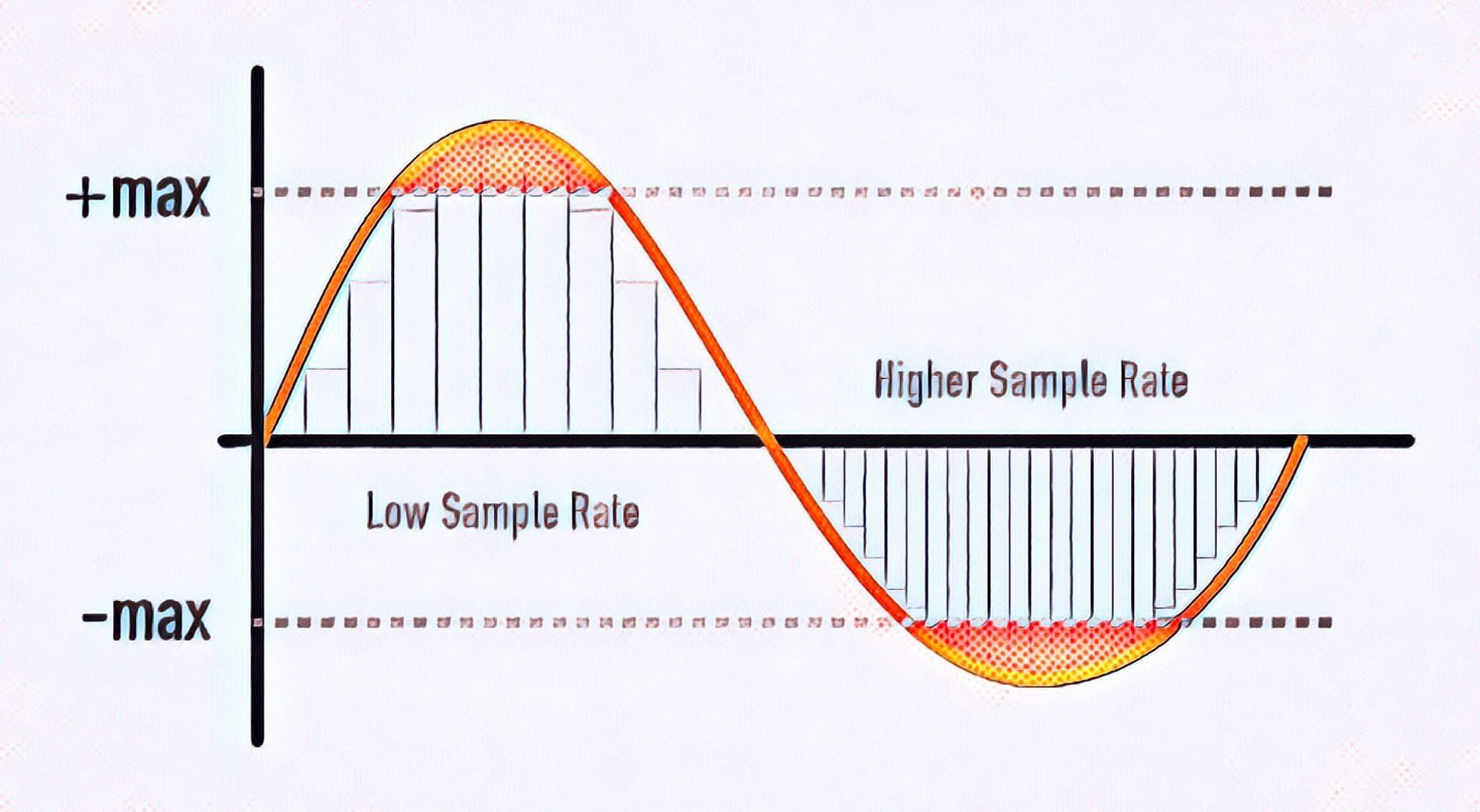
MP3 files can be compressed at different bit rates depending on the user. Bitrate is generally in kilobits per second. For example, a 128 kbps (kilobits per second) MP3 file uses 128,000 bits to encode the audio every second. While bitrate is an important factor in determining the quality of an audio file, there are other factors as well, such as samplerate. The samplerate is the number of audio samples taken every second. An audio file recorded at a sample rate of 44.1 kHz (kilohertz) means that 44,100 audio samples were taken every second. The higher the samplerate, the better the audio quality.

The magic behind the MP3 format lies in its ability to shed unnecessary data without compromising audio quality. This is accomplished by removing inaudible components from the audio. These inaudible components are called high and low frequencies. MP3 is a lossy audio compression codec, which means that deleted data cannot be recovered. This is why an MP3 file encoded at a small size cannot recover the audio quality of a file encoded at a larger size. MP3 is an extremely popular audio format, as it allows you to compress audio files without losing quality.

How You Can Improve the Quality of MP3 Audio Files

How can you improve the quality of audio files in MP3 format? The answer to this is to use an audio conversion program like MP3gain to adjust the volume of your audio files. MP3Gain is a free and open source tool that you can use to normalize the volume of your audio and video files. This tool is not only useful for improving audio quality, but also for saving space on your hard drive, as MP3 files encoded at lower sample rate and bitrate are smaller in size.

Of course, there is a downside to MP3 audio compression. As with any type of compression, there is a chance that the audio may become distorted or lose quality. While MP3 files encoded at a small size will have lower audio quality than those encoded at a larger size, if the proper bitrate and samplerate are selected, the audio will not be excessively distorted. The key is to find the balance between file size and sound quality.

Conclusion

We hope this guide has provided you with a clear and simple explanation of the concepts behind the MP3 audio format. While this article has mainly focused on the basics and technology behind MP3 audio files, we hope we’ve also provided some helpful tips on how to get the best audio quality out of your MP3 files. Finally, it is also important to mention the importance of using an audio conversion program like MP4Gain to normalize the volume of all audio and video files.

Why are MP3 bitrates often multiples of 32? (power of 2) part 2

Why are MP3 bitrates often multiples of 32? (power of 2) part 2

MP3 Bitrate
MP3 Bitrate

Depending on the resource, VBR can be encoded by changing the bitrate between a fixed rate above each frame, or by sharing the available bits in adjacent frames (effectively producing a non-standard bitrate for the two frames combined).

MP3 Bitrate
MP3 Bitrate

the fixed frame depends on the sampling rate, 1152 samples per frame. There is no limit to the size of the frame itself, nor to the base 2 size of the frame (ie 417 bytes for a 128 kbit/s MP3 sampled at 44.1 kHz).

In the end, a file encoded at 126kbps will sound worse than a file encoded at 128kbps, and similarly a file encoded at 131kbps will sound better. However, MP3s are encoded according to the compression psychoacoustic model of a specific encoder. The amount by which a file sounds “better” or “worse” at a given bitrate largely depends on the algorithm used to implement the model, but in general higher bitrates allow for more data, presumably for rebuild a more accurate original transmission. audio signal

Why are MP3 bitrates often multiples of 32? (power of 2)

Why are MP3 bitrates often multiples of 32? (power of 2)

MP3 Bitrate
MP3 Bitrate

Some people say:

MP3 Bitrate
MP3 Bitrate

I understand why multiples of 2 often show up on computers since they are binary, but I can’t figure out how the most common mp3 bitrates (64kbps, 128kbps, 160kbps, 192kbps, 256kbps, 320kbps, etc.) also tend to follow this rule.

Since MP3 is just a sequential encoding of sound waves, why is it important to represent each second in kilobits divisible by 2?
Does a music player like iTunes continue to read the file and play the encoded sound regardless of the second limit, or does it read the file every second?
In the latter case, reading a 256kbps file requires reading slightly fewer memory pages than a 257kbps file, but the player can always read 256KB chunks, regardless of their bitrate, and just process them automatically. incremental, right, Bar?
Are 128kbps MP3 songs popular simply because it’s a generally accepted bitrate, or do they really have any advantages over 126kbps and 131kbps files, apart from a very slight difference in quality/file size?

For constant bit rate (CBR) encoding, the MPEG-1 Audio Layer III standard specifies standard bit rates of 32, 40, 48, 56, 64, 80, 96, 112, 128, 160, 192, 224, 256 and 320 kbit/second. There are a few others defined in the MPEG-2 standard, but they are also multiples of 2 (actually all multiples of 8 in the range 8 to 160 – see the table called “Bitrate Index” in the link above) .

Technically, there is nothing that limits the MP3 bitrate to a multiple of 2, since variable bitrate encoding can be used, or a custom bitrate can be achieved using some flags not used in the MPEG specification ( although this must be implemented manually). . In order for MP3 to be MPEG-compliant, and therefore compatible with most MP3 decoders, it must have a bitrate defined by the specification, so all CBR-encoded MP3 files have a bitrate of two.

Audio bit rate, bit rate

Audio bit rate, bit rate

Mp3 bitrate
Mp3 bitrate

Bit rate refers to the number of bits (bits) transmitted per second. The unit is bps (Bit per second) The higher the bit rate, the faster the data transmission speed.

Mp3 bitrate
Mp3 bitrate

Bitrate in sound refers to the amount of binary data per unit of time after converting an analog sound signal to a digital sound signal, which is an indirect measure of audio quality.


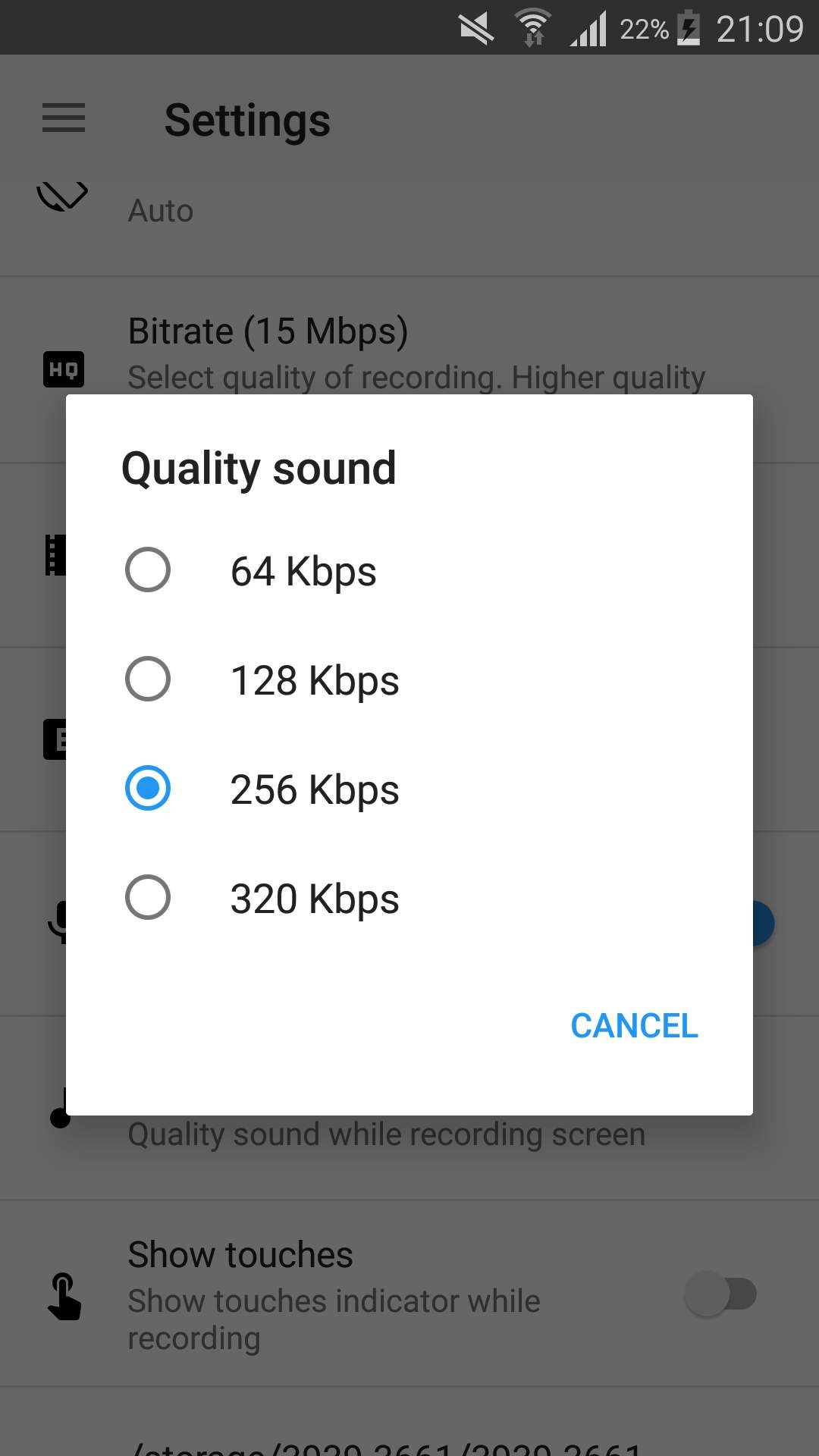
Bitrate refers to the sampling rate at which digital sound is converted from analog to digital format. The higher the sampling rate, the better the quality of the restored sound. As a benchmark for the efficiency of digital music compression, bit rate indicates the rate of the number of bits bps (bit per second, bits per second) transmitted per unit of time (1 second). Kbps (in layman’s terms is 1000 bits per second) is usually used as the unit. The bit rate of digital music on CD is 1411.2 kbps (that is, to burn 1 second of CD music, 1411.2 × 1024 data bits are required), the high BIT RATE of the digital music file music means that it should be processed in a unit of time (1 second) The amount of data (BIT) is large, which means that the sound quality of the music file is good. However, when the BITRATE is high, the file size increases, which will take up a lot of memory capacity. The most commonly used bitrate for music files is 128 kbps, and MP3 files can generally use 8 to 320 kbps. In the same way, most of them are 32-256 Kbps. Of course, the wider the rate, the better, but 320 Kbps is the highest level at the moment.


Bitrate calculation formula
The basic algorithm is: [Bit rate] (kbps)=[file size] (bytes) X8/[time] (seconds)/1000

Special algorithm for audio files: [bit rate] (kbps) = [quantization sample point] (kHz) × [bit depth] (bit/sampling point) × [number of channels] (typically 2)

For example, the D5 drive has a capacity of 4.3G, which takes into account different audio formats, so it is calculated as 600M (so the remaining capacity is 4.3*1000-600=3700M), so the video file should not be larger than 3.7G, in this example, take The capacity of the video file is 3.446G, and the length of the video is 100 minutes (6000 seconds). The calculation result: the bit rate is approximately equal to 4933kbps.

What is a good bitrate guide for mp3 files? Part 2

What is a good bitrate guide for mp3 files? Part 2

Mp3 Bitrate
Mp3 Bitrate

To produce high-quality MP3 files of classical and jazz music, the optimal bitrate depends on the characteristics of the song.

Mp3 Bitrate
Mp3 Bitrate

Smooth jazz can usually be copied at 192kbps to create a good balance between file size and diminishing returns, although 256kbps may sound better in a home entertainment center. A classical orchestra should be 256kbps for a portable player, but if you want to burn a CD at home or in your car, a 320kbps file might be a better option.

For saturated music such as hard rock, metal, arena, pop, electronic and house music, 320 kbps will provide the best results. The higher the number of bits per second, the more complex acoustic envelope will be preserved.

If possible, it’s best to create MP3 files with variable bit rates. This allows the encoding program to determine if a particular frame of music requires the full bit rate. Otherwise, the program will reduce data retention for that frame, resulting in a smaller file without sacrificing quality. Forcing the program to “oversample” frames can produce artifacts.

While this article is intended as a general guide, he or she may be equally satisfied with a lower bitrate for a particular song or songs in general. Many factors affect our ability to judge the quality of music, not only the devices we use but also our activities while listening to it. For example, for those who listen to MP3 files while exercising or taking a walk, external noise can make it more difficult to tell the difference in quality. Conversely, audiophiles may prefer to sample at 320kbps, regardless of their equipment, type of music, or listening habits.

If you create your own MP3 files, there are other settings that affect quality. LAME is an excellent MP3 encoder that is free and has many graphical interfaces as the interface for this popular command line program. LAME allows users to adjust many settings to generate high-quality MP3 files in seconds. You can also experiment with various bitrates in your source file to find the best subjective balance between quality and file size.