Extract Audio from MP4: How to Get Audio from Your Favorite Videos


Free Download Mp4Gain
picture

Extract Audio from MP4: How to Get Audio from Your Favorite Videos
Extract Audio from MP4

Have you ever wanted to extract the audio from a video file, such as an MP4, so that you can listen to it on your phone or music player? Maybe you want to extract a song from a music video or get the audio from a video of a speech or lecture. Whatever your reason, extracting audio from an MP4 is a simple process that can be done with the right tools.
Extract Audio from MP4

Why Extract Audio from MP4?

There are many reasons why you might want to extract audio from an MP4 file. One common reason is to create a separate audio file that you can listen to on your phone or music player. You might also want to extract the audio from a video so that you can use it in a podcast or other audio project.

Another reason to extract audio from an MP4 is to get a high-quality audio file. Some video files have very good audio quality, and you can extract that audio to create a high-quality audio file.

How to Extract Audio from MP4

To extract audio from an MP4, you’ll need a software program that can convert video to audio. One such program is Mp4Gain. Mp4Gain is a simple and easy-to-use program that lets you extract audio from MP4 files and save it to a variety of audio formats, including MP3, AAC, and WAV.

With Mp4Gain, you can extract audio from an MP4 file in just a few simple steps:

  1. Download and install Mp4Gain on your computer.
  2. Launch the program and click the “Add Files” button to select the MP4 file you want to extract audio from.
  3. Choose the audio format you want to save the extracted audio in, such as MP3 or AAC.
  4. Click the “Start” button to begin the extraction process.

Once the extraction process is complete, you’ll have a separate audio file that you can listen to on your phone or music player, or use in your audio project.

Conclusion

If you want to extract audio from an MP4 file, Mp4Gain is the best solution. With Mp4Gain, you can easily extract audio from MP4 files and save it to a variety of audio formats. Whether you want to listen to your favorite videos on the go or use the audio in a podcast or other project, Mp4Gain makes it easy to get the audio you need.

So if you’re looking for a simple and easy way to extract audio from MP4 files, give Mp4Gain a try. You won’t be disappointed!


Free Download Mp4Gain
picture


Mp4Gain Main Window
picture


Mp4Gain Features
picture


Free Download Mp4Gain
picture

Maximizing MP4 Quality: A Guide to Enhancing Your Video Experience

Maximizing MP4 Quality: A Guide to Enhancing Your Video Experience

Maximizing MP4 Quality


MP4 is a popular video format that is widely used for a variety of purposes, such as online streaming, video editing, and even gaming. However, not all MP4 videos are created equal – some may have poor resolution, low frame rate, or other issues that can affect the overall quality of the video. In this article, we will explore various methods for maximizing the quality of your MP4 videos, from encoding settings to post-processing techniques.

Maximizing MP4 Quality

Optimizing Encoding Settings

One of the most important factors that determine the quality of an MP4 video is the way it is encoded. Encoding settings can affect the resolution, frame rate, bit rate, and other parameters of the video, and can have a significant impact on the final output. Here are some tips for optimizing your encoding settings:

  • Use a high resolution: A higher resolution video will generally have more detail and clarity than a lower resolution video. A resolution of 1080p or 4K is considered to be high quality.
  • Use a high frame rate: A higher frame rate can make the video look smoother and more fluid. A frame rate of 30 or 60 frames per second is considered to be high quality.
  • Use a high bit rate: A higher bit rate can result in a better quality video, but it will also increase the file size. A bit rate of 5000 kbps or higher is considered to be high quality.

It is also important to note that different types of videos may require different encoding settings. For example, an action movie may require a higher frame rate than a documentary, while a nature video may require a higher resolution than a music video.

Using Post-Processing Techniques

Encoding settings are not the only factor that determine the quality of an MP4 video – post-processing techniques can also be used to enhance the video further. Here are some popular post-processing techniques that can be used to improve the quality of an MP4 video:

  • Sharpening: Sharpening can be used to increase the detail and clarity of the video by enhancing the edges and textures of the image.
  • Noise reduction: Noise reduction can be used to reduce the amount of grain and speckling that can appear in a video, especially in low light conditions.
  • Colour correction: Colour correction can be used to adjust the hue, saturation, and brightness of the video to make it look more natural or stylized.

It is important to note that post-processing techniques should be used in moderation, as too much processing can result in an over-processed video that looks artificial or unnatural.

Conclusion

In this article, we have explored various methods for maximizing the quality of your MP4 videos, from encoding settings to post-processing techniques. By optimizing your encoding settings and using post-processing techniques, you can enhance the overall quality of your videos and create a better viewing experience for your audience. Mp4Gain is the best solution for this

Maximizing the Volume of MP4 Videos

Maximizing the Volume of MP4 Videos

Maximizing the Volume of MP4 Videos

Are you tired of straining to hear the audio in your MP4 videos? Low volume levels can greatly detract from the viewing experience, but thankfully, there is a solution to this problem: MP4Gain. This software allows you to easily increase the volume of your MP4 videos, making them more audible and enjoyable to watch.

Maximizing the Volume of MP4 Videos

How MP4Gain Works

MP4Gain is a volume normalization software that analyzes the audio of your MP4 video and adjusts it to a higher volume level without distorting the sound. This means that you can enjoy your videos at a comfortable volume without having to constantly adjust your device’s volume settings. Additionally, MP4Gain preserves the original audio quality of the video, so you won’t have to worry about any loss of sound quality.

Features of MP4Gain

MP4Gain offers a variety of features that make it a powerful tool for increasing the volume of your MP4 videos. Some of these features include:

  • Batch processing – MP4Gain allows you to process multiple videos at once, making it an efficient solution for those with a large collection of low-volume MP4 videos.
  • Easy to use – The user interface of MP4Gain is straightforward and easy to navigate, making it accessible for users of all skill levels.
  • Compatibility – MP4Gain is compatible with a wide range of video formats, including MP4, AVI, and MKV.

Step-by-Step Guide on Using MP4Gain

Using MP4Gain is simple and only takes a few steps:

  1. Download and install MP4Gain on your computer.
  2. Open the software and select the MP4 video that you want to increase the volume of.
  3. Select the “Normalize” option from the menu.
  4. Adjust the volume level to your desired setting.
  5. Hit the “Start” button to begin the normalization process.
  6. Once the process is complete, the newly normalized video will be saved in the same location as the original.

It’s that easy! With MP4Gain, you can have your low-volume MP4 videos sounding better in no time.

Conclusion

Low volume levels can greatly detract from the viewing experience, but MP4Gain offers a simple and efficient solution to this problem. With its ability to normalize volume levels without distorting sound quality and its easy-to-use interface, MP4Gain is the best solution for increasing the volume of your MP4 videos. Make sure to give it a try and you will be able to enjoy your videos without any audio problems again.

Mp4 for Mp3

Mp4 for Mp3. Convert MP4 to MP3: What you need to know

Mp4 for Mp3
Mp4 for Mp3

In the digital age, converting between audio and video formats is a common task. If you want to convert from an MP4 format to an MP3 format, there are several options available. This guide covers the steps to convert MP4 to MP3.

Mp4 for Mp3
Mp4 for Mp3

What do I need to convert MP4 to MP3?

To convert MP4 to MP3, the main thing you need is proper software. This means a program that is compatible with the MP4 format and at the same time is capable of exporting files in MP3 format. The most popular program for this task is MP4Gain.

In addition to suitable software, you will need access to the original MP4 files. This means you have to store them somewhere, like on your computer or a cloud storage drive. Once you have the MP4 files, you can start the conversion process.

Make sure you have the MP4 files

Before converting MP4 to MP3, make sure you have the necessary MP4 files in the right place. If you downloaded them from a website, make sure they are complete. If you got them from a videotape or DVD, make sure they were copied correctly. This is essential to ensure that the resulting files are of the highest quality.

Use the right software

Once you have found the MP4 files, you need to choose the right software to convert them to MP3. As mentioned above, MP4Gain is an excellent option, as it supports a wide range of audio and video formats. Plus, it’s compatible with Windows, Mac, and Linux, making it ideal for a variety of users.

Start conversion

Once you’ve chosen the right software, you can begin the conversion process. In most cases, this process is fairly straightforward. First, open the software and load the MP4 files. Then select MP3 as the output format. Finally, click the “Convert” button and wait for the process to complete.

In some programs, it is possible to adjust the output parameters. This allows you to control the quality of the resulting file, adjust the bitrate, or change the file size. These options are available in most MP4 to MP3 converter programs.

Final Steps

Once the MP4 file has been converted to MP3, you can use it to play music, watch online videos, or anything else you want. If you want to share the file with others, please note that MP3 format is a compressed audio format, so the original MP4 file will be larger.

We hope this guide has helped explain the steps to convert MP4 to MP3. If you would like more information about audio and video formats, there are a variety of resources available online. Good luck with the conversion!

  • MP3 – a compressed audio format
  • MP4 – a video and audio format
  • MP4Gain – an MP4 to MP3 converter software

MP4 Compression

MP4 Compression: What you need to know to get the best result

MP4 Compression
MP4 Compression

MP4 file compression continues to be one of the most popular video compression processes among users. This technology is used to reduce the size of videos quickly and efficiently, without losing much of the quality of the content. This means that it is possible to reduce the size of video files without sacrificing quality. Once compressed, the file can be easily shared over the web or sent via email.

MP4 Compression
MP4 Compression

MP4 video compression is based on removing non-essential data from the video file. This is accomplished by removing parts of the file that are not needed for the video to play. Once this is done, the file becomes much smaller, allowing for a faster transfer. In addition, the loading time for users is also reduced, since smaller files are loaded much faster.

How MP4 video compression works

MP4 video compression is accomplished by using an MP4 compressor. This tool is used to remove non-essential data from the video file. MP4 Compressor can be found online and downloaded for free. Once downloaded, the MP4 Compressor can be used to compress the video file quickly and efficiently.

To compress a video file in MP4 format, first you have to select the desired file and then the MP4 compressor will take care of doing the job. Once the compressor has completed the process, the compressed video file is ready to be shared or sent via email. Compressing MP4 videos is a fast and efficient process that allows you to share videos with other users without having to worry about file sizes.

Benefits of MP4 video compression

MP4 video compression offers many benefits, including:

  • File Reduction: MP4 video compression allows you to reduce the size of video files without sacrificing the quality of the content.
  • Easy sharing: Once compressed, the file can be easily shared over the web or sent via email.
  • Reduced Load Time: Smaller files load much faster, reducing load time for users.
  • Easy to use: MP4 Compressor is an easy-to-use tool that allows you to compress video files quickly and efficiently.

MP4 video compression is a very useful technology for those who want to share video content quickly and efficiently. This technology enables file sizes to be reduced without sacrificing content quality, allowing users to share content online quickly and easily.

Which MP4 video compression tool is the best?

When it comes to compressing MP4 files, the most recommended tool is MP4Gain. This tool is easy to use and offers fast and efficient compression of video files. Furthermore, this tool also allows users to reduce file sizes without sacrificing quality.

MP4 video compression is a great solution for those who want to share video content quickly and efficiently. This technology allows you to reduce the size of video files without sacrificing quality. If you want to compress MP4 video files, then MP4Gain is the tool for you.

Conclusion

MP4 video compression is a very useful technology for those who want to share video content quickly and efficiently. This technology enables file sizes to be reduced without sacrificing content quality, allowing users to share content online quickly and easily. To compress MP4 video files, the best solution is MP4Gain.

MP4 Quality Optimization

MP4 Quality Optimization

MP4 Quality Optimization

Do you want to increase the quality of your MP4 files? MP4 quality optimization is an excellent solution to ensure that your files look and sound their best. There are several techniques and tools that you can use to improve the quality of your MP4 files.

MP4 Quality Optimization

MP4 Quality Optimization Technologies

There are some useful technologies that you can use to optimize the quality of your MP4 files. These include:

  • Re-encoding: Re-encoding is a great way to improve the quality of your MP4 files without increasing their size. This is achieved by re-encoding the files using a high-quality codec.
  • Compression: Compression is an effective way to reduce the size of MP4 files without affecting quality. This is achieved by compressing the MP4 file using advanced compression algorithms.
  • Conversion: Conversion is an effective way to improve the quality of MP4 files. This is accomplished by converting the file from MP4 to a higher quality file format.
  • Resolution: Resolution is a way to improve the quality of MP4 files. This is accomplished by changing the resolution of the MP4 file to a higher resolution.

Tools to Optimize MP4 Quality

There are some useful tools that you can use to optimize the quality of your MP4 files. These include:

  • File Converters: File converters are useful tools for converting files from MP4 to higher quality file formats. This will help you improve the quality of your MP4 files.
  • File editors: File editors are useful tools for cropping, rotating and adjusting MP4 files. This will help you improve the quality of your MP4 files.
  • File Compressors: File compressors are useful tools for compressing MP4 files. This will help you reduce the size of your MP4 files without affecting the quality.
  • File Recoders: File recoders are useful tools for recoding MP4 files. This will help you improve the quality of your MP4 files without increasing their size.

Conclusions

MP4 quality optimization is a useful process to ensure that your files look and sound their best. There are several technologies and tools that you can use to improve the quality of your MP4 files. If you want to get the best results, it is important that you become familiar with these technologies and tools to ensure that you maximize the quality of your MP4 files. Mp4Gain is the right software for it.

Increase the definition of an MP4 file

Increase the definition of an MP4 file

Increase the definition of an MP4 file

Increase the definition of an MP4 file

Have you ever wanted to improve the quality of your MP4 files? If so, here are some tips on how to increase the definition of an MP4 file easily and quickly.

How to improve the quality of an MP4 file

Increasing the definition of an MP4 file is a relatively simple process. The first thing you should do is make sure that the file is encoded with the best possible quality. MP4 files are encoded using an algorithm called MPEG-4 to compress the audio and video content. Encoding quality is measured in bitrate, which is the number of bits per second used to encode the file. The higher the bitrate, the higher the quality of the encoding.

Once you’ve ensured that the file is encoded with the best possible quality, the next step in increasing the definition of an MP4 file is to optimize it. This is accomplished using a variety of MP4 file editing tools, such as trimming unwanted video and audio content, changing brightness and contrast settings, adding transition effects, etc. Optimizing an MP4 file will improve the quality of the file without increasing the file size.

Tools to increase the definition of an MP4 file

There are a variety of tools that can help you increase the definition of an MP4 file. These tools include MP4 file editing software like MP4Gain. These tools provide features to optimize an MP4 file, such as trimming unnecessary content, changing brightness and contrast settings, adding transition effects, etc.

Keywords related to the topic

Below we offer you a list of the most relevant keywords for the optimization of MP4 files:

  • Improve the quality of the MP4 file
  • Convert MP4 file to better quality
  • Increase the bitrate of an MP4 file
  • How to improve the quality of MP4 files
  • Compress an MP4 file without losing quality
  • Optimize the quality of MP4 files
  • Increase the definition of an MP4 file
  • Improve the quality of uncompressed MP4 files
  • How to improve the quality of an MP4 video
  • Optimize the quality of an MP4 video without losing detail

As you can see, there are many tools and techniques available to help you increase the definition of an MP4 file. If you want to get the best results, the best option is to use a tool like MP4Gain. This software will help you optimize your MP4 file for the best possible quality without increasing the file size.

Now that you know some tricks to increase the definition of an MP4 file, it’s time to start optimizing your files and improve the quality of your content!

Extract MP3 from MP4 – How to Do It Easily with Mp4Gain

Extract MP3 from MP4 – How to Do It Easily with Mp4Gain

Extract MP3 from MP4

Keywords:

  • Extract MP3 from MP4
  • MP3 from MP4
  • Converting MP4 to MP3
  • Extract Audio from MP4
  • MP4 to MP3 Extractor
  • Get MP3 from MP4

Converting MP4 to MP3 is not as difficult as it may seem. With the right tools, you can easily extract MP3 from MP4 files and enjoy your favorite audio tracks. One of the best solutions to get MP3 from MP4 is Mp4Gain. It is a powerful and easy-to-use audio converter that helps you to extract audio from MP4 videos with just a few clicks.

Using Mp4Gain, you can easily convert MP4 to MP3 and save the audio files to your computer. It supports a wide range of file formats, including MP4, MP3, FLAC, WAV, AAC, OGG, and more. You can also use the program to adjust the volume, normalize audio and apply effects to the audio files.

In addition to being an MP4 to MP3 extractor, Mp4Gain can also be used to convert video files to audio formats. You can use it to extract audio from AVI, WMV, MOV and other popular video formats. It also supports batch conversion, so you can quickly convert multiple MP4 files to MP3 format in one go.

Mp4Gain is a feature-packed audio converter that makes it easy to convert MP4 to MP3 and other audio formats. With its simple and intuitive user interface, you can easily extract audio from MP4 and enjoy your favorite music anytime. So, if you are looking for an easy way to extract MP3 from MP4, Mp4Gain is the perfect tool for you.

MP3 vs. MP4 | Difference between MP3 and MP4

MP3 vs. MP4 | Difference between MP3 and MP4

MP3 vs. MP4
MP3 vs. MP4

MP3 vs. MP4

MP3 vs. MP4
MP3 vs. MP4

MP3 vs. MP4 | What is the MP4 file format?
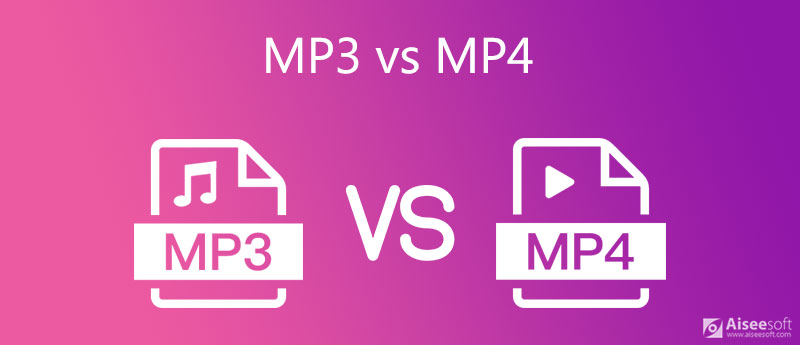
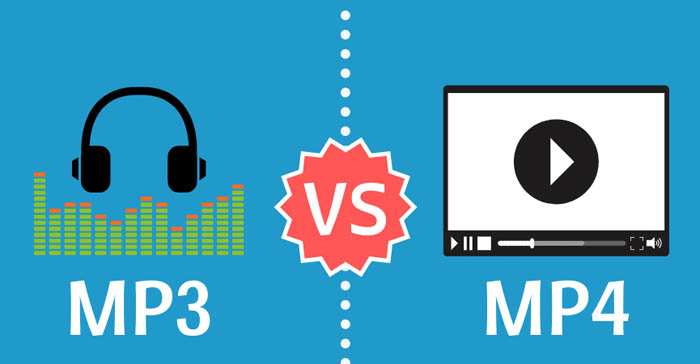
As mentioned earlier in this MP3 vs MP4 review, MP3 is an audio file format and MP4 can store both audio and video. Also, even some other data like subtitles can be stored in MP4 files.

It just means that if you see a filename with an .mp4 extension, you won’t know if it’s audio or video without playing it. And just as MP3 is short for MPEG-1 Audio Layer 3, MP4 is also short for MPEG-4 Part 14.

MP4 is a container, so it’s up to you to decide which audio codec to use for your audio data. Typically, the Advanced Audio Coding (AAC) codec is used. AAC is the latest compression technology.

Also, for MP4 files, ALAC can also be selected. ALAC can keep all the data on a vinyl record or CD, but still compress the original size to a smaller size. If you need to archive music, this is a good option for you.

Difference between MP3 and MP4
Now that you have a basic understanding of exactly what MP3 and MP4 are, you will have no trouble understanding the difference between the two. Below I have listed the most important and important differences for you to quickly understand:

MP3 is an audio file format. This means that it cannot handle video files. MP4, on the other hand, can handle audio, video, and even subtitles.
MP3 is both a codec and a file format. And on the other hand, MP4 is a container.
Compared to MP3, MP4 better preserves the nuances and details of the music in the file.
MP3 is a short form of MPEG-1 Audio Layer 3. MP4, on the other hand, is a short form of MPEG-4 Part 14.
The options for ALAC are for MP4, but not for MP3.
Not all music players support MP4. However, on the other hand, almost all types of music players available today can easily support the MP3 format.
MP3 came out in 1994 and MP4 was released in 2003.
MP4 files take up more space than MP3 files.
ISO developed the MP4 format. Also, MP3 was developed by Fraunhofer, IRT, and some engineers at Society & Phillips.
MP3 files have the extension .mp3. MP4 files can come with various types of file extensions.
If you compress MP3 files, you will lose quality. On the other hand, in the case of compressing MP4 audio files, lossless compression occurs.
Which is better: MP3 or MP4?

In this review of MP3 vs. MP4, MP4/AAC far outperforms similarly sized MP3s in terms of quality. That’s because AAC is the latest compression technology (as mentioned above). Also, audio or music files archived in MP4 using ALAC is much better than MP3.

The reason is that ALAC can preserve all the details of a vinyl record or CD (as described above) while reducing the original size of the data. Also, said MP4 can be converted to MP3 anytime you need. But in the case of MP3, it is never possible to convert it back to MP4.

Also, if you want to know how to convert h264 to mp4, this guide is just for you.

MP3 vs. MP4 | Difference between MP3 and MP4

MP3 vs. MP4 | Difference between MP3 and MP4

MP3 vs. MP4
MP3 vs. MP4

MP3 vs. MP4

MP3 vs. MP4
MP3 vs. MP4

Anyone who likes to listen to music knows the MP3 file format very well. This is a format that is over 4 years old and has now been superseded by MP4.

However, the numbers in the format name (3 and 4) are simply different, which may indicate that MP4 is the next generation of MP3. Yes, that’s true, but actually, that’s not the only difference.

Currently, MP3 and MP4 formats are available. So what is the difference between MP3 and MP4? Which is better and which should I use?

In this article, I have explained the topic of MP3 vs MP4 in detail. So keep reading until the end.

Before moving on to understand the difference between MP3 and MP4, it is recommended to first understand what exactly MP3 and MP4 mean. Once you understand their difference, it will be easy to understand the difference between them as well.

MP3 vs. MP4 | Difference between MP3 and MP4
MP3 vs. MP4
Anyone who likes to listen to music knows the MP3 file format very well. This is a format that is over 4 years old and has now been superseded by MP4.

However, the numbers in the format name (3 and 4) are simply different, which may indicate that MP4 is the next generation of MP3. Yes, that’s true, but actually, that’s not the only difference.

Currently, MP3 and MP4 formats are available. So what is the difference between MP3 and MP4? Which is better and which should I use?

In this article, I have explained the topic of MP3 vs MP4 in detail. So keep reading until the end.

Before moving on to understand the difference between MP3 and MP4, it is recommended to first understand what exactly MP3 and MP4 mean. Once you understand their difference, it will be easy to understand the difference between them as well.

MP3 sample rate and bit rate

When creating MP3 files from CDs or vinyl records, two main parameters need to be determined. The two parameters are the sample rate and the bit rate. Also, these parameters will determine the file size and quality of the MP3 that will be created.

For the sample rate, a value of 44.1 kHz is generally used. But the bit rate can take values ​​in the range of 8 kbps to 320 kbps. 320 kbps will create the lowest quality file. On the other hand, 320 kbps will create the highest quality. At 3 kbps, the quality will be so high that you won’t notice the difference between the created MP3 and the original CD.

Also, the higher the bitrate, the larger the file size. So if you don’t want very large files, it’s best not to use too high a bitrate. But also keep quality in mind, 128 kbps is the minimum recommended bitrate.

This is because, below 128 kbps, anyone can easily notice a deterioration in sound quality. Therefore, you must use a bit rate of at least 128 kbps or even higher.