How to improve 4K video playback on your old computer


Free Download Mp4Gain
picture

4K video is nothing new. The first televisions with this resolution began to reach the public between 2012 and 2013, so we can talk about settled technology. Similar to what happened with high definition (720p and 1080p) about a decade ago, beyond the physical format, which requires new players, the problem for most computer users of some time ago is power and of compatibility. And solving it is not as easy as one would expect.

Until Kaby Lake, the seventh generation of Intel processors, which arrived last year, there were no desktop or portable processors capable of decoding and encoding via 10-bit video hardware under the HEVC or Google codec, VP9. This is a problem, because beyond videos that are downloaded over the internet, almost all the content that smartphones produce from now on will come under HEVC / H.265 for reasons of space optimization, and many computers have problems to reproduce them . With 4K video files under H.264 codec problems can also arise, particularly when we face a lot of bitrate files.
4k

With the solutions that we are going to provide the reproduction to jumps of video in 4K can be partially or totally solved. Without them, in some cases, the applications used did not even reproduce the first frames of the files.

PotPlayer, the player that best does it on Windows

Potplayer 4k

After testing very diverse applications of reproduction, I found several mentions in forums to PotPlayer, a free player that is essentially KMPlayer, and that has a great variety of integrated codecs, with which you can play almost any content you find on the Internet. In its adjustments, it allows a great configuration and customization in the use of the general experience and of the acceleration engines, very convenient option before the variety of equipment with different hardware that exists.

How to watch Netflix in 4K from Windows 10

Windows 10 incorporates its own codec pack, but PotPlayer allows you to overwrite them. Thus, after trying to play 4K video files from a DJI Phantom 4 Pro drone on a laptop with a first-generation quad-core i7 processor and failed in the attempt with many players, testing PotPlayer was one of the last options left, and It worked much better than the rest in a first attempt. If the played video had an H.264 codec, the playback was smooth. In contrast, the video in H.265 / HEVC format presented more problems. Diving in the configuration that we will see next, the reproduction can be improved.

After entering the preferences (F5), in Filters -> Decode video -> Configure codec / DXVA -> Configure Hardware Acceleration (DXVA), select the option “DXVA” and “Use D3D11 DXVA first”. In this way, it is achieved that the reproduction hardly has jumps. Not bad, considering we talked about a team from eight years ago.
4k

Testing from the notebook from which this is written, which has a fourth-generation i5 dual-core processor, playback is completely smooth in H.264 with any player that supports software acceleration (such as “Movies and TV”), but with H.265 the problem is that the fans raise their revolutions to the maximum, and even Windows ends up showing messages to force closure in most applications. The integrated player does not even open the file, so we will comment below. With PotPlayer, marking the hardware acceleration with the settings mentioned above, playback is completely smooth in 4K videos at 60 fps recorded with an iPhone X.

Activate support for HEVC in Windows 10

In the Fall Creators Update version, Microsoft removed the HEVC codec from Windows 10. For users who started with the Microsoft system on new computers from that version, one of the most popular so far, videos recorded with devices from Current high-end in HEVC could not be reproduced. On the contrary, those who have spent more time with Windows 10 (before Fall Creators Update) can play without problems.

How to solve it? From the Microsoft Store. The Redmond company offers the possibility of installing the HEVC codec for free (or at 0.99 cents). In this way, not only local content can be displayed in the applications integrated in the system, but also to be able to play 4K video from Netflix on computers that support it (it is necessary to have Kaby Lake processors, due to the acceleration by video hardware in 10 -bit and the DRM).


Free Download Mp4Gain
picture


Mp4Gain Main Window
picture


Mp4Gain Features
picture


Free Download Mp4Gain
picture

Hoe 4K-videoweergave op uw oude computer te verbeteren

4K video is niets nieuws. De eerste televisies met deze resolutie begonnen het publiek te bereiken tussen 2012 en 2013, dus we kunnen praten over vaste technologie. Vergelijkbaar met wat er ongeveer tien jaar geleden gebeurde met high definition (720p en 1080p), naast het fysieke formaat, waarvoor nieuwe spelers nodig zijn, is het probleem voor de meeste computergebruikers van enige tijd geleden macht en van compatibiliteit. En het oplossen is niet zo eenvoudig als je zou verwachten.

4k

Tot Kaby Lake, de zevende generatie Intel-processors, die vorig jaar arriveerde, waren er geen desktop- of draagbare processors die via 10-bit videohardware konden decoderen en coderen onder de HEVC- of Google-codec, VP9. Dit is een probleem, want naast video’s die via internet worden gedownload, valt bijna alle inhoud die smartphones vanaf nu produceren onder HEVC / H.265 om redenen van optimalisatie van de ruimte, en veel computers hebben problemen om ze te reproduceren . Met 4K-videobestanden onder H.264 kunnen ook codec-problemen optreden, vooral als we met veel bitrate-bestanden te maken hebben.

Met de oplossingen die we gaan bieden, kunnen de reproductie van sprongen van video in 4K gedeeltelijk of volledig worden opgelost. Zonder hen reproduceerden de gebruikte applicaties in sommige gevallen zelfs de eerste frames van de bestanden niet.

PotPlayer, de speler die het het beste doet op Windows

Potspeler 4k

Na het testen van zeer uiteenlopende reproductietoepassingen, vond ik verschillende vermeldingen in forums voor PotPlayer, een gratis speler die in wezen KMPlayer is, en die een grote verscheidenheid aan geïntegreerde codecs heeft, waarmee je bijna alle inhoud die je op internet vindt kunt spelen. In zijn aanpassingen maakt het een geweldige configuratie en aanpassing mogelijk in het gebruik van de algemene ervaring en van de versnellingsmotoren, een zeer handige optie vóór de verscheidenheid aan apparatuur met verschillende hardware die bestaat.

4k

Hoe Netflix in 4K te bekijken vanuit Windows 10

Windows 10 heeft een eigen codec-pakket, maar met PotPlayer kunt u ze overschrijven. Dus na het proberen af ​​te spelen van 4K-videobestanden van een DJI Phantom 4 Pro-drone op een laptop met een eerste-generatie quad-core i7-processor en mislukte in de poging met veel spelers, was het testen van PotPlayer een van de laatste overgebleven opties, en Het werkte veel beter dan de rest in een eerste poging. Als de afgespeelde video een H.264-codec had, was het afspelen soepel. De video in H.265 / HEVC-formaat had daarentegen meer problemen. Duikend in de configuratie die we hierna zullen zien, kan de reproductie worden verbeterd.

Na het invoeren van de voorkeuren (F5), in Filters -> Video decoderen -> Configureer codec / DXVA -> Configureer hardwareversnelling (DXVA), vink de optie “DXVA” en “Eerst D3D11 DXVA gebruiken” aan. Op deze manier wordt bereikt dat de reproductie nauwelijks sprongen heeft. Niet slecht, gezien het feit dat we het over een team van acht jaar geleden hadden.

Testend vanaf de notebook waarvan dit is geschreven, die een vierde generatie i5 dual-core processor heeft, is het afspelen in H.264 volledig soepel met elke speler die softwareversnelling ondersteunt (zoals “Films en tv”), maar met H.265 is het probleem dat de fans hun revoluties tot het maximum verhogen, en zelfs Windows laat uiteindelijk berichten zien dat ze in de meeste applicaties gedwongen worden gesloten te worden. De geïntegreerde speler opent het bestand niet eens, dus we zullen hieronder reageren. Met PotPlayer, die de hardwareversnelling markeert met de hierboven genoemde instellingen, verloopt het afspelen volledig in 4K-video’s met 60 fps opgenomen met een iPhone X.

Activeer ondersteuning voor HEVC in Windows 10

In de Fall Creators Update-versie heeft Microsoft de HEVC-codec verwijderd uit Windows 10. Voor gebruikers die met het Microsoft-systeem zijn begonnen op nieuwe computers uit die versie, een van de meest populaire tot nu toe, video’s opgenomen met apparaten van Het huidige high-end in HEVC kon niet worden gereproduceerd. Integendeel, degenen die meer tijd hebben doorgebracht met Windows 10 (vóór Fall Creators Update) kunnen zonder problemen spelen.

Hoe het te repareren? Van de Microsoft Store. Het bedrijf Redmond biedt de mogelijkheid om de HEVC-codec gratis te installeren (of voor 0,99 cent). Op deze manier kan niet alleen lokale inhoud worden weergegeven in de applicaties die in het systeem zijn geïntegreerd, maar ook om 4K-video van Netflix te kunnen afspelen op computers die dit ondersteunen (het is noodzakelijk om Kaby Lake-processors te hebben, vanwege de versnelling door videohardware in 10 -bit en de DRM).

HOE DE MEGAS een video te verlagen zonder verlies van kwaliteit

Op het einde, met een apparaat hebben we een werkpaard in wat verwijst naar de mogelijkheid om multimedia-content op te slaan. De nieuwe eigenschappen van de video’s, vooral als we praten over 4K, verbruiken meer megabytes van onze reeds aangepast herinneringen vol muziek, foto’s, apps, enz. Is er een manier om het gewicht van deze bestanden te verminderen zonder concessies aan de kwaliteit? Ja, het bestaat en het is ook gratis.

We weten al dat Mp4Gain stelt ons in staat om de audio te verbeteren, zodat na het doen van alles wat we hier zal aanbevelen om het resulterende bestand, met een kleiner formaat, zullen wij het zijn definitieve aanraking met Mp4Gain te geven 
om ervoor te zorgen dat uw audio is prachtig.

Maar voor nu zullen we zien hoe de grootte van de oorspronkelijke video te verminderen.

Voor het werk dat we zullen profiteren van een geweldig programma dat gratis is en met versies voor Mac en Windows. Dit is Handbrake, een geweldig hulpmiddel dat is open source en gratis voor de hoeveelheid opties heeft. Als een optie in Windows is Freemake Video Converter, maar waar de eerste optie is, de waarheid is dat de tweede heeft weinig zin.

Eerst comprimeren we de audio

Zodra we Handbrake is geïnstalleerd, kan het ook nuttig zijn voor andere taken zoals het wijzigen van een bestandsformaat (van MKV naar MP4 zodat deze via een iPad kan worden herkend of zet geïntegreerde ondertiteling) zijn. Maar laten we verder gaan met wat ons betreft de eerste is om de megabytes die het inneemt te verlagen.

We gaan het tabblad Audio en daar zullen we zien of er meer dan één audiotrack, bijvoorbeeld, met de originele Engels versie of een andere taal. 
Bovendien, in de kolom “Codec” kiezen we voor ACC of MP3 en in Bitrate, 160 in plaats van 256 of 320. Tot slot is het beste degene die “Samplerate” zet niet aan te raken en laat het in de Auto.

Nu gaan we met de afbeelding

Hier hebben we een aantal punten te bespreken. De eerste zal de video codec (Video Codec) zijn. Je moet H.264 kiezen als de codec, de meest efficiënte en populaire en twee keer beter in video compressie dan MPEG-4, naast het feit dat op grote schaal compatibel met bijna alle spelers en apparaten. Aan de andere kant, zetten we MP4 als een container, in het gedeelte dat “Output Settings” in het menu “Format” zet.

Het is tijd om te beslissen of we willen de resolutie van de video of niet te verminderen. We kunnen een video hebt opgenomen of een film in 4K, maar op welk scherm gaan we om hem te bekijken? Waarschijnlijk wat we hebben is een FullHD televisie of een smartphone van deze kenmerken, dus we hebben genoeg van die optie.

Om dit gaan we naar “Picture Settings” in de bovenste werkbalk te activeren en de breedte (hoogte) en hoogte (hoogte) die geschikt is voor het scherm die we hebben. Deze verandering zal drastisch verminderen van het gewicht van het bestand en voor u om het bij de hand hebben, hier is een lijst met de belangrijkste resoluties:

.- 2160p (3840 x 2160) 
.- 1440p (2560 x 1440) 
.- 1080p (1920 x 1080) 
.- 720p (1280 x 720)

De makkelijkste is om de resolutie van de video te bekijken en te downloaden een stap in deze lijst die we zetten. Maar als we willen niet dat de kwaliteit naar beneden te gaan, hoeven we niet aan te raken.

U kunt nog steeds krassen op een paar megabytes te raken dingen zoals Bitrate of framerate, maar ze zijn twee gegevens al voor experts en dacht dat als we de video te uploaden naar een sociaal netwerk de eerste, en onaantastbaar de tweede als we niet willen verliezen kwaliteit , dus het is beter niet aan te raken.

Met alles klaar is, geven we “Start” en wacht. In een paar minuten zullen we onze nieuwe video-bestand al gecomprimeerd, met een optimale kwaliteit en met veel minder druk megabytes.

HOW TO REDUCE THE MEGAS OF A VIDEO WITHOUT LOSING QUALITY

In the end, with any device we have a workhorse in what refers to its ability to store multimedia content. The new qualities of the videos, especially if we talk about 4K, consume more megabytes of our already adjusted memories full of music, photos, apps, etc. Is there any way to reduce the weight of these files without sacrificing quality? Yes, it exists and it is also free.

We already know that Mp4Gain allows us to improve the audio, so after doing everything here we will recommend, to the resulting file, with smaller size, we will give it its final touch with Mp4Gain
to make sure your audio is magnificent.

But for now we will see how to reduce the size of the original video.

For the work we will take advantage of a great program that is free and with versions for Mac and Windows. This is Handbrake, an amazing tool that is Open Source and free for the amount of options it has. As an option in Windows is Freemake Video Converter, but where the first option is, the truth is that the second makes little sense.

First we compress the audio

Once we have Handbrake installed, it can also be useful for other tasks such as changing a file format (from MKV to MP4 so that it can be recognized by an iPad or put integrated subtitles). However, let’s continue with what concerns us first and is to reduce the megabytes it occupies.

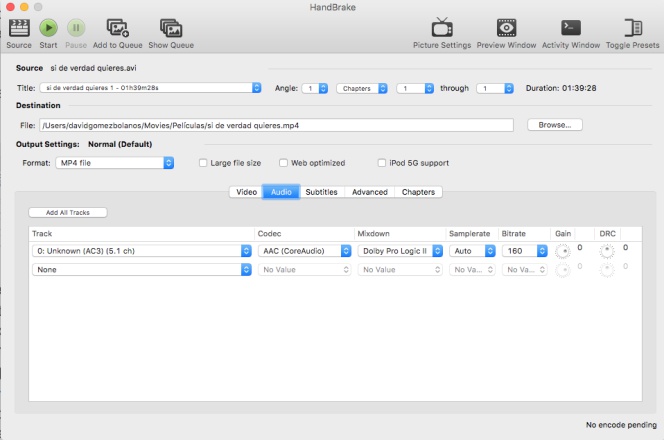
We enter the Audio tab and there we will see if there is more than one audio track, for example, with the original English version or another language.
In addition, in the “Codec” column we choose ACC or MP3 and in Bitrate, 160 instead of 256 or 320. Finally, it is best not to touch the one that puts “Samplerate” and leave it in Auto.

Now we go with the image

Here we have several points to discuss. The first will be the video codec (Video Codec). You have to choose H.264 as the codec, the most efficient and popular and is twice better in video compression than MPEG-4, in addition to being widely compatible with almost all players and devices. On the other hand, we set MP4 as a container, within the section that puts “Output Settings” in the “Format” menu.

It is time to decide if we want to reduce the resolution of the video or not. We may have recorded a video or have a movie in 4K but on which screen are we going to watch it? Probably what we have is a FullHD television or a smartphone of these characteristics, so we have plenty of that option.

To activate this we go to “Picture Settings” in the upper toolbar and set the width (Height) and height (Height) appropriate for the screen we have. This change will drastically reduce the weight of the file and for you to have it at hand, here is a list with the main resolutions:

.- 2160p (3840 × 2160)
.- 1440p (2560 × 1440)
.- 1080p (1920 × 1080)
.- 720p (1280 × 720)

The easiest is to watch the resolution of the video and download it one step in this list that we put. But if we don’t want the quality to go down, we won’t have to touch it.

You can still scratch a few megabytes touching things like Bitrate or framerate, but they are two details already for experts and thought if we have to upload the video to a social network the first, and untouchable the second if we do not want to lose quality, so It is better not to touch them.

With everything ready, we give “Start” and wait. In a few minutes we will have our new video file already compressed, with optimal quality and with many less busy megabytes.

Why is H264 a high quality video standard?

Let’s say you have a very good technology that allows you to have a high quality video using a small bit rate allowing high quality video to be offered to a wide variety of devices, from low-performance mobile phones to Blu-ray devices equipped with Maximum performance

H.264

In summary, the H264 is suitable for any platform, from handheld devices to high definition material.

The H264 standard reduces the amount of information needed to play a video.

Its compression system that I explain roughly so that it can be better understood in the video The best codec for editing videos makes you get a more compressed file and that does it along with its versatility of playback on different devices that is the preferred codec to export the final result of our edition.

It’s time for H.264.

Learn how to choose the right coding tool and optimize H.264 encoding for ideal quality and device compatibility

H.264 It is the only compression technology that plays on all computers, mobile devices, and OTT players. This makes producing high quality H.264 files compatible with your devices an essential skill. Helping you acquire and / or polish these skills is the objective of this article.
Well, we will start with the compatibility issue, because if the file cannot be played on the device that is needed, its quality does not really matter much. Then, we will see, the resolution, frame rate and data rate of your encoded file, since if these are wrong, using the H.264 encoding parameters will not matter either. So we will cover how to choose the correct coding tool and the H.264 codec and how to quickly adjust the x264 encoding parameters for optimal quality in the file.

H.265 H.264

Are you one of those who have hundreds of movies on the hard drive? Convert them to H.265 to save (much) space

Now that the H.265 format has been seated for a while and more and more devices are able to decode it, it is time for you to convert your movies to save hard disk space. A video in H.265 format measures up to 50% less than in H.264, while retaining the same quality.

What is H.265?

Also known as HEVC (“high efficiency video coding”), it is a video compression standard published in 2013 that improves its predecessor in several aspects, the H.264 / AVC format, whose first version was published in 2003. H.265 offers higher image quality at smaller bit rates, which means that files take up less space. It also supports 8K UHD resolution.

How does it benefit me? If you have an iPhone, you may already be using H.265. Apple introduced it in iOS 11 to reduce the size of videos, but only when they are stored on the phone (if you share them, they are converted to a more compatible format). You can also use it to save some space on your computer or multimedia server.

Imagine you have a movie on your hard drive that comes from a Blu-ray. The movie has been encoded in H.264 format and measures 12 GB. If you convert it to H.265 with a video encoder program (or video encoder, in English), the movie will measure between 6 and 9 GB. As simple as that.

Does H.265 have disadvantages?

Yes. First, compatibility. Only modern devices are capable of decoding H.265, so don’t bother if you have a TV or multimedia device that doesn’t support the format. Players like Plex transcode the movie in real time if your device is not compatible (that is, they convert H.265 to H.264 while watching the movie), which consumes a lot of energy and resources.

It is very hard for machines to code H.265, so you need a powerful CPU or GPU to do it faster (the good thing is that you only have to do it once). But it’s also hard to decode it, so a cheap NAS or player won’t be able to do it. H.265 gets along with old gadgets.

One last consideration: it is not clear that H.265 is the future. Large platforms such as YouTube and Netflix are bidding for another more compatible format called AV1 just because they don’t want to pay the H.265 license.

In any case, H.265 is the present. If you want or need to save gigabytes on your hard drive, you have the solution a few clicks away.

Guide to fully understand lossless formats

They end with a period followed by three or four letters. It is what happens with absolutely all the files of a computer or a smartphone. These last letters represent the format in which said file is. Today we are going to focus on one type of format, the lossless format.

loseless formats

What is a lossless format?

Any element in a computer has to have some kind of format, or so to speak, some kind of structure that is known by that computer so that it can work with the file. In a parallel with the world of physical objects, the format would be something like the material with which the object is constructed.

Just as there are different materials with different properties, there are also different formats with different characteristics. Most of the files we use today have a compressed format, so they take up less space on our computer and are easier to send via the Internet, or upload to a social network. However, these formats are not the highest quality, since this position would be occupied by lossless formats. These formats retain the original quality of the file, and are the ones that offer the best results.

If we talk about images, the lossless formats are RAW, BMP and PNG, among others. Meanwhile, the compressed formats are JPG and GIF. However, there are certain differences with some of them. RAW, for example, stores all the light data captured by the camera’s sensor. It is a perfect format for photographers. But it would not even be for photographers who want to share a particular photograph on a social network. A RAW photo can easily occupy 25 MB, depending on the resolution of the camera. A high quality JPG photo would be a photograph that would occupy two or three megabytes, although it would have less quality.

loseless codecs

If we talk about audio, there are three main formats without loss: WAV, FLAC and ALAC. The latter is the one used by Apple in iTunes. They are formats that do not lose any quality with respect to the original audio. Yes we would be losing quality with MP3 and OGG.

And if we talk about video, there are few lossless formats that we can talk about. In fact, there is a problem, and storing videos without loss would be an impossible task for anyone who did not have a storage server nearby. That is why we usually opt for the MKV, WMV, and H.264 formats. Of course, the latter is much better, because the compression process is much more intelligent.

Compression, how does it work?

Now, what is this about compressed formats? As the name implies, we are talking about formats that reduce files, and we can rely on it to perfectly understand how these formats work. Surely we have all seen ourselves in the situation of having to pack a suitcase with just the right space, finish choosing all the clothes we are going to take on a trip, and finally have to decide what we can do without being able to close the suitcase, because we had too many clothes. For that is the compression of each of the formats. They remove items from that file, and thus make them weigh or occupy less.

Why are there different formats? Returning to the case of the suitcase, each person will make different decisions regarding those things that he can do without for his trip. It will vary from one person to another. The same goes for formats. The developers of these reduce the space occupied by a file, but each of the formats deletes data in a different way, so that a file compressed to JPG, can be different from one GIF, even if the two are compressed. Each of them has followed a different procedure to delete the data, and that the song, image, or video, continue to play almost the same as the original version.

When to convert from compression to lossless?

The question that heads this paragraph is especially important for all those who at some point have converted a file from a compressed format to a lossless format. And, in fact, it goes with a trap, because you should never convert a file from a compressed format to a file without loss. In reality, nothing happens if we do, but we will not improve the quality of that file, although it will now be available in a format in which the files are not compressed.

Of course, it is also not a good idea to convert a file into a compressed format, to a different compressed format. Let’s keep in mind that each compression process is different depending on the format chosen. That is, each format eliminates the data it deems appropriate to maintain image quality. If we have a file in a compressed format, that will mean that it no longer retains all data.

How to fix sound problems when playing videos on YouTube


YouTube is undoubtedly one of the most popular streaming video playback platforms. Every day there are millions of users who add new content to the platforms and many others who come to YouTube to play videos. However, many users of the Google platform face a fairly common problem, which is not listening to the sound or audio of the videos they are playing. Next, we will show how to solve sound problems when playing videos on YouTube.

youtube audio volumen

The most reliable option is to use Mp4Gain to fix the volume levels of videos that we have downloaded. Not only can we normalize the audio volume of the videos, but we can make many other improvements and changes, such as modifying the tempo without affecting the pitch and vice versa, equalizing, etc.

But if it’s videos that we are watching on YouTube, it’s different.

It is likely that the first thing that comes to mind before an error of this type is to restart the computer, but if this does not solve the problem we must perform another series of checks. One of the most basic is to check that in the volume setting our speakers are not silent or that the volume level is at a minimum. It is also convenient that we review the volume control of the video itself on YouTube, as it may also be muted.

Steps to follow to solve sound problems when playing videos on YouTube

youtube audio
BERLIN, GERMANY – NOVEMBER 19: The Logo of video-sharing website YouTube is displayed on a smartphone on November 19, 2018 in Berlin, Germany. (Photo by Thomas Trutschel/Photothek via Getty Images)

If after checking all this we continue with sound problems when playing videos on YouTube, then we must pay special attention to our browser. The first thing to do is to verify that we do not have that tab silenced at the browser level and if it is not, then we will have to verify that we have updated the browser correctly. If not, it is convenient that we update the browser with the latest available version of it. If the problem still persists, we can try to reset it, test if we have this problem when playing the same video from another browser and if it is not, we can try to uninstall and reinstall the browser with which we have problems of sound when playing videos on YouTube.

Youtube

On some occasions, it is likely that if we have a media player on the computer at the same time that we play videos on YouTube, the error comes from some incompatibility between the two. Therefore, try closing any player you have open on the desktop.

Of course, Flash Player can also be the cause of our problem. If we have updated recently, perhaps it is best to go back to an earlier version and check if the problem is solved. On the other hand, certain files in the cache, cookies or temporary Internet files stored on the computer can cause this problem with the sound when playing YouTube videos. Therefore, it never hurts to try to delete all cached and temporary files and check if the problem is solved in this way.

If the problem still continues, what we can do is update the driver of our sound card or use the troubleshooter with audio playback that Microsoft offers us on the Windows 10 configuration page.

The war of volume in videos – normalize videos?

The other day I told you how annoying it is to be listening to music with an MP3 player and suddenly changing the volume greatly increases the volume. If the change is very abrupt, it can even damage our ears since there are reproducers that are capable of generating a great output power and in any case it is not advisable to subject our ears to such a rate of auditory stress.

music audio volumen

It can also happen that you record a CD with a compilation of your favorite music and that when you put it on a party you have to be increasing or decreasing the volume all the time depending on the theme that sounds as the output intensity varies. This, like the previous example of the MP3 player, is because the audio files (mp3) are recorded at different output intensities and therefore each one sounds at a different volume regardless of whether or not you change the volume on your player

So that this difference between the strength with which the different songs sound does not continue to bother you what you have to do is to normalize the sound of all MP3s. To normalize the sound is simply to put all the files with the same output level and therefore all the songs will sound with the same volume. This way you will no longer have to go up or down the music after each song.

Now there has been a wide discussion about the volume in the videos. The truth is that YouTube is accused of ending the dynamic range … but to be honest I still listen to many YouTube videos with parts where the volume level is still very low and therefore, it is still necessary to use the Mp4Gain . But let’s continue reading what the ultra critics of YouTube say that accuse, without reason according to me, of matching all volumes:

youtube volumen audio

The elders who once had the Volume Wars in this place count:
They were not our imaginations! The average volume of music albums has been increasing over the past three decades. The full explanation is in this article: The Loudness Wars: Why Music Sounds Worse. There it is told how the “war for the attention of the disc jockeys” of the radios of the last century led to an endless spiral of “let’s raise the volume a little more, so that it attracts more attention when I put it”, “a a little more »,« a little more »… This effect was later extended to digital MP3 players, where if after a few seconds between a song and the next one the second one sounds louder, it seems that« you hear best”. The result is an absurd war of more and more forced volume in each song, which in the end has produced that details and quality are lost in commercial music.
Now that fight without quarter seems to be over, as they explain in detail in this article: YouTube has just put the final nail to the coffin of the wars of the volume in Production Advice.
As he has analyzed the latest videos of great successes, they have been normalized by a kind of magic wand on YouTube, so that they all sound apparently with the same volume, although they come from radically different sources and with a greater range of volumes.

So eliminating the volume of the equation, the new game will consist of increasing the dynamic range of music, that is, the differences between the quietest and quietest moments and those of the highest volume, something that can be done elegantly by providing great moments acoustics as many artists have demonstrated for decades.

What is the difference between MP4, AVI and MPEG?

MP4, AVI and MPEG are three different digital video formats. All of them widely used in a medium or other format, but are not compatible with each other. MPEG (of which MP4 is actually a version) is the most widely used, but AVI is gaining ground.

Types

AVI or Audio Video Interleave, is a format developed by Microsoft. MPEG is the common standard format term created by Moving Picture Experts Group.

Differences

AVI can be played in most Windows-based applications, such as Windows Media Player. MPEG works primarily with QuickTime, Apple-based applications and video discs, while MP4 is used primarily with many personal media players such as iPod and PSP.

ID
MP4 is actually MPEG-4, a subset of the MPEG standard. What people usually refer to as MPEG is MPEG-1 or MPEG-2. In contrast, MPEG-3 is not MP3, which is included in MPEG-1.

Importance
MPEG-1 is used with video compact discs (VCD), while higher quality MPEG-2 is used for DVDs.

Benefits
The biggest difference of MP4 from the other MPEG formats is its ability to save subtitles, still images and other data with digital audio and video.

Warning
Some personal devices can be advertised as “MP4”, using the term colloquial, but they actually play AMV files.

Avi or mp4 ?? which is better and why?

which of the two video formats is better ???

if the 2 are 1200×720 which gives me better quality ????

The avi with the codex divx is better.
Obviously the best quality format is .avi but it is heavier than the .mp4 format because this is a compression format mostly used for portable devices.
what happens is that the mp4 is used for cell phones and Mp4 players (that is, its quality is reduced).

AVI, MKV, MPG, WMV, FLV, OGM, MOV, MP4 are VIDEO CONTAINERS, that is, the files that contain video, audio and subtitle streams inside. The container has no effect on the quality of the video or audio or subtitle.

But which video format is better? An avi, mp4, wmv, mpeg?

The correct question is that VIDEO FORMAT offers the best quality / weight ratio.

DivX / XviD, h264, WMV8, WMV9 / HC-1, RV30 / RV40, VP8, MPEG are some VIDEO FORMATS.

The one that best quality / weight ratio offers at the moment is the H264 and which is widely surpassed by the new H265 that offers the same quality but at half the weight of an h264, the H265 standard – and the format has the same name – this Made for streaming video and take advantage of the bitrate or speed of transmitted data, this is why it offers this relationship of maintaining the same quality but at half the weight of the previous H264 standard.

The MOV and FLV containers have chosen to adopt this h264 format because of its quality / weight advantages, even though the h264 is the common format for videos on BluRay discs. There are also several encoders to h264 being the best free x264 encoder, so the free video software uses it, and some commercial programs also use it.

So you can play your movies without problems on your X media player, you should consider the following:

Read the manual to know which video CONTAINERS are recognizable by the software of the reproductive system, also that AUDIO and VIDEO FORMATS, and most importantly, WHAT coding FEATURES they must comply with.