
In the end, with any device we have a workhorse in what refers to its ability to store multimedia content. The new qualities of the videos, especially if we talk about 4K, consume more megabytes of our already adjusted memories full of music, photos, apps, etc. Is there any way to reduce the weight of these files without sacrificing quality? Yes, it exists and it is also free.
We already know that Mp4Gain allows us to improve the audio, so after doing everything here we will recommend, to the resulting file, with smaller size, we will give it its final touch with Mp4Gain
to make sure your audio is magnificent.
But for now we will see how to reduce the size of the original video.
For the work we will take advantage of a great program that is free and with versions for Mac and Windows. This is Handbrake, an amazing tool that is Open Source and free for the amount of options it has. As an option in Windows is Freemake Video Converter, but where the first option is, the truth is that the second makes little sense.
First we compress the audio
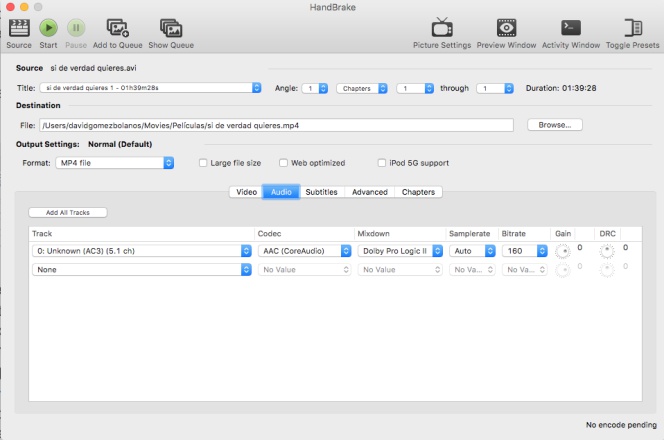
Once we have Handbrake installed, it can also be useful for other tasks such as changing a file format (from MKV to MP4 so that it can be recognized by an iPad or put integrated subtitles). However, let’s continue with what concerns us first and is to reduce the megabytes it occupies.
We enter the Audio tab and there we will see if there is more than one audio track, for example, with the original English version or another language.
In addition, in the “Codec” column we choose ACC or MP3 and in Bitrate, 160 instead of 256 or 320. Finally, it is best not to touch the one that puts “Samplerate” and leave it in Auto.
Now we go with the image

Here we have several points to discuss. The first will be the video codec (Video Codec). You have to choose H.264 as the codec, the most efficient and popular and is twice better in video compression than MPEG-4, in addition to being widely compatible with almost all players and devices. On the other hand, we set MP4 as a container, within the section that puts “Output Settings” in the “Format” menu.
It is time to decide if we want to reduce the resolution of the video or not. We may have recorded a video or have a movie in 4K but on which screen are we going to watch it? Probably what we have is a FullHD television or a smartphone of these characteristics, so we have plenty of that option.

To activate this we go to “Picture Settings” in the upper toolbar and set the width (Height) and height (Height) appropriate for the screen we have. This change will drastically reduce the weight of the file and for you to have it at hand, here is a list with the main resolutions:
.- 2160p (3840 × 2160)
.- 1440p (2560 × 1440)
.- 1080p (1920 × 1080)
.- 720p (1280 × 720)
The easiest is to watch the resolution of the video and download it one step in this list that we put. But if we don’t want the quality to go down, we won’t have to touch it.
You can still scratch a few megabytes touching things like Bitrate or framerate, but they are two details already for experts and thought if we have to upload the video to a social network the first, and untouchable the second if we do not want to lose quality, so It is better not to touch them.
With everything ready, we give “Start” and wait. In a few minutes we will have our new video file already compressed, with optimal quality and with many less busy megabytes.

