What is video resolution?


Free Download Mp4Gain
picture

What is video resolution?

video resolution

You need to better understand resolution to create videos that are easy for users to see.
Resolution is a term that indicates the density of pixels in a moving image. The resolution is freely selectable and there are various types.

Video Resolution

In this article, we will present in detail the scheme and types of resolution, and the advantages and disadvantages of high resolution.
Use it for your own video production.

What is resolution?
The resolution of a video is one pixel, which is expressed by the number of pixels in the vertical and horizontal directions of the video.

Specifically, there are “1280 x 720” and “1920 x 1080”, and the higher the resolution, the higher the number of pixels, and the image looks beautiful. For example, in the image of a fruit represented by “640 x 360” and the image of a fruit represented by “2560 x 1440”, the latter is more detailed, so it looks more beautiful.

The number of pixels is the total number of vertical and horizontal pixels.

If the resolution is “1980 x 1080”, the number of pixels will be “2,138,400”. When delivering video over the web, this resolution has a significant impact on user visibility.
Therefore, it is necessary to set it to an appropriate value.

Resolution type
Resolution type

There are different types of resolution.
The resolutions used in the video are as follows.

・ 256 × 144 (144p)
・ 427 x 240 (240p)
・ 640 × 360 (360p)
・ 720 x 480 (SD)
・ 1280 x 720 (HD)
・ 1920 × 1080 (FHD * 2K)
・ 2560 × 1440 (1440p)
・ 3840 x 2160 (UHD * 4K)
・ 7680 x 4320 (SHV * 8K)
Also, YouTube recommends a resolution of 240p to 2160p, but in reality this resolution is common and commonly used.

However, when the resolution is actually 400p or less, the image quality seems a bit uneven.
Therefore, it is better to set 480p or higher as a guide.

See: Video Resolutions and Aspect Ratios – PC – YouTube Help

Advantages and disadvantages of high resolution.
The advantage of making the video high resolution, as I mentioned earlier, is that the image quality is better and easier to see.

However, it does not necessarily mean that the resolution is high.
If you set the resolution higher than the resolution that can be displayed on the screen that plays the video, the image quality with the set resolution cannot be played back. The higher the resolution, the larger the size of the video file.

For example, suppose the resolution is 1080p and the file size is 1GB.
If it is set to 2160p with the same image quality and length, the screen area will be quadrupled and the file size will be 4GB.
The larger the file size, the slower the transfer of video data, and if the user is using a smartphone, the amount of data communication tends to be consumed. Therefore, it is important to set the resolution taking into account the file size as well.

How to check the resolution
You can easily check the resolution of the video by downloading the video to your computer.

For Windows 10, select the video from the “Details Window” on the Explorer ribbon.
The video details window will be displayed, so let’s check it out from there.
If the width of the frame is 720 and the height of the frame is 480, the resolution is “720 x 480”.


Free Download Mp4Gain
picture


Mp4Gain Main Window
picture


Mp4Gain Features
picture


Free Download Mp4Gain
picture

What is the difference between “mov” and “mp4”?

What is the difference between “mov” and “mp4”?

MOV VS MP4

First of all, there are many people who know the names of the video formats “mov” and “mp4”, but do not know what they are or how to use them, but first of all, “mov” and “mp4”. “What is it?

MP4 VS. MOV

“Mov” is Apple’s standard video format, and of course it is a file that is supported by Apple products.

However, it is not very compatible with Windows PC, so there are many Win users who have had problems with files in this format.

“Mov” can be used by codecs like H.264, MJEG and MPEG-4.

What is “mp4”? The file extension is basically “mp.4”, but there is also “.mv4”.

Being a file format created based on MOV, it is characterized by being compatible with Apple products, but it is also compatible with Windows, smartphones, streaming playback, household appliances, etc. and it is widely used. It is a file format that is used.

It is important to use it correctly according to the purpose!

I explained the difference between “mov” and “mp4” respectively, but after all, many people wonder which one is better, but which one is better after all?

It depends on the application.

If you are thinking of uploading your video to the web, it is recommended to convert the video to “MP4”. Most video sharing services do not support MOV format, so if you use the “MP4” standard, there is no mistake.

However, when saving a video on PC or editing it on PC, MAC users must save it in “MOV” format.

What is an MKV file?

What is an MKV file?

MKV

When playing a video, the image and sound quality during playback are usually conscious.

MKV

Also, due to the lightness of the file, you can enjoy it smoothly and stress-free when playing videos. There are several types of video playback files. See a typical video playback file.

Video file type
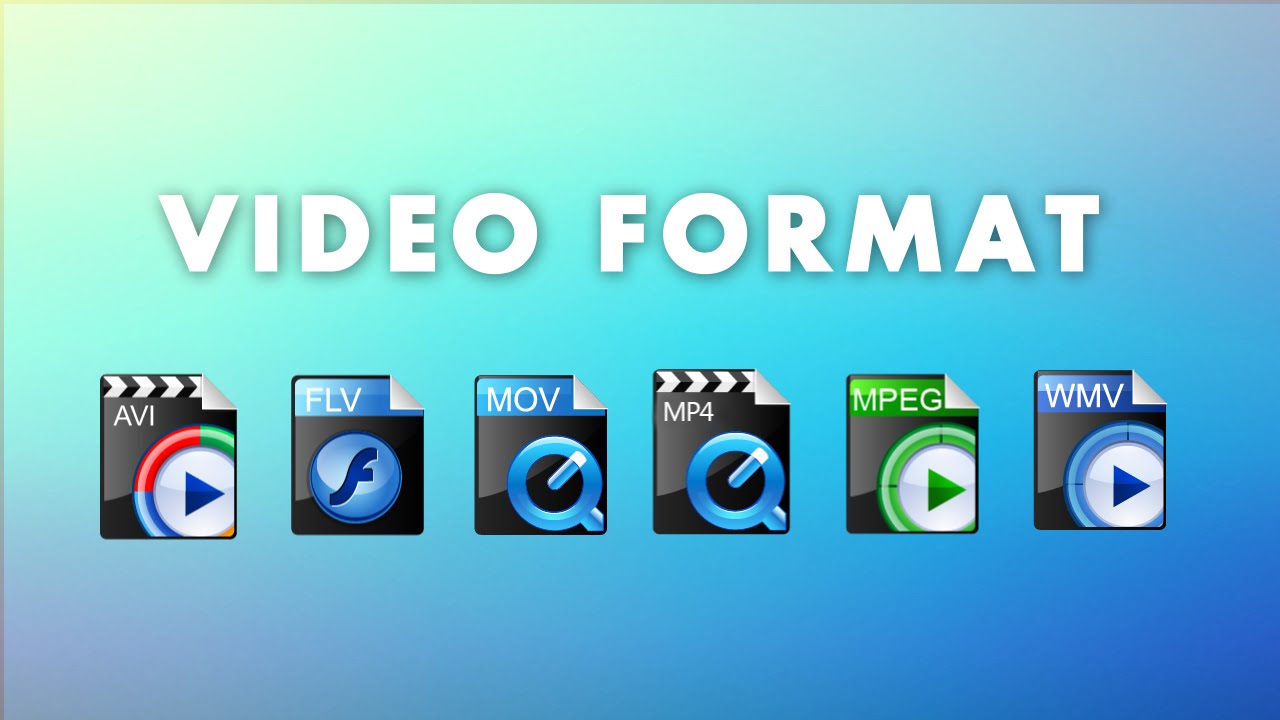
The AVI file (.avi) is a standard Windows file format and is a video playback file that is often used when playing videos on a Windows computer. It is characterized by its high versatility, and various compressed videos and audio are archived.

QuickTime files (.mov) are a standard Mac file format, but you can use them on a Windows computer as long as “QuickTime Player” is installed.

WMV files (.wmv) are a Microsoft-created file format developed for streaming video distribution. It is based on MPEG-4 and has a high compression rate.

FLV files (.flv) are a file format created by Adobe Systems. It has the feature that it can be played in a browser using “Adobe Flash Player” and is used on video sites like YouTube and Nico Nico Douga.

MPEG-1 (.mpg) files are a file format used for Video CDs, etc., but are characterized by low image quality and large file size. You can play it on any type of computer.

MPEG-2 files (.mpg) are a compatible digital format used on televisions. Image quality is superior to MPEG-1 and is close to DVD level.

MPEG-4 (.mp4) files are generally popular video files. It features high image quality and a high compression rate, and is supported as standard on both Windows and Mac.

Various MKV files can be used for video data, audio data compression, and codecs. The feature of MKV is that it can handle different types of converted video, audio, and subtitle streams.

The most popular video playback file in terms of image quality and file size is MP4. Compared to this MP4, MKV file is attracting attention recently in terms of image quality. Let’s see the difference between MP4 and MKV video playback files.

What is the difference between MKV and MP4?
Comparing the differences between MP4 and MKV, which have been popular so far, in terms of device, image quality and file size, there are the following differences. Understanding the difference will help you understand which files are useful for playing videos.

MKV comparison image
Differences in the devices that can play videos
The differences between the devices that can use MP4 and MKV are as follows. From a versatility point of view, MP4 uses H.264, which has a high compression rate, for videos. The feature is that the audio is combined with high-quality AAC and can be used on various devices. It can be said that MP4 is available for many devices.

MKV also appears to be less versatile than MP4 in terms of video and audio compression. However, it is attracting attention for its features, such as improving video quality, compression ratio, maintaining video / audio quality, and the ability to add chapters and subtitles. This file is useful when you want to edit the video such as chapters and subtitles.

Video file formats / formats

Video file formats / formats

Video Formats

What you want to know before making a video

Video Formats

Just as images have resolutions and file formats, there are some fixed formats and specifications for videos. Naturally, moving images, moving images, have more elements to define in the specifications, and the mechanism is complicated.
In fact, people in charge of marketing and promotion, advertising agencies, etc., can often feel disgusted by observing the presentation rules of each company.
This time, to dispel the weaknesses of those people, I would like to present a few main points that need to be understood in the video specs and the optimal video specs on major platforms like YouTube and Facebook.

1. Six Points Defining Video Specifications
Now, I would like to explain the six main points in the video specs.

1-1. Resolution
Like still images, videos have resolution. Image resolution refers to “size” and “pixel density”, but for moving images, resolution refers to “horizontal x vertical pixel count”.

The resolutions of familiar things are 720 x 480 SD image quality for DVD, 1920 x 1080 full HD for Blu-ray and 1440 x 1080 for digital terrestrial broadcast (* The reason why the aspect ratio is different from other will describe later).

Typical resolutions include
Full HD (1920 x 1080) / HD (1280 x 720) / SD (720 x 480) / 4K UHD (3840 x 2160)
.

Video resolution
Cameras like the iPhone X support 4K video recording and major streaming services like Netflix and Amazon Prime Video support 4K distribution.

Recently, with the expansion of smartphones and the rise of vertical signage, videos with long vertical resolutions and square videos like Instagram have also appeared.

Some people have said that “Full HD resolution is enough”, but the screen has gotten bigger, the price of 4K TVs has dropped, the drawing power of the smartphone screen has improved, and 4K / 8K has been improved. it has been generalized mainly by the Ministry of the Interior. Issues and Communications: As various efforts are made in this regard, it is expected that further progress will be made on a higher resolution.

1-2. Pixel aspect ratio
The pixel aspect ratio, also called the pixel ratio, represents the ratio of the width to the height of the pixels that make up the video data, and you can set the expansion / contraction ratio of the video during playback. Be careful as it is easy to confuse with the old resolution (aspect ratio of the video itself).

In digital terrestrial broadcasting, due to the compatibility with the conventional SD format and the amount of data, data with a resolution of 1440 x 1080 (4: 3) and a pixel aspect ratio of 4: 3 is distributed and stretched on the side of the TV. When doing so, the appearance is 16: 9, but it’s okay if you think you are basically using square pixels (1: 1) in WEB video.

1-3. File format (container), codec
To understand the file format of a video, you need to understand what is called a “codec.”

Audio and video data are stored in a “video file”.
In addition, data is compressed and encoded (also called encoding) using a “codec” so that it can be processed more efficiently and more easily by personal computer software.

In other words, when a video is played, it cannot be played unless the data is decompressed using the same “codec” as the “codec” used when compressing.

Note that the codec cannot be identified by the file extension alone. When making a request to a production company, be sure to also specify the codec.

To make it easier to understand, we will use “codec” as “key” and “video / audio data” as “treasure box”.

There are two treasure chests in the video archive, each locked with a different key. That is, to open the treasure chest and play the video, the key (= codec) corresponding to each treasure chest is required.

If you lock with “Key A” when generating video data and “Key B” when generating audio data, the video will play normally if you don’t have “Key A” and “Key B” in your hand. You can’t do it and if you only have “Key A”, you won’t be able to play the audio.

Video encoding: what you need to know.

Today a little technical point about video encoding – that is, the last step in creating a view once your editing is complete. The question is often rightly asked because, as well as your editing, mis-coding can completely ruin image quality and undermine both your work and your investment in high-end equipment.

Video Encoding

Depending on the editing software used, you can access different options or be presented differently. They can be offered as presets, fully configurable or not. However, you should find the items described below.

Resolution and image format

The resolution of your video is the number of pixels in height and width. It shows width x height. Marketing terms and language simplifications have rebelled, but we find above all:

‘HD’: 720p or 1280 x 720
“Full HD”: 1080p or 1920 x 1080
“Ultra HD”: 4K or 3840 x 2160

The Importance of Video Encoding - Bold Content Video Production

These resolutions are for an aspect ratio of 16: 9, which is the current standard for most productions. They may differ if you export in a different format, such as 2.35: 1, which is close to 2.39: 1 or 2.40: 1, which is commonly used in the cinema.

Basically, with this quick little focus done, when exporting you usually know what resolution it will deliver. If you’re just starting out and haven’t done anything specific, it should be the same as your source files. For example, if you recorded in 1080p, it will be displayed in 1080p. You can do this if you want to render 720p, but it would be a shame to lower the resolution.

Unless, of course, you’ve followed my article on 4: 3 filming, which is filming in a format that allows more flexibility in post production before exporting in 16: 9.

Frame rate or frames per second

The number of frames per second (fps or “frames per second”) is not difficult to understand: the more important it is, the more your video has frames (or frames) for a second of video. The default for action video is 30 fps (or 29.97). Some export at 60fps – I personally detest this frame rate for classic video. You could talk about it for hours and maybe write an article about it someday, but whatever it is: it’s up to you to choose what you like and choose the size that suits you best.

But be careful, if you’re shooting at 30fps, rendering at 60fps is useless and counterproductive – source files don’t contain enough images. However, you can export without problems at a lower frame rate than the source files.

Codec or format

It is, to put it simply, the reel that your video goes through to be encoded. It should be noted that we often talk about language abuse codec to invoke the video encoding format or the standard, while originally the codec is the software that allows video encoding in one or more formats using appropriate libraries. . For example, here I will approach H.264, a format used by the x264 encoder or codec. In short, this small development is complete, let’s move on.

The codec attributes define the quality of the output video for a given bit rate (and thus a size) and the compression / decompression performance.

In most cases, the second parameter is of no interest to you. Any modern computer can play 4K video encoded with the leading codecs on the market. On the other hand, for a Blu-Ray export, for example, we come to slightly more specific considerations, because the hardware that reads the data on the disc is much less efficient than a PC. As for compression, it goes without saying that it is an advantage to keep your machine running for a few more hours to gain quality or in the disk space occupied by the final display, this time it will recover when you go watch, share or Save video.

Therefore, the quality of the video is the most important factor when choosing a codec. Currently, H.264 is found everywhere for its good performance, while its successor, H.265, promises to nearly halve the bit rate required to achieve the same quality while supporting 8K / 300fps.

Bitrate

Bitrate is the most important factor that will determine the quality of your video. It corresponds to the volume of data written for a second of video: the more it is, the more disk space is used, but the more the amount of information increases, which improves quality. In fact it is just like for a photo: if it is very compressed, the quality deteriorates, but occupies a very small place in its storage medium, otherwise the quality is preserved.

What is the best video converter and video format?

What's The Best Video Format? | Biteable

Before converting a video or movie, many people ask what is the best video format, that is, with the best compromise between file weight and video quality.

It is not easy to answer this question, also because we first have to define well what is meant by video format.

For example, many believe that AVI is a simple video format, but it is not.

6 of the Best Video Formats for 2020

.AVI is a container, not a format that can be different types of video and audio “formats” inside. In fact, video formats such as .AVI MPEG-1, MPEG-2, MPEG-4, WMV, RealVideo, Theora and these MP3, WMA, AC3, DTS audio formats can co-exist within

In practice, you can find within an .AVI video, on an MPEG-2 video (divx) and AC3 audio format

The MPEG-4 format is instead a compressed .mp4 format (mp4v and mp4a). If you convert from .mp4 to .AVI, you will have “unpacked, unzipped” the two .mp4 formats (audio and video, MPEG-4 video, MPEG AAC audio or MPEG-4 video, and MPEG 1/2 / 3 mpga audio layer

by downloading a .AVI file, instead of selecting another container (for example .MKV), you will have decomposed the .mp4 audio and video format inside a .MKV -container.

For this reason, AVI, MKV are larger video files, precisely because they are not compressed. Instead, the MPEG-4 format is the compressed video format. Depending on your needs, you can choose one or the other format.

If you are looking for a format that has a good compromise between QUALITY, not the excessive weight of the video and COMPATIBILITY with any device (smartphone, tablet, smart TV, computer, etc.), we recommend using FORMAT .MP4

To convert between video or audio formats and also make a number of improvements, we recommend the one that is undoubtedly the best video converter and audio converter, as it also allows you to normalize the volume level, to change the pitch without changing the speed and vice versa, to equalize and many other interesting options, at a very moderate price, generally lower than the typical video converter.

Which video format is better?

Which video format is better?

Surely, like me, you have often wondered which video format is best for recording, editing and exporting for YouTube or social networks. And there is not a single format for everything, but many, too many! Let’s see which ones you need for each task.

In what format to record on camera

The semi or professional video cameras that we can find in the market have recording options in the most common formats, in addition to some RAW formats that we can find in cameras with higher segments. For example, the BlackMagic 6K is capable of recording on Blackmag
ic RAW, the new format developed by BlackMagic Design.

It is always recommended to use the least compressed formats possible as long as we are going to work intensively with the color of that video. This is like a photograph: we will always have much more leeway with a RAW photo than with a compressed JPG photo.

For this reason, the cameras include slightly more compressed formats, such as ProRes, H.264 or H.265. ProRes is a mid-range format that offers a good balance of image quality and size and allows for color correction without loss of quality, making it suitable for professional environments. But undoubtedly the fastest and most suitable for ordinary mortals is the H.264. H.264 is the JPG of video, an off-road format accepted by the vast majority of online video players and services.

H.264 problem? That when editing is a resource eater, since the CPU has to decompress the signal. But if you have a fairly powerful PC you should have no problem. Oh, by the way, there are video editors capable of decoding H.264 and H.265 using the GPU, not at the software level, but at the GPU level. For example, in DaVinci Resole Studio we can activate this option by going to the preferences and in Decoding we activate Use hardware acceleration and NVIDIA or the graphics card we are using. I tell you that the speed jump is dramatic.

Also, there are some cameras capable of recording in H.265 format. For example, we can record in H.265 (also known as HEVC) on the Panasonic GH5, but only in a very specific recording format. It is noteworthy that this mode in the Panasonic allows HDR through HLG (Hybrid Log Gamma or high dynamic range). So if you have a monitor compatible with this system, use the original color space of these Rec2020 HLG clips, since selecting this color space in DaVinci Resolve you can get images with a great dynamic range, or change the color space later. to Rec709 to recover light levels of this standard space.

Okay, and up to this point the big question: in what format do we record? It depends. It is not the same if you are recording a short film than a video for YouTube. In my personal experience, for YouTube I do not complicate my life and use more or less standard configurations. In fact, right now I’m recording this using the GH5 H.264’s preset with 8bit color at 25fps and 100mb and with the Cinelike D color profile, not V-Log or anything like that, but Cinelike D. Note that YouTube then compresses the video, I do not see much sense in recording with more bitrate or more color depth, so I use this simple and busy preset.

VIDEO CONVERSION SOFTWARE

Then there are other formats like MP4 or AVCHD, but basically they use a lower bit rate.

But it may be the case that we want to record a movie with our GH5. In that case I do recommend going to more “professional” profiles so to speak. Keep in mind that each camera is a world, but as a general rule, when we are recording something with a more cinematic aspiration, I recommend going to the highest quality option that the camera gives. There are cameras that allow you to record in RAW, so we will need tons of storage. For example, in the GH5 the highest quality preset is 4K at 400 megabits per second with a color depth of 10 bits. Take chestnut. That is, 50 megabytes per second at 10 bit color, absolutely crazy.

In fact, it is so crazy that any SD card is not worth it, because if we use one that has a low writing speed, we will run out of buffers and stop recording. So it is essential to use special cards that allow this recording speed, for example I have the 128GB Sony M Series, which allow a writing speed of 150 Megabytes per second. Be careful, here we are mixing megabytes and megabits. In the camera preset we will see 400 megabits, that is, the mbps in lowercase, while the card shows it in Megabytes, with the MB in uppercase.